> ## Documentation Index
> Fetch the complete documentation index at: https://docs.suprsend.com/llms.txt
> Use this file to discover all available pages before exploring further.
# Mobile Push Setup
> Integrate Firebase Cloud Messaging FCM push into your Android app with SuprSend, including Firebase project setup, service account keys, and SDK installation.
## Integration Steps
To start sending notifications from FCM, you'll have to first create a firebase project. Create firebase project and application in [firebase console](https://firebase.google.com/) with your applications package name which you can find in *`MainApplication.java`* or *`AndroidManifest.xml`*
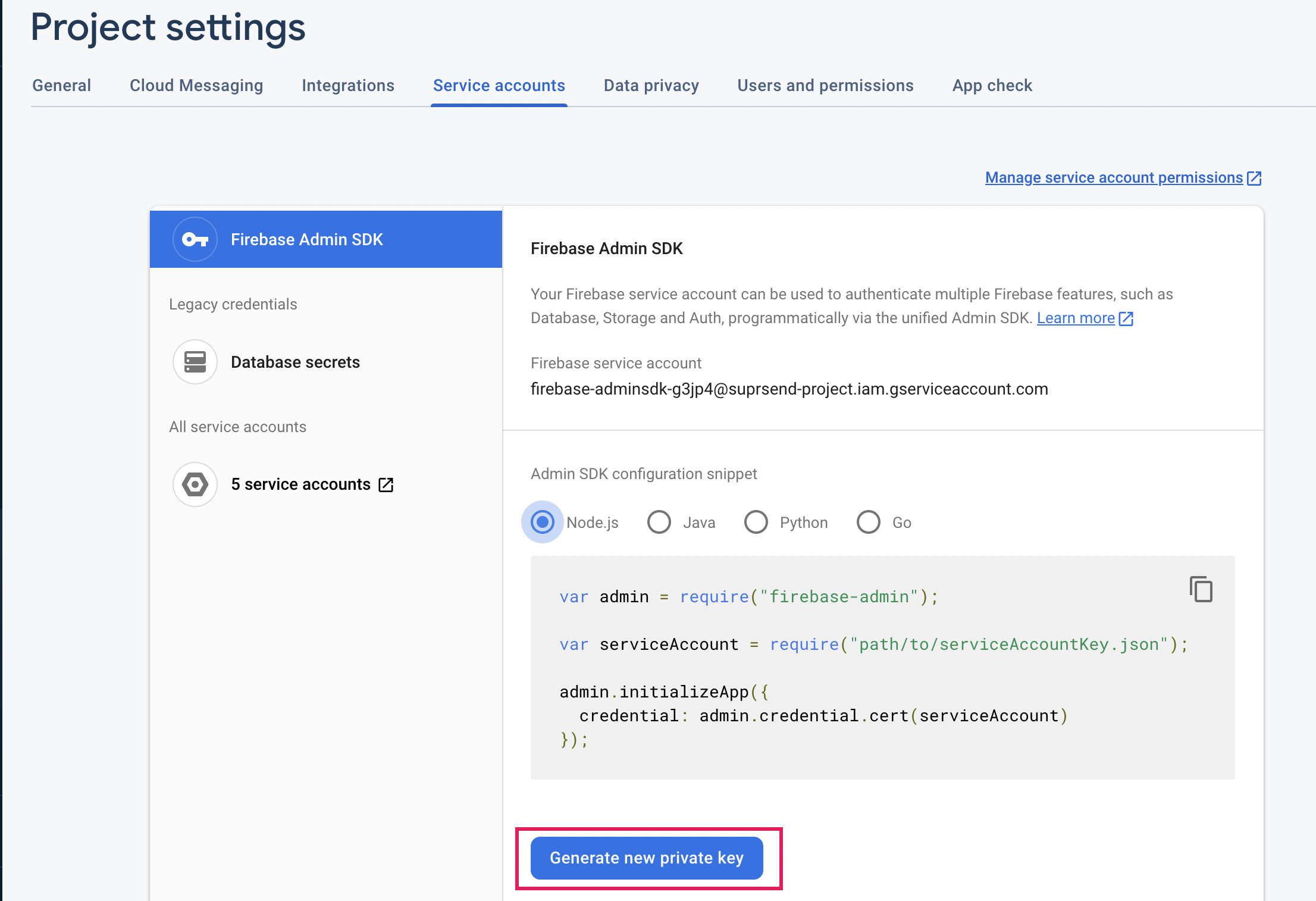
You can get your Service Account JSON by [following these instructions](https://firebase.google.com/docs/cloud-messaging/auth-server#provide_credentials_manually). Download **google-services.json** and add the file inside your android>app folder.
 Add below dependency inside projects *build.gradle* inside dependencies
```groovy build.gradle theme={"system"}
dependencies {
...
classpath 'com.google.gms:google-services:4.3.10' // or latest version
}
```
Add below plugin inside apps *build.gradle*
```groovy build.gradle theme={"system"}
apply plugin: 'com.google.gms.google-services'
```
Add below dependency inside apps *build.gradle* inside dependencies
```groovy build.gradle theme={"system"}
implementation("com.google.firebase:firebase-messaging:22.0.0") // or latest version
```
Push feature can be implemented in two ways:
You may use this option if all of your android push notifications are to be handled via SuprSend SDK. We recommend you to use this method as it is just a single step process to just register the service in your application manifest and everything else will be ready.
```xml AndroidManifest.xml theme={"system"}
```
Since your service is registered in the app manifest, to render the push notification directed from SuprSend server you will have to add the below code to your service.
```javascript helloWorld.js theme={"system"}
console.log("Hello World");
```
```kotlin kotlin theme={"system"}
class YourApplication : Application() {
override fun onCreate() {
FirebaseMessaging.getInstance().token.addOnCompleteListener(OnCompleteListener { task ->
if (!task.isSuccessful) {
Log.w(TAG, "Fetching FCM registration token failed", task.exception)
return@OnCompleteListener
}
val fcmToken = task.result
suprsend.user.setAndroidFcmPush(fcmToken);
})
//or if you are on older FCM version
val fcmToken = FirebaseInstanceId.getInstance().token
instance.getUser().setAndroidFcmPush(fcmToken)
}
```
### Asking for permission -Android 13(API-33)
```kotlin YourActivity.kt theme={"system"}
import android.Manifest
import android.annotation.SuppressLint
import android.content.Intent
import android.net.Uri
import android.os.Build
import android.os.Bundle
import android.provider.Settings
import android.util.Log
import android.widget.Toast
import androidx.activity.result.contract.ActivityResultContracts
import androidx.appcompat.app.AlertDialog
import androidx.appcompat.app.AppCompatActivity
import androidx.viewpager.widget.ViewPager
import com.google.firebase.messaging.FirebaseMessaging
import org.json.JSONObject
class YourActivity : AppCompatActivity() {
private val activityResultLauncher = registerForActivityResult(ActivityResultContracts.RequestPermission()) { isGranted: Boolean ->
if (!isGranted) {
// You can show a dialog which explains the intent of this permission request of how it is important for certain features of your app to work
AlertDialog.Builder(this)
.setView(R.layout.notification_permission_desc)
.setTitle(getString(R.string.app_name))
.setPositiveButton("Proceed") { _, _ ->
val intent = Intent(Settings.ACTION_APPLICATION_DETAILS_SETTINGS)
intent.addFlags(Intent.FLAG_ACTIVITY_NEW_TASK)
val uri: Uri = Uri.fromParts("package", packageName, null)
intent.data = uri
startActivity(intent)
}
.setNegativeButton("Deny") { _, _ ->
}.show()
}
}
override fun onCreate(savedInstanceState: Bundle?) {
super.onCreate(savedInstanceState)
if (Build.VERSION.SDK_INT >= Build.VERSION_CODES.TIRAMISU) {
activityResultLauncher.launch(
Manifest.permission.POST_NOTIFICATIONS
)
}
}
}
```
If the androidx dependency is not present then you will have to add the below dependency in your app dependencies
```Text app/build.gradle.kts theme={"system"}
dependencies {
implementation("androidx.appcompat:appcompat:1.3.1")
}
```
**How to identify if notification is sent by SuprSend?**
If notification payload contains key **supr\_send\_n\_pl** then simply consider this as payload sent from suprsend and pass the payload to suprsend SDK by:
if (payload?.data?.supr\_send\_n\_pl) \{
suprsend.showNotification(payload.data.supr\_send\_n\_pl);
}
***
Add below dependency inside projects *build.gradle* inside dependencies
```groovy build.gradle theme={"system"}
dependencies {
...
classpath 'com.google.gms:google-services:4.3.10' // or latest version
}
```
Add below plugin inside apps *build.gradle*
```groovy build.gradle theme={"system"}
apply plugin: 'com.google.gms.google-services'
```
Add below dependency inside apps *build.gradle* inside dependencies
```groovy build.gradle theme={"system"}
implementation("com.google.firebase:firebase-messaging:22.0.0") // or latest version
```
Push feature can be implemented in two ways:
You may use this option if all of your android push notifications are to be handled via SuprSend SDK. We recommend you to use this method as it is just a single step process to just register the service in your application manifest and everything else will be ready.
```xml AndroidManifest.xml theme={"system"}
```
Since your service is registered in the app manifest, to render the push notification directed from SuprSend server you will have to add the below code to your service.
```javascript helloWorld.js theme={"system"}
console.log("Hello World");
```
```kotlin kotlin theme={"system"}
class YourApplication : Application() {
override fun onCreate() {
FirebaseMessaging.getInstance().token.addOnCompleteListener(OnCompleteListener { task ->
if (!task.isSuccessful) {
Log.w(TAG, "Fetching FCM registration token failed", task.exception)
return@OnCompleteListener
}
val fcmToken = task.result
suprsend.user.setAndroidFcmPush(fcmToken);
})
//or if you are on older FCM version
val fcmToken = FirebaseInstanceId.getInstance().token
instance.getUser().setAndroidFcmPush(fcmToken)
}
```
### Asking for permission -Android 13(API-33)
```kotlin YourActivity.kt theme={"system"}
import android.Manifest
import android.annotation.SuppressLint
import android.content.Intent
import android.net.Uri
import android.os.Build
import android.os.Bundle
import android.provider.Settings
import android.util.Log
import android.widget.Toast
import androidx.activity.result.contract.ActivityResultContracts
import androidx.appcompat.app.AlertDialog
import androidx.appcompat.app.AppCompatActivity
import androidx.viewpager.widget.ViewPager
import com.google.firebase.messaging.FirebaseMessaging
import org.json.JSONObject
class YourActivity : AppCompatActivity() {
private val activityResultLauncher = registerForActivityResult(ActivityResultContracts.RequestPermission()) { isGranted: Boolean ->
if (!isGranted) {
// You can show a dialog which explains the intent of this permission request of how it is important for certain features of your app to work
AlertDialog.Builder(this)
.setView(R.layout.notification_permission_desc)
.setTitle(getString(R.string.app_name))
.setPositiveButton("Proceed") { _, _ ->
val intent = Intent(Settings.ACTION_APPLICATION_DETAILS_SETTINGS)
intent.addFlags(Intent.FLAG_ACTIVITY_NEW_TASK)
val uri: Uri = Uri.fromParts("package", packageName, null)
intent.data = uri
startActivity(intent)
}
.setNegativeButton("Deny") { _, _ ->
}.show()
}
}
override fun onCreate(savedInstanceState: Bundle?) {
super.onCreate(savedInstanceState)
if (Build.VERSION.SDK_INT >= Build.VERSION_CODES.TIRAMISU) {
activityResultLauncher.launch(
Manifest.permission.POST_NOTIFICATIONS
)
}
}
}
```
If the androidx dependency is not present then you will have to add the below dependency in your app dependencies
```Text app/build.gradle.kts theme={"system"}
dependencies {
implementation("androidx.appcompat:appcompat:1.3.1")
}
```
**How to identify if notification is sent by SuprSend?**
If notification payload contains key **supr\_send\_n\_pl** then simply consider this as payload sent from suprsend and pass the payload to suprsend SDK by:
if (payload?.data?.supr\_send\_n\_pl) \{
suprsend.showNotification(payload.data.supr\_send\_n\_pl);
}
***