> ## Documentation Index
> Fetch the complete documentation index at: https://docs.suprsend.com/llms.txt
> Use this file to discover all available pages before exploring further.
# Branch
> Use branch to route notifications across different paths by applying condition on input data.
Branch is an `if / else if / else` step that routes notifications through different workflow paths based on conditions. You can add up to 10 branches (9 condition branches + 1 default branch). The first branch that satisfies its condition will be executed.
Conditions are evaluated **at runtime**, using the latest available data at the moment the Branch node executes.
**Common use cases:** A/B testing, personalized journeys, conditional follow-ups, multi-step reminders, routing by trigger payload, batch/digest data, or tenant settings.
## Execution Model
The Branch node supports two branch types:
1. **Condition Branch**: Executes when its condition evaluates to true (up to 9 condition branches).
2. **Default Branch**: Executes when no condition branch evaluates to true.
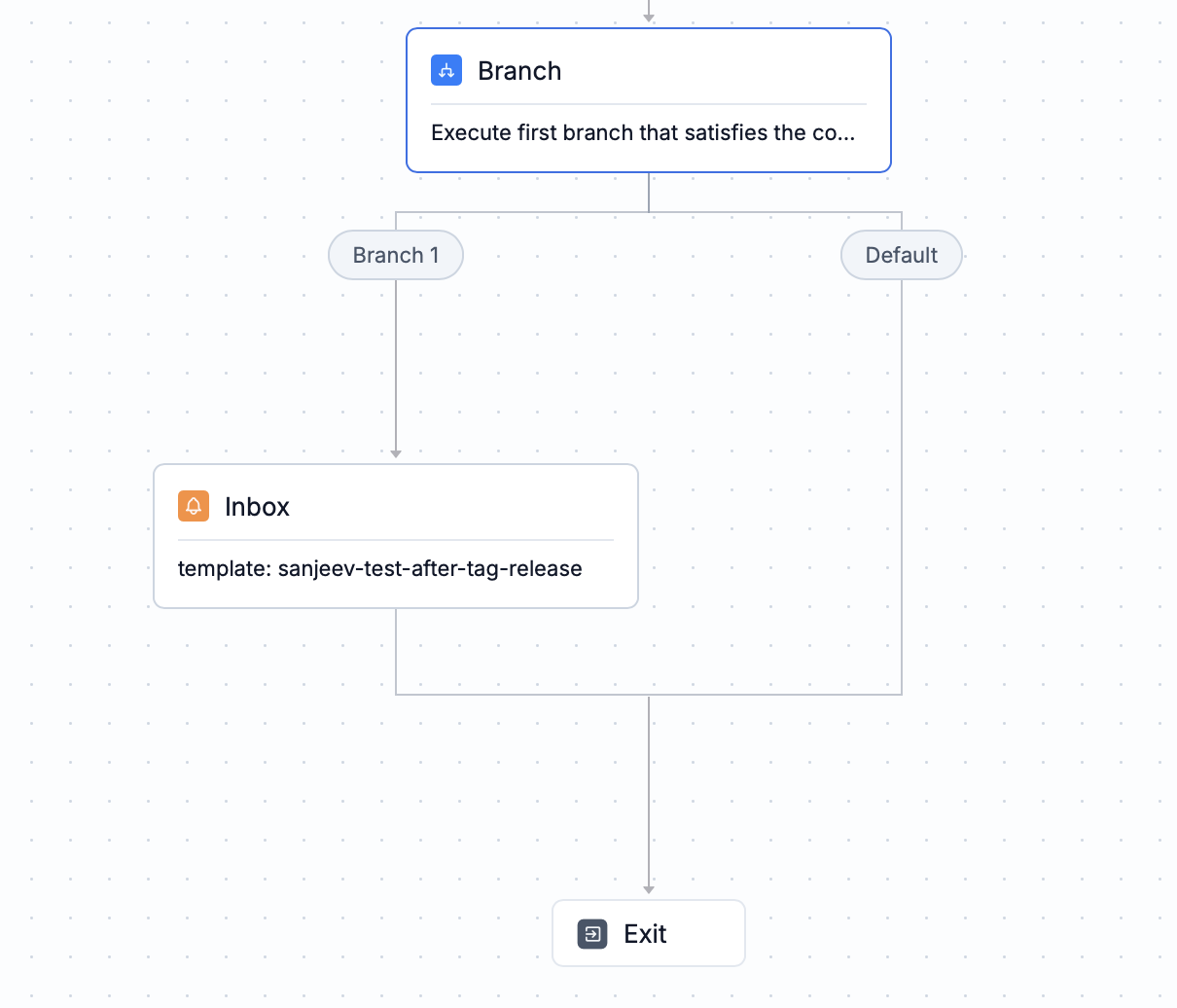 **Execution rules:**
* Conditions are evaluated in order from first to last.
* The first branch whose condition evaluates to true is executed.
* If no condition evaluates to true, the default branch executes.
* If the branch has no nodes below it, it automatically connects to the exit node.
## Condition Syntax
Conditions evaluate data from trigger payloads, user properties, tenant properties, or message status. A condition consists of four components: **Data type**, **Key**, **Operator**, and **Value**.
### Data Types
| Data Type | Description | What to pass in key | What to pass in dynamic value | |
| ------------------ | ---------------------------------------------------- | --------------------------------------------------------------------------------------------------------------------- | -------------------------------------------------------------------- | --------------------------------------------------------------------- |
| **Input Payload** | Data from trigger payload or nodes before the branch | Directly specify as `key` with no prefix | Use key directly (e.g., `payment_due_date`) | |
| **Actor** | Properties of the user who performed the action | Add as `` | Add as `$actor.` | |
| **Recipient** | Properties of the user receiving the notification | Add as `` | Add as `$recipient.` | |
| **Tenant** | Properties of the tenant/brand | Add as `` for reserved properties, `properties.` for custom properties | Add as `$brand.` or `$brand.properties.` | |
| **Message Status** | Delivery status of previously sent notifications | Pass the node slug whose message status you want to check, e.g., `message_status from node "welcome-email" == "seen"` | Pass the status you want to check, e.g., `"seen"` | Value can be one of `delivered`, `seen`, `clicked`, `delivery_failed` |
### Operators
| Operator | Usage | Supported Data Types |
| ---------------------------------------------------------- | ----------------------------------------------------------------- | -------------------- |
| `==` / `!=` | Equal to / not equal to (case sensitive) | All |
| `>`, `>=` | Greater than / greater than or equal | Numbers, timestamps |
| `<`, `<=` | Less than / less than or equal to | Numbers, timestamps |
| `contains` / `not contains` | Substring or array item match / no substring or array item match | Strings, arrays |
| `is empty` / `is not empty` | key is missing, empty or null / key is present, not empty or null | All |
| `datetime is` / `datetime is before` / `datetime is after` | Datetime equal to / less than / greater than | Timestamps |
| `intersects` / `not intersects` | Any array value matches / No array values match | Arrays |
**Type constraints**: If a key's data type doesn't match the operator (e.g., using `>` on a string), the condition will always evaluate to false.
### Values
You can either add a fixed value or a dynamic value to the condition.
#### Fixed values
| Type | Syntax |
| -------------- | -------------------------------------------------------------------------------------------------------------------------------------------------- |
| String | Enclose within double inverted commas as `"string"` |
| Number | Add without double inverted commas as `100`, `99.99` |
| Boolean | Add without double inverted commas as `true`, `false` |
| Datetime | Enclose within double inverted commas as `"2024-01-01T00:00:00Z"` or `"now+1d"` |
| Message Status | Select from dropdown on frontend or pass as `$message.seen` in workflow API. Value can be one of `delivered`, `seen`, `clicked`, `delivery_failed` |
#### Dynamic values
Dynamic values are evaluated based on the data available at the node input along with actor, recipient or tenant properties. Refer below table for types of dynamic values and their respective syntax.
| Type | Syntax |
| ------------- | ----------------------------------------------------------------------------------------------------------------------------------------------------------------- |
| Input payload | Add key directly (e.g., `payment_due_date`) |
| Actor | Add as `$actor.` (e.g., `$actor.role`) |
| Recipient | Add as `$recipient.` (e.g., `$recipient.plan`) |
| Tenant | Add as `$brand.` for reserved properties, add as `properties.` for custom properties (e.g., `$brand.timezone`, `properties.timezone`) |
## Combining Conditions
Combine conditions using `AND` and `OR` logical operators:
* **AND**: All conditions must evaluate to true
* **OR**: At least one condition must evaluate to true
**Example:** `(user_role == "admin" OR user_role == "manager") AND priority == "high"`
Nested grouping is not supported. Rewrite complex logic using equivalent expanded conditions. For example, `(a OR b) AND c` becomes `(a AND c) OR (b AND c)`.
## Condition on Message Status
Message Status is a special data type that lets you evaluate the delivery or engagement state of a previously sent notification. Common use cases include reminder and escalation workflows—for example, sending a follow-up notification if the user has not seen the earlier message.
When using message status checks, always add a delay before evaluating the status to allow sufficient time for vendors to report delivery or engagement events.
**Execution rules:**
* Conditions are evaluated in order from first to last.
* The first branch whose condition evaluates to true is executed.
* If no condition evaluates to true, the default branch executes.
* If the branch has no nodes below it, it automatically connects to the exit node.
## Condition Syntax
Conditions evaluate data from trigger payloads, user properties, tenant properties, or message status. A condition consists of four components: **Data type**, **Key**, **Operator**, and **Value**.
### Data Types
| Data Type | Description | What to pass in key | What to pass in dynamic value | |
| ------------------ | ---------------------------------------------------- | --------------------------------------------------------------------------------------------------------------------- | -------------------------------------------------------------------- | --------------------------------------------------------------------- |
| **Input Payload** | Data from trigger payload or nodes before the branch | Directly specify as `key` with no prefix | Use key directly (e.g., `payment_due_date`) | |
| **Actor** | Properties of the user who performed the action | Add as `` | Add as `$actor.` | |
| **Recipient** | Properties of the user receiving the notification | Add as `` | Add as `$recipient.` | |
| **Tenant** | Properties of the tenant/brand | Add as `` for reserved properties, `properties.` for custom properties | Add as `$brand.` or `$brand.properties.` | |
| **Message Status** | Delivery status of previously sent notifications | Pass the node slug whose message status you want to check, e.g., `message_status from node "welcome-email" == "seen"` | Pass the status you want to check, e.g., `"seen"` | Value can be one of `delivered`, `seen`, `clicked`, `delivery_failed` |
### Operators
| Operator | Usage | Supported Data Types |
| ---------------------------------------------------------- | ----------------------------------------------------------------- | -------------------- |
| `==` / `!=` | Equal to / not equal to (case sensitive) | All |
| `>`, `>=` | Greater than / greater than or equal | Numbers, timestamps |
| `<`, `<=` | Less than / less than or equal to | Numbers, timestamps |
| `contains` / `not contains` | Substring or array item match / no substring or array item match | Strings, arrays |
| `is empty` / `is not empty` | key is missing, empty or null / key is present, not empty or null | All |
| `datetime is` / `datetime is before` / `datetime is after` | Datetime equal to / less than / greater than | Timestamps |
| `intersects` / `not intersects` | Any array value matches / No array values match | Arrays |
**Type constraints**: If a key's data type doesn't match the operator (e.g., using `>` on a string), the condition will always evaluate to false.
### Values
You can either add a fixed value or a dynamic value to the condition.
#### Fixed values
| Type | Syntax |
| -------------- | -------------------------------------------------------------------------------------------------------------------------------------------------- |
| String | Enclose within double inverted commas as `"string"` |
| Number | Add without double inverted commas as `100`, `99.99` |
| Boolean | Add without double inverted commas as `true`, `false` |
| Datetime | Enclose within double inverted commas as `"2024-01-01T00:00:00Z"` or `"now+1d"` |
| Message Status | Select from dropdown on frontend or pass as `$message.seen` in workflow API. Value can be one of `delivered`, `seen`, `clicked`, `delivery_failed` |
#### Dynamic values
Dynamic values are evaluated based on the data available at the node input along with actor, recipient or tenant properties. Refer below table for types of dynamic values and their respective syntax.
| Type | Syntax |
| ------------- | ----------------------------------------------------------------------------------------------------------------------------------------------------------------- |
| Input payload | Add key directly (e.g., `payment_due_date`) |
| Actor | Add as `$actor.` (e.g., `$actor.role`) |
| Recipient | Add as `$recipient.` (e.g., `$recipient.plan`) |
| Tenant | Add as `$brand.` for reserved properties, add as `properties.` for custom properties (e.g., `$brand.timezone`, `properties.timezone`) |
## Combining Conditions
Combine conditions using `AND` and `OR` logical operators:
* **AND**: All conditions must evaluate to true
* **OR**: At least one condition must evaluate to true
**Example:** `(user_role == "admin" OR user_role == "manager") AND priority == "high"`
Nested grouping is not supported. Rewrite complex logic using equivalent expanded conditions. For example, `(a OR b) AND c` becomes `(a AND c) OR (b AND c)`.
## Condition on Message Status
Message Status is a special data type that lets you evaluate the delivery or engagement state of a previously sent notification. Common use cases include reminder and escalation workflows—for example, sending a follow-up notification if the user has not seen the earlier message.
When using message status checks, always add a delay before evaluating the status to allow sufficient time for vendors to report delivery or engagement events.
**Condition Syntax:**
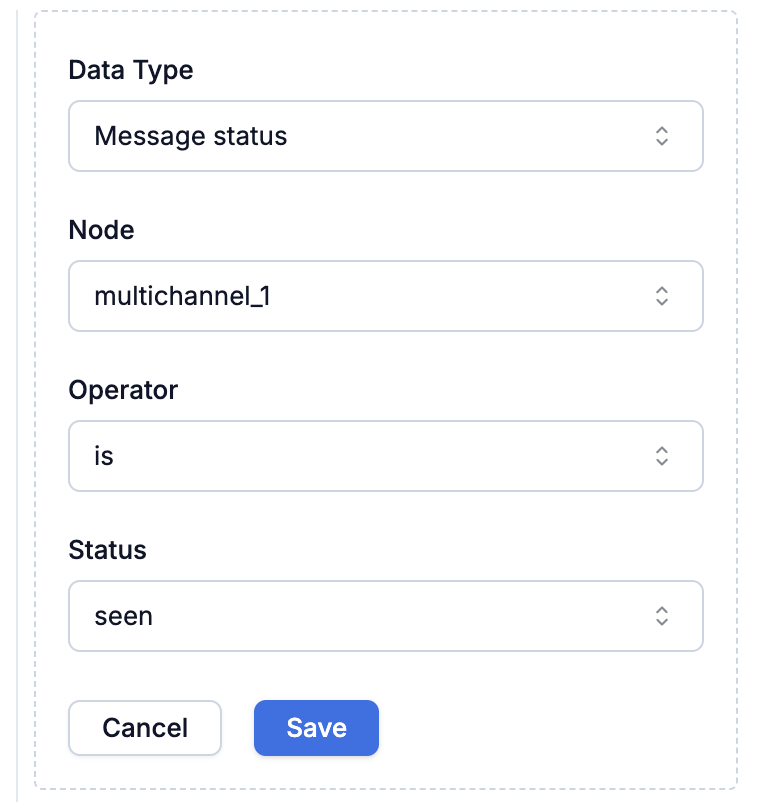
Condition on message status looks like this
` IS/ IS_NOT `. Eg. `message_status from node "welcome-email" is "seen"`.
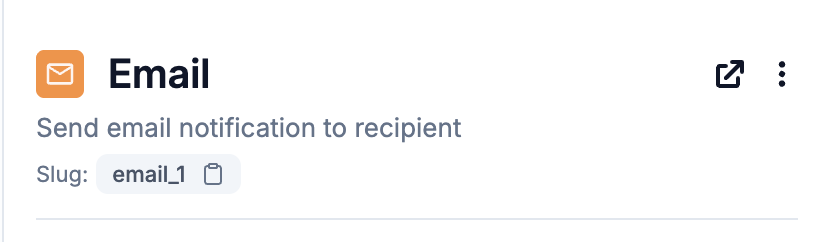
You can find node slug below node name in the workflow editor.
```json theme={"system"}
{
"op": "IS",
"ref": "multichannel_1", // node slug
"value": "$message.seen", // message status
"variable": "message_status", // fixed value
"variable_ns": "$ref" // fixed value
}
```
On UI, it looks like this:
**Message Status and their meaning:**
Here's a list of all message statuses, supported operators and their meaning.
| Status | `IS` | `IS_NOT` | Description |
| ----------------- | ---- | -------- | ------------------------------------------------------------------------------------------------------------------------------------------ |
| `delivered` | ✅ | ✅ | Notification reached user (includes delivered, seen, clicked) |
| `seen` | ✅ | ✅ | User viewed/opened or clicked notification. For Android Push channel, user clearing the notification from tray is also considered as seen. |
| `clicked` | ✅ | ✅ | User clicked notification |
| `delivery_failed` | ✅ | ❌ | Vendor reported some error which prevented delivery |
For multi-channel and smart channel routing, `delivered`, `seen` and `clicked` status requires at least one successful channel, while `delivery_failed` requires all channels to fail.
**Per-Channel Message Status:**
Following message statuses are currently tracked for each channel:
| Channels | Delivered | Seen | Clicked |
| ---------------------------------------------- | --------- | ---- | ------- |
| Email, Android Push, iOS Push, Web Push, Inbox | ✅ | ✅ | ✅ |
| WhatsApp | ✅ | ✅ | ❌ |
| SMS, Slack, MS Teams | ✅ | ❌ | ❌ |
To track message status for external channels like WhatsApp, SMS, and Email, you'll need to add suprsend tracking URL as webhook in your vendor dashboard.
## Frequently Asked Questions
Up to 10 branches total: 9 condition branches + 1 default branch.
The first branch in order is executed (as mentioned in the intro). Place branch with more specificity before the branch with lesser condition if they have common condition set.
Only after the referenced node has executed and vendor feedback has been received. The condition checks actual delivery state, not input data.
Message Status requires vendor tracking to be setup. Ensure you have:
* SuprSend tracking URL added as webhook in your vendor dashboard.
* Proper SDK installation for Android Push and iOS Push channels.
* For Inbox, Slack, MS Teams, engagement status are automatically tracked.
In case all the above conditions met and still the condition is not evaluated, it could be due to delay in vendor reporting the status.
* **`IS delivery_failed`**: Evaluates to true only when the vendor explicitly reports a delivery failure. For multi-channel delivery nodes, this condition is met only if all channels fail.
* **`IS_NOT "delivered"`**: Indicates that a successful delivery status has not been received for the channel. This can also occur if the vendor has not yet reported the delivery status by the time the branch condition is evaluated.
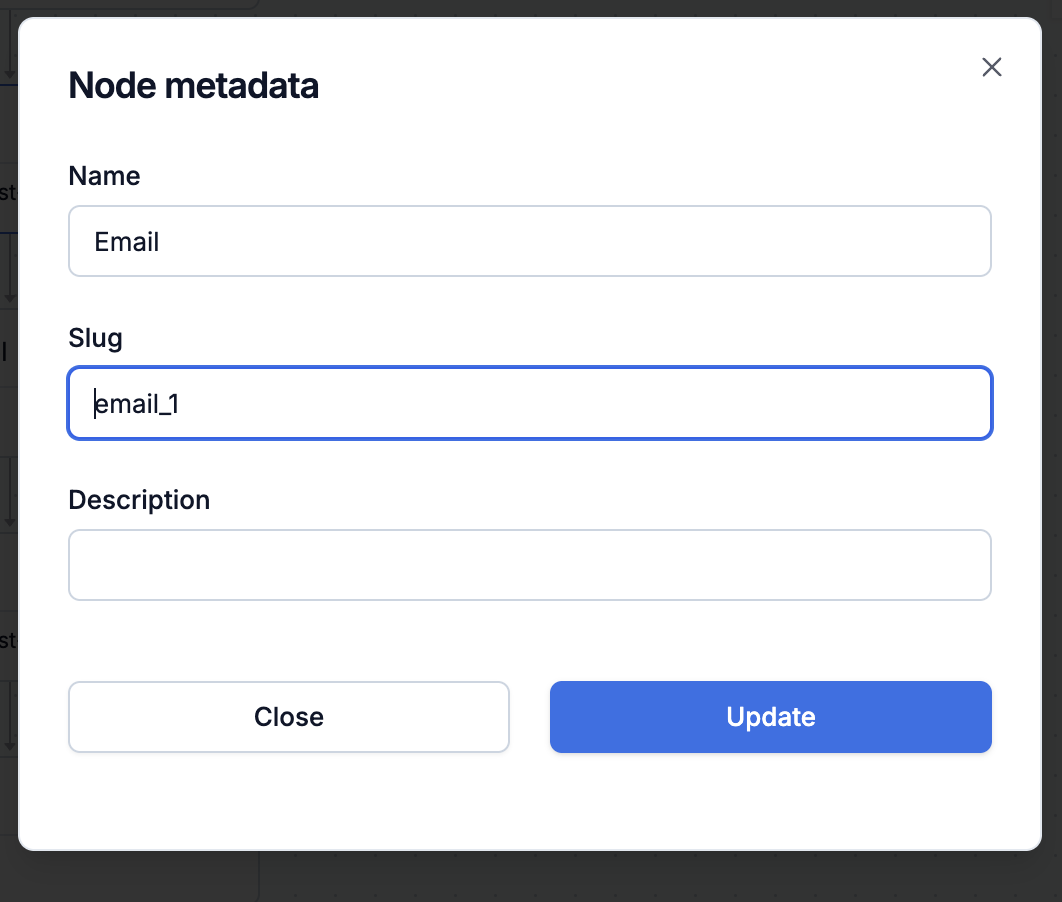
Each node has a unique slug. You can see node slug below node name in the workflow editor. You can also edit node slug by clicking on navigation icon next to node name and selecting "Edit metadata".
 ***
Built with [Mintlify](https://mintlify.com).
***
Built with [Mintlify](https://mintlify.com).