> ## Documentation Index
> Fetch the complete documentation index at: https://docs.suprsend.com/llms.txt
> Use this file to discover all available pages before exploring further.
# Broadcast notifications overview
> Learn how SuprSend broadcasts work to send the same notification to all users on a subscriber list across email, SMS, push, and other channels in one request.
With broadcast, you can send notifications to a large list of users with high throughput and low latency. You can use this to schedule campaigns or send important announcements that are relevant for a large group of users. Best used for cases when you want your messages to be delivered instantly like stock market alerts.
## Pre-requisites
[Create a list of users](/docs/lists)- List is a group of users who you want to send broadcast to.
## Triggering broadcast
Once you have the list ready, you can trigger broadcast using one of the following methods:
### 1. Programmatically using SDK / API
This is the most flexible way of sending broadcast to a list. Use it when you regularly trigger a specific message to bulk users, like reminders or community updates like news. You can use API or update it using backend SDK
### 2. From UI
You can also trigger Broadcast directly from the SuprSend dashboard without any tech involvement. Recommended for cases when you want to send a one-off campaign, something like newsletter or special feature announcement.
You can schedule broadcast on a list from the dashboard by selecting `Run Broadcast` option in the kebab menu on `Subscriber -> Lists` tab
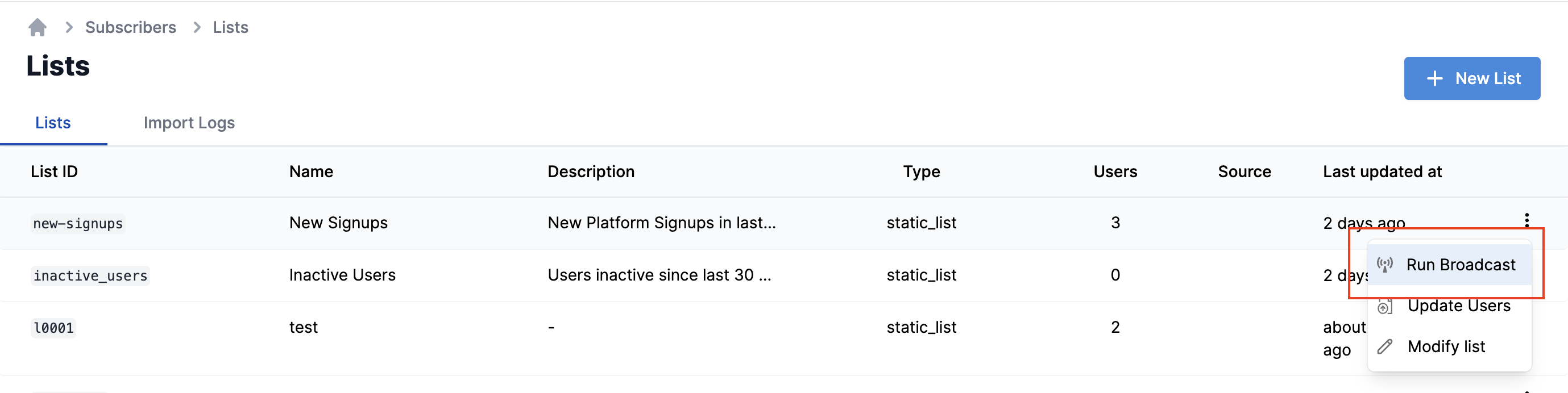 This will open the broadcast form. Fill in the relevant information and select
| Field | Obligation | Description |
| ------------------- | ----------- | ---------------------------------------------------------------------------------------------------------------------------------------------------------------------------------------------------------------------------------------------------------------------------------------------------------------------------------------------------------------------------------------------------------------------------------------------- |
| List ID | *Mandatory* | `id` of the list on which broadcast should be sent. |
| Template Name | *Mandatory* | Select the template content to be sent. |
| Preference category | *Mandatory* | [Preference category](/docs/notification-category) will be used to pick up the vendor credential and also to power [preferences](/docs/user-preferences). If you don't have user preferences setup in your product, you can define the category as `promotional`. Do not use `transactional` or `system` category to run broadcast as it can delay your other transactional or system messages. |
| Selected Channels | *Optional* | Add Channels here if you want to send broadcast on particular channel in the template group. |
| Variable data | *Optional* | Add variables JSON here if you have variables in your template. **Note:** This data is generic and will be the same for all users in the list. For example: `{"promo_code": "SUMMER2024", "discount": "20%"}` will send the same promo code and discount to every user. For per-user personalization, add `$recipient.` as variable in your template. Anything inside `$recipient.` will be replaced with the user's property value. |
| When | *Optional* | -**Immediately** will trigger the broadcast instantly on the click of the button -Select **After Delay** or **Scheduled time** if you want to schedule broadcast for later time. **After delay** is relative time difference from the instant of button click and **Scheduled time** is for defining absolute datetime of trigger |
Once, you click on button, it will ask for a confirmation. This is just to ensure that bulk campaigns are not triggered by mistake. Click on to trigger the broadcast. You can check the notification status on Logs page.
***
This will open the broadcast form. Fill in the relevant information and select
| Field | Obligation | Description |
| ------------------- | ----------- | ---------------------------------------------------------------------------------------------------------------------------------------------------------------------------------------------------------------------------------------------------------------------------------------------------------------------------------------------------------------------------------------------------------------------------------------------- |
| List ID | *Mandatory* | `id` of the list on which broadcast should be sent. |
| Template Name | *Mandatory* | Select the template content to be sent. |
| Preference category | *Mandatory* | [Preference category](/docs/notification-category) will be used to pick up the vendor credential and also to power [preferences](/docs/user-preferences). If you don't have user preferences setup in your product, you can define the category as `promotional`. Do not use `transactional` or `system` category to run broadcast as it can delay your other transactional or system messages. |
| Selected Channels | *Optional* | Add Channels here if you want to send broadcast on particular channel in the template group. |
| Variable data | *Optional* | Add variables JSON here if you have variables in your template. **Note:** This data is generic and will be the same for all users in the list. For example: `{"promo_code": "SUMMER2024", "discount": "20%"}` will send the same promo code and discount to every user. For per-user personalization, add `$recipient.` as variable in your template. Anything inside `$recipient.` will be replaced with the user's property value. |
| When | *Optional* | -**Immediately** will trigger the broadcast instantly on the click of the button -Select **After Delay** or **Scheduled time** if you want to schedule broadcast for later time. **After delay** is relative time difference from the instant of button click and **Scheduled time** is for defining absolute datetime of trigger |
Once, you click on button, it will ask for a confirmation. This is just to ensure that bulk campaigns are not triggered by mistake. Click on to trigger the broadcast. You can check the notification status on Logs page.
***