> ## Documentation Index
> Fetch the complete documentation index at: https://docs.suprsend.com/llms.txt
> Use this file to discover all available pages before exploring further.
# Core Concepts - Notifications and SuprSend
> Understand SuprSend's core concepts — templates, users, and workflows — plus how to trigger a notification and confirm it was delivered, before you send your first notification.
To send a notification with SuprSend, you need three things: a **template** for the content, a **user** to receive it, and a **workflow** that decides when and where it goes.
## Template
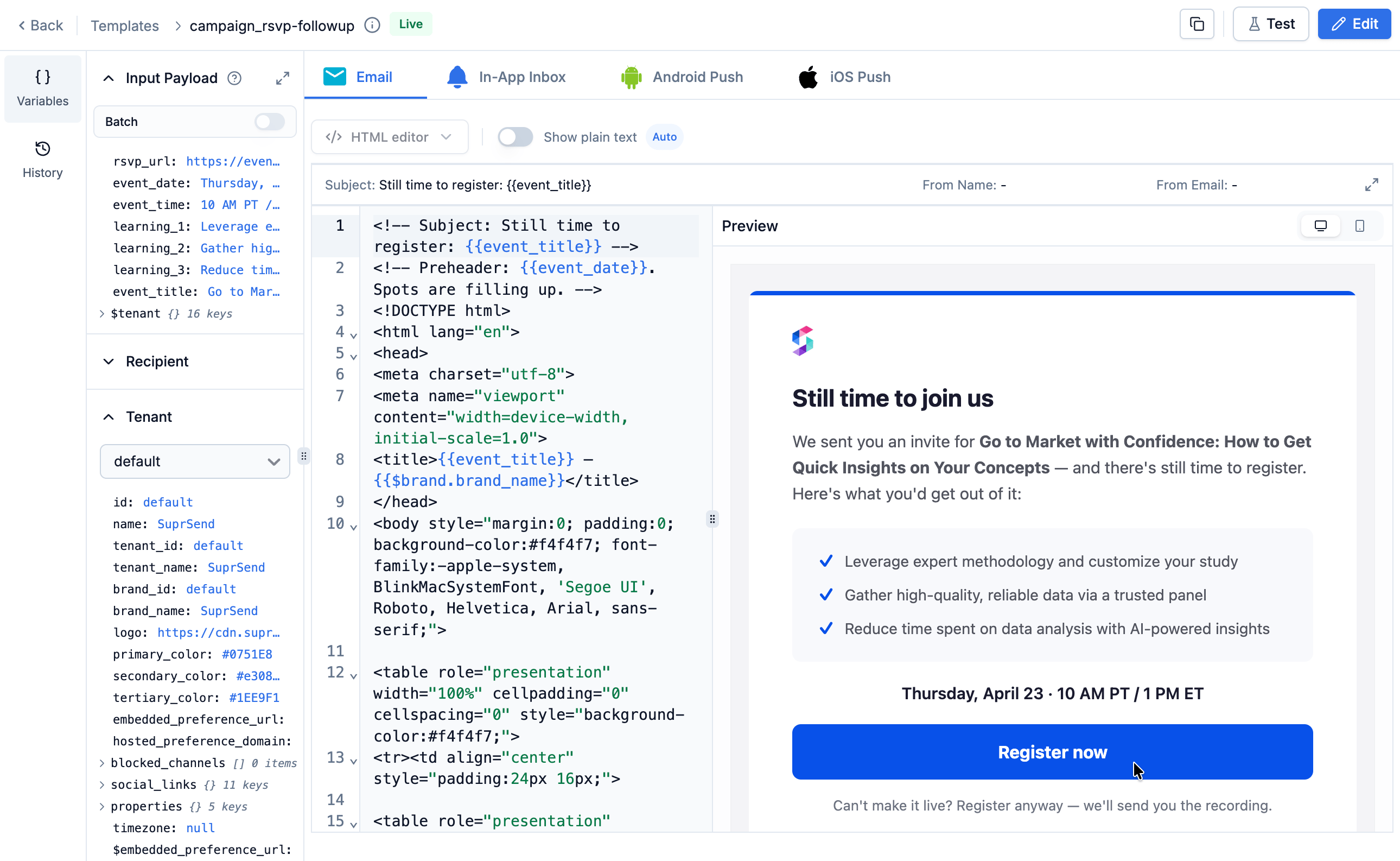
A template holds the content of your notification. One template covers every channel you send on — email, SMS, push, inbox, etc. — each with its own editor. Which of those channels actually send is decided in your workflow, not here.
Wherever the content changes from one notification to the next, you write a variable:
```
Hi {{$recipient.name}}, your order #{{order_id}} has shipped.
```
* `$recipient` — the user receiving the notification. SuprSend fills this from their profile.
* `order_id` — a key you name yourself. It arrives in the payload you send when you trigger the workflow.
See [every variable a template can use](/docs/templates#the-variables-panel).
Your workflow reaches this template by its **slug**.
 Full guide: [Templates](/docs/templates-overview)
## User
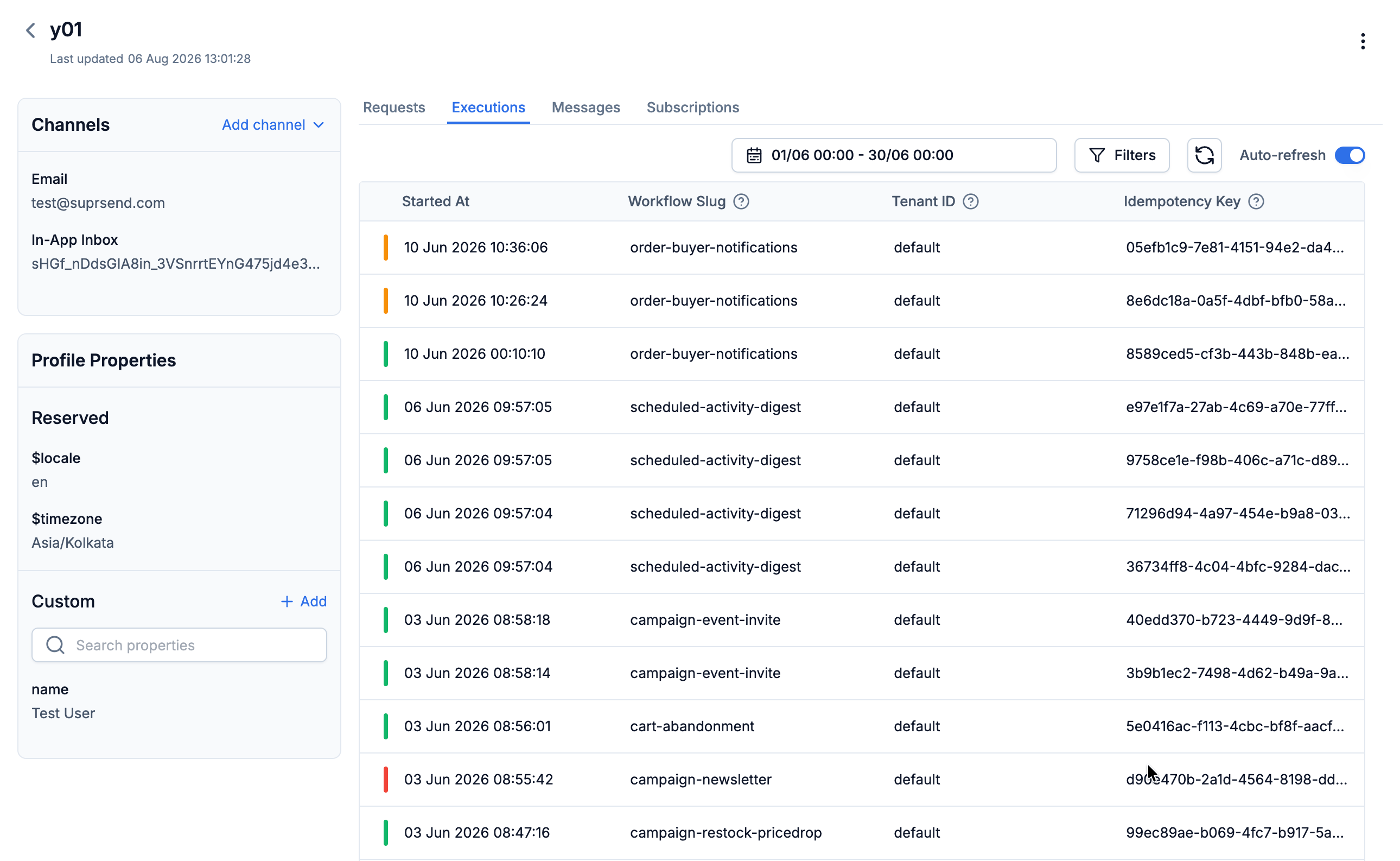
A user is whoever receives the notification. SuprSend identifies each one by a `distinct_id` — the user ID from your own database.
Their profile holds two things: the channel identities that reach them — email address, phone number, push token — and properties you set yourself, like `plan` or `timezone`.
A channel only sends if the user has an identity for it. Your template can carry both email and SMS content, but a user with no phone number on file gets the email alone.
Full guide: [Templates](/docs/templates-overview)
## User
A user is whoever receives the notification. SuprSend identifies each one by a `distinct_id` — the user ID from your own database.
Their profile holds two things: the channel identities that reach them — email address, phone number, push token — and properties you set yourself, like `plan` or `timezone`.
A channel only sends if the user has an identity for it. Your template can carry both email and SMS content, but a user with no phone number on file gets the email alone.
 Full guide: [Users](/docs/users)
## Workflow
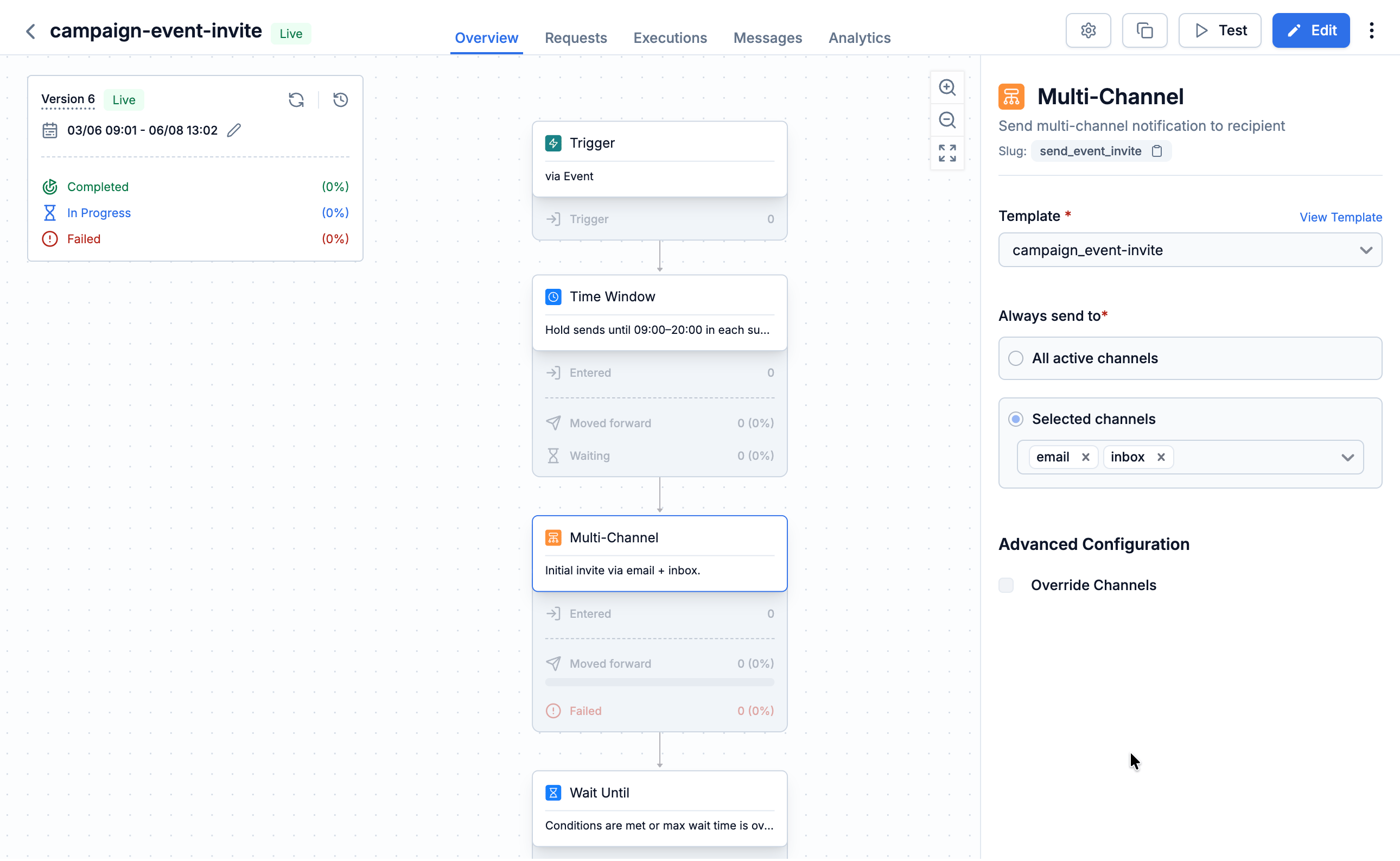
A workflow holds the logic your notification runs through — when it goes out, on which channel, whether it waits for a condition to hold true first, etc. Every workflow needs a trigger node to start it and a delivery node to send, and the delivery node is where you name your template by slug.
A delivery node sends on a channel only when all four are true:
* The channel's content is live in your template.
* The user has an active identity for that channel.
* The user has not opted out of that channel.
* A vendor is connected for that channel.
Workflow edits stay in a draft until you **Commit** — same as templates.
Full guide: [Users](/docs/users)
## Workflow
A workflow holds the logic your notification runs through — when it goes out, on which channel, whether it waits for a condition to hold true first, etc. Every workflow needs a trigger node to start it and a delivery node to send, and the delivery node is where you name your template by slug.
A delivery node sends on a channel only when all four are true:
* The channel's content is live in your template.
* The user has an active identity for that channel.
* The user has not opted out of that channel.
* A vendor is connected for that channel.
Workflow edits stay in a draft until you **Commit** — same as templates.
 Full guide: [Workflows](/docs/workflows). For ready-made examples, browse the sample workflow library at **Workflows → New Workflow → Use Sample Workflow**.
## Triggering a workflow
A workflow starts in one of three ways:
* **Event** — your code sends what happened, like `order.shipped`, plus the data your template needs. Every workflow linked to that event name runs.
* **Workflow API** — your code calls one workflow by its slug, and passes the recipients and the data your template needs.
* **List entry or exit** — the workflow starts when a user joins or leaves a list.
Full guide: [Trigger a workflow](/docs/trigger-workflow). To choose between event and API: [Event vs Workflow API](/docs/guides/event-vs-workflow-api).
## Logs
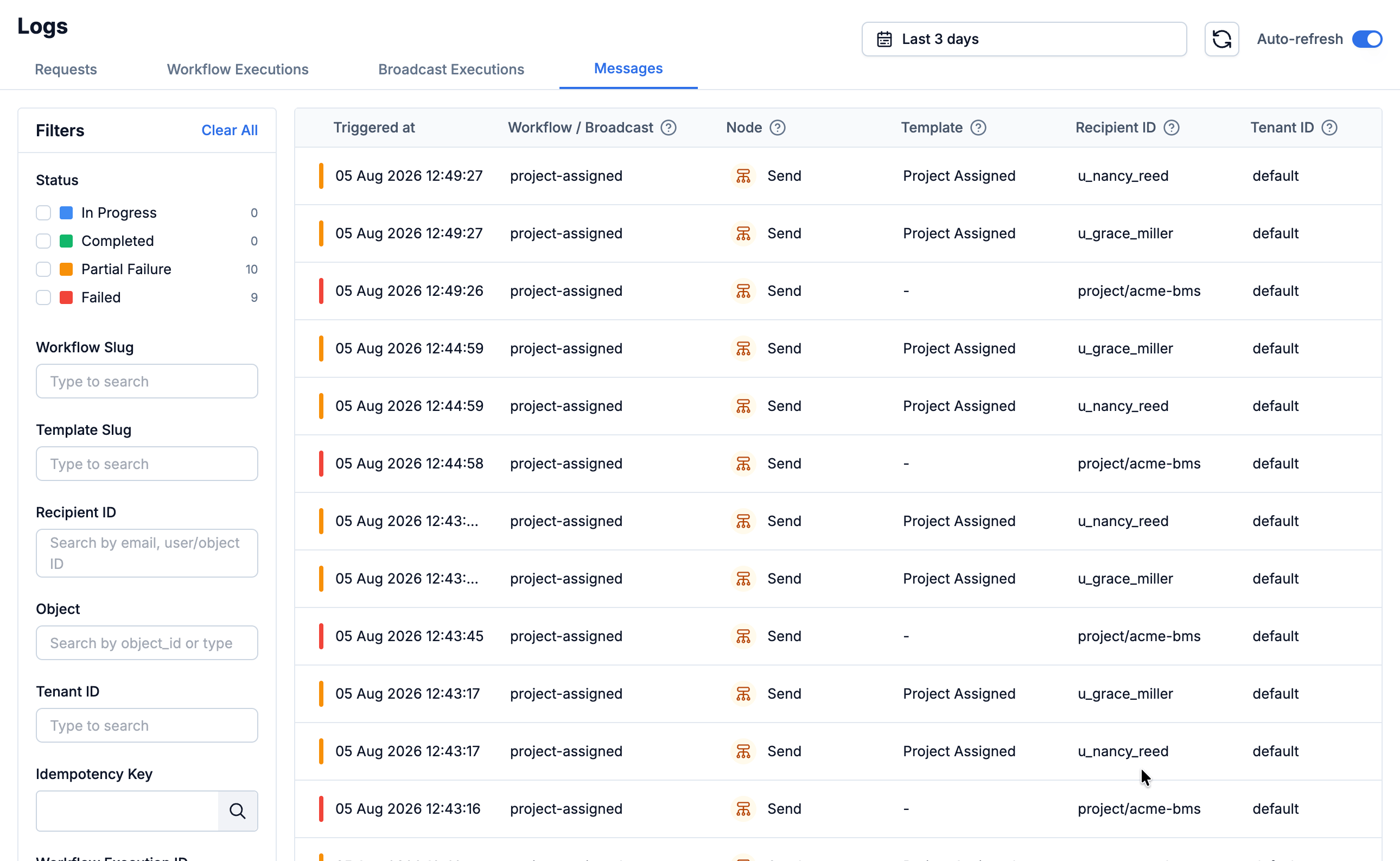
Open the **Logs** tab to see what happened. A notification is logged at three stages:
| Stage | What it tells you |
| ----------------------- | --------------------------------------------------------- |
| **Requests** | Whether SuprSend accepted your API or event call |
| **Workflow executions** | Whether the workflow ran, step by step |
| **Messages** | Whether it reached the person, and whether they opened it |
A **Completed** workflow execution does not mean the message was delivered. Only the message log confirms that.
Full guide: [Workflows](/docs/workflows). For ready-made examples, browse the sample workflow library at **Workflows → New Workflow → Use Sample Workflow**.
## Triggering a workflow
A workflow starts in one of three ways:
* **Event** — your code sends what happened, like `order.shipped`, plus the data your template needs. Every workflow linked to that event name runs.
* **Workflow API** — your code calls one workflow by its slug, and passes the recipients and the data your template needs.
* **List entry or exit** — the workflow starts when a user joins or leaves a list.
Full guide: [Trigger a workflow](/docs/trigger-workflow). To choose between event and API: [Event vs Workflow API](/docs/guides/event-vs-workflow-api).
## Logs
Open the **Logs** tab to see what happened. A notification is logged at three stages:
| Stage | What it tells you |
| ----------------------- | --------------------------------------------------------- |
| **Requests** | Whether SuprSend accepted your API or event call |
| **Workflow executions** | Whether the workflow ran, step by step |
| **Messages** | Whether it reached the person, and whether they opened it |
A **Completed** workflow execution does not mean the message was delivered. Only the message log confirms that.
 Full guide: [Logs](/docs/logging)
## Other concepts
Terms you'll run into as soon as you go past a single send.
| Concept | What it is |
| ------------------------------------- | ------------------------------------------------------------------------------------------------------------------ |
| [Workspace](/docs/workspaces) | Sandbox, staging, and production. Each holds its own users, templates, keys, and logs — nothing is shared. |
| [Vendor](/docs/vendors) | The provider account that actually sends the message. Sandbox comes pre-connected; other workspaces need your own. |
| [Preferences](/docs/user-preferences) | What each user has opted into, by category and by channel. |
| [List](/docs/lists) | A group of users you notify as one audience. |
| [Tenant](/docs/tenants) | A customer, brand, or team you send on behalf of, with its own branding and preferences. |
| [Object](/docs/objects) | A recipient that isn't a person — a team, a project. Notifying it fans out to everyone subscribed. |
## Next steps
Set up a template, a user, and a workflow end to end.
Add delays, batching, and multi-channel delivery.
Full guide: [Logs](/docs/logging)
## Other concepts
Terms you'll run into as soon as you go past a single send.
| Concept | What it is |
| ------------------------------------- | ------------------------------------------------------------------------------------------------------------------ |
| [Workspace](/docs/workspaces) | Sandbox, staging, and production. Each holds its own users, templates, keys, and logs — nothing is shared. |
| [Vendor](/docs/vendors) | The provider account that actually sends the message. Sandbox comes pre-connected; other workspaces need your own. |
| [Preferences](/docs/user-preferences) | What each user has opted into, by category and by channel. |
| [List](/docs/lists) | A group of users you notify as one audience. |
| [Tenant](/docs/tenants) | A customer, brand, or team you send on behalf of, with its own branding and preferences. |
| [Object](/docs/objects) | A recipient that isn't a person — a team, a project. Notifying it fans out to everyone subscribed. |
## Next steps
Set up a template, a user, and a workflow end to end.
Add delays, batching, and multi-channel delivery.