> ## Documentation Index
> Fetch the complete documentation index at: https://docs.suprsend.com/llms.txt
> Use this file to discover all available pages before exploring further.
# Test Mode
> Enable test mode in SuprSend to preview and debug workflow runs, templates and channel delivery safely without sending notifications to real users.
The **Test Mode** feature lets you validate your notification flows without worrying about sending messages to real end users. This way you avoid accidental sends to production users while iterating on templates and workflows.
With Test Mode enabled:
* Notifications are delivered **only to designated internal testers** set as test channels.
* The **entire workflow execution** works as usual, just the final delivery is blocked or redirected to catch-all channel.
* You can set a **catch-all channel** where notifications sent to non-test channels are diverted.
***
## How It Works
* Available in **Staging** and other testing workspaces (not in Sandbox or Production).
* Once enabled, the entire workflow execution works as usual.
* Test mode applies to final notification delivery and one of the following cases can happen:
* We check if the channel value belongs to the test channels. If it does, notification is delivered.
* If it doesn't, we check if there is a catch-all channel set for the channel type. If it does, notification is diverted to the catch-all channel.
* If there is no catch-all channel set, notification is blocked.
***
## Set Up Test Mode
In your workspace, go to [**Developers → Test Mode**](https://app.suprsend.com/en/staging/developers/test-mode) and toggle it ON.\
⚠️ It may take up to 5 minutes for Test Mode to become active (to avoid disrupting running workflows).
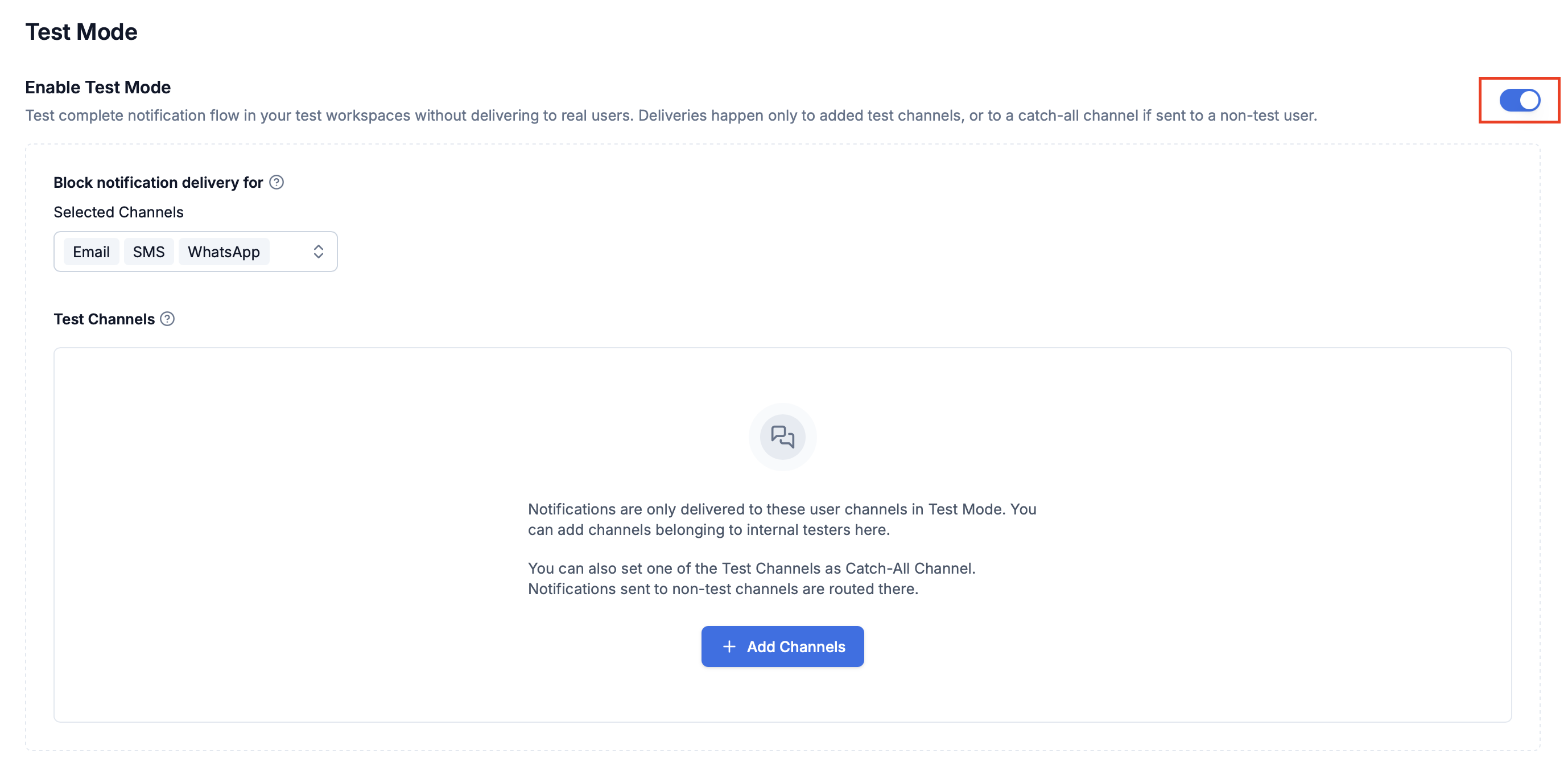 Choose which channels to block delivery on. Currently supported: **Email, SMS, WhatsApp** (To enable this on other channel types, Reach us at [support@suprsend.com](mailto:support@suprsend.com)).
Add internal testers who should receive notifications during Test Mode.
* You can channels by searching available users in SuprSend DB and then selecting their channels.
* Or add channel identifiers directly (they don’t need to belong to a registered SuprSend user).
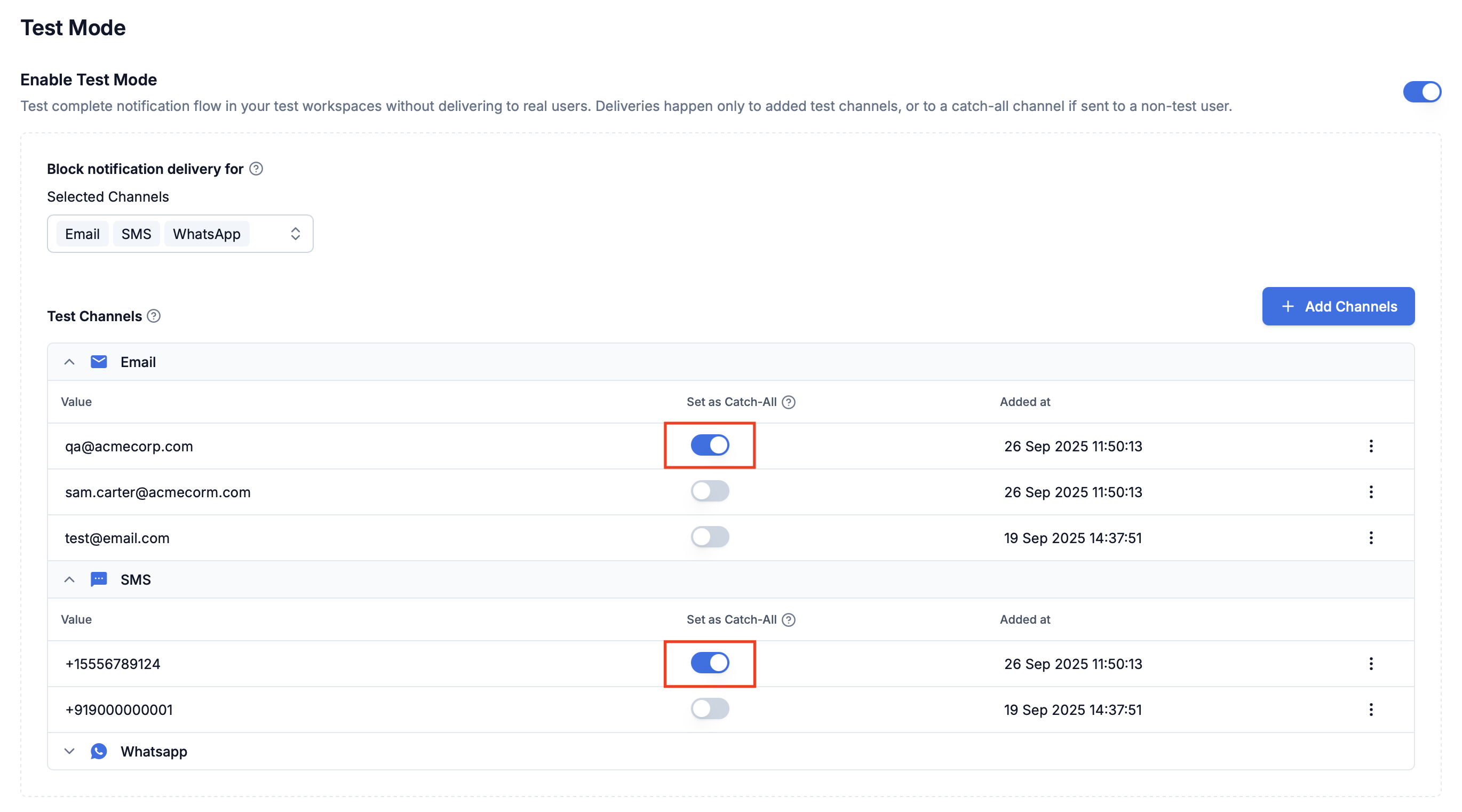
Assign one **catch-all channel per type** (for example, email, SMS).\
All notifications sent to non-test users on that channel will be redirected here (for example, `qa@company.com`, `dev@company.com`).
Choose which channels to block delivery on. Currently supported: **Email, SMS, WhatsApp** (To enable this on other channel types, Reach us at [support@suprsend.com](mailto:support@suprsend.com)).
Add internal testers who should receive notifications during Test Mode.
* You can channels by searching available users in SuprSend DB and then selecting their channels.
* Or add channel identifiers directly (they don’t need to belong to a registered SuprSend user).
Assign one **catch-all channel per type** (for example, email, SMS).\
All notifications sent to non-test users on that channel will be redirected here (for example, `qa@company.com`, `dev@company.com`).
 ***
## Benefits for Developers
* ✅ **Safe testing** → prevent accidental notifications being sent to your production users.
* ✅ **Centralized debugging** → catch-all ensures nothing slips through unnoticed and you can see all test notifications in one place.
* ✅ **Realistic previews** → internal testers get full notifications as they would appear in production.
* ✅ **Faster iteration** → debug templates, workflows, and vendor integrations without cleanup worries.
***
## Troubleshooting
* Verify Test Mode is enabled in the correct workspace.
* Confirm the correct channels are blocked.
* Check that test users are added properly.
* Wait up to 5 minutes after enabling Test Mode.
* Verify Test Mode is enabled in the correct workspace.
* Confirm the recipient is not mistakenly added as a test user.
* Wait up to 5 minutes after enabling Test Mode.
***
## Benefits for Developers
* ✅ **Safe testing** → prevent accidental notifications being sent to your production users.
* ✅ **Centralized debugging** → catch-all ensures nothing slips through unnoticed and you can see all test notifications in one place.
* ✅ **Realistic previews** → internal testers get full notifications as they would appear in production.
* ✅ **Faster iteration** → debug templates, workflows, and vendor integrations without cleanup worries.
***
## Troubleshooting
* Verify Test Mode is enabled in the correct workspace.
* Confirm the correct channels are blocked.
* Check that test users are added properly.
* Wait up to 5 minutes after enabling Test Mode.
* Verify Test Mode is enabled in the correct workspace.
* Confirm the recipient is not mistakenly added as a test user.
* Wait up to 5 minutes after enabling Test Mode.