> ## Documentation Index
> Fetch the complete documentation index at: https://docs.suprsend.com/llms.txt
> Use this file to discover all available pages before exploring further.
# Embedded Preference Centre
> How to integrate a Notification Preference Center into your website and add its link to your notification templates.
The Notification Preference Centre is a embedded page inside your application where users can specify the types of notifications they wish to receive and on which channels.
With SuprSend's preference management center, you can effortlessly configure preferences. Simply [add notification categories on SuprSend dashboard](/docs/user-preferences#create-notification-category) and get a fully functional preference page that can be seamlessly integrated into your application. This preference page offers a user-friendly interface, enabling users to conveniently manage their notification settings within your application.
Rest assured, it remains synchronized with any changes made to notification categories on SuprSend. This means that once integrated, you no longer need to worry about modifying your code to accommodate future updates. Also, user preferences are automatically validated at each workflow run, guaranteeing notifications align with user's latest preference settings.
With notification preferences, you can increase user delight by giving them greater autonomy over their notification experience thereby reducing the risk of users turning of all notifications from your platform.
## Integrating preference page into your application
With SuprSend, user can set preferences at 3 levels- communication channel, notification category and selected channels inside a category. We provide a headless solution with hooks to read and update data at all 3 levels. We'll also give an example code to add our pre-defined UI. You can do any level of UI customization to match with your brand design.
SDKs are available in below languages. We'll be adding support in other languages soon:
(Web)
## Adding preference page link in notifications
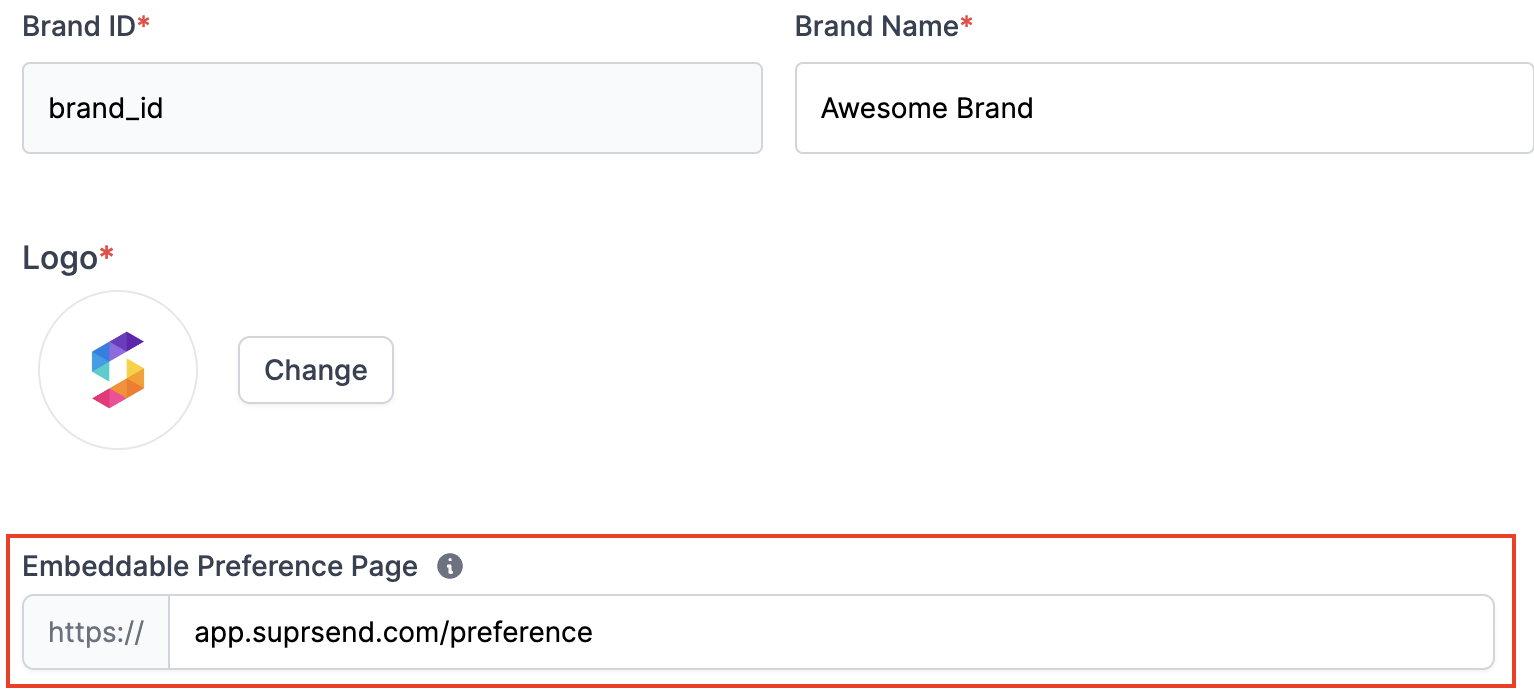
Add Embeddable Preference Page link in tenant settings on SuprSend dashboard. This will automatically create a variable with key `$embedded_preference_url`. You can add this variable in your templates to add preference page link in your notifications.
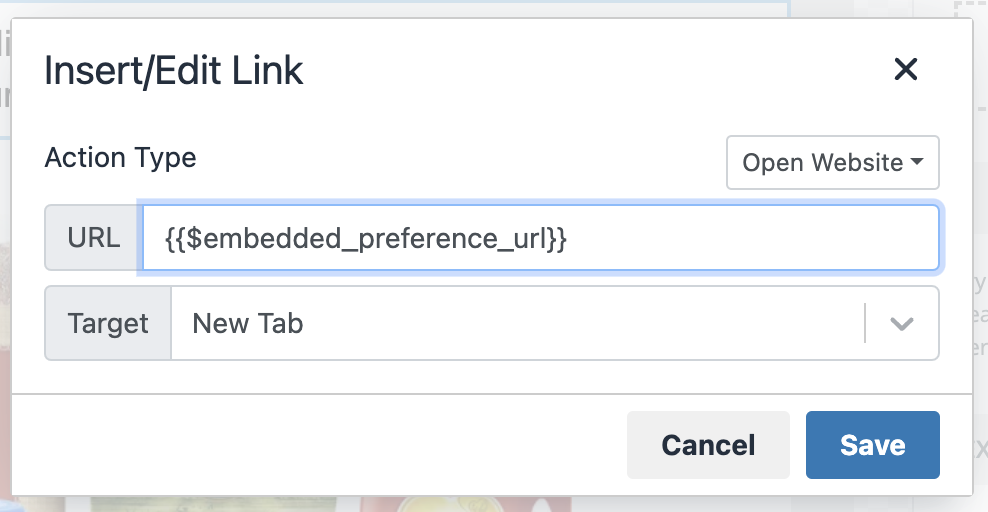
 Add this variable `{{$embedded_preference_url}}` in your templates to redirect users to the preference page in your application when users clicks on that link.
 ***
***