> ## Documentation Index
> Fetch the complete documentation index at: https://docs.suprsend.com/llms.txt
> Use this file to discover all available pages before exploring further.
# Firebase FCM
> Integrate Firebase Cloud Messaging with SuprSend to send Android push notifications, covering FCM setup, server keys, and supported app frameworks.
## Pre-Requisites
Integrate FCM in your application based on your framework:
## Add FCM config on vendor page
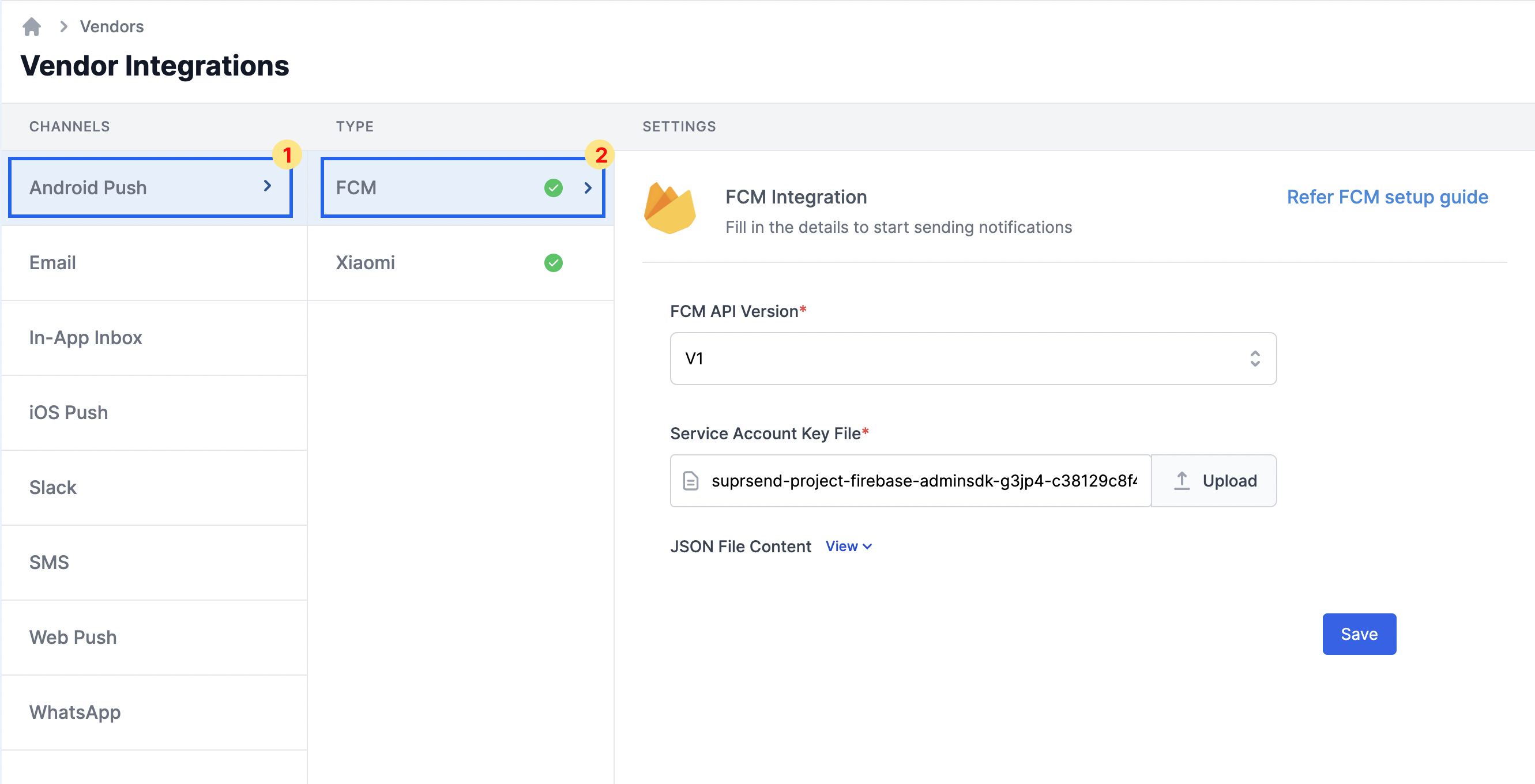
On the SuprSend dashboard, go to vendor page from side panel and click `Android Push -> FCM` and add service account key file.
 ### Get service account key file
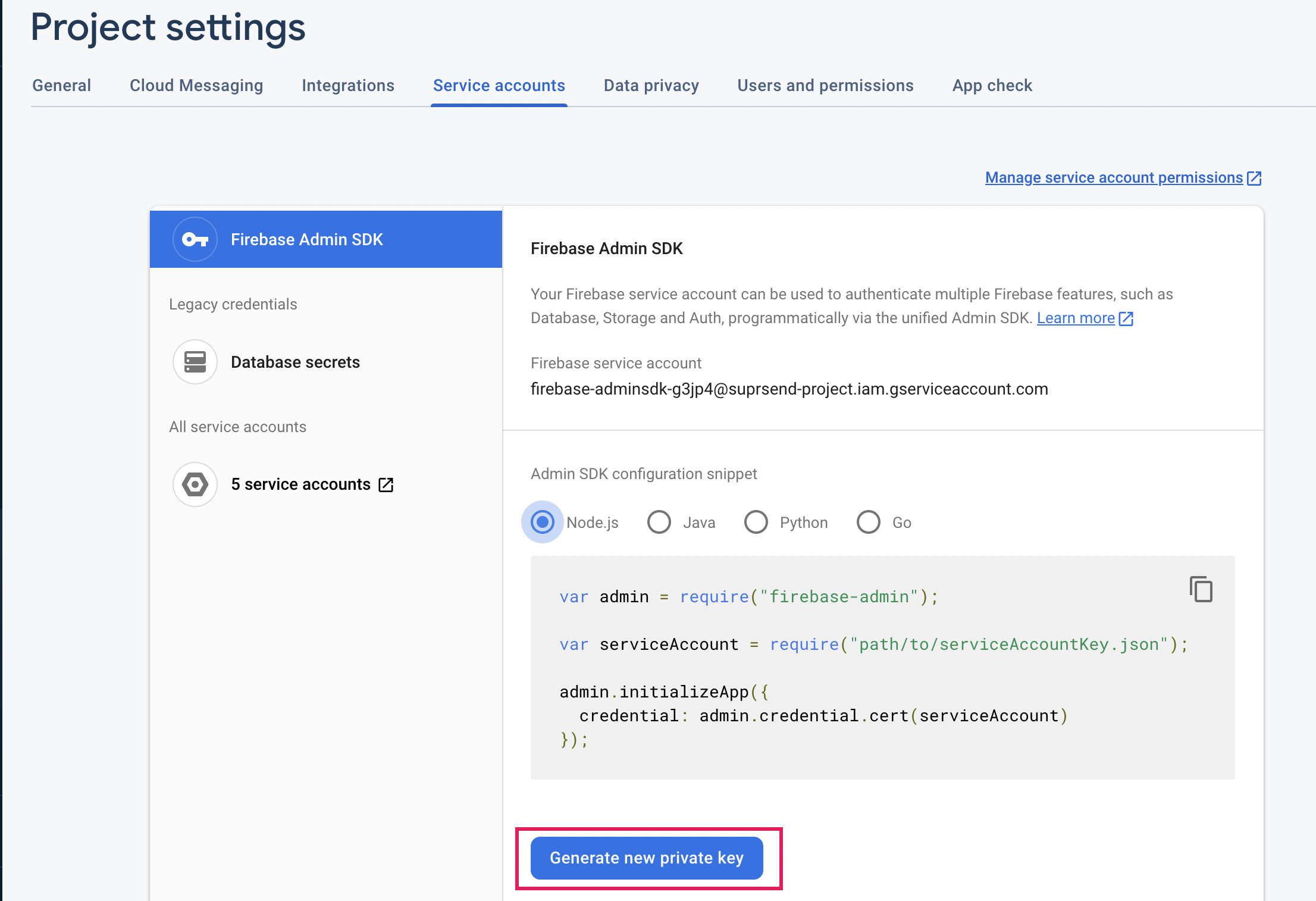
Add Service Account Key json file. You'll get this file from your Firebase Console Project settings -> "Service accounts" tab.
### Get service account key file
Add Service Account Key json file. You'll get this file from your Firebase Console Project settings -> "Service accounts" tab.
 ***
***