> ## Documentation Index
> Fetch the complete documentation index at: https://docs.suprsend.com/llms.txt
> Use this file to discover all available pages before exploring further.
# iOS Integration
> Configure the iOS side of your Flutter app for SuprSend, covering Xcode setup, APNs certificates, capabilities, and push notification entitlements.
## Installation
Add following line of code inside dependencies in pubspec.yaml file
```yaml pubspec.yaml theme={"system"}
dependencies:
flutter:
sdk: flutter
suprsend_flutter_sdk: "^2.4.0"
```
```shell shell theme={"system"}
flutter pub get
```
SuprSend SDK can be installed in iOS platform version >= 13. Check version in PodFile and upgrade it by running **pod install** inside iOS folder.
```ruby PodFile theme={"system"}
platform :ios, '13.0' // this version has to be >=13
```
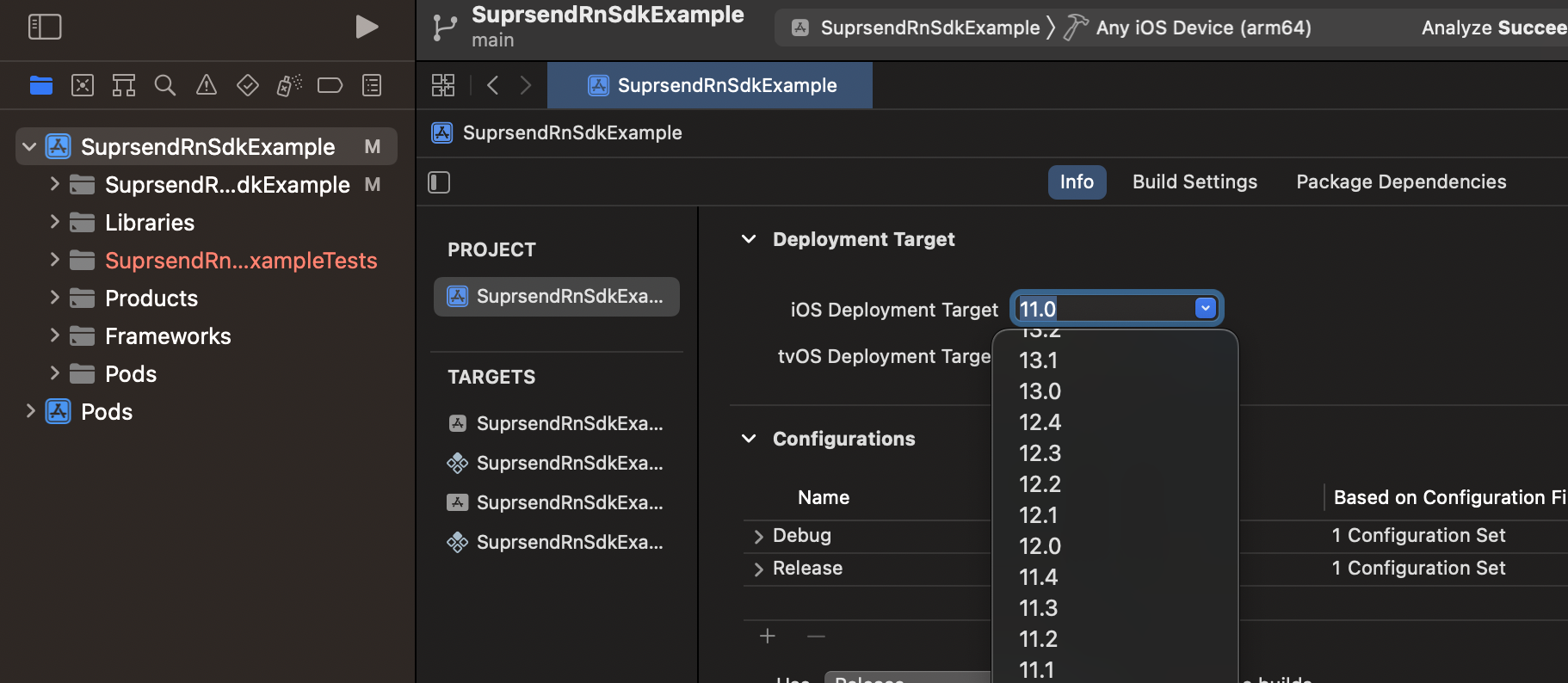
SuprSend SDK needs an iOS deployment target >= 11. Open your project in Xcode(*project > ios > project.xcworkspace*) and update the target.
 ## Initialization
Import Suprsend iOS SDK into your application. In `AppDelegate`, add the below code inside `didFinishLaunchingWithOptions` method, just before returning.
```objectivec AppDelegate.swift theme={"system"}
import UIKit
import Flutter
import SuprSendSdk // Add this
...
override func application(_ application: UIApplication, didFinishLaunchingWithOptions launchOptions: [UIApplication.LaunchOptionsKey: Any]?) -> Bool {
GeneratedPluginRegistrant.register(with: self)
// Add below 2 lines
let suprSendConfiguration = SuprSendSDKConfiguration(withKey: "your workspace key", secret:"your workspace secret", baseUrl:nil)
SuprSend.shared.configureWith(configuration: suprSendConfiguration , launchOptions: launchOptions)
return super.application(application, didFinishLaunchingWithOptions: launchOptions)
}
```
Replace **`WORKSPACE KEY`** and **`WORKSPACE SECRET`** with values linked to your account. You'll find this in SuprSend dashboard (Developers -> API Keys) page.
## Logging
By default the logs of SuprSend SDK are disabled. We recommend you to enable the SDK logs by setting its value to VERBOSE. You can enable the logs just in debug mode while in development by below condition.
```javascript javascript theme={"system"}
suprsend.setLogLevel(level) // level is optional for iOS
suprsend.setLogLevel("VERBOSE")
suprsend.setLogLevel("DEBUG")
suprsend.setLogLevel("INFO")
suprsend.setLogLevel("ERROR")
suprsend.setLogLevel("OFF")
```
***
## Initialization
Import Suprsend iOS SDK into your application. In `AppDelegate`, add the below code inside `didFinishLaunchingWithOptions` method, just before returning.
```objectivec AppDelegate.swift theme={"system"}
import UIKit
import Flutter
import SuprSendSdk // Add this
...
override func application(_ application: UIApplication, didFinishLaunchingWithOptions launchOptions: [UIApplication.LaunchOptionsKey: Any]?) -> Bool {
GeneratedPluginRegistrant.register(with: self)
// Add below 2 lines
let suprSendConfiguration = SuprSendSDKConfiguration(withKey: "your workspace key", secret:"your workspace secret", baseUrl:nil)
SuprSend.shared.configureWith(configuration: suprSendConfiguration , launchOptions: launchOptions)
return super.application(application, didFinishLaunchingWithOptions: launchOptions)
}
```
Replace **`WORKSPACE KEY`** and **`WORKSPACE SECRET`** with values linked to your account. You'll find this in SuprSend dashboard (Developers -> API Keys) page.
## Logging
By default the logs of SuprSend SDK are disabled. We recommend you to enable the SDK logs by setting its value to VERBOSE. You can enable the logs just in debug mode while in development by below condition.
```javascript javascript theme={"system"}
suprsend.setLogLevel(level) // level is optional for iOS
suprsend.setLogLevel("VERBOSE")
suprsend.setLogLevel("DEBUG")
suprsend.setLogLevel("INFO")
suprsend.setLogLevel("ERROR")
suprsend.setLogLevel("OFF")
```
***