> ## Documentation Index
> Fetch the complete documentation index at: https://docs.suprsend.com/llms.txt
> Use this file to discover all available pages before exploring further.
# Designing Notification Preferences
> Practical guide to designing notification preference centres in SuprSend with eight real-world patterns covering channel opt-ins and multi-tenant setups.
Notification preferences give users control over what they hear from your app, on which channel, and how often. Get them right and users stay engaged - they can mute what's noisy without losing what matters. Skip them and users will unsubscribe from everything.
This guide covers eight preference patterns drawn from real-world use cases, from simple channel opt-in/opt-outs to complex multi-tenant setups. Each section explains what the pattern is, when to use it, how to configure it in SuprSend, and the code to implement it in your app.
**New to preferences in SuprSend?** Read the [User Preferences overview](/docs/user-preferences) first - it covers how categories, channels, and the preference API response are structured. For multi-tenant setups, see [Tenant Preferences](/docs/tenant-preference).
The code examples in this guide use the [`@suprsend/react`](/docs/preference-react-sdk) SDK. If you want a ready-made preference UI without building from scratch, see the [Embedded Preference Centre](/docs/embedded-preference-centre).
***
## 1. Channel opt-in / opt-out
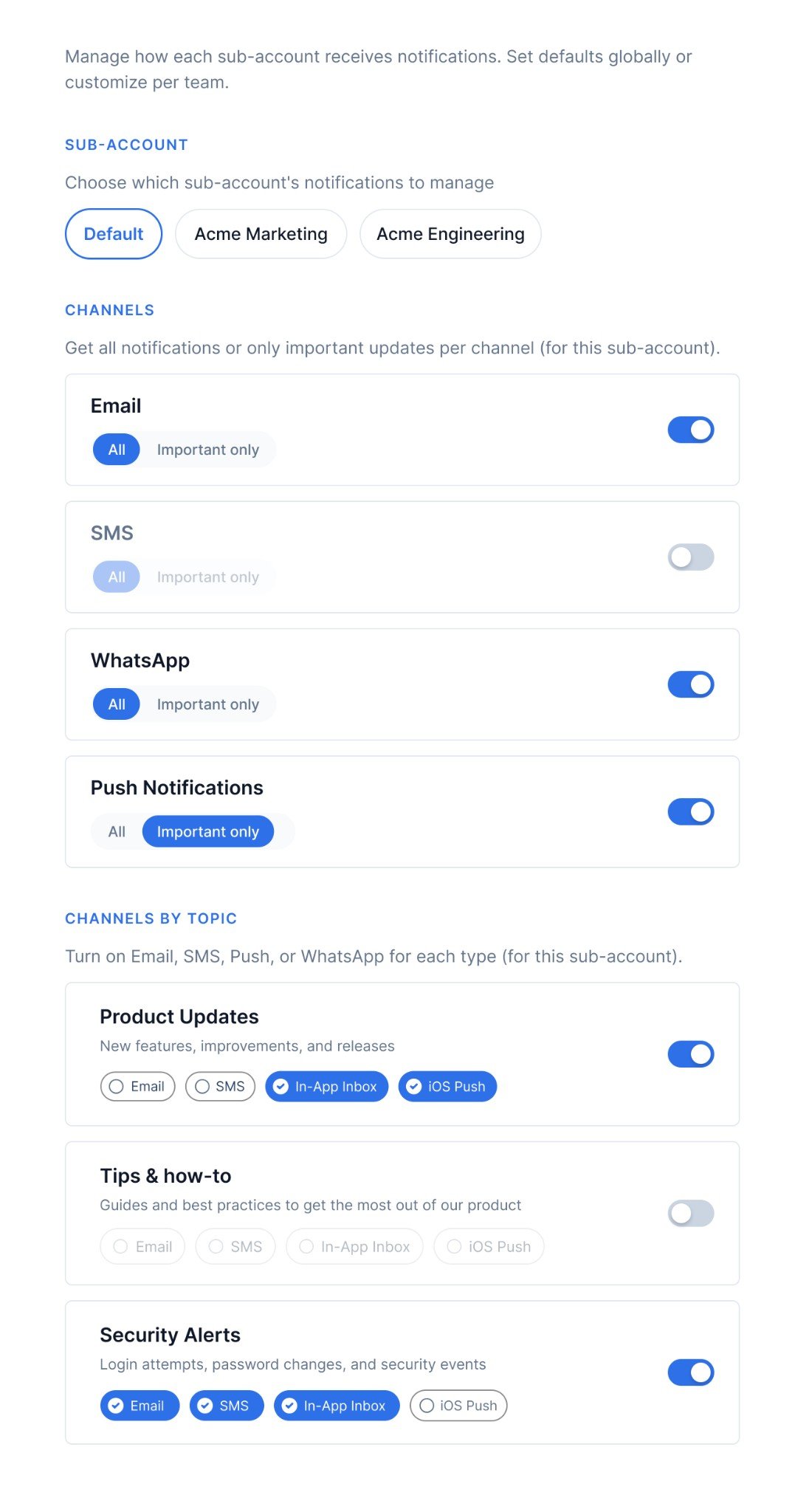
Users control what they receive on each channel. For every channel your app uses (Email, SMS, WhatsApp, Push, etc.), the user picks one of two options:
* **All** - receive all notifications on this channel, except categories they've explicitly turned off
* **Required** - receive only notifications from categories marked as mandatory (Can't Unsubscribe)
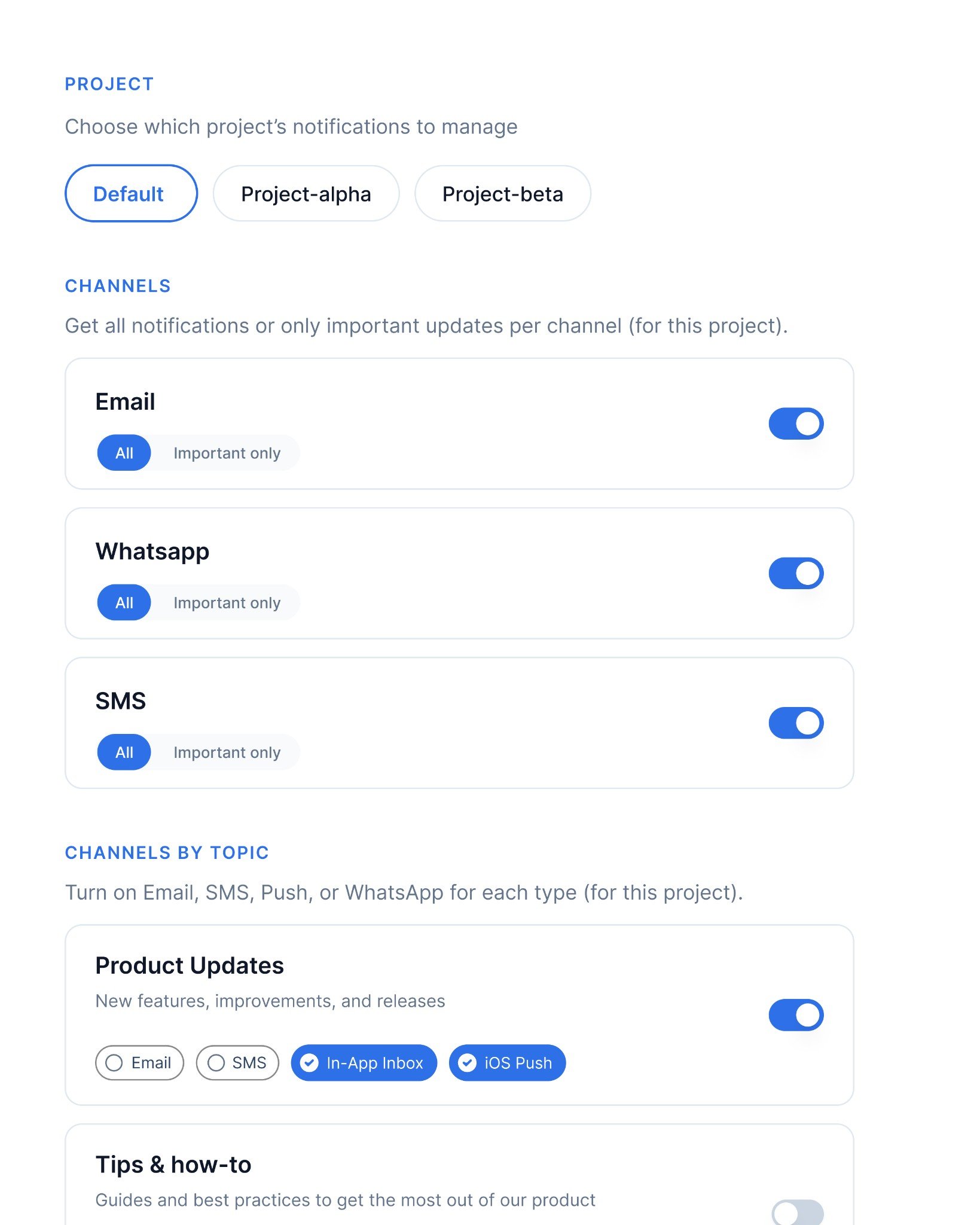
Separately, users can also turn individual channels on or off per preference category - for example, keeping Email on for "Product Updates" but turning off WhatsApp for the same category. These are the per-category channel checkboxes shown in the **CHANNELS BY TOPIC** section of the screenshot.
The `channel_preferences` array in the API response drives the global All / Required control. Each item has a `channel` name and an `is_restricted` boolean: `false` means All, `true` means Required. The per-category channel preferences live under `sections[].subcategories[].channels`.
**Configure in SuprSend**
1. Go to **Developers → [Preference categories](/docs/managing-notification-categories)** and select a root-category (System, Transactional, or Promotional)
2. Optionally, click **`+Section`** to create a section (for example "Product", "Billing"). Sections are used to group sub-categories on the preference page. Section doesn't have it's own preference.
3. Click **`+Sub-Category`**, fill in the name, select the section (if set), and set a default preference (**On**, **Off**, or **Can't Unsubscribe**)
4. Click **`Publish Changes`**
**Build in your app**
Call [`getPreferences()`](/docs/js-preferences#get-preferences-data) in your parent component on page load and pass the result down as `preferenceData`. The response gives you two independent parts:
* **`channel_preferences`** - render one row per channel with **All** / **Required** radio buttons. Read `is_restricted` to know which is currently selected: `false` = All, `true` = Required. Call [`updateOverallChannelPreference`](/docs/js-preferences#update-overall-channel-preference) with `ChannelLevelPreferenceOptions.ALL` or `ChannelLevelPreferenceOptions.REQUIRED` when the user changes their selection.
* **`sections[].subcategories[].channels`** - per-category channel checkboxes that let users turn individual channels on or off within a specific notification type. This is covered in detail in Section 2.
```javascript theme={"system"}
import {
ChannelLevelPreferenceOptions,
useSuprSendClient,
} from "@suprsend/react";
function ChannelPreferences({ preferenceData, setPreferenceData }) {
const suprSendClient = useSuprSendClient();
// Global All vs Required control per channel
// is_restricted: false = All, is_restricted: true = Required
const handleOverallChannelChange = async (channel, status) => {
const resp = await suprSendClient.user.preferences.updateOverallChannelPreference(
channel.channel,
status // ChannelLevelPreferenceOptions.ALL or ChannelLevelPreferenceOptions.REQUIRED
);
if (resp.status !== "error") setPreferenceData({ ...resp.body });
};
return (
<>
{/* Global channel controls - one row per channel */}
{preferenceData?.channel_preferences?.map((channel, i) => (
{channel.channel}
{channel.is_restricted ? "Allow required notifications only" : "Allow all notifications"}
))}
);
}
```
**When to use:** Your app sends on multiple channels and users want coarse control over each one. Examples: "Email me everything, but push only for required notifications", "I only want SMS for critical alerts." Common in consumer apps, marketplaces, and collaboration tools.
***
## 2. Preference category toggles
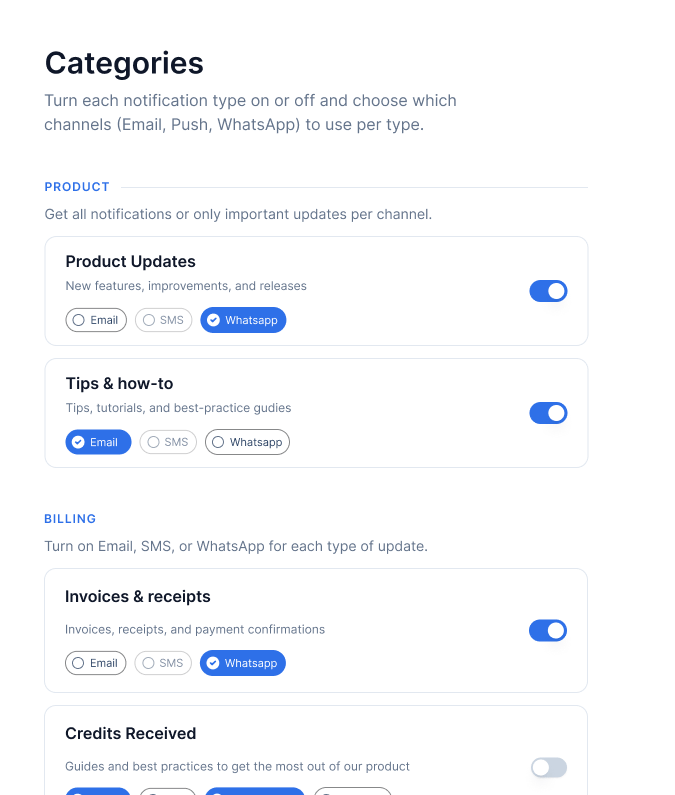
Users turn each notification type on or off individually - for example, keeping "Invoices & receipts" on while turning off "Sales Newsletter" - and optionally choose which channels receive each type.
This is the standard notification settings page that most apps need. The response gives you sections (top-level groupings like Product, Billing, Sales) containing subcategories (the individual notification types). Each subcategory has a toggle and a list of channel checkboxes.
**Configure in SuprSend**
1. Go to **Developers → [Preference categories](/docs/managing-notification-categories)** and select a root-category
2. Click **`+Section`** to create sections (for example "Product", "Billing", "Sales"). Sections are used to group sub-categories on the preference page. Section doesn't have it's own preference.
3. Click **`+Sub-Category`** for each notification type, select its section (if set), and set a default preference (**On**, **Off**, or **Can't Unsubscribe**). You can also choose which channels should be opt\_in by default in case of `On` preference.
4. Click **`Publish Changes`**
**Build in your app**
Call [`getPreferences()`](/docs/js-preferences#get-preferences-data) in your parent component and pass `preferenceData` as a prop. Render sections as headings and subcategories as rows, each with a toggle and channel checkboxes below it.
Three things to handle carefully:
* **`is_editable: false` on a subcategory** means the category is set to **Can't Unsubscribe** in SuprSend. Disable the toggle - users cannot opt out.
* **`is_editable: false` on a channel inside a subcategory** means that specific channel is mandatory for that category and cannot be turned off. Disable the channel checkbox independently of the subcategory toggle. A category can have `is_editable: true` (user can toggle it off) while individual channels within it have `is_editable: false` (those channels cannot be removed).
* **`channels` may be empty or absent** (for example when `show_opt_out_channels` is `false` for opted-out categories). Use optional chaining (`subcategory?.channels?.map(...)`) to handle this safely.
All preference updates ([`updateCategoryPreference`](/docs/js-preferences#update-category-preference), [`updateChannelPreferenceInCategory`](/docs/js-preferences#update-channel-preference-in-category), [`updateOverallChannelPreference`](/docs/js-preferences#update-overall-channel-preference)) are **optimistic** - the UI updates immediately and the actual API call happens in the background with a 1-second debounce. Set up these emitter listeners once when loading preferences to handle the confirmed result and catch server-side errors:
```javascript theme={"system"}
// Fires after the background API call succeeds - sync your UI state with confirmed data
suprSendClient.emitter.on("preferences_updated", (preferenceDataResp) => {
setPreferenceData({ ...preferenceDataResp.body });
});
// Fires if the background API call fails - show an error toast or revert the UI
suprSendClient.emitter.on("preferences_error", (errorResp) => {
console.log("Error:", errorResp?.error?.message);
});
```
```javascript theme={"system"}
import { PreferenceOptions, useSuprSendClient } from "@suprsend/react";
function CategoryPreferences({ preferenceData, setPreferenceData }) {
const suprSendClient = useSuprSendClient();
// Toggle a category on or off
// value: true = opt_in, false = opt_out
const handleCategoryChange = async (subcategory, value) => {
const resp = await suprSendClient.user.preferences.updateCategoryPreference(
subcategory.category,
value ? PreferenceOptions.OPT_IN : PreferenceOptions.OPT_OUT
);
if (resp.status !== "error") setPreferenceData({ ...resp.body });
};
// Toggle a specific channel on or off within a category
// Skip if is_editable is false - that channel is mandatory for this category
const handleChannelInCategoryChange = async (channel, subcategory) => {
if (!channel.is_editable) return;
const resp = await suprSendClient.user.preferences.updateChannelPreferenceInCategory(
channel.channel,
channel.preference === PreferenceOptions.OPT_IN
? PreferenceOptions.OPT_OUT
: PreferenceOptions.OPT_IN,
subcategory.category
);
if (resp.status !== "error") setPreferenceData({ ...resp.body });
};
return preferenceData?.sections?.map((section, index) => (
{/* Render section heading only if it has a name */}
{section?.name &&
{/* Disable toggle if is_editable is false - this category is Can't Unsubscribe */}
{/* Replace with your own toggle/switch component */}
{/* Channel checkboxes - channels may be empty or absent, handle with ?. */}
{subcategory?.channels?.map((channel, j) => (
))}
))}
));
}
```
**When to use:** The default for most apps - the standard notification settings page. Examples: e-commerce (order updates on, promotions off), SaaS (product updates via email, billing via email + SMS), social apps (comments on, likes off).
***
## 3. Digest frequency
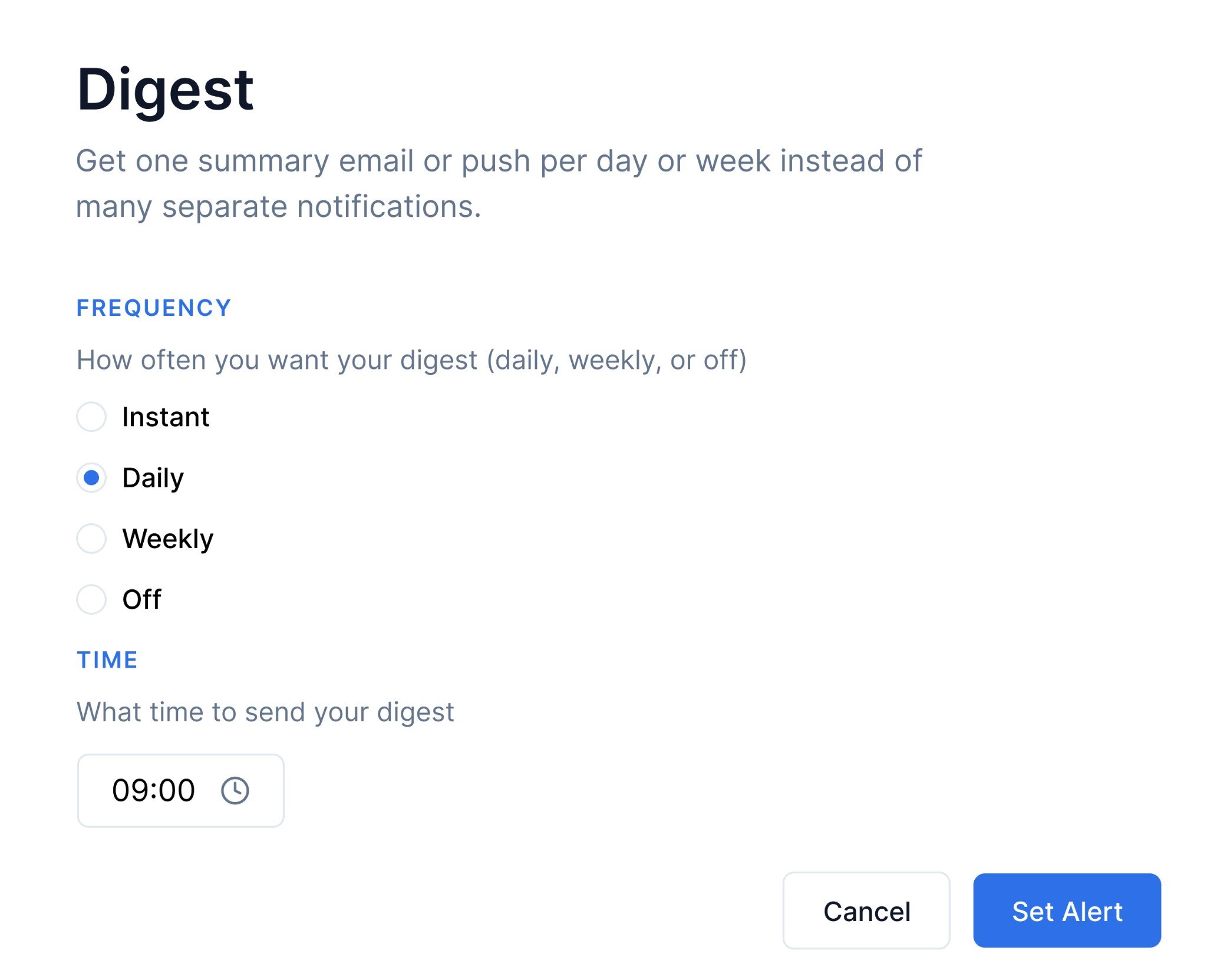
Instead of one notification per event, users choose how often they want a summary - Daily, Weekly, or Off. A user who picks Daily gets one email at 09:00 summarising everything that happened that day instead of a notification for every single event.
This works by storing the user's chosen schedule as a custom property on their profile using [`user.set()`](/docs/users). The workflow's Digest node reads this property at runtime via a [dynamic schedule](/docs/digest#dynamic-schedule-send-digest-based-on-user-preference) and fires on the schedule the user set.
**Configure in SuprSend**
1. Go to **Developers → [Preference categories](/docs/managing-notification-categories)** and create a sub-category for the notification type you want to digest (for example "Activity Summary"). Click **`+Sub-Category`**, fill in the name, and set a default preference
2. Click **`Publish Changes`**
3. In your workflow, add a **[Digest node](/docs/digest)** and set it to use a **dynamic schedule**. Point the dynamic schedule key at the user profile property where you store the schedule — for example `."$recipient".digestSchedule.category-slug` (where `category-slug` is the slug of preference category). The Digest node will automatically use whatever schedule the user has saved for that category. See [Dynamic schedule](/docs/digest#dynamic-schedule-send-digest-based-on-user-preference)
**Build in your app**
Show radio buttons for Daily / Weekly / Off and a time picker for daily and weekly schedules. On save, write the schedule to the user's profile with [`user.set()`](/docs/users).
This is a **profile update**, not a preference API call. Use [`suprSendClient.user.set()`](/docs/users) to save the digest schedule directly to the user's profile. The workflow's Digest node reads this property via the dynamic schedule key - not via the preference API.
```javascript theme={"system"}
import { useSuprSendClient } from "@suprsend/react";
import { useState } from "react";
function DigestPreferences() {
const suprSendClient = useSuprSendClient();
const [frequency, setFrequency] = useState("daily");
const [time, setTime] = useState("09:00");
// Save digest schedule as a user profile property, nested under the category slug.
// In your workflow, set the Digest node's dynamic schedule key to:
// ."$recipient".digestSchedule.category-slug (replace with your category slug)
//
// Schema fields:
// frequency — "daily" | "weekly" | "hourly" | "minutely" | "monthly"
// time — "hh:mm" — the time at which the recurring schedule fires and the
// batch window closes (for example "09:00" fires daily at 9 AM)
// tz_selection — "recipient" uses the recipient's $timezone profile property;
// leave empty "" and set tz_fixed for a hard-coded timezone
// dtstart — (optional) ISO-8601 datetime with timezone offset for the first
// schedule calculation, for example "2024-08-01T10:40:50+00:00".
// Defaults to current timestamp if omitted.
//
// See: https://docs.suprsend.com/docs/digest#dynamic-schedule-send-digest-based-on-user-preference
const handleSave = async () => {
await suprSendClient.user.set({
digestSchedule: {
"category-slug": { // replace with your category slug
frequency: frequency, // "daily" | "weekly" - drives when the batch fires
time: time, // "09:00" - time the recurring schedule fires (hh:mm)
tz_selection: "recipient", // use the recipient's timezone from their profile
// dtstart: "2024-08-01T10:40:50+00:00", // optional: ISO-8601 with tz offset
},
},
});
};
return (
);
}
```
**When to use:** Users get too many individual notifications and want a summary instead. Examples: daily activity digest ("Here's what happened in your workspace today"), weekly analytics reports, aggregated comment or mention notifications.
***
## 4. Hide categories by tenant plan
This guide has three tenant-related patterns. **Section 4** is for platform admins restricting what a tenant can access. **Section 6** is for tenant admins setting defaults for their own users. **Section 8** is for modelling each project as an independent tenant.
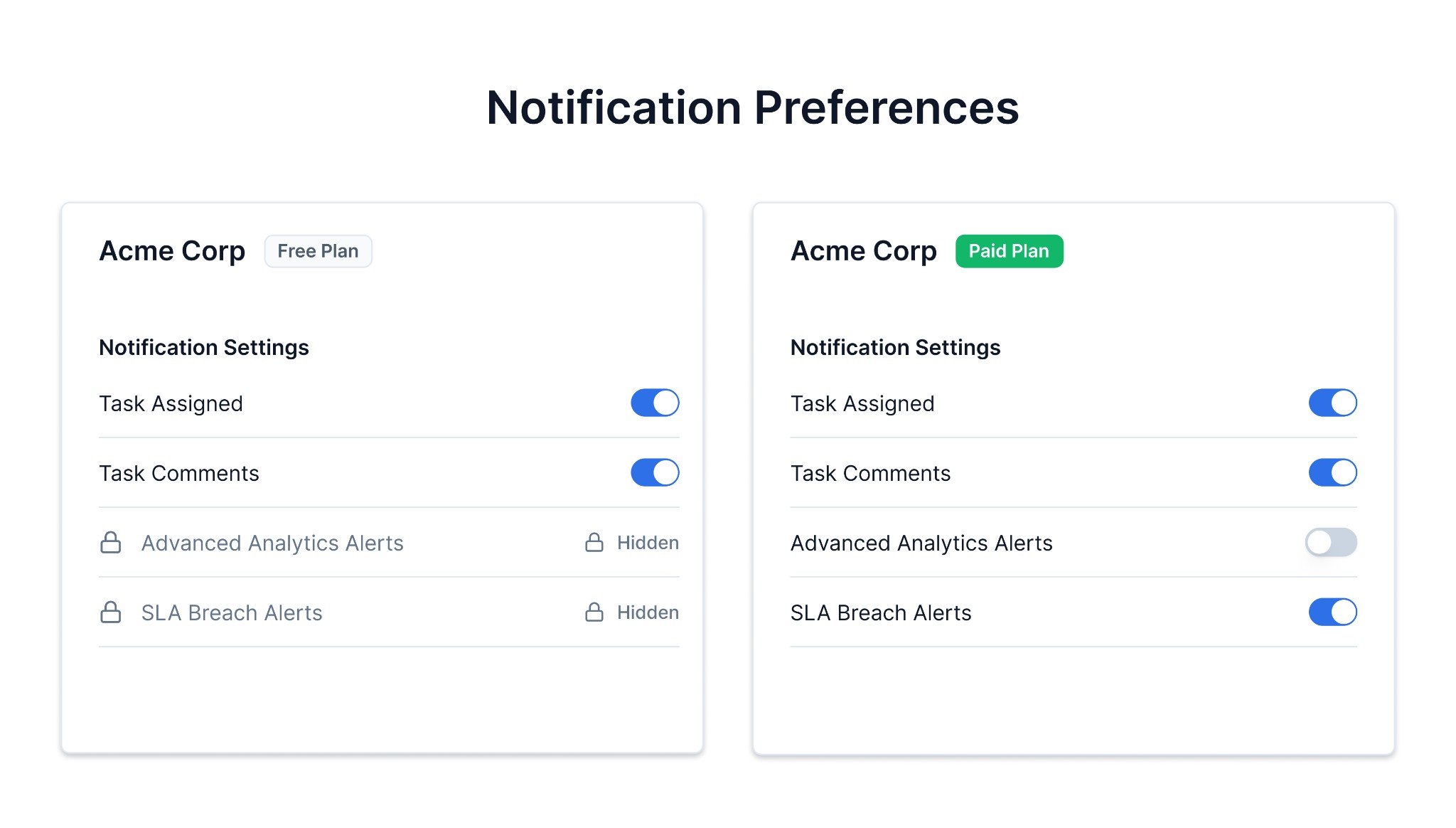
If you're building a multi-tenant app (for example a SaaS platform with free and paid plans), you probably don't want every tenant to see the same preference categories. A free-plan tenant shouldn't see categories for features they haven't subscribed to.
SuprSend lets you handle this with **[global tenant preferences](/docs/tenant-preference#platform-admin-controlling-tenant-access)**. As a platform admin, you can opt out specific categories or channels for any tenant. Once you do:
* The opted-out categories and channels are **removed from [`getPreferences()`](/docs/js-preferences)** responses for all users in that tenant - they won't see them on the preference page.
* **Notifications for those categories are not delivered** to the tenant's users.
* These are **hard overrides** - neither the tenant admin's default preferences nor individual user preferences can re-enable them. See [Preference Evaluation](/docs/preference-evaluation) for the full resolution order.
**Configure in SuprSend**
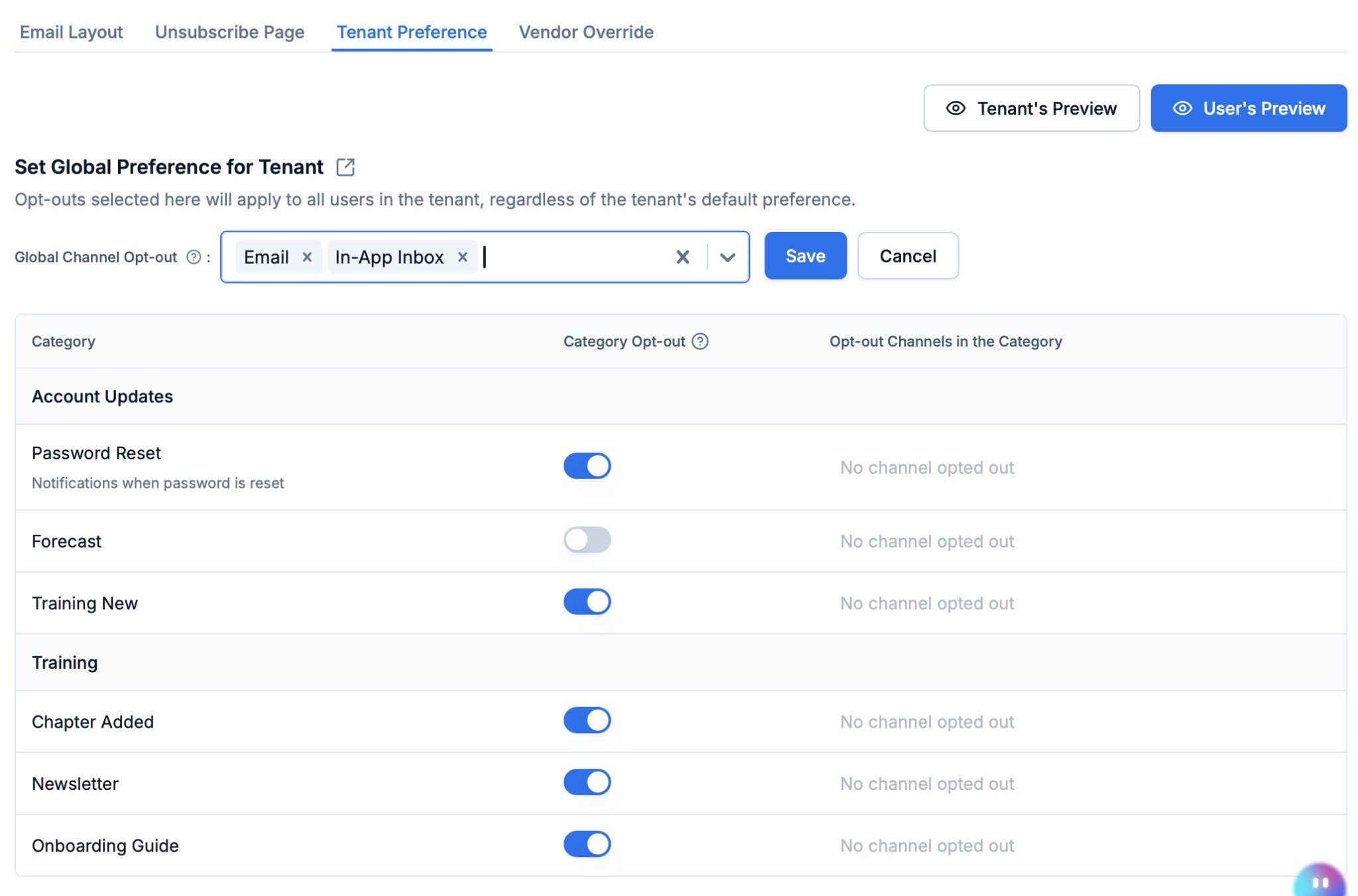
Go to **Tenants → select your tenant → Tenant Preference** in the SuprSend dashboard. The **Set Global Preference for Tenant** section gives you three controls:
* **Global Channel Opt-out** — block one or more channels (for example Email, In-App Inbox) across all categories for the tenant. Notifications on blocked channels are never delivered to any user in the tenant.
* **Category Opt-out** — toggle a category off for the tenant. The category is removed from the tenant's preference API responses and notifications for that category are not delivered.
* **Opt-out Channels in the Category** — block specific channels within a single category (for example disable SMS for "Newsletter" but keep it enabled for other categories).
**Build in your app**
Pass `tenantId` to [`getPreferences()`](/docs/js-preferences#get-preferences-data). Categories opted out at the tenant level are excluded from the response server-side - **your rendering code stays the same regardless of tenant plan**.
```javascript theme={"system"}
import { PreferenceOptions, useSuprSendClient } from "@suprsend/react";
import { useState, useEffect } from "react";
function TenantRestrictedPreferences({ tenantId }) {
const suprSendClient = useSuprSendClient();
const [preferenceData, setPreferenceData] = useState();
useEffect(() => {
// Categories opted out at the tenant level are excluded from the response
suprSendClient.user.preferences
.getPreferences({ tenantId })
.then((resp) => {
if (resp.status !== "error") setPreferenceData({ ...resp.body });
});
}, [tenantId]);
const handleCategoryChange = async (category, value) => {
const resp = await suprSendClient.user.preferences.updateCategoryPreference(
category,
value ? PreferenceOptions.OPT_IN : PreferenceOptions.OPT_OUT
);
if (resp.status !== "error") setPreferenceData({ ...resp.body });
};
// Render sections and subcategories - same pattern as Section 2
return preferenceData?.sections?.map((section, i) => (
{section?.name &&
{section.name}
}
{section?.subcategories?.map((sub, j) => (
{sub.name}
{/* Replace with your own toggle/switch component */}
))}
));
}
```
**When to use:** Multi-tenant SaaS where each tenant's plan determines which notifications are available. Examples: free-plan tenants see only core alert categories, paid tenants see advanced analytics alerts and SLA breach alerts they've subscribed to.
***
## 5. Filter categories with modules, roles, or departments
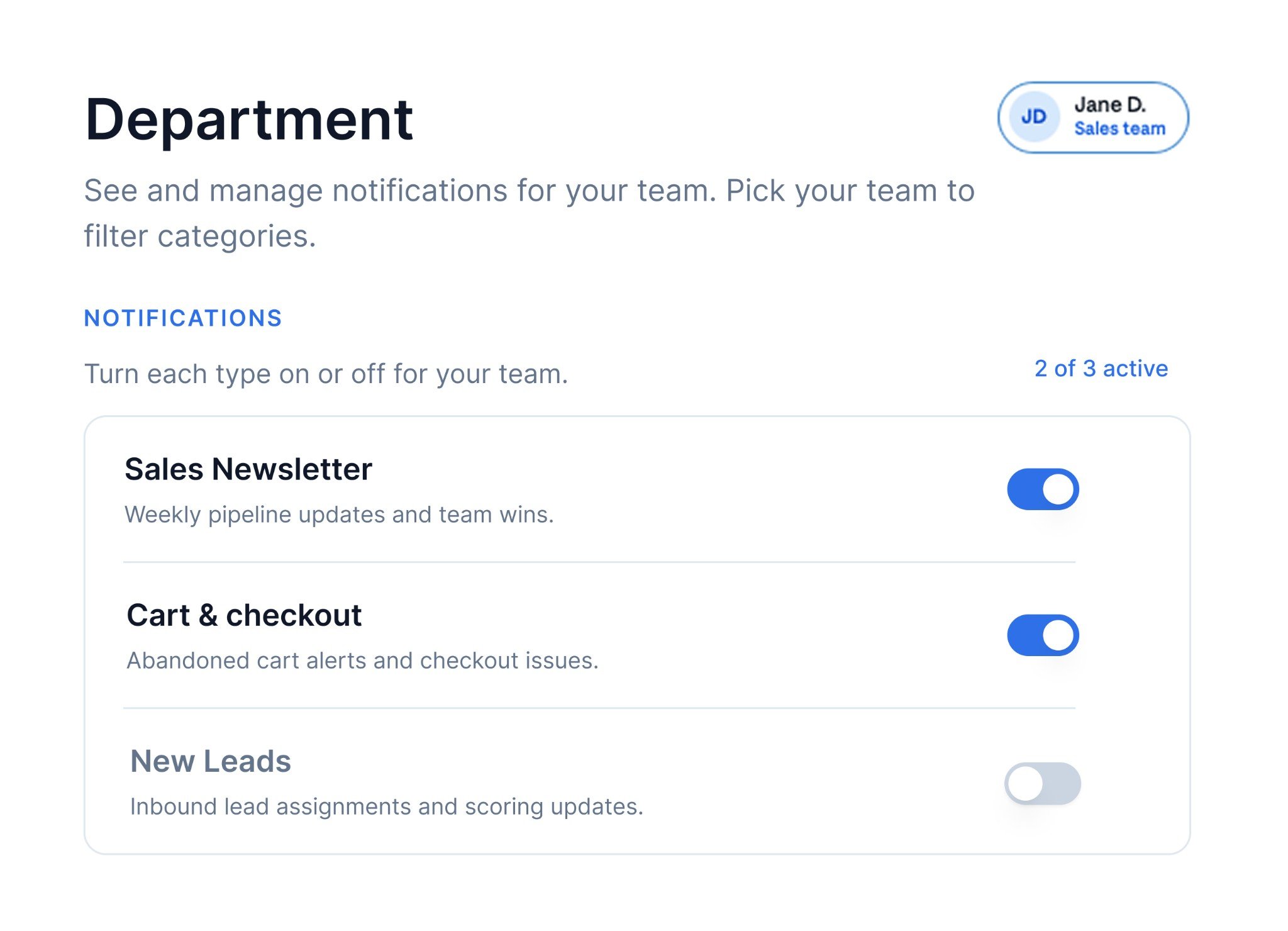
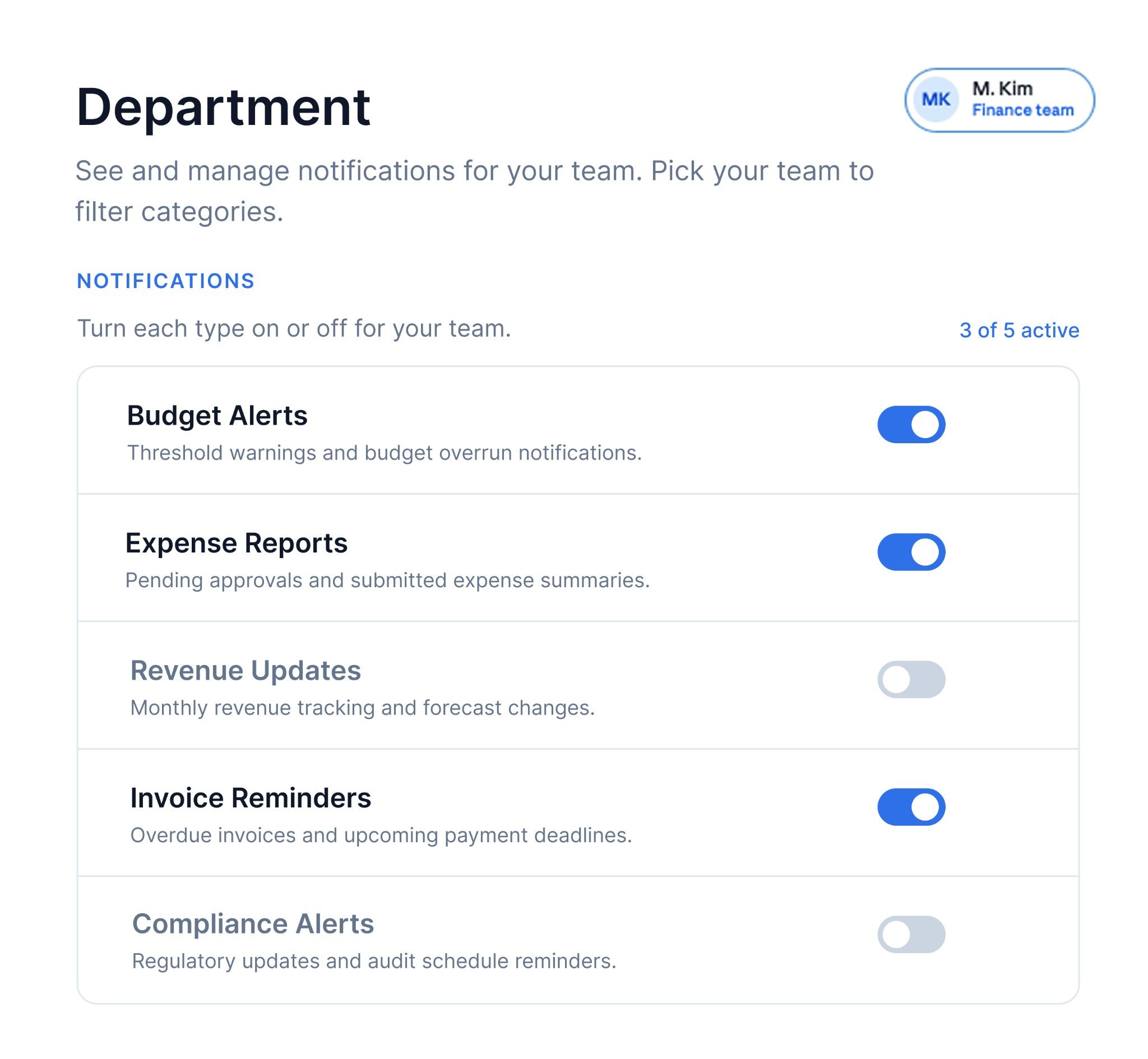
Not every user needs to see every preference category. A sales user only cares about Sales Newsletter, Cart & checkout, and New Leads - they don't need Budget Alerts or Expense Reports. A finance user is the opposite. And in a multi-module product, each module's alerts should live on its own tab.
This uses **[tags](/docs/user-preferences#filter-categories-with-tags)**. You assign tags to preference categories or sections in SuprSend, then pass the relevant tag to [`getPreferences()`](/docs/js-preferences) - SuprSend returns only the matching categories. When a tag is assigned at the **section level**, it automatically applies to all subcategories under that section via `effective_tags`.
Tags are flexible - they can drive two common patterns:
* **Automatic filtering by role or department:** Your app reads the user's department/role/team from their profile or session and passes the tag silently. No filter UI is needed.
* **User-selected filtering by module:** Your app shows a visible tab selector and re-fetches preferences with the selected tag.
**Configure in SuprSend**
Go to **Developers → [Preference categories](/docs/managing-notification-categories)** and tag your sections or sub-categories. Two ways to structure this:
* **Tag per section:** Click **`+Section`** to create a section (for example "Sales", "Finance"). Add a tag to the section (for example `sales`, `finance`). All sub-categories under that section inherit the tag automatically via `effective_tags`. Click **`Publish Changes`**.
* **Tag per sub-category:** Create a section with all sub-categories under it. Select each sub-category and add its own tag (for example `sales`, `finance`, `product`). Filtering by tag returns that section with only the matching sub-categories.
**Build in your app**
Pass the tag to [`getPreferences()`](/docs/js-preferences) via the `tags` parameter. Where the tag comes from depends on your use case - either derived from the user's profile (automatic) or from a tab selector (user-selected). The `tags` parameter also supports logical filtering for more complex cases - see [Filter categories with tags](/docs/user-preferences#filter-categories-with-tags) for supported operators (`or`, `and`, `not`, `exists`).
Read the user's department from their profile or session and pass it as the tag. No filter UI is needed - a sales user automatically sees only sales categories, a finance user sees only finance categories.
```javascript theme={"system"}
import { PreferenceOptions, useSuprSendClient } from "@suprsend/react";
import { useState, useEffect } from "react";
function DepartmentPreferences({ user }) {
const suprSendClient = useSuprSendClient();
const [preferenceData, setPreferenceData] = useState();
// Derive tag from user's department — for example "sales" or "finance"
const tag = user?.department || "sales";
useEffect(() => {
// Sales user gets: Sales Newsletter, Cart & checkout, New Leads
// Finance user gets: Budget Alerts, Expense Reports, Invoice Reminders, etc.
suprSendClient.user.preferences
.getPreferences({ tags: tag })
.then((resp) => {
if (resp.status !== "error") setPreferenceData({ ...resp.body });
});
}, [tag]);
const handleCategoryChange = async (category, value) => {
const resp = await suprSendClient.user.preferences.updateCategoryPreference(
category,
value ? PreferenceOptions.OPT_IN : PreferenceOptions.OPT_OUT
);
if (resp.status !== "error") setPreferenceData({ ...resp.body });
};
return preferenceData?.sections?.map((section, i) => (
{section?.name &&
{section.name}
}
{section?.subcategories?.map((sub, j) => (
{sub.name}
))}
));
}
```
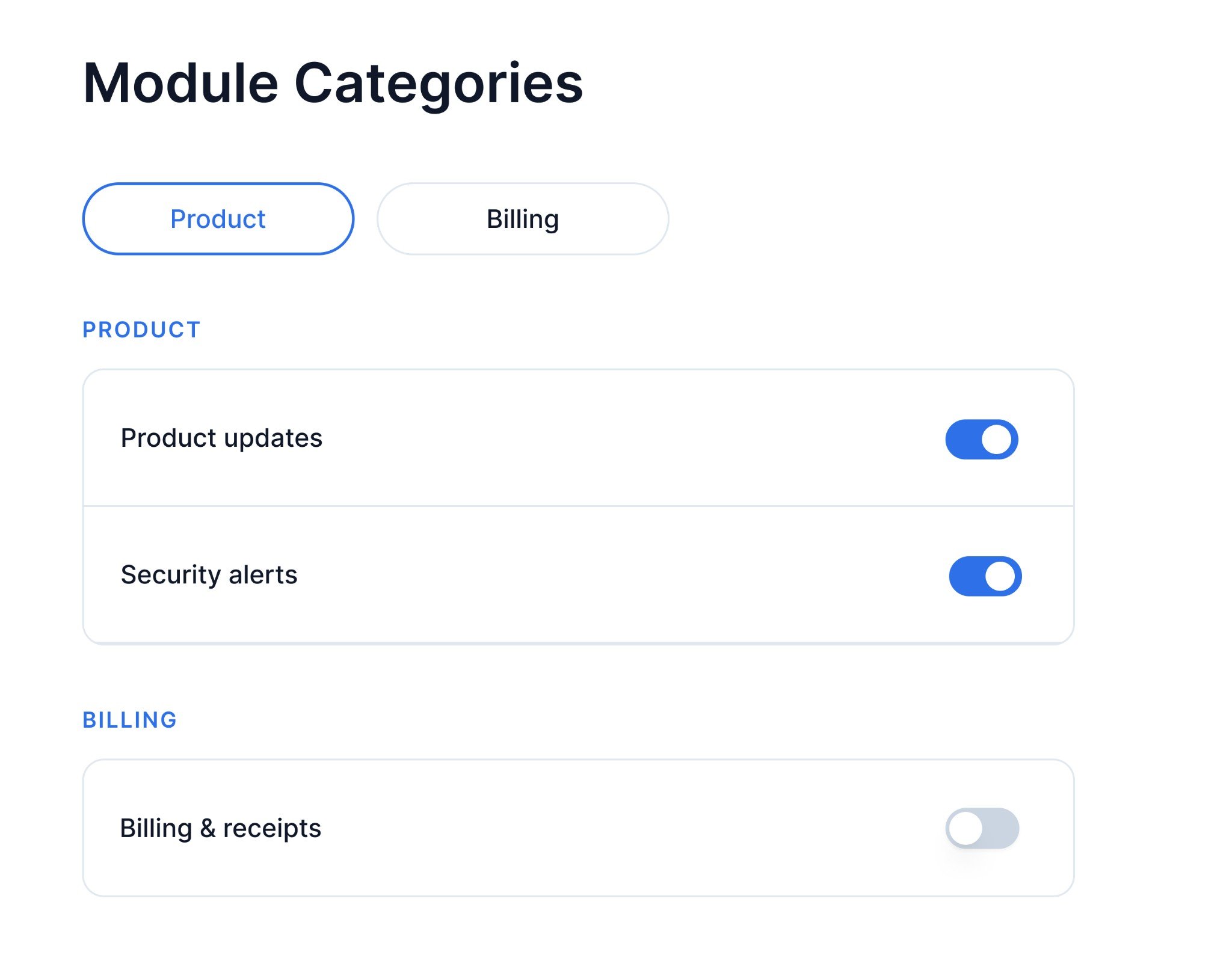
Render tab pills for each module. When the user switches tabs, re-fetch with the new tag.
```javascript theme={"system"}
import { PreferenceOptions, useSuprSendClient } from "@suprsend/react";
import { useState, useEffect } from "react";
function ModulePreferences() {
const suprSendClient = useSuprSendClient();
const [selectedTag, setSelectedTag] = useState("product");
const [preferenceData, setPreferenceData] = useState();
useEffect(() => {
suprSendClient.user.preferences
.getPreferences({ tags: selectedTag })
.then((resp) => {
if (resp.status !== "error") setPreferenceData({ ...resp.body });
});
}, [selectedTag]);
const handleCategoryChange = async (category, value) => {
const resp = await suprSendClient.user.preferences.updateCategoryPreference(
category,
value ? PreferenceOptions.OPT_IN : PreferenceOptions.OPT_OUT
);
if (resp.status !== "error") setPreferenceData({ ...resp.body });
};
return (
<>
{[
{ label: "Product", tag: "product" },
{ label: "Billing", tag: "billing" },
].map(({ label, tag }) => (
))}
{preferenceData?.sections?.map((section, i) => (
{section?.name &&
{section.name}
}
{section?.subcategories?.map((cat, j) => (
{cat.name}
))}
))}
);
}
```
**When to use:** Users in different roles, departments, or product modules should see only the preference categories relevant to them. Examples: sales users see Sales Newsletter and Cart & checkout; finance users see Budget Alerts and Expense Reports; a multi-module product where users switch between modules to manage alerts separately.
***
## 6. Tenant admin controls
Different from Section 4 (platform admin restricting tenant access). This section is about tenant admins configuring defaults for their own users. For per-project independent preferences, see Section 8.
In a B2B product, the person who configures notifications isn't the end user - it's generally pre-configured by account admin. This pattern lets [tenant](/docs/tenant-preference) admins control which categories are available to their users, what the defaults are, and which channels are enabled - all scoped to their account. End users then see only what their admin has left enabled.
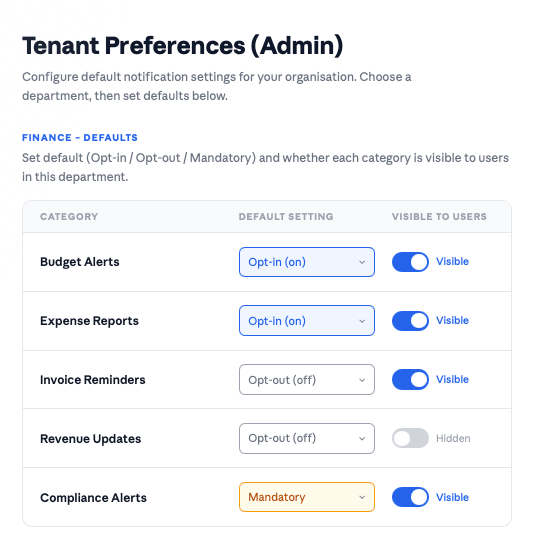
The admin view shows a table of categories with a **default preference selector** (Opt-in / Opt-out / Mandatory) and a toggle per category. The toggle maps directly to `visible_to_subscriber` in the API.
**Configure in SuprSend**
1. First ensure your preference categories are set up under **Developers → [Preference categories](/docs/managing-notification-categories)** and published
2. Provide tenant admins access to configure categories via the [Tenant Preference API](/docs/tenant-preference). They can enable/disable categories, set default On/Off, and control channel availability - all scoped to their tenant
**Build in your app**
Build an admin settings page that calls the [Tenant Preference API](/reference/update-tenant-preference-single-category). Tenant admins control the following per category:
* **Default preference** (`preference: opt_in / opt_out / cant_unsubscribe`) - sets whether the category is on, off, or mandatory by default for all users in this tenant. SuprSend evaluates preferences in the order: user preference → tenant default → category default. If a user hasn't set their own preference, the tenant default applies.
* **Visibility** (`visible_to_subscriber: true / false`) - controls whether the category appears on the end user's preference page at all. Set to `false` to hide and turn off categories that aren't relevant to this tenant's users.
* **Channel controls** - `mandatory_channels` makes specific channels non-unsubscribable (when preference is `cant_unsubscribe`), `opt_in_channels` sets which channels are on by default, and `blocked_channels` disables channels across all categories for the tenant regardless of individual user preferences.
```bash theme={"system"}
# Set default preference and visibility for a category within a tenant
curl -X PATCH "https://hub.suprsend.com/v1/tenant/{tenant_id}/preference/category/{category}/" \
-H "Authorization: Bearer {workspace_key}:{workspace_secret}" \
-H "Content-Type: application/json" \
-d '{
"preference": "opt_in",
"visible_to_subscriber": true
}'
```
For the end-user side, pass `tenantId` to [`getPreferences()`](/docs/js-preferences#get-preferences-data) - the rendering is the same as Section 2.
**When to use:** B2B or white-label products where each customer organisation's admin controls the notification experience for their users. Examples: one enterprise customer enables billing + security + product alerts while another only enables billing alerts; a white-label SaaS where each reseller configures the notification defaults for their own users.
***
## 7. User-defined alert threshold
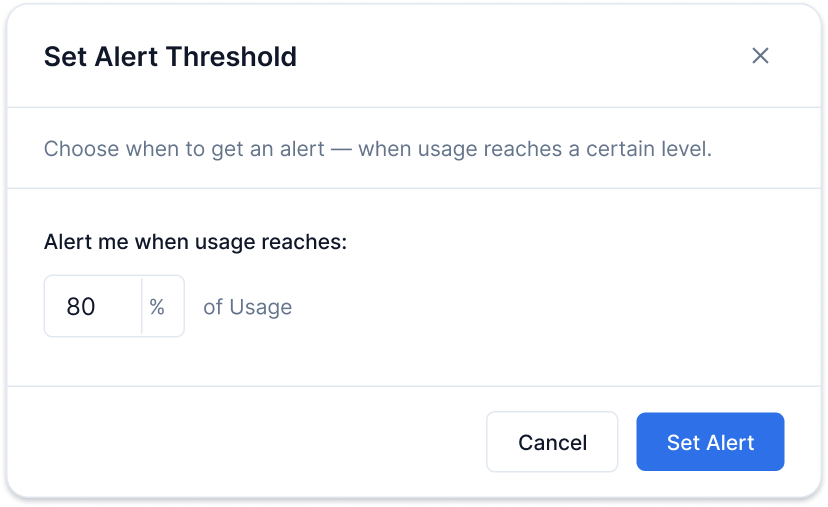
Some notifications are only useful when they cross a user-defined threshold. A storage alert at 1% full is noise; at 80% it's urgent. Users set their own trigger point, and the workflow only fires when the incoming metric crosses it.
The threshold value is a custom user profile property - not a preference setting. The preference controls whether the alert is on or off and which channels it goes to. The threshold controls *when* the workflow fires.
**Configure in SuprSend**
1. Go to **Developers → [Preference categories](/docs/managing-notification-categories)**. Click **`+Sub-Category`**, name it (for example "Usage alerts") and set a default preference. Click **`Publish Changes`**
2. Add a threshold condition in your workflow. You have two options depending on what you want to skip:
* **Skip a step in the workflow** — add a **[Branch node](/docs/branch)** inside the workflow that checks the threshold (for example `usage_percent >= ."$recipient".pref_conditions.usage-alerts.threshold`). If the condition isn't met, the branch doesn't execute but the rest of the workflow still runs.
* **Do not execute the workflow** — add the threshold check as a [trigger condition](/docs/workflows) at the start of the workflow. If the condition isn't met, the entire workflow is skipped and no notification is sent at all.
**Build in your app**
Call [`getPreferences()`](/docs/js-preferences#get-preferences-data) in your parent component and pass `preferenceData` as a prop. The preference page for this pattern has two independent parts rendered together:
1. **Threshold picker** - a number input. Saved via [`user.set()`](/docs/users) under `pref_conditions.usage-alerts.threshold` (replace `usage-alerts` with your actual category slug).
2. **Category preference** - the standard toggle and channel checkboxes for the "Usage alerts" category. Saved via [`updateCategoryPreference`](/docs/js-preferences#update-category-preference) and [`updateChannelPreferenceInCategory`](/docs/js-preferences#update-channel-preference-in-category) as usual.
```javascript theme={"system"}
import { PreferenceOptions, useSuprSendClient } from "@suprsend/react";
import { useState } from "react";
function ThresholdPreferences({ preferenceData, setPreferenceData }) {
const suprSendClient = useSuprSendClient();
const [threshold, setThreshold] = useState(80);
// Part 1: Save threshold to user profile - this is a profile update, not a preference call.
// In your workflow Branch node, reference the threshold as:
// ."$recipient".pref_conditions.usage-alerts.threshold
// (replace "usage-alerts" with your actual category slug)
const handleThresholdSave = async () => {
await suprSendClient.user.set({
pref_conditions: {
"usage-alerts": { // replace with your category slug
threshold: threshold, // for example 80 means "alert me when usage hits 80%"
},
},
});
};
// Part 2: Category on/off - standard preference update
const handleCategoryChange = async (category, value) => {
const resp = await suprSendClient.user.preferences.updateCategoryPreference(
category,
value ? PreferenceOptions.OPT_IN : PreferenceOptions.OPT_OUT
);
if (resp.status !== "error") setPreferenceData({ ...resp.body });
};
return (
{/* Replace with your own toggle/switch component */}
{sub?.channels?.map((channel, j) => (
))}
))}
);
}
```
**When to use:** Users need to set their own trigger point for an alert, not just whether to receive it. Examples: cloud storage ("alert me at 80% full"), API rate limits ("notify at 90% of quota"), budget tracking ("warn me when spend hits 75%").
***
## 8. Per-project preferences
Different from Section 4 (platform admin restricting tenant access) and Section 6 (tenant admin setting defaults). This section models each project as a separate tenant so preferences are fully independent per project.
Each project needs a completely independent set of preferences - its own category toggles, its own channel settings, its own defaults. Tags won't work here because tags only filter categories; they don't give each project its own independent channel-level preferences or defaults.
The solution is to model each project as a **[tenant](/docs/tenant-preference)** in SuprSend. Preferences are then scoped per tenant. When the user switches projects, you switch the `tenantId` passed to [`getPreferences()`](/docs/js-preferences#get-preferences-data), and all reads and writes happen against that project's tenant.
**Configure in SuprSend**
1. Create **one [tenant](/docs/tenant-preference) per project** in SuprSend (via **Tenants** in the dashboard or the [Tenants API](/docs/tenants)). You can also [create tenants via API](/reference/create-update-tenants)
2. For each tenant, configure which categories are enabled, what the defaults are, and which channels are available via the [Tenant Default Preference API](/reference/update-tenant-preference-single-category)
3. Ensure your preference categories are published under **Developers → [Preference categories](/docs/managing-notification-categories)**
**Build in your app**
Show a project selector. When the user picks a project, pass its tenant ID to [`getPreferences()`](/docs/js-preferences#get-preferences-data). Render the full preference UI - channel-level (All / Required per channel) and category-level (toggles + channel checkboxes).
All preference update methods (`updateCategoryPreference`, `updateChannelPreferenceInCategory`, `updateOverallChannelPreference`) are automatically scoped to the `tenantId` from the most recent `getPreferences()` call - you do not pass `tenantId` directly to update methods. This means the SDK tracks one active tenant at a time globally. Avoid making concurrent `getPreferences()` calls with different `tenantId` values while updates are in flight - a concurrent fetch would change the active tenant context and cause any in-flight updates to be written against the wrong tenant.
```javascript theme={"system"}
import {
PreferenceOptions,
ChannelLevelPreferenceOptions,
useSuprSendClient,
} from "@suprsend/react";
import { useState, useEffect } from "react";
// Example projects - in production these come from your own data
const PROJECTS = [
{ label: "Project Alpha", tenantId: "project-alpha" },
{ label: "Project Beta", tenantId: "project-beta" },
];
function ProjectPreferences() {
const suprSendClient = useSuprSendClient();
const [selectedTenantId, setSelectedTenantId] = useState(PROJECTS[0].tenantId);
const [preferenceData, setPreferenceData] = useState();
useEffect(() => {
// Switching projects re-fetches preferences scoped to that project's tenant.
// The SDK internally tracks this tenantId for all subsequent update calls
// until getPreferences() is called again with a different tenantId.
suprSendClient.user.preferences
.getPreferences({ tenantId: selectedTenantId })
.then((resp) => {
if (resp.status !== "error") setPreferenceData({ ...resp.body });
});
}, [selectedTenantId]);
// Category toggle - scoped to the tenantId from the last getPreferences() call
const handleCategoryChange = async (category, value) => {
const resp = await suprSendClient.user.preferences.updateCategoryPreference(
category,
value ? PreferenceOptions.OPT_IN : PreferenceOptions.OPT_OUT
);
if (resp.status !== "error") setPreferenceData({ ...resp.body });
};
// Channel checkbox within a category
const handleChannelInCategoryChange = async (channel, subcategory) => {
if (!channel.is_editable) return;
const resp = await suprSendClient.user.preferences.updateChannelPreferenceInCategory(
channel.channel,
channel.preference === PreferenceOptions.OPT_IN
? PreferenceOptions.OPT_OUT
: PreferenceOptions.OPT_IN,
subcategory.category
);
if (resp.status !== "error") setPreferenceData({ ...resp.body });
};
// Global All / Required per channel
const handleOverallChannelChange = async (channel, status) => {
const resp = await suprSendClient.user.preferences.updateOverallChannelPreference(
channel.channel,
status
);
if (resp.status !== "error") setPreferenceData({ ...resp.body });
};
return (
<>
{/* Project selector */}
{PROJECTS.map(({ label, tenantId }) => (
))}
{/* Channel-level preferences (All / Required) */}
{preferenceData?.channel_preferences?.map((channel, i) => (
{sub.name}
{/* Replace with your own toggle/switch component */}
{sub?.channels?.map((channel, k) => (
))}
))}
))}
);
}
```
**When to use:** Each project or sub-account needs completely independent preferences - its own defaults, its own channel settings, everything separate. Examples: an ad platform where each ad account has independent budget alert settings; a cloud hosting provider where production, staging, and dev each have separate alert preferences.
 **Configure in SuprSend**
1. Go to **Developers → [Preference categories](/docs/managing-notification-categories)** and select a root-category (System, Transactional, or Promotional)
2. Optionally, click **`+Section`** to create a section (for example "Product", "Billing"). Sections are used to group sub-categories on the preference page. Section doesn't have it's own preference.
3. Click **`+Sub-Category`**, fill in the name, select the section (if set), and set a default preference (**On**, **Off**, or **Can't Unsubscribe**)
4. Click **`Publish Changes`**
**Build in your app**
Call [`getPreferences()`](/docs/js-preferences#get-preferences-data) in your parent component on page load and pass the result down as `preferenceData`. The response gives you two independent parts:
* **`channel_preferences`** - render one row per channel with **All** / **Required** radio buttons. Read `is_restricted` to know which is currently selected: `false` = All, `true` = Required. Call [`updateOverallChannelPreference`](/docs/js-preferences#update-overall-channel-preference) with `ChannelLevelPreferenceOptions.ALL` or `ChannelLevelPreferenceOptions.REQUIRED` when the user changes their selection.
* **`sections[].subcategories[].channels`** - per-category channel checkboxes that let users turn individual channels on or off within a specific notification type. This is covered in detail in Section 2.
```javascript theme={"system"}
import {
ChannelLevelPreferenceOptions,
useSuprSendClient,
} from "@suprsend/react";
function ChannelPreferences({ preferenceData, setPreferenceData }) {
const suprSendClient = useSuprSendClient();
// Global All vs Required control per channel
// is_restricted: false = All, is_restricted: true = Required
const handleOverallChannelChange = async (channel, status) => {
const resp = await suprSendClient.user.preferences.updateOverallChannelPreference(
channel.channel,
status // ChannelLevelPreferenceOptions.ALL or ChannelLevelPreferenceOptions.REQUIRED
);
if (resp.status !== "error") setPreferenceData({ ...resp.body });
};
return (
<>
{/* Global channel controls - one row per channel */}
{preferenceData?.channel_preferences?.map((channel, i) => (
**Configure in SuprSend**
1. Go to **Developers → [Preference categories](/docs/managing-notification-categories)** and select a root-category (System, Transactional, or Promotional)
2. Optionally, click **`+Section`** to create a section (for example "Product", "Billing"). Sections are used to group sub-categories on the preference page. Section doesn't have it's own preference.
3. Click **`+Sub-Category`**, fill in the name, select the section (if set), and set a default preference (**On**, **Off**, or **Can't Unsubscribe**)
4. Click **`Publish Changes`**
**Build in your app**
Call [`getPreferences()`](/docs/js-preferences#get-preferences-data) in your parent component on page load and pass the result down as `preferenceData`. The response gives you two independent parts:
* **`channel_preferences`** - render one row per channel with **All** / **Required** radio buttons. Read `is_restricted` to know which is currently selected: `false` = All, `true` = Required. Call [`updateOverallChannelPreference`](/docs/js-preferences#update-overall-channel-preference) with `ChannelLevelPreferenceOptions.ALL` or `ChannelLevelPreferenceOptions.REQUIRED` when the user changes their selection.
* **`sections[].subcategories[].channels`** - per-category channel checkboxes that let users turn individual channels on or off within a specific notification type. This is covered in detail in Section 2.
```javascript theme={"system"}
import {
ChannelLevelPreferenceOptions,
useSuprSendClient,
} from "@suprsend/react";
function ChannelPreferences({ preferenceData, setPreferenceData }) {
const suprSendClient = useSuprSendClient();
// Global All vs Required control per channel
// is_restricted: false = All, is_restricted: true = Required
const handleOverallChannelChange = async (channel, status) => {
const resp = await suprSendClient.user.preferences.updateOverallChannelPreference(
channel.channel,
status // ChannelLevelPreferenceOptions.ALL or ChannelLevelPreferenceOptions.REQUIRED
);
if (resp.status !== "error") setPreferenceData({ ...resp.body });
};
return (
<>
{/* Global channel controls - one row per channel */}
{preferenceData?.channel_preferences?.map((channel, i) => (
 **Configure in SuprSend**
1. Go to **Developers → [Preference categories](/docs/managing-notification-categories)** and select a root-category
2. Click **`+Section`** to create sections (for example "Product", "Billing", "Sales"). Sections are used to group sub-categories on the preference page. Section doesn't have it's own preference.
3. Click **`+Sub-Category`** for each notification type, select its section (if set), and set a default preference (**On**, **Off**, or **Can't Unsubscribe**). You can also choose which channels should be opt\_in by default in case of `On` preference.
4. Click **`Publish Changes`**
**Build in your app**
Call [`getPreferences()`](/docs/js-preferences#get-preferences-data) in your parent component and pass `preferenceData` as a prop. Render sections as headings and subcategories as rows, each with a toggle and channel checkboxes below it.
Three things to handle carefully:
* **`is_editable: false` on a subcategory** means the category is set to **Can't Unsubscribe** in SuprSend. Disable the toggle - users cannot opt out.
* **`is_editable: false` on a channel inside a subcategory** means that specific channel is mandatory for that category and cannot be turned off. Disable the channel checkbox independently of the subcategory toggle. A category can have `is_editable: true` (user can toggle it off) while individual channels within it have `is_editable: false` (those channels cannot be removed).
* **`channels` may be empty or absent** (for example when `show_opt_out_channels` is `false` for opted-out categories). Use optional chaining (`subcategory?.channels?.map(...)`) to handle this safely.
**Configure in SuprSend**
1. Go to **Developers → [Preference categories](/docs/managing-notification-categories)** and select a root-category
2. Click **`+Section`** to create sections (for example "Product", "Billing", "Sales"). Sections are used to group sub-categories on the preference page. Section doesn't have it's own preference.
3. Click **`+Sub-Category`** for each notification type, select its section (if set), and set a default preference (**On**, **Off**, or **Can't Unsubscribe**). You can also choose which channels should be opt\_in by default in case of `On` preference.
4. Click **`Publish Changes`**
**Build in your app**
Call [`getPreferences()`](/docs/js-preferences#get-preferences-data) in your parent component and pass `preferenceData` as a prop. Render sections as headings and subcategories as rows, each with a toggle and channel checkboxes below it.
Three things to handle carefully:
* **`is_editable: false` on a subcategory** means the category is set to **Can't Unsubscribe** in SuprSend. Disable the toggle - users cannot opt out.
* **`is_editable: false` on a channel inside a subcategory** means that specific channel is mandatory for that category and cannot be turned off. Disable the channel checkbox independently of the subcategory toggle. A category can have `is_editable: true` (user can toggle it off) while individual channels within it have `is_editable: false` (those channels cannot be removed).
* **`channels` may be empty or absent** (for example when `show_opt_out_channels` is `false` for opted-out categories). Use optional chaining (`subcategory?.channels?.map(...)`) to handle this safely.
 **Configure in SuprSend**
1. Go to **Developers → [Preference categories](/docs/managing-notification-categories)** and create a sub-category for the notification type you want to digest (for example "Activity Summary"). Click **`+Sub-Category`**, fill in the name, and set a default preference
2. Click **`Publish Changes`**
3. In your workflow, add a **[Digest node](/docs/digest)** and set it to use a **dynamic schedule**. Point the dynamic schedule key at the user profile property where you store the schedule — for example `."$recipient".digestSchedule.category-slug` (where `category-slug` is the slug of preference category). The Digest node will automatically use whatever schedule the user has saved for that category. See [Dynamic schedule](/docs/digest#dynamic-schedule-send-digest-based-on-user-preference)
**Build in your app**
Show radio buttons for Daily / Weekly / Off and a time picker for daily and weekly schedules. On save, write the schedule to the user's profile with [`user.set()`](/docs/users).
**Configure in SuprSend**
1. Go to **Developers → [Preference categories](/docs/managing-notification-categories)** and create a sub-category for the notification type you want to digest (for example "Activity Summary"). Click **`+Sub-Category`**, fill in the name, and set a default preference
2. Click **`Publish Changes`**
3. In your workflow, add a **[Digest node](/docs/digest)** and set it to use a **dynamic schedule**. Point the dynamic schedule key at the user profile property where you store the schedule — for example `."$recipient".digestSchedule.category-slug` (where `category-slug` is the slug of preference category). The Digest node will automatically use whatever schedule the user has saved for that category. See [Dynamic schedule](/docs/digest#dynamic-schedule-send-digest-based-on-user-preference)
**Build in your app**
Show radio buttons for Daily / Weekly / Off and a time picker for daily and weekly schedules. On save, write the schedule to the user's profile with [`user.set()`](/docs/users).
 **Configure in SuprSend**
Go to **Tenants → select your tenant → Tenant Preference** in the SuprSend dashboard. The **Set Global Preference for Tenant** section gives you three controls:
* **Global Channel Opt-out** — block one or more channels (for example Email, In-App Inbox) across all categories for the tenant. Notifications on blocked channels are never delivered to any user in the tenant.
* **Category Opt-out** — toggle a category off for the tenant. The category is removed from the tenant's preference API responses and notifications for that category are not delivered.
* **Opt-out Channels in the Category** — block specific channels within a single category (for example disable SMS for "Newsletter" but keep it enabled for other categories).
**Configure in SuprSend**
Go to **Tenants → select your tenant → Tenant Preference** in the SuprSend dashboard. The **Set Global Preference for Tenant** section gives you three controls:
* **Global Channel Opt-out** — block one or more channels (for example Email, In-App Inbox) across all categories for the tenant. Notifications on blocked channels are never delivered to any user in the tenant.
* **Category Opt-out** — toggle a category off for the tenant. The category is removed from the tenant's preference API responses and notifications for that category are not delivered.
* **Opt-out Channels in the Category** — block specific channels within a single category (for example disable SMS for "Newsletter" but keep it enabled for other categories).
 **Build in your app**
Pass `tenantId` to [`getPreferences()`](/docs/js-preferences#get-preferences-data). Categories opted out at the tenant level are excluded from the response server-side - **your rendering code stays the same regardless of tenant plan**.
```javascript theme={"system"}
import { PreferenceOptions, useSuprSendClient } from "@suprsend/react";
import { useState, useEffect } from "react";
function TenantRestrictedPreferences({ tenantId }) {
const suprSendClient = useSuprSendClient();
const [preferenceData, setPreferenceData] = useState();
useEffect(() => {
// Categories opted out at the tenant level are excluded from the response
suprSendClient.user.preferences
.getPreferences({ tenantId })
.then((resp) => {
if (resp.status !== "error") setPreferenceData({ ...resp.body });
});
}, [tenantId]);
const handleCategoryChange = async (category, value) => {
const resp = await suprSendClient.user.preferences.updateCategoryPreference(
category,
value ? PreferenceOptions.OPT_IN : PreferenceOptions.OPT_OUT
);
if (resp.status !== "error") setPreferenceData({ ...resp.body });
};
// Render sections and subcategories - same pattern as Section 2
return preferenceData?.sections?.map((section, i) => (
**Build in your app**
Pass `tenantId` to [`getPreferences()`](/docs/js-preferences#get-preferences-data). Categories opted out at the tenant level are excluded from the response server-side - **your rendering code stays the same regardless of tenant plan**.
```javascript theme={"system"}
import { PreferenceOptions, useSuprSendClient } from "@suprsend/react";
import { useState, useEffect } from "react";
function TenantRestrictedPreferences({ tenantId }) {
const suprSendClient = useSuprSendClient();
const [preferenceData, setPreferenceData] = useState();
useEffect(() => {
// Categories opted out at the tenant level are excluded from the response
suprSendClient.user.preferences
.getPreferences({ tenantId })
.then((resp) => {
if (resp.status !== "error") setPreferenceData({ ...resp.body });
});
}, [tenantId]);
const handleCategoryChange = async (category, value) => {
const resp = await suprSendClient.user.preferences.updateCategoryPreference(
category,
value ? PreferenceOptions.OPT_IN : PreferenceOptions.OPT_OUT
);
if (resp.status !== "error") setPreferenceData({ ...resp.body });
};
// Render sections and subcategories - same pattern as Section 2
return preferenceData?.sections?.map((section, i) => (
 ```javascript theme={"system"}
import { PreferenceOptions, useSuprSendClient } from "@suprsend/react";
import { useState, useEffect } from "react";
function DepartmentPreferences({ user }) {
const suprSendClient = useSuprSendClient();
const [preferenceData, setPreferenceData] = useState();
// Derive tag from user's department — for example "sales" or "finance"
const tag = user?.department || "sales";
useEffect(() => {
// Sales user gets: Sales Newsletter, Cart & checkout, New Leads
// Finance user gets: Budget Alerts, Expense Reports, Invoice Reminders, etc.
suprSendClient.user.preferences
.getPreferences({ tags: tag })
.then((resp) => {
if (resp.status !== "error") setPreferenceData({ ...resp.body });
});
}, [tag]);
const handleCategoryChange = async (category, value) => {
const resp = await suprSendClient.user.preferences.updateCategoryPreference(
category,
value ? PreferenceOptions.OPT_IN : PreferenceOptions.OPT_OUT
);
if (resp.status !== "error") setPreferenceData({ ...resp.body });
};
return preferenceData?.sections?.map((section, i) => (
```javascript theme={"system"}
import { PreferenceOptions, useSuprSendClient } from "@suprsend/react";
import { useState, useEffect } from "react";
function DepartmentPreferences({ user }) {
const suprSendClient = useSuprSendClient();
const [preferenceData, setPreferenceData] = useState();
// Derive tag from user's department — for example "sales" or "finance"
const tag = user?.department || "sales";
useEffect(() => {
// Sales user gets: Sales Newsletter, Cart & checkout, New Leads
// Finance user gets: Budget Alerts, Expense Reports, Invoice Reminders, etc.
suprSendClient.user.preferences
.getPreferences({ tags: tag })
.then((resp) => {
if (resp.status !== "error") setPreferenceData({ ...resp.body });
});
}, [tag]);
const handleCategoryChange = async (category, value) => {
const resp = await suprSendClient.user.preferences.updateCategoryPreference(
category,
value ? PreferenceOptions.OPT_IN : PreferenceOptions.OPT_OUT
);
if (resp.status !== "error") setPreferenceData({ ...resp.body });
};
return preferenceData?.sections?.map((section, i) => (
 ```javascript theme={"system"}
import { PreferenceOptions, useSuprSendClient } from "@suprsend/react";
import { useState, useEffect } from "react";
function ModulePreferences() {
const suprSendClient = useSuprSendClient();
const [selectedTag, setSelectedTag] = useState("product");
const [preferenceData, setPreferenceData] = useState();
useEffect(() => {
suprSendClient.user.preferences
.getPreferences({ tags: selectedTag })
.then((resp) => {
if (resp.status !== "error") setPreferenceData({ ...resp.body });
});
}, [selectedTag]);
const handleCategoryChange = async (category, value) => {
const resp = await suprSendClient.user.preferences.updateCategoryPreference(
category,
value ? PreferenceOptions.OPT_IN : PreferenceOptions.OPT_OUT
);
if (resp.status !== "error") setPreferenceData({ ...resp.body });
};
return (
<>
{[
{ label: "Product", tag: "product" },
{ label: "Billing", tag: "billing" },
].map(({ label, tag }) => (
))}
{preferenceData?.sections?.map((section, i) => (
```javascript theme={"system"}
import { PreferenceOptions, useSuprSendClient } from "@suprsend/react";
import { useState, useEffect } from "react";
function ModulePreferences() {
const suprSendClient = useSuprSendClient();
const [selectedTag, setSelectedTag] = useState("product");
const [preferenceData, setPreferenceData] = useState();
useEffect(() => {
suprSendClient.user.preferences
.getPreferences({ tags: selectedTag })
.then((resp) => {
if (resp.status !== "error") setPreferenceData({ ...resp.body });
});
}, [selectedTag]);
const handleCategoryChange = async (category, value) => {
const resp = await suprSendClient.user.preferences.updateCategoryPreference(
category,
value ? PreferenceOptions.OPT_IN : PreferenceOptions.OPT_OUT
);
if (resp.status !== "error") setPreferenceData({ ...resp.body });
};
return (
<>
{[
{ label: "Product", tag: "product" },
{ label: "Billing", tag: "billing" },
].map(({ label, tag }) => (
))}
{preferenceData?.sections?.map((section, i) => (
 **Configure in SuprSend**
1. First ensure your preference categories are set up under **Developers → [Preference categories](/docs/managing-notification-categories)** and published
2. Provide tenant admins access to configure categories via the [Tenant Preference API](/docs/tenant-preference). They can enable/disable categories, set default On/Off, and control channel availability - all scoped to their tenant
**Build in your app**
Build an admin settings page that calls the [Tenant Preference API](/reference/update-tenant-preference-single-category). Tenant admins control the following per category:
* **Default preference** (`preference: opt_in / opt_out / cant_unsubscribe`) - sets whether the category is on, off, or mandatory by default for all users in this tenant. SuprSend evaluates preferences in the order: user preference → tenant default → category default. If a user hasn't set their own preference, the tenant default applies.
* **Visibility** (`visible_to_subscriber: true / false`) - controls whether the category appears on the end user's preference page at all. Set to `false` to hide and turn off categories that aren't relevant to this tenant's users.
* **Channel controls** - `mandatory_channels` makes specific channels non-unsubscribable (when preference is `cant_unsubscribe`), `opt_in_channels` sets which channels are on by default, and `blocked_channels` disables channels across all categories for the tenant regardless of individual user preferences.
```bash theme={"system"}
# Set default preference and visibility for a category within a tenant
curl -X PATCH "https://hub.suprsend.com/v1/tenant/{tenant_id}/preference/category/{category}/" \
-H "Authorization: Bearer {workspace_key}:{workspace_secret}" \
-H "Content-Type: application/json" \
-d '{
"preference": "opt_in",
"visible_to_subscriber": true
}'
```
For the end-user side, pass `tenantId` to [`getPreferences()`](/docs/js-preferences#get-preferences-data) - the rendering is the same as Section 2.
**Configure in SuprSend**
1. First ensure your preference categories are set up under **Developers → [Preference categories](/docs/managing-notification-categories)** and published
2. Provide tenant admins access to configure categories via the [Tenant Preference API](/docs/tenant-preference). They can enable/disable categories, set default On/Off, and control channel availability - all scoped to their tenant
**Build in your app**
Build an admin settings page that calls the [Tenant Preference API](/reference/update-tenant-preference-single-category). Tenant admins control the following per category:
* **Default preference** (`preference: opt_in / opt_out / cant_unsubscribe`) - sets whether the category is on, off, or mandatory by default for all users in this tenant. SuprSend evaluates preferences in the order: user preference → tenant default → category default. If a user hasn't set their own preference, the tenant default applies.
* **Visibility** (`visible_to_subscriber: true / false`) - controls whether the category appears on the end user's preference page at all. Set to `false` to hide and turn off categories that aren't relevant to this tenant's users.
* **Channel controls** - `mandatory_channels` makes specific channels non-unsubscribable (when preference is `cant_unsubscribe`), `opt_in_channels` sets which channels are on by default, and `blocked_channels` disables channels across all categories for the tenant regardless of individual user preferences.
```bash theme={"system"}
# Set default preference and visibility for a category within a tenant
curl -X PATCH "https://hub.suprsend.com/v1/tenant/{tenant_id}/preference/category/{category}/" \
-H "Authorization: Bearer {workspace_key}:{workspace_secret}" \
-H "Content-Type: application/json" \
-d '{
"preference": "opt_in",
"visible_to_subscriber": true
}'
```
For the end-user side, pass `tenantId` to [`getPreferences()`](/docs/js-preferences#get-preferences-data) - the rendering is the same as Section 2.
 **Configure in SuprSend**
1. Go to **Developers → [Preference categories](/docs/managing-notification-categories)**. Click **`+Sub-Category`**, name it (for example "Usage alerts") and set a default preference. Click **`Publish Changes`**
2. Add a threshold condition in your workflow. You have two options depending on what you want to skip:
* **Skip a step in the workflow** — add a **[Branch node](/docs/branch)** inside the workflow that checks the threshold (for example `usage_percent >= ."$recipient".pref_conditions.usage-alerts.threshold`). If the condition isn't met, the branch doesn't execute but the rest of the workflow still runs.
* **Do not execute the workflow** — add the threshold check as a [trigger condition](/docs/workflows) at the start of the workflow. If the condition isn't met, the entire workflow is skipped and no notification is sent at all.
**Build in your app**
Call [`getPreferences()`](/docs/js-preferences#get-preferences-data) in your parent component and pass `preferenceData` as a prop. The preference page for this pattern has two independent parts rendered together:
1. **Threshold picker** - a number input. Saved via [`user.set()`](/docs/users) under `pref_conditions.usage-alerts.threshold` (replace `usage-alerts` with your actual category slug).
2. **Category preference** - the standard toggle and channel checkboxes for the "Usage alerts" category. Saved via [`updateCategoryPreference`](/docs/js-preferences#update-category-preference) and [`updateChannelPreferenceInCategory`](/docs/js-preferences#update-channel-preference-in-category) as usual.
```javascript theme={"system"}
import { PreferenceOptions, useSuprSendClient } from "@suprsend/react";
import { useState } from "react";
function ThresholdPreferences({ preferenceData, setPreferenceData }) {
const suprSendClient = useSuprSendClient();
const [threshold, setThreshold] = useState(80);
// Part 1: Save threshold to user profile - this is a profile update, not a preference call.
// In your workflow Branch node, reference the threshold as:
// ."$recipient".pref_conditions.usage-alerts.threshold
// (replace "usage-alerts" with your actual category slug)
const handleThresholdSave = async () => {
await suprSendClient.user.set({
pref_conditions: {
"usage-alerts": { // replace with your category slug
threshold: threshold, // for example 80 means "alert me when usage hits 80%"
},
},
});
};
// Part 2: Category on/off - standard preference update
const handleCategoryChange = async (category, value) => {
const resp = await suprSendClient.user.preferences.updateCategoryPreference(
category,
value ? PreferenceOptions.OPT_IN : PreferenceOptions.OPT_OUT
);
if (resp.status !== "error") setPreferenceData({ ...resp.body });
};
return (
**Configure in SuprSend**
1. Go to **Developers → [Preference categories](/docs/managing-notification-categories)**. Click **`+Sub-Category`**, name it (for example "Usage alerts") and set a default preference. Click **`Publish Changes`**
2. Add a threshold condition in your workflow. You have two options depending on what you want to skip:
* **Skip a step in the workflow** — add a **[Branch node](/docs/branch)** inside the workflow that checks the threshold (for example `usage_percent >= ."$recipient".pref_conditions.usage-alerts.threshold`). If the condition isn't met, the branch doesn't execute but the rest of the workflow still runs.
* **Do not execute the workflow** — add the threshold check as a [trigger condition](/docs/workflows) at the start of the workflow. If the condition isn't met, the entire workflow is skipped and no notification is sent at all.
**Build in your app**
Call [`getPreferences()`](/docs/js-preferences#get-preferences-data) in your parent component and pass `preferenceData` as a prop. The preference page for this pattern has two independent parts rendered together:
1. **Threshold picker** - a number input. Saved via [`user.set()`](/docs/users) under `pref_conditions.usage-alerts.threshold` (replace `usage-alerts` with your actual category slug).
2. **Category preference** - the standard toggle and channel checkboxes for the "Usage alerts" category. Saved via [`updateCategoryPreference`](/docs/js-preferences#update-category-preference) and [`updateChannelPreferenceInCategory`](/docs/js-preferences#update-channel-preference-in-category) as usual.
```javascript theme={"system"}
import { PreferenceOptions, useSuprSendClient } from "@suprsend/react";
import { useState } from "react";
function ThresholdPreferences({ preferenceData, setPreferenceData }) {
const suprSendClient = useSuprSendClient();
const [threshold, setThreshold] = useState(80);
// Part 1: Save threshold to user profile - this is a profile update, not a preference call.
// In your workflow Branch node, reference the threshold as:
// ."$recipient".pref_conditions.usage-alerts.threshold
// (replace "usage-alerts" with your actual category slug)
const handleThresholdSave = async () => {
await suprSendClient.user.set({
pref_conditions: {
"usage-alerts": { // replace with your category slug
threshold: threshold, // for example 80 means "alert me when usage hits 80%"
},
},
});
};
// Part 2: Category on/off - standard preference update
const handleCategoryChange = async (category, value) => {
const resp = await suprSendClient.user.preferences.updateCategoryPreference(
category,
value ? PreferenceOptions.OPT_IN : PreferenceOptions.OPT_OUT
);
if (resp.status !== "error") setPreferenceData({ ...resp.body });
};
return (
 **Configure in SuprSend**
1. Create **one [tenant](/docs/tenant-preference) per project** in SuprSend (via **Tenants** in the dashboard or the [Tenants API](/docs/tenants)). You can also [create tenants via API](/reference/create-update-tenants)
2. For each tenant, configure which categories are enabled, what the defaults are, and which channels are available via the [Tenant Default Preference API](/reference/update-tenant-preference-single-category)
3. Ensure your preference categories are published under **Developers → [Preference categories](/docs/managing-notification-categories)**
**Build in your app**
Show a project selector. When the user picks a project, pass its tenant ID to [`getPreferences()`](/docs/js-preferences#get-preferences-data). Render the full preference UI - channel-level (All / Required per channel) and category-level (toggles + channel checkboxes).
**Configure in SuprSend**
1. Create **one [tenant](/docs/tenant-preference) per project** in SuprSend (via **Tenants** in the dashboard or the [Tenants API](/docs/tenants)). You can also [create tenants via API](/reference/create-update-tenants)
2. For each tenant, configure which categories are enabled, what the defaults are, and which channels are available via the [Tenant Default Preference API](/reference/update-tenant-preference-single-category)
3. Ensure your preference categories are published under **Developers → [Preference categories](/docs/managing-notification-categories)**
**Build in your app**
Show a project selector. When the user picks a project, pass its tenant ID to [`getPreferences()`](/docs/js-preferences#get-preferences-data). Render the full preference UI - channel-level (All / Required per channel) and category-level (toggles + channel checkboxes).