> ## Documentation Index
> Fetch the complete documentation index at: https://docs.suprsend.com/llms.txt
> Use this file to discover all available pages before exploring further.
# In-App Inbox
> Design rich inbox notification cards with action buttons, avatars, pinning, expiry, tags, and dynamic content.
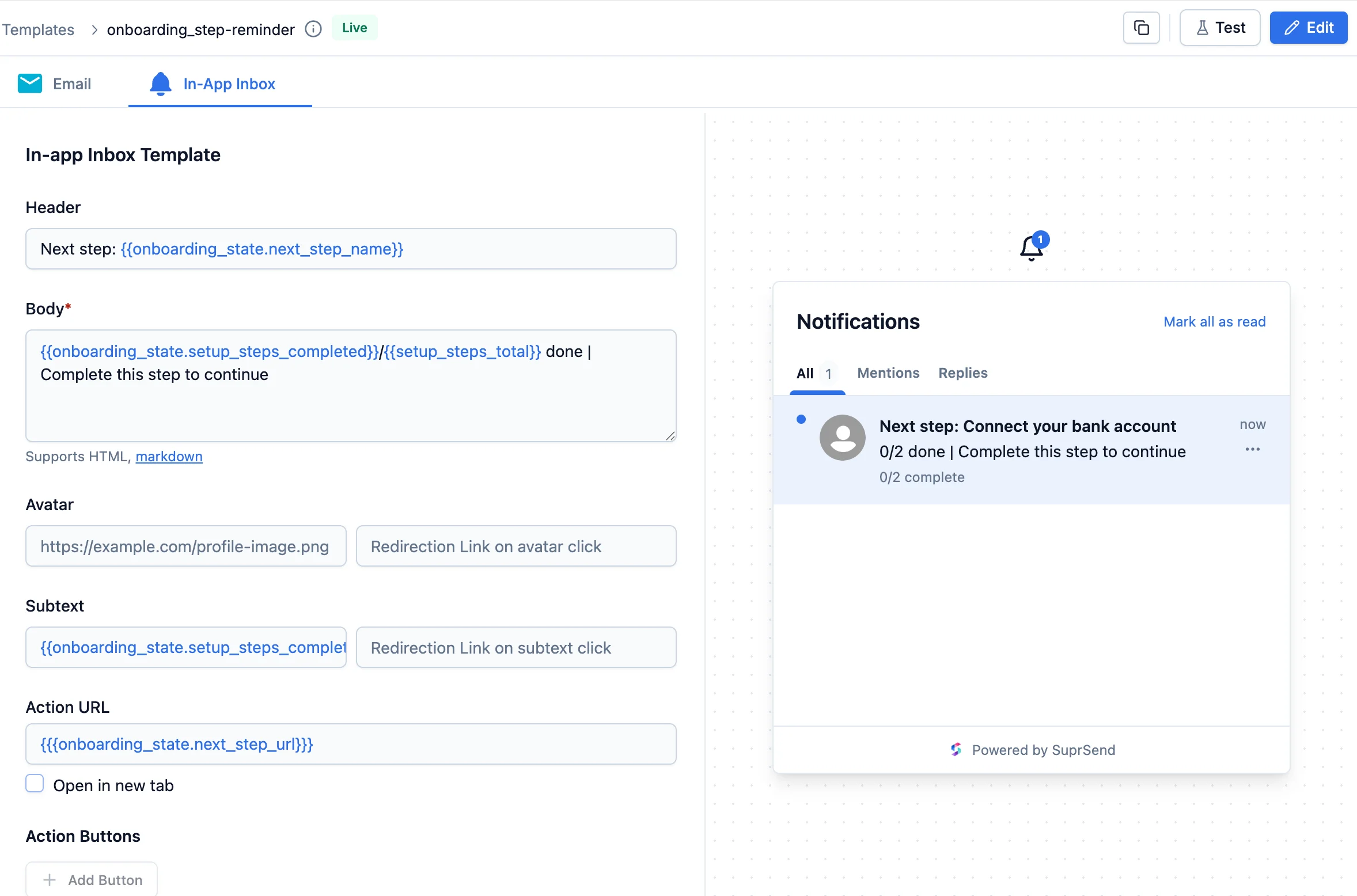
The Inbox editor lets you build notification cards that appear inside your product's [notification center](/docs/inbox-overview). Each card supports a header, body (with Markdown), avatar, action buttons, click URL, and advanced options like pinning, expiry, and tags for tab filtering. Content is personalised with [Handlebars](/docs/handlebars-helpers) variables (`{{variable_name}}`).
 ## Inbox fields
### Header
Heading shown in bold at the top of the card. Use it for the summary: `New comment received`, `Your story has got 30 views`.
### Body
Body of the notification. This is where the content of your notification will be passed. Supports both **Markdown** and **HTML** syntax, so you can format text, add links, lists, tables, images, and more.
| Formatting | Markdown | HTML |
| --------------------- | -------------------------------------------- | ------------------------------------------------------------ |
| Bold | `**bold text**` | `bold text` or `bold text` |
| Italic | `*italic text*` or `_italic text_` | `italic text` or `italic text` |
| Line break (single) | End a line with two spaces, then a newline | `
## Inbox fields
### Header
Heading shown in bold at the top of the card. Use it for the summary: `New comment received`, `Your story has got 30 views`.
### Body
Body of the notification. This is where the content of your notification will be passed. Supports both **Markdown** and **HTML** syntax, so you can format text, add links, lists, tables, images, and more.
| Formatting | Markdown | HTML |
| --------------------- | -------------------------------------------- | ------------------------------------------------------------ |
| Bold | `**bold text**` | `bold text` or `bold text` |
| Italic | `*italic text*` or `_italic text_` | `italic text` or `italic text` |
| Line break (single) | End a line with two spaces, then a newline | `
` |
| Line break (multiple) | NA | `
` |
| Link | `[link text](https://example.com)` | `link text` |
| Image | `` | ` ` |
| Unordered list | `- Item 1`
` |
| Unordered list | `- Item 1`
`- Item 2` | `` |
| Ordered list | `1. Item 1`
`2. Item 2` | `- Item 1
- Item 2
` |
| Blockquote / note | `> This is a note` | `This is a note
` |
**Table**
In Markdown, separate the header row from the body with a row of dashes, and use pipes (`|`) to separate columns:
```markdown theme={"system"}
| Order | Status |
|---|---|
| #1234 | Shipped |
| #1235 | Delivered |
```
The equivalent in HTML:
```html theme={"system"}
| Order | Status |
|---|
| #1234 | Shipped |
| #1235 | Delivered |
```
You can mix Markdown and HTML in the same body, and combine formatting with [Handlebars](/docs/handlebars-helpers) variables — for example, `**{{order_status}}**` to bold a dynamic value. Rendering of HTML/Markdown depends on your inbox frontend, so test in the live preview to confirm the result.
For a full reference on syntax, see:
* [Markdown Guide — Basic Syntax](https://www.markdownguide.org/basic-syntax/)
* [Markdown Guide — Extended Syntax](https://www.markdownguide.org/extended-syntax/) (tables and more)
* [MDN — HTML elements reference](https://developer.mozilla.org/en-US/docs/Web/HTML/Element)
### Avatar
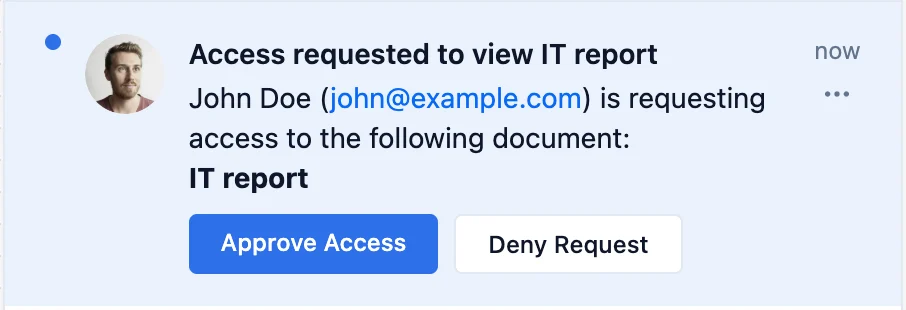
Public image URL (`.jpeg`, `.png`). Use it to show the actor's profile picture or a static icon based on notification type.
 ### Subtext
Clickable footer line below the message. Use for secondary info like comment count, task ID, or timestamps.
### Action URL
URL the user is redirected to on card click. Toggle **Open in new tab** if needed.
### Action Buttons
Up to 2 buttons with text + URL. Use it for click actions like "View", "Approve", or other inline actions. You can use it to redirect users to a webpage or handle inline actions using [custom click handlers](https://github.com/suprsend/suprsend-react-inbox/blob/main/docs/customization.md#action-button-custom-click-handlers).
### Tags
Tags filter and organise notifications inside [multiple tabs](/docs/multi-tabs). You can filter tabs by tag, [notification category](/docs/notification-category), or read status — for example, show all `unread` notifications with the `mentions` tag in a "Mentions" tab.
**Tags in Inbox template vs Tags in Workflow:** Template tags filter notifications in inbox tabs. Workflow tags only group workflows on the listing page and do not affect inbox filtering. To filter inbox tabs, add tags in the template and reference them in your [inbox tab configuration](/docs/multi-tabs).
### Subtext
Clickable footer line below the message. Use for secondary info like comment count, task ID, or timestamps.
### Action URL
URL the user is redirected to on card click. Toggle **Open in new tab** if needed.
### Action Buttons
Up to 2 buttons with text + URL. Use it for click actions like "View", "Approve", or other inline actions. You can use it to redirect users to a webpage or handle inline actions using [custom click handlers](https://github.com/suprsend/suprsend-react-inbox/blob/main/docs/customization.md#action-button-custom-click-handlers).
### Tags
Tags filter and organise notifications inside [multiple tabs](/docs/multi-tabs). You can filter tabs by tag, [notification category](/docs/notification-category), or read status — for example, show all `unread` notifications with the `mentions` tag in a "Mentions" tab.
**Tags in Inbox template vs Tags in Workflow:** Template tags filter notifications in inbox tabs. Workflow tags only group workflows on the listing page and do not affect inbox filtering. To filter inbox tabs, add tags in the template and reference them in your [inbox tab configuration](/docs/multi-tabs).
 ### Pinned
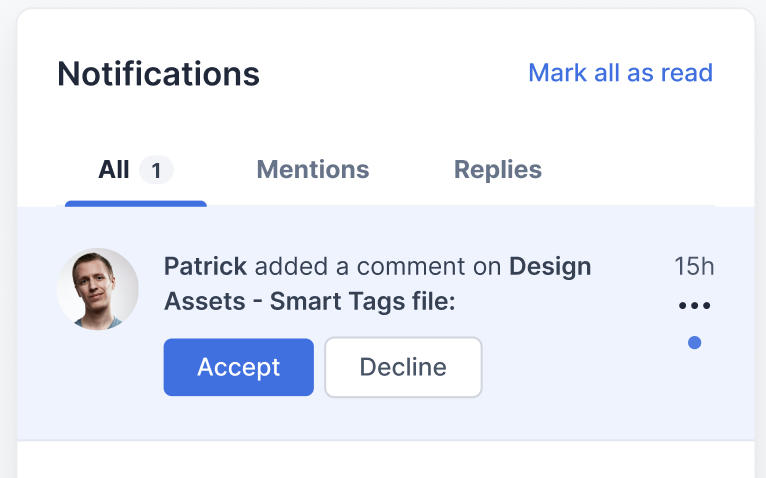
Pinned notifications display with a `pinned` badge and stay at the top of the notification list until the user it expires or user archives them. Use it for notifications requiring immediate action - compliance tasks, plan renewals, or limited-time offers. Always combine with an expiry so stale pins don't persist indefinitely.
### Pinned
Pinned notifications display with a `pinned` badge and stay at the top of the notification list until the user it expires or user archives them. Use it for notifications requiring immediate action - compliance tasks, plan renewals, or limited-time offers. Always combine with an expiry so stale pins don't persist indefinitely.
 ### Expiry
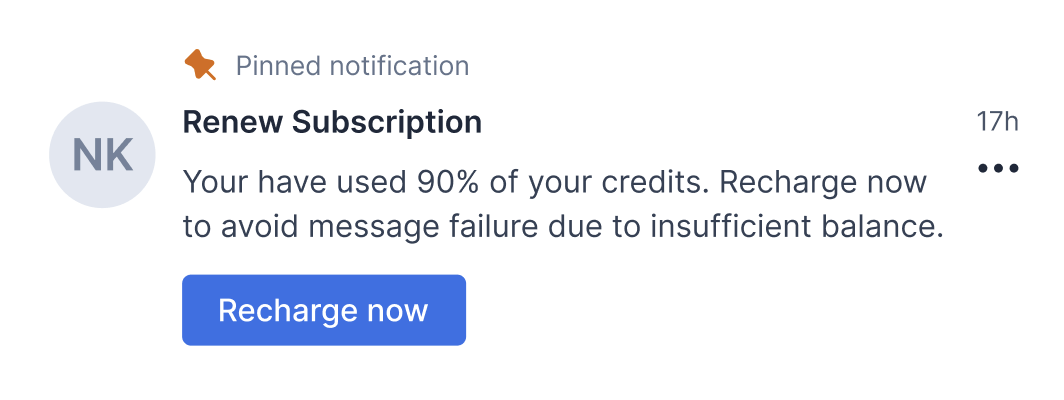
Expiry auto-deletes the notification once the set period elapses. It deletes the notification and not archive it. So, you won't be able to access these notifications in your store once they expire. You can configure it three ways:
### Expiry
Expiry auto-deletes the notification once the set period elapses. It deletes the notification and not archive it. So, you won't be able to access these notifications in your store once they expire. You can configure it three ways:
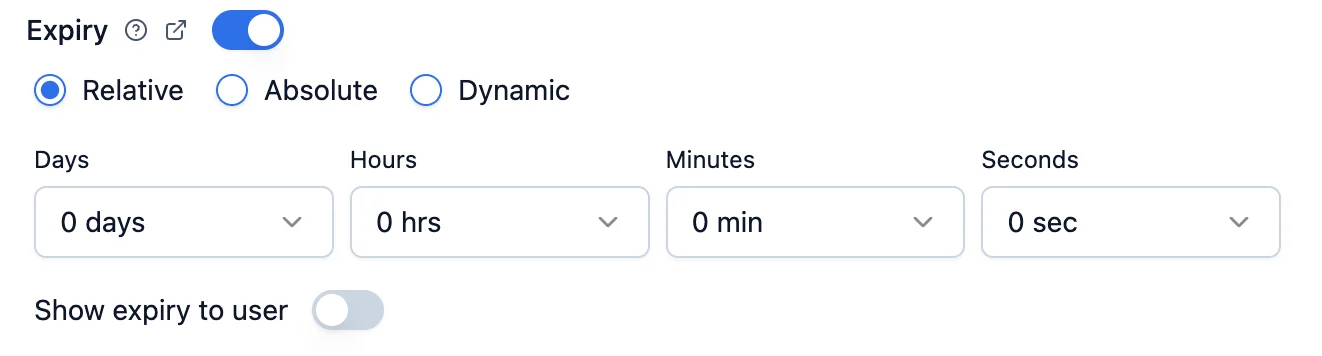 * **Absolute**
Set a fixed date and time. The timestamp uses your local timezone.
* **Relative**
Set a duration relative to when the notification is sent — for example, `2 days 6 hours`.
* **Dynamic**
For expiry computed from your event or user data, use a Handlebars variable — for example, `{{expiry_time}}`. The value can be:
* An ISO-8601 timestamp (for example, `2024-03-02T20:34:07Z`) — must be in the future.
* A relative duration: an integer (seconds) or an interval string like `2d 6h 30m 0s`.
A few recommendations:
* Always add an expiry to **pinned notifications** so they don't stay on top forever.
* For time-sensitive notifications like flash sales or event reminders, use a dynamic expiry to auto-delete once the event time is reached.
* Avoid expiry on long-lived notifications users might reference later (product updates, blog posts).
* For everything else, set an expiry of 15 days or more to keep the inbox clean.
#### Show expiry to user
Enable this to display a countdown timer on the notification card. The timer shows in grey when more than 1 hour remains and turns red below 1 hour to drive urgency.
* **Absolute**
Set a fixed date and time. The timestamp uses your local timezone.
* **Relative**
Set a duration relative to when the notification is sent — for example, `2 days 6 hours`.
* **Dynamic**
For expiry computed from your event or user data, use a Handlebars variable — for example, `{{expiry_time}}`. The value can be:
* An ISO-8601 timestamp (for example, `2024-03-02T20:34:07Z`) — must be in the future.
* A relative duration: an integer (seconds) or an interval string like `2d 6h 30m 0s`.
A few recommendations:
* Always add an expiry to **pinned notifications** so they don't stay on top forever.
* For time-sensitive notifications like flash sales or event reminders, use a dynamic expiry to auto-delete once the event time is reached.
* Avoid expiry on long-lived notifications users might reference later (product updates, blog posts).
* For everything else, set an expiry of 15 days or more to keep the inbox clean.
#### Show expiry to user
Enable this to display a countdown timer on the notification card. The timer shows in grey when more than 1 hour remains and turns red below 1 hour to drive urgency.
 ### Extra Data
A JSON field for passing custom key-value pairs alongside the notification. Use this for app-level metadata that your frontend can process — for example, deep link parameters, feature flags, or tracking IDs.
This is also useful when you're building a **custom notification card** that needs data the generic Inbox template fields don't cover. Pass that extra data here, and your frontend can read it from the notification payload to render the card exactly how you want.
## Add variables in template
You can add dynamic variables in any template field using [Handlebars](/docs/handlebars-helpers) syntax (`{{variable_name}}`). Variables are replaced with real data at the time of sending.
Use the **Variables** panel on the left to add sample data — this powers the live preview and lets you test the template. Once data is added there, typing `{` in any field shows auto-suggestions from your variables. Variables with missing data are highlighted in red, so you can spot gaps at a glance.
Sample data in the Variables panel is only used for preview and testing. The actual values must be passed at trigger time through your workflow or event trigger.
For the full guide on Handlebars syntax, helpers (if-else, default values, array iteration), see [Handlebars](/docs/handlebars-helpers) doc.
```handlebars Example handlebars syntax theme={"system"}
// Standard variable (HTML-escaped)
Order #{{order_id}} shipped
// To print URLs or text with special characters like `:,'$=` (renders raw HTML)
{{{html_content}}}
// Nested variable
package is headed to **{{location.city}}**.
// Array element
Top item: {{items.[0].product_name}} - Rs {{items.[0].price}}
// Variable name with spaces, capitals, or special characters
Hello {{[first name]}}
// Reserved property - recipient
Hi {{$recipient.name}}
// Reserved property - actor
{{$actor.name}} commented on your post
// Reserved property - tenant (brand)
Welcome to {{$brand.brand_name}}
// Batched events
You have {{$batched_events_count}} new updates
Latest: {{$batched_events.[0].name}}
```
If a variable in the template cannot be rendered at send time (due to mismatch or missing data), SuprSend throws error for the Inbox channel, other channels in the same template group are still sent.
## Preview
The right panel shows a live preview of the inbox notification card, updated in real time as you edit. Variables render using data from the **Variables panel** - select a recipient or tenant to preview with real data.
## Test template
Click **Test** in the top-right corner to send a real notification to a real user's inbox. You can test in both **draft** and **live** mode, so you don't need to commit before testing.
The test modal has two tabs that control what gets sent:
* **Selected Channel** - test only the In-App Inbox channel.
* **Template Group** - test all channels configured in the template group at once.
### Extra Data
A JSON field for passing custom key-value pairs alongside the notification. Use this for app-level metadata that your frontend can process — for example, deep link parameters, feature flags, or tracking IDs.
This is also useful when you're building a **custom notification card** that needs data the generic Inbox template fields don't cover. Pass that extra data here, and your frontend can read it from the notification payload to render the card exactly how you want.
## Add variables in template
You can add dynamic variables in any template field using [Handlebars](/docs/handlebars-helpers) syntax (`{{variable_name}}`). Variables are replaced with real data at the time of sending.
Use the **Variables** panel on the left to add sample data — this powers the live preview and lets you test the template. Once data is added there, typing `{` in any field shows auto-suggestions from your variables. Variables with missing data are highlighted in red, so you can spot gaps at a glance.
Sample data in the Variables panel is only used for preview and testing. The actual values must be passed at trigger time through your workflow or event trigger.
For the full guide on Handlebars syntax, helpers (if-else, default values, array iteration), see [Handlebars](/docs/handlebars-helpers) doc.
```handlebars Example handlebars syntax theme={"system"}
// Standard variable (HTML-escaped)
Order #{{order_id}} shipped
// To print URLs or text with special characters like `:,'$=` (renders raw HTML)
{{{html_content}}}
// Nested variable
package is headed to **{{location.city}}**.
// Array element
Top item: {{items.[0].product_name}} - Rs {{items.[0].price}}
// Variable name with spaces, capitals, or special characters
Hello {{[first name]}}
// Reserved property - recipient
Hi {{$recipient.name}}
// Reserved property - actor
{{$actor.name}} commented on your post
// Reserved property - tenant (brand)
Welcome to {{$brand.brand_name}}
// Batched events
You have {{$batched_events_count}} new updates
Latest: {{$batched_events.[0].name}}
```
If a variable in the template cannot be rendered at send time (due to mismatch or missing data), SuprSend throws error for the Inbox channel, other channels in the same template group are still sent.
## Preview
The right panel shows a live preview of the inbox notification card, updated in real time as you edit. Variables render using data from the **Variables panel** - select a recipient or tenant to preview with real data.
## Test template
Click **Test** in the top-right corner to send a real notification to a real user's inbox. You can test in both **draft** and **live** mode, so you don't need to commit before testing.
The test modal has two tabs that control what gets sent:
* **Selected Channel** - test only the In-App Inbox channel.
* **Template Group** - test all channels configured in the template group at once.
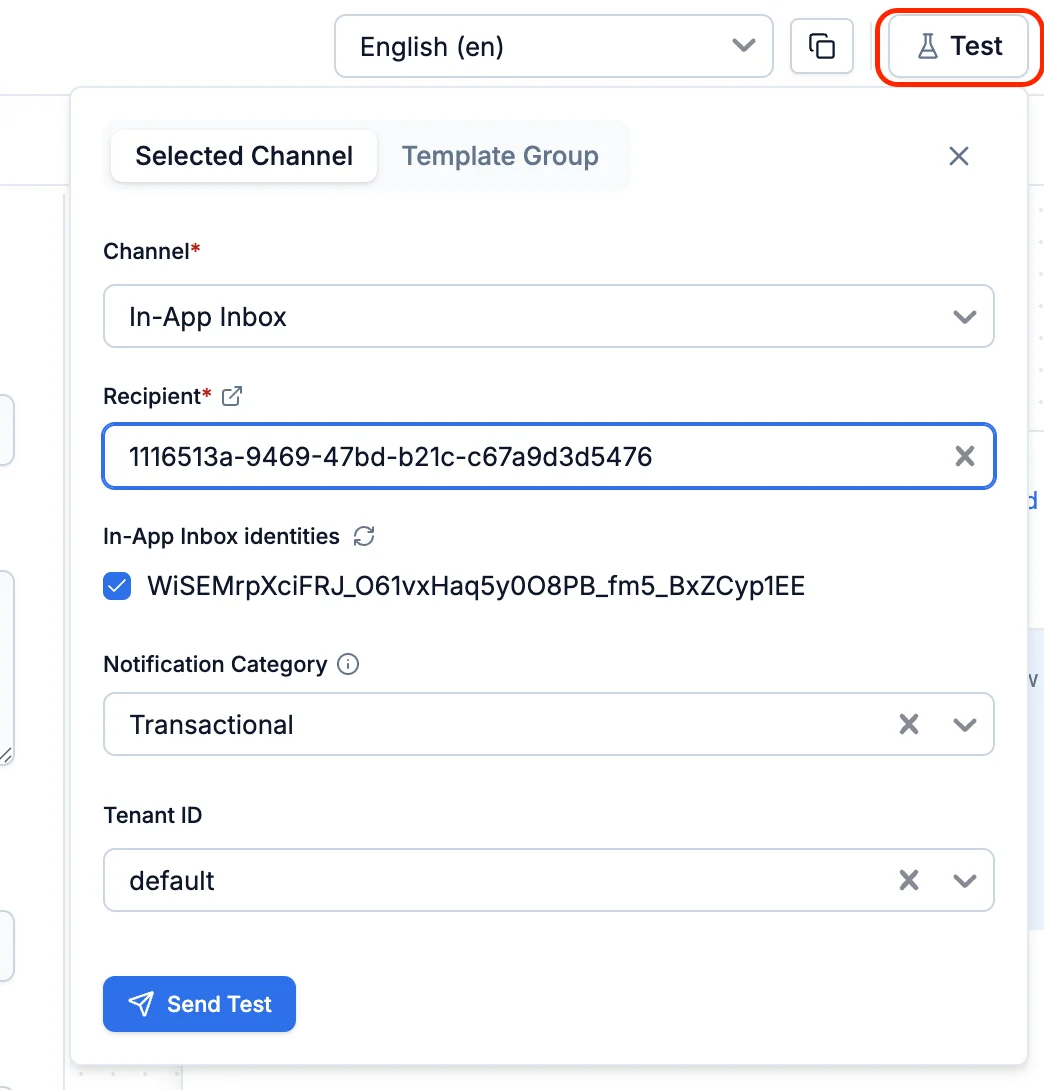 Fill in the following fields, then click **Send Test**:
| Field | Required | Description |
| --------------------- | -------- | --------------------------------------------------------------------------------------------------------------------------------------------------------------- |
| Channel | Yes | The channel to test. Defaults to **In-App Inbox**. |
| Recipient | Yes | The user who will receive the test notification. Pick an existing recipient by their `distinct_id` or `email`. |
| Notification Category | No | The [notification category](/docs/notification-category) to send under — for example, `Transactional`. This is used to apply user preferences in that category. |
| Tenant ID | No | The [tenant](/docs/tenants) to test with. Defaults to `default`. |
## Commit Changes
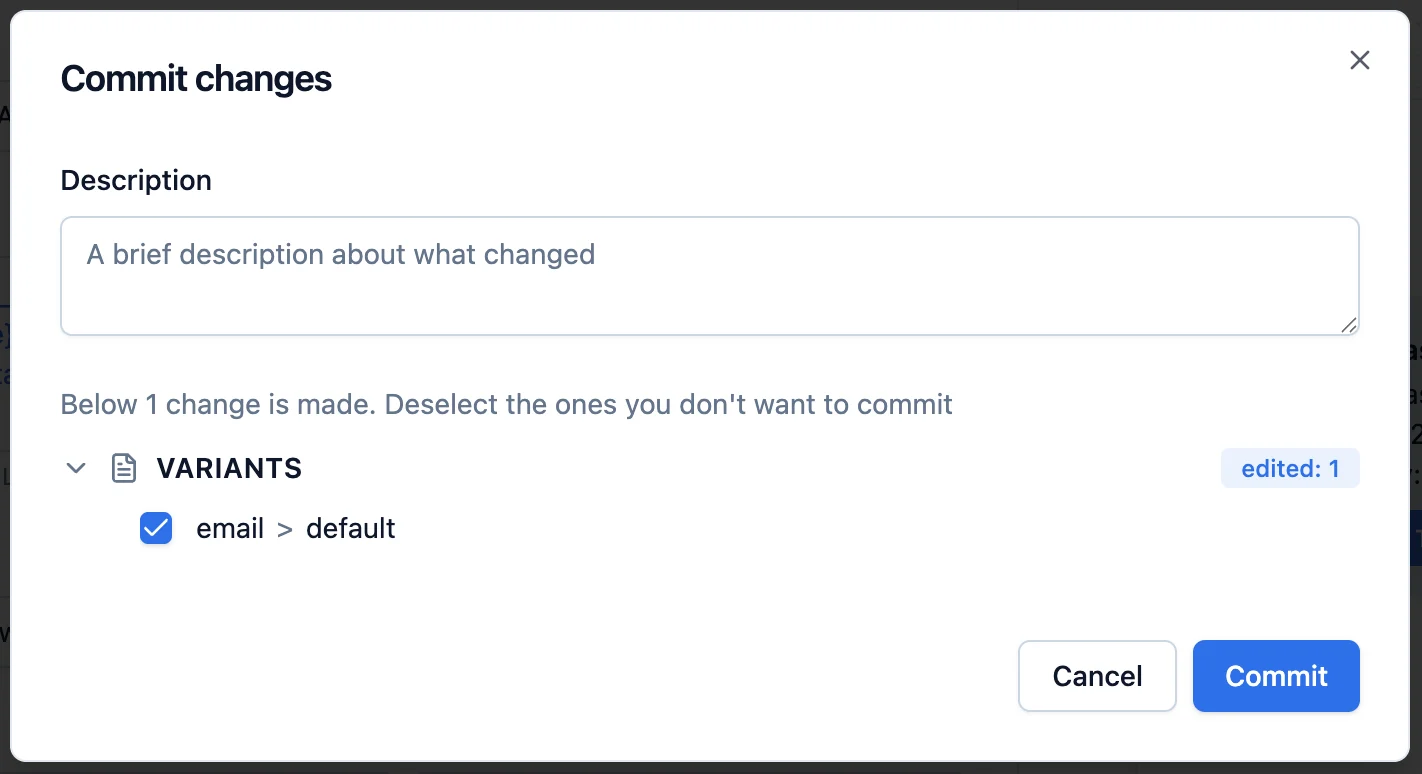
Click **Commit** in the top bar to publish the current draft as a new live version. Add an optional description for versioning. Once committed, every notification triggered after this point uses the new content.
This applies to already-running workflows too: the template version is resolved at the moment of delivery, not when the workflow starts. For example, if a workflow has a delay node and you commit a new template version before that delay finishes, the notification is sent with the latest version. Templates and workflows are versioned independently, so locking a workflow version does **not** lock its templates.
Everything related to a template is versioned — channel content, metadata (name, description), and variables — and must be committed to take effect.
Fill in the following fields, then click **Send Test**:
| Field | Required | Description |
| --------------------- | -------- | --------------------------------------------------------------------------------------------------------------------------------------------------------------- |
| Channel | Yes | The channel to test. Defaults to **In-App Inbox**. |
| Recipient | Yes | The user who will receive the test notification. Pick an existing recipient by their `distinct_id` or `email`. |
| Notification Category | No | The [notification category](/docs/notification-category) to send under — for example, `Transactional`. This is used to apply user preferences in that category. |
| Tenant ID | No | The [tenant](/docs/tenants) to test with. Defaults to `default`. |
## Commit Changes
Click **Commit** in the top bar to publish the current draft as a new live version. Add an optional description for versioning. Once committed, every notification triggered after this point uses the new content.
This applies to already-running workflows too: the template version is resolved at the moment of delivery, not when the workflow starts. For example, if a workflow has a delay node and you commit a new template version before that delay finishes, the notification is sent with the latest version. Templates and workflows are versioned independently, so locking a workflow version does **not** lock its templates.
Everything related to a template is versioned — channel content, metadata (name, description), and variables — and must be committed to take effect.
 ## Frequently asked questions
You define tabs in your [inbox tab configuration](/docs/multi-tabs). Each tab is simply a filter over your notifications, and you can filter on any of these:
* **Read status** — for example, an "Unread" tab.
* **[Notification category](/docs/notification-category)** — for example, a "Transactional" tab.
* **Tag** — for example, a "Mentions" tab showing notifications tagged `mentions`.
If you choose to filter by tag, add the matching tag in the template's **Tags** field so those notifications land in the right tab. See [multiple tabs](/docs/multi-tabs) for the complete setup.
* **Pinned Notification** - for notifications that must stay at the top until the user acts (compliance, critical alerts). Always combine with an expiry so they don't stay pinned forever.
* **Expiry** - for short-lived notifications that lose relevance after a period (flash sales, event reminders), so they don't linger once they're stale. Use relative expiry for consistent durations, absolute for fixed deadlines, and dynamic for computed values from your payload.
SuprSend has tags in a few places, and only one of them affects the inbox:
* **Inbox tags** (added inside the Inbox channel of a template) travel with the notification and are the only tags that drive [Inbox tabs](/docs/multi-tabs). A tab can filter on a single tag or multiple tags — when you filter on multiple tags, they're combined with **OR** (a notification matches if it has any of them).
* **Template tags** and **workflow tags** are purely organisational. They group templates and workflows on their respective listing pages inside your dashboard and have no effect on the inbox or its tabs.
So to control which tab a notification lands in, set the tag inside the **Inbox channel of the template** — not on the template or workflow.
Use a Handlebars variable like `{{expiry_time}}` in the Dynamic Expiry field. The value can be an ISO-8601 timestamp (for example, `2024-03-02T20:34:07Z`) or a relative duration (integer for seconds, or `2d 6h 30m 0s` format).
***
## Frequently asked questions
You define tabs in your [inbox tab configuration](/docs/multi-tabs). Each tab is simply a filter over your notifications, and you can filter on any of these:
* **Read status** — for example, an "Unread" tab.
* **[Notification category](/docs/notification-category)** — for example, a "Transactional" tab.
* **Tag** — for example, a "Mentions" tab showing notifications tagged `mentions`.
If you choose to filter by tag, add the matching tag in the template's **Tags** field so those notifications land in the right tab. See [multiple tabs](/docs/multi-tabs) for the complete setup.
* **Pinned Notification** - for notifications that must stay at the top until the user acts (compliance, critical alerts). Always combine with an expiry so they don't stay pinned forever.
* **Expiry** - for short-lived notifications that lose relevance after a period (flash sales, event reminders), so they don't linger once they're stale. Use relative expiry for consistent durations, absolute for fixed deadlines, and dynamic for computed values from your payload.
SuprSend has tags in a few places, and only one of them affects the inbox:
* **Inbox tags** (added inside the Inbox channel of a template) travel with the notification and are the only tags that drive [Inbox tabs](/docs/multi-tabs). A tab can filter on a single tag or multiple tags — when you filter on multiple tags, they're combined with **OR** (a notification matches if it has any of them).
* **Template tags** and **workflow tags** are purely organisational. They group templates and workflows on their respective listing pages inside your dashboard and have no effect on the inbox or its tabs.
So to control which tab a notification lands in, set the tag inside the **Inbox channel of the template** — not on the template or workflow.
Use a Handlebars variable like `{{expiry_time}}` in the Dynamic Expiry field. The value can be an ISO-8601 timestamp (for example, `2024-03-02T20:34:07Z`) or a relative duration (integer for seconds, or `2d 6h 30m 0s` format).
***