> ## Documentation Index
> Fetch the complete documentation index at: https://docs.suprsend.com/llms.txt
> Use this file to discover all available pages before exploring further.
# Preferences
> Build a notification preference center in your iOS Swift app with SuprSend SDK methods to fetch, display, and update user channel and category opt-ins.
### Pre-Requisites
* Integration of [iOS SDK](/docs/ios-integration)
* [Configure preference categories](/docs/user-preferences#setting-up-preference-categories) on SuprSend dashboard
## Understanding preference structure
This is how a typical preference page will look like:
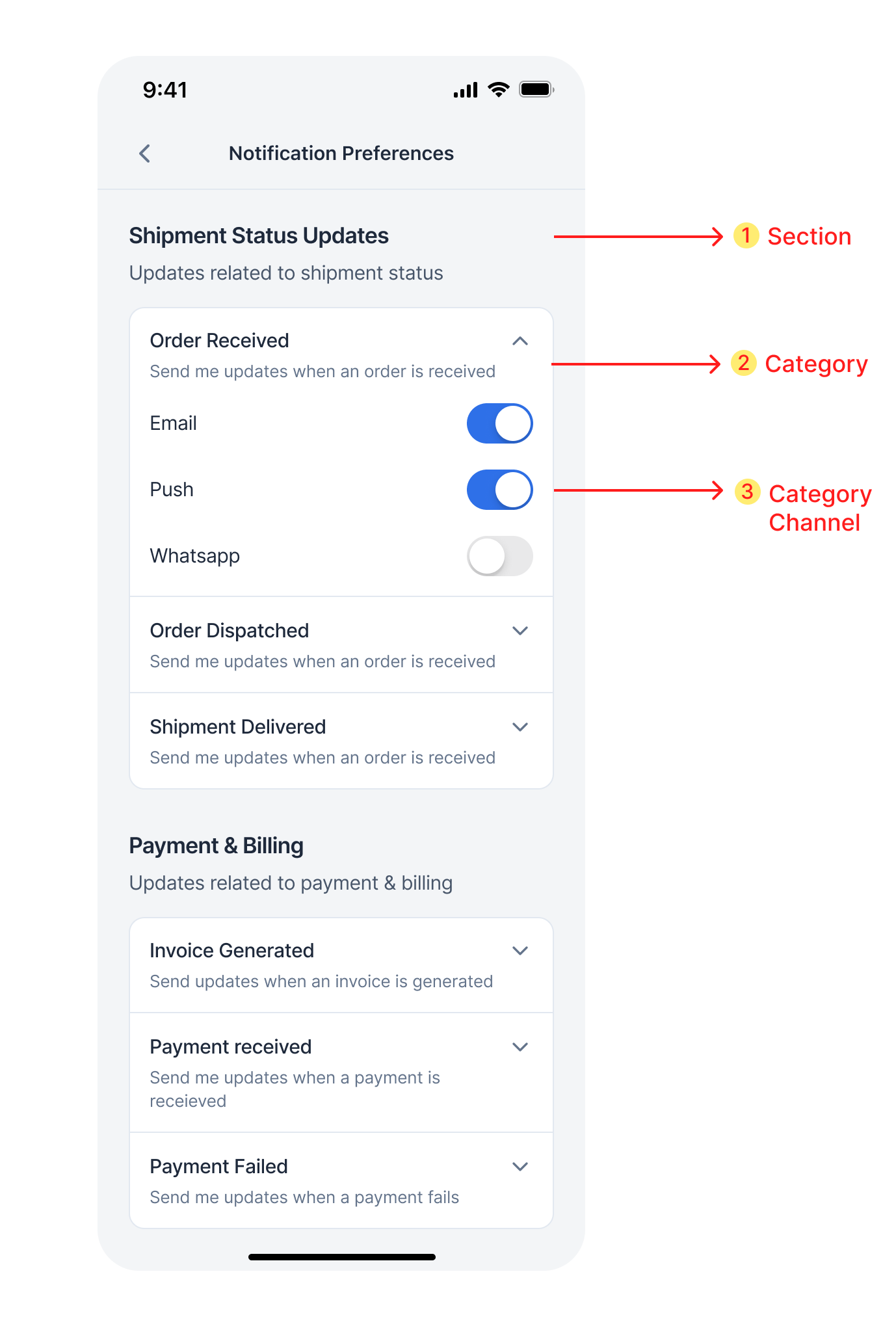
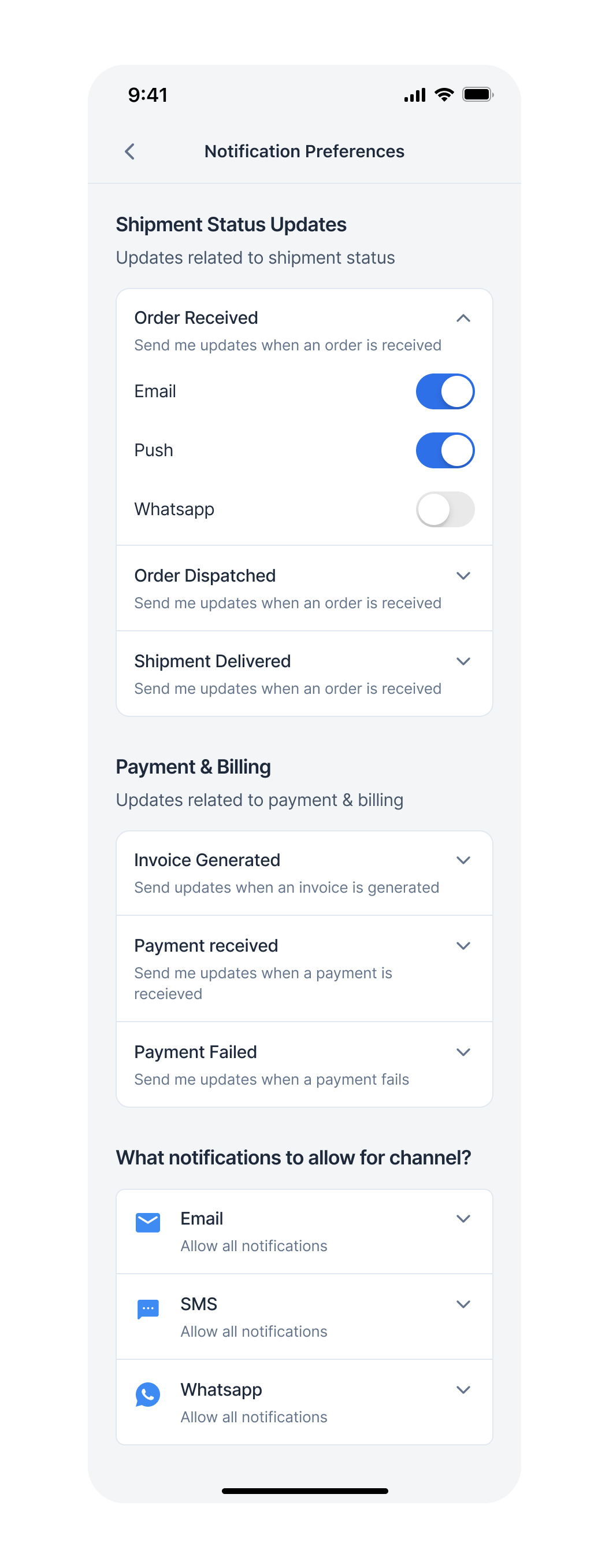 Preference Page contains 2 sections:
1. Category-level preference settings (Sections)
* [Sections](/docs/js-preferences#11-sections)
* [Categories](/docs/js-preferences#12-categories-sections---sub-categories)
* [Category Channel](/docs/js-preferences#13-category-channels-sections---sub-categories---channels)
Preference Page contains 2 sections:
1. Category-level preference settings (Sections)
* [Sections](/docs/js-preferences#11-sections)
* [Categories](/docs/js-preferences#12-categories-sections---sub-categories)
* [Category Channel](/docs/js-preferences#13-category-channels-sections---sub-categories---channels)
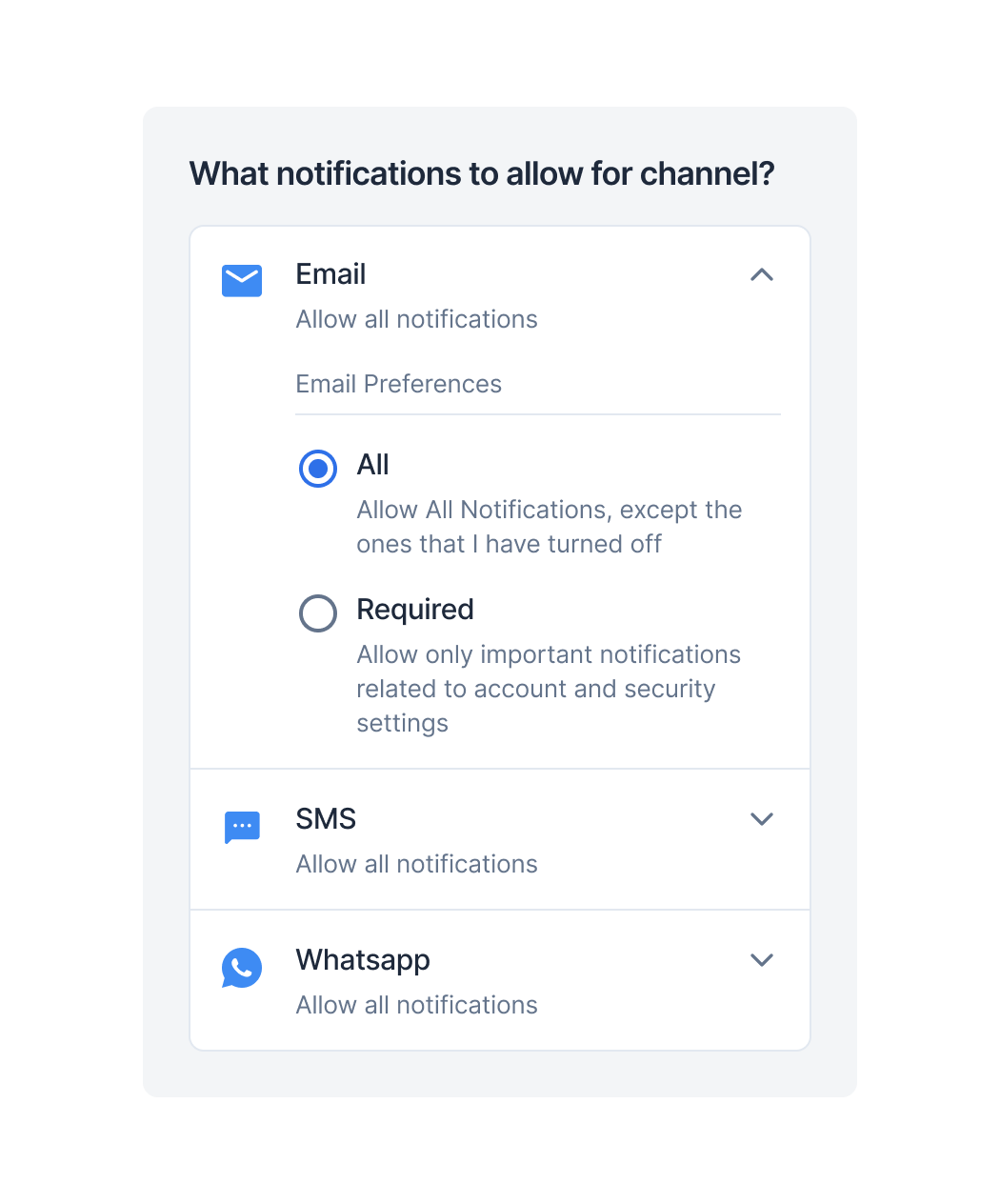
 2. [Overall Channel-level preference](/docs/js-preferences#2-overall-channel-preferences)
 ### Preferences data structure
```swift Preferences Types theme={"system"}
struct PreferenceData: Codable {
var sections: [Section]?
var channelPreferences: [ChannelPreference]?
enum CodingKeys: String, CodingKey {
case sections
case channelPreferences = "channel_preferences"
}
}
struct ChannelPreference: Codable {
var channel: String
var isRestricted: Bool
enum CodingKeys: String, CodingKey {
case channel
case isRestricted = "is_restricted"
}
}
struct Section: Codable {
var name: String?
var description: String?
var subcategories: [Category]?
}
struct Category: Codable {
var name: String
var category: String
var description: String?
var preference: PreferenceOptions
var isEditable: Bool
var channels: [CategoryChannel]?
enum CodingKeys: String, CodingKey {
case name
case category
case description
case preference
case isEditable = "is_editable"
case channels
}
}
struct CategoryChannel: Codable {
var channel: String
var preference: PreferenceOptions
var isEditable: Bool
enum CodingKeys: String, CodingKey {
case channel
case preference
case isEditable = "is_editable"
}
}
enum PreferenceOptions: String, Codable {
case optIn = "opt_in"
case optOut = "opt_out"
}
enum ChannelLevelPreferenceOptions: String, Codable {
case all = "all"
case required = "required"
}
```
```swift Example theme={"system"}
{
"sections": [
{
"name": null,
"subcategories": [
{
"name": "Payment and History",
"category": "payment-and-history",
"description": "Send updates related to my payment history.",
"preference": "opt_in",
"is_editable": false,
"channels": [
{
"channel": "androidpush",
"preference": "opt_in",
"is_editable": true
},
{
"channel": "email",
"preference": "opt_in",
"is_editable": false
}
]
}
]
},
{
"name": "Product Updates",
"description": "Non-marketing notifications related to authentication, activity updates, reminders etc.",
"subcategories": [
{
"name": "Newsletter",
"category": "newsletter",
"description": "Send updates on new feature in the product",
"preference": "opt_in",
"is_editable": true,
"channels": [
{
"channel": "androidpush",
"preference": "opt_in",
"is_editable": true
},
{
"channel": "email",
"preference": "opt_out",
"is_editable": false
}
]
}
]
}
],
"channel_preferences": [
{
"channel": "androidpush",
"is_restricted": false
},
{
"channel": "email",
"is_restricted": true
}
]
}
```
### 1.1 Sections
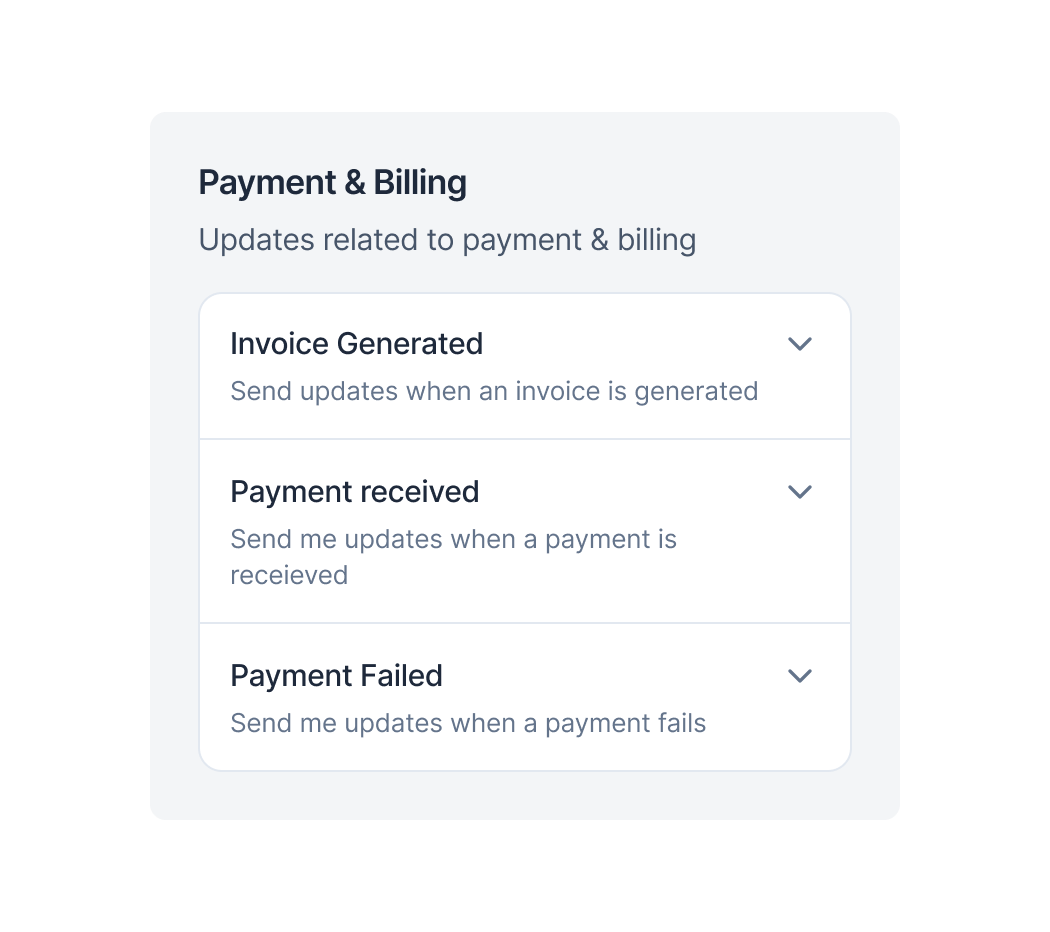
This contains the name, description, and subcategories. We have to loop through the sections list and for every section item if there is a name and description present, then show the heading, and if a subcategories list is present, loop through that subcategories list and show all subcategories under that section heading.
Subcategories can exist without sections as the section is an optional field. In that case, the section's name will not be available. For sections where the name is not present, you can directly show its subcategories list without showing Heading for the section in UI.
### Preferences data structure
```swift Preferences Types theme={"system"}
struct PreferenceData: Codable {
var sections: [Section]?
var channelPreferences: [ChannelPreference]?
enum CodingKeys: String, CodingKey {
case sections
case channelPreferences = "channel_preferences"
}
}
struct ChannelPreference: Codable {
var channel: String
var isRestricted: Bool
enum CodingKeys: String, CodingKey {
case channel
case isRestricted = "is_restricted"
}
}
struct Section: Codable {
var name: String?
var description: String?
var subcategories: [Category]?
}
struct Category: Codable {
var name: String
var category: String
var description: String?
var preference: PreferenceOptions
var isEditable: Bool
var channels: [CategoryChannel]?
enum CodingKeys: String, CodingKey {
case name
case category
case description
case preference
case isEditable = "is_editable"
case channels
}
}
struct CategoryChannel: Codable {
var channel: String
var preference: PreferenceOptions
var isEditable: Bool
enum CodingKeys: String, CodingKey {
case channel
case preference
case isEditable = "is_editable"
}
}
enum PreferenceOptions: String, Codable {
case optIn = "opt_in"
case optOut = "opt_out"
}
enum ChannelLevelPreferenceOptions: String, Codable {
case all = "all"
case required = "required"
}
```
```swift Example theme={"system"}
{
"sections": [
{
"name": null,
"subcategories": [
{
"name": "Payment and History",
"category": "payment-and-history",
"description": "Send updates related to my payment history.",
"preference": "opt_in",
"is_editable": false,
"channels": [
{
"channel": "androidpush",
"preference": "opt_in",
"is_editable": true
},
{
"channel": "email",
"preference": "opt_in",
"is_editable": false
}
]
}
]
},
{
"name": "Product Updates",
"description": "Non-marketing notifications related to authentication, activity updates, reminders etc.",
"subcategories": [
{
"name": "Newsletter",
"category": "newsletter",
"description": "Send updates on new feature in the product",
"preference": "opt_in",
"is_editable": true,
"channels": [
{
"channel": "androidpush",
"preference": "opt_in",
"is_editable": true
},
{
"channel": "email",
"preference": "opt_out",
"is_editable": false
}
]
}
]
}
],
"channel_preferences": [
{
"channel": "androidpush",
"is_restricted": false
},
{
"channel": "email",
"is_restricted": true
}
]
}
```
### 1.1 Sections
This contains the name, description, and subcategories. We have to loop through the sections list and for every section item if there is a name and description present, then show the heading, and if a subcategories list is present, loop through that subcategories list and show all subcategories under that section heading.
Subcategories can exist without sections as the section is an optional field. In that case, the section's name will not be available. For sections where the name is not present, you can directly show its subcategories list without showing Heading for the section in UI.
 ```swift syntax theme={"system"}
struct Section: Codable {
var name: String?
var description: String?
var subcategories: [Category]?
}
```
| Property | Description |
| ------------- | --------------------------------------------------------- |
| name | name of the section |
| description | description of the section |
| subcategories | data of all sub-categories to be shown inside the section |
### 1.2 Categories (sections -> sub-categories)
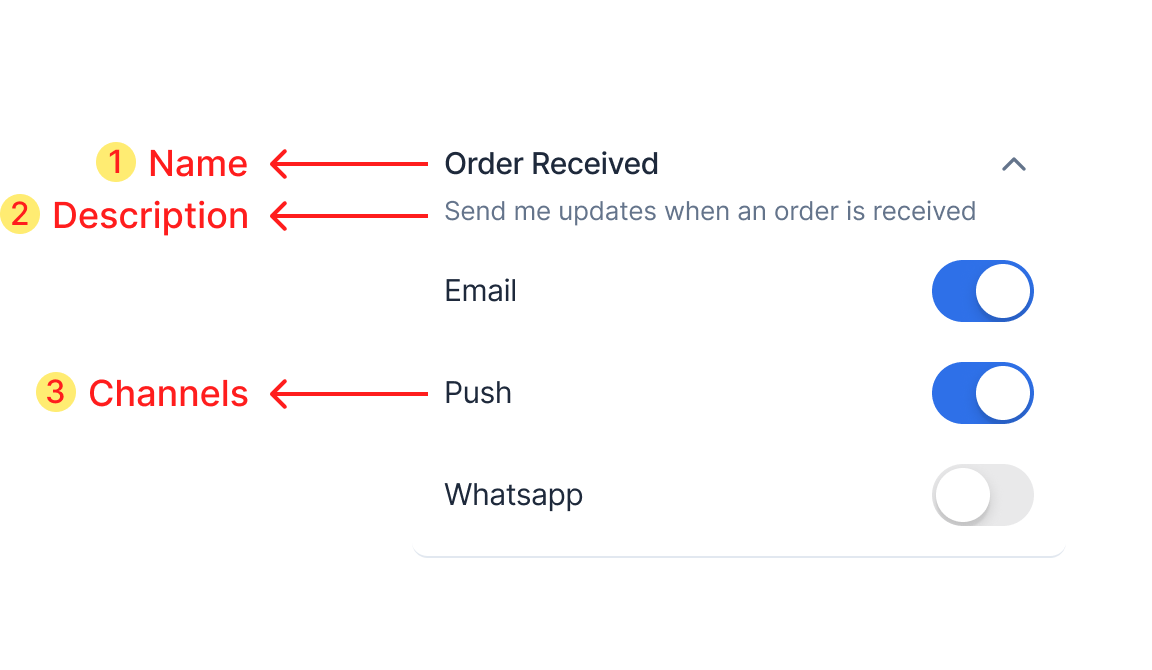
This is the place where the user sets his category-level preferences. While looping through the subcategories list for every subcategory item, show the name and description in UI.
```swift syntax theme={"system"}
struct Section: Codable {
var name: String?
var description: String?
var subcategories: [Category]?
}
```
| Property | Description |
| ------------- | --------------------------------------------------------- |
| name | name of the section |
| description | description of the section |
| subcategories | data of all sub-categories to be shown inside the section |
### 1.2 Categories (sections -> sub-categories)
This is the place where the user sets his category-level preferences. While looping through the subcategories list for every subcategory item, show the name and description in UI.
 ```swift syntax theme={"system"}
struct Category: Codable {
var name: String
var category: String
var description: String?
var preference: PreferenceOptions
var isEditable: Bool
var channels: [CategoryChannel]?
enum CodingKeys: String, CodingKey {
case name
case category
case description
case preference
case isEditable = "is_editable"
case channels
}
}
```
| Property | Description |
| ------------ | -------------------------------------------------------------------------------------------------------------------------------------------------- |
| category | This key is the id of the category which is used while updating the preference. |
| name | name of the category to be shown on the UI |
| description | description of the category to be shown on the UI |
| preference | This key indicates if the category's preference switch is on or off. Get **OPT\_IN** when the switch is on and **OPT\_OUT** when the switch is off |
| is\_editable | Indicates if the preference switch button is disabled or not. If its value is false then the preference setting for that category can't be edited |
| channels | data of all category channels to be shown below the sub-category. Loop through it to show checkboxes under every subcategory item. |
### 1.3 Category channels (sections -> sub-categories -> channels)
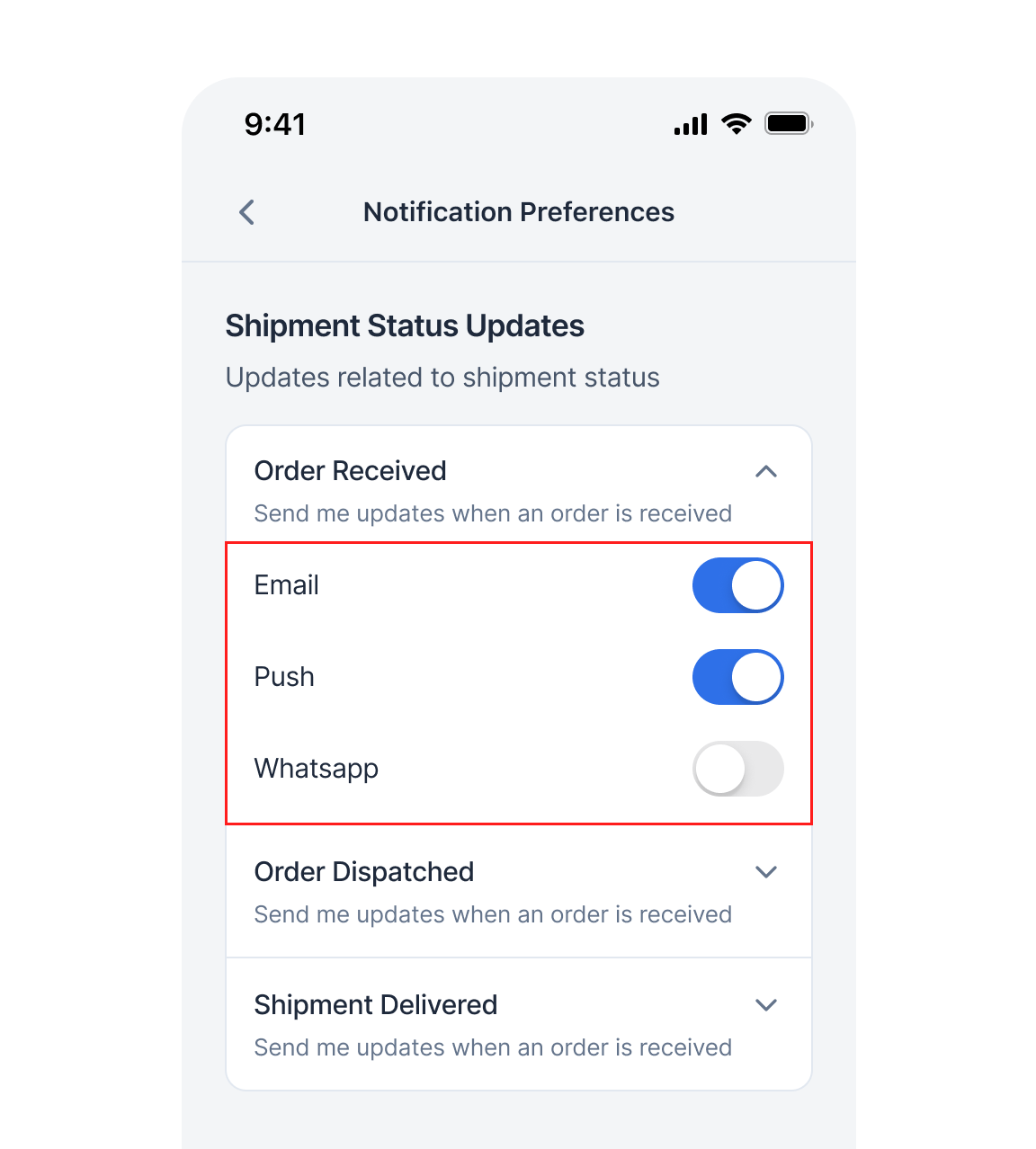
This contains a list of channels, channel preference status and whether it's editable or not. While looping through the subcategory list for every subcategory item we have to loop through its channels list and for every channel to show channel level checkbox.
```swift syntax theme={"system"}
struct Category: Codable {
var name: String
var category: String
var description: String?
var preference: PreferenceOptions
var isEditable: Bool
var channels: [CategoryChannel]?
enum CodingKeys: String, CodingKey {
case name
case category
case description
case preference
case isEditable = "is_editable"
case channels
}
}
```
| Property | Description |
| ------------ | -------------------------------------------------------------------------------------------------------------------------------------------------- |
| category | This key is the id of the category which is used while updating the preference. |
| name | name of the category to be shown on the UI |
| description | description of the category to be shown on the UI |
| preference | This key indicates if the category's preference switch is on or off. Get **OPT\_IN** when the switch is on and **OPT\_OUT** when the switch is off |
| is\_editable | Indicates if the preference switch button is disabled or not. If its value is false then the preference setting for that category can't be edited |
| channels | data of all category channels to be shown below the sub-category. Loop through it to show checkboxes under every subcategory item. |
### 1.3 Category channels (sections -> sub-categories -> channels)
This contains a list of channels, channel preference status and whether it's editable or not. While looping through the subcategory list for every subcategory item we have to loop through its channels list and for every channel to show channel level checkbox.
 ```swift syntax theme={"system"}
struct CategoryChannel: Codable {
var channel: String
var preference: PreferenceOptions
var isEditable: Bool
enum CodingKeys: String, CodingKey {
case channel
case preference
case isEditable = "is_editable"
}
}
```
| Property | Description |
| ------------ | ------------------------------------------------------------------------------------------------------------------------------------------- |
| channel | name of the channel to be shown on UI. The same key will be used as id of the channel while updating the preference. |
| preference | This key indicates if the channel's preference switch is on or off. Get OPT\_IN when the switch is on and OPT\_OUT when the switch is off |
| is\_editable | Indicates if the preference checkbox is disabled or not. If its value is false then the preference setting for that channel can't be edited |
### 2. Overall channel preferences
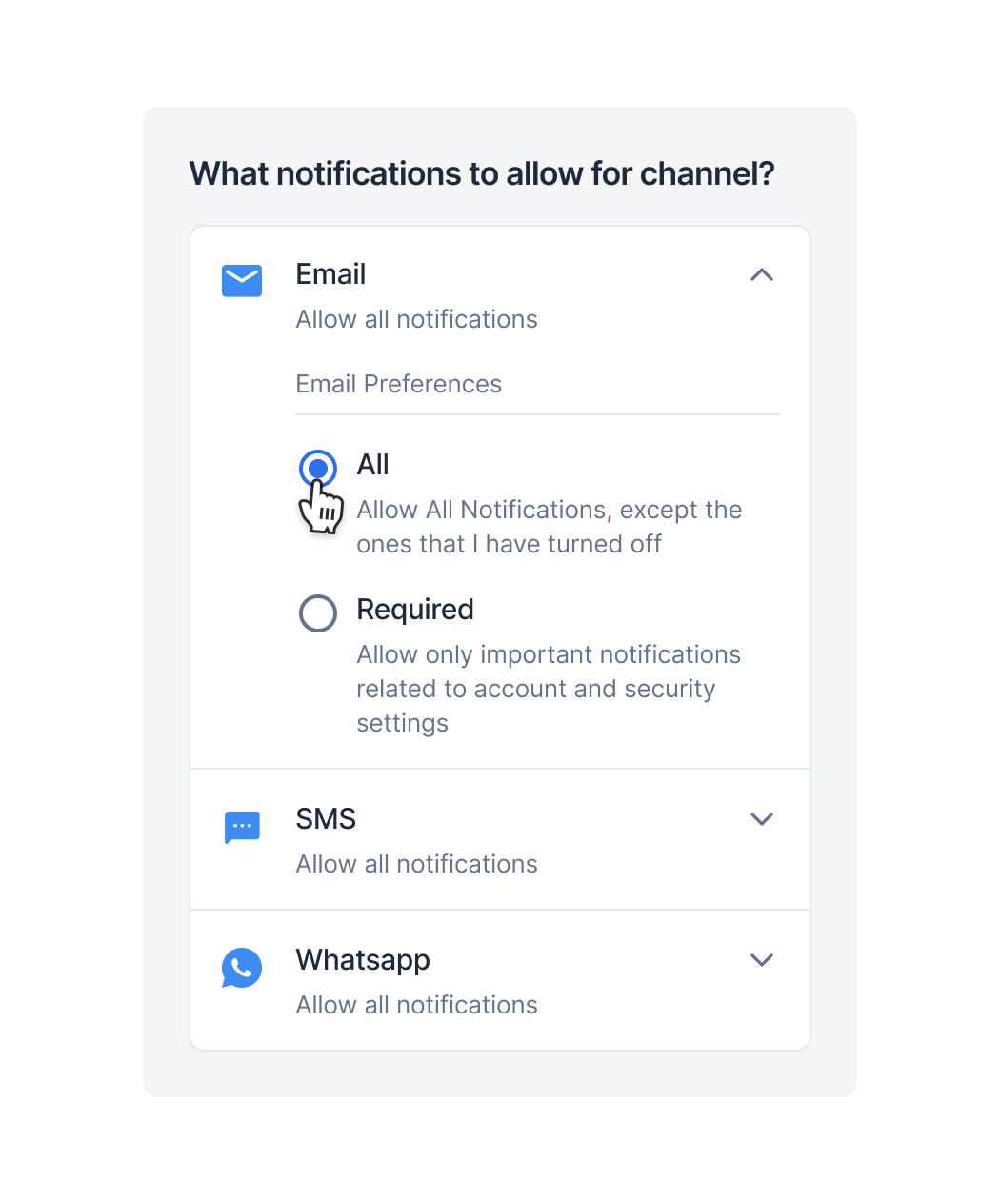
It's a list of all channel-level preferences. We have to loop through the list and for each item, show the UI as given in the below image.
```swift syntax theme={"system"}
struct ChannelPreference: Codable {
var channel: String
var isRestricted: Bool
enum CodingKeys: String, CodingKey {
case channel
case isRestricted = "is_restricted"
}
}
```
| Property | Description |
| -------------- | -------------------------------------------------------------------------------------------------------------------------------------------------------------------------------------------------------------------------------------------------------------------------------------------- |
| channel | name of the channel to be shown on UI. The same key will be used as id of the channel while updating the preference. |
| is\_restricted | This key indicates the restriction level of channel. If restricted, notification will only be sent in the category where this channel is added as mandatory in preference category settings. **True** means Required radio button is selected. **False** means All radio button is selected. |
## Integration
### Get preferences data
Use this method to get preferences data and create the preferences UI by following the above sections. This method should be called first before any update preference methods.
```swift syntax theme={"system"}
await SuprSend.shared.preferences.getPreferences(args: Preferences.Args(tenantId: "", tags: "", locale: ""))
```
| Argument (optional) | Description |
| ------------------- | -------------------------------------------------------------------------------------------------------------------------------------------------------------------------------------------------------------------------------------------------------------------------------------------------------------------------------------------------------------------------------------------------------------------- |
| `tenantId` | Tenant identifier for loading per-tenant preferences |
| `tags` | Filter categories by tags. Used to filter preference categories based on user's roles, department or teams. (see [Tags](/docs/notification-category#tags)) |
| `locale` | Locale code (for example, `es`, `fr`, `de`, `es-AR`) to fetch preference translations in user's locale. When provided, category names and descriptions will be returned in the specified locale. If a translation is missing for the requested locale, the system automatically falls back in this order: `locale-region` (for example, `es-AR`) → `locale` (for example, `es`) → `en` (English - always available). |
**Returns:** `async -> PreferenceAPIResponse`
### Update channel preference in category
Calling this method will opt-in/opt-out users from that category-level channel. When the category's channel checkbox is editable and the user clicks on the checkbox you can call this method.
```swift syntax theme={"system"}
await SuprSend.shared.preferences.updateChannelPreferenceInCategory(
channel: "channel",
preference: PreferenceOptions,
category: "category"
)
enum PreferenceOptions: String, Codable {
case optIn = "opt_in"
case optOut = "opt_out"
}
```
**Returns:** `async -> PreferenceAPIResponse`
```swift syntax theme={"system"}
struct CategoryChannel: Codable {
var channel: String
var preference: PreferenceOptions
var isEditable: Bool
enum CodingKeys: String, CodingKey {
case channel
case preference
case isEditable = "is_editable"
}
}
```
| Property | Description |
| ------------ | ------------------------------------------------------------------------------------------------------------------------------------------- |
| channel | name of the channel to be shown on UI. The same key will be used as id of the channel while updating the preference. |
| preference | This key indicates if the channel's preference switch is on or off. Get OPT\_IN when the switch is on and OPT\_OUT when the switch is off |
| is\_editable | Indicates if the preference checkbox is disabled or not. If its value is false then the preference setting for that channel can't be edited |
### 2. Overall channel preferences
It's a list of all channel-level preferences. We have to loop through the list and for each item, show the UI as given in the below image.
```swift syntax theme={"system"}
struct ChannelPreference: Codable {
var channel: String
var isRestricted: Bool
enum CodingKeys: String, CodingKey {
case channel
case isRestricted = "is_restricted"
}
}
```
| Property | Description |
| -------------- | -------------------------------------------------------------------------------------------------------------------------------------------------------------------------------------------------------------------------------------------------------------------------------------------- |
| channel | name of the channel to be shown on UI. The same key will be used as id of the channel while updating the preference. |
| is\_restricted | This key indicates the restriction level of channel. If restricted, notification will only be sent in the category where this channel is added as mandatory in preference category settings. **True** means Required radio button is selected. **False** means All radio button is selected. |
## Integration
### Get preferences data
Use this method to get preferences data and create the preferences UI by following the above sections. This method should be called first before any update preference methods.
```swift syntax theme={"system"}
await SuprSend.shared.preferences.getPreferences(args: Preferences.Args(tenantId: "", tags: "", locale: ""))
```
| Argument (optional) | Description |
| ------------------- | -------------------------------------------------------------------------------------------------------------------------------------------------------------------------------------------------------------------------------------------------------------------------------------------------------------------------------------------------------------------------------------------------------------------- |
| `tenantId` | Tenant identifier for loading per-tenant preferences |
| `tags` | Filter categories by tags. Used to filter preference categories based on user's roles, department or teams. (see [Tags](/docs/notification-category#tags)) |
| `locale` | Locale code (for example, `es`, `fr`, `de`, `es-AR`) to fetch preference translations in user's locale. When provided, category names and descriptions will be returned in the specified locale. If a translation is missing for the requested locale, the system automatically falls back in this order: `locale-region` (for example, `es-AR`) → `locale` (for example, `es`) → `en` (English - always available). |
**Returns:** `async -> PreferenceAPIResponse`
### Update channel preference in category
Calling this method will opt-in/opt-out users from that category-level channel. When the category's channel checkbox is editable and the user clicks on the checkbox you can call this method.
```swift syntax theme={"system"}
await SuprSend.shared.preferences.updateChannelPreferenceInCategory(
channel: "channel",
preference: PreferenceOptions,
category: "category"
)
enum PreferenceOptions: String, Codable {
case optIn = "opt_in"
case optOut = "opt_out"
}
```
**Returns:** `async -> PreferenceAPIResponse`
 ### Update category preference
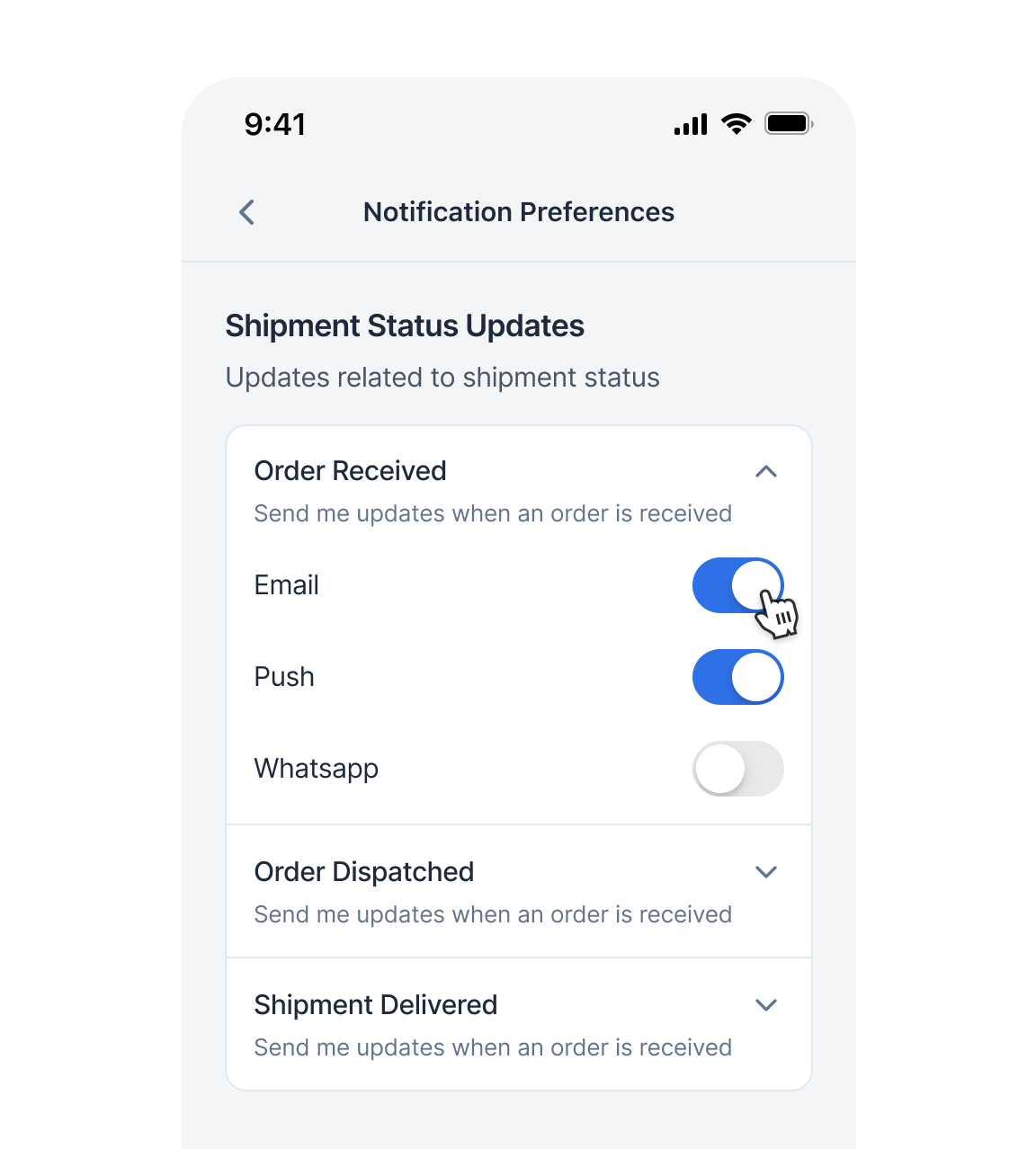
This is category level preference changing method. Calling this method will opt-in/opt-out user from that category. When the category is editable and the switch is toggled you can call this method.
```swift syntax theme={"system"}
await SuprSend.shared.preferences.updateCategoryPreference(category: "category_value", preference: PreferenceOptions)
enum PreferenceOptions: String, Codable {
case optIn = "opt_in"
case optOut = "opt_out"
}
```
**Returns:** `async -> PreferenceAPIResponse`
### Update overall channel preference
This method updated the channel-level preference of the user.
```swift syntax theme={"system"}
await SuprSend.shared.preferences.updateOverallChannelPreference(
channel: "channel",
preference: ChannelLevelPreferenceOptions
)
enum ChannelLevelPreferenceOptions: String, Codable {
case all = "all"
case required = "required"
}
```
**Returns:** `async -> PreferenceAPIResponse`
### Update category preference
This is category level preference changing method. Calling this method will opt-in/opt-out user from that category. When the category is editable and the switch is toggled you can call this method.
```swift syntax theme={"system"}
await SuprSend.shared.preferences.updateCategoryPreference(category: "category_value", preference: PreferenceOptions)
enum PreferenceOptions: String, Codable {
case optIn = "opt_in"
case optOut = "opt_out"
}
```
**Returns:** `async -> PreferenceAPIResponse`
### Update overall channel preference
This method updated the channel-level preference of the user.
```swift syntax theme={"system"}
await SuprSend.shared.preferences.updateOverallChannelPreference(
channel: "channel",
preference: ChannelLevelPreferenceOptions
)
enum ChannelLevelPreferenceOptions: String, Codable {
case all = "all"
case required = "required"
}
```
**Returns:** `async -> PreferenceAPIResponse`
 ### Event listeners
All preferences update api's are optimistic updates. Actual API call will happen in background with 1 second debounce. Since its a background task SDK provides event listeners to get updated preference data based on API call status. Listen to this event listeners and update the UI accordingly.
```swift syntax theme={"system"}
SuprSend.shared.emitter.on(.preferencesUpdated) { data in
// update local store so that UI is updated with latest data
}
SuprSend.shared.emitter.on(.preferencesError) { error in
// show error toast to user
}
```
## Example
Preferences UI example code: [PreferencesView.swift](https://github.com/suprsend/suprsend-swift-sdk/blob/main/Example/SuprSendSwiftExample-iOS/Views/Profile/Preferences/PreferencesView.swift) and [PreferenceModel.swift](https://github.com/suprsend/suprsend-swift-sdk/blob/main/Example/SuprSendSwiftExample-iOS/Model/PreferenceModel.swift)
### Event listeners
All preferences update api's are optimistic updates. Actual API call will happen in background with 1 second debounce. Since its a background task SDK provides event listeners to get updated preference data based on API call status. Listen to this event listeners and update the UI accordingly.
```swift syntax theme={"system"}
SuprSend.shared.emitter.on(.preferencesUpdated) { data in
// update local store so that UI is updated with latest data
}
SuprSend.shared.emitter.on(.preferencesError) { error in
// show error toast to user
}
```
## Example
Preferences UI example code: [PreferencesView.swift](https://github.com/suprsend/suprsend-swift-sdk/blob/main/Example/SuprSendSwiftExample-iOS/Views/Profile/Preferences/PreferencesView.swift) and [PreferenceModel.swift](https://github.com/suprsend/suprsend-swift-sdk/blob/main/Example/SuprSendSwiftExample-iOS/Model/PreferenceModel.swift)