> ## Documentation Index
> Fetch the complete documentation index at: https://docs.suprsend.com/llms.txt
> Use this file to discover all available pages before exploring further.
# Karix
> Connect your Karix account with SuprSend to send WhatsApp business notifications using approved templates, API credentials, and verified sender numbers.
This section is a step-by-step guide to set Karix as your WhatsApp service provider.
## Pre-Requisites
You'll need a Karix account to complete this tutorial. You can use your existing Karix account to integrate, or [Create a Karix account](https://manage.karix.solutions/register)
## Karix integration on SuprSend account
On the SuprSend dashboard, go to vendor page from side panel and click WhatsApp -> Karix from the list of Vendors. This will open vendor details page as shown below:
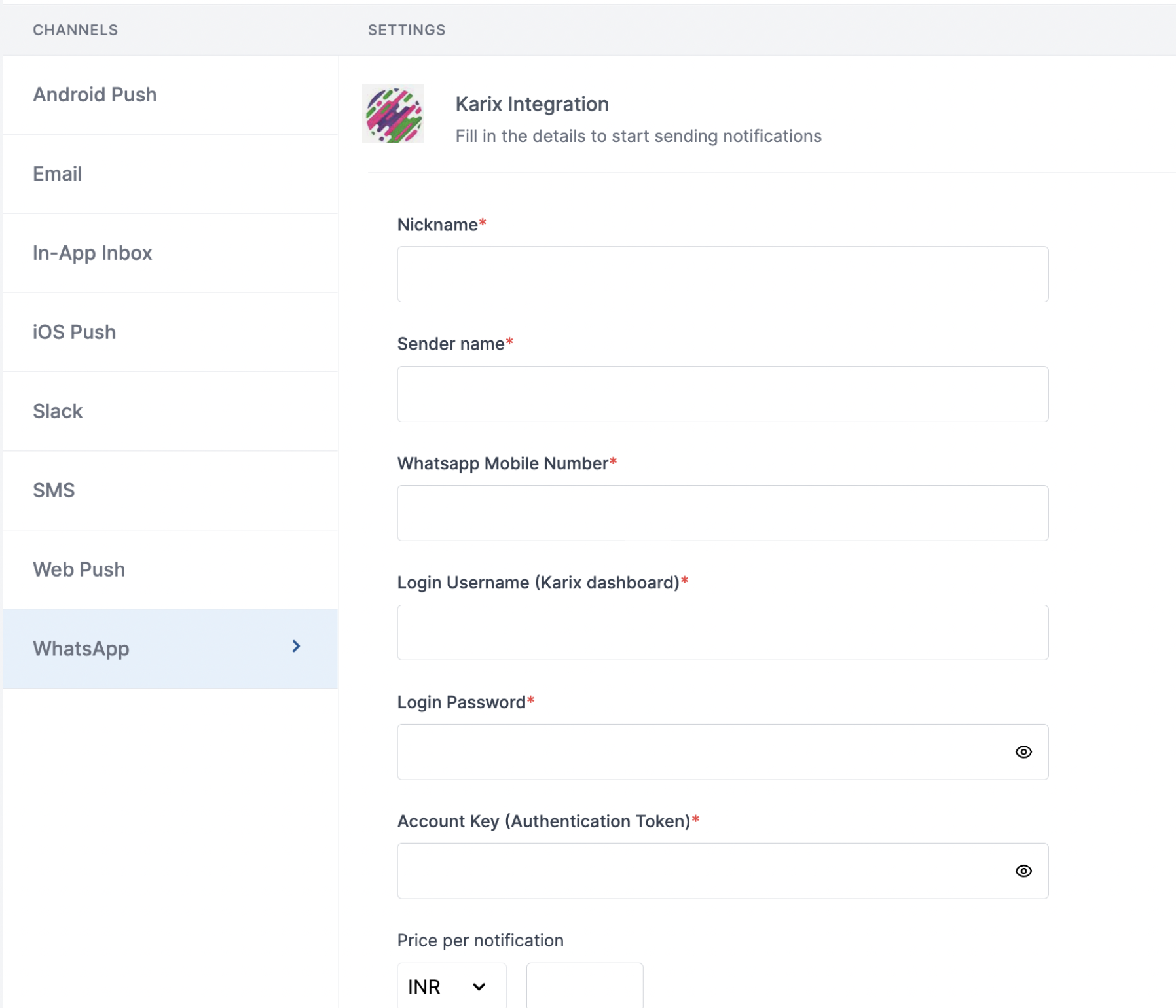 | Form Field | Description |
| ---------------------- | -------------------------------------------------------------------------------------------------------------------------------------------------------------------------------------- |
| Nickname | You can give any name which may help you to identify this account easily |
| Sender name | Sender name of your WhatsApp business account on Karix dashboard. SuprSend uses this information to send WhatsApp on your behalf via your registered WhatsApp number in Karix account. |
| WhatsApp Mobile Number | Mobile number of your WhatsApp business account. SuprSend uses this information to send WhatsApp on your behalf via your registered WhatsApp number |
| Login Username | Username of your Karix WhatsApp dashboard. SuprSend uses this information to upload templates on your behalf on karix dashboard for approval |
| Login Password | Password of your Karix WhatsApp dashboard. SuprSend uses this information to upload templates on your behalf on karix dashboard for approval |
| Account key | You will get this API Key from your Karix account. SuprSend uses this API Key to send WhatsApp on your behalf via your registered Karix account. |
| Price per notification | This is the amount you pay per SMS notification to Karix. It helps us to calculate, estimate and optimise your cost spent on notifications. |
### How to get sender name and Whatsapp mobile number from your Karix account
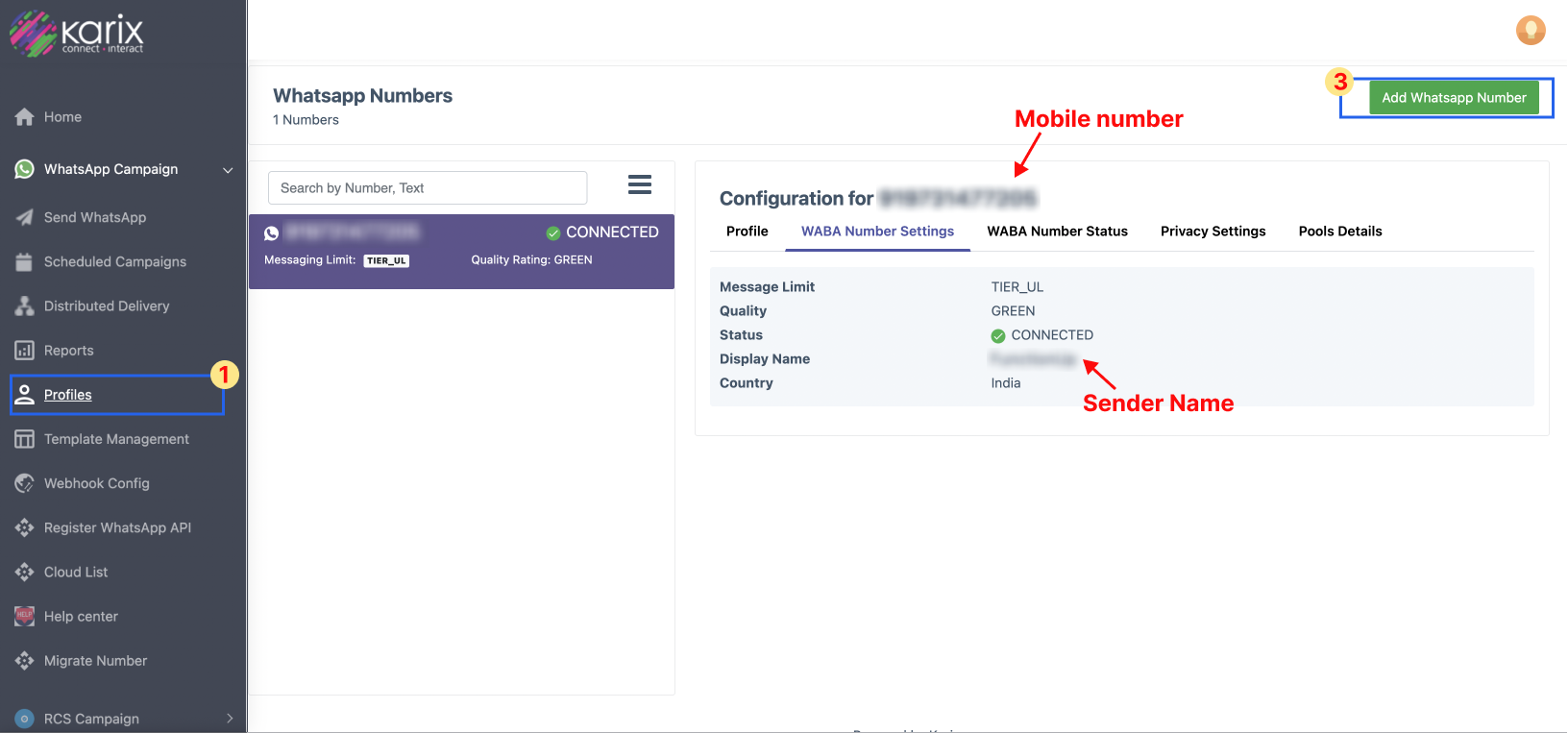
Login to [Karix managebot account](https://managebot.karix.solutions/bot_builder_gui/#/login) and follow the below steps:
Go to **"WhatsApp Campaign" -> "Profiles"** page on the left navigation menu
If you have already added a WhatsApp number, you'll see Mobile number and Sender Name on the right side of the page or skip to step-3
| Form Field | Description |
| ---------------------- | -------------------------------------------------------------------------------------------------------------------------------------------------------------------------------------- |
| Nickname | You can give any name which may help you to identify this account easily |
| Sender name | Sender name of your WhatsApp business account on Karix dashboard. SuprSend uses this information to send WhatsApp on your behalf via your registered WhatsApp number in Karix account. |
| WhatsApp Mobile Number | Mobile number of your WhatsApp business account. SuprSend uses this information to send WhatsApp on your behalf via your registered WhatsApp number |
| Login Username | Username of your Karix WhatsApp dashboard. SuprSend uses this information to upload templates on your behalf on karix dashboard for approval |
| Login Password | Password of your Karix WhatsApp dashboard. SuprSend uses this information to upload templates on your behalf on karix dashboard for approval |
| Account key | You will get this API Key from your Karix account. SuprSend uses this API Key to send WhatsApp on your behalf via your registered Karix account. |
| Price per notification | This is the amount you pay per SMS notification to Karix. It helps us to calculate, estimate and optimise your cost spent on notifications. |
### How to get sender name and Whatsapp mobile number from your Karix account
Login to [Karix managebot account](https://managebot.karix.solutions/bot_builder_gui/#/login) and follow the below steps:
Go to **"WhatsApp Campaign" -> "Profiles"** page on the left navigation menu
If you have already added a WhatsApp number, you'll see Mobile number and Sender Name on the right side of the page or skip to step-3
 ## How to get account key from your Karix account
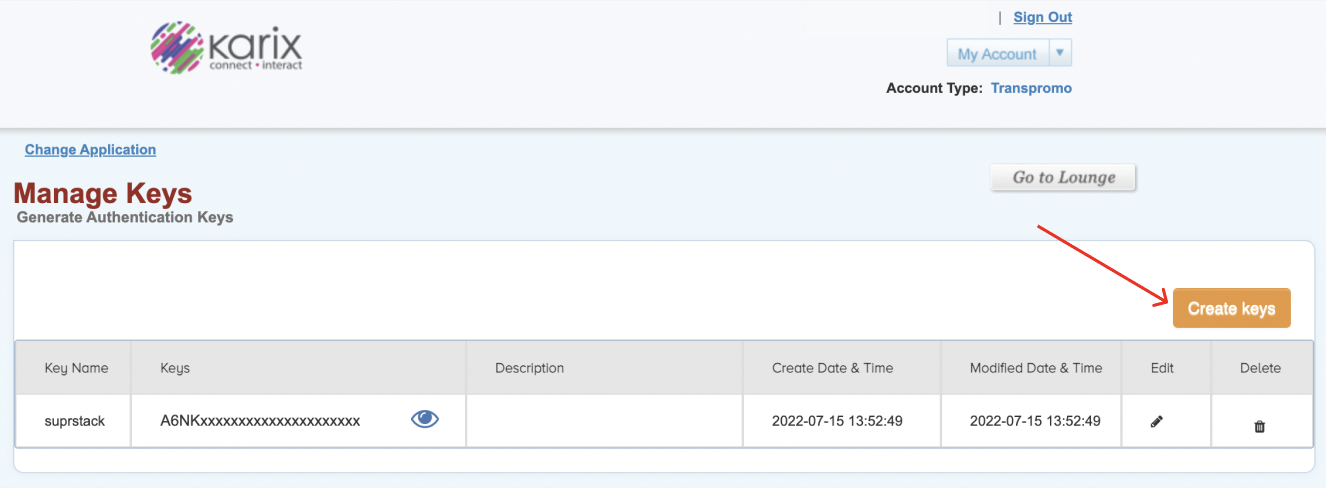
Login to Karix lounge account and follow the below steps:
1. Go to [Power APIs](https://karix.solutions/lounge/LoungePage/manageApi.php) page
2. Click on **the `Create keys`** button.
3. Enter the *"key name"* and *"description"* in the create keys modal and save
4. Copy the API Key generated by clicking on the "eye" button and add it to SuprSend Vendor settings page
## How to get account key from your Karix account
Login to Karix lounge account and follow the below steps:
1. Go to [Power APIs](https://karix.solutions/lounge/LoungePage/manageApi.php) page
2. Click on **the `Create keys`** button.
3. Enter the *"key name"* and *"description"* in the create keys modal and save
4. Copy the API Key generated by clicking on the "eye" button and add it to SuprSend Vendor settings page
 ## Setting callback URL in Karix account
One of the platform advantage of using SuprSend as a central communication system is that it shows notification analytics for all channels in your SuprSend account together. Login to [Karix managebot account](https://managebot.karix.solutions/bot_builder_gui/#/login) and follow the below steps to setup webhook URL:
1. Go to **"WhatsApp Campaign" -> "Webhook\_Config"** page on the left navigation menu
2. Add below webhook URL in "`Delivery rule`"/blo
> POST URL : [`https://hub.suprsend.com/webhook/karix/whatsapp/`](https://hub.suprsend.com/webhook/karix/whatsapp/)
>
## Setting callback URL in Karix account
One of the platform advantage of using SuprSend as a central communication system is that it shows notification analytics for all channels in your SuprSend account together. Login to [Karix managebot account](https://managebot.karix.solutions/bot_builder_gui/#/login) and follow the below steps to setup webhook URL:
1. Go to **"WhatsApp Campaign" -> "Webhook\_Config"** page on the left navigation menu
2. Add below webhook URL in "`Delivery rule`"/blo
> POST URL : [`https://hub.suprsend.com/webhook/karix/whatsapp/`](https://hub.suprsend.com/webhook/karix/whatsapp/)
>
Header: Key - "Content-Type", Value - "application/json"
>
Select all delivery events for tracking
***