> ## Documentation Index
> Fetch the complete documentation index at: https://docs.suprsend.com/llms.txt
> Use this file to discover all available pages before exploring further.
# List sync via database
> Automate user list sync in SuprSend by connecting your data warehouse and writing SQL queries to refresh subscriber lists for campaigns and broadcasts.
Database connector allows you to sync list users using your true source of data from your data warehouse. This way data, product and growth teams can directly setup production notifications and automated marketing campaigns on the 360 degree data without doing any trade-offs on the amount of data available in click stream platforms.
This is also one of the best ways of automating your list updates. You can set it up once and set the recurring list sync based on your notifications requirement.
## Pre-Requisites
[Setup database connection](/docs/database)
## Setting up list update
To update users in the list via database, you need to first create a task with SQL query to extract and transform data and then set an update schedule to define how each sync will be timed and what data will be updated in each sync.
You can create a new task by clicking on update users on the list page or by clicking on `New task` button on Sync tasks tab. Please note that lists having database connector as source will only open the database task window on `Update users` click. If you want to update users in a list with different datasource, update it directly from sync tasks tab.
 **"Sync tasks"**
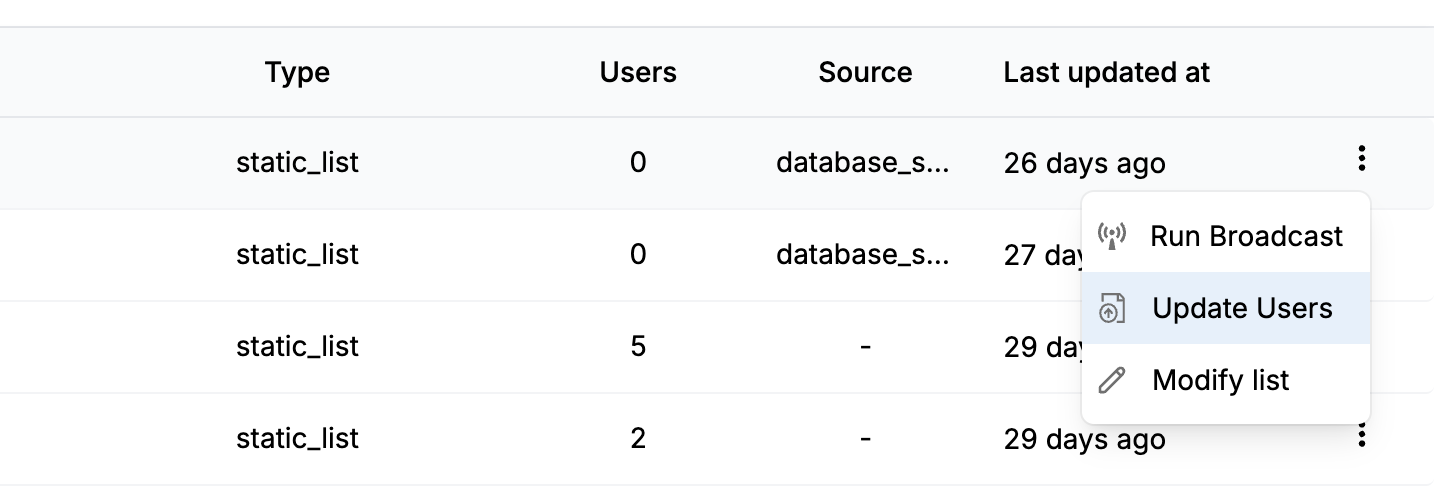 **"database\_sync"**
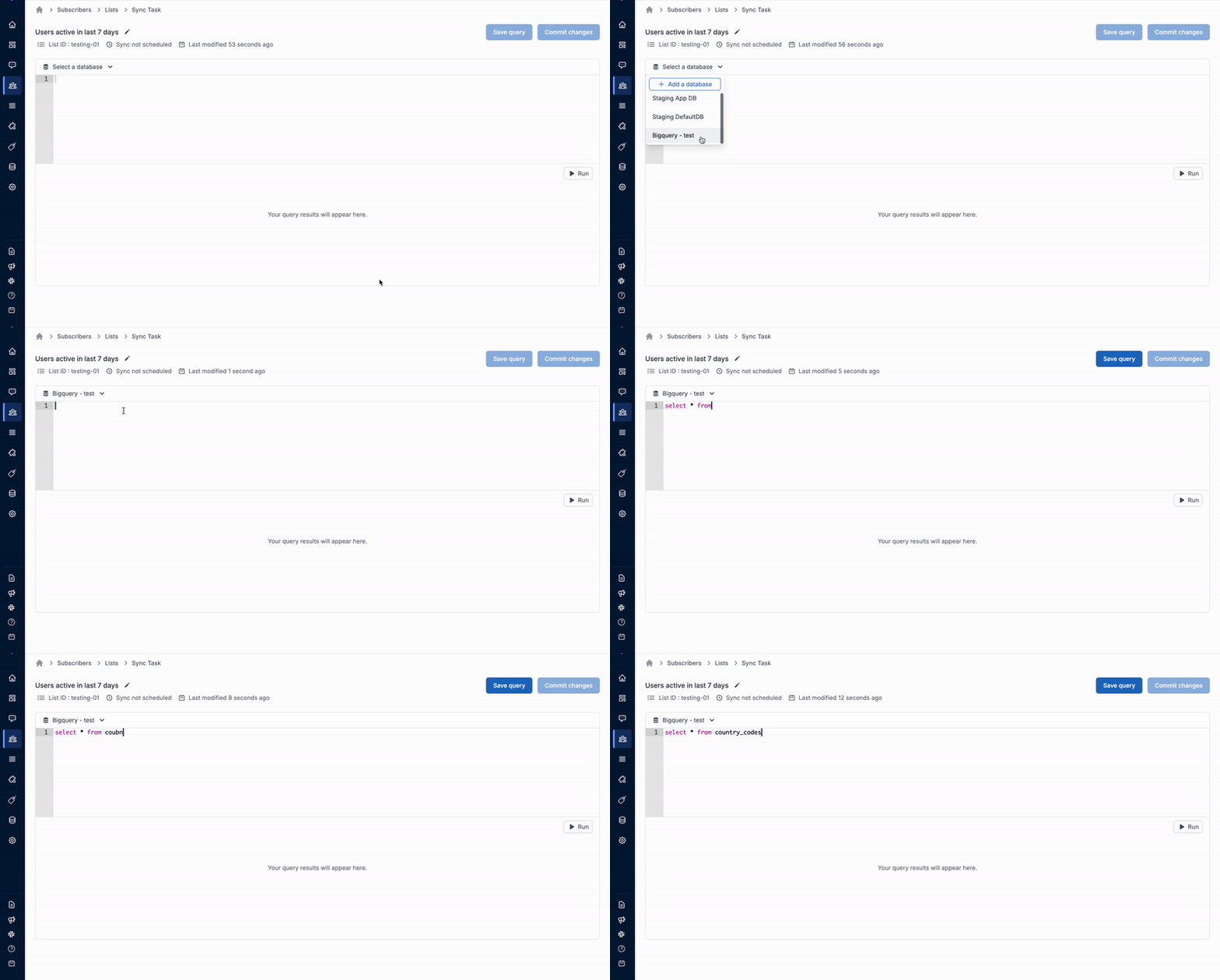
Next, add the task name and list ID and click on `Add SQL query`. You can only add the list ID of existing lists. If you don't have the list pre-created, [create one](/docs/lists#creating-lists) before setting up the sync.
When on your task edit screen, select your database connection and start writing the SQL query to fetch users for list sync. If you haven't added your database connection, you can add it directly from your task screen. Read more about [database connection](/docs/database) and how to set it up.
**"database\_sync"**
Next, add the task name and list ID and click on `Add SQL query`. You can only add the list ID of existing lists. If you don't have the list pre-created, [create one](/docs/lists#creating-lists) before setting up the sync.
When on your task edit screen, select your database connection and start writing the SQL query to fetch users for list sync. If you haven't added your database connection, you can add it directly from your task screen. Read more about [database connection](/docs/database) and how to set it up.
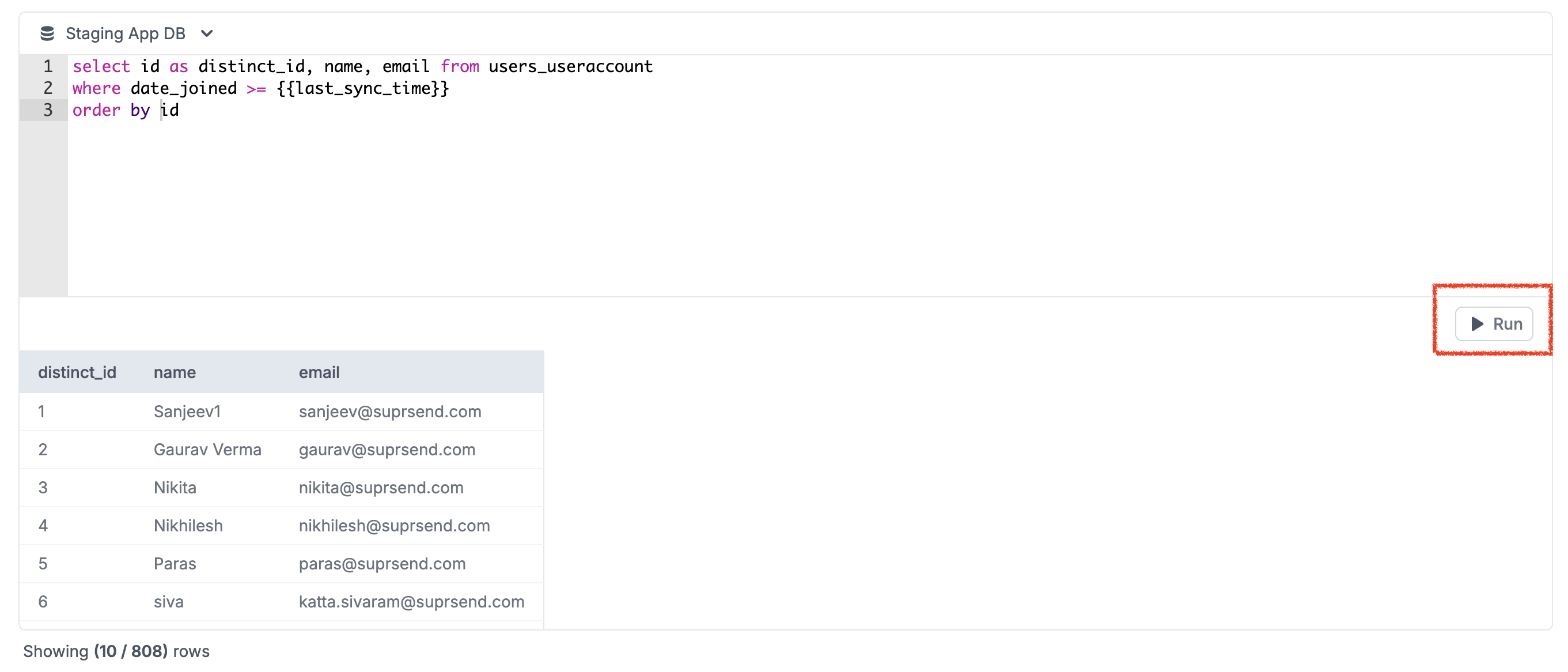
 Please make sure that you add `distinct_id` column in your query output. This is a reserved column used to identify `distinct_id` of user to be synced in the list.
Click `Run` to preview results and make sure that your query selects the right information. The preview will always show the first 10 results.
Please make sure that you add `distinct_id` column in your query output. This is a reserved column used to identify `distinct_id` of user to be synced in the list.
Click `Run` to preview results and make sure that your query selects the right information. The preview will always show the first 10 results.
 Make sure that your query returns only the rows and columns that you need to update the list or user profile. Each row in your extracted data represents a user that needs to be synced in the list. `distinct_id` is a mandatory column to identify the users to be synced in the list. If you want to update properties in user profile, add one column each for the property that needs to be synced. Avoid using `select *` in your final query since it may overload your database. Though, you can use `select *` while running your query for preview since it puts limit 10 in your query.
**Query Configuration Tips:**
* **Column Naming:** Use consistent column names in your query. Column names are case-sensitive when mapping to user properties or channels. For example, if your query returns `Email`, `email`, and `EMAIL` as different columns, they will be treated as separate columns.
* **Phone Number Formatting:** If you're mapping phone numbers to SMS or WhatsApp channels, ensure your query returns phone numbers in E.164 format (`+`). You can format phone numbers directly in your SQL query:
* **PostgreSQL:** `SELECT '+91' || phone_number AS phone FROM users`
* **MySQL:** `SELECT CONCAT('+91', phone_number) AS phone FROM users`
* If all your users are from the same country, you can prepend the country code in the query. For example, `+91` for India or `+1` for US.
* **Channel Mapping:** When mapping columns to communication channels (email, SMS, WhatsApp), ensure the column values are in the correct format:
* **Email:** Standard email format (e.g., `user@example.com`)
* **SMS/WhatsApp:** E.164 format with country code (e.g., `+919999999999`)
* **Multiple Channels:** To map multiple channels for the same user, include separate columns for each channel in your query (e.g., `email`, `phone_sms`, `phone_whatsapp`).
Also, use variable to only sync source data that changed since the last successful sync interval.
**Optimizing your query with Last sync time:**
You can use `{{last_sync_time}}` variable in your query to sync only the records that have changed since the last successful sync. This helps you avoid syncing the same records over and over again.
We strongly recommend that you index a column in your database representing the date-time each row was last-updated. When you write your query, you should add a WHERE clause comparing your “last updated” column to the `{{last_sync_time}}`.
The `last_sync_time` is a ISO date-time representing the timestamp of your previous successful sync. Add relevant data type conversion if you use any other date-time format.
Once you are satisfied with your query results, `Save query` and `Commit changes` it. You'll see sync settings on commit.
Make sure that your query returns only the rows and columns that you need to update the list or user profile. Each row in your extracted data represents a user that needs to be synced in the list. `distinct_id` is a mandatory column to identify the users to be synced in the list. If you want to update properties in user profile, add one column each for the property that needs to be synced. Avoid using `select *` in your final query since it may overload your database. Though, you can use `select *` while running your query for preview since it puts limit 10 in your query.
**Query Configuration Tips:**
* **Column Naming:** Use consistent column names in your query. Column names are case-sensitive when mapping to user properties or channels. For example, if your query returns `Email`, `email`, and `EMAIL` as different columns, they will be treated as separate columns.
* **Phone Number Formatting:** If you're mapping phone numbers to SMS or WhatsApp channels, ensure your query returns phone numbers in E.164 format (`+`). You can format phone numbers directly in your SQL query:
* **PostgreSQL:** `SELECT '+91' || phone_number AS phone FROM users`
* **MySQL:** `SELECT CONCAT('+91', phone_number) AS phone FROM users`
* If all your users are from the same country, you can prepend the country code in the query. For example, `+91` for India or `+1` for US.
* **Channel Mapping:** When mapping columns to communication channels (email, SMS, WhatsApp), ensure the column values are in the correct format:
* **Email:** Standard email format (e.g., `user@example.com`)
* **SMS/WhatsApp:** E.164 format with country code (e.g., `+919999999999`)
* **Multiple Channels:** To map multiple channels for the same user, include separate columns for each channel in your query (e.g., `email`, `phone_sms`, `phone_whatsapp`).
Also, use variable to only sync source data that changed since the last successful sync interval.
**Optimizing your query with Last sync time:**
You can use `{{last_sync_time}}` variable in your query to sync only the records that have changed since the last successful sync. This helps you avoid syncing the same records over and over again.
We strongly recommend that you index a column in your database representing the date-time each row was last-updated. When you write your query, you should add a WHERE clause comparing your “last updated” column to the `{{last_sync_time}}`.
The `last_sync_time` is a ISO date-time representing the timestamp of your previous successful sync. Add relevant data type conversion if you use any other date-time format.
Once you are satisfied with your query results, `Save query` and `Commit changes` it. You'll see sync settings on commit.
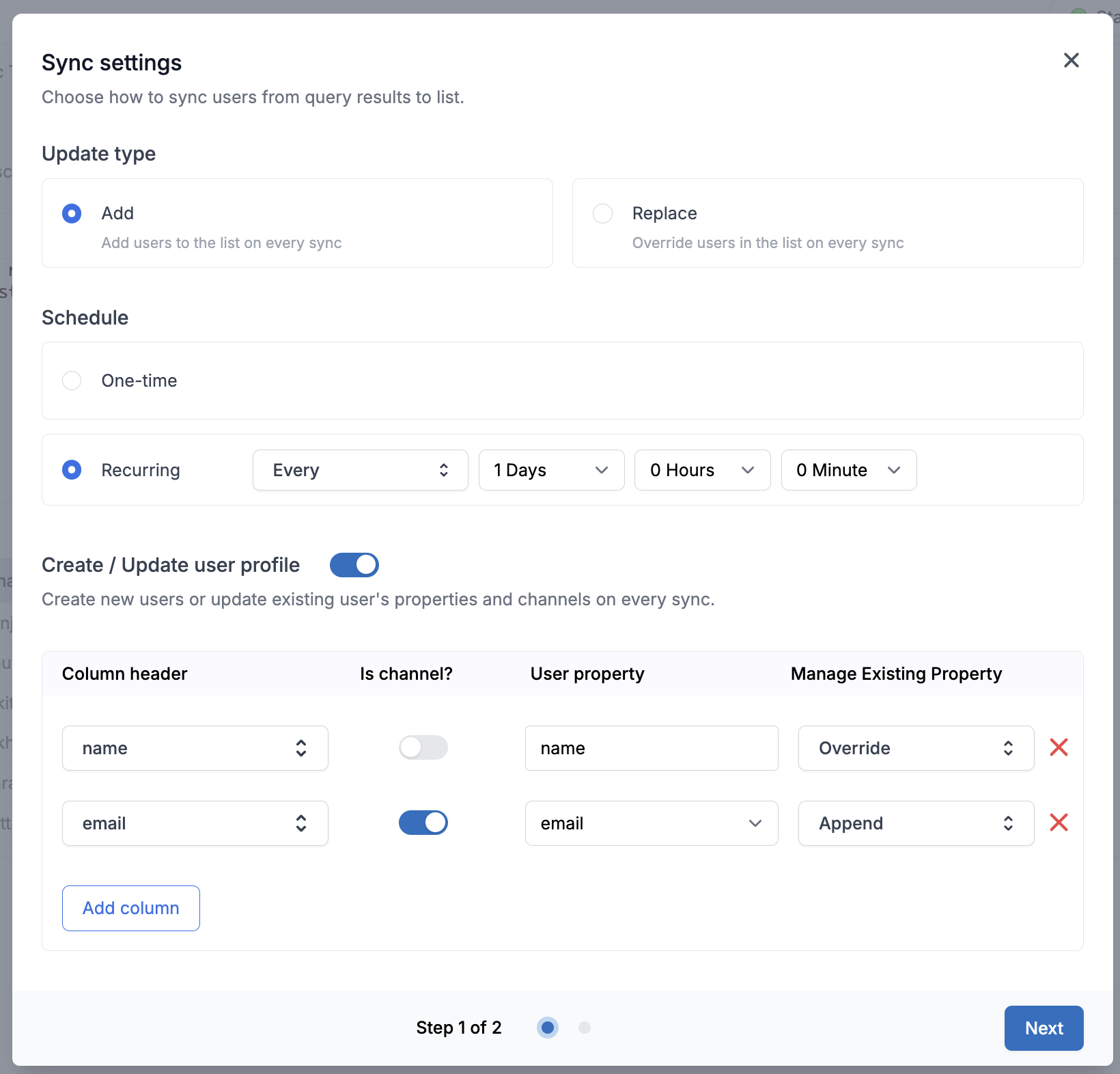 | Field | Description | | |
| ---------------------------- | --------------------------------------------------------------------------------------------------------------------------------------------------------------------------------------------------------------------------------------------------------------------------------------------------------------------------------------------------------------------------------------------------------------------------------------------------------------------------------------------------------------------------------------------------------------------- | - | ------------------------------- |
| Update type | - Select `Add` if you want to add users on every sync. E.g., you are maintaining a list of new registrations and your query returns all users registered today. - Select `Replace` if you want to replace the list with a fresh set of users on every sync. E.g., you have a list of all users who made a purchase in the last 30 days. | | |
| Schedule | - Set `One-time` sync if the list is created for one-time campaigns and will never be used again. - Set `Recurring` sync if your list is used in a cron or you are syncing user profile. You can setup recurring sync as **every** `**day **hour **minute` or add a **cron expression** for a more granular sync frequency like `every monday at 9:00 am`. | | |
| Create / Update user profile | Enable it if you also want to sync users on every sync. You can also update user properties by mapping columns to the relevant user properties and use it in your template as `{{$user.}}` to send personalized broadcasts. | | |
| Column header | This is the column name from your query output used to map user property. **Important:** Column names are case-sensitive. The column name you enter here must exactly match (including case) the column name returned by your SQL query. A case mismatch will prevent the column from being mapped correctly, causing email, SMS, or WhatsApp channels to fail syncing. | | |
| is channel? | enable it if the column value is used to update communication channel such as `email`, `sms` or `whatsapp` in user profile. **Note:** For SMS and WhatsApp channels, phone numbers must be in [E.164 format](https://www.twilio.com/docs/glossary/what-e164) (`+`). For example, `+919999999999` for India or `+15555555555` for US. If your database stores phone numbers without country codes, you'll need to prepend the country code in your SQL query using string concatenation (e.g., `CONCAT('+91', phone_number)` in MySQL or \`'+91' | | phone\_number\` in PostgreSQL). |
| User property | add the key in which your user property should be stored. It can be different from the column name. In case of channel, it will be a dropdown with the list of available channels that you can update. | | |
| Manage Existing property | - **Override** will override the value corresponding to the property key on every sync - **Don't Override** will set the property value for missing property keys. Existing property value will not be overridden. This is especially useful for properties which are set one time. E.g., `signup_date`, `first_item_purchased` - **Append** will create an array in the property key and will keep on appending the value to that array on every sync. **User channels are always append operation**. | | |
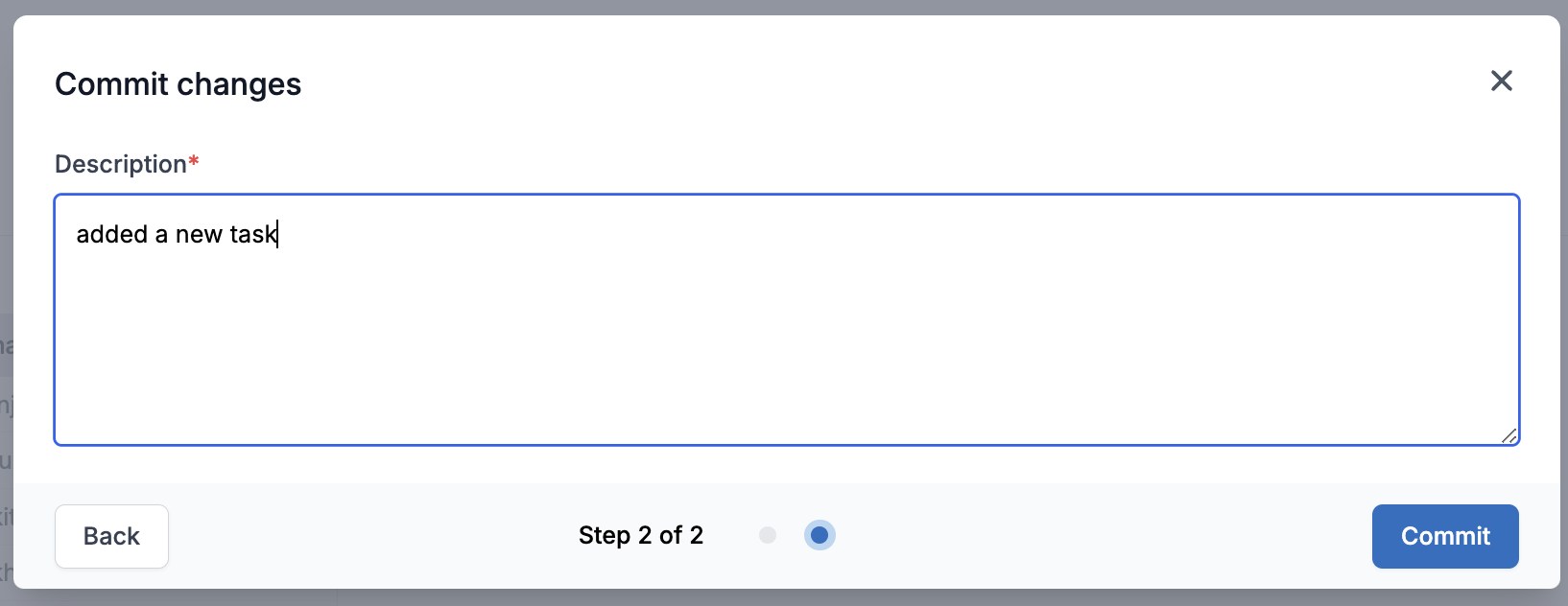
After defining your sync setting, click on `Next` and add a relevant commit description for later reference. You'll be able to see all your previous edits in the version history.
| Field | Description | | |
| ---------------------------- | --------------------------------------------------------------------------------------------------------------------------------------------------------------------------------------------------------------------------------------------------------------------------------------------------------------------------------------------------------------------------------------------------------------------------------------------------------------------------------------------------------------------------------------------------------------------- | - | ------------------------------- |
| Update type | - Select `Add` if you want to add users on every sync. E.g., you are maintaining a list of new registrations and your query returns all users registered today. - Select `Replace` if you want to replace the list with a fresh set of users on every sync. E.g., you have a list of all users who made a purchase in the last 30 days. | | |
| Schedule | - Set `One-time` sync if the list is created for one-time campaigns and will never be used again. - Set `Recurring` sync if your list is used in a cron or you are syncing user profile. You can setup recurring sync as **every** `**day **hour **minute` or add a **cron expression** for a more granular sync frequency like `every monday at 9:00 am`. | | |
| Create / Update user profile | Enable it if you also want to sync users on every sync. You can also update user properties by mapping columns to the relevant user properties and use it in your template as `{{$user.}}` to send personalized broadcasts. | | |
| Column header | This is the column name from your query output used to map user property. **Important:** Column names are case-sensitive. The column name you enter here must exactly match (including case) the column name returned by your SQL query. A case mismatch will prevent the column from being mapped correctly, causing email, SMS, or WhatsApp channels to fail syncing. | | |
| is channel? | enable it if the column value is used to update communication channel such as `email`, `sms` or `whatsapp` in user profile. **Note:** For SMS and WhatsApp channels, phone numbers must be in [E.164 format](https://www.twilio.com/docs/glossary/what-e164) (`+`). For example, `+919999999999` for India or `+15555555555` for US. If your database stores phone numbers without country codes, you'll need to prepend the country code in your SQL query using string concatenation (e.g., `CONCAT('+91', phone_number)` in MySQL or \`'+91' | | phone\_number\` in PostgreSQL). |
| User property | add the key in which your user property should be stored. It can be different from the column name. In case of channel, it will be a dropdown with the list of available channels that you can update. | | |
| Manage Existing property | - **Override** will override the value corresponding to the property key on every sync - **Don't Override** will set the property value for missing property keys. Existing property value will not be overridden. This is especially useful for properties which are set one time. E.g., `signup_date`, `first_item_purchased` - **Append** will create an array in the property key and will keep on appending the value to that array on every sync. **User channels are always append operation**. | | |
After defining your sync setting, click on `Next` and add a relevant commit description for later reference. You'll be able to see all your previous edits in the version history.
 Your sync is now setup and will execute at the interval defined in your sync frequency.
## Enable / disable sync
Your sync will be auto enabled the first you commit the changes. You can enable / disable sync with the switch next to edit button.
When you disable a sync, we stop running the associated query. We don’t delete the sync, so you can re-enable it later.
When you enable a sync, we’ll resume the sync. The next sync interval will send all data that has changed since the last sync. `{{last_sync_time}}` variable will also store the timestamp of your last successful sync. So, when you enable it, it will sync all the data that has changed since the last sync.
Your sync is now setup and will execute at the interval defined in your sync frequency.
## Enable / disable sync
Your sync will be auto enabled the first you commit the changes. You can enable / disable sync with the switch next to edit button.
When you disable a sync, we stop running the associated query. We don’t delete the sync, so you can re-enable it later.
When you enable a sync, we’ll resume the sync. The next sync interval will send all data that has changed since the last sync. `{{last_sync_time}}` variable will also store the timestamp of your last successful sync. So, when you enable it, it will sync all the data that has changed since the last sync.
 ## Sync logs
You can see sync logs on [lists -> logs ](https://app.suprsend.com/en/staging/subscribers/subscriber-list/logs/)tab. This page have sync history of all list syncs. So, filter logs on source type to see logs for database sync. Each row in the log represents a sync with relevant information related to the sync like when did the sync start, who updated the sync and the status of the sync.
## Sync logs
You can see sync logs on [lists -> logs ](https://app.suprsend.com/en/staging/subscribers/subscriber-list/logs/)tab. This page have sync history of all list syncs. So, filter logs on source type to see logs for database sync. Each row in the log represents a sync with relevant information related to the sync like when did the sync start, who updated the sync and the status of the sync.
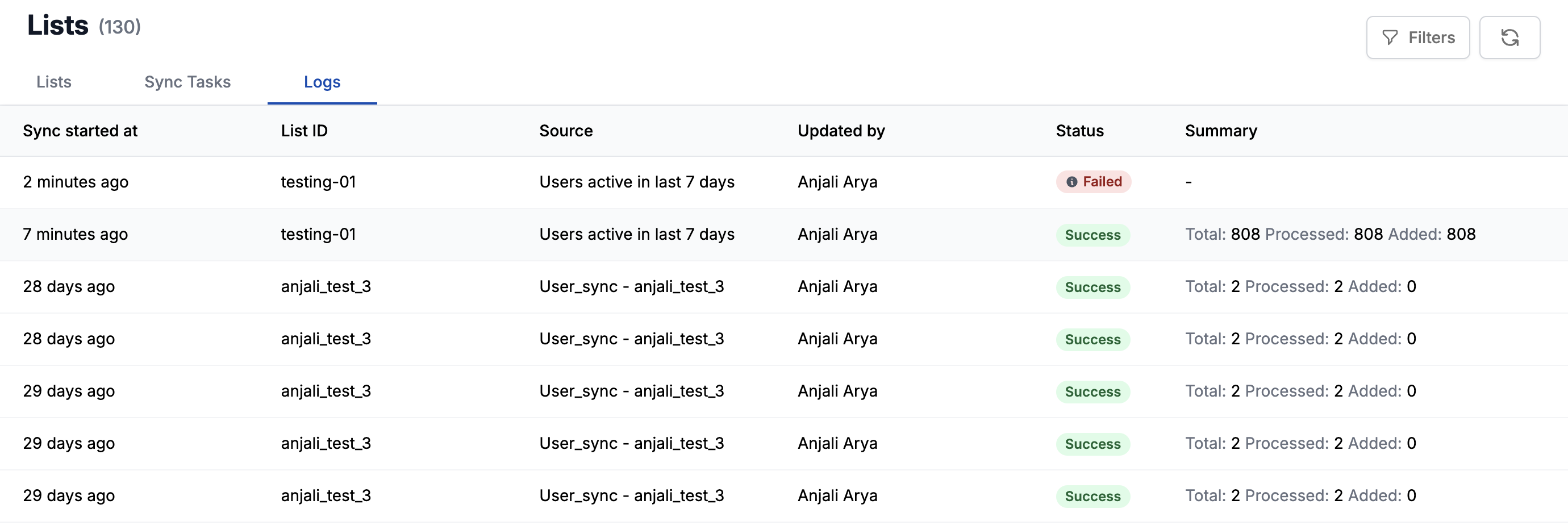 There are 5 types of sync status:
* `Created` - Logs sync has just started.
* `In progress` - Users have started syncing in the list. You'll also see the `%progress` in this case.
* `Success` - Users are successfully synced in the list. You'll see `Total` users returned in the query, `Processed` users and `Added` users. In most cases, `added` user will be equivalent to `total` users but if it less than total users, it would mean one of 2 things:
* Some users were already present in the list and that's why skipped.
* Users were not present in SuprSend subscriber list. You can enable `Create / Update user profile` in your sync settings to avoid this scenario.
* `Ignored` - These are the syncs which were skipped sync the previous sync was still in progress when the next sync interval occurs.
* `Failed` - Sync couldn't be completed due to some errors while running the query, query output doesn't have `distinct_id` column or there was no data returned in your query output. If you see any error which could be internal to SuprSend system, please reach out to our [support](https://join.slack.com/t/suprsendcommunity/shared_invite/zt-3932rw936-XNWY1RC8bsffh4if4ZyoXQ). For failed logs, You can hover on the status or click on the sync to see errors. You can also filter to `Show only error logs`.
There are 5 types of sync status:
* `Created` - Logs sync has just started.
* `In progress` - Users have started syncing in the list. You'll also see the `%progress` in this case.
* `Success` - Users are successfully synced in the list. You'll see `Total` users returned in the query, `Processed` users and `Added` users. In most cases, `added` user will be equivalent to `total` users but if it less than total users, it would mean one of 2 things:
* Some users were already present in the list and that's why skipped.
* Users were not present in SuprSend subscriber list. You can enable `Create / Update user profile` in your sync settings to avoid this scenario.
* `Ignored` - These are the syncs which were skipped sync the previous sync was still in progress when the next sync interval occurs.
* `Failed` - Sync couldn't be completed due to some errors while running the query, query output doesn't have `distinct_id` column or there was no data returned in your query output. If you see any error which could be internal to SuprSend system, please reach out to our [support](https://join.slack.com/t/suprsendcommunity/shared_invite/zt-3932rw936-XNWY1RC8bsffh4if4ZyoXQ). For failed logs, You can hover on the status or click on the sync to see errors. You can also filter to `Show only error logs`.
 ## Version control
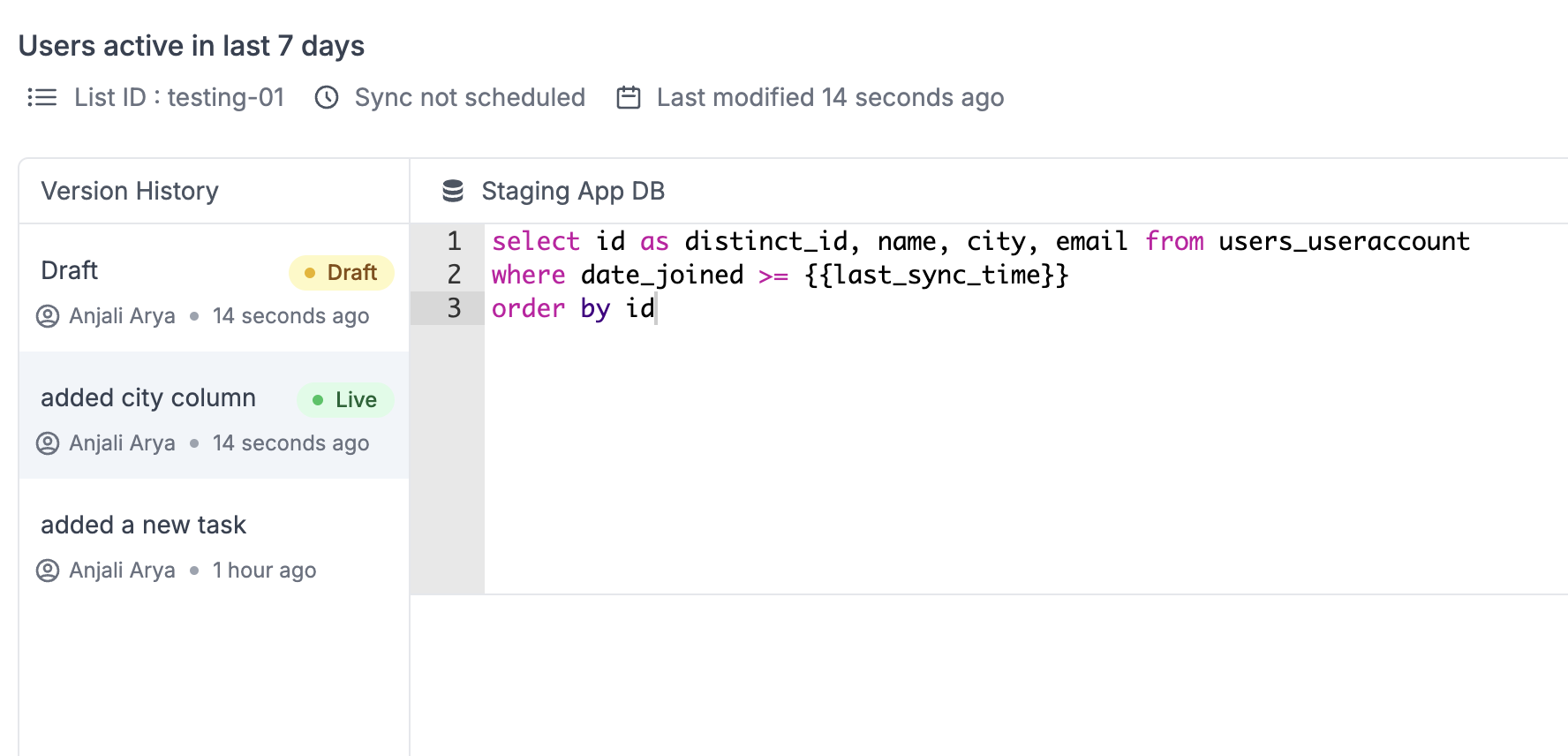
All the changes are first saved in the draft version and are only made live once you commit the changes. This allows you to confidently make changes to your query, without affecting any running sync in production. You can also see previous version edits by clicking on the previous versions.
## Version control
All the changes are first saved in the draft version and are only made live once you commit the changes. This allows you to confidently make changes to your query, without affecting any running sync in production. You can also see previous version edits by clicking on the previous versions.
 ***
***