> ## Documentation Index
> Fetch the complete documentation index at: https://docs.suprsend.com/llms.txt
> Use this file to discover all available pages before exploring further.
# Manage Lists
> Create and manage subscriber lists for bulk notifications and campaigns.
List is a group of subscribers or recipients to whom bulk messages can be sent. for example, you can create a list of users who signed up in the last 30 days. You can now manage subscriber lists in SuprSend and send campaigns or [broadcasts](/docs/broadcast) to pre-created lists of users without the need to add each user individually when making the API call.
By default, SuprSend creates a list named `all_users`, which automatically includes all users available in your workspace. You can use this list to send campaigns like newsletters and product updates.
## Creating lists
You can create lists using one of the following methods:
This is the most flexible way of updating users in a list. This way, you can keep the list updated in real-time. You can use [API](/reference/overview) or update it using backend SDK
SuprSend supports integration with third-party platforms to sync user and event data. You can also sync user cohorts from these platforms into lists and run campaigns on those user segments from SuprSend. We currently have integration support for below connectors:
Need support for another connector? [Please Let us know](https://join.slack.com/t/suprsendcommunity/shared_invite/zt-3932rw936-XNWY1RC8bsffh4if4ZyoXQ)
You can also update List directly from the SuprSend dashboard. This way, marketing or product teams can send broadcasts directly from the dashboard without any tech involvement. Recommended for cases when you want to send a one-off campaign and only need the list temporarily.
This will only sync existing users in SuprSend database. It doesn't create new user profiles. [Refer docs](/docs/users#creating-user-profile-on-suprsend) to create user profiles
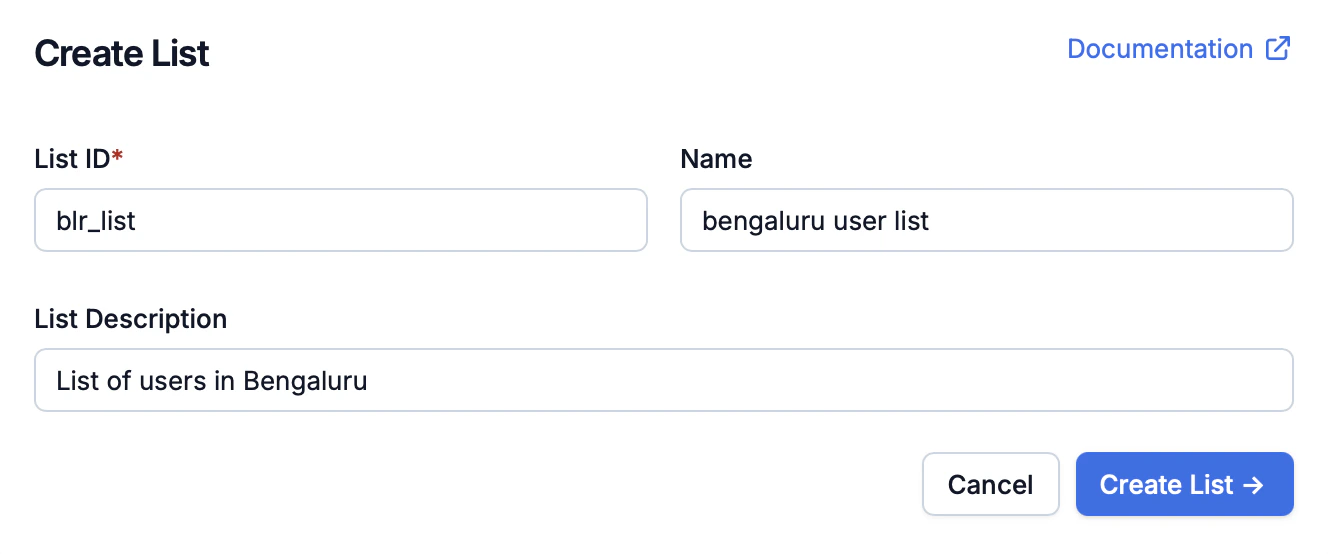
You'll find the option to create the list and update users on the List Tab.
* **To create a list**, click on the `+ New List` button and add the relevant information. `List ID` is the unique identifier for the list. `Name` and `Description` are just for reference so that you know what this list represents.
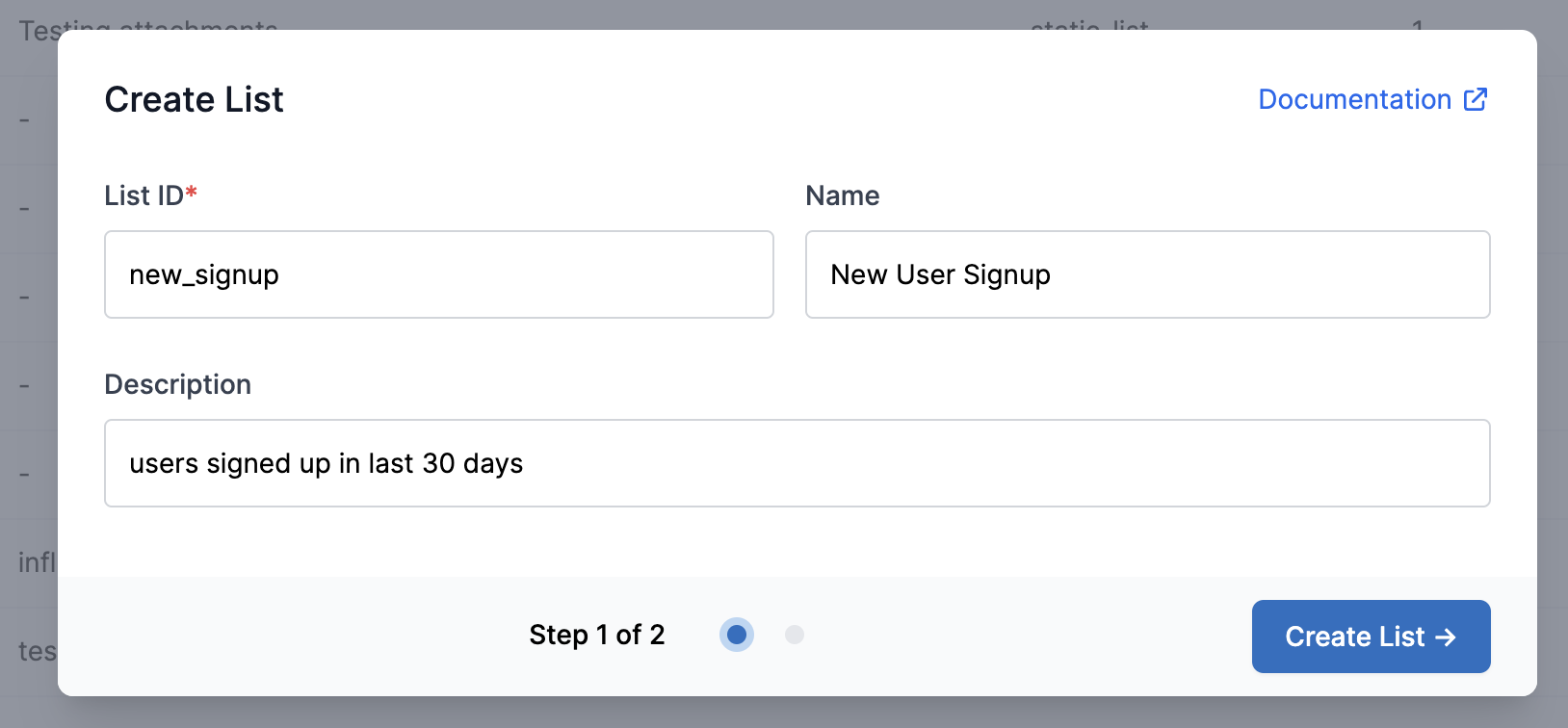 You can also modify list `Name` and `Description` later by clicking on `Modify List` option available in the right side Kebab menu on a list.
* Click on the `Update Users` option available in the right side Kebab menu on a list. It will open a dialog like the one shown below
You can also modify list `Name` and `Description` later by clicking on `Modify List` option available in the right side Kebab menu on a list.
* Click on the `Update Users` option available in the right side Kebab menu on a list. It will open a dialog like the one shown below
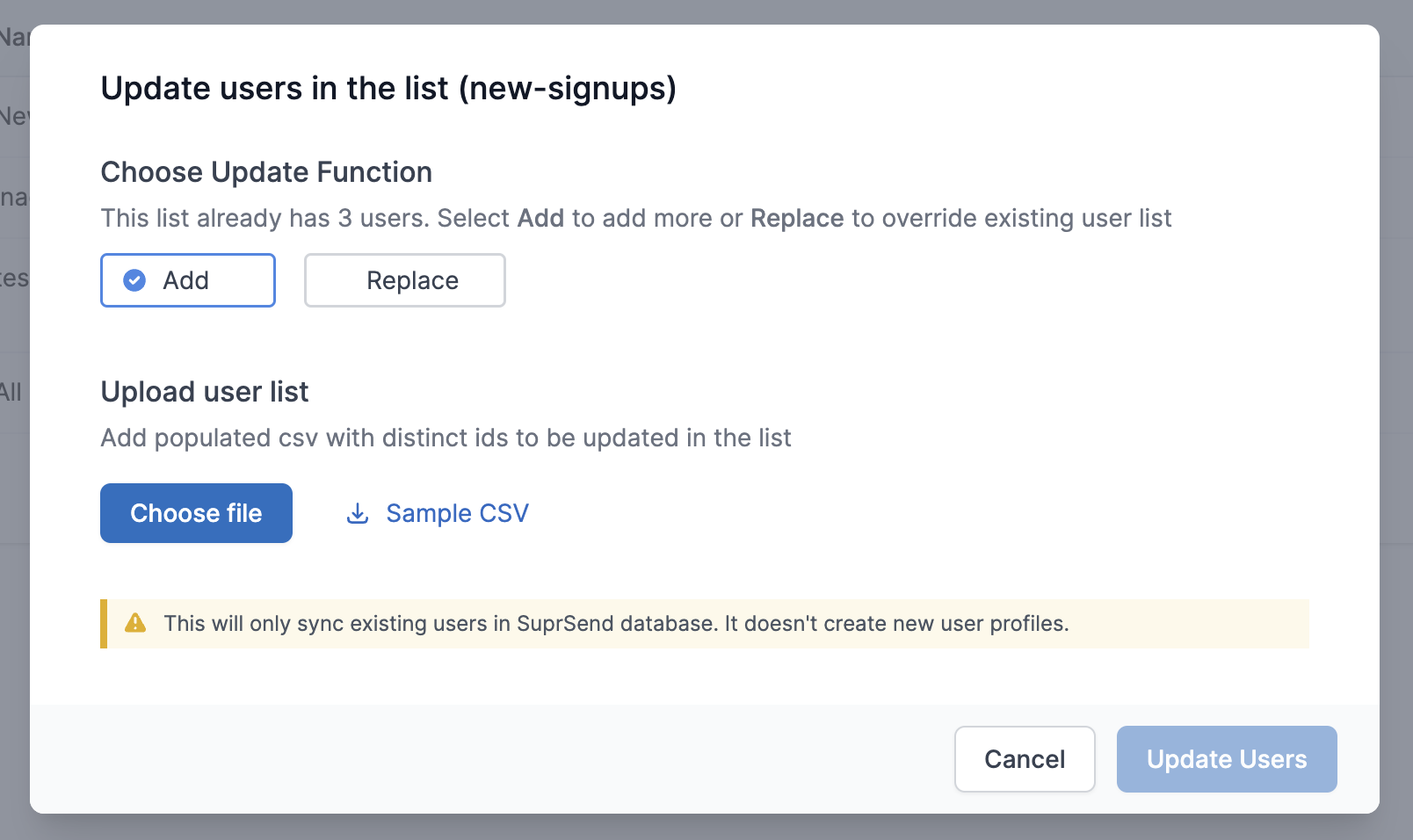 Follow below steps to update users in the list -
* Choose `Add` to add more users to an existing list of users. for example, if you are adding today's sign ups in the new sign ups list every day
* Opt for `Replace` to replace the current list with a completely new set of users. This is handy in situations where you need to update the list with all users who fit a criteria (like users subscribed to a topic), without needing to track individual additions.
Upload a CSV file containing the distinct\_id of the users. Make sure that the column is labeled as `distinct_id`
Follow below steps to update users in the list -
* Choose `Add` to add more users to an existing list of users. for example, if you are adding today's sign ups in the new sign ups list every day
* Opt for `Replace` to replace the current list with a completely new set of users. This is handy in situations where you need to update the list with all users who fit a criteria (like users subscribed to a topic), without needing to track individual additions.
Upload a CSV file containing the distinct\_id of the users. Make sure that the column is labeled as `distinct_id`
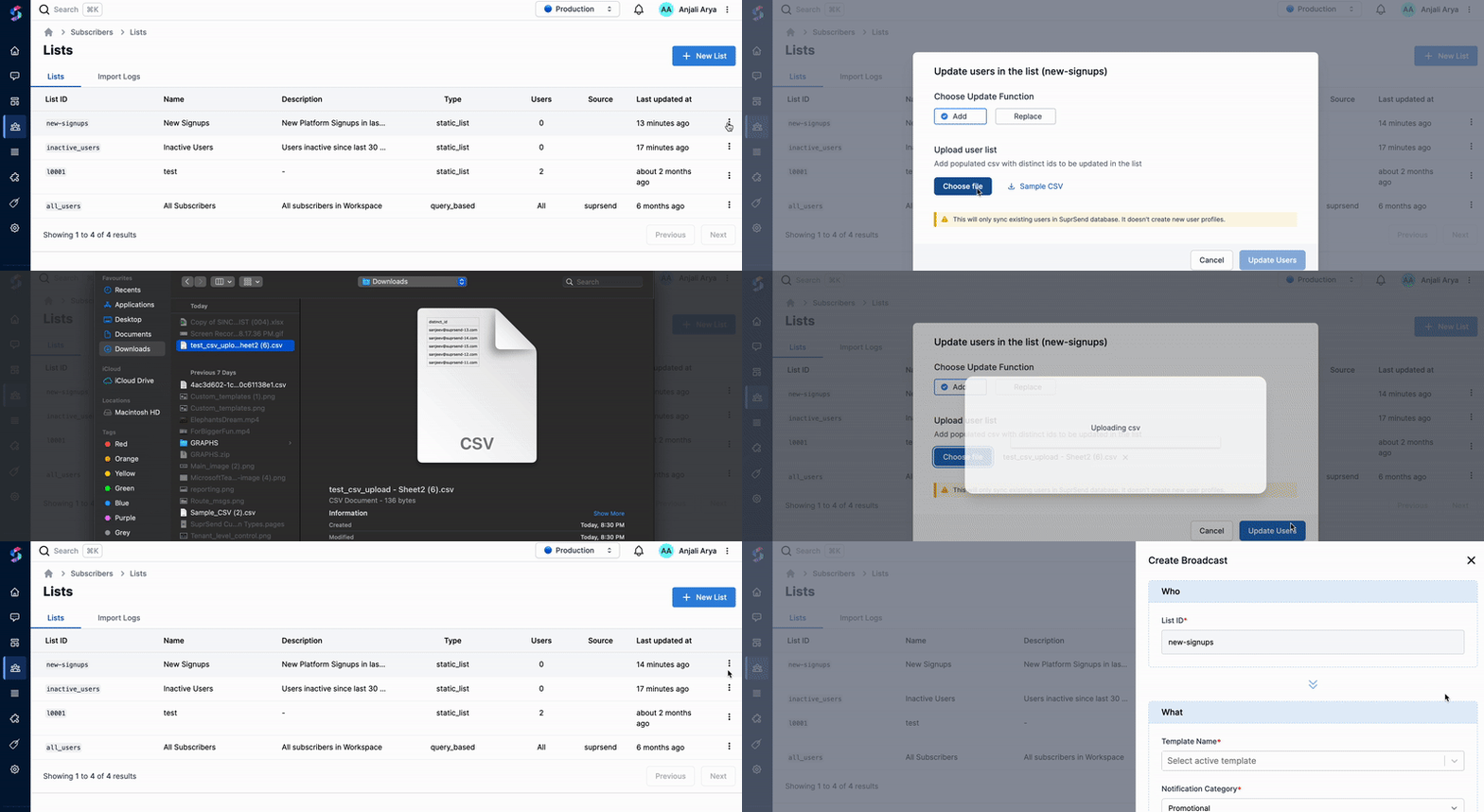 Click on `Update Users` button. You can check the update progress in `Import logs`.
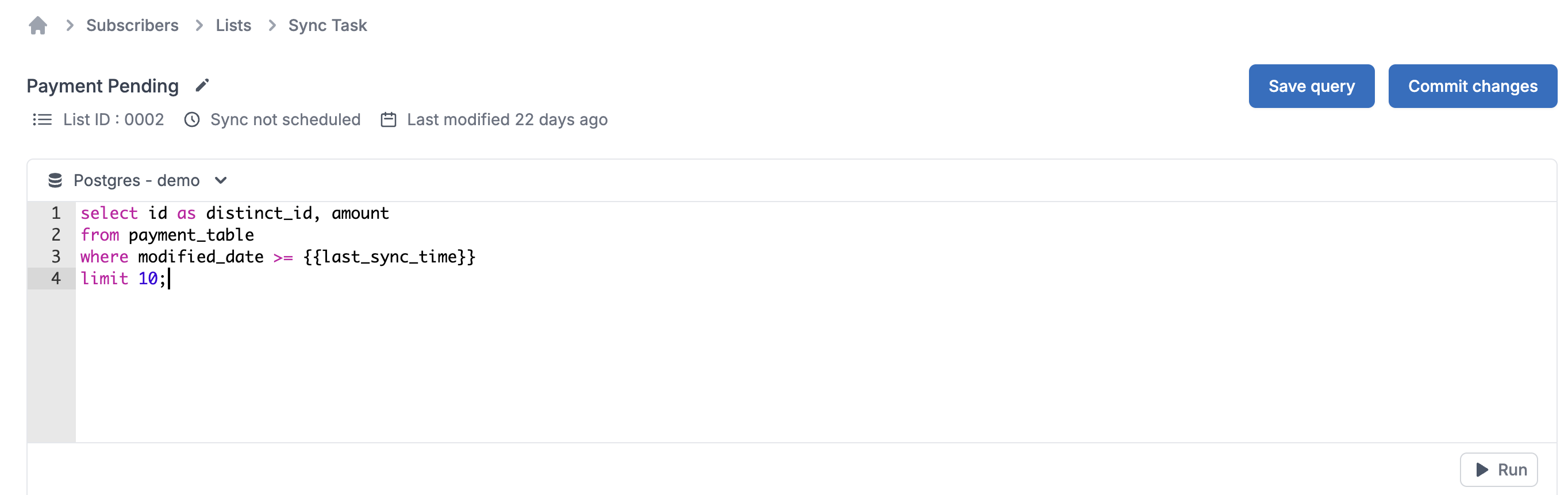
You can automate your list update using data directly by writing SQL query on your database. This allows your data, product and growth teams to completely own product and engagement notifications without any development effort.
You can also use it to sync user profiles and send personalized broadcasts to users using their profile properties. See how to setup database sync [here](/docs/list-sync-via-database).
Click on `Update Users` button. You can check the update progress in `Import logs`.
You can automate your list update using data directly by writing SQL query on your database. This allows your data, product and growth teams to completely own product and engagement notifications without any development effort.
You can also use it to sync user profiles and send personalized broadcasts to users using their profile properties. See how to setup database sync [here](/docs/list-sync-via-database).
 ## Configure list events
You can configure events when a user enters or exits a list. for example - you have a list of users **"Active on the platform in last 7 days"**. Whenever a user exists this list, you might want to send a notification to re-engage the users. You can do so using list events. There are 2 types of list events that you can configure
* **User Entry**- This will trigger a bulk event `$USER_ENTERED_LIST - ` for all new users added to the list whenever a list is updated.
* **User Exit**- This will trigger a bulk event `$USER_EXITED_LIST - ` for all new users removed from the list whenever a list is updated.
**Existing users won't trigger workflows**
When you create a workflow that listens to `$USER_ENTERED_LIST`, it only triggers for users added to the list **after** the workflow becomes active. Users already in the list won't trigger it.
Need to notify existing users? Use [Broadcast](/docs/broadcast) to send to everyone in the list.
List events is a list property and can be updated using `Modify List` option on [SuprSend dashboard -> List page](https://app.suprsend.com/en/staging/lists) or using the [list API](/reference/create-list). Event tracking is set as false by default.
## Configure list events
You can configure events when a user enters or exits a list. for example - you have a list of users **"Active on the platform in last 7 days"**. Whenever a user exists this list, you might want to send a notification to re-engage the users. You can do so using list events. There are 2 types of list events that you can configure
* **User Entry**- This will trigger a bulk event `$USER_ENTERED_LIST - ` for all new users added to the list whenever a list is updated.
* **User Exit**- This will trigger a bulk event `$USER_EXITED_LIST - ` for all new users removed from the list whenever a list is updated.
**Existing users won't trigger workflows**
When you create a workflow that listens to `$USER_ENTERED_LIST`, it only triggers for users added to the list **after** the workflow becomes active. Users already in the list won't trigger it.
Need to notify existing users? Use [Broadcast](/docs/broadcast) to send to everyone in the list.
List events is a list property and can be updated using `Modify List` option on [SuprSend dashboard -> List page](https://app.suprsend.com/en/staging/lists) or using the [list API](/reference/create-list). Event tracking is set as false by default.
 ## Sending notification to list users
* You can either setup individual workflows for list users based on [list events](/docs/lists#configure-list-events). for example, if you want to notify job seekers who were active on the platform in the last 7 days but left today.
* The most recommended way to send notification to list users is via [Broadcast](/docs/broadcast). You can schedule broadcast on this list from the dashboard by clicking on "**Run Broadcast**" option or trigger it programmatically via API.We recommend sending broadcasts using promotional category so you don't end up overloading transactional and system queues. Learn more about how to choose the right notification category [here](/docs/notification-category).
Avoid using individual workflows on a consecutive list update of more than 1000 users. It can add a delay in your notification queue.
***
## Sending notification to list users
* You can either setup individual workflows for list users based on [list events](/docs/lists#configure-list-events). for example, if you want to notify job seekers who were active on the platform in the last 7 days but left today.
* The most recommended way to send notification to list users is via [Broadcast](/docs/broadcast). You can schedule broadcast on this list from the dashboard by clicking on "**Run Broadcast**" option or trigger it programmatically via API.We recommend sending broadcasts using promotional category so you don't end up overloading transactional and system queues. Learn more about how to choose the right notification category [here](/docs/notification-category).
Avoid using individual workflows on a consecutive list update of more than 1000 users. It can add a delay in your notification queue.
***