> ## Documentation Index
> Fetch the complete documentation index at: https://docs.suprsend.com/llms.txt
> Use this file to discover all available pages before exploring further.
# Mixpanel
> Connect Mixpanel with SuprSend to export user cohorts into subscriber lists and trigger broadcast notifications based on Mixpanel segments.
SuprSend Mixpanel integration enables you to export user cohorts from Mixpanel and create [subscriber lists](/docs/lists) on SuprSend. You can then trigger notification to this list using our [broadcast](/docs/broadcast) API.
## Integration
To start syncing Mixpanel data, you need to first setup custom webhook integration in your Mixpanel dashboard.
Go to [SuprSend dashboard -> Settings -> Connectors](https://app.suprsend.com/en/staging/connectors) page.
Just add mapping key and click on enable. Mapping key is the unique identifier of user on SuprSend.
Once enabled, you'll see webhook configuration details. Go to **`Mixpanel dashboard -> Integrations -> Custom Webhook`** section and click on **`Add connection`**
Copy paste the webhook details from SuprSend integrations page to Mixpanel custom webhook settings and click on "Continue"
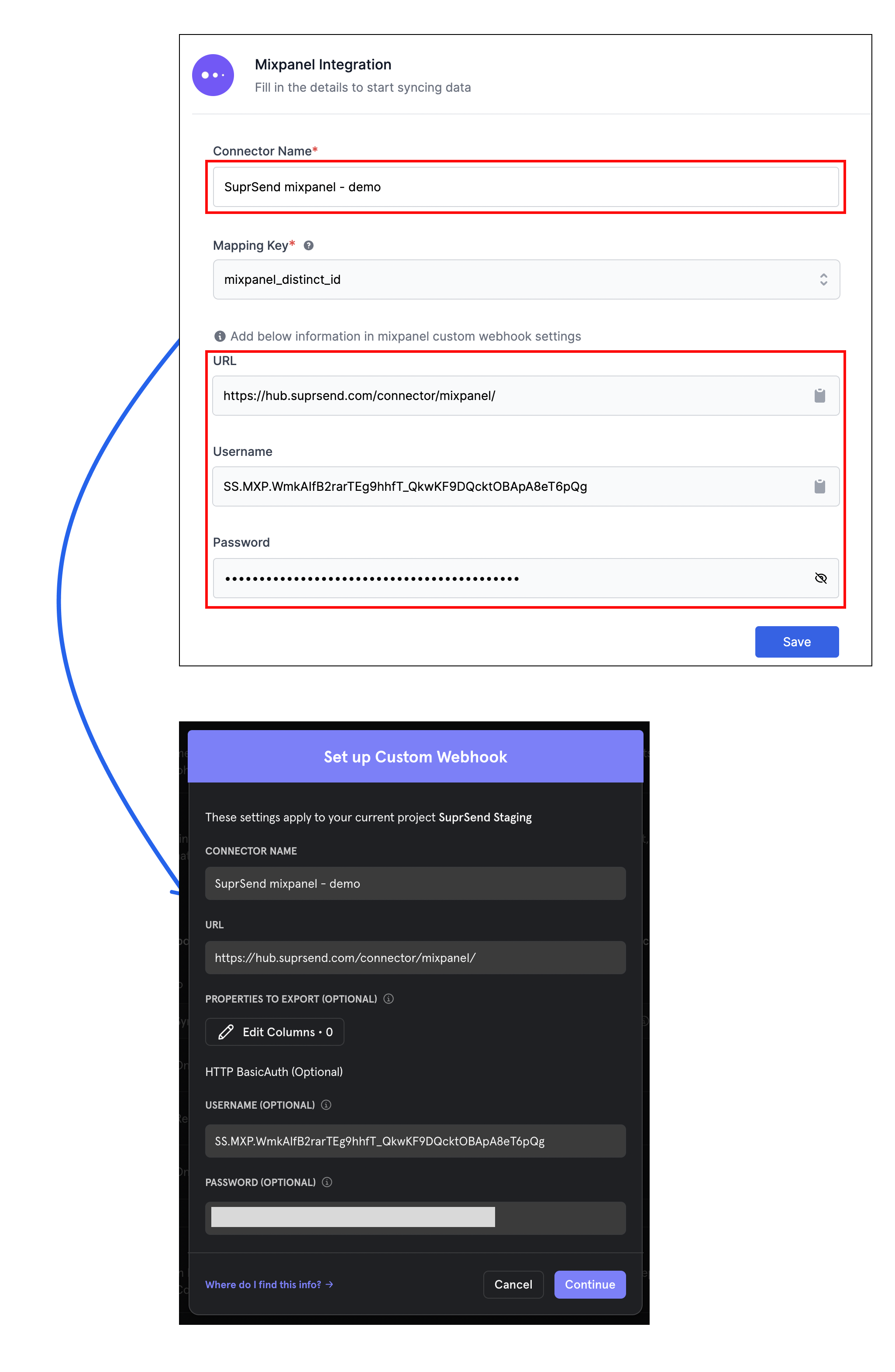 SuprSend webhook is now setup in your Mixpanel account. You can now start exporting user cohorts.
## Setup list (User Cohorts) sync
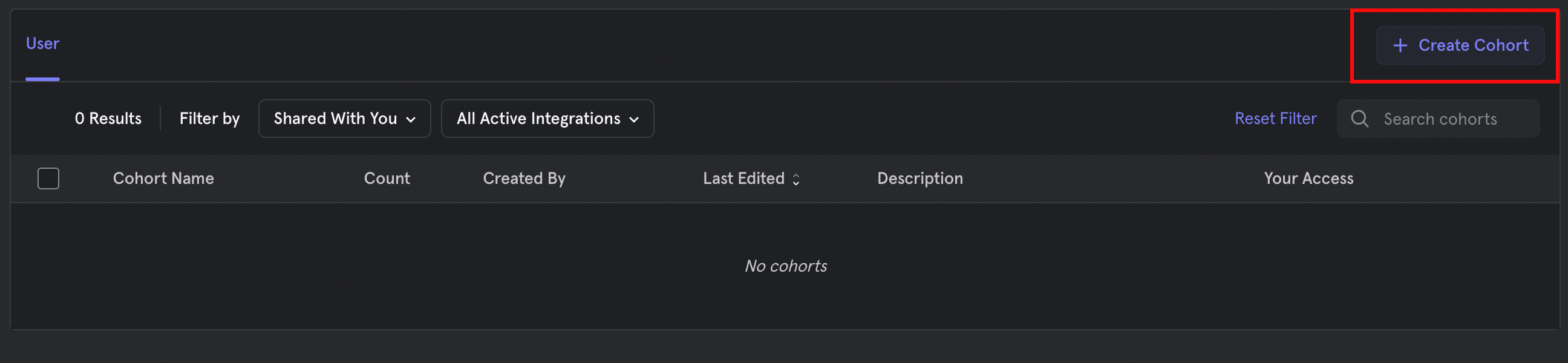
Cohort is a filtered list of users in Mixpanel. You can export cohort to create subscriber list in SuprSend. Follow below steps to export cohort:
SuprSend webhook is now setup in your Mixpanel account. You can now start exporting user cohorts.
## Setup list (User Cohorts) sync
Cohort is a filtered list of users in Mixpanel. You can export cohort to create subscriber list in SuprSend. Follow below steps to export cohort:
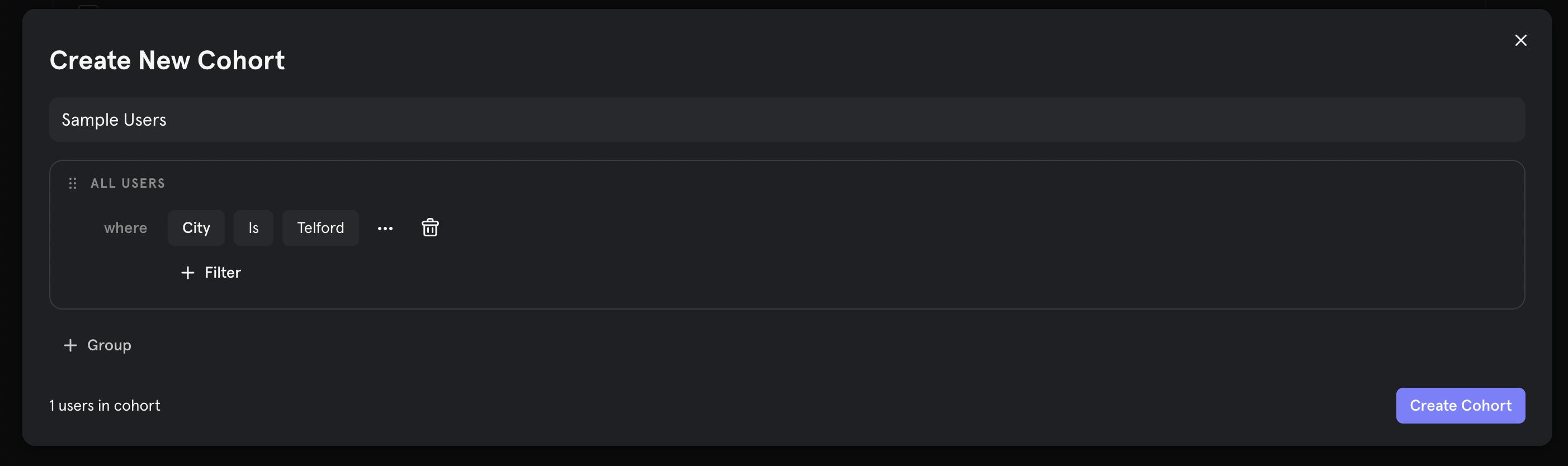
 After Creating a cohort, add filter and give a suitable name to the cohort. This name will also be the name of the subscriber list on SuprSend.
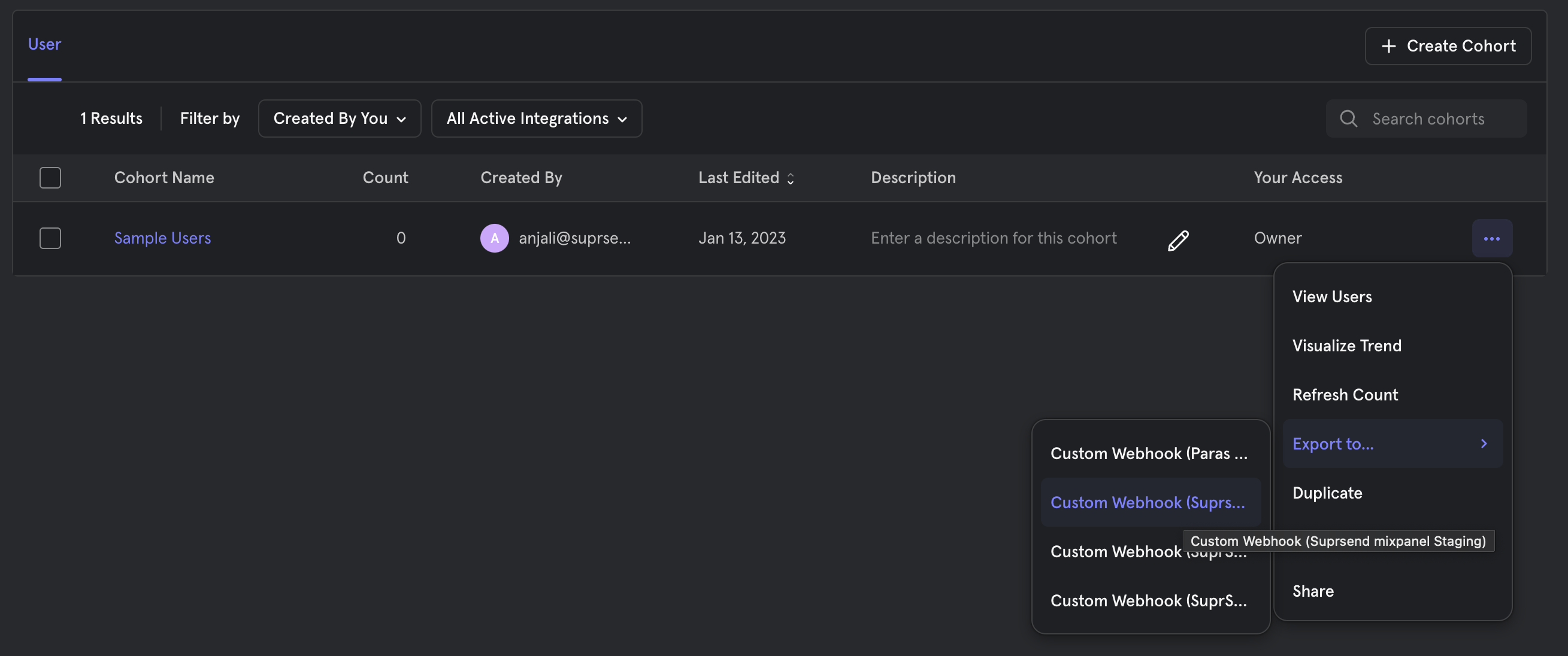
 Once cohort is created, export the cohort to the SuprSend webhook that we just configured.
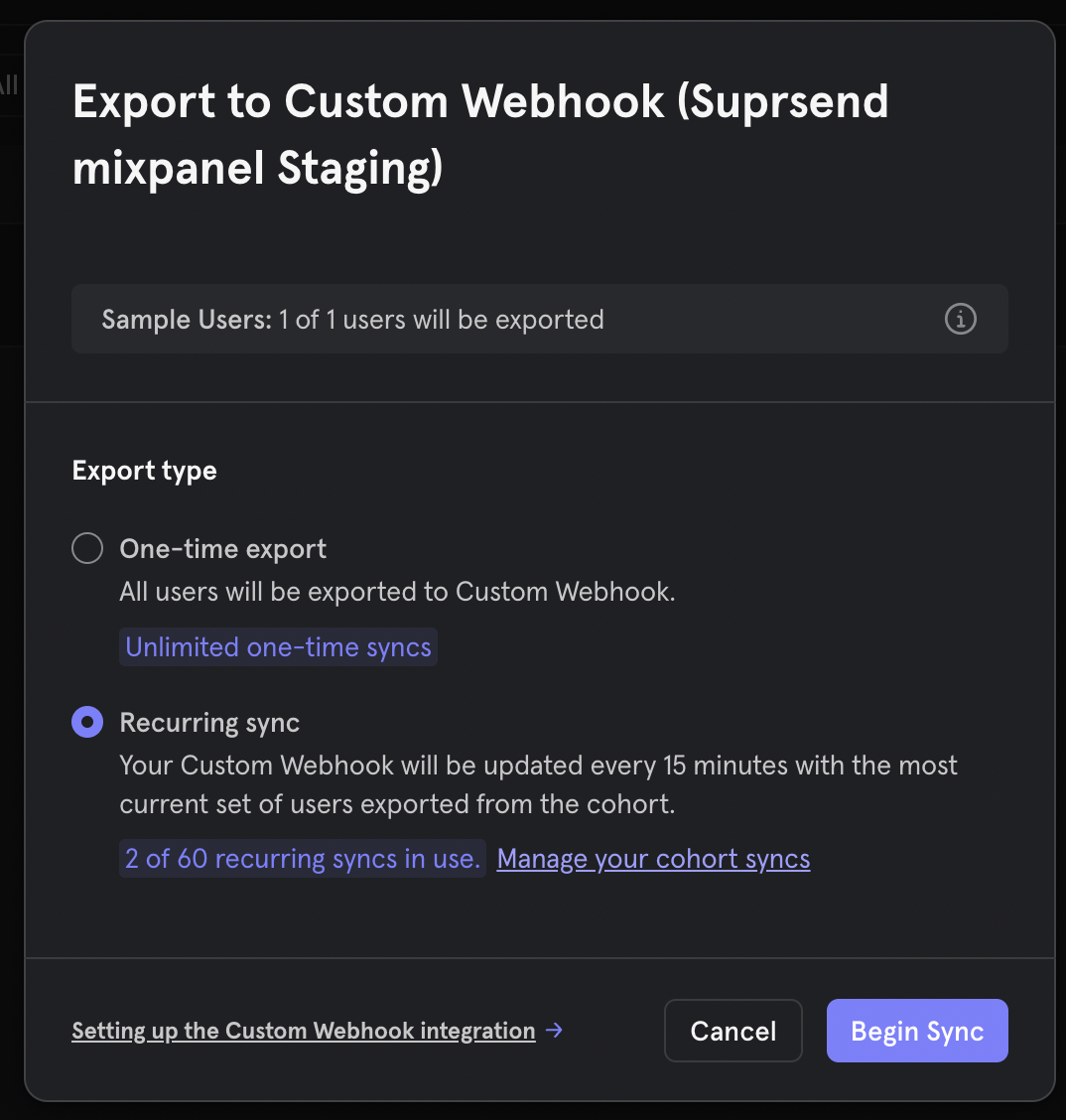
 You can setup 2 types of cohort exports - One time and Recurring. We recommend using recurring sync to keep Mixpanel and SuprSend data in sync. Click on Begin Sync to start cohort sync. Data is updated every 30 minutes from sync start time.
 Congratulations! Mixpanel integration is now complete.
***
## Check synced logs
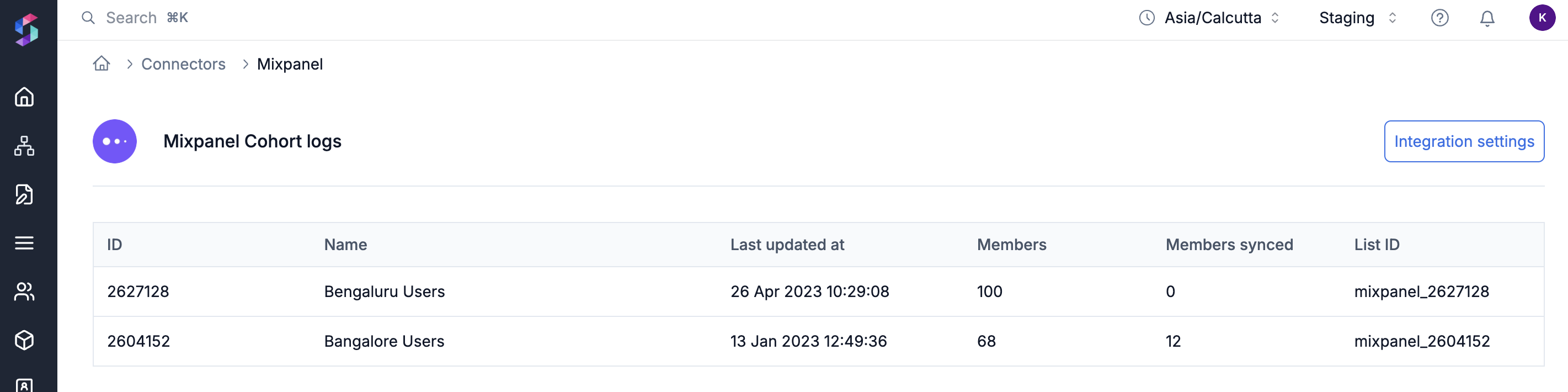
You can now track the status of cohort sync on Mixpanel [logs page](https://app.suprsend.com/en/demo/connectors/mixpanel/3/logs). Logs can be accessed from the connector page itself.
Congratulations! Mixpanel integration is now complete.
***
## Check synced logs
You can now track the status of cohort sync on Mixpanel [logs page](https://app.suprsend.com/en/demo/connectors/mixpanel/3/logs). Logs can be accessed from the connector page itself.