> ## Documentation Index
> Fetch the complete documentation index at: https://docs.suprsend.com/llms.txt
> Use this file to discover all available pages before exploring further.
# MS Teams
> Design MS Teams notification templates using the Markdown editor for simple messages or the JSONNET editor for rich Adaptive Card layouts.
The MS Teams editor supports two modes: a **Markdown** editor for simple text messages, and a **JSONNET** editor for rich [Adaptive Card](https://adaptivecards.io/) layouts with buttons, images, and structured data. Each mode uses a different variable syntax.
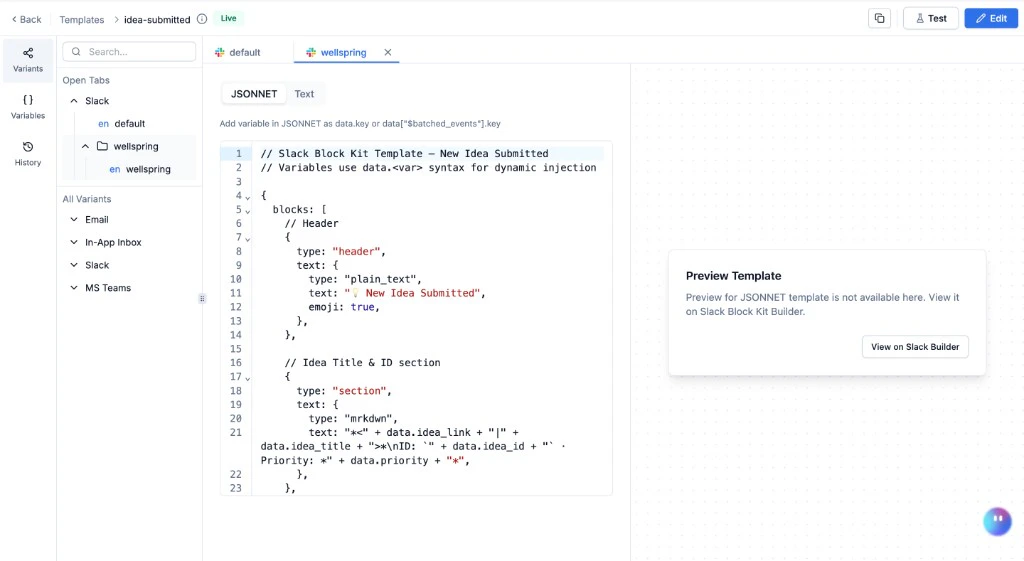 To send MS Teams notifications, you need an MS Teams vendor integrated with SuprSend. See [MS Teams vendor integration](/docs/microsoft-teams) for setup.
## MS Teams fields
**Markdown mode** - a text editor with Markdown formatting support. Variables use [Handlebars](/docs/handlebars-helpers) syntax (`{{variable_name}}`). Supported formatting:
| Format | Syntax |
| ---------- | -------------- |
| **Bold** | `**text**` |
| *Italic* | `*text*` |
| `Code` | `` `code` `` |
| Link | `[label](url)` |
| Blockquote | `> text` |
**JSONNET mode** - a code editor that outputs [Adaptive Card](https://adaptivecards.io/) JSON. Variables use `data.key` syntax (not Handlebars). Design visually in the [Adaptive Cards Designer](https://adaptivecards.io/designer/) first, then adapt the JSON into JSONNET. Use `FactSet` for key-value data and `Action.OpenUrl` for link buttons. See the full [JSONNET reference](/docs/jsonnet-templates) for syntax, examples, and debugging.
**AI prompt - convert to Adaptive Card:** *"Convert this notification into a Teams Adaptive Card JSON: \[paste message]. Variables: \[list]. Actions: \[describe buttons]. Return valid Adaptive Card JSON (v1.4+) I can adapt into JSONNET for SuprSend."*
**AI prompt - debug JSONNET:** *"Fix this JSONNET error from the SuprSend Teams editor. Error: \[paste error]. Code: \[paste JSONNET]. Variables are accessed as data.key or data\['\$special\_key']."*
To send MS Teams notifications, you need an MS Teams vendor integrated with SuprSend. See [MS Teams vendor integration](/docs/microsoft-teams) for setup.
## MS Teams fields
**Markdown mode** - a text editor with Markdown formatting support. Variables use [Handlebars](/docs/handlebars-helpers) syntax (`{{variable_name}}`). Supported formatting:
| Format | Syntax |
| ---------- | -------------- |
| **Bold** | `**text**` |
| *Italic* | `*text*` |
| `Code` | `` `code` `` |
| Link | `[label](url)` |
| Blockquote | `> text` |
**JSONNET mode** - a code editor that outputs [Adaptive Card](https://adaptivecards.io/) JSON. Variables use `data.key` syntax (not Handlebars). Design visually in the [Adaptive Cards Designer](https://adaptivecards.io/designer/) first, then adapt the JSON into JSONNET. Use `FactSet` for key-value data and `Action.OpenUrl` for link buttons. See the full [JSONNET reference](/docs/jsonnet-templates) for syntax, examples, and debugging.
**AI prompt - convert to Adaptive Card:** *"Convert this notification into a Teams Adaptive Card JSON: \[paste message]. Variables: \[list]. Actions: \[describe buttons]. Return valid Adaptive Card JSON (v1.4+) I can adapt into JSONNET for SuprSend."*
**AI prompt - debug JSONNET:** *"Fix this JSONNET error from the SuprSend Teams editor. Error: \[paste error]. Code: \[paste JSONNET]. Variables are accessed as data.key or data\['\$special\_key']."*
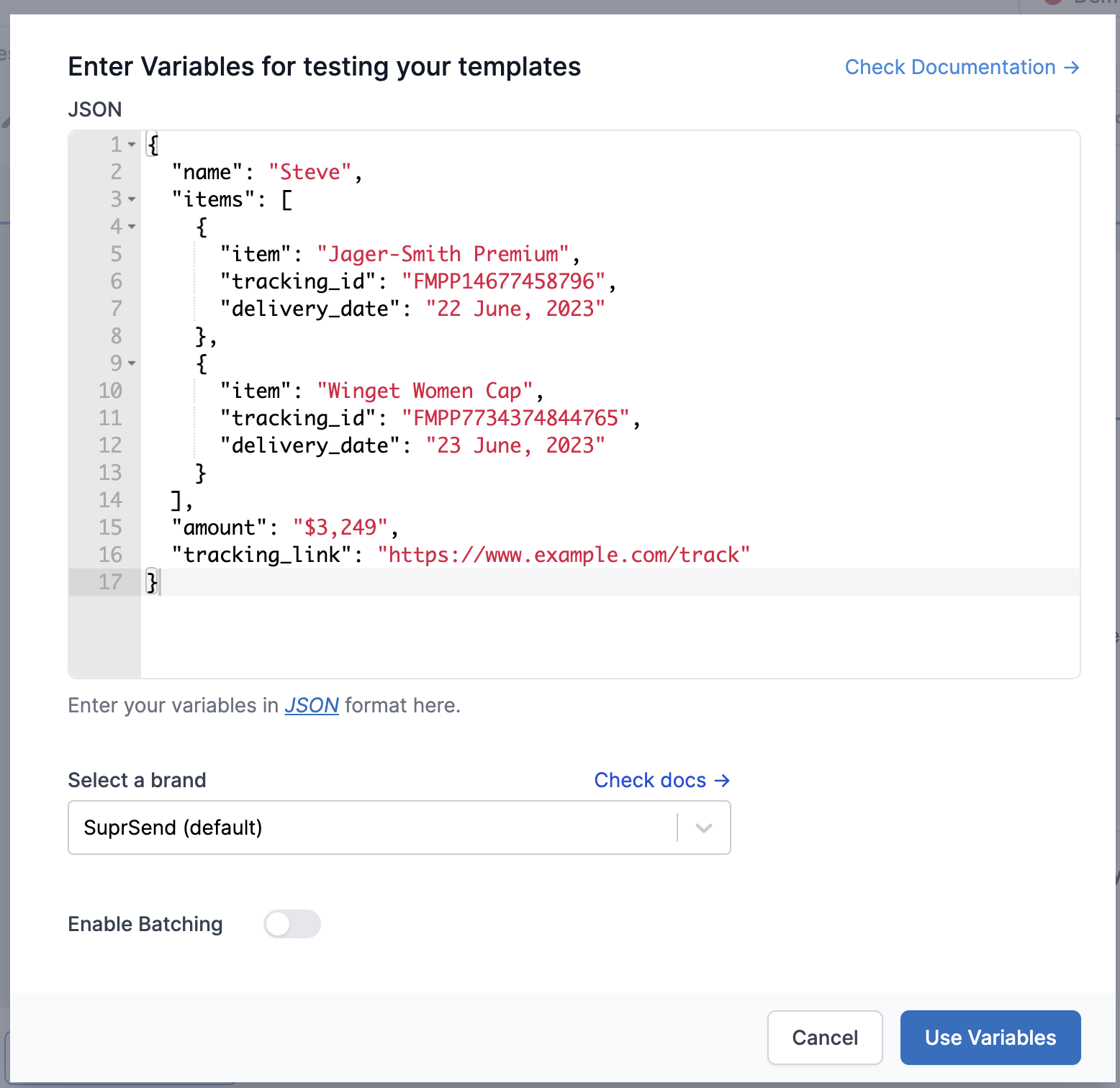
 Enter the variables in `JSON` format as shown in the screenshot below. This JSON should be the same as passed in your workflow or event request (it is a part of the `data` field for workflow and `properties` field for event).
 You can switch between Markdown and JSONNET at any time. Content is saved independently for each mode.
## Adding dynamic content
**In Markdown mode** - type `{{` for auto-suggestions. Standard Handlebars syntax:
* `{{order_id}}` - top-level variable
* `{{order.address.city}}` - nested variable
* `{{{tracking_url}}}` - URL (avoid escaping)
* `{{$recipient.name}}` - recipient property
**In JSONNET mode** - variables use `data.key` syntax. See [JSONNET variable reference](/docs/jsonnet-templates#variable-syntax) for the full table.
For conditionals and helpers in Markdown mode, see [Handlebars Helpers](/docs/handlebars-helpers).
If a variable cannot be rendered at send time (missing or mismatched data), SuprSend discards the Teams notification for that user. Other channels in the same template group are still sent.
## Preview and test
**Markdown mode** - the right panel updates in real time as you type.
**JSONNET mode** - click **Load Preview** to render the Adaptive Card. Syntax errors are displayed in red in the preview panel.
Click **Test** in the top-right corner to send a real Teams message. This uses the **live version** - commit your changes before testing. See [Testing a Template](/docs/templates#test) for the full guide.
## Commit
Click **Commit** in the top bar to publish the current draft as a new live version. Add an optional description for versioning.
## Common scenarios
```text theme={"system"}
**Deployment Completed**
Service: {{service_name}}
Environment: {{environment}}
Version: {{version}}
Duration: {{duration}}
[View Logs]({{log_url}})
```
Simple and effective for DevOps alerts. Markdown is sufficient when the notification is informational with a single link.
Use `FactSet` for structured data and `Action.OpenUrl` for CTA buttons. See the full [Adaptive Card example](/docs/jsonnet-templates#ms-teams-adaptive-card-examples) in the JSONNET reference.
## Frequently asked questions
Start with Markdown for plain-text messages with links. Switch to JSONNET when you need images, buttons, columns, or structured layouts (FactSets, ActionSets).
Use version `1.6` for the widest feature support across Teams desktop and mobile.
Teams truncates Adaptive Cards larger than 28 KB. Keep payloads lean, especially when iterating over arrays.
Teams has its own rendering engine. The [Adaptive Cards Designer](https://adaptivecards.io/designer/) is an approximation. Always test in an actual Teams chat before committing.
SuprSend discards the Teams notification for that user. Other channels in the same template group are still sent.
You can switch between Markdown and JSONNET at any time. Content is saved independently for each mode.
## Adding dynamic content
**In Markdown mode** - type `{{` for auto-suggestions. Standard Handlebars syntax:
* `{{order_id}}` - top-level variable
* `{{order.address.city}}` - nested variable
* `{{{tracking_url}}}` - URL (avoid escaping)
* `{{$recipient.name}}` - recipient property
**In JSONNET mode** - variables use `data.key` syntax. See [JSONNET variable reference](/docs/jsonnet-templates#variable-syntax) for the full table.
For conditionals and helpers in Markdown mode, see [Handlebars Helpers](/docs/handlebars-helpers).
If a variable cannot be rendered at send time (missing or mismatched data), SuprSend discards the Teams notification for that user. Other channels in the same template group are still sent.
## Preview and test
**Markdown mode** - the right panel updates in real time as you type.
**JSONNET mode** - click **Load Preview** to render the Adaptive Card. Syntax errors are displayed in red in the preview panel.
Click **Test** in the top-right corner to send a real Teams message. This uses the **live version** - commit your changes before testing. See [Testing a Template](/docs/templates#test) for the full guide.
## Commit
Click **Commit** in the top bar to publish the current draft as a new live version. Add an optional description for versioning.
## Common scenarios
```text theme={"system"}
**Deployment Completed**
Service: {{service_name}}
Environment: {{environment}}
Version: {{version}}
Duration: {{duration}}
[View Logs]({{log_url}})
```
Simple and effective for DevOps alerts. Markdown is sufficient when the notification is informational with a single link.
Use `FactSet` for structured data and `Action.OpenUrl` for CTA buttons. See the full [Adaptive Card example](/docs/jsonnet-templates#ms-teams-adaptive-card-examples) in the JSONNET reference.
## Frequently asked questions
Start with Markdown for plain-text messages with links. Switch to JSONNET when you need images, buttons, columns, or structured layouts (FactSets, ActionSets).
Use version `1.6` for the widest feature support across Teams desktop and mobile.
Teams truncates Adaptive Cards larger than 28 KB. Keep payloads lean, especially when iterating over arrays.
Teams has its own rendering engine. The [Adaptive Cards Designer](https://adaptivecards.io/designer/) is an approximation. Always test in an actual Teams chat before committing.
SuprSend discards the Teams notification for that user. Other channels in the same template group are still sent.