> ## Documentation Index
> Fetch the complete documentation index at: https://docs.suprsend.com/llms.txt
> Use this file to discover all available pages before exploring further.
# Designing Notifications for Multi-Tenant B2B2X Applications
> Model multi-tenant B2B2X notification architecture in SuprSend with per-tenant preferences, whitelabeled templates, and tenant vendor routing.
Multi-tenant applications often have a *shared notification service* across multiple customer organizations (tenants). However, their tenant admins can ask for customizations in notifications. These include per-tenant preference configurations, tenant created or whitelabeled templates, and routing policies (eg. applicable channels, tenant vendors, etc).
This guide demonstrates how to architect this setup in SuprSend using an example of employee engagement platform called **WorkVibe**. WorkVibe enables HR admins in their customer organizations to send employee communications such as onboarding messages, performance review notifications, survey invitations, and policy updates.
**Example scenario:** Uber (a tenant of WorkVibe) leverages WorkVibe's infrastructure to deliver alerts to its employee base. The notification system must enable tenant-level customization within WorkVibe's platform:
* To setup new alerts, change template content, localization, or branding.
* Admin level channel preferences (email, Slack, SMS, etc.) per notification type
* Employee-level preference management
* Tenant level routing controls (for example, option to route notifications through their email handle `hr@uber.com`)
All customization occurs within a single shared, multi-tenant notification infrastructure.
***
## WorkVibe Architecture Overview
This example assumes WorkVibe uses the following notification architecture, standardized across all tenant organizations:
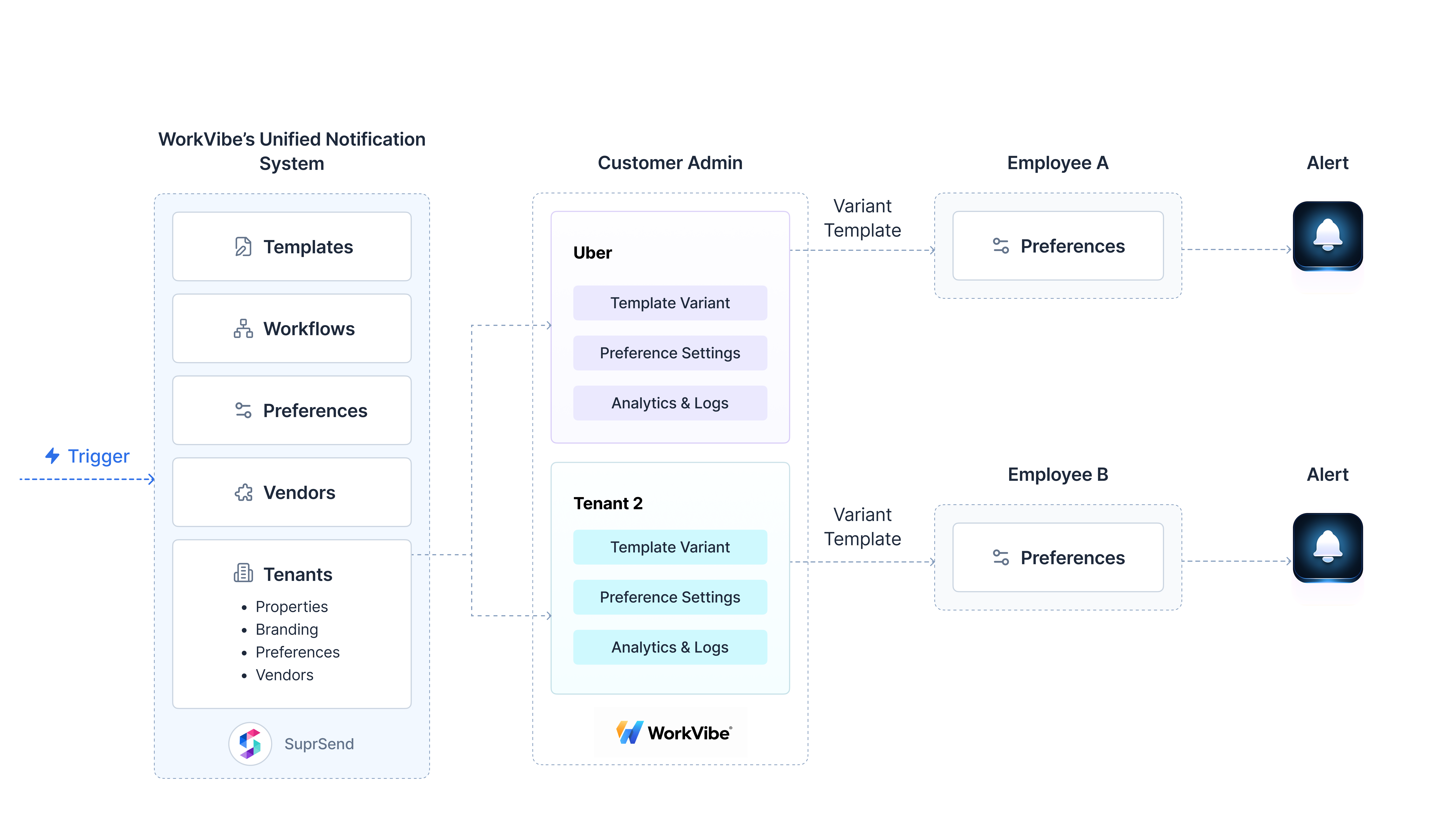 The following sections detail how to model this architecture in SuprSend, enabling notification delivery across multiple tenants without template or workflow duplication.
***
## WorkVibe Concept Mapping to SuprSend
| WorkVibe Platform | SuprSend Entity | Example |
| :------------------------------ | :------------------------------------------------------- | :--------------------------------------------------------------------------------------------------------------------------------------------------------- |
| **Environments** | **[Workspace](/docs/what-is-suprsend#workspaces)** | Dev, Staging, Pre-prod, Prod |
| **Customer Organization** | **[Tenant](/docs/tenants)** | Uber (`tenant_id: uber`) |
| **Employee** | **[User](/docs/users)** | Employee entity with email, phone, and profile attributes (`distinct_id: employee1`) |
| **Orchestration Logic** | **[Workflows](/docs/workflows)** | Onboarding workflow: welcome email → first week check-in → manager introduction |
| **Message Templates** | **[Templates](/docs/templates)** | New hire welcome template with Email and SMS support. Use [tenant components](/docs/tenants#using-tenant-components-in-templates) for per-tenant branding. |
| **Organization-level Controls** | **[Preference Categories](/docs/notification-category)** | `onboarding.new_hire_welcome` |
| **Admin Preferences** | **[Tenant Preferences](/docs/tenant-preference)** | Uber's admin set which channels are applicable within each preference category for their internal team |
| **Employee Preferences** | **[User Preferences](/docs/user-preferences)** | Employee opt-in/opt-out configuration for preference categories |
***
## Data Modeling in SuprSend
The following components model the multi-tenant notification architecture in SuprSend:
### 1. Tenants
We create tenant entities for each customer organization programmatically via the [SuprSend API](/docs/developer/rest-api) or [SDK](/docs/developer/sdk-overview). Each tenant entity stores branding attributes (logo, website, brand colors) along with custom properties required for personalization and tenant-scoped configuration.
**Required fields:**
The following sections detail how to model this architecture in SuprSend, enabling notification delivery across multiple tenants without template or workflow duplication.
***
## WorkVibe Concept Mapping to SuprSend
| WorkVibe Platform | SuprSend Entity | Example |
| :------------------------------ | :------------------------------------------------------- | :--------------------------------------------------------------------------------------------------------------------------------------------------------- |
| **Environments** | **[Workspace](/docs/what-is-suprsend#workspaces)** | Dev, Staging, Pre-prod, Prod |
| **Customer Organization** | **[Tenant](/docs/tenants)** | Uber (`tenant_id: uber`) |
| **Employee** | **[User](/docs/users)** | Employee entity with email, phone, and profile attributes (`distinct_id: employee1`) |
| **Orchestration Logic** | **[Workflows](/docs/workflows)** | Onboarding workflow: welcome email → first week check-in → manager introduction |
| **Message Templates** | **[Templates](/docs/templates)** | New hire welcome template with Email and SMS support. Use [tenant components](/docs/tenants#using-tenant-components-in-templates) for per-tenant branding. |
| **Organization-level Controls** | **[Preference Categories](/docs/notification-category)** | `onboarding.new_hire_welcome` |
| **Admin Preferences** | **[Tenant Preferences](/docs/tenant-preference)** | Uber's admin set which channels are applicable within each preference category for their internal team |
| **Employee Preferences** | **[User Preferences](/docs/user-preferences)** | Employee opt-in/opt-out configuration for preference categories |
***
## Data Modeling in SuprSend
The following components model the multi-tenant notification architecture in SuprSend:
### 1. Tenants
We create tenant entities for each customer organization programmatically via the [SuprSend API](/docs/developer/rest-api) or [SDK](/docs/developer/sdk-overview). Each tenant entity stores branding attributes (logo, website, brand colors) along with custom properties required for personalization and tenant-scoped configuration.
**Required fields:**
- tenant\_id:
uber
- tenant\_name: Uber
- logo: link to asset
- primary\_color: #000000
- timezone: America/Los\_Angeles
Beyond branding properties, SuprSend enables tenant-level configuration of notification preferences and vendor routing policies.
📘 [Tenants →](/docs/tenants) | [Node.js SDK →](/docs/node-tenants) | [Python SDK →](/docs/python-tenants) | [Go SDK →](/docs/tenants-go) | [Java SDK →](/docs/tenants-java)
***
### 2. Preference Categories
We create preference categories that map to WorkVibe's notifications. These categories are linked to Workflows and Preference configurations. SuprSend provides **Sections** and **Sub-categories** to organize preference categories hierarchically.
For WorkVibe, we organized the preference category structure as follows:
* **Section:** Product area (for example, `Onboarding & Lifecycle`, `Feedback & Engagement`)
* **Sub-category:** Notification type (for example, `New Hire Welcome`, `First Week Check-in`, `Manager Feedback Request`)
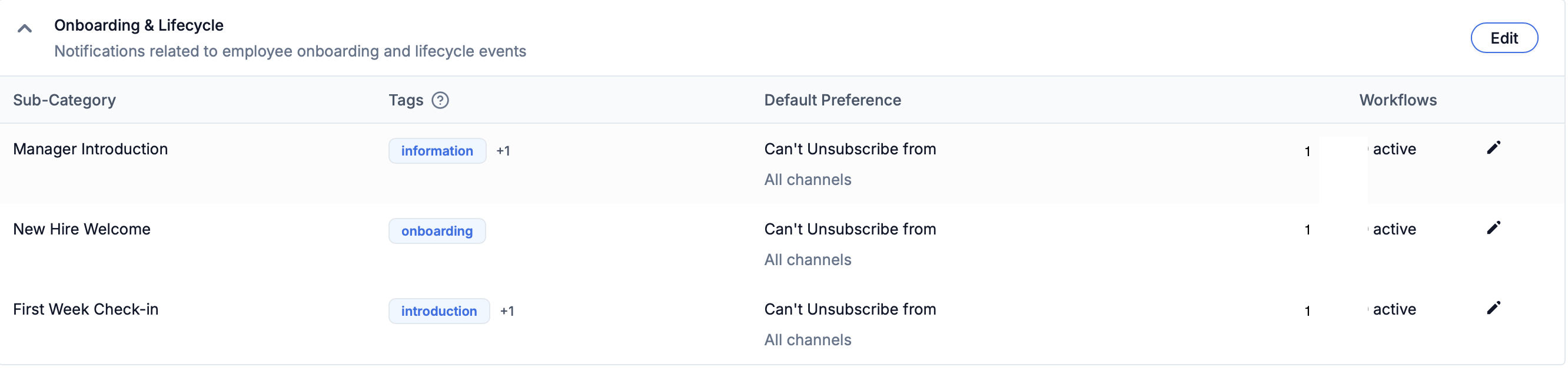 📘 [Preference Categories →](/docs/notification-category) | [Create categories →](https://app.suprsend.com/en/staging/developers/preference-categories)
***
### 3. Preferences
SuprSend uses a four-layer preference evaluation system to determine notification delivery channels. For WorkVibe, tenant administrators can configure which notifications are applicable for their organizations:
All categories defined by WorkVibe platform
WorkVibe platform controls category visibility per tenant
Tenant administrators can disable categories/channels within WorkVibe's application
Employees can opt-in/opt-out at category/channel granularity
**Evaluation mechanism:**
SuprSend computes final delivery channels by applying platform rules, tenant-level controls, and user preferences in sequence.
**Evaluation formula:** `Final Channels = U ∩ T1 ∩ T2 ∩ S`
#### Expose Preferences to Tenant Admins within WorkVibe App
There's a notification settings page in WorkVibe that allows tenant admins to manage notification preferences within the WorkVibe administrative interface.
📘 [Preference Categories →](/docs/notification-category) | [Create categories →](https://app.suprsend.com/en/staging/developers/preference-categories)
***
### 3. Preferences
SuprSend uses a four-layer preference evaluation system to determine notification delivery channels. For WorkVibe, tenant administrators can configure which notifications are applicable for their organizations:
All categories defined by WorkVibe platform
WorkVibe platform controls category visibility per tenant
Tenant administrators can disable categories/channels within WorkVibe's application
Employees can opt-in/opt-out at category/channel granularity
**Evaluation mechanism:**
SuprSend computes final delivery channels by applying platform rules, tenant-level controls, and user preferences in sequence.
**Evaluation formula:** `Final Channels = U ∩ T1 ∩ T2 ∩ S`
#### Expose Preferences to Tenant Admins within WorkVibe App
There's a notification settings page in WorkVibe that allows tenant admins to manage notification preferences within the WorkVibe administrative interface.
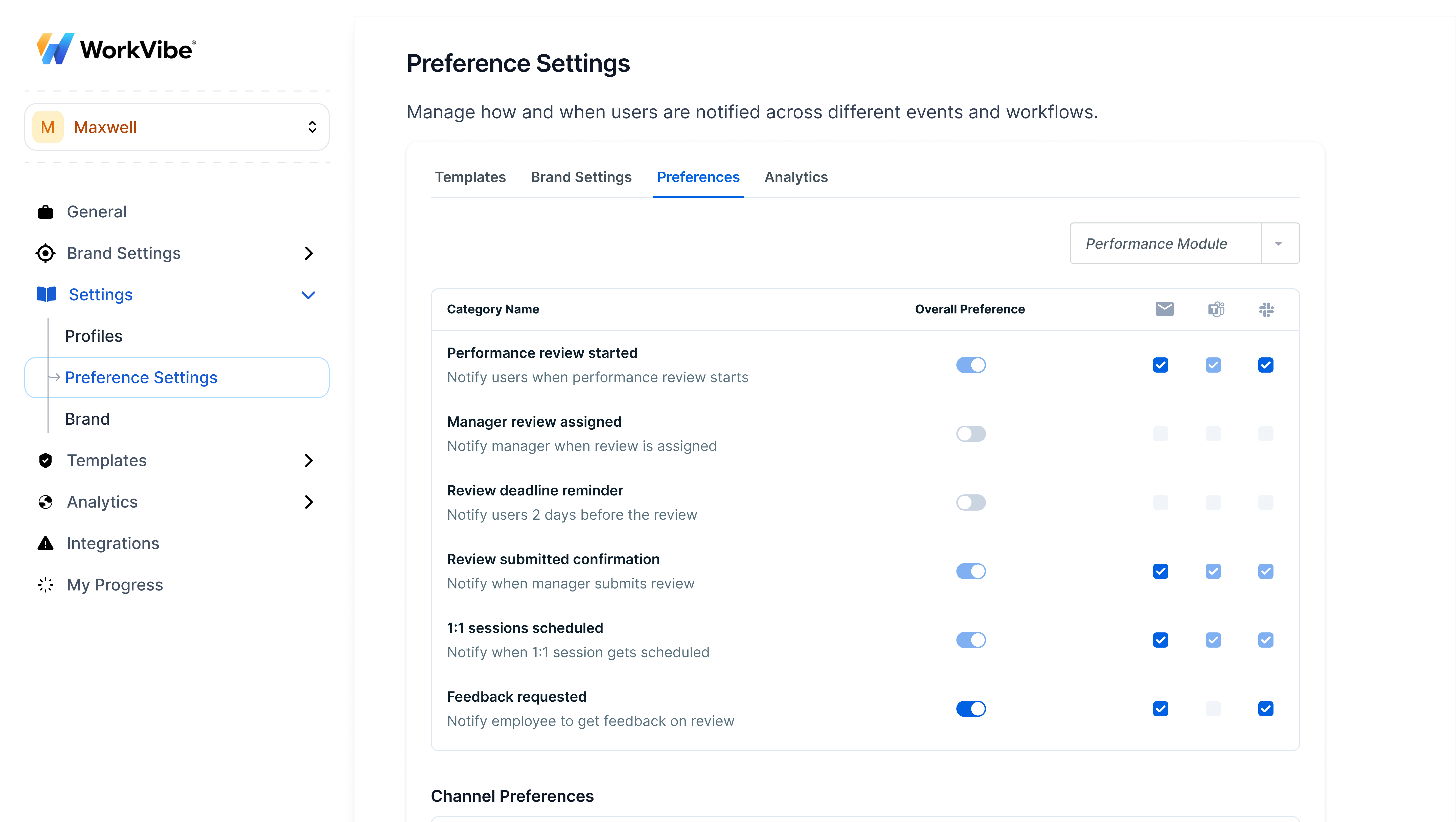 This interface integrates with [SuprSend's Tenant Preference APIs](/reference/update-tenant-preference-single-category), authenticated via JWT scoped to the specific tenant, to fetch and update tenant level preferences.
This approach maintains UI and UX control within WorkVibe, integrates with existing admin dashboards, and enables tenant administrators to configure organization-level notification policies without leaving the WorkVibe platform.
📘 [Tenant Preferences →](/docs/tenant-preference) | [User Preferences →](/docs/user-preferences) | [Preference Evaluation →](/docs/preference-evaluation) | [Embedded Preferences →](/docs/embedded-preference-centre)
***
### 4. Templates
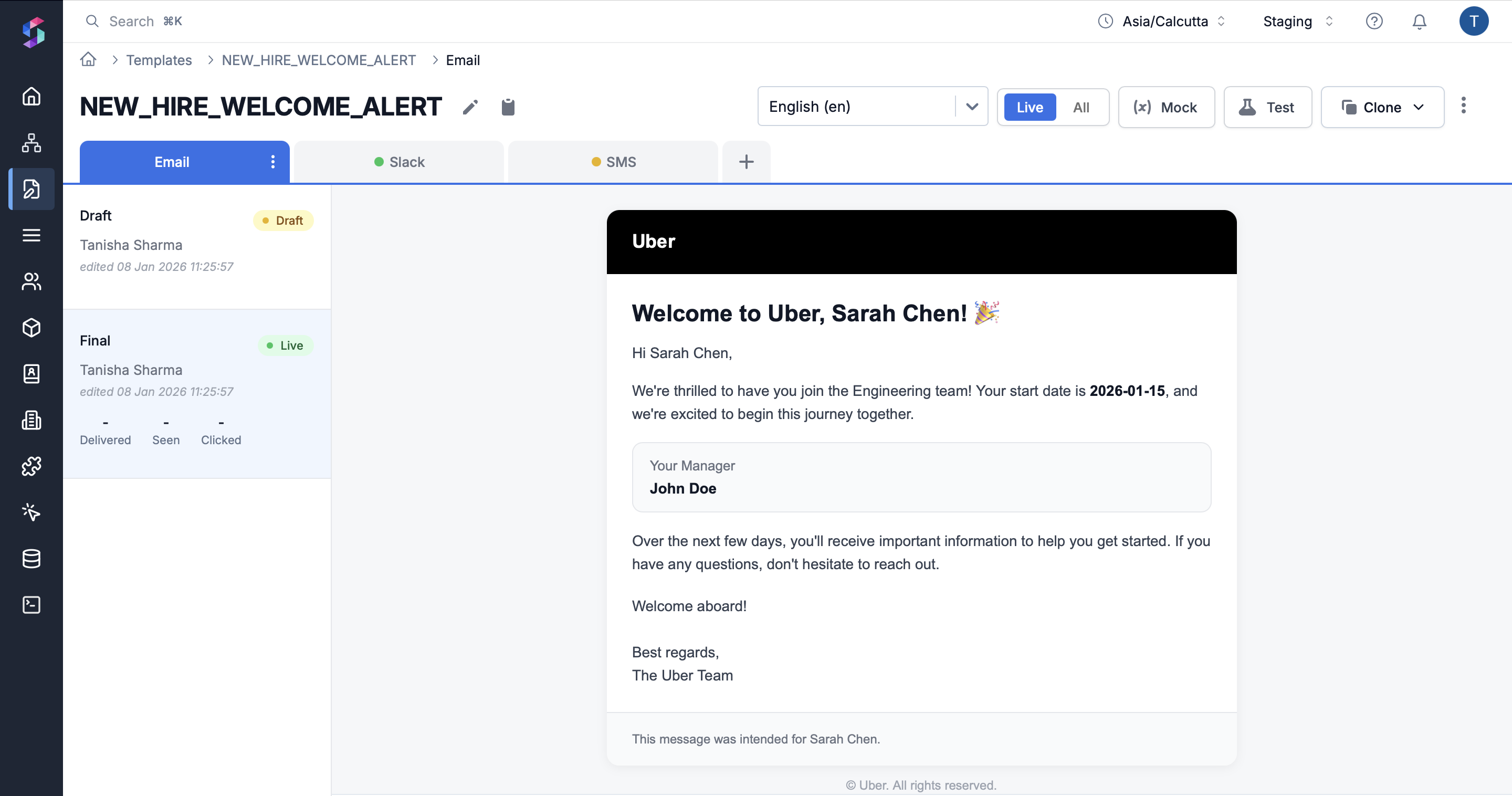
Templates are created for each notification type. For the new employee onboarding use case, the `NEW_HIRE_WELCOME_ALERT` template is created. Templates utilize tenant-scoped variables for tenant-specific branding by default.
**Template reuse:** Templates are created once at the platform level and rendered at delivery time with tenant-specific branding. Templates can be exposed to tenant administrators for customization. This approach eliminates template duplication per tenant while maintaining fully branded communication.
**Template variables:**
Templates use standardized snake\_case field naming and Handlebars variable syntax (for example, `{{variable}}`). All channels (email, SMS, WhatsApp, push) follow consistent variable structures. Variables can be sourced from the payload, user properties, or tenant properties.
```
// Data variables
{{employee_name}} → "Sarah Chen"
{{start_date}} → "2026-01-15"
{{manager_name}} → "John Doe"
{{department}} → "Engineering"
// Tenant branding
{{$brand.logo}} → Uber logo URL
{{$brand.primary_color}} → "#000000"
{{$brand.brand_name}} → "Uber"
// Recipient info
{{$recipient.name}} → "Sarah Chen"
{{$recipient.email}} → "sarah@uber.com"
```
##### **Email Template**
This interface integrates with [SuprSend's Tenant Preference APIs](/reference/update-tenant-preference-single-category), authenticated via JWT scoped to the specific tenant, to fetch and update tenant level preferences.
This approach maintains UI and UX control within WorkVibe, integrates with existing admin dashboards, and enables tenant administrators to configure organization-level notification policies without leaving the WorkVibe platform.
📘 [Tenant Preferences →](/docs/tenant-preference) | [User Preferences →](/docs/user-preferences) | [Preference Evaluation →](/docs/preference-evaluation) | [Embedded Preferences →](/docs/embedded-preference-centre)
***
### 4. Templates
Templates are created for each notification type. For the new employee onboarding use case, the `NEW_HIRE_WELCOME_ALERT` template is created. Templates utilize tenant-scoped variables for tenant-specific branding by default.
**Template reuse:** Templates are created once at the platform level and rendered at delivery time with tenant-specific branding. Templates can be exposed to tenant administrators for customization. This approach eliminates template duplication per tenant while maintaining fully branded communication.
**Template variables:**
Templates use standardized snake\_case field naming and Handlebars variable syntax (for example, `{{variable}}`). All channels (email, SMS, WhatsApp, push) follow consistent variable structures. Variables can be sourced from the payload, user properties, or tenant properties.
```
// Data variables
{{employee_name}} → "Sarah Chen"
{{start_date}} → "2026-01-15"
{{manager_name}} → "John Doe"
{{department}} → "Engineering"
// Tenant branding
{{$brand.logo}} → Uber logo URL
{{$brand.primary_color}} → "#000000"
{{$brand.brand_name}} → "Uber"
// Recipient info
{{$recipient.name}} → "Sarah Chen"
{{$recipient.email}} → "sarah@uber.com"
```
##### **Email Template**
 #### Expose Templates to Tenant Admins within WorkVibe App
Another common usecase is enabling tenants (like Uber) to customize template content or design through embeddable template editors.
#### Expose Templates to Tenant Admins within WorkVibe App
Another common usecase is enabling tenants (like Uber) to customize template content or design through embeddable template editors.
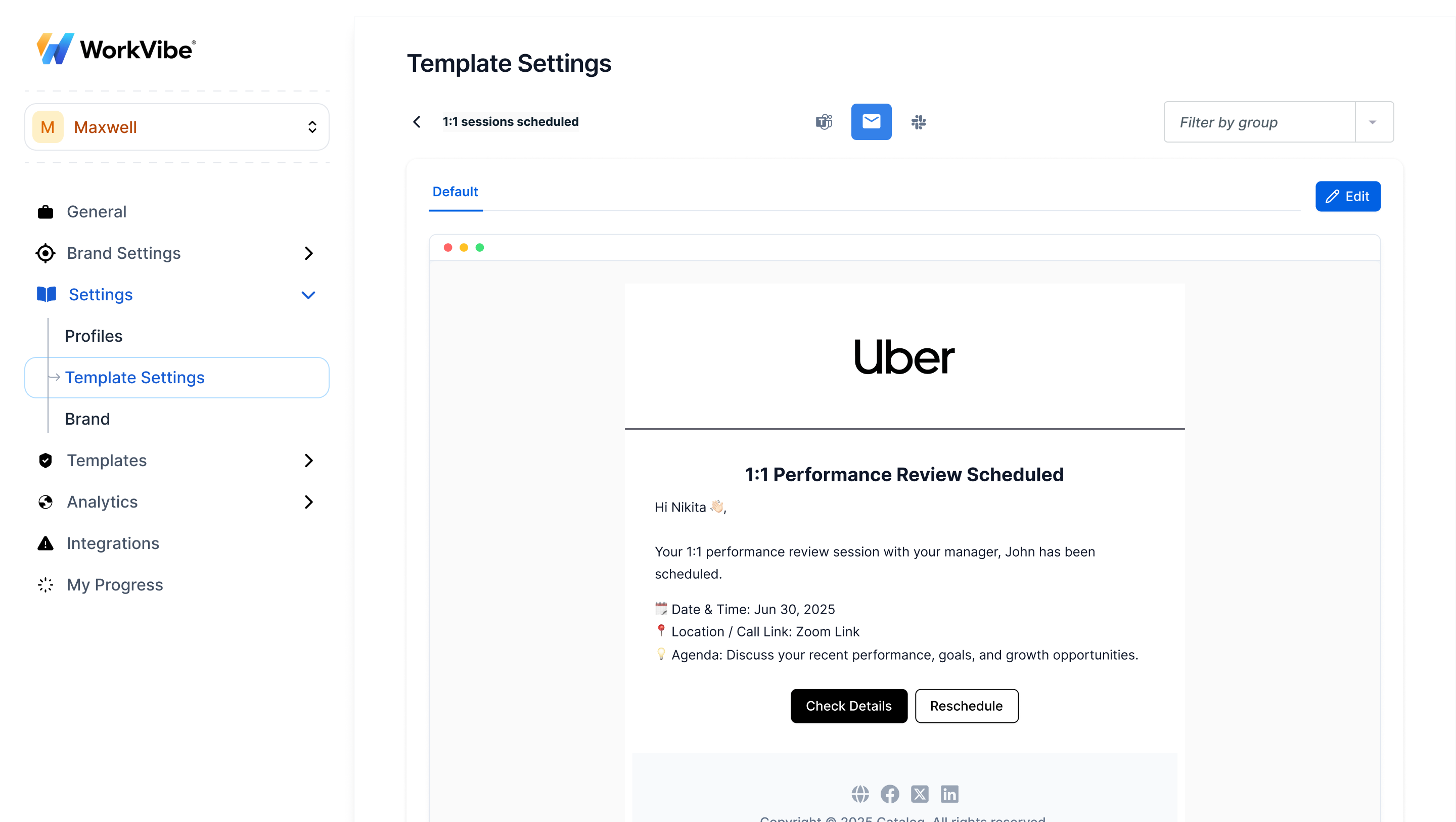 **Setup:**
* **Fetch and show templates:** All templates created by WorkVibe in the SuprSend platform are loaded and shown to the tenant admins.
* **Create a template variant when admin edits template:** When admin clicks on edit template button, create a new template variant with condition on `tenant_id`, clone the content from the original template. Admins of tenant organizations can edit this variant. They can also create a fresh template altogether.
* **Variant selection:** While sending notifications, SuprSend automatically resolves the matching variant by checking the condition on tenant ID, language, and custom conditions. If no variant exists, the default template with tenant branding is used.
**Scoped JWT Authentication:**
SuprSend uses scoped JWT authentication to securely expose templates. This ensures each tenant can only access and modify templates scoped to their tenant ID.
📘 [Templates →](/docs/templates) | [JWT Authentication →](/docs/client-authentication)
***
### 5. Workflows
**Workflows** define the orchestration logic for notifications-the sequence of steps, conditional branches, delays, and channel assignments used to deliver messages. For WorkVibe, we created a workflow for new employee onboarding that delivers a welcome email on day one, a first-week check-in survey on day seven, and a manager introduction Slack message on day ten.
Each workflow has a unique **workflow slug** that identifies it when triggering notifications. The workflow slug is used in the trigger payload to specify which workflow to execute.
**Workflow Configuration:**
* **Workflow slug:** A unique identifier for the workflow (for example, `new_employee_onboarding`)
* **Category link:** We link workflows to preference categories to enable preference evaluation
* **Template link:** Workflows reference templates for each channel (email, SMS, Slack, etc.)
**Setup:**
* **Fetch and show templates:** All templates created by WorkVibe in the SuprSend platform are loaded and shown to the tenant admins.
* **Create a template variant when admin edits template:** When admin clicks on edit template button, create a new template variant with condition on `tenant_id`, clone the content from the original template. Admins of tenant organizations can edit this variant. They can also create a fresh template altogether.
* **Variant selection:** While sending notifications, SuprSend automatically resolves the matching variant by checking the condition on tenant ID, language, and custom conditions. If no variant exists, the default template with tenant branding is used.
**Scoped JWT Authentication:**
SuprSend uses scoped JWT authentication to securely expose templates. This ensures each tenant can only access and modify templates scoped to their tenant ID.
📘 [Templates →](/docs/templates) | [JWT Authentication →](/docs/client-authentication)
***
### 5. Workflows
**Workflows** define the orchestration logic for notifications-the sequence of steps, conditional branches, delays, and channel assignments used to deliver messages. For WorkVibe, we created a workflow for new employee onboarding that delivers a welcome email on day one, a first-week check-in survey on day seven, and a manager introduction Slack message on day ten.
Each workflow has a unique **workflow slug** that identifies it when triggering notifications. The workflow slug is used in the trigger payload to specify which workflow to execute.
**Workflow Configuration:**
* **Workflow slug:** A unique identifier for the workflow (for example, `new_employee_onboarding`)
* **Category link:** We link workflows to preference categories to enable preference evaluation
* **Template link:** Workflows reference templates for each channel (email, SMS, Slack, etc.)
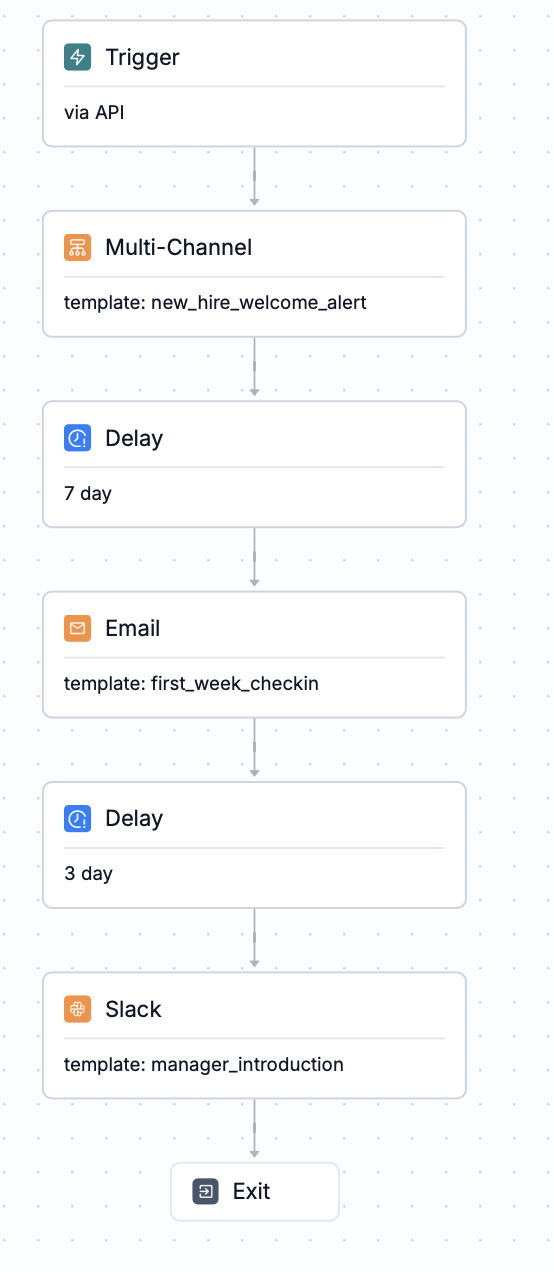 SuprSend supports workflow creation through three methods. For WorkVibe, we created workflows using the UI Builder. Workflows can also be created and managed via MCP (Model Context Protocol) for programmatic workflow management.
Workflows are constructed visually in the SuprSend dashboard using drag-and-drop nodes, conditional logic, and delay configurations. Workflows are created and managed through the administrative UI.
**When to use:**
* Non-engineering teams create and modify workflows
* Workflows require frequent iteration and rapid changes
* Workflows are version-controlled or promoted across environments via CLI after creation
Notifications are triggered programmatically without pre-creating workflow definitions in the UI. This generates a dynamic workflow that cannot be modified from the UI.
**When to use:**
* Single-step transactional notifications (example: email verification)
* Rapid deployment without workflow setup overhead
Create and update workflows programmatically using the [Management API](/docs/developer/management-api). Workflows are defined as code and synchronized to SuprSend via API.
**When to use:**
* Workflows are version-controlled in the codebase
* Infrastructure-as-code approach for workflow management
* CI/CD pipeline integration for workflow deployment
* Bulk workflow creation or migration scenarios
* Platform controls business logic programmatically
📘 [Workflows →](/docs/workflows) | [Dynamic Workflow Trigger →](/reference/dynamic-workflow-trigger) | [Workflows API →](/reference/create-update-workflow)
***
### 6. Tenant Vendors (Optional)
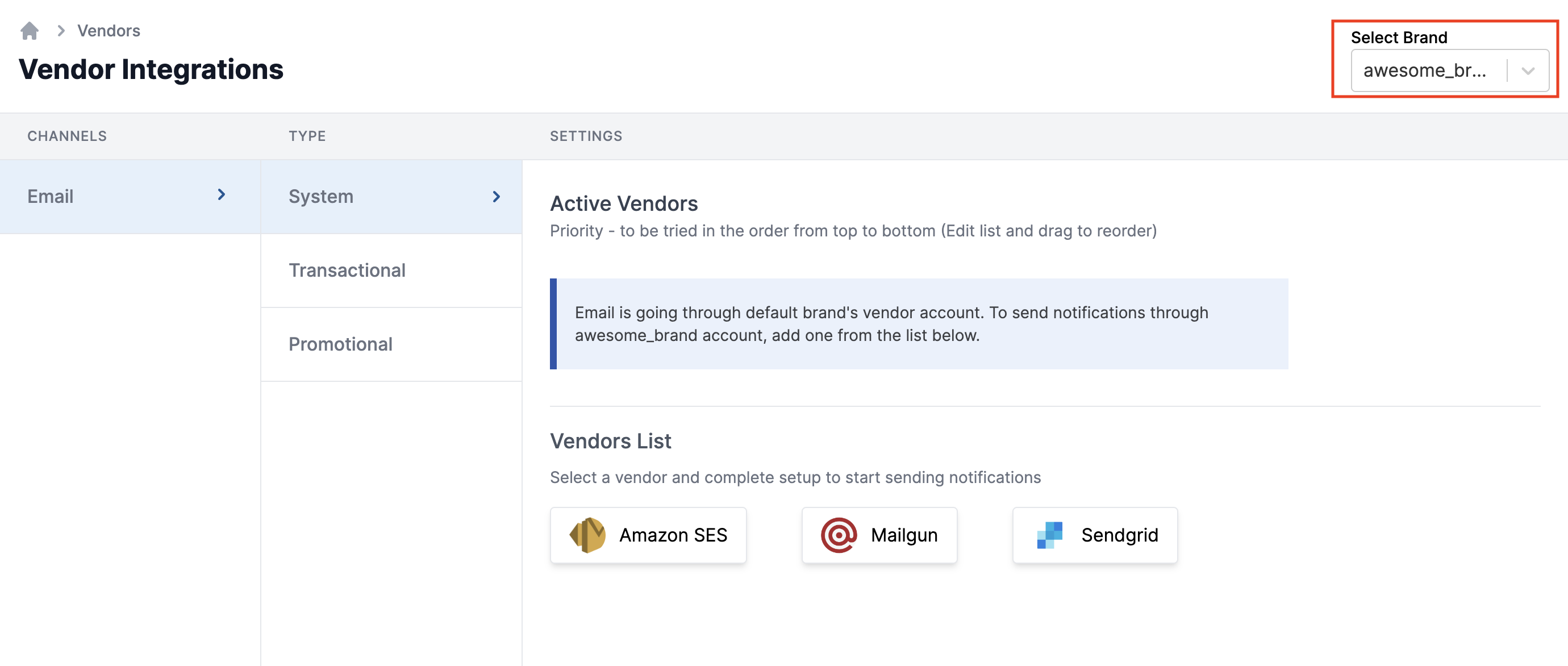
Enterprise tenants may require dedicated SMTP servers or vendor accounts for deliverability, compliance, or branding requirements. In WorkVibe's setup, tenant Uber requires its own SMTP domain. We configured Uber's SMTP as a custom property in the SuprSend tenant entity, which can be referenced in the `from_email` field in templates. For SMS, Uber uses its own SMS provider, which we configured as a tenant vendor.
**Vendor fallback chain:** If Uber's SMS vendor fails, notifications automatically fallback to WorkVibe's default SMS provider.
SuprSend supports workflow creation through three methods. For WorkVibe, we created workflows using the UI Builder. Workflows can also be created and managed via MCP (Model Context Protocol) for programmatic workflow management.
Workflows are constructed visually in the SuprSend dashboard using drag-and-drop nodes, conditional logic, and delay configurations. Workflows are created and managed through the administrative UI.
**When to use:**
* Non-engineering teams create and modify workflows
* Workflows require frequent iteration and rapid changes
* Workflows are version-controlled or promoted across environments via CLI after creation
Notifications are triggered programmatically without pre-creating workflow definitions in the UI. This generates a dynamic workflow that cannot be modified from the UI.
**When to use:**
* Single-step transactional notifications (example: email verification)
* Rapid deployment without workflow setup overhead
Create and update workflows programmatically using the [Management API](/docs/developer/management-api). Workflows are defined as code and synchronized to SuprSend via API.
**When to use:**
* Workflows are version-controlled in the codebase
* Infrastructure-as-code approach for workflow management
* CI/CD pipeline integration for workflow deployment
* Bulk workflow creation or migration scenarios
* Platform controls business logic programmatically
📘 [Workflows →](/docs/workflows) | [Dynamic Workflow Trigger →](/reference/dynamic-workflow-trigger) | [Workflows API →](/reference/create-update-workflow)
***
### 6. Tenant Vendors (Optional)
Enterprise tenants may require dedicated SMTP servers or vendor accounts for deliverability, compliance, or branding requirements. In WorkVibe's setup, tenant Uber requires its own SMTP domain. We configured Uber's SMTP as a custom property in the SuprSend tenant entity, which can be referenced in the `from_email` field in templates. For SMS, Uber uses its own SMS provider, which we configured as a tenant vendor.
**Vendor fallback chain:** If Uber's SMS vendor fails, notifications automatically fallback to WorkVibe's default SMS provider.
 📘 [Tenant Vendors →](/docs/tenant-vendor) | [Vendor Fallback →](/docs/vendor-fallback)
***
## End-to-End Notification Flow
Once the setup is complete (we've configured tenants, categories, preferences, templates, workflows, and vendors), workflows can be triggered to send notifications. When WorkVibe triggers a workflow, SuprSend executes the following sequence automatically:
WorkVibe triggers the workflow with `tenant_id: "uber"` in the payload. The workflow trigger payload must include the `tenant_id` to enable tenant-scoped customization.
Here's an example trigger payload for the new employee onboarding workflow:
```json theme={"system"}
{
"workflow": "new_employee_onboarding",
"tenant_id": "uber",
"data": {
"employee_name": "Sarah Chen",
"start_date": "2026-01-15",
"manager_name": "John Doe",
"department": "Engineering"
},
"recipient": {
"distinct_id": "employee1",
"email": "sarah@uber.com"
}
}
```
**Key fields:**
* **workflow:** The workflow slug that identifies which workflow to execute
* **tenant\_id:** Required field that enables tenant-specific branding, preferences, and vendor routing
* **data:** Event data variables used in template rendering
* **recipient:** User information for notification delivery
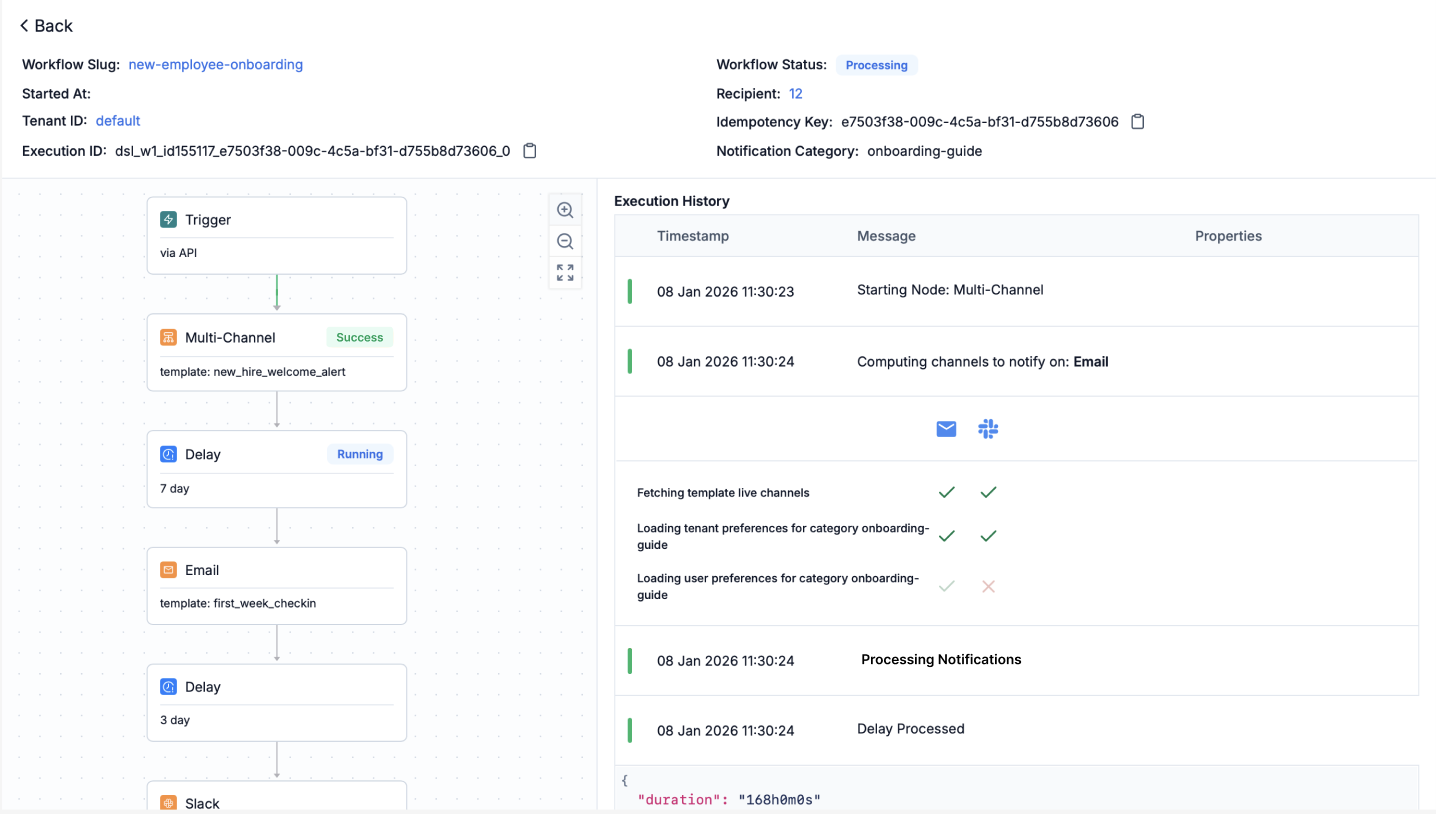
SuprSend uses the `tenant_id` from the trigger payload to identify the tenant and resolve tenant vendors, then looks for workflow's linked category (`onboarding.new_hire_welcome`) to fetch tenant level preferences. Evaluates Uber's tenant-level defaults for `onboarding.new_hire_welcome`: Email ✅ , SMS ❌ , Slack ✅.
SuprSend then evaluates user preferences for the category by looking for the user corresponding to the `recipient -> distinct_id` in the trigger payload.
Employee Preference Evaluation: Employee opts out of Slack ❌ → Final channel selection: Email only ✅.
Inside each channel level delivery node, there's a linked template slug. SuprSend checks for tenant-specific template variant and falls back to default `NEW_HIRE_WELCOME_ALERT` template if no variant exists. Uber's tenant branding (logo, colors, brand name) is applied to the resolved template using tenant-specific variables (`{{$brand.logo}}`, `{{$brand.primary_color}}`, etc.).
Routes through Uber's configured vendor if available, otherwise uses WorkVibe platform default vendor.
Notification delivered with Uber branding and onboarding details across selected channels.
📘 [Tenant Vendors →](/docs/tenant-vendor) | [Vendor Fallback →](/docs/vendor-fallback)
***
## End-to-End Notification Flow
Once the setup is complete (we've configured tenants, categories, preferences, templates, workflows, and vendors), workflows can be triggered to send notifications. When WorkVibe triggers a workflow, SuprSend executes the following sequence automatically:
WorkVibe triggers the workflow with `tenant_id: "uber"` in the payload. The workflow trigger payload must include the `tenant_id` to enable tenant-scoped customization.
Here's an example trigger payload for the new employee onboarding workflow:
```json theme={"system"}
{
"workflow": "new_employee_onboarding",
"tenant_id": "uber",
"data": {
"employee_name": "Sarah Chen",
"start_date": "2026-01-15",
"manager_name": "John Doe",
"department": "Engineering"
},
"recipient": {
"distinct_id": "employee1",
"email": "sarah@uber.com"
}
}
```
**Key fields:**
* **workflow:** The workflow slug that identifies which workflow to execute
* **tenant\_id:** Required field that enables tenant-specific branding, preferences, and vendor routing
* **data:** Event data variables used in template rendering
* **recipient:** User information for notification delivery
SuprSend uses the `tenant_id` from the trigger payload to identify the tenant and resolve tenant vendors, then looks for workflow's linked category (`onboarding.new_hire_welcome`) to fetch tenant level preferences. Evaluates Uber's tenant-level defaults for `onboarding.new_hire_welcome`: Email ✅ , SMS ❌ , Slack ✅.
SuprSend then evaluates user preferences for the category by looking for the user corresponding to the `recipient -> distinct_id` in the trigger payload.
Employee Preference Evaluation: Employee opts out of Slack ❌ → Final channel selection: Email only ✅.
Inside each channel level delivery node, there's a linked template slug. SuprSend checks for tenant-specific template variant and falls back to default `NEW_HIRE_WELCOME_ALERT` template if no variant exists. Uber's tenant branding (logo, colors, brand name) is applied to the resolved template using tenant-specific variables (`{{$brand.logo}}`, `{{$brand.primary_color}}`, etc.).
Routes through Uber's configured vendor if available, otherwise uses WorkVibe platform default vendor.
Notification delivered with Uber branding and onboarding details across selected channels.
 ***
## Other Common Scenarios
This data modeling approach applies to various multi-tenant marketplaces and platform architectures, including B2B2C (business-to-business-to-consumer) scenarios:
Customers receive delivery updates branded by logistics providers, with real-time tracking notifications and tenant-specific branding
Shoppers receive purchase confirmations branded by sellers, with per-seller whitelabeling and vendor configuration
Travelers receive confirmations branded by hotels/airlines, with tenant-specific preference configurations and vendor routing policies
Students receive course updates branded by educational institutions, with institution-specific branding and channel configurations
Attendees receive tickets branded by event organizers, with organizer-level preferences and custom SMTP configuration
Patients receive appointment reminders branded by clinics, with clinic-level preferences and compliance-compliant routing
***
***
## Other Common Scenarios
This data modeling approach applies to various multi-tenant marketplaces and platform architectures, including B2B2C (business-to-business-to-consumer) scenarios:
Customers receive delivery updates branded by logistics providers, with real-time tracking notifications and tenant-specific branding
Shoppers receive purchase confirmations branded by sellers, with per-seller whitelabeling and vendor configuration
Travelers receive confirmations branded by hotels/airlines, with tenant-specific preference configurations and vendor routing policies
Students receive course updates branded by educational institutions, with institution-specific branding and channel configurations
Attendees receive tickets branded by event organizers, with organizer-level preferences and custom SMTP configuration
Patients receive appointment reminders branded by clinics, with clinic-level preferences and compliance-compliant routing
***