> ## Documentation Index
> Fetch the complete documentation index at: https://docs.suprsend.com/llms.txt
> Use this file to discover all available pages before exploring further.
# Postmark
> Guide to connect your Postmark account with SuprSend to send email notifications.
This section is a step by step guide to select Postmark as your email service provider You can use your existing Postmark account to integrate, or create a new account from [here](https://account.postmarkapp.com/sign_up)
## Postmark integration on SuprSend account
On the SuprSend dashboard, go to vendor page from side panel and click Email -> Postmark from the list of Vendors. This will open vendor details page as shown below:
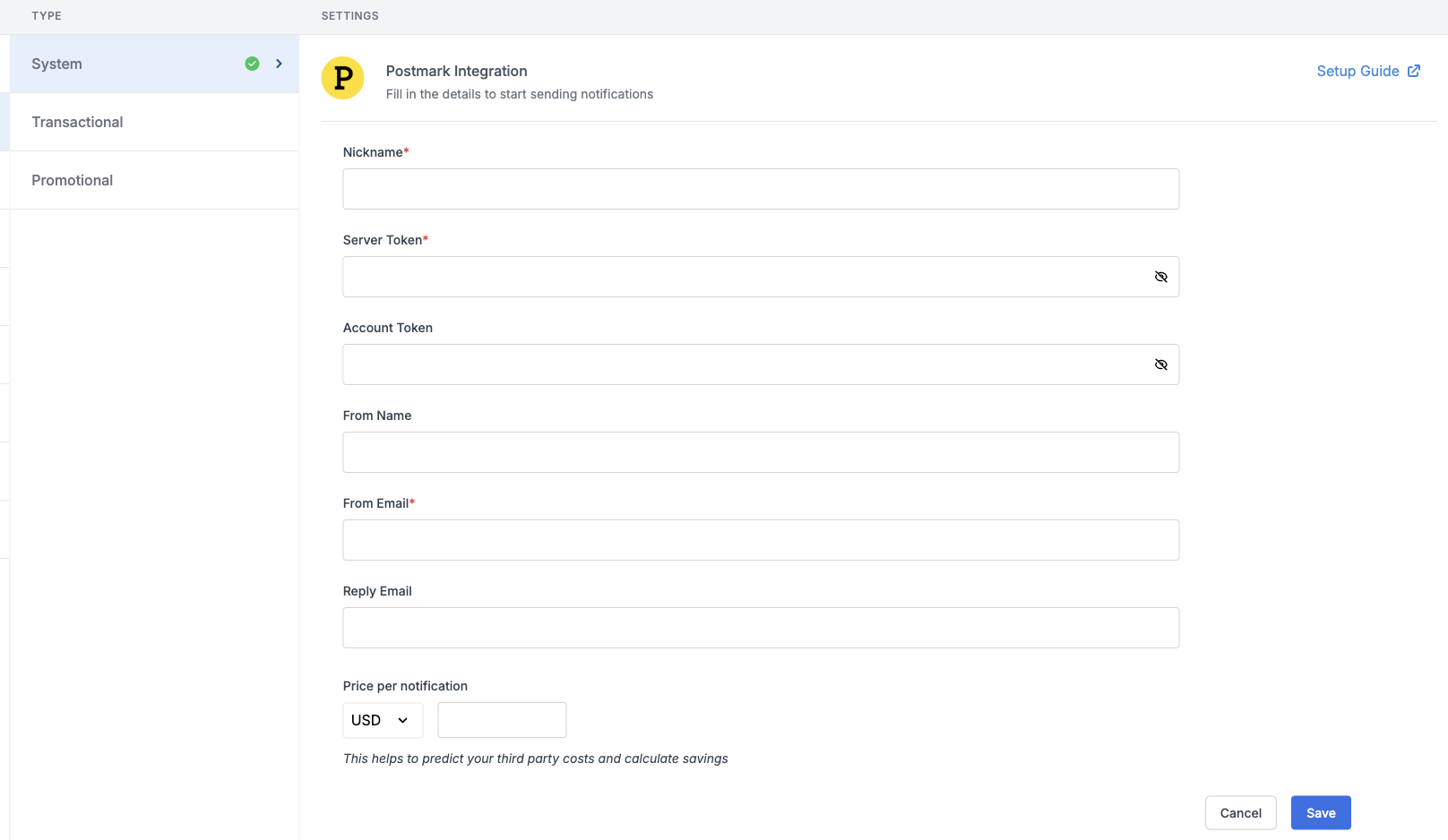 | Form Field | Description |
| ---------------------- | ------------------------------------------------------------------------------------------------------------------------------------------------------------------------------------------------------------------------------------------------------------------------------- |
| Nickname | You can give any name which may help you to identify this account easily |
| Server Token | You will get this server token from your Postmark account. This is a mandatory field. SuprSend will use this token to send mails from your Postmark account. Check the [documentation](/docs/postmark#how-to-get-a-server-token-from-postmark) on how to get your Server Token. |
| Account Token | Account token is used by postmark for account level API access. These tokens cannot be used to access individual server data. It's a non-mandatory field to send emails. |
| From Name | Default 'From Name' that email will go from. You can override this in the individual template. *for example SuprSend* |
| From Email | From email for Postmark has to be a verified email by postmark . Check [documentation](/docs/postmark#how-to-verify-email-and-whitelist-domain-on-postmark) on how to verify your email or enable domain whitelisting on Postmark. |
| Reply Email | Default 'Reply To Email id' on which replies are received. You can override this in the individual template. *for example [support@suprsend.com](mailto:support@suprsend.com)* |
| Price per notification | This is the amount you pay per email notification to Postmark. It helps us to calculate, estimate and optimise your cost spent on notifications. |
| | |
## How to get a server token from Postmark
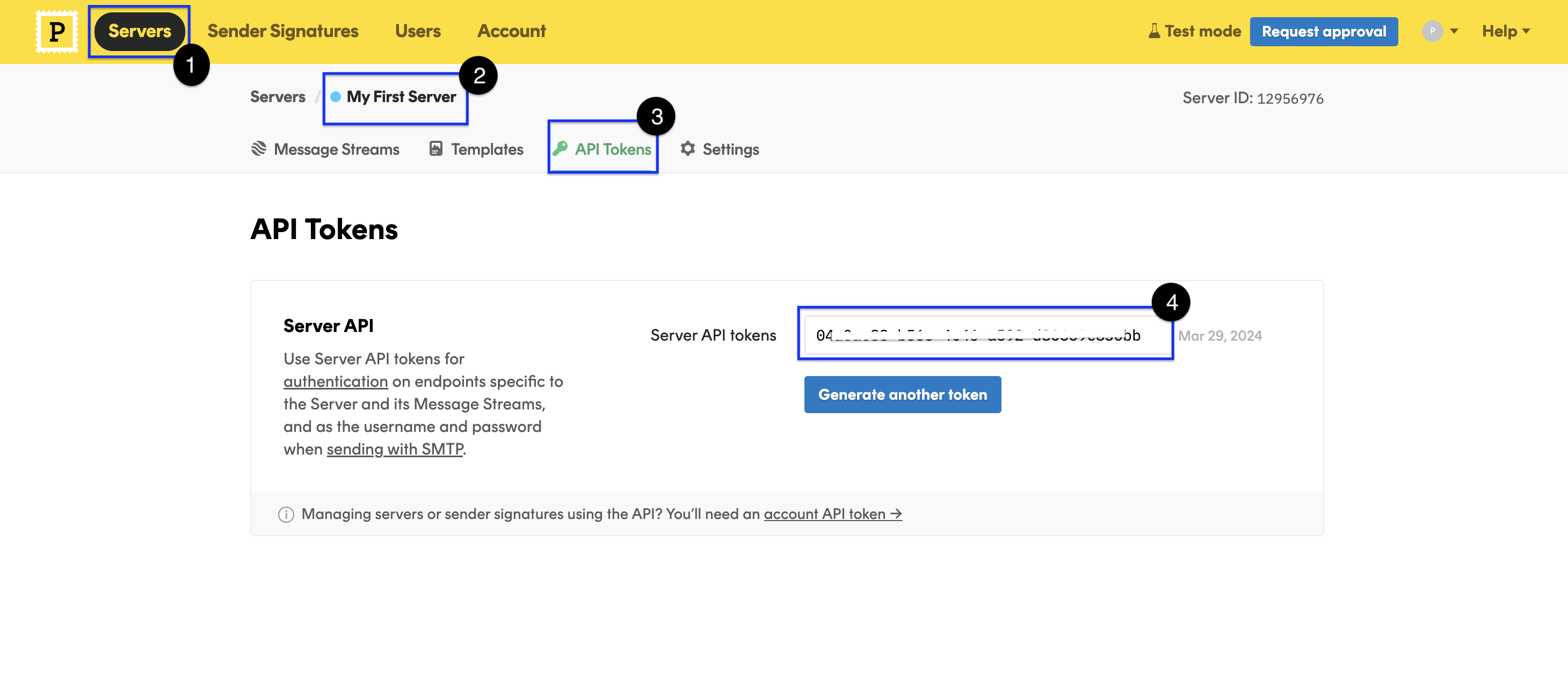
1. Login to your Postmark account
2. Go to [servers](https://account.postmarkapp.com/servers) section and select your email server
3. Go to section API Tokens
4. Copy the already generated API token or generate a new token.
| Form Field | Description |
| ---------------------- | ------------------------------------------------------------------------------------------------------------------------------------------------------------------------------------------------------------------------------------------------------------------------------- |
| Nickname | You can give any name which may help you to identify this account easily |
| Server Token | You will get this server token from your Postmark account. This is a mandatory field. SuprSend will use this token to send mails from your Postmark account. Check the [documentation](/docs/postmark#how-to-get-a-server-token-from-postmark) on how to get your Server Token. |
| Account Token | Account token is used by postmark for account level API access. These tokens cannot be used to access individual server data. It's a non-mandatory field to send emails. |
| From Name | Default 'From Name' that email will go from. You can override this in the individual template. *for example SuprSend* |
| From Email | From email for Postmark has to be a verified email by postmark . Check [documentation](/docs/postmark#how-to-verify-email-and-whitelist-domain-on-postmark) on how to verify your email or enable domain whitelisting on Postmark. |
| Reply Email | Default 'Reply To Email id' on which replies are received. You can override this in the individual template. *for example [support@suprsend.com](mailto:support@suprsend.com)* |
| Price per notification | This is the amount you pay per email notification to Postmark. It helps us to calculate, estimate and optimise your cost spent on notifications. |
| | |
## How to get a server token from Postmark
1. Login to your Postmark account
2. Go to [servers](https://account.postmarkapp.com/servers) section and select your email server
3. Go to section API Tokens
4. Copy the already generated API token or generate a new token.
 ## How to verify email and whitelist domain on Postmark
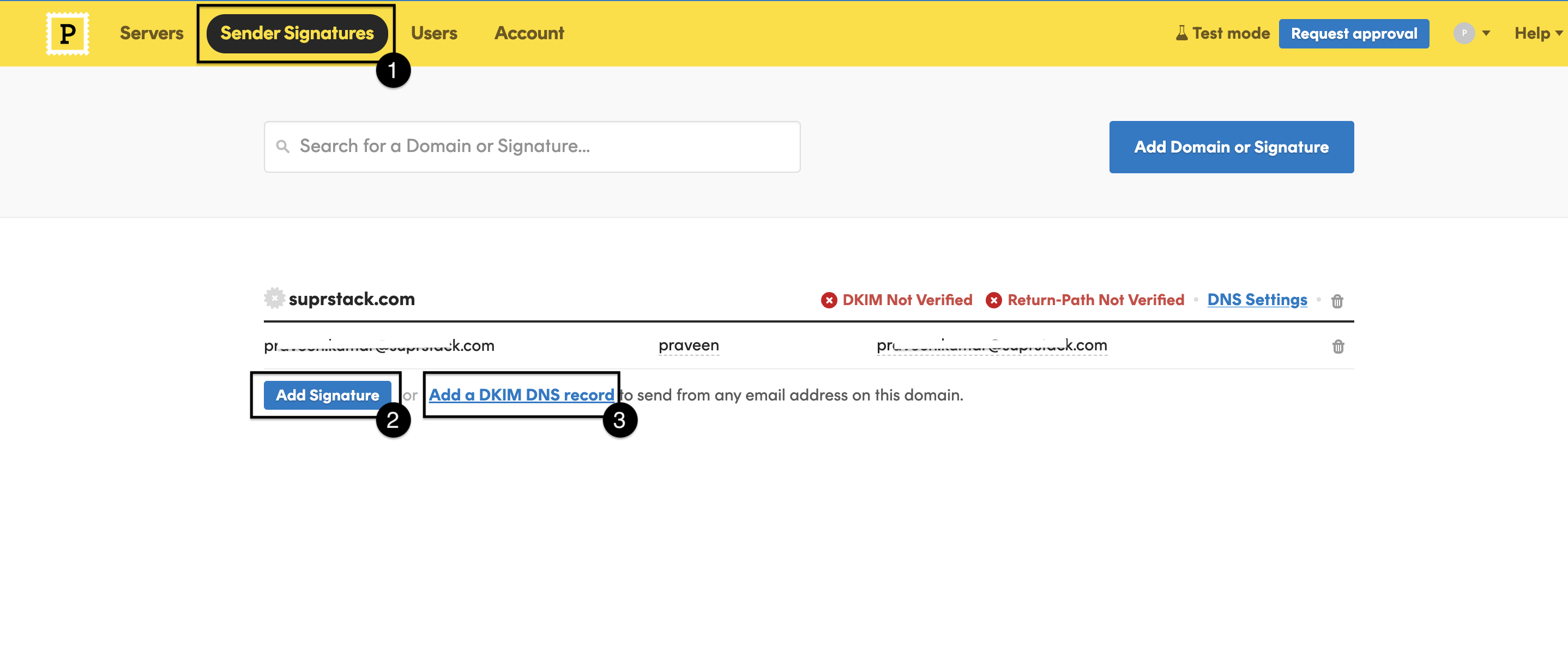
Email signature verification is an important step without which Postmark does not allow to send emails from the email added in Postmark account. You can add multiple emails by verifying them individually on Postmark or verify all the emails with your email domain. To do this, follow the steps below:
1. Go to Postmark -> [Sender Signatures](https://account.postmarkapp.com/signature_domains) section
2. Add your email, Postmark will send an email for verifying the added email address, complete the verification
3. Alternatively you can also whitelist all the email addresses in your email domain by adding a DKIM DNS record.
## How to verify email and whitelist domain on Postmark
Email signature verification is an important step without which Postmark does not allow to send emails from the email added in Postmark account. You can add multiple emails by verifying them individually on Postmark or verify all the emails with your email domain. To do this, follow the steps below:
1. Go to Postmark -> [Sender Signatures](https://account.postmarkapp.com/signature_domains) section
2. Add your email, Postmark will send an email for verifying the added email address, complete the verification
3. Alternatively you can also whitelist all the email addresses in your email domain by adding a DKIM DNS record.
 ## Configuring Open/Click tracking for emails on Postmark
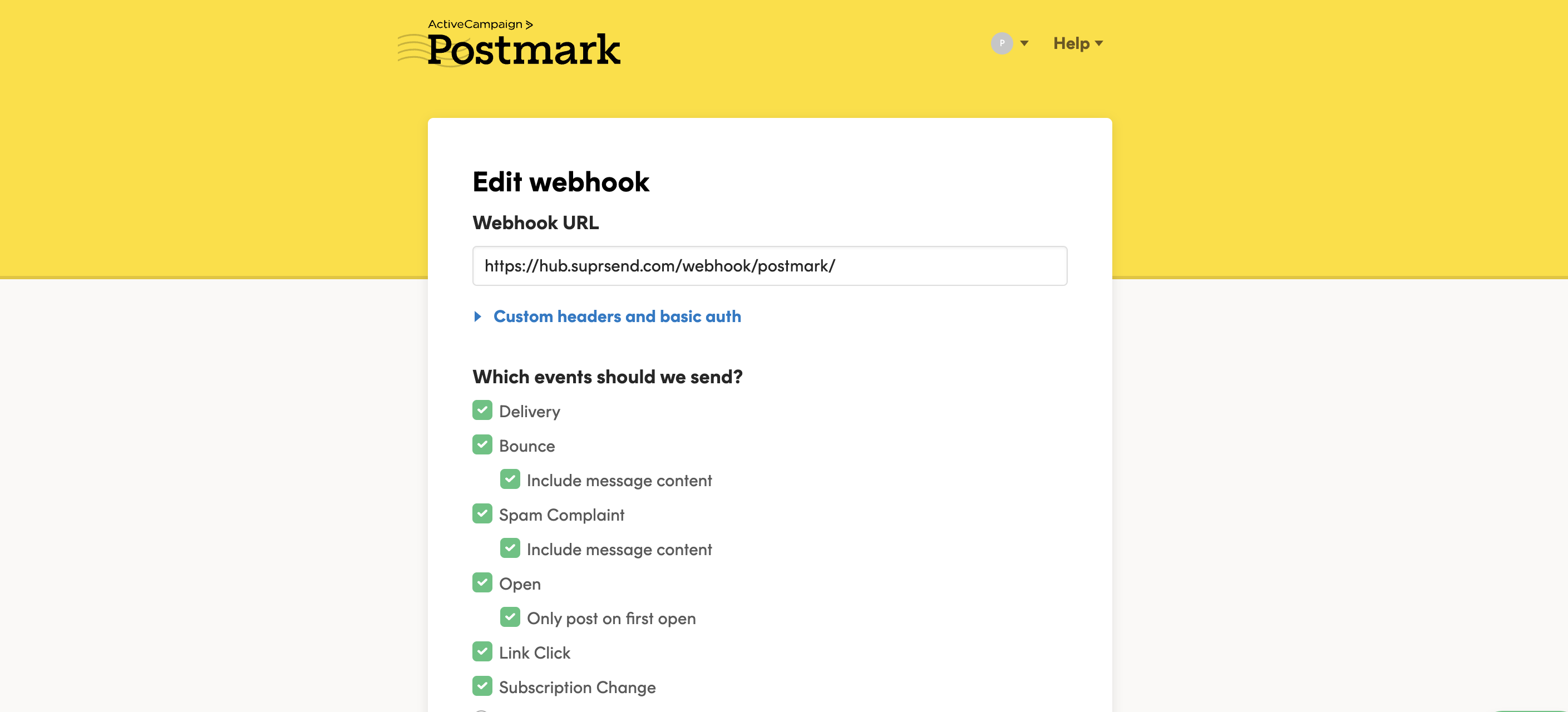
SuprSend uses webhooks to update notification statuses on delivery, user actions like open/click or the failure scenarios. This allows SuprSend to power your notification analytics. To allow SuprSend to receive these events via webhook, add SuprSend's webhook URL in your Postmark account.
* Go to Postmark -> servers -> select your server -> select your stream -> webhooks -> add webhook
## Configuring Open/Click tracking for emails on Postmark
SuprSend uses webhooks to update notification statuses on delivery, user actions like open/click or the failure scenarios. This allows SuprSend to power your notification analytics. To allow SuprSend to receive these events via webhook, add SuprSend's webhook URL in your Postmark account.
* Go to Postmark -> servers -> select your server -> select your stream -> webhooks -> add webhook
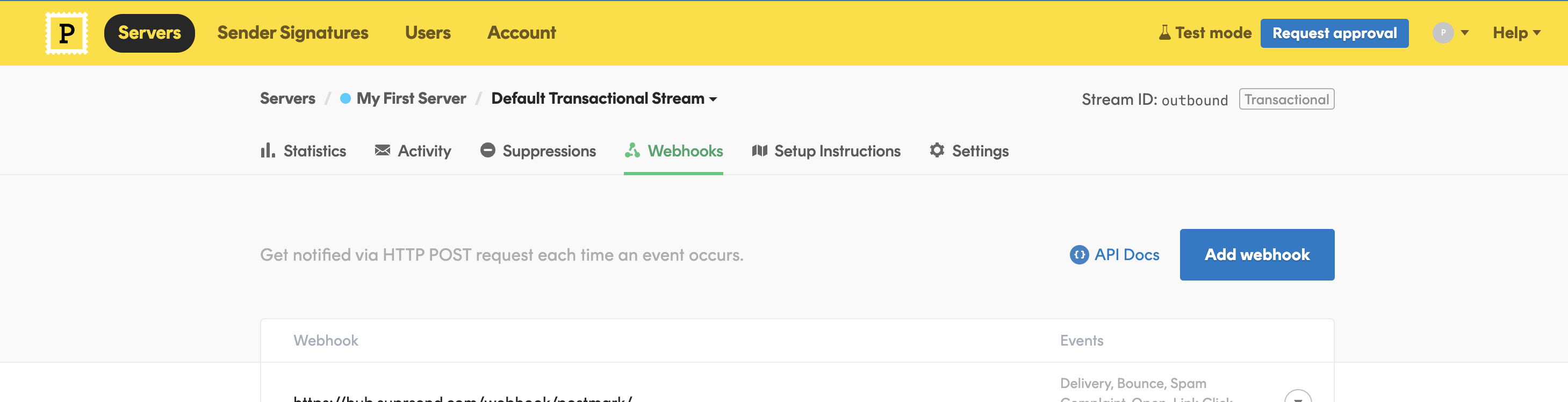 * On **Add webhook**, settings page, add [`https://hub.suprsend.com/webhook/postmark/`](https://hub.suprsend.com/webhook/postmark/) in webhook URL section and enable all events on Postmark.
 ## How to add Unsubscription link in email
You can directly add unsubscription link in your email using [`$hosted_preference_url`](/docs/user-preferences#hosted-preference-page) variable in your template. This link directs users to the [SuprSend preference page](/docs/user-preferences). With SuprSend preference setting, you have the flexibility to create multiple notification categories based on the type of notifications. This allows users to opt-out of specific notification categories, providing them with granular control over their preferences compared to other email services where they can only opt-out from all marketing communications at once.
**Why it's important to give unsubscribe option in email?**
First, it is required by the [CAN-Spam Act](https://www.ftc.gov/business-guidance/resources/can-spam-act-compliance-guide-business). Second, if you don’t give them this option, they are more likely to click on the spam complaint button, which will cause more harm than allowing them to unsubscribe. Finally, many ESPs look for unsubscribe links and are more likely to filter your email if they don’t have them.
***
## How to add Unsubscription link in email
You can directly add unsubscription link in your email using [`$hosted_preference_url`](/docs/user-preferences#hosted-preference-page) variable in your template. This link directs users to the [SuprSend preference page](/docs/user-preferences). With SuprSend preference setting, you have the flexibility to create multiple notification categories based on the type of notifications. This allows users to opt-out of specific notification categories, providing them with granular control over their preferences compared to other email services where they can only opt-out from all marketing communications at once.
**Why it's important to give unsubscribe option in email?**
First, it is required by the [CAN-Spam Act](https://www.ftc.gov/business-guidance/resources/can-spam-act-compliance-guide-business). Second, if you don’t give them this option, they are more likely to click on the spam complaint button, which will cause more harm than allowing them to unsubscribe. Finally, many ESPs look for unsubscribe links and are more likely to filter your email if they don’t have them.
***