> ## Documentation Index
> Fetch the complete documentation index at: https://docs.suprsend.com/llms.txt
> Use this file to discover all available pages before exploring further.
# Segment Lists
> Build dynamic audience segments by writing SQL on the users and events data synced into SuprSend — with an AI Agent that turns natural language into queries.
Segment Lists are currently in **beta**. Share feedback on our [Slack community](https://join.slack.com/t/suprsendcommunity/shared_invite/zt-3932rw936-XNWY1RC8bsffh4if4ZyoXQ) or at [support@suprsend.com](mailto:support@suprsend.com).
A **Segment List** is a dynamic [List](/docs/lists) whose membership is defined by a SQL query. You write SQL against the `users` and `events` data you already send to SuprSend, and the list auto-refreshes as your data changes. Also known as *dynamic audiences* or *SQL segments* in other tools.
Define the criteria once, and the list stays in sync with your live user and event data. You can write the SQL yourself, or describe the segment in plain English and let the SuprSend **Agent** generate the query for you.
## How it works
You write a SQL query that returns `distinct_id`s. SuprSend runs that query against your workspace's `users` and `events` tables, and everyone the query returns becomes a member of the list. Commit a version, and the list is ready to power broadcasts and workflow triggers.
```mermaid theme={"system"}
%%{init: {'theme':'base','themeVariables':{'fontSize':'14px','fontFamily':'ui-sans-serif, system-ui, sans-serif','lineColor':'#9a9a9a'},'flowchart':{'padding':14,'nodeSpacing':40,'rankSpacing':40}}}%%
flowchart LR
A["Write SQL
or ask Agent"] --> B["Preview
matches"]
B --> C["Commit
a version"]
C --> D["List auto-
refreshes"]
D --> E["Broadcasts"]
D --> F["Workflow
triggers"]
classDef s1 fill:transparent,stroke:#d9d9d9,stroke-width:1.4px;
classDef s2 fill:transparent,stroke:#b0b0b0,stroke-width:1.4px;
classDef s3 fill:transparent,stroke:#8a8a8a,stroke-width:1.4px;
classDef s4 fill:transparent,stroke:#5f5f5f,stroke-width:1.4px;
class A,B s1;
class C s2;
class D s3;
class E,F s4;
```
Two tables are exposed to your SQL:
* **`users`** — one row per user in your workspace, with `distinct_id`, channel arrays (email, phone, push), and your custom user properties as JSON.
* **`events`** — one row per event you've sent to SuprSend, with `event_name`, `distinct_id`, `requested_at`, and the event payload as JSON.
Every commit creates a new immutable version of the segment. The current version is `live`; older versions stay in history and you can roll back to any of them from the dashboard. Rolling back creates a new version — the audit trail is preserved. Queries are scoped to your workspace by the API key on the request; there is no cross-workspace access.
***
## Setting up a segment
### 1. Create the list
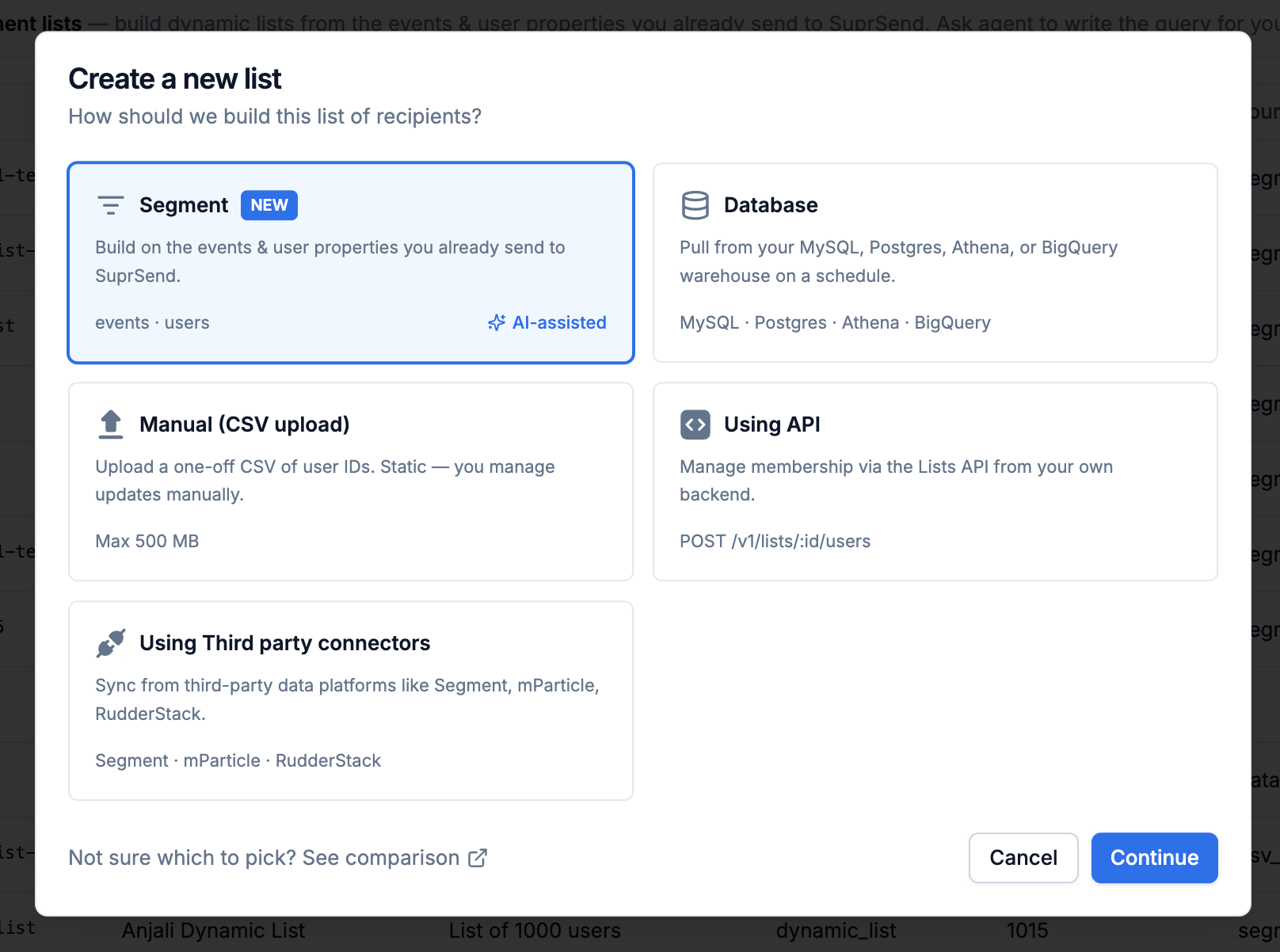
Go to **Lists → New List**. In the source picker, select **Segment List**.
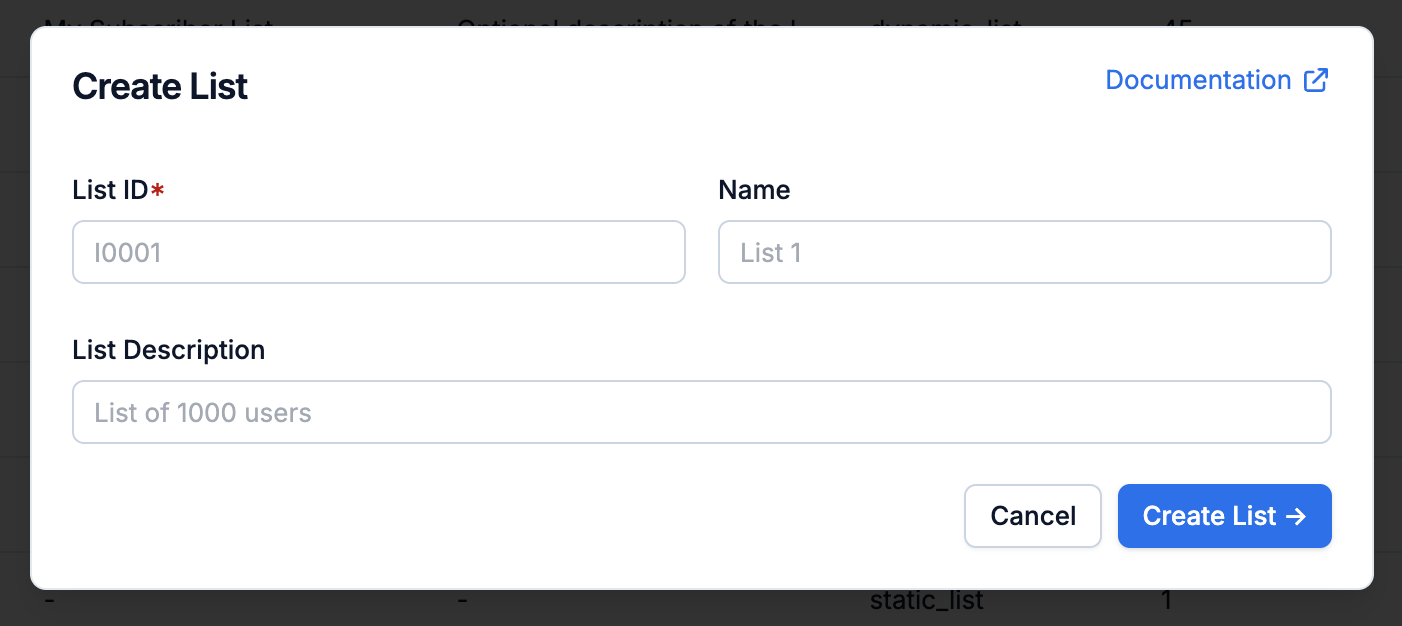
 Enter a `list_id`, and optionally a name and description. The `list_id` is the stable identifier you'll reference from the API and workflows.
| Field | Rules |
| ----------- | ------------------------------------------------------------------------------------------------ |
| `list_id` | Required. URL-safe: lowercase letters, digits, and underscores. Unique within the workspace. |
| Name | Optional. Display name for the list. |
| Description | Optional. Additional context to help you understand the list's purpose or the users it contains. |
Enter a `list_id`, and optionally a name and description. The `list_id` is the stable identifier you'll reference from the API and workflows.
| Field | Rules |
| ----------- | ------------------------------------------------------------------------------------------------ |
| `list_id` | Required. URL-safe: lowercase letters, digits, and underscores. Unique within the workspace. |
| Name | Optional. Display name for the list. |
| Description | Optional. Additional context to help you understand the list's purpose or the users it contains. |
 ### 2. Write your SQL or generate it with AI
After the list is created, you land in the **Segment Builder** — a SQL editor on the left, a schema panel on the right, and a **Generate with AI** button in the toolbar. Write the SQL yourself using the reference below, or click **Generate with AI** and describe the segment in plain English.
### 2. Write your SQL or generate it with AI
After the list is created, you land in the **Segment Builder** — a SQL editor on the left, a schema panel on the right, and a **Generate with AI** button in the toolbar. Write the SQL yourself using the reference below, or click **Generate with AI** and describe the segment in plain English.
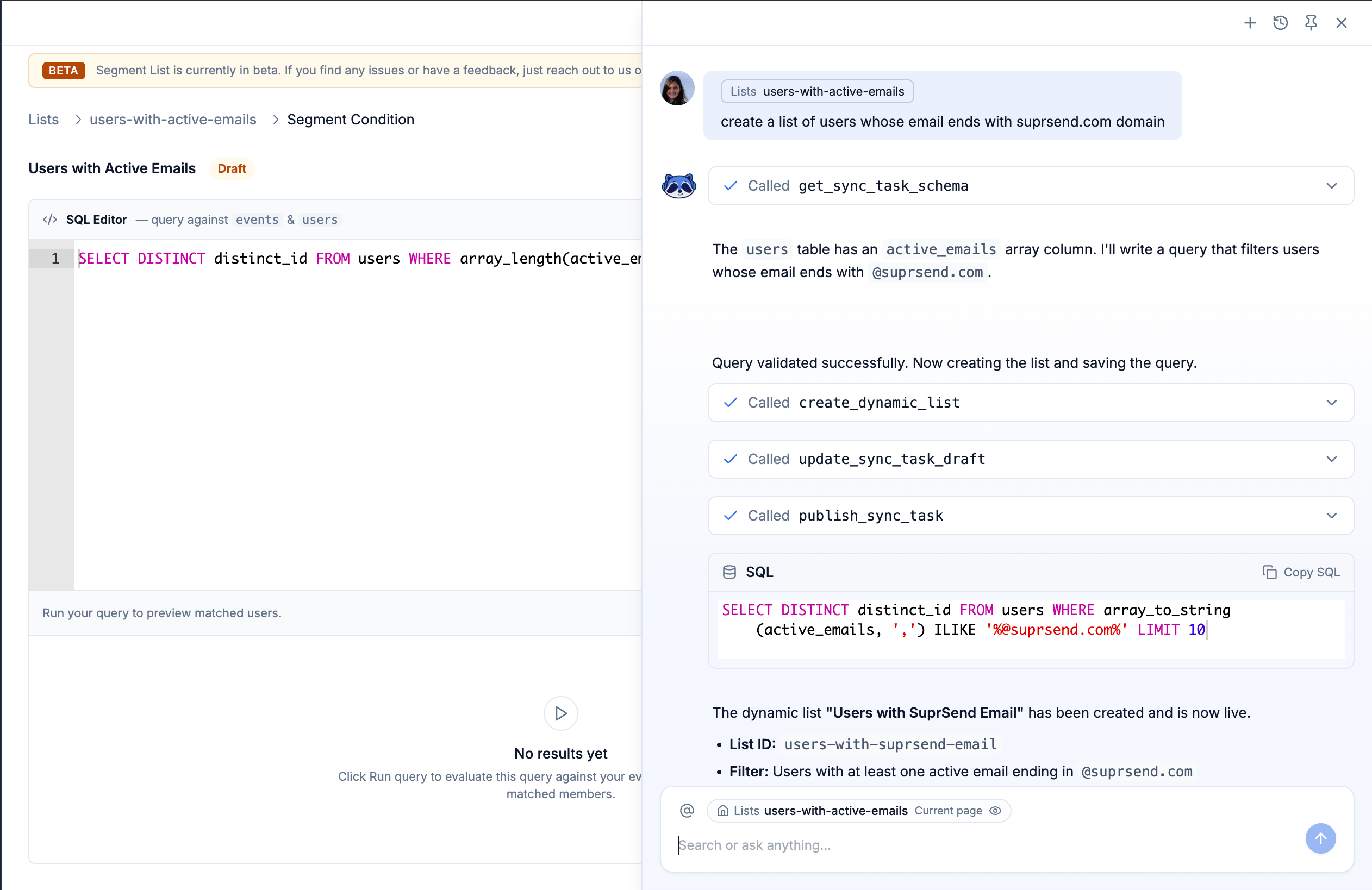 Segment SQL runs against two tables — `users` and `events` — using a PostgreSQL- and ClickHouse-compatible dialect.
#### Generate SQL with the SuprSend Agent
Click **Generate with AI** in the builder toolbar and describe the segment in plain English — e.g. *"Growth-plan users in the US who placed 3+ orders in the last 60 days"*. The Agent returns SQL plus a plain-English summary; click **Use this SQL** to insert it at the cursor, then edit as needed.
The Agent references your user and event **schemas** to figure out which properties to use — it never reads your actual user data or event payloads. For accurate SQL, [link a JSON schema to each event](/docs/validate-workflow-payload#linking-schema-to-workflow) and keep your user-property descriptions current on the [Schema page](https://app.suprsend.com/en/staging/developers/schema). Always dry-run and inspect the sample rows before committing.
#### Available tables
One row per user in your workspace.
| Column | Type | Notes |
| ---------------------- | -------------- | ----------------------------------------------------------------------------- |
| `distinct_id` | string | The canonical user identifier. **Required in every SELECT.** |
| `created_at` | timestamp | When the user profile was created. |
| `updated_at` | timestamp | Last profile update. |
| `language` | string | e.g. `en`. |
| `locale` | string | e.g. `en-US`. |
| `timezone` | string | e.g. `America/New_York`. |
| `user_properties` | JSON | Your custom user properties (plan, country, LTV, tags, nested objects, etc.). |
| `active_channels` | array\ | Currently active channels on the profile (e.g. `["email","sms"]`). |
| `active_emails` | array\ | Currently active email addresses. |
| `active_phone_numbers` | array\ | Currently active phone numbers. |
One row per event you've sent to SuprSend.
| Column | Type | Notes |
| -------------- | --------- | -------------------------------------------------------------------------------------------------------------------- |
| `distinct_id` | string | User who triggered the event. |
| `event_name` | string | Event name, always uppercase — e.g. `ORDER_PLACED`, `SIGNUP_COMPLETED`. |
| `requested_at` | timestamp | When SuprSend received the event. **Required in `WHERE`.** |
| `status` | enum | `success` or `failure`. |
| `properties` | JSON | The event properties passed in the payload. Agent uses event schema to understand the structure of these properties. |
| `payload` | JSON | The full event payload you sent to SuprSend. |
| `response` | JSON | SuprSend's processing response for the event. |
| `tenant_id` | string | Tenant scope, if the event was tenant-scoped. |
#### Query Recommendations
A few things to keep in mind for accurate, efficient queries:
* **Always return `distinct_id`.** It's how membership is resolved, so include it in your SELECT. Other columns still show up in the dry-run preview, but don't affect who ends up in the list.
* **Select only the columns you need.** Prefer named columns over `SELECT *` — it keeps the query fast and skips large JSON fields (like `user_properties` or the event `payload`) you don't actually use.
* **Query only `users` and `events`.** These are the only two tables available; references to anything else are rejected.
* **Match event names in uppercase.** `event_name` is stored in caps, so filter with `event_name = 'ORDER_PLACED'`, not `'order_placed'` — a lowercase match returns no rows.
* **Mind JSON key casing.** Keys are case-sensitive, so `properties ->> 'Amount'` isn't the same as `properties ->> 'amount'`.
* **No need to scope by workspace.** There's no `workspace_id` column to set — a query only reads data from the workspace you're building it in.
#### Supported SQL
The dialect is PostgreSQL- and ClickHouse-compatible. For every supported function and query feature — organized by category, each with syntax, arguments, and an example — see the [Segment SQL reference](/docs/sql-query-clauses).
#### Sample queries
```sql Users on the enterprise plan in the US region theme={"system"}
SELECT distinct_id
FROM users
WHERE user_properties ->> 'plan' = 'enterprise'
AND user_properties -> 'address' ->> 'country' = 'US'
```
```sql Users tagged as VIP (where tags is an array) theme={"system"}
SELECT distinct_id
FROM users
WHERE 'vip' = ANY(user_properties -> 'tags')
```
```sql Users with atleast 1 active email channel theme={"system"}
SELECT distinct_id
FROM users
WHERE array_length(active_emails, 1) > 0
```
```sql Users with lifetime value of $2,500 or more theme={"system"}
SELECT distinct_id
FROM users
WHERE CAST(user_properties ->> 'lifetime_value' AS DOUBLE PRECISION) >= 2500
```
```sql Users whose subscription has 50 or more seats theme={"system"}
SELECT distinct_id
FROM users
WHERE CAST(user_properties -> 'subscription' ->> 'seats' AS INT) >= 50
```
```sql Verified VIP users on the enterprise plan from selected countries theme={"system"}
SELECT distinct_id
FROM users
WHERE user_properties ->> 'plan' = 'enterprise'
AND user_properties @> '{"is_verified":true}'
AND 'vip' = ANY(user_properties -> 'tags')
AND user_properties -> 'address' ->> 'country' IN ('US','GB','IN','CH','PT')
```
```sql Users who signed up in the last 30 days theme={"system"}
SELECT DISTINCT distinct_id
FROM events
WHERE event_name = 'SIGNUP_COMPLETED'
AND requested_at >= NOW() - INTERVAL '30 days'
```
```sql Users who imported over 5,000 records in the last 7 days theme={"system"}
SELECT DISTINCT distinct_id
FROM events
WHERE event_name = 'DATA_IMPORTED'
AND requested_at >= NOW() - INTERVAL '7 days'
AND CAST(properties ->> 'record_count' AS DOUBLE PRECISION) > 5000
```
```sql Users who started a trial but didn't upgrade in the last 3 days theme={"system"}
SELECT DISTINCT distinct_id
FROM events
WHERE event_name = 'TRIAL_STARTED'
AND requested_at >= NOW() - INTERVAL '3 days'
AND distinct_id NOT IN (
SELECT distinct_id FROM events
WHERE event_name = 'PLAN_UPGRADED'
AND requested_at >= NOW() - INTERVAL '3 days'
)
```
```sql Users who integrated the Slack agent in the last 14 days theme={"system"}
SELECT DISTINCT distinct_id
FROM events
WHERE event_name = 'AGENT_INTEGRATED'
AND requested_at >= NOW() - INTERVAL '14 days'
AND properties @> '{"agent":"slack"}'
```
```sql Users on the growth plan with 3 or more orders in the last 60 days theme={"system"}
SELECT DISTINCT e.distinct_id
FROM events e
JOIN users u ON e.distinct_id = u.distinct_id
WHERE e.event_name = 'ORDER_PLACED'
AND e.requested_at >= NOW() - INTERVAL '60 days'
AND u.user_properties ->> 'plan' = 'growth'
GROUP BY e.distinct_id
HAVING count(*) >= 3
```
```sql Enterprise users in the US active in the last 30 days theme={"system"}
SELECT DISTINCT e.distinct_id
FROM events e
JOIN users u ON e.distinct_id = u.distinct_id
WHERE e.requested_at >= NOW() - INTERVAL '30 days'
AND u.user_properties ->> 'plan' = 'enterprise'
AND u.user_properties -> 'address' ->> 'country' = 'US'
```
### 3. Dry-run to preview matched users
Click **Run query** (or press `Cmd/Ctrl + Enter`) to execute a dry-run. The dry-run panel shows the total count of matched users, the first 10 matched rows so you can spot-check the segment, and the exact error if the SQL is invalid.
The two API calls under the hood:
```bash Dry-run (sample rows) theme={"system"}
curl -X POST 'https://hub.suprsend.com/v1/subscriber_list/~/dry_run/' \
-H 'Authorization: Bearer YOUR_WORKSPACE_KEY' \
-H 'Content-Type: application/json' \
-d '{
"query_text": "SELECT distinct_id, active_emails FROM users LIMIT 40"
}'
```
```bash Dry-run (count only) theme={"system"}
curl -X POST 'https://hub.suprsend.com/v1/subscriber_list/~/dry_run/count/' \
-H 'Authorization: Bearer YOUR_WORKSPACE_KEY' \
-H 'Content-Type: application/json' \
-d '{
"query_text": "SELECT distinct_id FROM users WHERE user_properties ->> '\''plan'\'' = '\''enterprise'\''"
}'
```
Response for the sample-rows call:
```json 200 theme={"system"}
{
"data": [
{ "distinct_id": "u_8f21ac", "active_emails": ["maya.chen@acme.co"] },
{ "distinct_id": "u_2c11ef", "active_emails": ["jordan@northwind.io"] }
]
}
```
Response for the count call:
```json 200 theme={"system"}
{
"count": 4812
}
```
### 4. Commit the segment
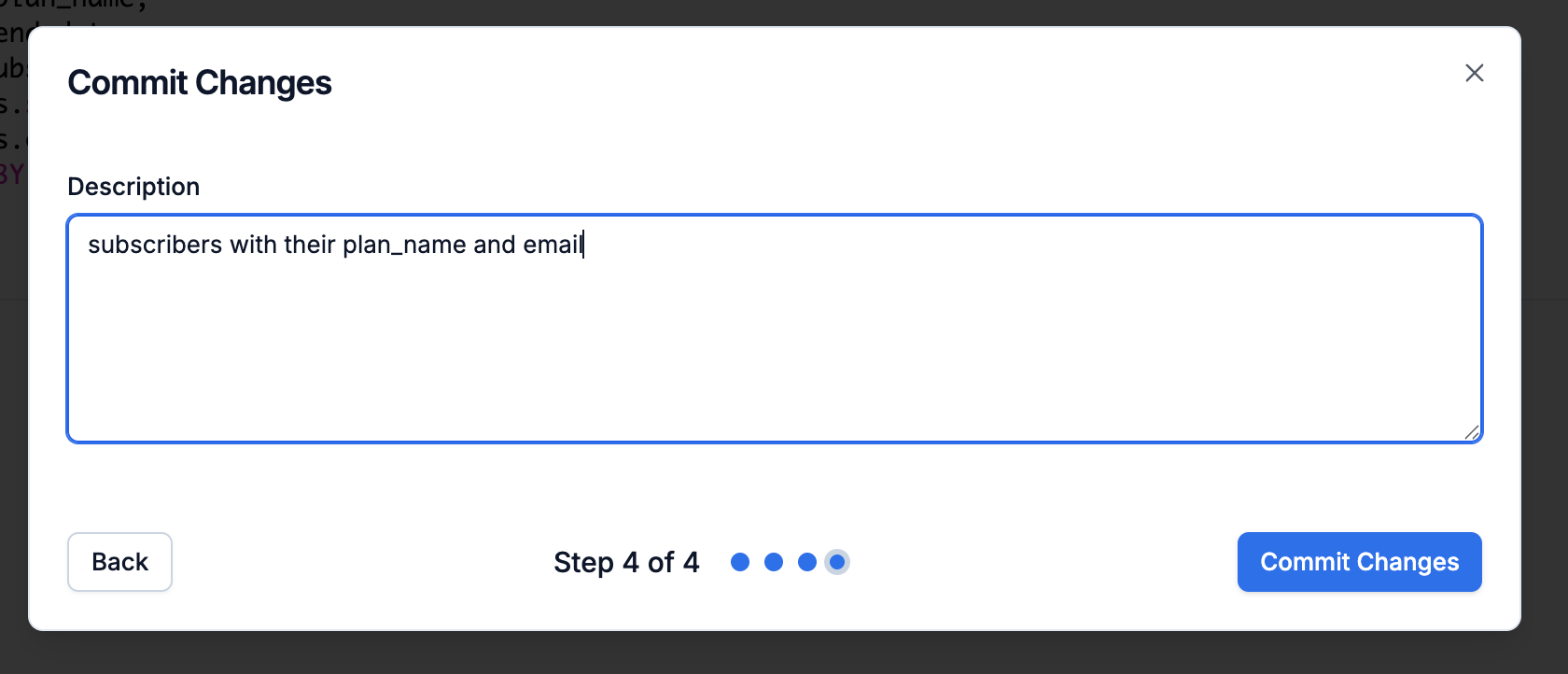
Committing makes your segment live and users start syncing into the list immediately. The first sync runs right after you commit, and the list keeps refreshing as your data changes. Each commit is stored as an immutable version, and any broadcast or workflow trigger that references this list uses the live version.
You can commit without running a dry-run first, though it's good practice to preview the matched users and confirm they look right before you do. Add an optional commit message describing what changed — e.g. *"Expanded to 5 countries; 60-day order window."* — and confirm. The message shows up in **Version History**.
Segment SQL runs against two tables — `users` and `events` — using a PostgreSQL- and ClickHouse-compatible dialect.
#### Generate SQL with the SuprSend Agent
Click **Generate with AI** in the builder toolbar and describe the segment in plain English — e.g. *"Growth-plan users in the US who placed 3+ orders in the last 60 days"*. The Agent returns SQL plus a plain-English summary; click **Use this SQL** to insert it at the cursor, then edit as needed.
The Agent references your user and event **schemas** to figure out which properties to use — it never reads your actual user data or event payloads. For accurate SQL, [link a JSON schema to each event](/docs/validate-workflow-payload#linking-schema-to-workflow) and keep your user-property descriptions current on the [Schema page](https://app.suprsend.com/en/staging/developers/schema). Always dry-run and inspect the sample rows before committing.
#### Available tables
One row per user in your workspace.
| Column | Type | Notes |
| ---------------------- | -------------- | ----------------------------------------------------------------------------- |
| `distinct_id` | string | The canonical user identifier. **Required in every SELECT.** |
| `created_at` | timestamp | When the user profile was created. |
| `updated_at` | timestamp | Last profile update. |
| `language` | string | e.g. `en`. |
| `locale` | string | e.g. `en-US`. |
| `timezone` | string | e.g. `America/New_York`. |
| `user_properties` | JSON | Your custom user properties (plan, country, LTV, tags, nested objects, etc.). |
| `active_channels` | array\ | Currently active channels on the profile (e.g. `["email","sms"]`). |
| `active_emails` | array\ | Currently active email addresses. |
| `active_phone_numbers` | array\ | Currently active phone numbers. |
One row per event you've sent to SuprSend.
| Column | Type | Notes |
| -------------- | --------- | -------------------------------------------------------------------------------------------------------------------- |
| `distinct_id` | string | User who triggered the event. |
| `event_name` | string | Event name, always uppercase — e.g. `ORDER_PLACED`, `SIGNUP_COMPLETED`. |
| `requested_at` | timestamp | When SuprSend received the event. **Required in `WHERE`.** |
| `status` | enum | `success` or `failure`. |
| `properties` | JSON | The event properties passed in the payload. Agent uses event schema to understand the structure of these properties. |
| `payload` | JSON | The full event payload you sent to SuprSend. |
| `response` | JSON | SuprSend's processing response for the event. |
| `tenant_id` | string | Tenant scope, if the event was tenant-scoped. |
#### Query Recommendations
A few things to keep in mind for accurate, efficient queries:
* **Always return `distinct_id`.** It's how membership is resolved, so include it in your SELECT. Other columns still show up in the dry-run preview, but don't affect who ends up in the list.
* **Select only the columns you need.** Prefer named columns over `SELECT *` — it keeps the query fast and skips large JSON fields (like `user_properties` or the event `payload`) you don't actually use.
* **Query only `users` and `events`.** These are the only two tables available; references to anything else are rejected.
* **Match event names in uppercase.** `event_name` is stored in caps, so filter with `event_name = 'ORDER_PLACED'`, not `'order_placed'` — a lowercase match returns no rows.
* **Mind JSON key casing.** Keys are case-sensitive, so `properties ->> 'Amount'` isn't the same as `properties ->> 'amount'`.
* **No need to scope by workspace.** There's no `workspace_id` column to set — a query only reads data from the workspace you're building it in.
#### Supported SQL
The dialect is PostgreSQL- and ClickHouse-compatible. For every supported function and query feature — organized by category, each with syntax, arguments, and an example — see the [Segment SQL reference](/docs/sql-query-clauses).
#### Sample queries
```sql Users on the enterprise plan in the US region theme={"system"}
SELECT distinct_id
FROM users
WHERE user_properties ->> 'plan' = 'enterprise'
AND user_properties -> 'address' ->> 'country' = 'US'
```
```sql Users tagged as VIP (where tags is an array) theme={"system"}
SELECT distinct_id
FROM users
WHERE 'vip' = ANY(user_properties -> 'tags')
```
```sql Users with atleast 1 active email channel theme={"system"}
SELECT distinct_id
FROM users
WHERE array_length(active_emails, 1) > 0
```
```sql Users with lifetime value of $2,500 or more theme={"system"}
SELECT distinct_id
FROM users
WHERE CAST(user_properties ->> 'lifetime_value' AS DOUBLE PRECISION) >= 2500
```
```sql Users whose subscription has 50 or more seats theme={"system"}
SELECT distinct_id
FROM users
WHERE CAST(user_properties -> 'subscription' ->> 'seats' AS INT) >= 50
```
```sql Verified VIP users on the enterprise plan from selected countries theme={"system"}
SELECT distinct_id
FROM users
WHERE user_properties ->> 'plan' = 'enterprise'
AND user_properties @> '{"is_verified":true}'
AND 'vip' = ANY(user_properties -> 'tags')
AND user_properties -> 'address' ->> 'country' IN ('US','GB','IN','CH','PT')
```
```sql Users who signed up in the last 30 days theme={"system"}
SELECT DISTINCT distinct_id
FROM events
WHERE event_name = 'SIGNUP_COMPLETED'
AND requested_at >= NOW() - INTERVAL '30 days'
```
```sql Users who imported over 5,000 records in the last 7 days theme={"system"}
SELECT DISTINCT distinct_id
FROM events
WHERE event_name = 'DATA_IMPORTED'
AND requested_at >= NOW() - INTERVAL '7 days'
AND CAST(properties ->> 'record_count' AS DOUBLE PRECISION) > 5000
```
```sql Users who started a trial but didn't upgrade in the last 3 days theme={"system"}
SELECT DISTINCT distinct_id
FROM events
WHERE event_name = 'TRIAL_STARTED'
AND requested_at >= NOW() - INTERVAL '3 days'
AND distinct_id NOT IN (
SELECT distinct_id FROM events
WHERE event_name = 'PLAN_UPGRADED'
AND requested_at >= NOW() - INTERVAL '3 days'
)
```
```sql Users who integrated the Slack agent in the last 14 days theme={"system"}
SELECT DISTINCT distinct_id
FROM events
WHERE event_name = 'AGENT_INTEGRATED'
AND requested_at >= NOW() - INTERVAL '14 days'
AND properties @> '{"agent":"slack"}'
```
```sql Users on the growth plan with 3 or more orders in the last 60 days theme={"system"}
SELECT DISTINCT e.distinct_id
FROM events e
JOIN users u ON e.distinct_id = u.distinct_id
WHERE e.event_name = 'ORDER_PLACED'
AND e.requested_at >= NOW() - INTERVAL '60 days'
AND u.user_properties ->> 'plan' = 'growth'
GROUP BY e.distinct_id
HAVING count(*) >= 3
```
```sql Enterprise users in the US active in the last 30 days theme={"system"}
SELECT DISTINCT e.distinct_id
FROM events e
JOIN users u ON e.distinct_id = u.distinct_id
WHERE e.requested_at >= NOW() - INTERVAL '30 days'
AND u.user_properties ->> 'plan' = 'enterprise'
AND u.user_properties -> 'address' ->> 'country' = 'US'
```
### 3. Dry-run to preview matched users
Click **Run query** (or press `Cmd/Ctrl + Enter`) to execute a dry-run. The dry-run panel shows the total count of matched users, the first 10 matched rows so you can spot-check the segment, and the exact error if the SQL is invalid.
The two API calls under the hood:
```bash Dry-run (sample rows) theme={"system"}
curl -X POST 'https://hub.suprsend.com/v1/subscriber_list/~/dry_run/' \
-H 'Authorization: Bearer YOUR_WORKSPACE_KEY' \
-H 'Content-Type: application/json' \
-d '{
"query_text": "SELECT distinct_id, active_emails FROM users LIMIT 40"
}'
```
```bash Dry-run (count only) theme={"system"}
curl -X POST 'https://hub.suprsend.com/v1/subscriber_list/~/dry_run/count/' \
-H 'Authorization: Bearer YOUR_WORKSPACE_KEY' \
-H 'Content-Type: application/json' \
-d '{
"query_text": "SELECT distinct_id FROM users WHERE user_properties ->> '\''plan'\'' = '\''enterprise'\''"
}'
```
Response for the sample-rows call:
```json 200 theme={"system"}
{
"data": [
{ "distinct_id": "u_8f21ac", "active_emails": ["maya.chen@acme.co"] },
{ "distinct_id": "u_2c11ef", "active_emails": ["jordan@northwind.io"] }
]
}
```
Response for the count call:
```json 200 theme={"system"}
{
"count": 4812
}
```
### 4. Commit the segment
Committing makes your segment live and users start syncing into the list immediately. The first sync runs right after you commit, and the list keeps refreshing as your data changes. Each commit is stored as an immutable version, and any broadcast or workflow trigger that references this list uses the live version.
You can commit without running a dry-run first, though it's good practice to preview the matched users and confirm they look right before you do. Add an optional commit message describing what changed — e.g. *"Expanded to 5 countries; 60-day order window."* — and confirm. The message shows up in **Version History**.
 #### Create a segment via the API
You can also create a Segment List directly through the API, with the SQL as the initial query. A segment created via the API is committed automatically — it goes live and starts syncing as soon as the request succeeds, with no separate commit step.
```bash cURL theme={"system"}
curl -X POST 'https://hub.suprsend.com/v1/subscriber_list/' \
-H 'Authorization: Bearer YOUR_WORKSPACE_KEY' \
-H 'Content-Type: application/json' \
-d '{
"list_id": "high_ltv_q1",
"list_type": "dynamic_list",
"query": "SELECT distinct_id FROM users WHERE CAST(user_properties ->> '\''lifetime_value'\'' AS DOUBLE PRECISION) >= 2500",
"is_enabled": true
}'
```
See [Create a List](/reference/create-list) for the full request/response contract.
### 5. Trigger notifications to the segment
Once the segment is committed, you can use it anywhere lists are supported.
Send the same notification to everyone in the segment — click **Run Broadcast** from the list's details page, or trigger it via the [API](/docs/broadcast). SuprSend refreshes the segment right before sending, so it reaches the users who satisfy the filters at the time of sending.
```bash cURL theme={"system"}
curl -X POST "https://hub.suprsend.com/{workspace_key}/broadcast/" \
--header 'Authorization: Bearer __YOUR_API_KEY__' \
--header 'Content-Type: application/json' \
--data '{
"list_id": "high_ltv_q1",
"template": "product-update-announcement",
"notification_category": "promotional",
"channels": ["email"],
"data": { "product_name": "Premium Plan" }
}'
```
```javascript Node.js theme={"system"}
const { Suprsend, SubscriberListBroadcast } = require("@suprsend/node-sdk");
const supr_client = new Suprsend("workspace_key", "workspace_secret");
const broadcast_body = {
list_id: "high_ltv_q1",
template: "product-update-announcement",
notification_category: "promotional",
channels: ["email"],
data: { product_name: "Premium Plan" },
};
const broadcast_instance = new SubscriberListBroadcast(broadcast_body);
supr_client.subscriber_lists
.broadcast(broadcast_instance)
.then((res) => console.log("response", res));
```
```python Python theme={"system"}
from suprsend import Suprsend, SubscriberListBroadcast
supr_client = Suprsend("workspace_key", "workspace_secret")
broadcast_body = {
"list_id": "high_ltv_q1",
"template": "product-update-announcement",
"notification_category": "promotional",
"channels": ["email"],
"data": {"product_name": "Premium Plan"},
}
inst = SubscriberListBroadcast(body=broadcast_body)
resp = supr_client.subscriber_lists.broadcast(inst)
print(resp)
```
```java Java theme={"system"}
import org.json.JSONObject;
import suprsend.Suprsend;
import suprsend.SubscriberListBroadcast;
Suprsend suprsendClient = new Suprsend("workspace_key", "workspace_secret");
JSONObject body = new JSONObject()
.put("list_id", "high_ltv_q1")
.put("template", "product-update-announcement")
.put("notification_category", "promotional")
.put("data", new JSONObject().put("product_name", "Premium Plan"));
SubscriberListBroadcast broadcastIns = new SubscriberListBroadcast(body);
JSONObject res = suprsendClient.subscriberLists.broadcast(broadcastIns);
System.out.println(res);
```
```go Go theme={"system"}
package main
import (
"context"
"log"
suprsend "github.com/suprsend/suprsend-go"
)
func main() {
suprClient, err := suprsend.NewClient("workspace_key", "workspace_secret")
if err != nil {
log.Fatalln(err)
}
ctx := context.Background()
broadcastIns := &suprsend.SubscriberListBroadcast{
Body: map[string]interface{}{
"list_id": "high_ltv_q1",
"template": "product-update-announcement",
"notification_category": "promotional",
"channels": []string{"email"},
"data": map[string]interface{}{"product_name": "Premium Plan"},
},
}
res, err := suprClient.SubscriberLists.Broadcast(ctx, broadcastIns)
if err != nil {
log.Fatalln(err)
}
log.Println(res)
}
```
Run a workflow when users enter or exit the segment (welcome flows on entry, retention flows on exit) — add a **List entry / exit** [trigger node](/docs/design-workflow#1-trigger-node) in the workflow builder, or create it via the [management API](/reference/create-update-workflow) with `trigger_type: event`. The `$USER_ENTERED_LIST - ` / `$USER_EXITED_LIST - ` events fire automatically as users are added or removed from the list.
```bash cURL theme={"system"}
curl -X POST "https://management-api.suprsend.com/v1/{workspace}/workflow/welcome-segment-members/" \
--header 'Authorization: ServiceToken ' \
--header 'Content-Type: application/json' \
--data '{
"name": "Welcome new segment members",
"category": "promotional",
"trigger_type": "event",
"trigger_events": ["$USER_ENTERED_LIST - high_ltv_q1"],
"tree": {
"nodes": [
{
"name": "Send Email",
"node_type": "send_email",
"properties": { "template": "welcome-email-template" }
}
]
}
}'
```
***
## Versioning and rollback
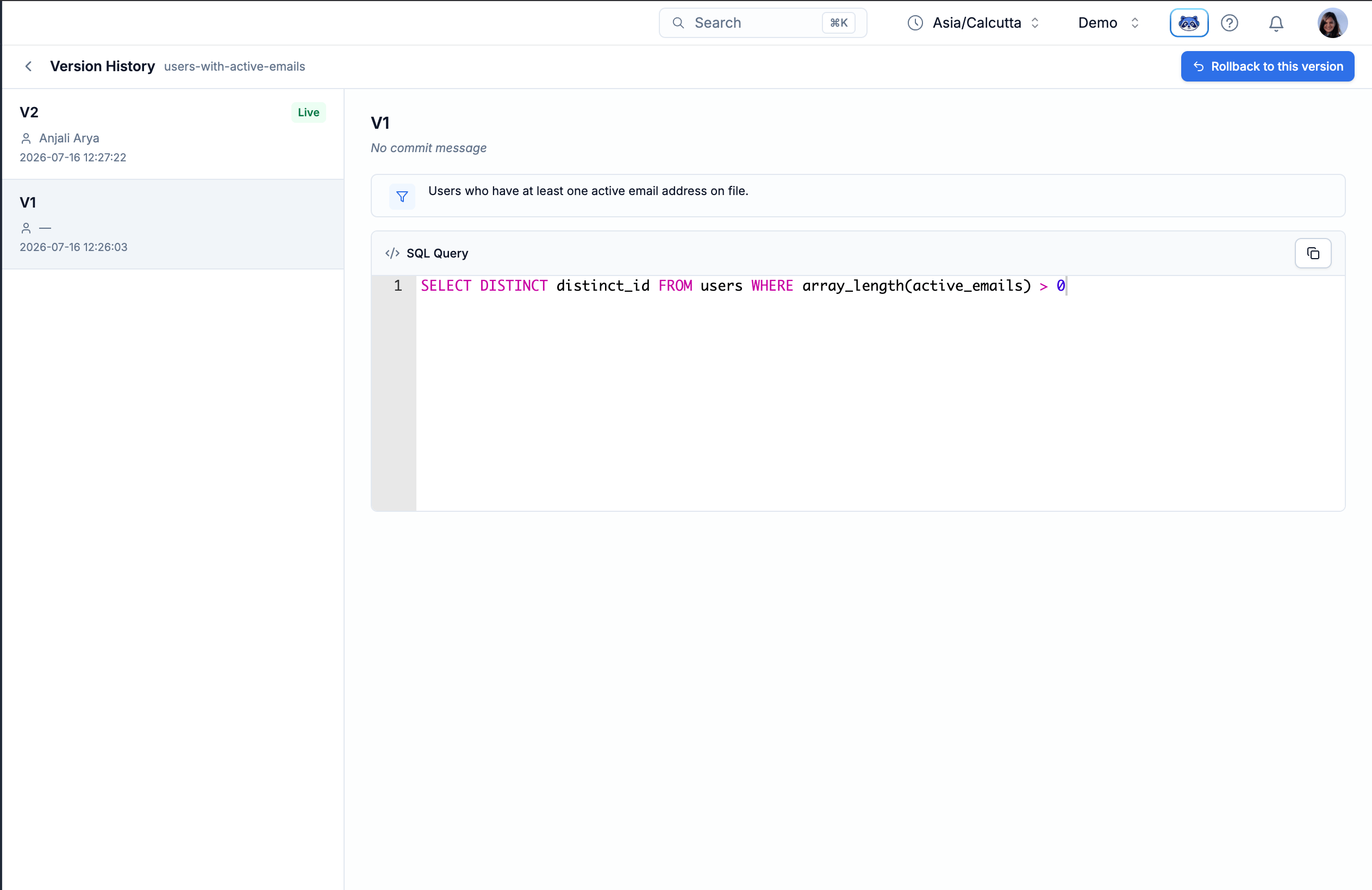
Every commit creates a new version. The current version is `live`; older versions stay in **Version History** on the list detail page.
Open **Version History** to see every version and its SQL. To revert, pick an older version and click **Rollback to this version** — it becomes the new live version.
#### Create a segment via the API
You can also create a Segment List directly through the API, with the SQL as the initial query. A segment created via the API is committed automatically — it goes live and starts syncing as soon as the request succeeds, with no separate commit step.
```bash cURL theme={"system"}
curl -X POST 'https://hub.suprsend.com/v1/subscriber_list/' \
-H 'Authorization: Bearer YOUR_WORKSPACE_KEY' \
-H 'Content-Type: application/json' \
-d '{
"list_id": "high_ltv_q1",
"list_type": "dynamic_list",
"query": "SELECT distinct_id FROM users WHERE CAST(user_properties ->> '\''lifetime_value'\'' AS DOUBLE PRECISION) >= 2500",
"is_enabled": true
}'
```
See [Create a List](/reference/create-list) for the full request/response contract.
### 5. Trigger notifications to the segment
Once the segment is committed, you can use it anywhere lists are supported.
Send the same notification to everyone in the segment — click **Run Broadcast** from the list's details page, or trigger it via the [API](/docs/broadcast). SuprSend refreshes the segment right before sending, so it reaches the users who satisfy the filters at the time of sending.
```bash cURL theme={"system"}
curl -X POST "https://hub.suprsend.com/{workspace_key}/broadcast/" \
--header 'Authorization: Bearer __YOUR_API_KEY__' \
--header 'Content-Type: application/json' \
--data '{
"list_id": "high_ltv_q1",
"template": "product-update-announcement",
"notification_category": "promotional",
"channels": ["email"],
"data": { "product_name": "Premium Plan" }
}'
```
```javascript Node.js theme={"system"}
const { Suprsend, SubscriberListBroadcast } = require("@suprsend/node-sdk");
const supr_client = new Suprsend("workspace_key", "workspace_secret");
const broadcast_body = {
list_id: "high_ltv_q1",
template: "product-update-announcement",
notification_category: "promotional",
channels: ["email"],
data: { product_name: "Premium Plan" },
};
const broadcast_instance = new SubscriberListBroadcast(broadcast_body);
supr_client.subscriber_lists
.broadcast(broadcast_instance)
.then((res) => console.log("response", res));
```
```python Python theme={"system"}
from suprsend import Suprsend, SubscriberListBroadcast
supr_client = Suprsend("workspace_key", "workspace_secret")
broadcast_body = {
"list_id": "high_ltv_q1",
"template": "product-update-announcement",
"notification_category": "promotional",
"channels": ["email"],
"data": {"product_name": "Premium Plan"},
}
inst = SubscriberListBroadcast(body=broadcast_body)
resp = supr_client.subscriber_lists.broadcast(inst)
print(resp)
```
```java Java theme={"system"}
import org.json.JSONObject;
import suprsend.Suprsend;
import suprsend.SubscriberListBroadcast;
Suprsend suprsendClient = new Suprsend("workspace_key", "workspace_secret");
JSONObject body = new JSONObject()
.put("list_id", "high_ltv_q1")
.put("template", "product-update-announcement")
.put("notification_category", "promotional")
.put("data", new JSONObject().put("product_name", "Premium Plan"));
SubscriberListBroadcast broadcastIns = new SubscriberListBroadcast(body);
JSONObject res = suprsendClient.subscriberLists.broadcast(broadcastIns);
System.out.println(res);
```
```go Go theme={"system"}
package main
import (
"context"
"log"
suprsend "github.com/suprsend/suprsend-go"
)
func main() {
suprClient, err := suprsend.NewClient("workspace_key", "workspace_secret")
if err != nil {
log.Fatalln(err)
}
ctx := context.Background()
broadcastIns := &suprsend.SubscriberListBroadcast{
Body: map[string]interface{}{
"list_id": "high_ltv_q1",
"template": "product-update-announcement",
"notification_category": "promotional",
"channels": []string{"email"},
"data": map[string]interface{}{"product_name": "Premium Plan"},
},
}
res, err := suprClient.SubscriberLists.Broadcast(ctx, broadcastIns)
if err != nil {
log.Fatalln(err)
}
log.Println(res)
}
```
Run a workflow when users enter or exit the segment (welcome flows on entry, retention flows on exit) — add a **List entry / exit** [trigger node](/docs/design-workflow#1-trigger-node) in the workflow builder, or create it via the [management API](/reference/create-update-workflow) with `trigger_type: event`. The `$USER_ENTERED_LIST - ` / `$USER_EXITED_LIST - ` events fire automatically as users are added or removed from the list.
```bash cURL theme={"system"}
curl -X POST "https://management-api.suprsend.com/v1/{workspace}/workflow/welcome-segment-members/" \
--header 'Authorization: ServiceToken ' \
--header 'Content-Type: application/json' \
--data '{
"name": "Welcome new segment members",
"category": "promotional",
"trigger_type": "event",
"trigger_events": ["$USER_ENTERED_LIST - high_ltv_q1"],
"tree": {
"nodes": [
{
"name": "Send Email",
"node_type": "send_email",
"properties": { "template": "welcome-email-template" }
}
]
}
}'
```
***
## Versioning and rollback
Every commit creates a new version. The current version is `live`; older versions stay in **Version History** on the list detail page.
Open **Version History** to see every version and its SQL. To revert, pick an older version and click **Rollback to this version** — it becomes the new live version.
 ***
## Enable or disable a segment
A segment is enabled the moment you commit it. Toggle it off from the 3 dots menu on the list detail page — the segment stops refreshing but the query and version history stay intact, so you can turn it back on later. Existing memberships remain in place while disabled, so a manually-triggered broadcast can still send to the last-known members.
***
## Troubleshooting
The dry-run couldn't complete in the allowed time. Simplify: narrow the time window on `events`, add more selective filters, avoid `SELECT` with many columns, and add a `LIMIT`. Then re-run.
A red banner appears under the editor: *"Missing distinct\_id. Query results must include a `distinct_id` column to sync users to the list."* Commit is blocked until the SELECT is fixed.
Commit is allowed — the segment simply has no members until data changes and someone matches. The dashboard shows a `0 users matched` indicator with a suggestion to adjust filters.
Extra columns show up in the dry-run preview so you can spot-check the data. They do not affect list membership — only `distinct_id` is used to sync users into the list.
Save your query before leaving — any unsaved changes are lost if you exit without saving. A saved draft is preserved and re-loaded next time you open the builder, and doesn't become live until you commit.
Two common causes: (1) a column name in the Agent's SQL doesn't match your workspace's schema — check the schema panel and correct the identifier; (2) the time window is too narrow. Adjust and re-run. The Agent uses your schema but it can still make plausible-looking mistakes.
***
## Next steps
Use a Segment List as the audience for a one-shot campaign.
Trigger workflows when users enter or exit a segment.
***
## Enable or disable a segment
A segment is enabled the moment you commit it. Toggle it off from the 3 dots menu on the list detail page — the segment stops refreshing but the query and version history stay intact, so you can turn it back on later. Existing memberships remain in place while disabled, so a manually-triggered broadcast can still send to the last-known members.
***
## Troubleshooting
The dry-run couldn't complete in the allowed time. Simplify: narrow the time window on `events`, add more selective filters, avoid `SELECT` with many columns, and add a `LIMIT`. Then re-run.
A red banner appears under the editor: *"Missing distinct\_id. Query results must include a `distinct_id` column to sync users to the list."* Commit is blocked until the SELECT is fixed.
Commit is allowed — the segment simply has no members until data changes and someone matches. The dashboard shows a `0 users matched` indicator with a suggestion to adjust filters.
Extra columns show up in the dry-run preview so you can spot-check the data. They do not affect list membership — only `distinct_id` is used to sync users into the list.
Save your query before leaving — any unsaved changes are lost if you exit without saving. A saved draft is preserved and re-loaded next time you open the builder, and doesn't become live until you commit.
Two common causes: (1) a column name in the Agent's SQL doesn't match your workspace's schema — check the schema panel and correct the identifier; (2) the time window is too narrow. Adjust and re-run. The Agent uses your schema but it can still make plausible-looking mistakes.
***
## Next steps
Use a Segment List as the audience for a one-shot campaign.
Trigger workflows when users enter or exit a segment.