> ## Documentation Index
> Fetch the complete documentation index at: https://docs.suprsend.com/llms.txt
> Use this file to discover all available pages before exploring further.
# Send a broadcast
> Send one message to a group of users from the SuprSend dashboard — pick an audience, write the template, run the broadcast, and confirm delivery. No code.
A broadcast sends one message to everyone on a list — a product announcement, a newsletter, a
campaign. You run it from the dashboard, and none of it needs code.
## Before you start
Users reach SuprSend from your own product, through a one-time setup by your engineering team. Lists
group users who are already here; they don't create them. That setup is
[Integrate SuprSend](/docs/integrate-suprsend).
**Sandbox starts you off with a user on the email you signed up with**, so you can follow this
guide end to end today and receive the broadcast yourself.
Sandbox delivers email, SMS and WhatsApp only to addresses added at
[**Developers → Verified Channels**](https://app.suprsend.com/en/sandbox/developers/verified-channels)
— 5 of each. Anything else won't arrive.
## Pick your audience
Every workspace already has an **`all_users`** list holding every user in it, kept up to date as
people join. **Use it for your first broadcast** — no setup, and it's the right audience for a
product-wide announcement or a newsletter.
To send to a slice of your users instead, build a **segment list** — the next section. Lists can also
be filled by CSV upload, a sync from your data warehouse, or your backend; see [Lists](/docs/lists).
The **Type** column on the Lists page says whether a list is **static** — you decide exactly who's
on it — or **dynamic**, where a rule decides and re-runs as your data changes. `all_users` is
dynamic. Its rule is *every user*, so anyone new joins it automatically.
## Build a segment list
A segment defines a list as a rule rather than a fixed set of people — *everyone who signed up in the
last 30 days*. Membership keeps itself current, with no re-upload. You describe it in plain English
and SuprSend writes the query.
Segment Lists are currently in **beta**.
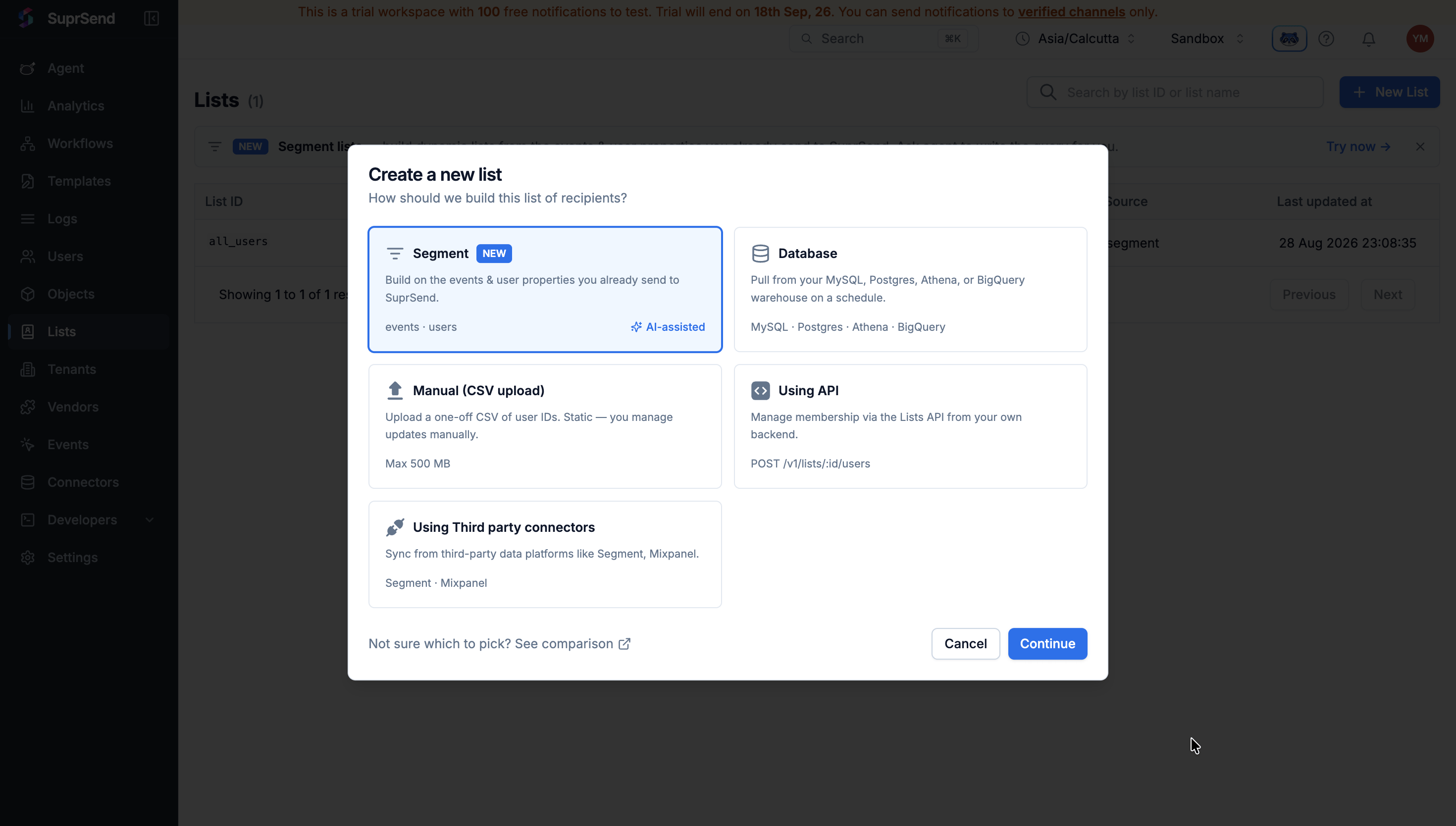
Go to [**Lists**](https://app.suprsend.com/en/sandbox/lists) → **+ New List**, choose **Segment**
as the source, and give it a **List ID** — lowercase letters, digits, hyphens and underscores,
like `new-signups-30d`. Name and description are optional and editable later; the List ID isn't.
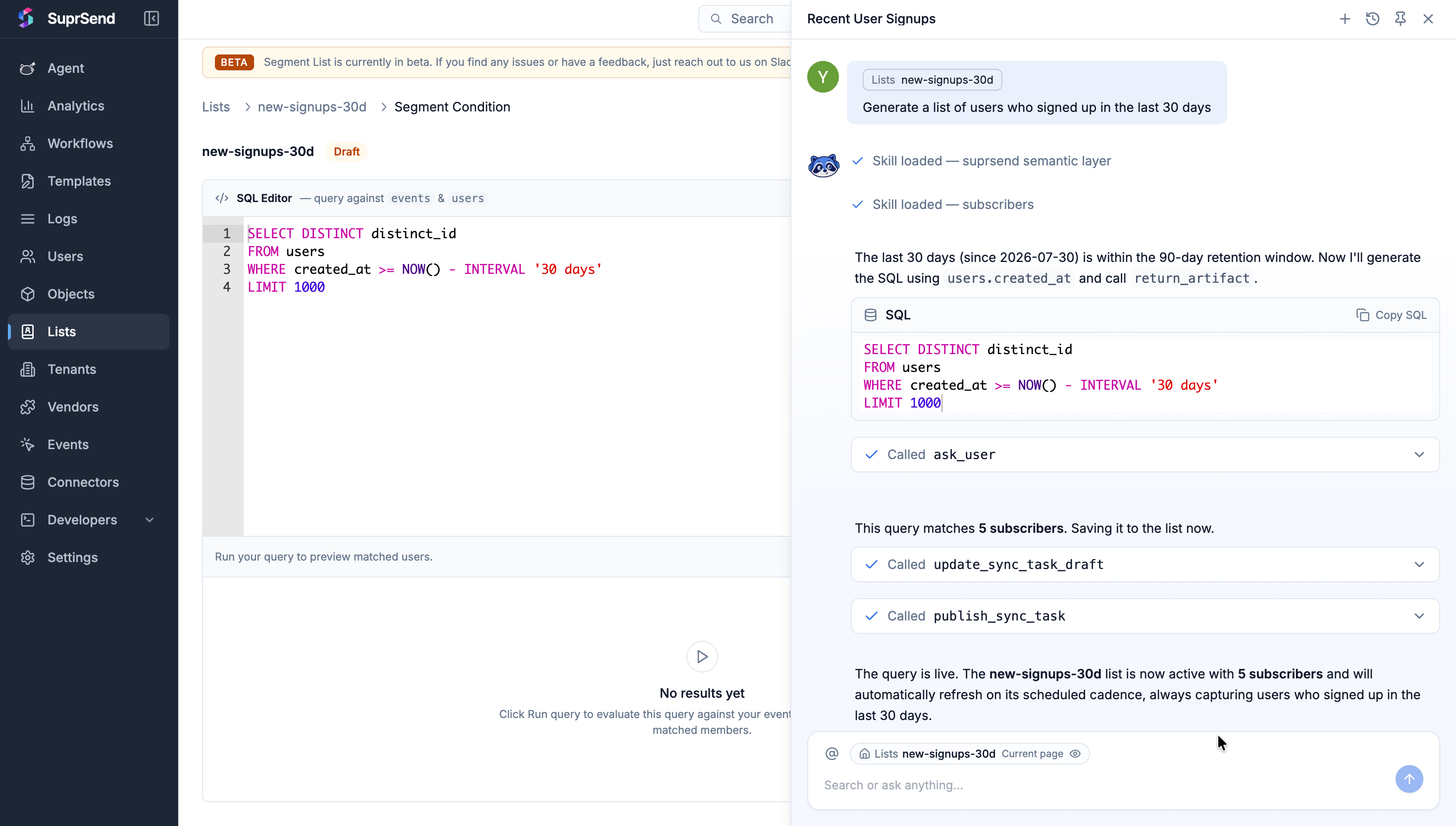
 You land in the query editor. Click **Generate with AI**, top right, and describe the audience:
```text theme={"system"}
Users who signed up in the last 30 days
```
You get a query back with a plain-English summary. Read the summary — that's how you check it
matches what you meant — then insert it.
You land in the query editor. Click **Generate with AI**, top right, and describe the audience:
```text theme={"system"}
Users who signed up in the last 30 days
```
You get a query back with a plain-English summary. Read the summary — that's how you check it
matches what you meant — then insert it.
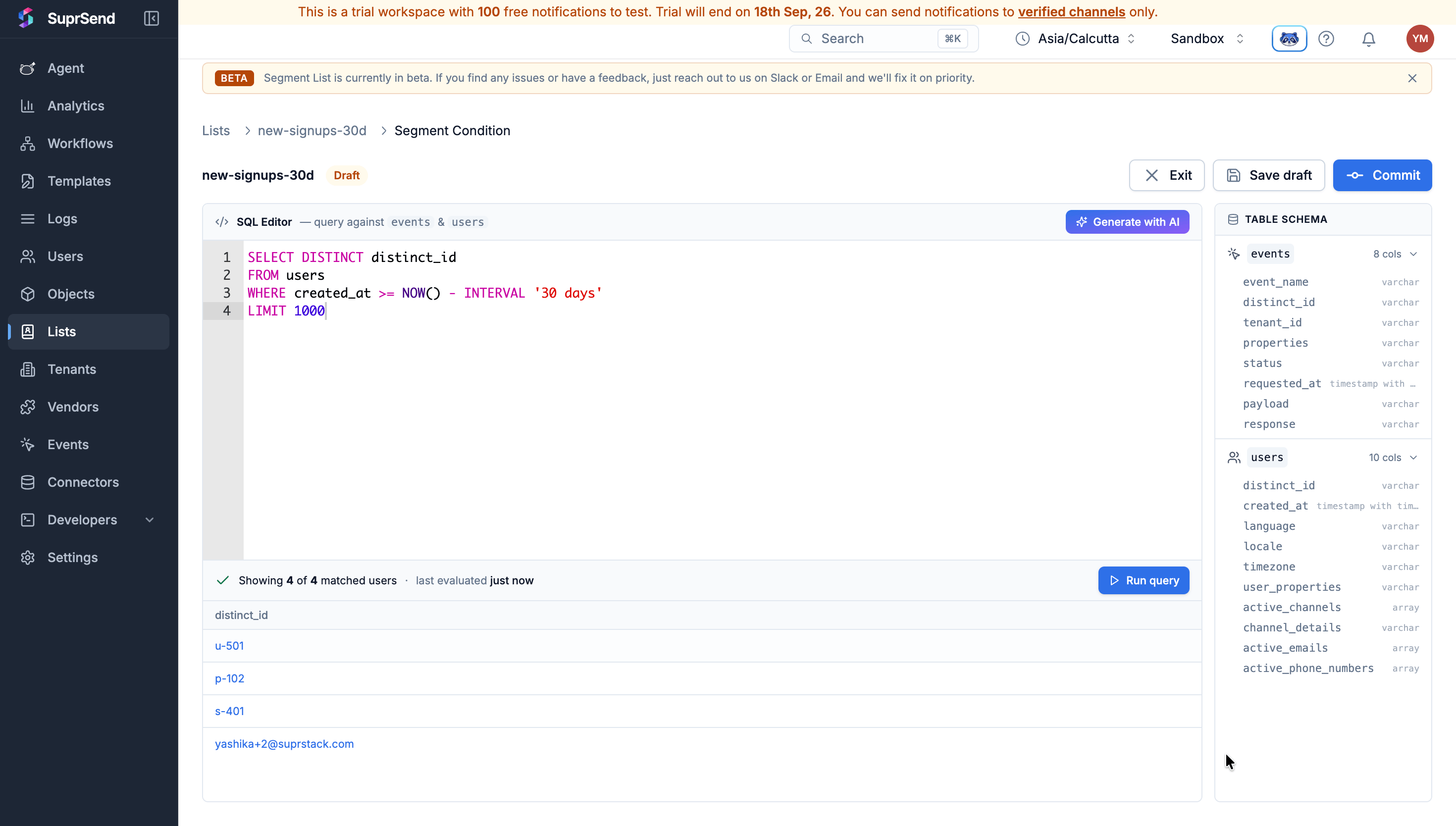
 Click **Run query**. You get the number of users matched and the first 10 of them.
This is the step that catches a wrong audience. Check the count against what you expected, and
read the rows to confirm these are the right people.
Click **Run query**. You get the number of users matched and the first 10 of them.
This is the step that catches a wrong audience. Check the count against what you expected, and
read the rows to confirm these are the right people.
 **Commit** makes the segment live and starts filling the list immediately. **Save draft** keeps
the query without going live; leaving by any other route loses it.
A segment can only filter on what SuprSend knows about your users. A new workspace knows when each
person signed up and how to reach them, so date and channel rules work straight away. To segment on
plan, country or what someone has done in your product, those
[user properties and events](/docs/integrate-suprsend) have to be synced first.
## Write the message
A broadcast sends a **template** — the content itself. No workflow, no trigger, no delivery node.
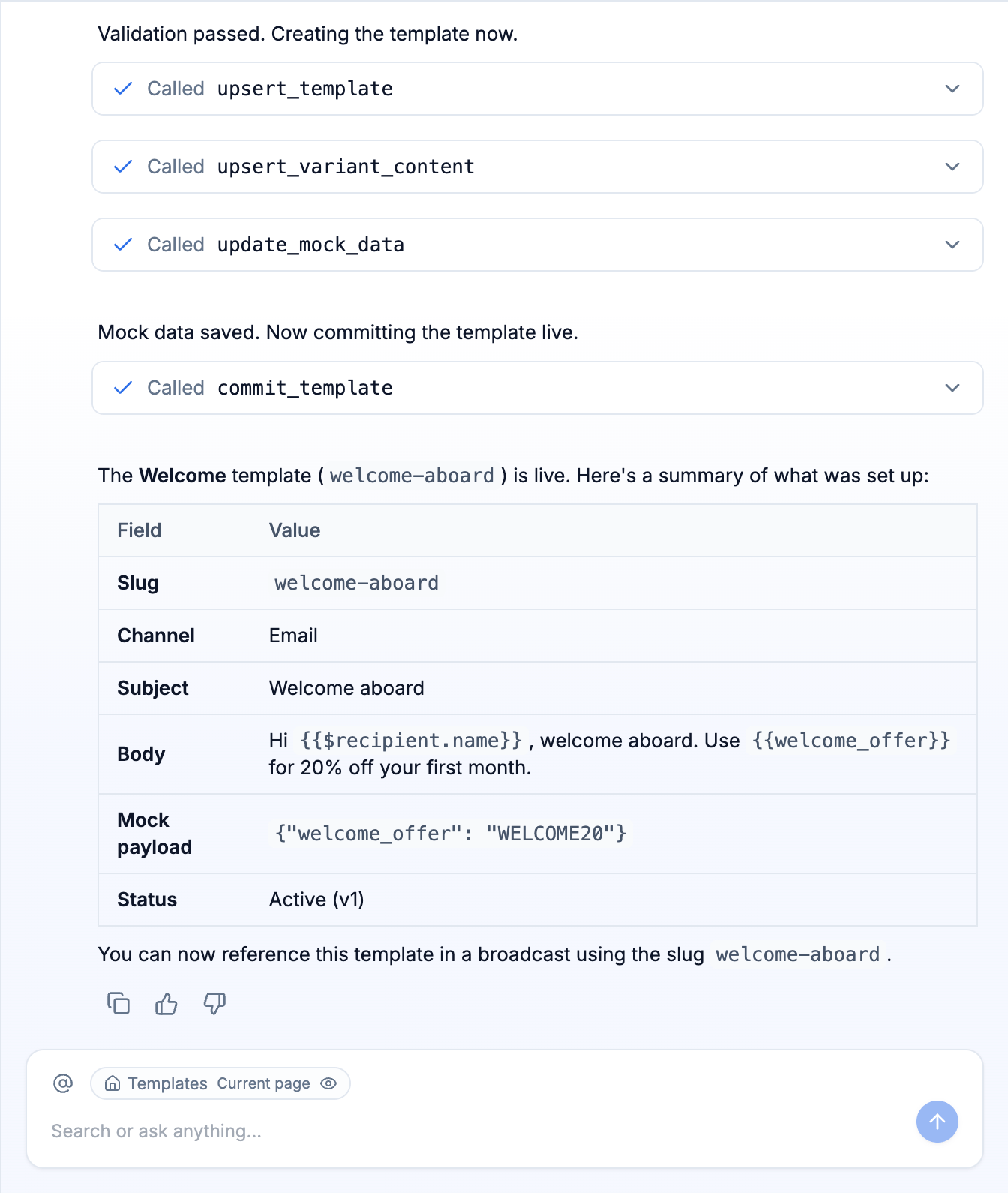
Open Agent with `Cmd+/` and paste:
```text theme={"system"}
Create a template named "Welcome" for a broadcast.
slug: welcome-aboard
Channel: email.
Subject: Welcome aboard
Body: Hi {{$recipient.name}}, welcome aboard. Use {{welcome_offer}} for 20% off
your first month.
Add {"welcome_offer": "WELCOME20"} to the Input Payload.
This template is for a broadcast, not a workflow — do not create a workflow for it.
Commit it live.
```
Agent creates the template, saves the payload and commits it, then reports back what it built.
**Commit** makes the segment live and starts filling the list immediately. **Save draft** keeps
the query without going live; leaving by any other route loses it.
A segment can only filter on what SuprSend knows about your users. A new workspace knows when each
person signed up and how to reach them, so date and channel rules work straight away. To segment on
plan, country or what someone has done in your product, those
[user properties and events](/docs/integrate-suprsend) have to be synced first.
## Write the message
A broadcast sends a **template** — the content itself. No workflow, no trigger, no delivery node.
Open Agent with `Cmd+/` and paste:
```text theme={"system"}
Create a template named "Welcome" for a broadcast.
slug: welcome-aboard
Channel: email.
Subject: Welcome aboard
Body: Hi {{$recipient.name}}, welcome aboard. Use {{welcome_offer}} for 20% off
your first month.
Add {"welcome_offer": "WELCOME20"} to the Input Payload.
This template is for a broadcast, not a workflow — do not create a workflow for it.
Commit it live.
```
Agent creates the template, saves the payload and commits it, then reports back what it built.
 [**Templates**](https://app.suprsend.com/en/sandbox/templates) → **+ New Template**. Name it
`Welcome`, set the **Slug** to `welcome-aboard` — that can't be changed later — and pick
**Email**.
Click **Edit**. Type `{{` anywhere to insert a variable.
```handlebars theme={"system"}
Hi {{$recipient.name}}, welcome aboard. Use {{welcome_offer}} for 20% off your first month.
```
Two kinds of variable in one line. `{{$recipient.name}}` comes from each user's own profile,
so everyone sees their own name. `{{welcome_offer}}` comes from the broadcast, so everyone
sees the same code.
In the Variables panel, open **Recipient** and pick one of your users. The preview renders
with their actual data. Variables that don't resolve show in **red**.
Don't send with a red variable. A `{{$recipient.}}` that a user doesn't have
doesn't come out blank — that user's message **fails outright**. Check a few different
recipients, especially ones you didn't create yourself.
[**Templates**](https://app.suprsend.com/en/sandbox/templates) → **+ New Template**. Name it
`Welcome`, set the **Slug** to `welcome-aboard` — that can't be changed later — and pick
**Email**.
Click **Edit**. Type `{{` anywhere to insert a variable.
```handlebars theme={"system"}
Hi {{$recipient.name}}, welcome aboard. Use {{welcome_offer}} for 20% off your first month.
```
Two kinds of variable in one line. `{{$recipient.name}}` comes from each user's own profile,
so everyone sees their own name. `{{welcome_offer}}` comes from the broadcast, so everyone
sees the same code.
In the Variables panel, open **Recipient** and pick one of your users. The preview renders
with their actual data. Variables that don't resolve show in **red**.
Don't send with a red variable. A `{{$recipient.}}` that a user doesn't have
doesn't come out blank — that user's message **fails outright**. Check a few different
recipients, especially ones you didn't create yourself.
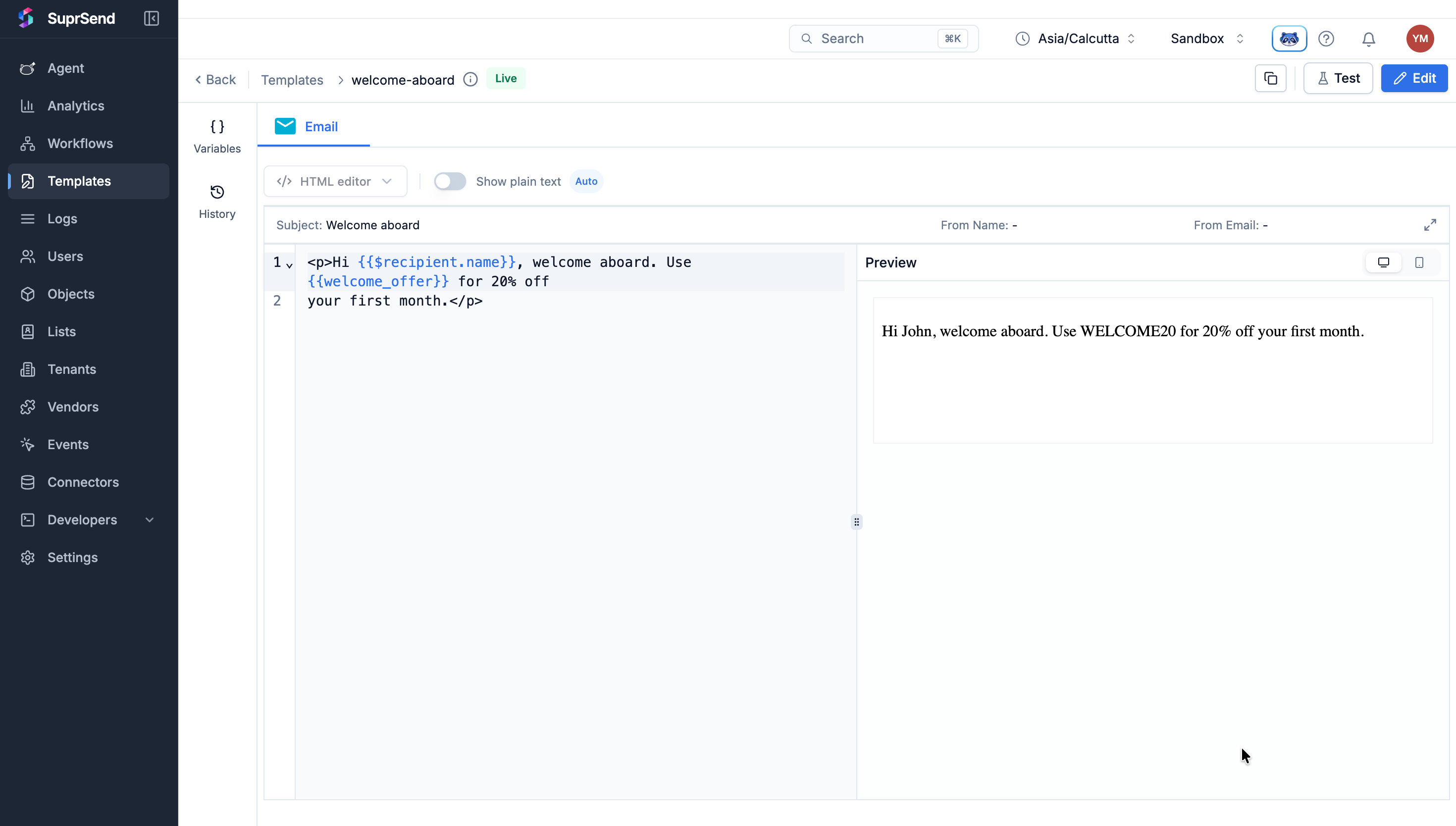 Click **Commit**. The template can't be broadcast until you do.
## Run the broadcast
Go to [**Lists**](https://app.suprsend.com/en/sandbox/lists) and open your list. Click
**Run Broadcast**, top right.
Click **Commit**. The template can't be broadcast until you do.
## Run the broadcast
Go to [**Lists**](https://app.suprsend.com/en/sandbox/lists) and open your list. Click
**Run Broadcast**, top right.
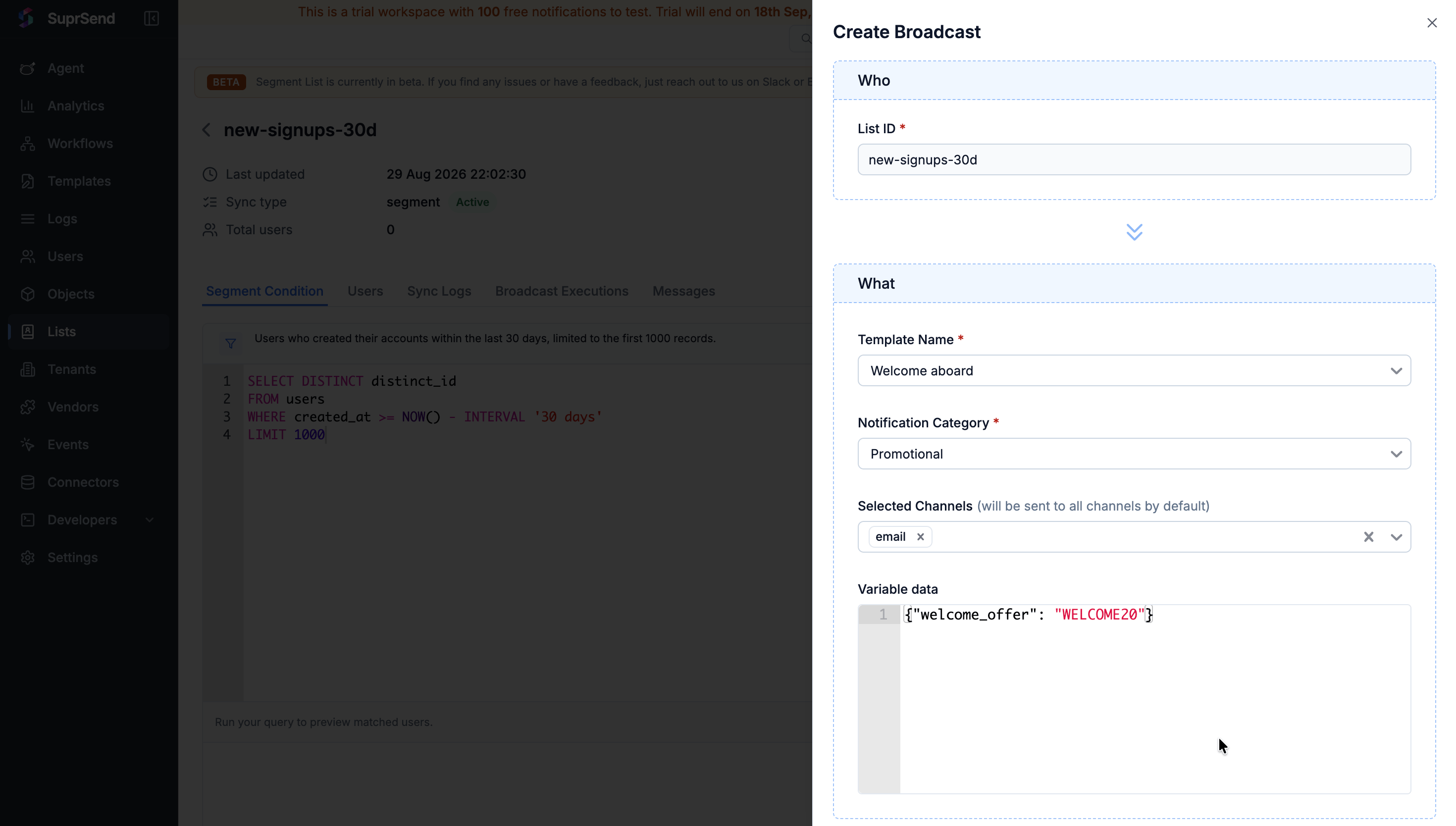
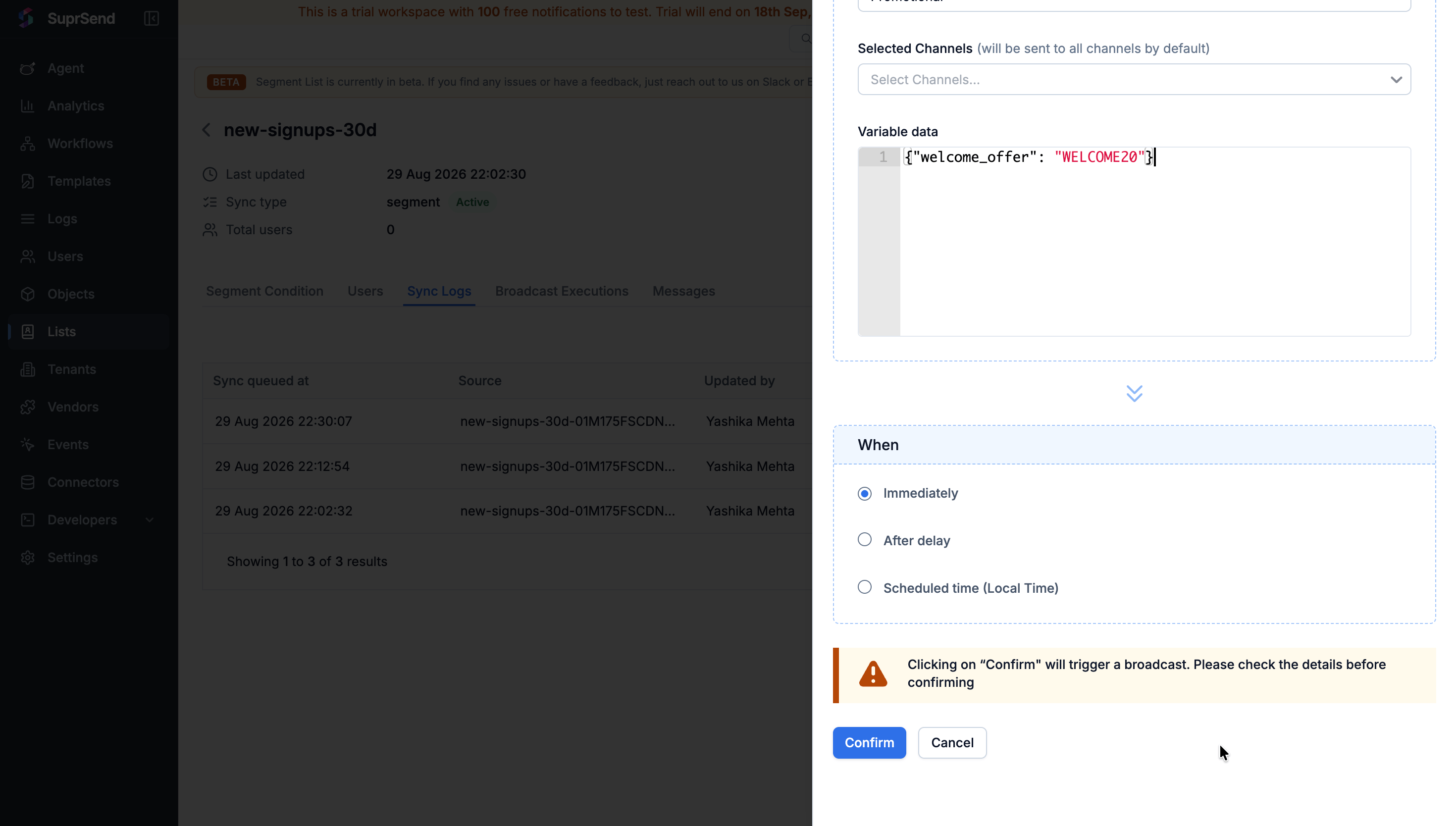
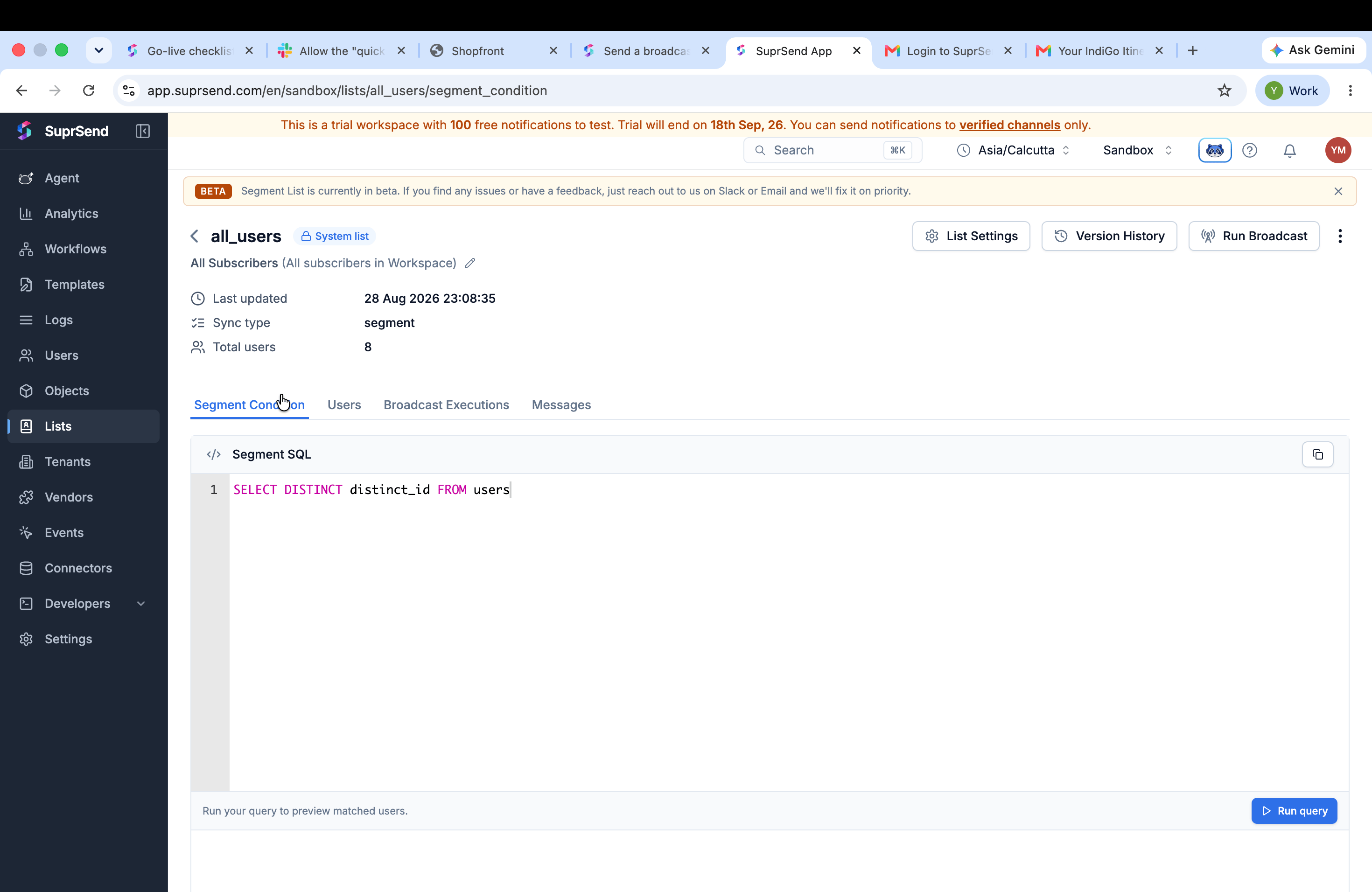 The **Create Broadcast** panel opens, grouped into **Who**, **What** and **When**. Six fields, three
of them required.
| Field | Required | What to put in it |
| ------------------------- | -------- | ----------------------------------------------------------------------------------------------------------------------- |
| **List ID** | Yes | Pre-filled from the list you opened this from |
| **Template Name** | Yes | Pick the template you committed — the dropdown lists templates by name, so `welcome-aboard` shows as **Welcome aboard** |
| **Notification Category** | Yes | **Promotional** — see below |
| **Selected Channels** | No | Limits the send to specific channels on the template. Leave it empty and it goes to all of them |
| **Variable data** | No | Values for the template's own variables — `{"welcome_offer": "WELCOME20"}`. The **same for every user** |
| **When** | No | **Immediately**, **After delay** (relative to now) or **Scheduled time (Local Time)** |
The **Create Broadcast** panel opens, grouped into **Who**, **What** and **When**. Six fields, three
of them required.
| Field | Required | What to put in it |
| ------------------------- | -------- | ----------------------------------------------------------------------------------------------------------------------- |
| **List ID** | Yes | Pre-filled from the list you opened this from |
| **Template Name** | Yes | Pick the template you committed — the dropdown lists templates by name, so `welcome-aboard` shows as **Welcome aboard** |
| **Notification Category** | Yes | **Promotional** — see below |
| **Selected Channels** | No | Limits the send to specific channels on the template. Leave it empty and it goes to all of them |
| **Variable data** | No | Values for the template's own variables — `{"welcome_offer": "WELCOME20"}`. The **same for every user** |
| **When** | No | **Immediately**, **After delay** (relative to now) or **Scheduled time (Local Time)** |
 A broadcast isn't email-only. Every channel your template has content for goes out together — email,
SMS, WhatsApp, mobile and web push, Slack — from one send, into one report.
### Choose Promotional
The notification category decides which sending queue and which vendor account the broadcast uses,
and it's how users' opt-out choices get applied. Pick **Promotional** from the dropdown.
**Never run a broadcast on Transactional or System.** Those queues carry password resets, OTPs and
payment confirmations. A bulk send queued alongside them delays the messages your users are
actively waiting for.
### Two kinds of personalisation
**Variable data** fills the template's own variables, and every user gets the same value —
`{"welcome_offer": "WELCOME20"}` sends one code to the whole list. Per-person content comes from
`{{$recipient.}}`, which reads each user's own profile. One message uses both.
### Schedule and send
**When** sits at the bottom of the panel. **Immediately** sends as soon as you trigger it.
**After delay** waits a set time from now. **Scheduled time** takes an exact datetime — read in
**your local time**, not the recipient's, so a 9am send is 9am where you are.
A broadcast isn't email-only. Every channel your template has content for goes out together — email,
SMS, WhatsApp, mobile and web push, Slack — from one send, into one report.
### Choose Promotional
The notification category decides which sending queue and which vendor account the broadcast uses,
and it's how users' opt-out choices get applied. Pick **Promotional** from the dropdown.
**Never run a broadcast on Transactional or System.** Those queues carry password resets, OTPs and
payment confirmations. A bulk send queued alongside them delays the messages your users are
actively waiting for.
### Two kinds of personalisation
**Variable data** fills the template's own variables, and every user gets the same value —
`{"welcome_offer": "WELCOME20"}` sends one code to the whole list. Per-person content comes from
`{{$recipient.}}`, which reads each user's own profile. One message uses both.
### Schedule and send
**When** sits at the bottom of the panel. **Immediately** sends as soon as you trigger it.
**After delay** waits a set time from now. **Scheduled time** takes an exact datetime — read in
**your local time**, not the recipient's, so a 9am send is 9am where you are.
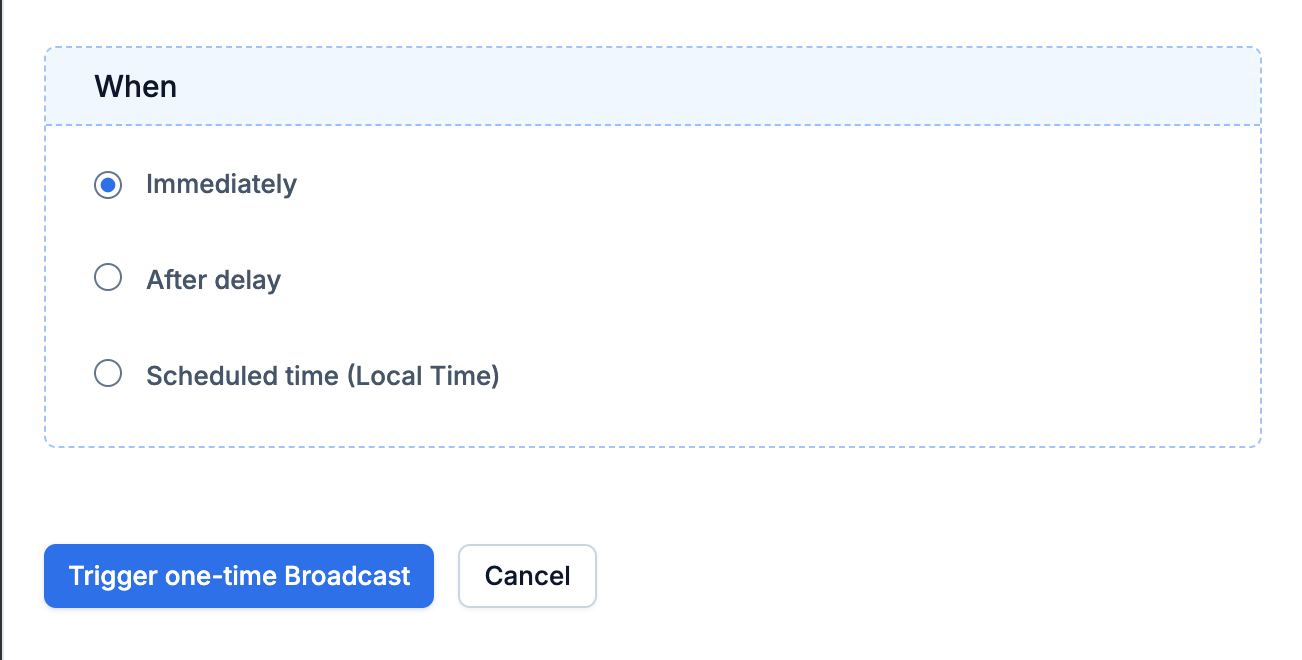 Then click **Trigger one-time Broadcast**. SuprSend asks once more before it goes —
*"Clicking on 'Confirm' will trigger a broadcast. Please check the details before confirming"* — so
read the list, the template and the category back before you click **Confirm**. A bulk send has no
undo.
Then click **Trigger one-time Broadcast**. SuprSend asks once more before it goes —
*"Clicking on 'Confirm' will trigger a broadcast. Please check the details before confirming"* — so
read the list, the template and the category back before you click **Confirm**. A bulk send has no
undo.
 ## Confirm it went out
Open the list you sent to, or [**Logs**](https://app.suprsend.com/en/sandbox/logs) for everything at
once. Two views:
| Tab | Shows |
| ------------------------ | ----------------------------------------------------------------------- |
| **Broadcast Executions** | The send as a whole, with its overall status |
| **Messages** | One row per recipient. Expand a row for that person's delivery timeline |
Each message carries one of four statuses, and you can filter by them:
| Status | Meaning |
| ------------------- | ------------------------------------------------- |
| **In Progress** | Still being processed |
| **Completed** | Sent on every channel it was meant to go out on |
| **Partial Failure** | Went out on some channels, failed on others |
| **Failed** | Didn't send at all. Expand the row for the reason |
Expand a completed message and you get its journey — the vendor that carried it, then
**Triggered → Delivered → Seen → Clicked**.
One failed message makes the whole broadcast read **Partial Failure**, even when everything else
delivered. Open **Messages** and filter by **Failed** to see which recipients missed out and why.
## Confirm it went out
Open the list you sent to, or [**Logs**](https://app.suprsend.com/en/sandbox/logs) for everything at
once. Two views:
| Tab | Shows |
| ------------------------ | ----------------------------------------------------------------------- |
| **Broadcast Executions** | The send as a whole, with its overall status |
| **Messages** | One row per recipient. Expand a row for that person's delivery timeline |
Each message carries one of four statuses, and you can filter by them:
| Status | Meaning |
| ------------------- | ------------------------------------------------- |
| **In Progress** | Still being processed |
| **Completed** | Sent on every channel it was meant to go out on |
| **Partial Failure** | Went out on some channels, failed on others |
| **Failed** | Didn't send at all. Expand the row for the reason |
Expand a completed message and you get its journey — the vendor that carried it, then
**Triggered → Delivered → Seen → Clicked**.
One failed message makes the whole broadcast read **Partial Failure**, even when everything else
delivered. Open **Messages** and filter by **Failed** to see which recipients missed out and why.
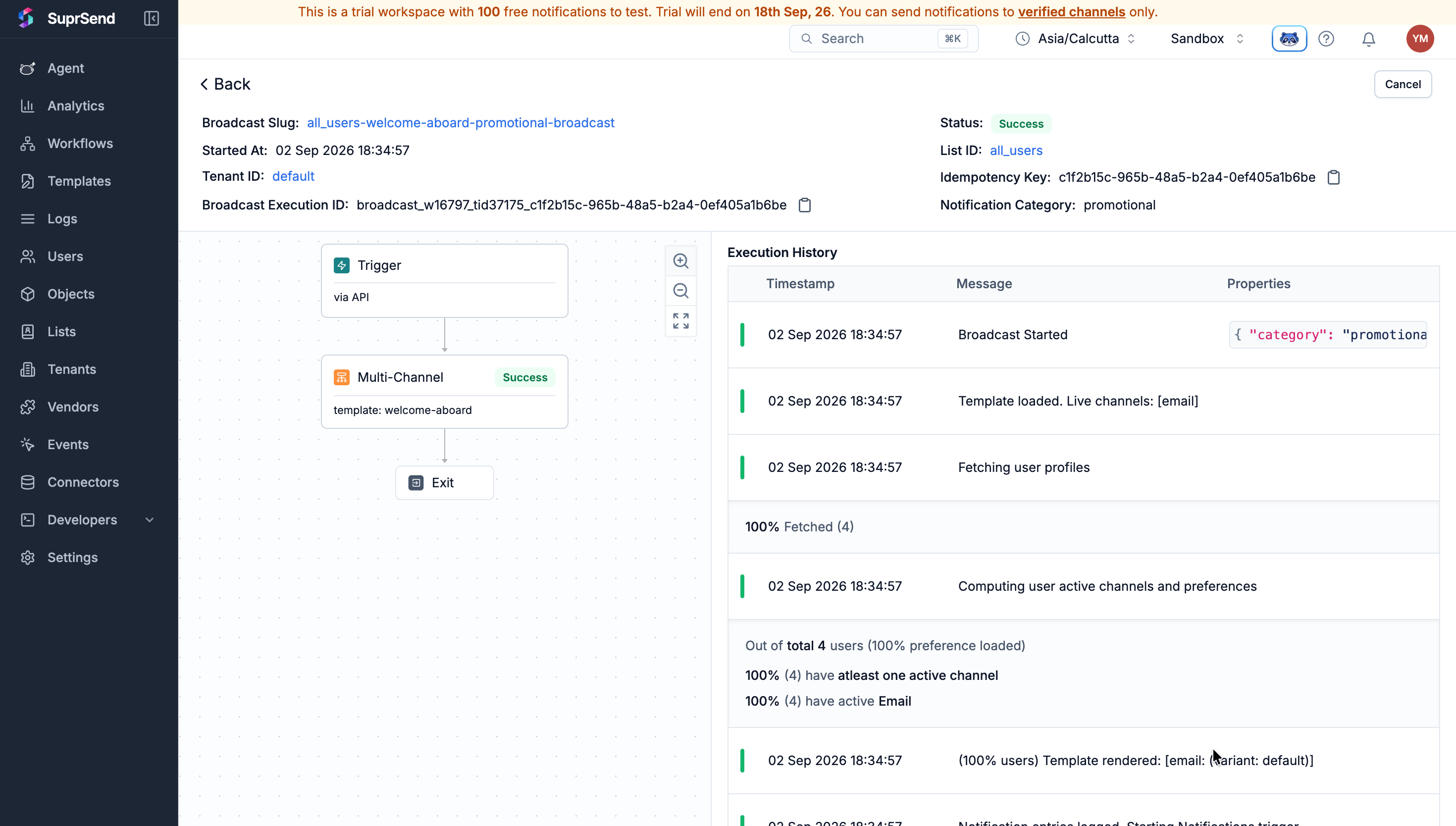 Every recipient shows **Completed**, and the message is in the inbox of the address you verified.
## Troubleshooting
In Sandbox, this is almost always an unverified recipient. Open the user's profile and compare
their address against
[**Verified Channels**](https://app.suprsend.com/en/sandbox/developers/verified-channels)
character for character — a country code or a stray space is enough to miss.
Skipped means one of two things, and the log says which.
**Unsubscribed** — the user opted out of that preference category, or of the channel within it.
Working as intended; those users chose not to hear from you.
**Missing channel** — no address on that channel, or the address was marked inactive after an
earlier hard bounce.
Some messages sent and at least one didn't. Open **Messages**, filter by **Failed**, and expand
the row — it names the recipient and the reason.
The most common one is a variable that recipient doesn't have:
```text theme={"system"}
email: template rendering error error: missing variables in template: "$recipient.name"
```
That user has no `name` on their profile, so the template couldn't render and their message was
dropped. Everyone who does have it still received theirs.
Either fill the property in for those users, or don't personalise on a property that isn't set
for everyone on the list. Names in **Variable data** have to match the template exactly too.
Running the query only shows who *would* match — it doesn't put anyone on the list. The list
fills once you **Commit**, and starts straight after.
The query is the audience. Open the list, run it again, and read the rows. SuprSend refreshes a
segment right before sending, so a broadcast reaches whoever matches at send time, not who
matched when you committed.
For email and SMS, the sending account is chosen by the preference category's root category. If
no vendor is configured for the one you used, the send fails. Run broadcasts on **Promotional**.
## Next steps
Preference categories and a hosted preference page, so people pick what they hear about.
CSV upload, a sync from your data warehouse, or your backend keeping it current in real time.
The full Segment reference — every filter, and the query language behind them.
Move off Sandbox, connect your own sending accounts, and lift the verified-address limit.
Every recipient shows **Completed**, and the message is in the inbox of the address you verified.
## Troubleshooting
In Sandbox, this is almost always an unverified recipient. Open the user's profile and compare
their address against
[**Verified Channels**](https://app.suprsend.com/en/sandbox/developers/verified-channels)
character for character — a country code or a stray space is enough to miss.
Skipped means one of two things, and the log says which.
**Unsubscribed** — the user opted out of that preference category, or of the channel within it.
Working as intended; those users chose not to hear from you.
**Missing channel** — no address on that channel, or the address was marked inactive after an
earlier hard bounce.
Some messages sent and at least one didn't. Open **Messages**, filter by **Failed**, and expand
the row — it names the recipient and the reason.
The most common one is a variable that recipient doesn't have:
```text theme={"system"}
email: template rendering error error: missing variables in template: "$recipient.name"
```
That user has no `name` on their profile, so the template couldn't render and their message was
dropped. Everyone who does have it still received theirs.
Either fill the property in for those users, or don't personalise on a property that isn't set
for everyone on the list. Names in **Variable data** have to match the template exactly too.
Running the query only shows who *would* match — it doesn't put anyone on the list. The list
fills once you **Commit**, and starts straight after.
The query is the audience. Open the list, run it again, and read the rows. SuprSend refreshes a
segment right before sending, so a broadcast reaches whoever matches at send time, not who
matched when you committed.
For email and SMS, the sending account is chosen by the preference category's root category. If
no vendor is configured for the one you used, the send fails. Run broadcasts on **Promotional**.
## Next steps
Preference categories and a hosted preference page, so people pick what they hear about.
CSV upload, a sync from your data warehouse, or your backend keeping it current in real time.
The full Segment reference — every filter, and the query language behind them.
Move off Sandbox, connect your own sending accounts, and lift the verified-address limit.