> ## Documentation Index
> Fetch the complete documentation index at: https://docs.suprsend.com/llms.txt
> Use this file to discover all available pages before exploring further.
# Slack
> Design Slack notification templates in SuprSend using the Text editor for plain messages or the JSONNET editor for rich Block Kit layouts with live preview.
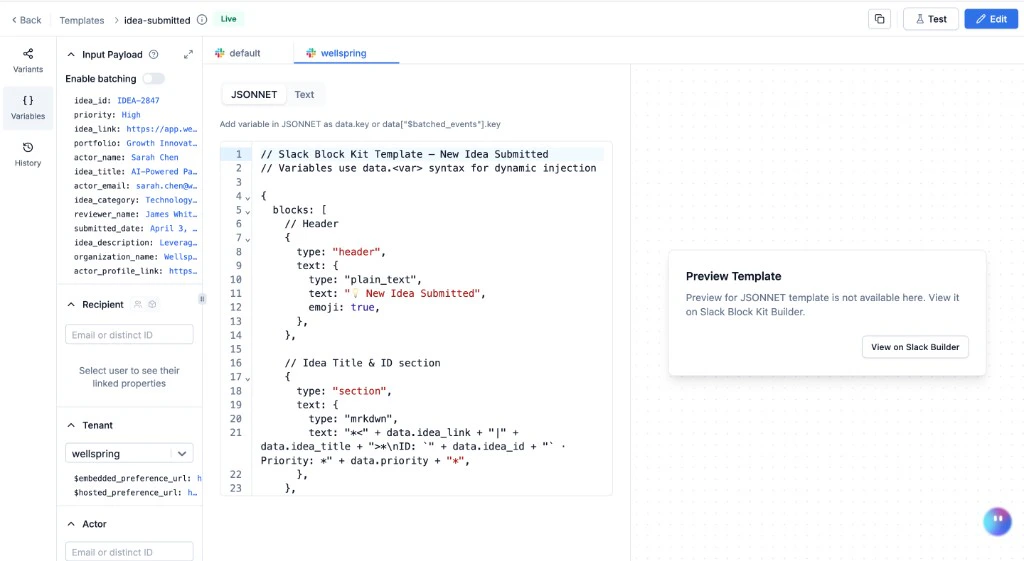
The Slack editor supports two modes: a **Text** editor for simple messages, and a **JSONNET** editor for rich [Block Kit](https://api.slack.com/block-kit) layouts with buttons, images, and structured sections.
 To send Slack notifications, you need a Slack vendor integrated with SuprSend. See [Slack vendor integration](/docs/slack) for setup.
## Slack fields
**Text mode** - a single text field. Supports [Handlebars](/docs/handlebars-helpers) variables (`{{variable_name}}`). Use triple braces `{{{url}}}` for URLs with special characters.
**JSONNET mode** - a code editor that outputs [Slack Block Kit](https://api.slack.com/block-kit) JSON. Variables use `data.key` syntax (not Handlebars). Design visually in the [Block Kit Builder](https://app.slack.com/block-kit-builder/) first, then adapt the JSON into JSONNET. See the full [JSONNET reference](/docs/jsonnet-templates) for syntax, examples, and debugging.
Slack JSONNET templates must be wrapped in `{"blocks": [...]}`. A bare array of blocks will not render - see the [JSONNET reference](/docs/jsonnet-templates#slack-block-kit-examples) for the correct shape.
**AI prompt - convert text to Block Kit:** *"Convert this Slack notification into Block Kit JSON: \[paste message]. Variables: \[list]. Return valid JSON I can adapt into JSONNET for SuprSend (replacing values with data.key)."*
**AI prompt - debug JSONNET:** *"Fix this JSONNET error from the SuprSend Slack editor. Error: \[paste error]. Code: \[paste JSONNET]. Variables are accessed as data.key or data\['\$special\_key']."*
You can switch between Text and JSONNET at any time. Content is saved independently for each mode.
## Adding dynamic content
**In Text mode** - type `{{` for auto-suggestions. Standard Handlebars syntax:
* `{{order_id}}` - top-level variable
* `{{order.address.city}}` - nested variable
* `{{{tracking_url}}}` - URL (avoid escaping)
* `{{$recipient.name}}` - recipient property
* `{{$brand.brand_name}}` - tenant property
**In JSONNET mode** - variables use `data.key` syntax. See [JSONNET variable reference](/docs/jsonnet-templates#variable-syntax) for the full table.
For conditionals, loops, and helpers in Text mode, see [Handlebars Helpers](/docs/handlebars-helpers).
If a variable cannot be rendered at send time (missing or mismatched data), SuprSend discards the Slack notification for that user. Other channels in the same template group are still sent.
## Preview and test
**Text mode** - the right panel shows a Slack message preview. It does not update automatically - **refresh the page** to see the latest changes.
**JSONNET mode** - preview is not available in the editor. Click **View on Slack Builder** to render and validate your Block Kit output in Slack's [Block Kit Builder](https://app.slack.com/block-kit-builder/).
Click **Test** in the top-right corner to send a real Slack message. This uses the **live version** - commit your changes before testing. See [Testing a Template](/docs/templates#test) for the full guide.
## Commit
Click **Commit** in the top bar to publish the current draft as a new live version. Add an optional description for versioning.
## Common patterns
Slack automatically threads messages sent to the same channel with the same `thread_ts`. Pass a consistent `thread_ts` in your trigger payload to keep related messages threaded.
Use `<@SLACK_USER_ID>` to @mention a user. Pass the ID as a variable: `<@{{assignee_slack_id}}>`.
Slack uses `` syntax. In JSONNET: `"*<" + data.url + "|" + data.title + ">*"`.
Use `:emoji_name:` syntax (for example, `:white_check_mark:`, `:warning:`).
## Frequently asked questions
Start with Text for simple alerts and status updates. Switch to JSONNET when you need buttons, images, structured layouts, or batched event lists.
Click **View on Slack Builder** in the JSONNET editor. Slack silently drops invalid blocks instead of showing errors - always validate before committing.
The most common reason is missing the `{"blocks": [...]}` wrapper. The SuprSend JSONNET editor only accepts the object form - a bare array (`[{...}]`) will not work. Wrap all your blocks inside a top-level object with a `blocks` key.
Slack truncates messages over 4000 characters. For batched notifications with many items, show the top 5-10 and add a "View all" button.
Slack uses `mrkdwn`, not standard Markdown. Bold: `*text*`, italic: `_text_`, strikethrough: `~text~`, code: triple backticks.
SuprSend discards the Slack notification for that user. Other channels in the same template group are still sent.
To send Slack notifications, you need a Slack vendor integrated with SuprSend. See [Slack vendor integration](/docs/slack) for setup.
## Slack fields
**Text mode** - a single text field. Supports [Handlebars](/docs/handlebars-helpers) variables (`{{variable_name}}`). Use triple braces `{{{url}}}` for URLs with special characters.
**JSONNET mode** - a code editor that outputs [Slack Block Kit](https://api.slack.com/block-kit) JSON. Variables use `data.key` syntax (not Handlebars). Design visually in the [Block Kit Builder](https://app.slack.com/block-kit-builder/) first, then adapt the JSON into JSONNET. See the full [JSONNET reference](/docs/jsonnet-templates) for syntax, examples, and debugging.
Slack JSONNET templates must be wrapped in `{"blocks": [...]}`. A bare array of blocks will not render - see the [JSONNET reference](/docs/jsonnet-templates#slack-block-kit-examples) for the correct shape.
**AI prompt - convert text to Block Kit:** *"Convert this Slack notification into Block Kit JSON: \[paste message]. Variables: \[list]. Return valid JSON I can adapt into JSONNET for SuprSend (replacing values with data.key)."*
**AI prompt - debug JSONNET:** *"Fix this JSONNET error from the SuprSend Slack editor. Error: \[paste error]. Code: \[paste JSONNET]. Variables are accessed as data.key or data\['\$special\_key']."*
You can switch between Text and JSONNET at any time. Content is saved independently for each mode.
## Adding dynamic content
**In Text mode** - type `{{` for auto-suggestions. Standard Handlebars syntax:
* `{{order_id}}` - top-level variable
* `{{order.address.city}}` - nested variable
* `{{{tracking_url}}}` - URL (avoid escaping)
* `{{$recipient.name}}` - recipient property
* `{{$brand.brand_name}}` - tenant property
**In JSONNET mode** - variables use `data.key` syntax. See [JSONNET variable reference](/docs/jsonnet-templates#variable-syntax) for the full table.
For conditionals, loops, and helpers in Text mode, see [Handlebars Helpers](/docs/handlebars-helpers).
If a variable cannot be rendered at send time (missing or mismatched data), SuprSend discards the Slack notification for that user. Other channels in the same template group are still sent.
## Preview and test
**Text mode** - the right panel shows a Slack message preview. It does not update automatically - **refresh the page** to see the latest changes.
**JSONNET mode** - preview is not available in the editor. Click **View on Slack Builder** to render and validate your Block Kit output in Slack's [Block Kit Builder](https://app.slack.com/block-kit-builder/).
Click **Test** in the top-right corner to send a real Slack message. This uses the **live version** - commit your changes before testing. See [Testing a Template](/docs/templates#test) for the full guide.
## Commit
Click **Commit** in the top bar to publish the current draft as a new live version. Add an optional description for versioning.
## Common patterns
Slack automatically threads messages sent to the same channel with the same `thread_ts`. Pass a consistent `thread_ts` in your trigger payload to keep related messages threaded.
Use `<@SLACK_USER_ID>` to @mention a user. Pass the ID as a variable: `<@{{assignee_slack_id}}>`.
Slack uses `` syntax. In JSONNET: `"*<" + data.url + "|" + data.title + ">*"`.
Use `:emoji_name:` syntax (for example, `:white_check_mark:`, `:warning:`).
## Frequently asked questions
Start with Text for simple alerts and status updates. Switch to JSONNET when you need buttons, images, structured layouts, or batched event lists.
Click **View on Slack Builder** in the JSONNET editor. Slack silently drops invalid blocks instead of showing errors - always validate before committing.
The most common reason is missing the `{"blocks": [...]}` wrapper. The SuprSend JSONNET editor only accepts the object form - a bare array (`[{...}]`) will not work. Wrap all your blocks inside a top-level object with a `blocks` key.
Slack truncates messages over 4000 characters. For batched notifications with many items, show the top 5-10 and add a "View all" button.
Slack uses `mrkdwn`, not standard Markdown. Bold: `*text*`, italic: `_text_`, strikethrough: `~text~`, code: triple backticks.
SuprSend discards the Slack notification for that user. Other channels in the same template group are still sent.