> ## Documentation Index
> Fetch the complete documentation index at: https://docs.suprsend.com/llms.txt
> Use this file to discover all available pages before exploring further.
# Smart Channel Routing
> Send notifications across multiple channels sequentially — with a delay between each — so users aren't bombarded, and you stop sending the moment they engage.
Instead of sending a notification on all channels at once, Smart Channel Routing delivers them **one channel at a time**, with a delay in between. The moment a user engages (opens, clicks, or triggers a custom event), delivery on remaining channels stops — reducing noise for users and cutting cost on paid channels.
***
## How It Works
Smart Channel Routing follows three steps when a workflow is triggered:
### 1. Identify eligible channels
SuprSend checks which channels qualify for delivery by intersecting:
* **Channels active on the template** — published and live. For WhatsApp and SMS (Indian vendors), this means provider approval is complete.
* **Channels active in the user profile** — not removed, unset, or marked inactive. See [managing user channels](/docs/users#via-sdk).
* **User opt-in preference** — if you use SuprSend's preference centre, the user must be `opt-in` for the channel and notification category. Verify with the [get user preference API](/reference/get-user-category-preferences).
### 2. Order outside-app channels
Routing logic **only applies to outside-app channels** — Email, SMS, WhatsApp, Slack, MS teams and Push. SuprSend orders these based on your chosen [optimize-on](#optimize-on) setting (default: lowest to highest cost).
**Inbox is always delivered at T+0** — it is exempt from channel routing entirely. Regardless of the optimize-on setting, channel order, or cost, Inbox fires immediately alongside the first outside-app channel whenever it is active on the template and user profile. It does not count toward the outside-app channel sequence or interval calculation.
### 3. Deliver sequentially with a delay
Notifications go out in this sequence:
| Time | What's sent |
| ------------ | ------------------------------------------- |
| T+0 | Inbox (if active) + 1st outside-app channel |
| T+interval | 2nd outside-app channel |
| T+interval×2 | 3rd outside-app channel |
| ... | continues until success metric is achieved |
The interval between each outside-app channel is:
`interval = time_to_live ÷ (number of outside-app channels − 1)`
**Example:** Template with Inbox + Email + SMS + WhatsApp, time-to-live = 1 hour:
* **T+0** → Inbox + Email
* **T+30min** → SMS (skipped if success metric already achieved)
* **T+60min** → WhatsApp (skipped if success metric already achieved)
If a user sees the in-app notification at T+0, only **SMS and WhatsApp are skipped** — Email has already been sent alongside Inbox.
Once the success metric is achieved at any point, all remaining channel deliveries are cancelled immediately.
**Routing is per channel identity, not per channel.** If a user has multiple identities on the same channel (e.g., two email addresses), each identity is treated as a separate step in the sequence. SuprSend sends to the first email address, waits for the configured interval, then sends to the second.
***
## Configuration
### Optimize On
Sets the order in which outside-app channels are attempted. The default is **cost** — channels are tried from lowest to highest cost based on your vendor settings.
### Time to Live
The total time window across which outside-app channels are attempted. This determines the interval between each channel.
**Example:** 3 outside-app channels, time-to-live = 1 hour → channels are tried **30 minutes** apart.
### Must Send To
Channels listed here are delivered to **immediately at T+0**, outside of routing order. Use this for channels that must always receive the notification regardless of sequencing.
### Success Metric
Defines what counts as "user engaged." Once this is met, SuprSend stops delivering to further channels.
**Notification Status** — a status reached on any sent channel:
| Status | When it triggers |
| ------------------- | ---------------------------------------------------- |
| Delivered | Notification is delivered to the device or inbox |
| Seen | User opens or views the notification |
| Interaction / Click | User clicks a CTA or interacts with the notification |
**Custom Event** — any event your platform fires in response to the notification. For example, `invoice_paid` for a payment reminder, or `appointment_confirmed` for a booking flow.
**Vendor routing is independent.** If you have vendor routing enabled, it operates independently of channel routing and does not add to the delay between channels.
***
## Override Channels
Pass a channel list dynamically at runtime via an event property. Useful when a user's preferred channel changes per workflow trigger — for example, a user selecting their preferred channel when booking an appointment.
> For persistent preferences (e.g., a user who always wants email only), use [User Preferences](/docs/user-preferences) instead — it's the more appropriate tool.
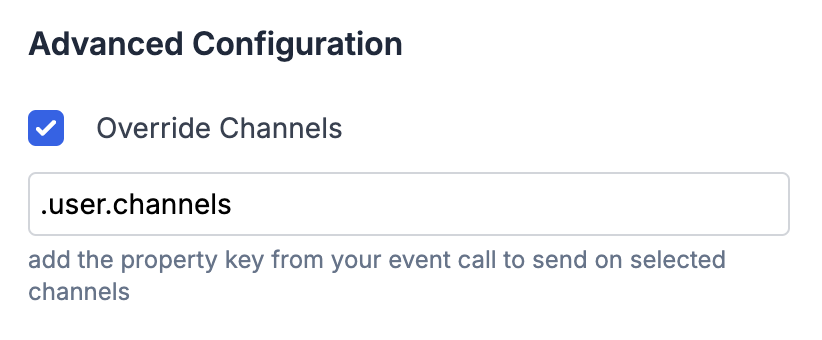
**Setup:** Add a `channels` array to your event properties, then reference the key in the **Override Channels** field in the workflow form.
 Accepted channel values:
```
"email" | "sms" | "whatsapp" | "androidpush" | "iospush" | "webpush" | "slack" | "inbox" | "ms_teams"
```
You can use a [JQ expression](https://jqlang.github.io/jq/manual/) to map your event data to the expected format:
* Top-level key: `.channels`
* Nested key: `.user.channels`
```json theme={"system"}
{
"user": {
"name": "Steve",
"channels": ["email", "inbox"]
}
}
```
If the channel key is missing or resolves to an invalid value, workflow execution stops and the error is logged.
***
## Frequently Asked Questions
This is expected. Inbox is exempt from routing logic and always fires at T+0 — alongside the first outside-app channel (Email, in this case). The time-to-live delay only applies to the 2nd, 3rd, and subsequent outside-app channels.
So with Inbox + Email + SMS and a 10-minute time-to-live:
* **T+0** → Inbox + Email
* **T+10min** → SMS (only if success metric not yet met)
No. The delay between channels is managed by the **Time to Live** setting inside the Smart Channel Routing node. A Wait Until node is not required.
Built with [Mintlify](https://mintlify.com).
Accepted channel values:
```
"email" | "sms" | "whatsapp" | "androidpush" | "iospush" | "webpush" | "slack" | "inbox" | "ms_teams"
```
You can use a [JQ expression](https://jqlang.github.io/jq/manual/) to map your event data to the expected format:
* Top-level key: `.channels`
* Nested key: `.user.channels`
```json theme={"system"}
{
"user": {
"name": "Steve",
"channels": ["email", "inbox"]
}
}
```
If the channel key is missing or resolves to an invalid value, workflow execution stops and the error is logged.
***
## Frequently Asked Questions
This is expected. Inbox is exempt from routing logic and always fires at T+0 — alongside the first outside-app channel (Email, in this case). The time-to-live delay only applies to the 2nd, 3rd, and subsequent outside-app channels.
So with Inbox + Email + SMS and a 10-minute time-to-live:
* **T+0** → Inbox + Email
* **T+10min** → SMS (only if success metric not yet met)
No. The delay between channels is managed by the **Time to Live** setting inside the Smart Channel Routing node. A Wait Until node is not required.
Built with [Mintlify](https://mintlify.com).