> ## Documentation Index
> Fetch the complete documentation index at: https://docs.suprsend.com/llms.txt
> Use this file to discover all available pages before exploring further.
# SMS
> Design SMS notification content - a single body field with Handlebars variables and a live phone preview.
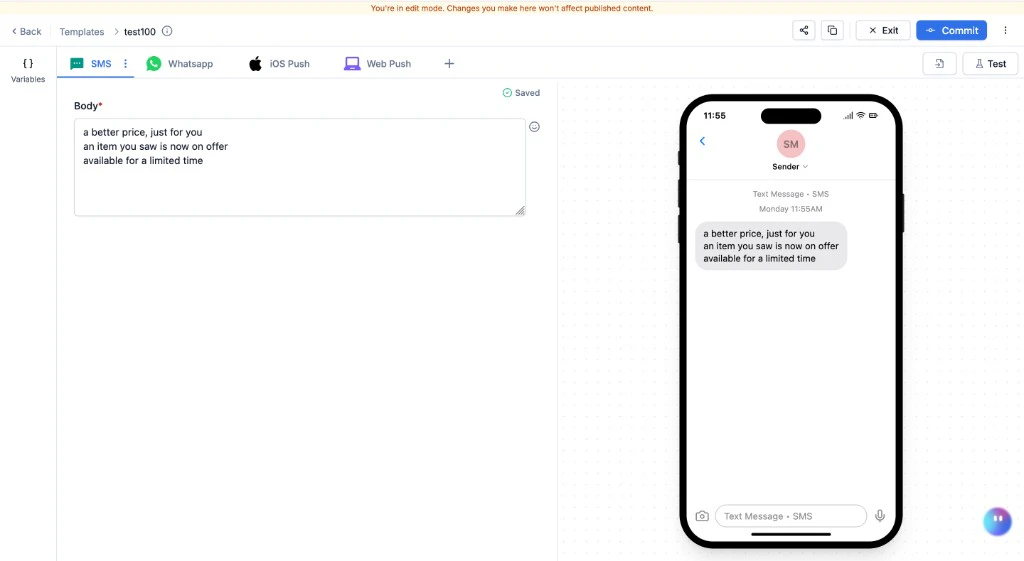
The SMS editor is a text editor with a live phone preview on the right. Content is personalised with [Handlebars](/docs/handlebars-helpers) variables (`{{variable_name}}`).
 To send SMS, you need an SMS vendor integrated with SuprSend. See [SMS vendor integrations](/docs/acl-sinch) for the vendor list and setup.
***
## SMS editor
The SMS editor has a single field:
**Body** - the full text of the SMS message. This is everything the recipient sees. Aim for one segment (160 GSM-7 characters) - each extra segment doubles cost. Front-load the key info, include one clear CTA, and avoid shortened URLs (some carriers flag them as spam; use a branded domain if needed). Supports Handlebars variables and emoji.
## Adding dynamic content
You can add variables in the template to personalise it for each recipient. Variables are replaced with actual data at send time. Pass values via your workflow trigger payload or use recipient/tenant properties.
Add sample data in the **Variables panel** (Input Payload section) on the left side of the editor. This powers auto-suggestions and the live preview. For the full guide on setting up variables, see [Adding dynamic content](/docs/templates#the-variables-panel).
Type `{{` in the body field - matching variables appear as auto-suggestions. You can also type variable names manually following [Handlebars syntax](https://handlebarsjs.com/guide/#what-is-handlebars).
**Examples using this sample data:**
```json json theme={"system"}
{
"event": {
"location": {
"city": "Bangalore",
"state": "KA"
},
"order_id": "11200123",
"first_name": "Nikita"
},
"tracking_url": "https://yourapp.com/track/11200123"
}
```
* **Nested variable:** `{{event.location.city}}` → renders as `Bangalore`
* **Variable with space in name:** `{{event.[first name]}}`
* **URL (avoid escaping):** use triple braces `{{{tracking_url}}}` for URLs with `&`, `?`, `=`
The preview section shows sample values rendered in real-time. If a variable isn't rendering, check:
1. The variable is defined in the Variables panel.
2. The variable name matches the Handlebars syntax exactly.
For conditionals and helpers, see [Handlebars Helpers](/docs/handlebars-helpers).
If a variable cannot be rendered at send time (missing or mismatched data), SuprSend discards the SMS for that user. Other channels in the same template group (email, push, etc.) are still sent.
## Preview and test
The right panel shows a live phone preview, updated in real time as you type. Variables render using data from the **Variables panel**.
Click **Test** in the top-right corner to send a real SMS to a real phone number. This uses the **live version** - commit your changes before testing. See [Testing a Template](/docs/templates#test) for the full guide.
## Commit
Click **Commit** in the top bar to publish the current draft as a new live version. Add an optional description for versioning. The template goes live immediately and is used for all subsequent workflow triggers.
***
## SMS in India (DLT)
India requires all SMS templates to be registered and approved through a DLT (Distributed Ledger Technology) portal before they can be sent. The SMS editor shows additional fields when DLT approval is enabled.
### Enable DLT approval
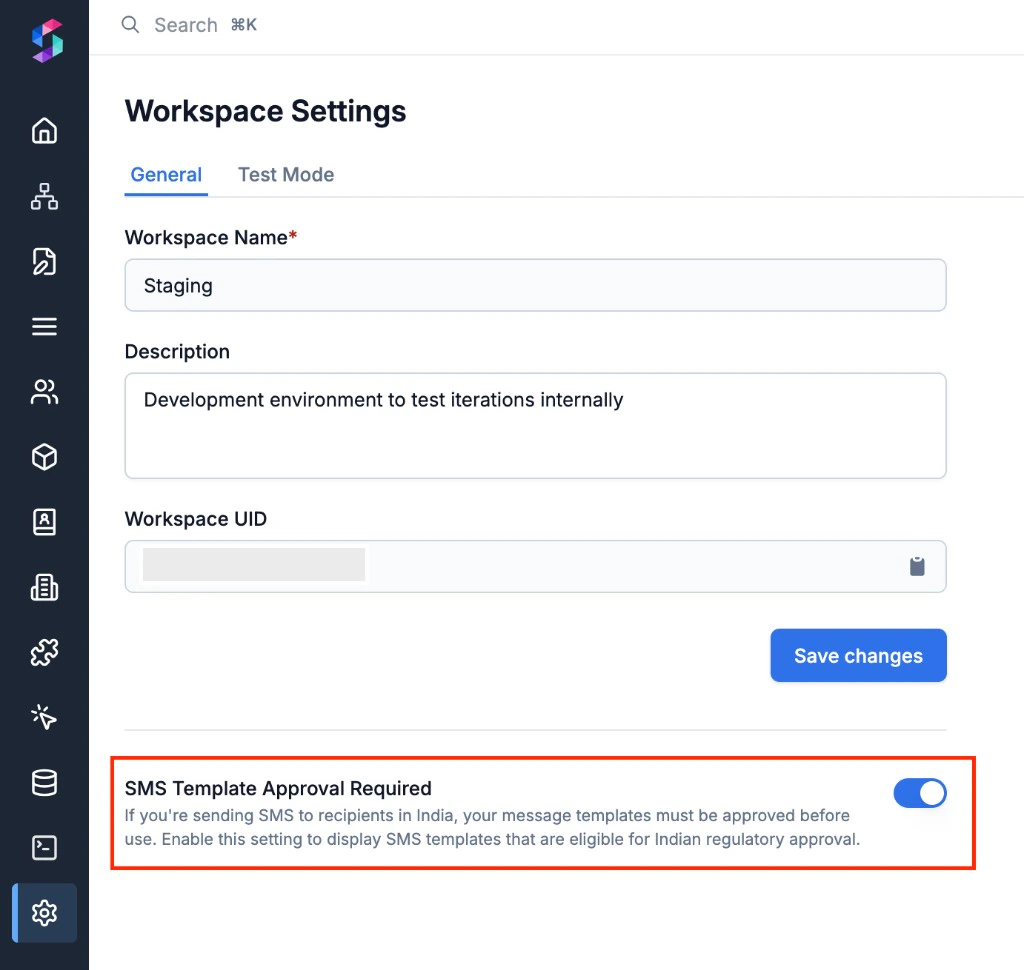
Navigate to **Settings** on the SuprSend dashboard.
Toggle on **SMS Template Approval Required**. This enables the DLT workflow - the SMS editor will now show three fields instead of one.
To send SMS, you need an SMS vendor integrated with SuprSend. See [SMS vendor integrations](/docs/acl-sinch) for the vendor list and setup.
***
## SMS editor
The SMS editor has a single field:
**Body** - the full text of the SMS message. This is everything the recipient sees. Aim for one segment (160 GSM-7 characters) - each extra segment doubles cost. Front-load the key info, include one clear CTA, and avoid shortened URLs (some carriers flag them as spam; use a branded domain if needed). Supports Handlebars variables and emoji.
## Adding dynamic content
You can add variables in the template to personalise it for each recipient. Variables are replaced with actual data at send time. Pass values via your workflow trigger payload or use recipient/tenant properties.
Add sample data in the **Variables panel** (Input Payload section) on the left side of the editor. This powers auto-suggestions and the live preview. For the full guide on setting up variables, see [Adding dynamic content](/docs/templates#the-variables-panel).
Type `{{` in the body field - matching variables appear as auto-suggestions. You can also type variable names manually following [Handlebars syntax](https://handlebarsjs.com/guide/#what-is-handlebars).
**Examples using this sample data:**
```json json theme={"system"}
{
"event": {
"location": {
"city": "Bangalore",
"state": "KA"
},
"order_id": "11200123",
"first_name": "Nikita"
},
"tracking_url": "https://yourapp.com/track/11200123"
}
```
* **Nested variable:** `{{event.location.city}}` → renders as `Bangalore`
* **Variable with space in name:** `{{event.[first name]}}`
* **URL (avoid escaping):** use triple braces `{{{tracking_url}}}` for URLs with `&`, `?`, `=`
The preview section shows sample values rendered in real-time. If a variable isn't rendering, check:
1. The variable is defined in the Variables panel.
2. The variable name matches the Handlebars syntax exactly.
For conditionals and helpers, see [Handlebars Helpers](/docs/handlebars-helpers).
If a variable cannot be rendered at send time (missing or mismatched data), SuprSend discards the SMS for that user. Other channels in the same template group (email, push, etc.) are still sent.
## Preview and test
The right panel shows a live phone preview, updated in real time as you type. Variables render using data from the **Variables panel**.
Click **Test** in the top-right corner to send a real SMS to a real phone number. This uses the **live version** - commit your changes before testing. See [Testing a Template](/docs/templates#test) for the full guide.
## Commit
Click **Commit** in the top bar to publish the current draft as a new live version. Add an optional description for versioning. The template goes live immediately and is used for all subsequent workflow triggers.
***
## SMS in India (DLT)
India requires all SMS templates to be registered and approved through a DLT (Distributed Ledger Technology) portal before they can be sent. The SMS editor shows additional fields when DLT approval is enabled.
### Enable DLT approval
Navigate to **Settings** on the SuprSend dashboard.
Toggle on **SMS Template Approval Required**. This enables the DLT workflow - the SMS editor will now show three fields instead of one.
 ### DLT fields
With DLT enabled, the SMS editor shows:
**Message Type** - select the type: **Transactional** (triggered by a user action - delivery updates, OTPs), **Promotional** (marketing messages without explicit consent), or **Engagement** (re-engagement messages to existing users - feature promotions, discount offers).
**Header** - the sender ID (6 alphanumeric characters) registered with DLT. Separate headers exist for each message type.
**Body** - the SMS content. Must exactly match the template registered on the DLT portal. Variables must align with the DLT placeholder format.
### DLT approval flow
Author the template content and click **Commit**. The version enters **Approval Pending** state (it does not go live).
SuprSend submits the template to your SMS vendor for DLT approval. You'll be notified when approved or rejected.
On approval, the version goes **Live**. On rejection, it returns to **Draft** for revision.
Templates pending approval are visible in the **Approvals** tab on the [template listing page](/docs/templates#managing-templates). For DLT content guidelines, see [DLT Guidelines](/docs/dlt-guidelines).
DLT templates **cannot be tested in draft**. You can only test a DLT SMS after it has been committed and approved. The Test button sends using the live (approved) version.
**AI prompt - DLT compliance check:** *"Convert this SMS body to DLT format. Header: \[6-char sender ID]. Category: \[transactional/promotional]. Body: \[paste text]. Convert Handlebars variables to DLT placeholder format, verify category match, and flag rejection risks."*
***
## Common scenarios
| Field | Value |
| ----- | ----------------------------------------------------------------------------------------------------------------------- |
| Body | `Your verification code is {{otp_code}}. It expires in {{expiry_minutes}} minutes. Do not share this code with anyone.` |
Keep OTP messages under one segment (160 characters). No URLs needed - just the code and expiry.
| Field | Value |
| ----- | ------------------------------------------------------------------------------------------------------ |
| Body | `Hi {{$recipient.name}}, your order #{{order_id}} has been shipped! Track it here: {{{tracking_url}}}` |
Use triple curly braces `{{{tracking_url}}}` for URLs to avoid HTML-escaping special characters like `&` and `?`.
| Field | Value |
| ----- | ----------------------------------------------------------------------------------------------------------------------------------------------------- |
| Body | `Reminder: Your appointment with {{provider_name}} is on {{appointment_date}} at {{appointment_time}}. Reply CONFIRM to confirm or CANCEL to cancel.` |
Pair with a [delay node](/docs/delay) or [time window](/docs/time-window) in your workflow to send at the right time.
| Field | Value |
| ----- | ------------------------------------------------------------------------------------------------------------------------------ |
| Body | `Flash sale! Get {{discount}}% off on all items. Shop now: {{{shop_url}}}. Valid till {{expiry_date}}. Reply STOP to opt out.` |
Always include opt-out language for promotional messages.
## Best practices
* **Identify yourself** - start with your brand name or use a registered sender ID so recipients know who the message is from.
* **Time-sensitive messages** - pair SMS with a [delay node](/docs/delay) or [time window](/docs/time-window) to avoid sending at inconvenient hours.
* **DLT (India)** - ensure your template body exactly matches the DLT-registered content, including punctuation and variable placeholders.
## Frequently asked questions
DLT (Distributed Ledger Technology) is a regulatory requirement in India. All SMS templates sent in India must be registered with a DLT portal, have an approved header (sender ID), and go through an approval process before going live. If you're sending SMS outside India, you don't need DLT - templates go live immediately on commit.
Common reasons: the template body doesn't exactly match the content registered on the DLT portal (even minor punctuation differences count), the header is not registered for the selected message type, or the variable placeholders don't match the DLT registration.
SMS has a per-segment character limit. Each extra segment is billed separately by your vendor.
| Encoding | Chars per segment | When it applies |
| -------- | ------------------------------ | -------------------------------------------------------- |
| GSM-7 | 160 (single), 153 (multi-part) | Standard Latin characters, digits, basic punctuation |
| UCS-2 | 70 (single), 67 (multi-part) | Emojis, non-Latin scripts (Hindi, Arabic, Chinese, etc.) |
A single emoji or non-Latin character forces the **entire** message into UCS-2, cutting capacity from 160 to 70. Avoid emojis in transactional SMS to keep costs down.
Use triple curly braces `{{{url}}}` instead of double. Double braces HTML-escape characters like `&`, `?`, `=` - which breaks URLs. Triple braces output the raw value.
Yes - use [template variants](/docs/template-variants). Create a variant for each language with a locale condition. Set the user's preferred language via `$locale` on their profile - SuprSend auto-selects the matching variant. The default variant acts as the English fallback.
No. DLT templates can only be tested after they are committed and approved by the vendor. The Test button uses the live (approved) version. Non-DLT templates can be tested immediately after committing.
SuprSend discards the SMS notification for that user. Other channels in the same template group (email, push, etc.) are still sent if they render successfully.
### DLT fields
With DLT enabled, the SMS editor shows:
**Message Type** - select the type: **Transactional** (triggered by a user action - delivery updates, OTPs), **Promotional** (marketing messages without explicit consent), or **Engagement** (re-engagement messages to existing users - feature promotions, discount offers).
**Header** - the sender ID (6 alphanumeric characters) registered with DLT. Separate headers exist for each message type.
**Body** - the SMS content. Must exactly match the template registered on the DLT portal. Variables must align with the DLT placeholder format.
### DLT approval flow
Author the template content and click **Commit**. The version enters **Approval Pending** state (it does not go live).
SuprSend submits the template to your SMS vendor for DLT approval. You'll be notified when approved or rejected.
On approval, the version goes **Live**. On rejection, it returns to **Draft** for revision.
Templates pending approval are visible in the **Approvals** tab on the [template listing page](/docs/templates#managing-templates). For DLT content guidelines, see [DLT Guidelines](/docs/dlt-guidelines).
DLT templates **cannot be tested in draft**. You can only test a DLT SMS after it has been committed and approved. The Test button sends using the live (approved) version.
**AI prompt - DLT compliance check:** *"Convert this SMS body to DLT format. Header: \[6-char sender ID]. Category: \[transactional/promotional]. Body: \[paste text]. Convert Handlebars variables to DLT placeholder format, verify category match, and flag rejection risks."*
***
## Common scenarios
| Field | Value |
| ----- | ----------------------------------------------------------------------------------------------------------------------- |
| Body | `Your verification code is {{otp_code}}. It expires in {{expiry_minutes}} minutes. Do not share this code with anyone.` |
Keep OTP messages under one segment (160 characters). No URLs needed - just the code and expiry.
| Field | Value |
| ----- | ------------------------------------------------------------------------------------------------------ |
| Body | `Hi {{$recipient.name}}, your order #{{order_id}} has been shipped! Track it here: {{{tracking_url}}}` |
Use triple curly braces `{{{tracking_url}}}` for URLs to avoid HTML-escaping special characters like `&` and `?`.
| Field | Value |
| ----- | ----------------------------------------------------------------------------------------------------------------------------------------------------- |
| Body | `Reminder: Your appointment with {{provider_name}} is on {{appointment_date}} at {{appointment_time}}. Reply CONFIRM to confirm or CANCEL to cancel.` |
Pair with a [delay node](/docs/delay) or [time window](/docs/time-window) in your workflow to send at the right time.
| Field | Value |
| ----- | ------------------------------------------------------------------------------------------------------------------------------ |
| Body | `Flash sale! Get {{discount}}% off on all items. Shop now: {{{shop_url}}}. Valid till {{expiry_date}}. Reply STOP to opt out.` |
Always include opt-out language for promotional messages.
## Best practices
* **Identify yourself** - start with your brand name or use a registered sender ID so recipients know who the message is from.
* **Time-sensitive messages** - pair SMS with a [delay node](/docs/delay) or [time window](/docs/time-window) to avoid sending at inconvenient hours.
* **DLT (India)** - ensure your template body exactly matches the DLT-registered content, including punctuation and variable placeholders.
## Frequently asked questions
DLT (Distributed Ledger Technology) is a regulatory requirement in India. All SMS templates sent in India must be registered with a DLT portal, have an approved header (sender ID), and go through an approval process before going live. If you're sending SMS outside India, you don't need DLT - templates go live immediately on commit.
Common reasons: the template body doesn't exactly match the content registered on the DLT portal (even minor punctuation differences count), the header is not registered for the selected message type, or the variable placeholders don't match the DLT registration.
SMS has a per-segment character limit. Each extra segment is billed separately by your vendor.
| Encoding | Chars per segment | When it applies |
| -------- | ------------------------------ | -------------------------------------------------------- |
| GSM-7 | 160 (single), 153 (multi-part) | Standard Latin characters, digits, basic punctuation |
| UCS-2 | 70 (single), 67 (multi-part) | Emojis, non-Latin scripts (Hindi, Arabic, Chinese, etc.) |
A single emoji or non-Latin character forces the **entire** message into UCS-2, cutting capacity from 160 to 70. Avoid emojis in transactional SMS to keep costs down.
Use triple curly braces `{{{url}}}` instead of double. Double braces HTML-escape characters like `&`, `?`, `=` - which breaks URLs. Triple braces output the raw value.
Yes - use [template variants](/docs/template-variants). Create a variant for each language with a locale condition. Set the user's preferred language via `$locale` on their profile - SuprSend auto-selects the matching variant. The default variant acts as the English fallback.
No. DLT templates can only be tested after they are committed and approved by the vendor. The Test button uses the live (approved) version. Non-DLT templates can be tested immediately after committing.
SuprSend discards the SMS notification for that user. Other channels in the same template group (email, push, etc.) are still sent if they render successfully.