> ## Documentation Index
> Fetch the complete documentation index at: https://docs.suprsend.com/llms.txt
> Use this file to discover all available pages before exploring further.
# Template Variants
> Use SuprSend template variants to serve different content by tenant, language, or condition from a single template, with default fallback and live preview.
Variants let you send different content to different recipients from the same template. Instead of creating separate templates for each tenant, language, or audience segment, you create variants with conditions - SuprSend picks the right one at send time.
Every template starts with a **default** variant. Add more only when you need them.
You can embed the template editor directly in your application using the [Embeddable Templates SDK](/docs/embeddable-template-react-sdk). This lets your customers edit notification templates within your product, or your internal team manage templates and run campaigns - all without switching to the SuprSend dashboard.
***
## When to use variants
Each tenant's users see their own branding - logos, colours, copy. One template serves all [tenants](/docs/tenants).
One variant per language. SuprSend auto-selects based on the recipient's preferred language. See [Multi-lingual Templates](/docs/multi-lingual-template).
Different content based on trigger data — for example, `plan == "pro"` gets a premium message.
Different copy to different segments. Compare in [Analytics](/docs/analytics). Needs manual maintenance - use for specific hypotheses, not as a default.
***
## Create a variant
Click the **+** button next to "All Variants" in the left panel. You'll see two options:
 ### Add a new channel
Select **New Channel** to add a channel to the template (for example, add SMS to a template that only had Email). Pick the channels and click **Add Channels**.
### Add a new channel
Select **New Channel** to add a channel to the template (for example, add SMS to a template that only had Email). Pick the channels and click **Add Channels**.
 ### Add a new variant
Select **New Variant** to create a variant with conditions for an existing channel.
### Add a new variant
Select **New Variant** to create a variant with conditions for an existing channel.
 Fill in:
**Channels** - which channels this variant applies to. *(Required)*
**ID** - a unique identifier. Use descriptive names: `uber-en`, `acme-es`, `pro-users`. *(Required)*
**Locale** - the language for this variant. *(Required)*
**Tenant** - scope to a specific tenant. Leave blank for non-tenant variants.
**Conditions** - rules that determine when this variant is sent. Each condition has a **Data Type** (Recipient, Actor, Tenant, or Input Payload), **Property**, **Operator**, and **Value**. Add multiple conditions with **+ OR**.
| Common operators | |
| -------------------------------------------------------- | -------------------- |
| `==`, `!=` | Equals / not equals |
| `>`, `>=`, `<`, `<=` | Comparisons |
| `contains`, `not contains` | Substring match |
| `is empty`, `is not empty` | Null checks |
| `datetime is`, `datetime is before`, `datetime is after` | Date comparisons |
| `intersects (array)`, `not intersects (array)` | Array overlap checks |
**AI prompt - design variant conditions:** *"Design SuprSend template variants for \[describe scenario]. Data available: \[payload keys, tenant props, recipient props]. For each variant suggest: ID, conditions, ordering (first match wins), and which should be the default fallback."*
***
## Edit a variant
Click any variant in the left panel to open it. You're always editing the **draft** - the live version is untouched until you commit.
* **Edit content** - write directly in the channel editor. Content auto-saves.
* **Edit conditions** - click the **settings icon** on the variant to change its ID, locale, tenant, or conditions after creation.
* **Import content** - use the Import button to copy content from another variant or template instead of starting from scratch. See [Import content](/docs/templates#import-content).
***
## Commit
Click **Commit** to publish. The modal shows all changes - you can deselect specific variants you're not ready to publish.
Fill in:
**Channels** - which channels this variant applies to. *(Required)*
**ID** - a unique identifier. Use descriptive names: `uber-en`, `acme-es`, `pro-users`. *(Required)*
**Locale** - the language for this variant. *(Required)*
**Tenant** - scope to a specific tenant. Leave blank for non-tenant variants.
**Conditions** - rules that determine when this variant is sent. Each condition has a **Data Type** (Recipient, Actor, Tenant, or Input Payload), **Property**, **Operator**, and **Value**. Add multiple conditions with **+ OR**.
| Common operators | |
| -------------------------------------------------------- | -------------------- |
| `==`, `!=` | Equals / not equals |
| `>`, `>=`, `<`, `<=` | Comparisons |
| `contains`, `not contains` | Substring match |
| `is empty`, `is not empty` | Null checks |
| `datetime is`, `datetime is before`, `datetime is after` | Date comparisons |
| `intersects (array)`, `not intersects (array)` | Array overlap checks |
**AI prompt - design variant conditions:** *"Design SuprSend template variants for \[describe scenario]. Data available: \[payload keys, tenant props, recipient props]. For each variant suggest: ID, conditions, ordering (first match wins), and which should be the default fallback."*
***
## Edit a variant
Click any variant in the left panel to open it. You're always editing the **draft** - the live version is untouched until you commit.
* **Edit content** - write directly in the channel editor. Content auto-saves.
* **Edit conditions** - click the **settings icon** on the variant to change its ID, locale, tenant, or conditions after creation.
* **Import content** - use the Import button to copy content from another variant or template instead of starting from scratch. See [Import content](/docs/templates#import-content).
***
## Commit
Click **Commit** to publish. The modal shows all changes - you can deselect specific variants you're not ready to publish.
 For **WhatsApp** and **SMS (DLT)** variants, committing puts the variant into **Approval Pending** - it goes live only after vendor approval. For multi-lingual templates, each language is approved separately. If a [fallback vendor](/docs/vendor-fallback) is configured, you'll need to confirm approval for each vendor.
***
## How selection works at send time
When a notification is triggered, SuprSend evaluates all non-default variants in the order they appear in the panel. The first one whose conditions all match is sent. If no variant matches, the **default** (always at the top) is sent as the fallback.
* All conditions on a variant must be true - partial matches are skipped.
* **Tenant** and **locale** are soft checks with fallback: tenant+locale → tenant+default locale → default tenant+locale → default.
* All other conditions (like `$recipient.plan == "pro"`) are hard checks - no fallback, the variant is just skipped.
For **WhatsApp** and **SMS (DLT)** variants, committing puts the variant into **Approval Pending** - it goes live only after vendor approval. For multi-lingual templates, each language is approved separately. If a [fallback vendor](/docs/vendor-fallback) is configured, you'll need to confirm approval for each vendor.
***
## How selection works at send time
When a notification is triggered, SuprSend evaluates all non-default variants in the order they appear in the panel. The first one whose conditions all match is sent. If no variant matches, the **default** (always at the top) is sent as the fallback.
* All conditions on a variant must be true - partial matches are skipped.
* **Tenant** and **locale** are soft checks with fallback: tenant+locale → tenant+default locale → default tenant+locale → default.
* All other conditions (like `$recipient.plan == "pro"`) are hard checks - no fallback, the variant is just skipped.
 ### Ordering variants
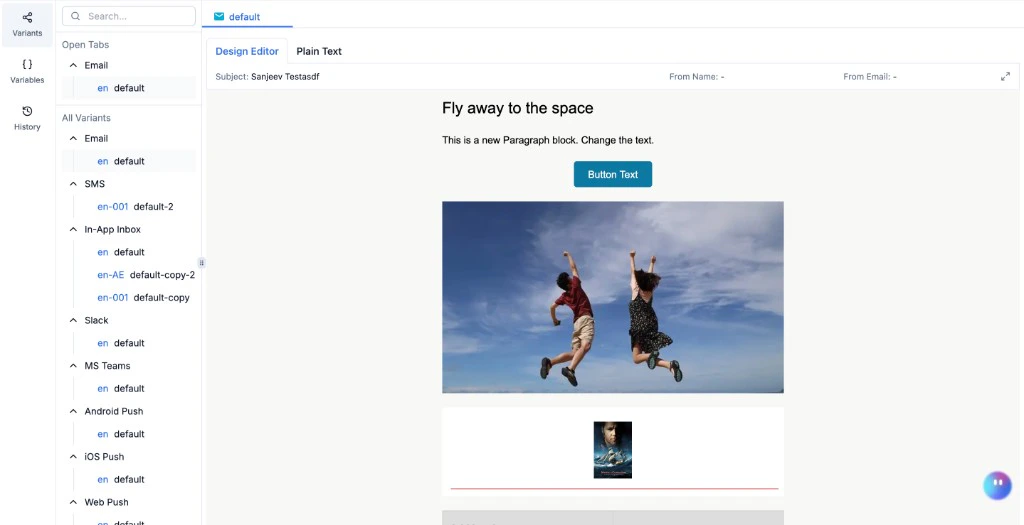
Order determines priority. If two variants both match a recipient's data, the one **higher in the list** wins. You can drag and drop variants to change their position.
* The **default** variant always stays at the top - it's the fallback and cannot be moved. No other variant can be placed above it.
* All other variants can be freely reordered by dragging.
* Place more specific variants (for example, `uber-es`) above general ones (for example, `default-es`) to ensure they match first.
If a variant isn't being picked when you expect it to, check its position - a broader variant above it may be matching first.
### Testing variant selection
To verify the right variant is being picked for a specific condition, **test the full template group** - not a single variant. Testing a single variant sends that variant's content directly (bypassing conditions). Testing the template group runs the actual selection logic:
1. Click **Test** → select the **Template Group** tab.
2. Enter a **Recipient** whose profile matches the condition you want to test.
3. Select a **Tenant** if your variant has a tenant condition.
4. Click **Send Test** - SuprSend evaluates all variant conditions and sends the matching one.
5. Check [Logs](/docs/logging) to confirm which variant was selected.
This is the only way to verify that ordering and conditions work as expected end-to-end.
***
## Duplicate, delete, and disable
### Duplicate a variant
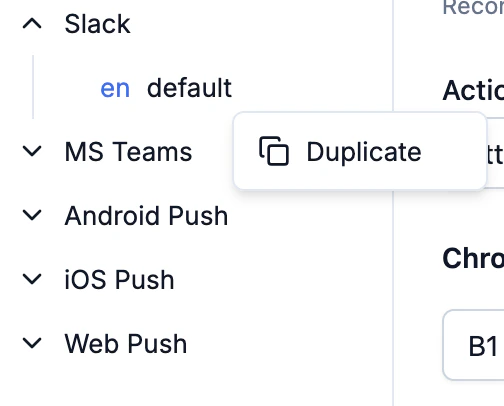
Click the three-dot menu (**...**) on any variant to duplicate it. The content is copied into a new variant - adjust the ID and conditions.
### Ordering variants
Order determines priority. If two variants both match a recipient's data, the one **higher in the list** wins. You can drag and drop variants to change their position.
* The **default** variant always stays at the top - it's the fallback and cannot be moved. No other variant can be placed above it.
* All other variants can be freely reordered by dragging.
* Place more specific variants (for example, `uber-es`) above general ones (for example, `default-es`) to ensure they match first.
If a variant isn't being picked when you expect it to, check its position - a broader variant above it may be matching first.
### Testing variant selection
To verify the right variant is being picked for a specific condition, **test the full template group** - not a single variant. Testing a single variant sends that variant's content directly (bypassing conditions). Testing the template group runs the actual selection logic:
1. Click **Test** → select the **Template Group** tab.
2. Enter a **Recipient** whose profile matches the condition you want to test.
3. Select a **Tenant** if your variant has a tenant condition.
4. Click **Send Test** - SuprSend evaluates all variant conditions and sends the matching one.
5. Check [Logs](/docs/logging) to confirm which variant was selected.
This is the only way to verify that ordering and conditions work as expected end-to-end.
***
## Duplicate, delete, and disable
### Duplicate a variant
Click the three-dot menu (**...**) on any variant to duplicate it. The content is copied into a new variant - adjust the ID and conditions.
 ### Delete a variant
Click the three-dot menu on a variant and select **Delete**. This permanently removes the variant and its content. The **default** variant cannot be deleted.
### Disable a channel
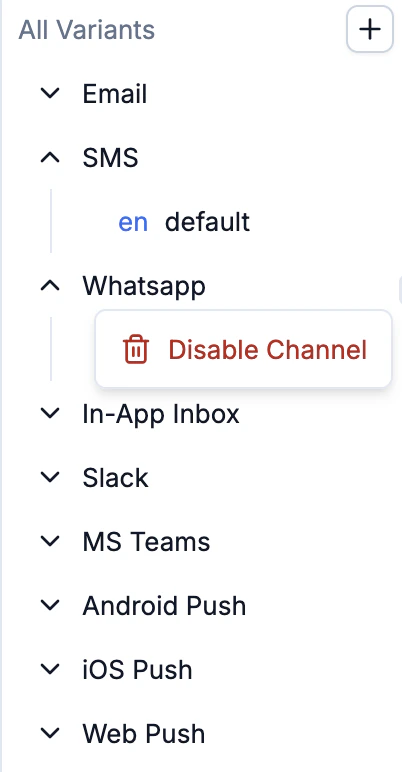
Click the three-dot menu on a **channel name** (not a variant) to disable it. Notifications stop on that channel immediately, but the content is preserved. Re-enable anytime without losing work.
### Delete a variant
Click the three-dot menu on a variant and select **Delete**. This permanently removes the variant and its content. The **default** variant cannot be deleted.
### Disable a channel
Click the three-dot menu on a **channel name** (not a variant) to disable it. Notifications stop on that channel immediately, but the content is preserved. Re-enable anytime without losing work.
 This is useful when you want to temporarily pause a channel (for example, stop sending SMS during a vendor migration) without deleting the content and having to recreate it later.
***
## Common patterns
**One template, many tenants** - create a variant per tenant using a `$tenant.id` condition. Default is the fallback for tenants without a custom variant. Onboarding a new tenant = a template edit, no code change.
**Tenant + language** - combine conditions: `$tenant.id = acme` + `$recipient.language = fr`. Place these above language-only variants so they match first.
**A/B testing** — create a variant targeting a subset (for example, `$recipient.cohort = beta`). Compare metrics. To promote: widen the conditions or update the default. To end: delete the challenger.
After setting up any pattern, [test with a specific tenant and recipient](/docs/templates#test) to verify the right variant is picked.
***
## Frequently asked questions
The **default** variant is sent. It cannot be deleted and always acts as the fallback.
Yes. Variants are per-channel - you can have 3 for Email, 1 for SMS, and just the default for Push. Each channel is evaluated independently.
Click **Test** in the editor, enter a recipient, select a tenant, and send. The variant whose conditions match is used. Check [Logs](/docs/logging) to confirm.
**Soft** (tenant, locale): SuprSend falls back through a hierarchy if no exact match exists. **Hard** (everything else): no fallback - the variant is skipped if the condition doesn't match.
Yes. Drag them up or down in the panel. The default always stays at the top and cannot be moved.
This is useful when you want to temporarily pause a channel (for example, stop sending SMS during a vendor migration) without deleting the content and having to recreate it later.
***
## Common patterns
**One template, many tenants** - create a variant per tenant using a `$tenant.id` condition. Default is the fallback for tenants without a custom variant. Onboarding a new tenant = a template edit, no code change.
**Tenant + language** - combine conditions: `$tenant.id = acme` + `$recipient.language = fr`. Place these above language-only variants so they match first.
**A/B testing** — create a variant targeting a subset (for example, `$recipient.cohort = beta`). Compare metrics. To promote: widen the conditions or update the default. To end: delete the challenger.
After setting up any pattern, [test with a specific tenant and recipient](/docs/templates#test) to verify the right variant is picked.
***
## Frequently asked questions
The **default** variant is sent. It cannot be deleted and always acts as the fallback.
Yes. Variants are per-channel - you can have 3 for Email, 1 for SMS, and just the default for Push. Each channel is evaluated independently.
Click **Test** in the editor, enter a recipient, select a tenant, and send. The variant whose conditions match is used. Check [Logs](/docs/logging) to confirm.
**Soft** (tenant, locale): SuprSend falls back through a hierarchy if no exact match exists. **Hard** (everything else): no fallback - the variant is skipped if the condition doesn't match.
Yes. Drag them up or down in the panel. The default always stays at the top and cannot be moved.