> ## Documentation Index
> Fetch the complete documentation index at: https://docs.suprsend.com/llms.txt
> Use this file to discover all available pages before exploring further.
# Twilio
> Guide to connect your Twilio account with SuprSend to send WhatsApp notifications.
## Pre-Requisites
You'll need Twilio account to complete this tutorial. You can use your existing Twilio account to integrate, or
[Create a Twilio account](https://www.twilio.com/try-twilio)
**Additional Requirements:**
* **Twilio Account**: Make sure your Twilio account is upgraded and has billing enabled
* **Meta (Facebook) Business Manager**: You need admin access to a Meta Business Portfolio
* **WhatsApp Business Account (WABA)**: This will be created/linked during onboarding
## Register as a WhatsApp Tech Provider (for ISVs)
If you are integrating on behalf of multiple clients (ISV/Tech Provider), you must join the [Twilio WhatsApp Tech Provider Program](https://www.twilio.com/docs/whatsapp/tech-provider):
Create a Meta Developer App and configure it for WhatsApp. Follow Meta's documentation to set up your app.
Onboard as a Tech Provider in the Meta App Dashboard. This allows you to manage WhatsApp Business Accounts for multiple clients.
Submit the [Twilio Tech Provider request form](https://www.twilio.com/docs/whatsapp/tech-provider). Twilio will guide you via a support ticket.
Accept the Twilio Partner Solution in your Meta App Dashboard under **WhatsApp > Partner Solutions**.
**For single business use**: If you're integrating for your own business (not as an ISV), you can skip the Tech Provider registration and proceed directly to setting up your WhatsApp Business Account.
## Complete Meta App and Twilio Integration
### Set up Embedded Signup
Embedded Signup allows your customers (or your own business) to connect their WhatsApp Business Account to Twilio via a "Login with Facebook" button in your app.
1. **Collect the WhatsApp phone number**: This can be a Twilio or non-Twilio number, but must be able to receive SMS/voice for verification
2. **Register the WhatsApp Sender**: Use the Twilio Messaging API Senders resource, passing the WABA ID and phone number
For detailed steps on setting up Embedded Signup, refer to [Twilio's Embedded Signup documentation](https://www.twilio.com/docs/whatsapp/embedded-signup).
## Twilio integration on SuprSend account
On the SuprSend dashboard, go to vendor page from side panel and click WhatsApp -> Twilio from the list of Vendors. This will open vendor details page as shown below:
| Form Field | Description |
| - | - |
| Nickname | You can give any name which may help you to identify this account easily |
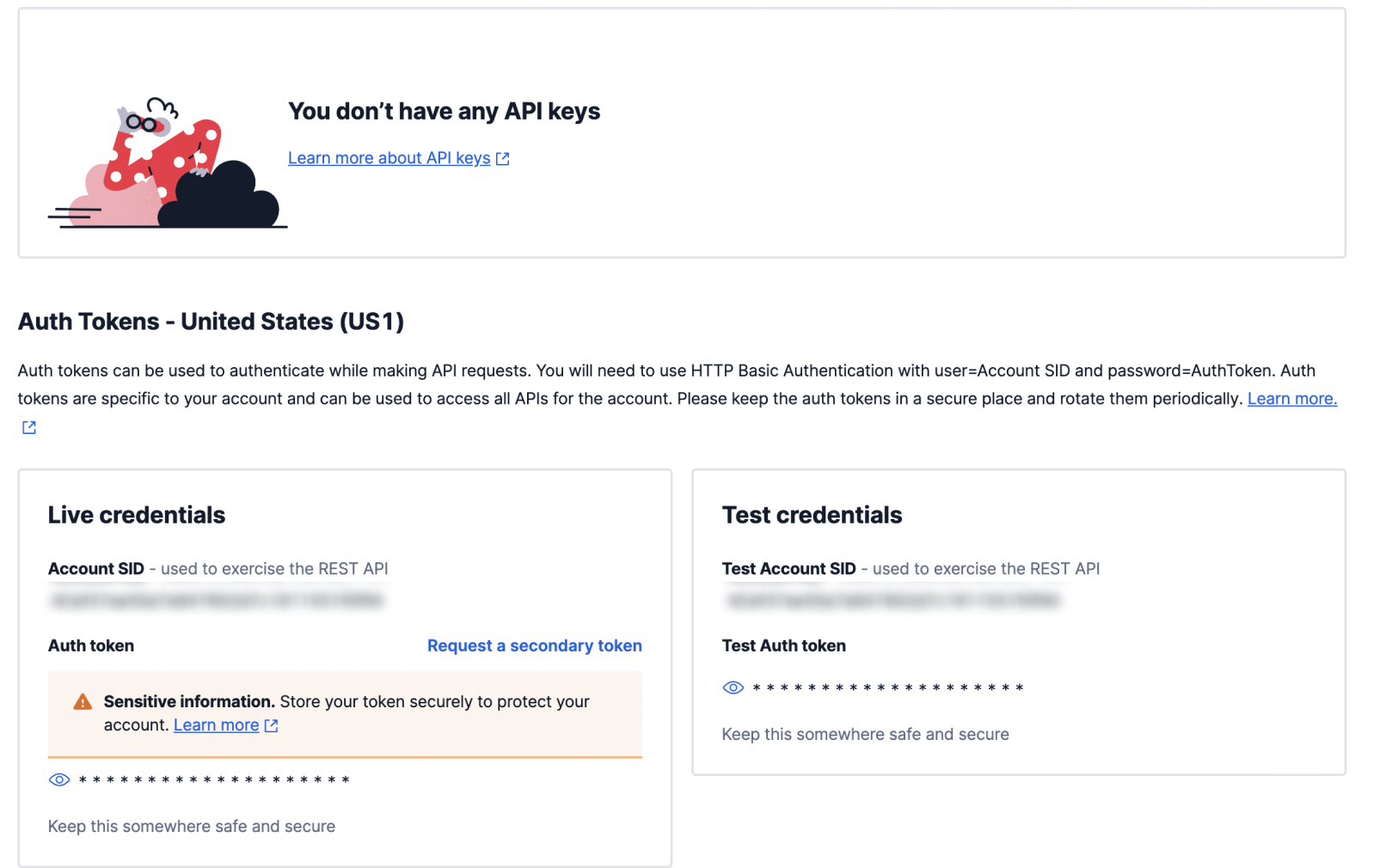
| Account SID | You will get this API Key from your Twilio dashboard (keys and tokens section). SuprSend uses this information to send WhatsApp on your behalf via your registered Twilio account. |
| Auth Token | You will get the token from your Twilio dashboard (keys and tokens section). SuprSend uses this information to send WhatsApp on your behalf via your registered Twilio account. |
| WhatsApp Sender Number | Your WhatsApp sender number in E.164 format with the `whatsapp:` prefix and colon (e.g., `whatsapp:+1234567890`). This is the number registered with Twilio for sending WhatsApp messages. |
| Price per notification | This is the amount you pay per WhatsApp notification to Twilio. It helps us to calculate, estimate and optimise your cost spent on notifications. |
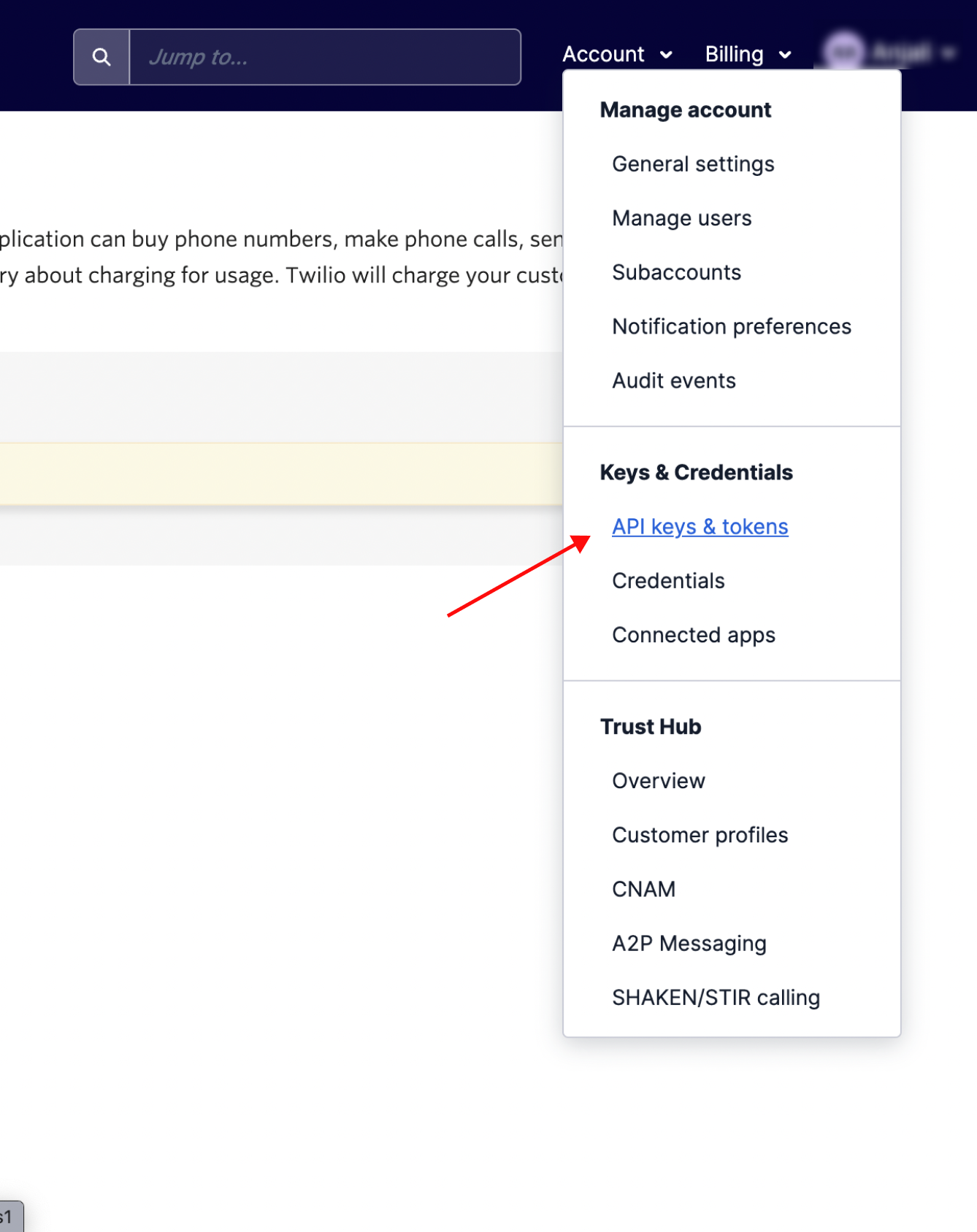
### How to get Account SID and Auth Token from your Twilio account
Login to Twilio account and follow the below steps:
 **Verify phone numbers for sending through test credentials** 👍
Please note that you can only send to verified mobile numbers (referred as verified caller IDs) using Twilio account test credentials. You can add verified caller IDs from [here](https://console.twilio.com/us1/develop/phone-numbers/manage/verified)
## How to register WhatsApp Sender with Twilio
To send WhatsApp messages through Twilio account, you need to register a WhatsApp sender. This involves connecting your WhatsApp Business Account (WABA) to Twilio.
You can register WhatsApp senders using Twilio's [Embedded Signup](https://www.twilio.com/docs/whatsapp/embedded-signup) or via the [Twilio Console](https://console.twilio.com/us1/develop/sms/senders/whatsapp-senders).
The `sender_id` should be in E.164 format with the `whatsapp:` prefix and colon (e.g., `whatsapp:+1234567890`). This is the number you'll use in the SuprSend vendor configuration.
## Setting callback URL in Twilio account
One of the platform advantage of using SuprSend as a central communication system is that it shows notification analytics for all channels in your SuprSend account together.
By default SuprSend Webhook URL is configured in Twilio. This will help you to track the message delivery status and failure logs on SuprSend dashboard. If you have a requirement where you would want to get the DLR reports in your backend, contact us at [support@suprsend.com](mailto:support@suprsend.com)
**Webhook URL for WhatsApp delivery reports:**
* `https://hub.suprsend.com/webhook/twilio/whatsapp`
To configure the webhook in Twilio Console, navigate to **Messaging > Settings > WhatsApp Senders** and set the webhook URL for each WhatsApp sender.
## WhatsApp Template Approval
WhatsApp requires all outbound, business-initiated messages (outside the 24-hour user window) to use pre-approved templates.
**Note**: As of July 2024, new Twilio accounts must use the Content Template Builder for WhatsApp templates. Templates are categorized as Utility, Marketing, or Authentication, and pricing is based on category.
To create and submit templates in Twilio, navigate to **Twilio Console > Messaging > Content Template Builder** and follow Twilio's template creation process.
### Template Approval Process
**Best Practices:**
* Templates should not start or end with a variable
* Templates must be clear and specific to avoid rejection
* Use descriptive template names (e.g., `order_confirmation` instead of `template_014`)
* Review templates for spelling and grammatical errors before submission
**Template Status:**
* **Pending**: Under review (typically approved within minutes, but can take up to 48 hours)
* **Approved**: Ready to use for outbound messages
* **Rejected**: Not approved - review the reason, revise the template, and resubmit with a new name
* **Paused/Disabled**: Due to negative user feedback or policy violation
If a template is rejected, review the rejection reason in the Twilio Console, revise the content based on the feedback, and resubmit with a new name. Template names cannot be reused for 30 days after rejection.
For detailed guidelines on WhatsApp template approval, content requirements, and best practices, refer to the [WhatsApp Template Guidelines](/docs/whatsapp-template-guidelines) documentation.
For Twilio-specific template creation steps, see [Twilio's WhatsApp Template Approval Guide](https://www.twilio.com/docs/whatsapp/tutorial/send-whatsapp-notification-messages-templates).
## DLT Guidelines for India (SMS Fallback)
**Important**: DLT (Distributed Ledger Technology) registration is **not required for WhatsApp messaging** (WhatsApp is an OTT channel, not SMS). However, if you plan to use SMS as a fallback or in parallel with WhatsApp, DLT registration and template approval on the DLT portal are mandatory for SMS traffic in India.
For detailed DLT guidelines, template categories, and registration steps, refer to the [DLT Guidelines](/docs/dlt-guidelines) documentation. For Twilio-specific DLT requirements, see [Twilio's India SMS Guidelines](https://www.twilio.com/docs/sms/india).
## FAQs
Review the rejection reason in Twilio Console and ensure your templates follow the [WhatsApp Template Guidelines](/docs/whatsapp-template-guidelines). Common issues include:
* Templates that are promotional, vague, or start/end with variables
* Missing context or unclear messaging
* Spelling or grammatical errors
After making corrections, resubmit with a new name (template names cannot be reused for 30 days after rejection).
If sender registration is taking longer than expected:
* Ensure your Meta Business Account is properly configured
* Verify that all required permissions are granted in Meta App Dashboard
* Check that the phone number can receive SMS/voice for verification
* Contact Twilio support if registration is delayed beyond 48 hours
Verify the following:
* The webhook URL is correctly set: `https://hub.suprsend.com/webhook/twilio/whatsapp`
* Check Twilio Console > Messaging > Settings > WhatsApp Senders
* Ensure the webhook is configured for each WhatsApp sender
* Verify that your webhook endpoint is accessible and not blocked by firewall rules
**Vendor switching not supported**
Vendor switching from Twilio to any Indian vendor is currently not supported due to DLT restrictions. So, if you are using twilio as your default vendor for any of the communication type, you'll not be able to choose a different vendor in other communication type. Though choosing a different vendor in other workspace will still be supported
This documentation is built and hosted on [Mintlify](https://mintlify.com), a developer documentation platform.
**Verify phone numbers for sending through test credentials** 👍
Please note that you can only send to verified mobile numbers (referred as verified caller IDs) using Twilio account test credentials. You can add verified caller IDs from [here](https://console.twilio.com/us1/develop/phone-numbers/manage/verified)
## How to register WhatsApp Sender with Twilio
To send WhatsApp messages through Twilio account, you need to register a WhatsApp sender. This involves connecting your WhatsApp Business Account (WABA) to Twilio.
You can register WhatsApp senders using Twilio's [Embedded Signup](https://www.twilio.com/docs/whatsapp/embedded-signup) or via the [Twilio Console](https://console.twilio.com/us1/develop/sms/senders/whatsapp-senders).
The `sender_id` should be in E.164 format with the `whatsapp:` prefix and colon (e.g., `whatsapp:+1234567890`). This is the number you'll use in the SuprSend vendor configuration.
## Setting callback URL in Twilio account
One of the platform advantage of using SuprSend as a central communication system is that it shows notification analytics for all channels in your SuprSend account together.
By default SuprSend Webhook URL is configured in Twilio. This will help you to track the message delivery status and failure logs on SuprSend dashboard. If you have a requirement where you would want to get the DLR reports in your backend, contact us at [support@suprsend.com](mailto:support@suprsend.com)
**Webhook URL for WhatsApp delivery reports:**
* `https://hub.suprsend.com/webhook/twilio/whatsapp`
To configure the webhook in Twilio Console, navigate to **Messaging > Settings > WhatsApp Senders** and set the webhook URL for each WhatsApp sender.
## WhatsApp Template Approval
WhatsApp requires all outbound, business-initiated messages (outside the 24-hour user window) to use pre-approved templates.
**Note**: As of July 2024, new Twilio accounts must use the Content Template Builder for WhatsApp templates. Templates are categorized as Utility, Marketing, or Authentication, and pricing is based on category.
To create and submit templates in Twilio, navigate to **Twilio Console > Messaging > Content Template Builder** and follow Twilio's template creation process.
### Template Approval Process
**Best Practices:**
* Templates should not start or end with a variable
* Templates must be clear and specific to avoid rejection
* Use descriptive template names (e.g., `order_confirmation` instead of `template_014`)
* Review templates for spelling and grammatical errors before submission
**Template Status:**
* **Pending**: Under review (typically approved within minutes, but can take up to 48 hours)
* **Approved**: Ready to use for outbound messages
* **Rejected**: Not approved - review the reason, revise the template, and resubmit with a new name
* **Paused/Disabled**: Due to negative user feedback or policy violation
If a template is rejected, review the rejection reason in the Twilio Console, revise the content based on the feedback, and resubmit with a new name. Template names cannot be reused for 30 days after rejection.
For detailed guidelines on WhatsApp template approval, content requirements, and best practices, refer to the [WhatsApp Template Guidelines](/docs/whatsapp-template-guidelines) documentation.
For Twilio-specific template creation steps, see [Twilio's WhatsApp Template Approval Guide](https://www.twilio.com/docs/whatsapp/tutorial/send-whatsapp-notification-messages-templates).
## DLT Guidelines for India (SMS Fallback)
**Important**: DLT (Distributed Ledger Technology) registration is **not required for WhatsApp messaging** (WhatsApp is an OTT channel, not SMS). However, if you plan to use SMS as a fallback or in parallel with WhatsApp, DLT registration and template approval on the DLT portal are mandatory for SMS traffic in India.
For detailed DLT guidelines, template categories, and registration steps, refer to the [DLT Guidelines](/docs/dlt-guidelines) documentation. For Twilio-specific DLT requirements, see [Twilio's India SMS Guidelines](https://www.twilio.com/docs/sms/india).
## FAQs
Review the rejection reason in Twilio Console and ensure your templates follow the [WhatsApp Template Guidelines](/docs/whatsapp-template-guidelines). Common issues include:
* Templates that are promotional, vague, or start/end with variables
* Missing context or unclear messaging
* Spelling or grammatical errors
After making corrections, resubmit with a new name (template names cannot be reused for 30 days after rejection).
If sender registration is taking longer than expected:
* Ensure your Meta Business Account is properly configured
* Verify that all required permissions are granted in Meta App Dashboard
* Check that the phone number can receive SMS/voice for verification
* Contact Twilio support if registration is delayed beyond 48 hours
Verify the following:
* The webhook URL is correctly set: `https://hub.suprsend.com/webhook/twilio/whatsapp`
* Check Twilio Console > Messaging > Settings > WhatsApp Senders
* Ensure the webhook is configured for each WhatsApp sender
* Verify that your webhook endpoint is accessible and not blocked by firewall rules
**Vendor switching not supported**
Vendor switching from Twilio to any Indian vendor is currently not supported due to DLT restrictions. So, if you are using twilio as your default vendor for any of the communication type, you'll not be able to choose a different vendor in other communication type. Though choosing a different vendor in other workspace will still be supported
This documentation is built and hosted on [Mintlify](https://mintlify.com), a developer documentation platform.