> ## Documentation Index
> Fetch the complete documentation index at: https://docs.suprsend.com/llms.txt
> Use this file to discover all available pages before exploring further.
# WhatsApp
> Design WhatsApp notification templates with header, body, footer, and buttons - with Meta approval and a live conversation preview.
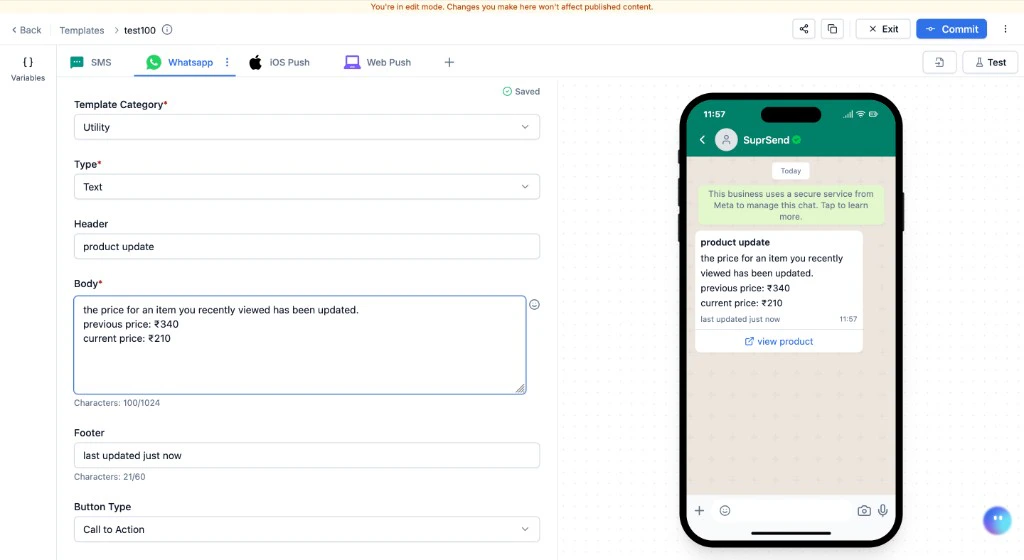
The WhatsApp editor is a structured form (header, body, footer, buttons) with a live WhatsApp conversation preview on the right. Content is personalised with [Handlebars](/docs/handlebars-helpers) variables (`{{variable_name}}`).
 To send WhatsApp messages, you need a WhatsApp vendor integrated with SuprSend. See [WhatsApp vendor integrations](/docs/karix-whatsapp) for the vendor list and setup.
***
## WhatsApp fields
**Template Category** - every WhatsApp template must be categorised. See [Choosing the right category](#choosing-the-right-category) below.
**Type** - `Text` or `Media`. Determines the header format.
**Header (Text type)** - bold text shown above the body. Max 60 characters. Emojis are not supported. Supports Handlebars variables.
**Header (Media type)** - choose a media format: Image (.jpg, .png - recommended 800x418 px, max 5 MB), Video (.mp4 - max 16 MB, under 30s), or Document (.pdf - max 100 MB, set a descriptive filename). Provide a public URL - supports dynamic URLs with variables like `{{media_url}}`. Fully dynamic media URLs are treated as one variable.
**Body** - main message content. Max 1024 characters. Multi-line, supports Handlebars variables and [WhatsApp formatting](#formatting-whatsapp-messages) (`*bold*`, `_italic_`, `~strikethrough~`). HTML and Markdown do not work.
**Footer** — short text below the body in lighter font. Max 60 characters. Variables are not supported. For Marketing templates, include opt-out language (for example, "Reply STOP to opt out") — improves approval rates.
**Buttons** - choose Call to Action, Quick Reply, or None.
* **Call to Action** — up to 2 buttons. **Visit Website** redirects to a URL (Static or Dynamic — one variable at the **end** only, for example `https://yourapp.com/product/{{id}}`). **Call Phone Number** initiates a call.
* **Quick Reply** — up to 3 tap-to-reply buttons. Variables and emojis are not allowed in button text.
To send WhatsApp messages, you need a WhatsApp vendor integrated with SuprSend. See [WhatsApp vendor integrations](/docs/karix-whatsapp) for the vendor list and setup.
***
## WhatsApp fields
**Template Category** - every WhatsApp template must be categorised. See [Choosing the right category](#choosing-the-right-category) below.
**Type** - `Text` or `Media`. Determines the header format.
**Header (Text type)** - bold text shown above the body. Max 60 characters. Emojis are not supported. Supports Handlebars variables.
**Header (Media type)** - choose a media format: Image (.jpg, .png - recommended 800x418 px, max 5 MB), Video (.mp4 - max 16 MB, under 30s), or Document (.pdf - max 100 MB, set a descriptive filename). Provide a public URL - supports dynamic URLs with variables like `{{media_url}}`. Fully dynamic media URLs are treated as one variable.
**Body** - main message content. Max 1024 characters. Multi-line, supports Handlebars variables and [WhatsApp formatting](#formatting-whatsapp-messages) (`*bold*`, `_italic_`, `~strikethrough~`). HTML and Markdown do not work.
**Footer** — short text below the body in lighter font. Max 60 characters. Variables are not supported. For Marketing templates, include opt-out language (for example, "Reply STOP to opt out") — improves approval rates.
**Buttons** - choose Call to Action, Quick Reply, or None.
* **Call to Action** — up to 2 buttons. **Visit Website** redirects to a URL (Static or Dynamic — one variable at the **end** only, for example `https://yourapp.com/product/{{id}}`). **Call Phone Number** initiates a call.
* **Quick Reply** — up to 3 tap-to-reply buttons. Variables and emojis are not allowed in button text.
 ## Adding dynamic content
You can add variables in the template to personalise it for each recipient. Variables are replaced with actual data at send time.
Add sample data in the **Variables panel** (Input Payload section) on the left side of the editor. This powers auto-suggestions and the live preview. For the full guide, see [Adding dynamic content](/docs/templates#the-variables-panel).
Type `{{` in any field - matching variables appear as auto-suggestions. You can also type variable names manually following [Handlebars syntax](https://handlebarsjs.com/guide/#what-is-handlebars).
**Examples using this sample data:**
```json json theme={"system"}
{
"event": {
"location": {
"city": "San Francisco",
"state": "California"
},
"order_id": "11200123",
"first_name": "Joe"
},
"tracking_url": "https://yourapp.com/track/11200123"
}
```
* **Nested variable:** `{{event.location.city}}` → renders as `San Francisco`
* **Variable with space in name:** `{{event.[first name]}}`
The preview section shows sample values rendered in real-time. If a variable isn't rendering, check:
1. The variable is defined in the Variables panel.
2. The variable name matches the Handlebars syntax exactly.
When SuprSend submits your template to Meta for approval, named Handlebars variables like `{{order_id}}` are automatically converted to Meta's positional format (`{{1}}`, `{{2}}`). You always write named variables - SuprSend handles the conversion.
If a variable cannot be rendered at send time (missing or mismatched data), SuprSend discards the WhatsApp notification for that user. Other channels in the same template group are still sent.
## Preview and test
The right panel shows a live WhatsApp conversation preview, updated in real time as you fill in fields. Variables render using data from the **Variables panel**.
Click **Test** in the top-right corner to send a real WhatsApp message. This uses the **live version** - commit and get approval before testing. See [Testing a Template](/docs/templates#test) for the full guide.
## Commit
Click **Commit** in the top bar to publish the current draft. The template enters **Approval Pending** state - SuprSend submits it to Meta automatically. You'll be notified when approved or rejected. Once approved, the version goes **Live** and is used for all subsequent workflow triggers.
WhatsApp templates **cannot be tested until approved**. The Test button uses the live (approved) version. If the template is still pending approval, testing is not available.
***
## Approval flow
Every WhatsApp template must be approved by Meta before it can be sent. This applies globally, not just in specific regions.
Author the template content and click **Commit**. The version enters **Approval Pending** state.
SuprSend submits the template to Meta automatically. Most templates are approved within minutes to hours (up to 24 hours in some cases).
On approval, the version goes **Live**. On rejection, it returns to **Draft** for revision.
Templates pending approval are visible in the **Approvals** tab on the [template listing page](/docs/templates#managing-templates). For content guidelines to avoid rejection, see [WhatsApp Template Guidelines](/docs/whatsapp-template-guidelines).
**AI prompt - check approval likelihood:** *"Review this WhatsApp template for Meta approval. Category: \[UTILITY/MARKETING/AUTHENTICATION]. Header: \[text]. Body: \[paste]. Footer: \[text]. Buttons: \[describe]. Check category match, prohibited content, variable placement, character limits, and formatting. Suggest fixes."*
## Choosing the right category
WhatsApp enforces different rules and pricing for each category. Choosing the wrong category is the most common reason for rejection.
| Category | Use when | Examples |
| ------------------ | --------------------------------------------------------------------------- | -------------------------------------------------------------------------- |
| **Utility** | Responding to a user action. Transactional or service updates. | Order confirmation, shipping update, payment receipt, appointment reminder |
| **Marketing** | Proactively reaching out with promotions or re-engagement. Requires opt-in. | Flash sale, product recommendation, abandoned cart nudge |
| **Authentication** | Sending OTPs or verification codes. Specialised template structure. | Login OTP, two-factor auth, phone verification |
WhatsApp may **reclassify** your template if the content doesn't match the selected category. A "Utility" template with promotional language may be reclassified as "Marketing" - with different pricing and opt-in requirements.
## Formatting WhatsApp messages
WhatsApp has its own text formatting syntax. **HTML and Markdown do not work.**
| Format | Syntax |
| ----------------- | -------------- |
| **Bold** | `*text*` |
| *Italic* | `_text_` |
| ~~Strikethrough~~ | `~text~` |
| `Monospace` | ` ```text``` ` |
***
## Common scenarios
| Field | Value |
| -------- | -------------------------------------------------------------------------------------------------------- |
| Category | Utility |
| Header | `Order Shipped` |
| Body | `Hi {{customer_name}}, your order #{{order_id}} has been shipped! Expected delivery: {{delivery_date}}.` |
| Footer | `SuprSend Logistics` |
| Button | Track Order → `https://yourapp.com/track/{{order_id}}` |
| Field | Value |
| -------- | ------------------------------------------------------------------------------------- |
| Category | Marketing |
| Header | `Flash Sale` |
| Body | `Hi {{$recipient.name}}, our biggest sale starts now! Up to 50% off on all products.` |
| Footer | `Reply STOP to opt out` |
| Button | Shop Now → `https://yourapp.com/sale` |
| Field | Value |
| -------- | ------------------------------------------------------------------- |
| Category | Authentication |
| Body | `Your verification code is {{otp_code}}. It expires in 10 minutes.` |
| Field | Value |
| ---------------------- | ------------------------------------------------------------------------------------------------------- |
| Category | Utility |
| Body | `Reminder: Your appointment with {{provider_name}} is on {{appointment_date}} at {{appointment_time}}.` |
| Button 1 (Quick Reply) | `Confirm` |
| Button 2 (Quick Reply) | `Reschedule` |
## Best practices
* **Avoid rejection** - don't mix categories, avoid placeholder-heavy text with no clear purpose, and don't use URL shorteners in the body.
* **Variable placement** - ensure each variable has a clear example value in the Variables panel. WhatsApp uses these during approval review.
* **Template pausing** - WhatsApp may pause templates with low quality scores (high block/report rates). Monitor quality in the vendor portal.
## Frequently asked questions
Common reasons: content doesn't match the selected category, too many variables without clear context, URL shorteners in the body, or example values that don't make sense. Review the [WhatsApp Template Guidelines](/docs/whatsapp-template-guidelines) and resubmit.
Most templates are approved within minutes to hours. In some cases, up to 24 hours. SuprSend handles submission automatically - you'll be notified when the status changes.
No. To make changes, edit in draft mode and commit again. The new version goes through approval separately.
The template stops being sent until the quality score recovers. Fix the content and monitor in your vendor portal (for example, WhatsApp Business Manager).
One variable allowed at the **end** only — for example, `https://yourapp.com/product/{{id}}`. The static prefix must be a valid URL on its own.
Yes - use [template variants](/docs/template-variants). Each language variant goes through approval separately. The default variant acts as the fallback.
No. WhatsApp templates can only be tested after they are committed and approved by Meta. The Test button uses the live (approved) version.
SuprSend discards the WhatsApp notification for that user. Other channels in the same template group are still sent.
## Adding dynamic content
You can add variables in the template to personalise it for each recipient. Variables are replaced with actual data at send time.
Add sample data in the **Variables panel** (Input Payload section) on the left side of the editor. This powers auto-suggestions and the live preview. For the full guide, see [Adding dynamic content](/docs/templates#the-variables-panel).
Type `{{` in any field - matching variables appear as auto-suggestions. You can also type variable names manually following [Handlebars syntax](https://handlebarsjs.com/guide/#what-is-handlebars).
**Examples using this sample data:**
```json json theme={"system"}
{
"event": {
"location": {
"city": "San Francisco",
"state": "California"
},
"order_id": "11200123",
"first_name": "Joe"
},
"tracking_url": "https://yourapp.com/track/11200123"
}
```
* **Nested variable:** `{{event.location.city}}` → renders as `San Francisco`
* **Variable with space in name:** `{{event.[first name]}}`
The preview section shows sample values rendered in real-time. If a variable isn't rendering, check:
1. The variable is defined in the Variables panel.
2. The variable name matches the Handlebars syntax exactly.
When SuprSend submits your template to Meta for approval, named Handlebars variables like `{{order_id}}` are automatically converted to Meta's positional format (`{{1}}`, `{{2}}`). You always write named variables - SuprSend handles the conversion.
If a variable cannot be rendered at send time (missing or mismatched data), SuprSend discards the WhatsApp notification for that user. Other channels in the same template group are still sent.
## Preview and test
The right panel shows a live WhatsApp conversation preview, updated in real time as you fill in fields. Variables render using data from the **Variables panel**.
Click **Test** in the top-right corner to send a real WhatsApp message. This uses the **live version** - commit and get approval before testing. See [Testing a Template](/docs/templates#test) for the full guide.
## Commit
Click **Commit** in the top bar to publish the current draft. The template enters **Approval Pending** state - SuprSend submits it to Meta automatically. You'll be notified when approved or rejected. Once approved, the version goes **Live** and is used for all subsequent workflow triggers.
WhatsApp templates **cannot be tested until approved**. The Test button uses the live (approved) version. If the template is still pending approval, testing is not available.
***
## Approval flow
Every WhatsApp template must be approved by Meta before it can be sent. This applies globally, not just in specific regions.
Author the template content and click **Commit**. The version enters **Approval Pending** state.
SuprSend submits the template to Meta automatically. Most templates are approved within minutes to hours (up to 24 hours in some cases).
On approval, the version goes **Live**. On rejection, it returns to **Draft** for revision.
Templates pending approval are visible in the **Approvals** tab on the [template listing page](/docs/templates#managing-templates). For content guidelines to avoid rejection, see [WhatsApp Template Guidelines](/docs/whatsapp-template-guidelines).
**AI prompt - check approval likelihood:** *"Review this WhatsApp template for Meta approval. Category: \[UTILITY/MARKETING/AUTHENTICATION]. Header: \[text]. Body: \[paste]. Footer: \[text]. Buttons: \[describe]. Check category match, prohibited content, variable placement, character limits, and formatting. Suggest fixes."*
## Choosing the right category
WhatsApp enforces different rules and pricing for each category. Choosing the wrong category is the most common reason for rejection.
| Category | Use when | Examples |
| ------------------ | --------------------------------------------------------------------------- | -------------------------------------------------------------------------- |
| **Utility** | Responding to a user action. Transactional or service updates. | Order confirmation, shipping update, payment receipt, appointment reminder |
| **Marketing** | Proactively reaching out with promotions or re-engagement. Requires opt-in. | Flash sale, product recommendation, abandoned cart nudge |
| **Authentication** | Sending OTPs or verification codes. Specialised template structure. | Login OTP, two-factor auth, phone verification |
WhatsApp may **reclassify** your template if the content doesn't match the selected category. A "Utility" template with promotional language may be reclassified as "Marketing" - with different pricing and opt-in requirements.
## Formatting WhatsApp messages
WhatsApp has its own text formatting syntax. **HTML and Markdown do not work.**
| Format | Syntax |
| ----------------- | -------------- |
| **Bold** | `*text*` |
| *Italic* | `_text_` |
| ~~Strikethrough~~ | `~text~` |
| `Monospace` | ` ```text``` ` |
***
## Common scenarios
| Field | Value |
| -------- | -------------------------------------------------------------------------------------------------------- |
| Category | Utility |
| Header | `Order Shipped` |
| Body | `Hi {{customer_name}}, your order #{{order_id}} has been shipped! Expected delivery: {{delivery_date}}.` |
| Footer | `SuprSend Logistics` |
| Button | Track Order → `https://yourapp.com/track/{{order_id}}` |
| Field | Value |
| -------- | ------------------------------------------------------------------------------------- |
| Category | Marketing |
| Header | `Flash Sale` |
| Body | `Hi {{$recipient.name}}, our biggest sale starts now! Up to 50% off on all products.` |
| Footer | `Reply STOP to opt out` |
| Button | Shop Now → `https://yourapp.com/sale` |
| Field | Value |
| -------- | ------------------------------------------------------------------- |
| Category | Authentication |
| Body | `Your verification code is {{otp_code}}. It expires in 10 minutes.` |
| Field | Value |
| ---------------------- | ------------------------------------------------------------------------------------------------------- |
| Category | Utility |
| Body | `Reminder: Your appointment with {{provider_name}} is on {{appointment_date}} at {{appointment_time}}.` |
| Button 1 (Quick Reply) | `Confirm` |
| Button 2 (Quick Reply) | `Reschedule` |
## Best practices
* **Avoid rejection** - don't mix categories, avoid placeholder-heavy text with no clear purpose, and don't use URL shorteners in the body.
* **Variable placement** - ensure each variable has a clear example value in the Variables panel. WhatsApp uses these during approval review.
* **Template pausing** - WhatsApp may pause templates with low quality scores (high block/report rates). Monitor quality in the vendor portal.
## Frequently asked questions
Common reasons: content doesn't match the selected category, too many variables without clear context, URL shorteners in the body, or example values that don't make sense. Review the [WhatsApp Template Guidelines](/docs/whatsapp-template-guidelines) and resubmit.
Most templates are approved within minutes to hours. In some cases, up to 24 hours. SuprSend handles submission automatically - you'll be notified when the status changes.
No. To make changes, edit in draft mode and commit again. The new version goes through approval separately.
The template stops being sent until the quality score recovers. Fix the content and monitor in your vendor portal (for example, WhatsApp Business Manager).
One variable allowed at the **end** only — for example, `https://yourapp.com/product/{{id}}`. The static prefix must be a valid URL on its own.
Yes - use [template variants](/docs/template-variants). Each language variant goes through approval separately. The default variant acts as the fallback.
No. WhatsApp templates can only be tested after they are committed and approved by Meta. The Test button uses the live (approved) version.
SuprSend discards the WhatsApp notification for that user. Other channels in the same template group are still sent.