> ## Documentation Index
> Fetch the complete documentation index at: https://docs.suprsend.com/llms.txt
> Use this file to discover all available pages before exploring further.
# Workflows overview
> Understand what a SuprSend workflow is and how to design, test, trigger, and track notification workflows across email, SMS, push, and other channels.
Workflow acts as the notification powerhouse where you define the logic and stitch individual pieces together, like [user](/docs/users), [template](/docs/templates), [vendor](/docs/vendors), and [preferences](/docs/user-preferences), to deliver notifications to the end user.
A workflow comprises a series of steps that, when performed in sequence, form the notification journey. There exists primarily four types of workflow steps, referred to as workflow nodes in SuprSend:
[Trigger](/docs/trigger-workflow) node initiates the workflow and delivers the first notification. You can trigger a workflow through an event call or a direct API call to SuprSend. Events fall into three categories:
**1. External actions performed by users on your platform**, such as `post like` or `new comment`. To track these actions, integrate the [frontend SDK](/docs/integrate-javascript-sdk) into your product or use the [backend SDK](/docs/integrate-python-sdk) or [HTTP API](/reference/overview).
**2. User entering or leaving a list**, such as when `users unsubscribe from a topic`. These events trigger automatically when using SuprSend-managed lists and configuring list events through [list tracking](/docs/lists#configure-list-events).
**3. Internal trigger from backend logic**, based on data or state changes like `shipment out for delivery` or `job closed`.
Functions represent logical steps in a workflow-such as [delay](/docs/delay), [batch](/docs/batch) to combine notifications into one summarized message, or implementing conditional waits.
Split the workflow into parallel flows where the user follows one branch based on a condition. for example, the [wait until](/docs/wait-until) branch holds the user until they meet the required condition.
Delivery Nodes represent the final send steps that deliver notifications to users. Templates define the content of each notification. You can send notifications through a [single channel](/docs/delivery-single-channel), [multi-channel](/docs/delivery-multi-channel), or apply [channel routing](/docs/smart-delivery) for sequential delivery across multiple channels.
## Create workflow
In SuprSend, you can group multi-channel and multi-stakeholder notifications in a single workflow, by considering the workflow as a sequence of notifications.
One example of a multi-channel, multi-stakeholder workflow involves sending a series of payment reminders to a company's users.
* The system sends the first reminder to the account admins via email.
* The second reminder reaches both the admins and the finance team of the company-first via Inbox, then via email if the notification isn’t seen on Inbox.
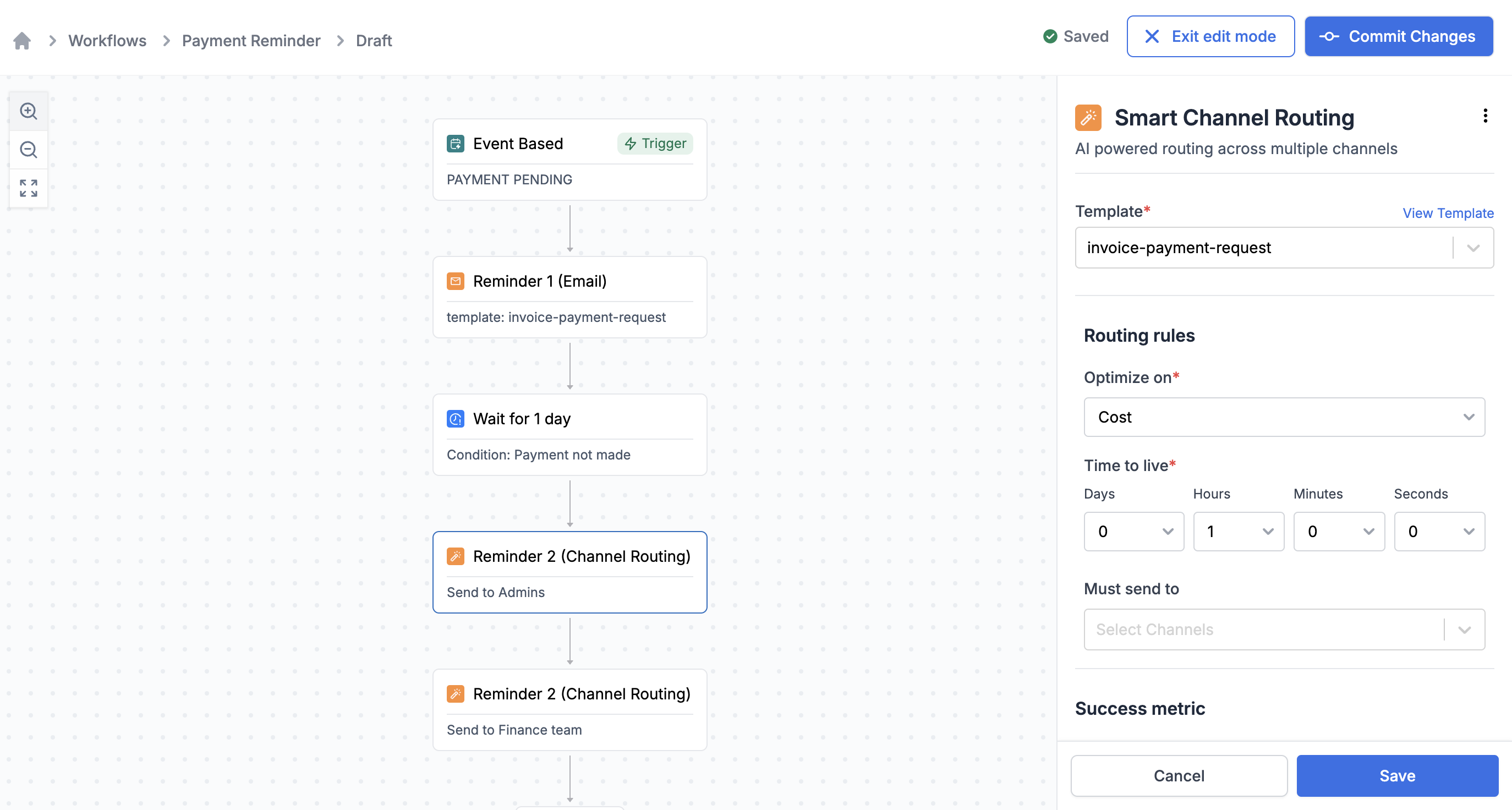 Creating a single workflow to track the journey linked to a trigger helps simplify tracking the entire flow—for example, understanding how many users saw the first notification, how many dropped off after the second, which channel performs best, and more. Fewer workflow
**Test your workflows in staging workspace before deploying to production:**
Design your workflows in the staging workspace first and trigger a test workflow before making it live for your production users. Once your workflow is well tested and working, [clone](/docs/design-workflow#cloning-a-workflow) it to the production workspace.
### Preference categories
Each workflow connects to a preference category, which helps group related workflows. Users can manage their preferences across these groups. For instance, you can group all shipment-related messages under the category `Delivery updates`, allowing users to turn off email alerts and receive them only via push notifications.
This preference setting automatically applies to all workflows under the category `Delivery updates`. Learn more about [preference categories here](/docs/notification-category).
### Version control for workflows
The system first saves all workflow changes in a draft version and only makes them live after you commit the updates. This approach lets you confidently update workflows without affecting any that currently run in production.
Creating a single workflow to track the journey linked to a trigger helps simplify tracking the entire flow—for example, understanding how many users saw the first notification, how many dropped off after the second, which channel performs best, and more. Fewer workflow
**Test your workflows in staging workspace before deploying to production:**
Design your workflows in the staging workspace first and trigger a test workflow before making it live for your production users. Once your workflow is well tested and working, [clone](/docs/design-workflow#cloning-a-workflow) it to the production workspace.
### Preference categories
Each workflow connects to a preference category, which helps group related workflows. Users can manage their preferences across these groups. For instance, you can group all shipment-related messages under the category `Delivery updates`, allowing users to turn off email alerts and receive them only via push notifications.
This preference setting automatically applies to all workflows under the category `Delivery updates`. Learn more about [preference categories here](/docs/notification-category).
### Version control for workflows
The system first saves all workflow changes in a draft version and only makes them live after you commit the updates. This approach lets you confidently update workflows without affecting any that currently run in production.
 ## Trigger workflow
Workflows created on SuprSend dashboard can [trigger via an event call](/docs/trigger-workflow#event-based-trigger) or via a [direct API call](/docs/trigger-workflow#triggering-workflow-via-api).
For transactional use cases such as One-Time Password (OTP), authentication, and verification notifications-where you must provide dynamic user channel information or sensitive data at the time of sending-you can include all data and recipient information in a single API request. This method doesn’t require creating a user beforehand to trigger the notification, making it ideal for migrating existing notifications to SuprSend. Below is an example payload that demonstrates a dynamic workflow setup for an OTP notification.
```python Python theme={"system"}
from suprsend import Event
from suprsend import WorkflowTriggerRequest
supr_client = Suprsend("_workspace_key_", "_workspace_secret_")
# Prepare workflow payload
w1 = WorkflowTriggerRequest(
body={
"workflow": "login_otp",
"recipients": [
{
"distinct_id": "0gxxx9f14-xxxx-23c5-1902-xxxcb6912ab09",
"$sms": ["+15555555555"]
}
],
# variable data in your template
"data":{
"OTP": "1234"
}
}
)
# Trigger workflow
response = supr_client.workflows.trigger(w1)
print(response)
```
```node Node theme={"system"}
const {Suprsend, WorkflowTriggerRequest} = require("@suprsend/node-sdk");
const supr_client = new Suprsend("_workspace_key_", "_workspace_secret_");
// Prepare workflow payload
const body = {
"workflow": "login_otp",
"recipients": [
{
"distinct_id": "0gxxx9f14-xxxx-23c5-1902-xxxcb6912ab09",
"$sms": ["+15555555555"]
}
],
"data":{
"OTP": "1234"
}
}
const w1 = new WorkflowTriggerRequest(body)
// Trigger workflow
const response = supr_client.workflows.trigger(w1);
response.then(res => console.log("response", res));
```
```go Go theme={"system"}
package main
import (
"log"
suprsend "github.com/suprsend/suprsend-go"
)
// Initialize SDK
func main() {
suprClient, err := suprsend.NewClient("_workspace_key_", "_workspace_key_")
if err != nil {
log.Println(err)
}
_ = suprClient
triggerWorkflowAPI(suprClient)
}
func triggerWorkflowAPI(suprClient *suprsend.Client) {
// Create WorkflowRequest body
wfReqBody := map[string]interface{}{
"workflow": "login_otp",
"recipients": []map[string]interface{}{
{
"distinct_id": "0gxxx9f14-xxxx-23c5-1902-xxxcb6912ab09",
"$sms": []string{"+15555555555"},
},
},
// # data can be any json / serializable python-dictionary
"data": map[string]interface{}{
"OTP": "1234",
},
}
w1 := &suprsend.WorkflowTriggerRequest{
Body: wfReqBody,
}
// Call Workflows.Trigger to send request to Suprsend
resp, err := suprClient.Workflows.Trigger(w1)
if err != nil {
log.Fatalln(err)
}
log.Println(resp)
}
```
It's a new workflow method available in the SDK versions below (Python >= v0.11.0, Go >= v0.5.1, and Node >= 1.10.0). Upgrade to the latest version if you're using an older SDK.
Below is a sample event call to trigger the payment reminder workflow. You can trigger these events by integrating one of the frontend or backend SDKs, or by integrating with your Customer Data Platform (CDP) like [Segment](/docs/segment) and mapping the events passed through these platforms as your workflow trigger.
```python Python theme={"system"}
from suprsend import Event
# Track Event Example
distinct_id = "0fxxx8f74-xxxx-41c5-8752-xxxcb6911fb08"
event_name = "Payment Pending"
properties = {
"first_name": "User",
"invoice_amount": "$5000",
"invoice_id":"Invoice-1234"
}
event = Event(distinct_id=distinct_id, event_name=event_name, properties=properties)
# Track event
response = supr_client.track_event(event)
print(response)
```
```javascript Node.js theme={"system"}
const { Event } = require("@suprsend/node-sdk");
// Track Event Example
const distinct_id = "0fxxx8f74-xxxx-41c5-8752-xxxcb6911fb08"
const event_name = "Payment Pending"
const properties = {
"first_name": "User",
"invoice_amount": "$5000",
"invoice_id":"Invoice-1234"
}
const event = new Event(distinct_id, event_name, properties)
// Track event
const response = supr_client.track_event(event)
response.then((res) => console.log("response", res));
```
```java Java theme={"system"}
import org.json.JSONObject;
import suprsend.Suprsend;
import suprsend.Event;
public class Event {
public static void main(String[] args) throws Exception {
trackEvent();
}
private static Subscriber trackEvent() throws SuprsendException {
Suprsend suprsendClient = new Suprsend("_workspace_key_", "_workspace_secret_");
String distinctId = "0fxxx8f74-xxxx-41c5-8752-xxxcb6911fb08";
String eventName = "Payment Pending";
JSONObject eventProps = new JSONObject()
.put("first_name", "User")
.put("invoice_amount", "$5000");
.put("invoice_id", "Invoice-1234");
Event e = new Event(distinctId, eventName, eventProps);
// Track event
JSONObject response = suprClient.trackEvent(e);
System.out.println(response);
}
```
```go Go theme={"system"}
ev := &suprsend.Event{
EventName: "Payment Pending",
DistinctId: "0fxxx8f74-xxxx-41c5-8752-xxxcb6911fb08",
Properties: map[string]interface{}{
"first_name": "User",
"invoice_amount": "$5000",
"invoice_id":"Invoice-1234"
}
}
// Send event to Suprsend by calling .TrackEvent
_, err = suprClient.TrackEvent(ev)
if err != nil {
log.Fatalln(err)
}
```
**User profile should be created in SuprSend for passing in event call:**
Please note that you must create the user profile beforehand for the `distinct_id` passed in your event call. If the user isn't present, the event call discards it.
You can also configure your one-time notifications using google sheets. Refer step-by-step guide to [configure workflows using google sheets here](/docs/trigger-workflow#triggering-workflow-using-google-sheets).
## Track or debug workflow run
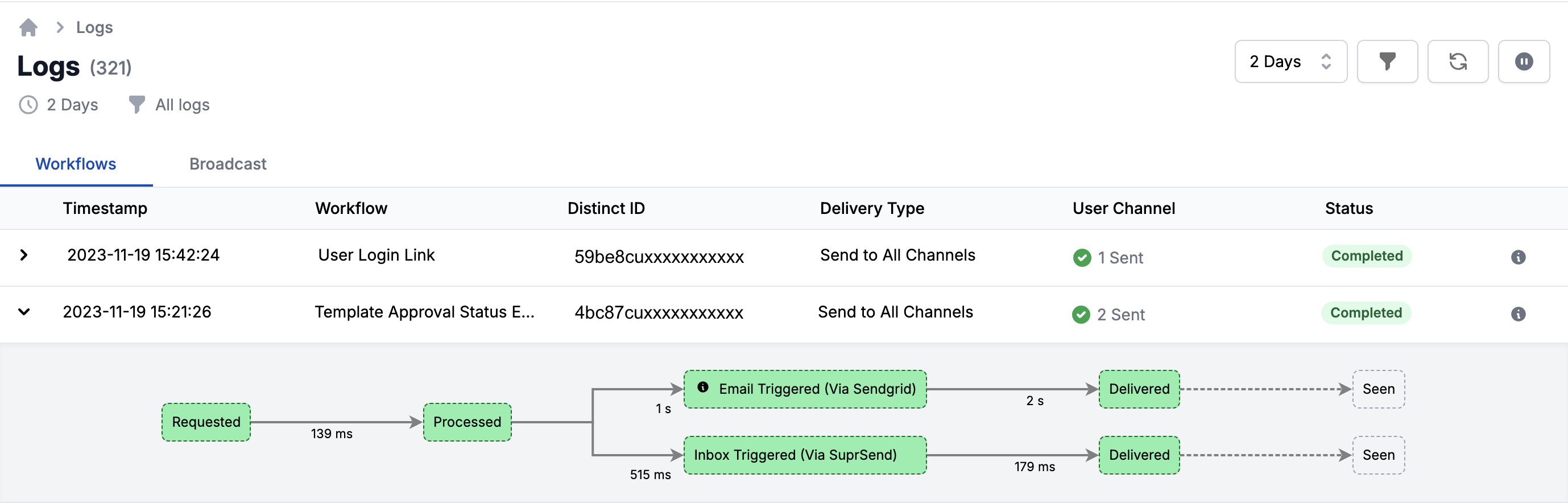
For each workflow run, you'll see a detailed log capturing the state and response of each workflow step as they're sent. You can refer to [error guides](/docs/error-guides) to understand the errors and see how to resolve them.
## Trigger workflow
Workflows created on SuprSend dashboard can [trigger via an event call](/docs/trigger-workflow#event-based-trigger) or via a [direct API call](/docs/trigger-workflow#triggering-workflow-via-api).
For transactional use cases such as One-Time Password (OTP), authentication, and verification notifications-where you must provide dynamic user channel information or sensitive data at the time of sending-you can include all data and recipient information in a single API request. This method doesn’t require creating a user beforehand to trigger the notification, making it ideal for migrating existing notifications to SuprSend. Below is an example payload that demonstrates a dynamic workflow setup for an OTP notification.
```python Python theme={"system"}
from suprsend import Event
from suprsend import WorkflowTriggerRequest
supr_client = Suprsend("_workspace_key_", "_workspace_secret_")
# Prepare workflow payload
w1 = WorkflowTriggerRequest(
body={
"workflow": "login_otp",
"recipients": [
{
"distinct_id": "0gxxx9f14-xxxx-23c5-1902-xxxcb6912ab09",
"$sms": ["+15555555555"]
}
],
# variable data in your template
"data":{
"OTP": "1234"
}
}
)
# Trigger workflow
response = supr_client.workflows.trigger(w1)
print(response)
```
```node Node theme={"system"}
const {Suprsend, WorkflowTriggerRequest} = require("@suprsend/node-sdk");
const supr_client = new Suprsend("_workspace_key_", "_workspace_secret_");
// Prepare workflow payload
const body = {
"workflow": "login_otp",
"recipients": [
{
"distinct_id": "0gxxx9f14-xxxx-23c5-1902-xxxcb6912ab09",
"$sms": ["+15555555555"]
}
],
"data":{
"OTP": "1234"
}
}
const w1 = new WorkflowTriggerRequest(body)
// Trigger workflow
const response = supr_client.workflows.trigger(w1);
response.then(res => console.log("response", res));
```
```go Go theme={"system"}
package main
import (
"log"
suprsend "github.com/suprsend/suprsend-go"
)
// Initialize SDK
func main() {
suprClient, err := suprsend.NewClient("_workspace_key_", "_workspace_key_")
if err != nil {
log.Println(err)
}
_ = suprClient
triggerWorkflowAPI(suprClient)
}
func triggerWorkflowAPI(suprClient *suprsend.Client) {
// Create WorkflowRequest body
wfReqBody := map[string]interface{}{
"workflow": "login_otp",
"recipients": []map[string]interface{}{
{
"distinct_id": "0gxxx9f14-xxxx-23c5-1902-xxxcb6912ab09",
"$sms": []string{"+15555555555"},
},
},
// # data can be any json / serializable python-dictionary
"data": map[string]interface{}{
"OTP": "1234",
},
}
w1 := &suprsend.WorkflowTriggerRequest{
Body: wfReqBody,
}
// Call Workflows.Trigger to send request to Suprsend
resp, err := suprClient.Workflows.Trigger(w1)
if err != nil {
log.Fatalln(err)
}
log.Println(resp)
}
```
It's a new workflow method available in the SDK versions below (Python >= v0.11.0, Go >= v0.5.1, and Node >= 1.10.0). Upgrade to the latest version if you're using an older SDK.
Below is a sample event call to trigger the payment reminder workflow. You can trigger these events by integrating one of the frontend or backend SDKs, or by integrating with your Customer Data Platform (CDP) like [Segment](/docs/segment) and mapping the events passed through these platforms as your workflow trigger.
```python Python theme={"system"}
from suprsend import Event
# Track Event Example
distinct_id = "0fxxx8f74-xxxx-41c5-8752-xxxcb6911fb08"
event_name = "Payment Pending"
properties = {
"first_name": "User",
"invoice_amount": "$5000",
"invoice_id":"Invoice-1234"
}
event = Event(distinct_id=distinct_id, event_name=event_name, properties=properties)
# Track event
response = supr_client.track_event(event)
print(response)
```
```javascript Node.js theme={"system"}
const { Event } = require("@suprsend/node-sdk");
// Track Event Example
const distinct_id = "0fxxx8f74-xxxx-41c5-8752-xxxcb6911fb08"
const event_name = "Payment Pending"
const properties = {
"first_name": "User",
"invoice_amount": "$5000",
"invoice_id":"Invoice-1234"
}
const event = new Event(distinct_id, event_name, properties)
// Track event
const response = supr_client.track_event(event)
response.then((res) => console.log("response", res));
```
```java Java theme={"system"}
import org.json.JSONObject;
import suprsend.Suprsend;
import suprsend.Event;
public class Event {
public static void main(String[] args) throws Exception {
trackEvent();
}
private static Subscriber trackEvent() throws SuprsendException {
Suprsend suprsendClient = new Suprsend("_workspace_key_", "_workspace_secret_");
String distinctId = "0fxxx8f74-xxxx-41c5-8752-xxxcb6911fb08";
String eventName = "Payment Pending";
JSONObject eventProps = new JSONObject()
.put("first_name", "User")
.put("invoice_amount", "$5000");
.put("invoice_id", "Invoice-1234");
Event e = new Event(distinctId, eventName, eventProps);
// Track event
JSONObject response = suprClient.trackEvent(e);
System.out.println(response);
}
```
```go Go theme={"system"}
ev := &suprsend.Event{
EventName: "Payment Pending",
DistinctId: "0fxxx8f74-xxxx-41c5-8752-xxxcb6911fb08",
Properties: map[string]interface{}{
"first_name": "User",
"invoice_amount": "$5000",
"invoice_id":"Invoice-1234"
}
}
// Send event to Suprsend by calling .TrackEvent
_, err = suprClient.TrackEvent(ev)
if err != nil {
log.Fatalln(err)
}
```
**User profile should be created in SuprSend for passing in event call:**
Please note that you must create the user profile beforehand for the `distinct_id` passed in your event call. If the user isn't present, the event call discards it.
You can also configure your one-time notifications using google sheets. Refer step-by-step guide to [configure workflows using google sheets here](/docs/trigger-workflow#triggering-workflow-using-google-sheets).
## Track or debug workflow run
For each workflow run, you'll see a detailed log capturing the state and response of each workflow step as they're sent. You can refer to [error guides](/docs/error-guides) to understand the errors and see how to resolve them.
 ## Analyze notification performance
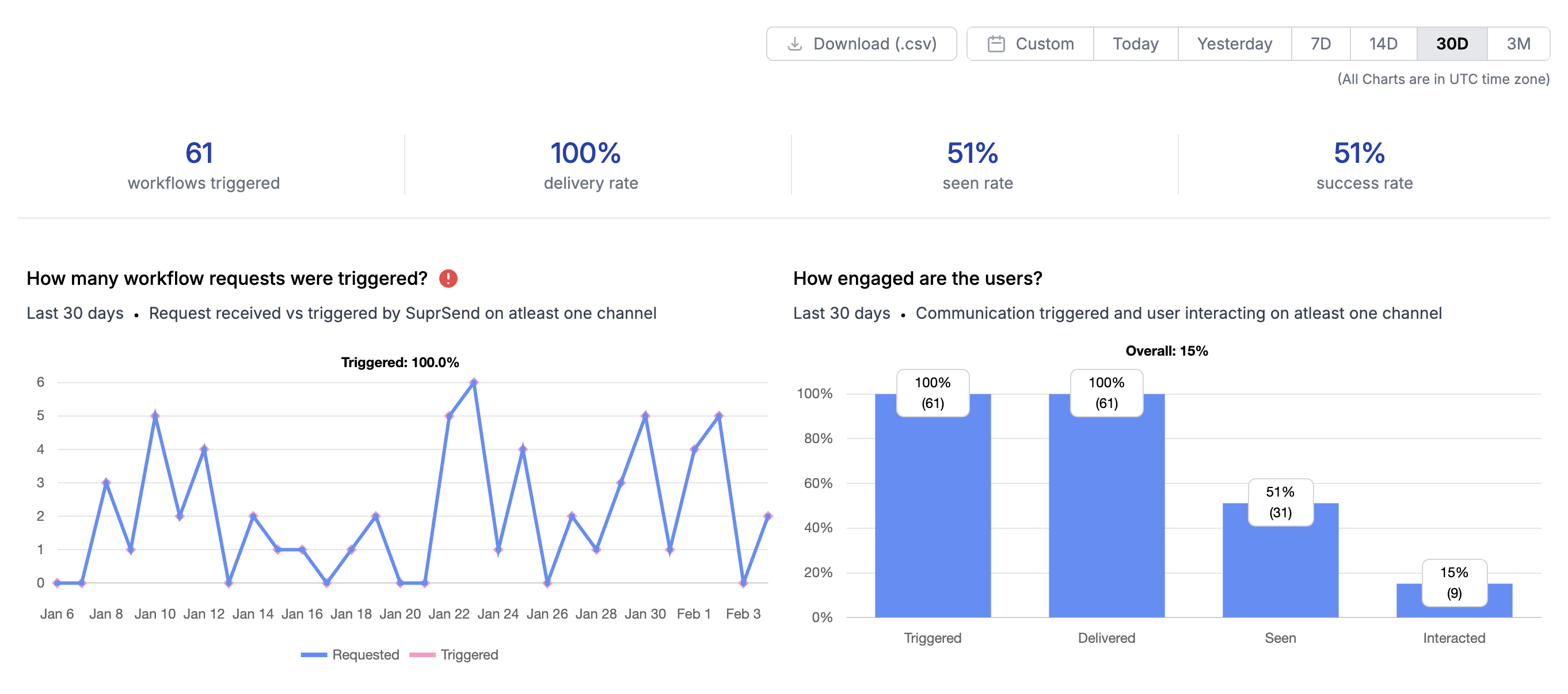
SuprSend provides comprehensive analytics to track the performance of your notifications. You can track delivery, seen, and clicks across all channels in a single graph, identify the best-performing channel, and see how users interact with the notification. You can also retrieve the notification data in your data warehouse for internal analysis and reporting using the [S3 connector](/docs/amazon_s3).
## Analyze notification performance
SuprSend provides comprehensive analytics to track the performance of your notifications. You can track delivery, seen, and clicks across all channels in a single graph, identify the best-performing channel, and see how users interact with the notification. You can also retrieve the notification data in your data warehouse for internal analysis and reporting using the [S3 connector](/docs/amazon_s3).
 **Configure SuprSend webhook in vendor dashboard to track delivery data** 👍
Ensure to include the SuprSend webhook callback URL in your vendor dashboards for WhatsApp, Short Message Service (SMS), and email. This enables tracking of delivery, seen, and click statuses for display in logs and analytics.
For real-time updates to your system, you can also add your webhook endpoint as an [outbound webhook](/docs/webhook) in SuprSend. SuprSend processes data received from your end-vendors in a standard format, eliminating the need to adapt your system for different vendor data structures.
## Per-tenant workflow
Tenants represent a segment that a user belongs to. These can include organizations, teams within an organization, subsidiary companies, or different product lines within the same business. While SuprSend doesn’t directly associate workflows with tenants, you can dynamically pass `tenant_id` in your trigger to send a notification for a tenant. This picks the properties corresponding to that tenant for custom notification content and considers per-tenant preferences when executing the workflow. [Read more about tenant workflows here](/docs/tenant-workflows).
***
**Configure SuprSend webhook in vendor dashboard to track delivery data** 👍
Ensure to include the SuprSend webhook callback URL in your vendor dashboards for WhatsApp, Short Message Service (SMS), and email. This enables tracking of delivery, seen, and click statuses for display in logs and analytics.
For real-time updates to your system, you can also add your webhook endpoint as an [outbound webhook](/docs/webhook) in SuprSend. SuprSend processes data received from your end-vendors in a standard format, eliminating the need to adapt your system for different vendor data structures.
## Per-tenant workflow
Tenants represent a segment that a user belongs to. These can include organizations, teams within an organization, subsidiary companies, or different product lines within the same business. While SuprSend doesn’t directly associate workflows with tenants, you can dynamically pass `tenant_id` in your trigger to send a notification for a tenant. This picks the properties corresponding to that tenant for custom notification content and considers per-tenant preferences when executing the workflow. [Read more about tenant workflows here](/docs/tenant-workflows).
***