> ## Documentation Index
> Fetch the complete documentation index at: https://docs.suprsend.com/llms.txt
> Use this file to discover all available pages before exploring further.
# Status Page React App
> Build a status page app with React, Vite, and SuprSend subscriptions using ready-made AI prompts to scaffold UI, categories, and notifications.
Status page built with React and Vite, with SuprSend integration.
[Try it out](https://status-page-example-app.vercel.app) | [GitHub code repository](https://github.com/suprsend/status-example-app)
***
Follow these steps in order. You’ll set up SuprSend, create dashboard assets, then run the prompts so your AI assistant can build the app. By the end you’ll have a working status page with subscribe, category selection, and incident reporting.
***
## Step 1: Setup SuprSend MCP Server
Start by [setting up SuprSend MCP Server](/reference/mcp-quickstart) in your AI coding assistant. Once MCP Server is setup, you can just copy and paste the prompts below to build the entire application step by step.
***
## Step 2: Get Workspace and API Keys
Get workspace key and API key for the backend. Add them after Prompt 1 creates the project.
1. Open [SuprSend Dashboard → Developers → API Keys](https://app.suprsend.com/en/staging/developers/api-keys).
2. Copy **workspace key** and **API key** (generate one if needed).
Put both in **backend** `.env` as `SUPRSEND_WORKSPACE` and `SUPRSEND_API_KEY`. Don't commit `.env`.
***
## Step 3: Setup in the SuprSend dashboard
Create these in the [SuprSend dashboard](https://app.suprsend.com) (same workspace as Step 2).
### 3a. Create preference categories
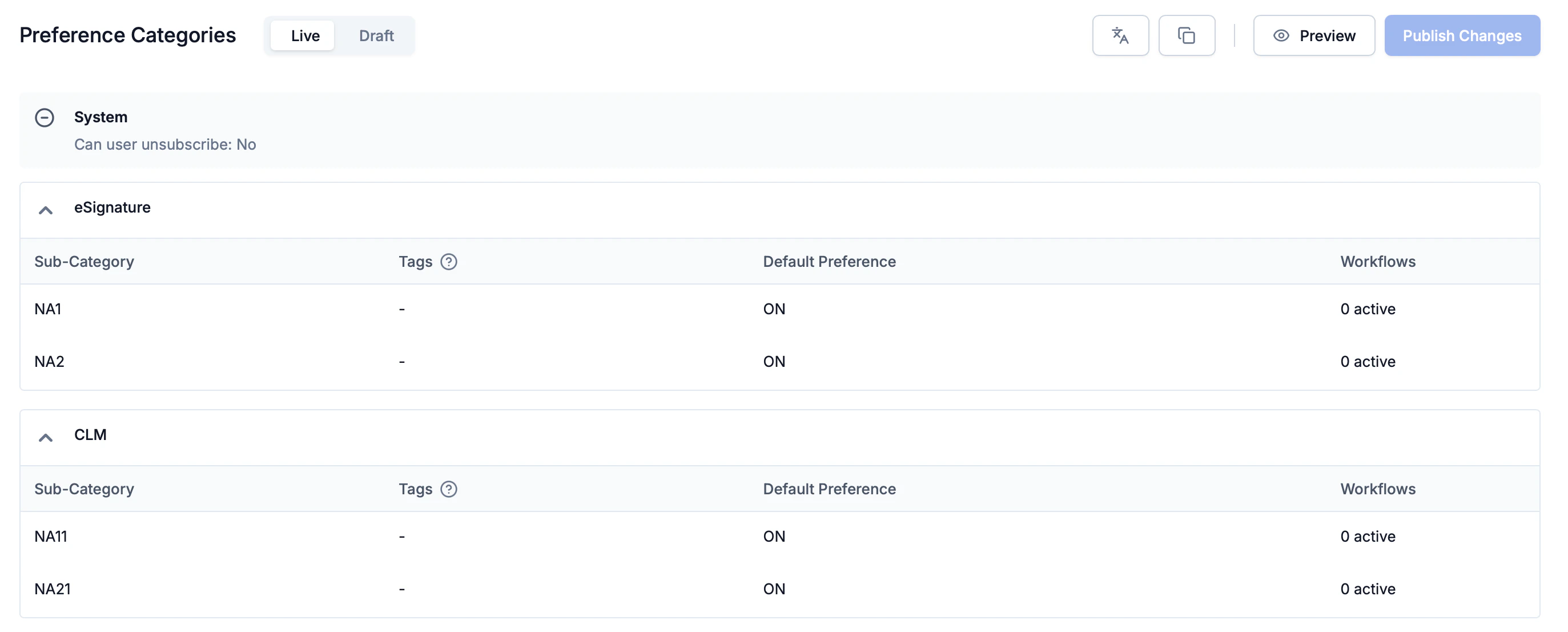
Set up your [preference categories](/docs/managing-notification-categories) using the **root category → section → sub-category** structure. Create one root category (e.g. "Status updates"), then add sections and sub-categories under it. **Publish** the structure.
 ### 3b. Create objects
Create an [object](/docs/objects) for each section and sub-category using the same slug as the category. These objects are used for subscriptions and trigger targeting.
### 3c. Create the template
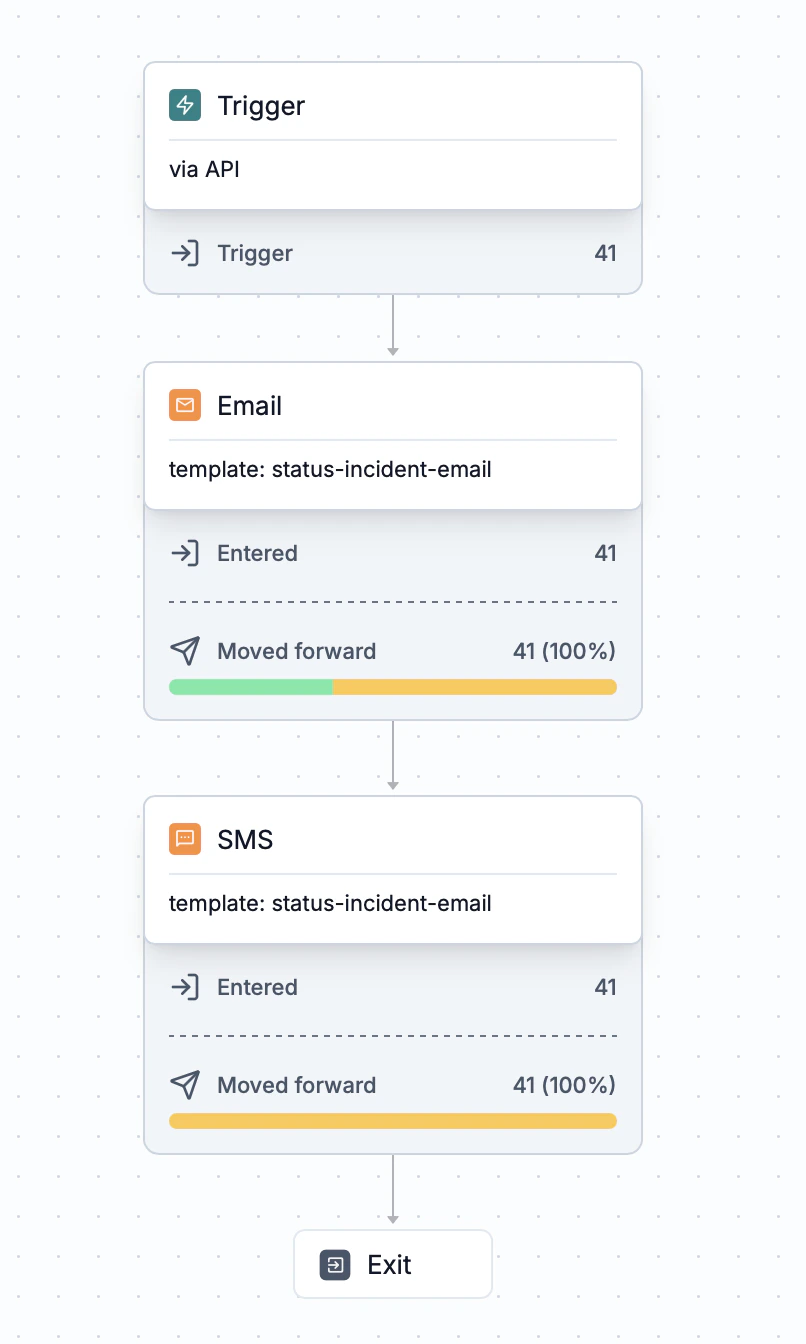
Create [template](https://app.suprsend.com/en/staging/templates) **`status-incident-email`** with Email and SMS variants. Use variables (e.g. `component_name`, incident message). **Publish** the template.
### 3d. Create the workflow
Create [workflow](https://app.suprsend.com/en/staging/workflows) with slug **`status_incident`** (API trigger). Add Email and SMS nodes with the template. Commit the workflow.
### 3b. Create objects
Create an [object](/docs/objects) for each section and sub-category using the same slug as the category. These objects are used for subscriptions and trigger targeting.
### 3c. Create the template
Create [template](https://app.suprsend.com/en/staging/templates) **`status-incident-email`** with Email and SMS variants. Use variables (e.g. `component_name`, incident message). **Publish** the template.
### 3d. Create the workflow
Create [workflow](https://app.suprsend.com/en/staging/workflows) with slug **`status_incident`** (API trigger). Add Email and SMS nodes with the template. Commit the workflow.
 ***
## Prompt 1: Vite + React and Express Backend
```
Set up Vite + React and an Express backend. Proxy /api to the backend in dev.
Run both and confirm the app can call the API.
```
***
## Prompt 2: Backend Routes with SuprSend Preference Model
```
Add backend routes using SuprSend. Follow SuprSend's preference model
(root-category → section → sub-category; preferences apply at sub-category).
Load tenant preference and return sections with sub-categories; ensure each
section and sub-category exists as an object. Add health and tenants routes.
Use SuprSend docs for tenant preference and objects.
```
***
## Prompt 3: User Subscriptions and Trigger Routes
```
Add routes for: (a) get user's selected section/sub-category slugs from their
object subscriptions, (b) subscribe = upsert user, set sub-category opt_in/opt_out,
and sync object subscriptions to the selected slugs, (c) trigger = send to that
object's subscribers only. Use SuprSend docs for user preference and object
subscription. Handle SMS-only and missing workflow with clear errors.
```
***
## Prompt 4: Status Page UI and Modals
```
Build the status page: header (Subscribe, Report incident), main with status
and uptime bars, footer. Subscribe modal: email or SMS, then go to category
selection. Report incident modal: pick section or sub-category from backend,
trigger. Wire to your API.
```
***
## Prompt 5: Category Selection Page
```
Add the category-selection page. Sections with sub-categories; section checkbox
selects section + all its sub-categories, sub-category checkbox toggles that slug.
Load and save selectedIds via your backend. Back to status; same Report incident
here. URL /subscribe?email= or ?sms=, in sync with state. Empty state if no
categories (create in SuprSend dashboard).
```
***
***
## Prompt 1: Vite + React and Express Backend
```
Set up Vite + React and an Express backend. Proxy /api to the backend in dev.
Run both and confirm the app can call the API.
```
***
## Prompt 2: Backend Routes with SuprSend Preference Model
```
Add backend routes using SuprSend. Follow SuprSend's preference model
(root-category → section → sub-category; preferences apply at sub-category).
Load tenant preference and return sections with sub-categories; ensure each
section and sub-category exists as an object. Add health and tenants routes.
Use SuprSend docs for tenant preference and objects.
```
***
## Prompt 3: User Subscriptions and Trigger Routes
```
Add routes for: (a) get user's selected section/sub-category slugs from their
object subscriptions, (b) subscribe = upsert user, set sub-category opt_in/opt_out,
and sync object subscriptions to the selected slugs, (c) trigger = send to that
object's subscribers only. Use SuprSend docs for user preference and object
subscription. Handle SMS-only and missing workflow with clear errors.
```
***
## Prompt 4: Status Page UI and Modals
```
Build the status page: header (Subscribe, Report incident), main with status
and uptime bars, footer. Subscribe modal: email or SMS, then go to category
selection. Report incident modal: pick section or sub-category from backend,
trigger. Wire to your API.
```
***
## Prompt 5: Category Selection Page
```
Add the category-selection page. Sections with sub-categories; section checkbox
selects section + all its sub-categories, sub-category checkbox toggles that slug.
Load and save selectedIds via your backend. Back to status; same Report incident
here. URL /subscribe?email= or ?sms=, in sync with state. Empty state if no
categories (create in SuprSend dashboard).
```
***