> ## Documentation Index
> Fetch the complete documentation index at: https://docs.suprsend.com/llms.txt
> Use this file to discover all available pages before exploring further.
# Quickstart: Figma Make
> Add the hosted SuprSend MCP server to Figma Make as a custom MCP connector and sign in with your SuprSend account.
Custom connectors need a paid Figma plan.
## Set up the connection
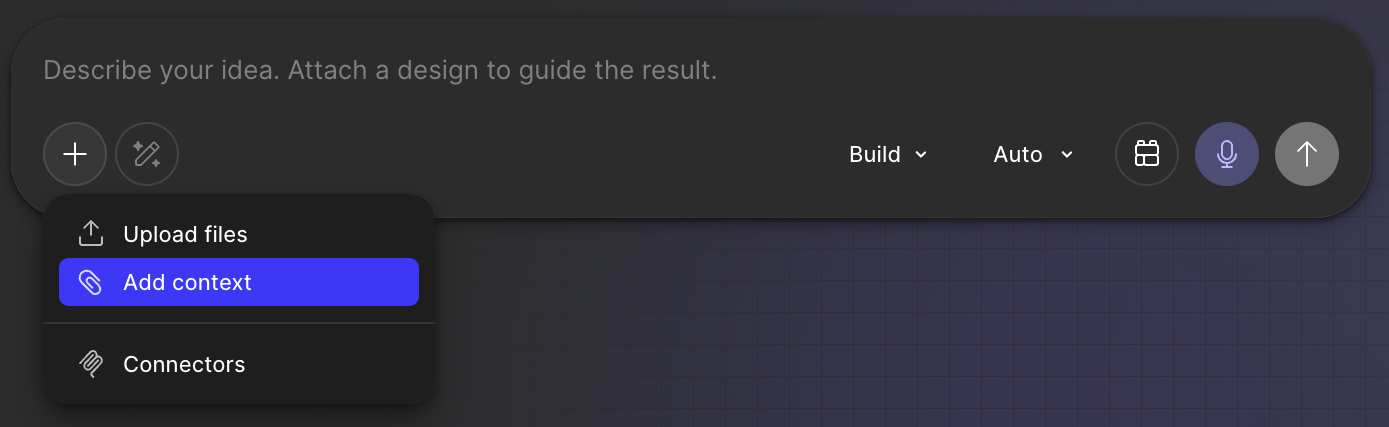
In the Figma Make prompt box, click **+** and select **Add context**. Then select **Connectors** in the left panel.
 Under **Created by you**, click **Create connector**.
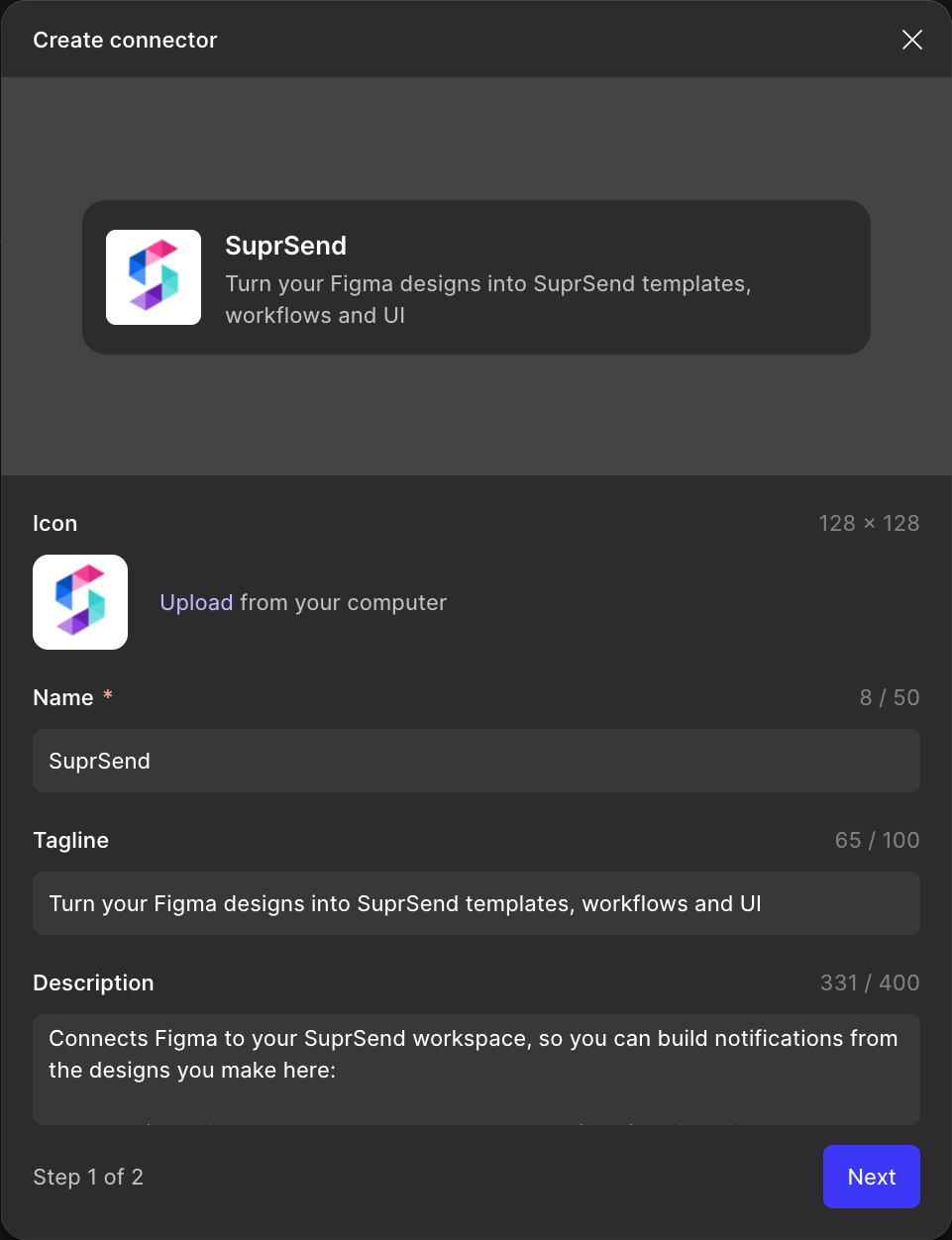
Enter `SuprSend` as the **Name**. Upload an icon and add a **Tagline** and **Description** if you like, then click **Next**.
Under **Created by you**, click **Create connector**.
Enter `SuprSend` as the **Name**. Upload an icon and add a **Tagline** and **Description** if you like, then click **Next**.
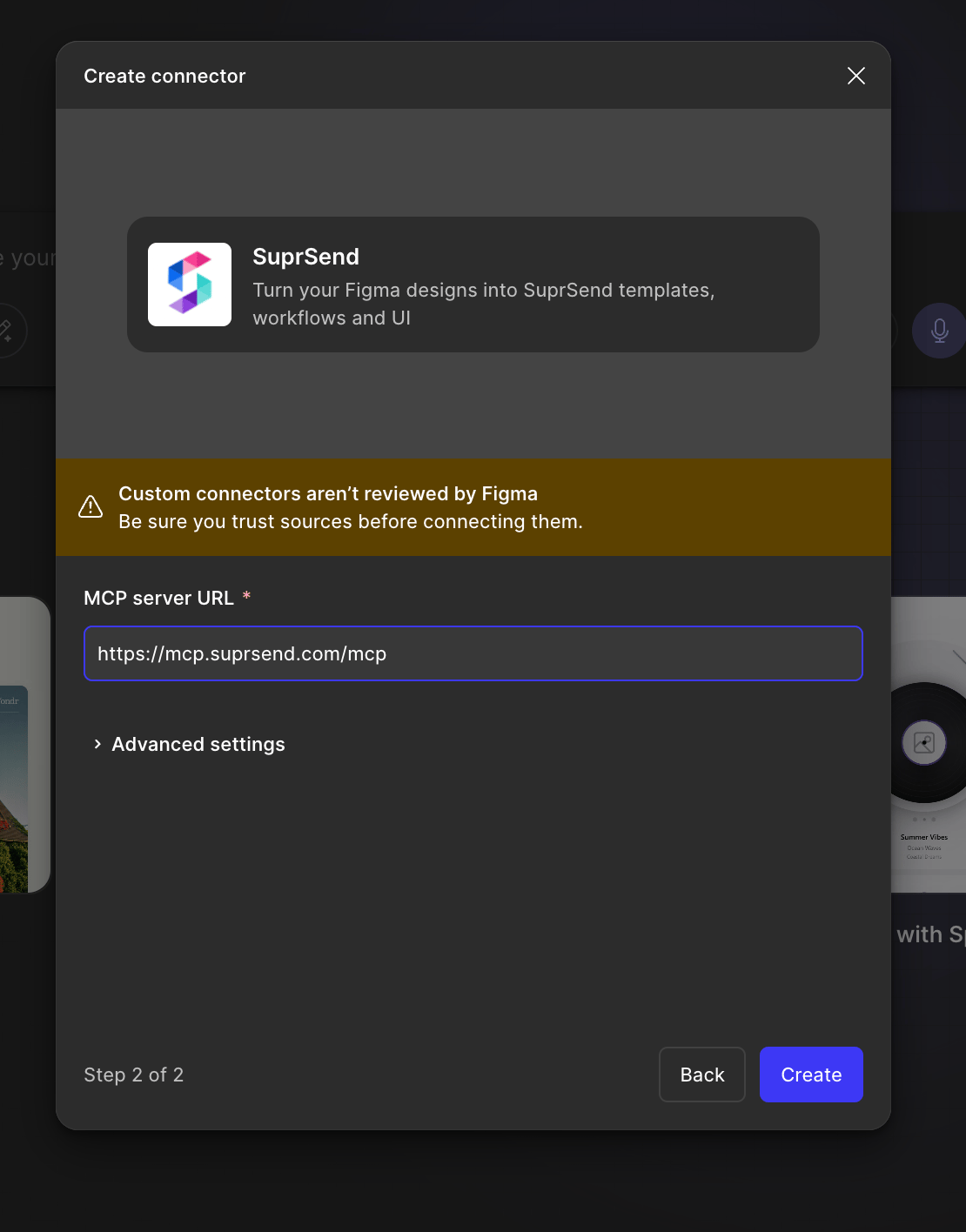
 Paste `https://mcp.suprsend.com/mcp` into **MCP server URL**. Leave **Advanced settings** as they are, and click **Create**.
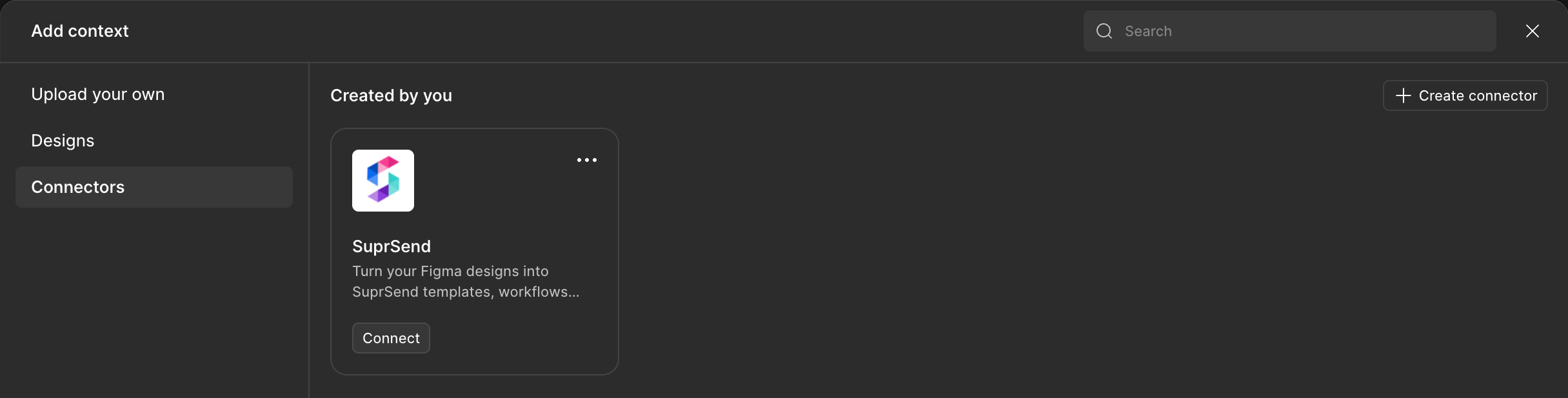
 The SuprSend connector now shows under **Created by you**. Click **Connect** and sign in with your SuprSend account. The agent gets the same permissions your role has in the SuprSend dashboard.
 Figma turns write tools off by default. Turn on the ones you need, such as `templates_upsert` and `templates_publish`, and set each to **Ask to run** or **Always run**. Leave send tools off unless you want to send test notifications from Figma.
In a chat, ask:
```
List my SuprSend workspaces.
```
Figma answers with your SuprSend workspaces.
## Pin a workspace and restrict tools
By default, Figma Make can use every workspace and tool your role allows. To keep it on one workspace, or to give it only the tools a job needs, use one of these URLs as the **MCP server URL**:
* **Pin a workspace** by adding its slug to the path. The agent then can't switch to another workspace:
```
https://mcp.suprsend.com/mcp/staging
```
* **Restrict tools** with `?tools=`, a comma-separated list of tool names or groups:
```
https://mcp.suprsend.com/mcp/staging?tools=users_*,data_*
```
See [Scope the connection](/reference/mcp-overview#scope-the-connection) for every URL pattern, and the [tool list](/reference/mcp-tool-list) for every tool.
## Troubleshooting
Check the workspace slug in the URL. It must match a workspace in your SuprSend account exactly, for example `staging`, not the workspace's display name. A slug that doesn't exist fails with `403 workspace_forbidden`. To see your slugs, remove the slug, reconnect, and ask: "List my SuprSend workspaces."
Every tool, grouped by category, with read vs write labels.
Ready-to-use prompts to get started fast.
This documentation is built and hosted on [Mintlify](https://mintlify.com), a developer documentation platform.
Figma turns write tools off by default. Turn on the ones you need, such as `templates_upsert` and `templates_publish`, and set each to **Ask to run** or **Always run**. Leave send tools off unless you want to send test notifications from Figma.
In a chat, ask:
```
List my SuprSend workspaces.
```
Figma answers with your SuprSend workspaces.
## Pin a workspace and restrict tools
By default, Figma Make can use every workspace and tool your role allows. To keep it on one workspace, or to give it only the tools a job needs, use one of these URLs as the **MCP server URL**:
* **Pin a workspace** by adding its slug to the path. The agent then can't switch to another workspace:
```
https://mcp.suprsend.com/mcp/staging
```
* **Restrict tools** with `?tools=`, a comma-separated list of tool names or groups:
```
https://mcp.suprsend.com/mcp/staging?tools=users_*,data_*
```
See [Scope the connection](/reference/mcp-overview#scope-the-connection) for every URL pattern, and the [tool list](/reference/mcp-tool-list) for every tool.
## Troubleshooting
Check the workspace slug in the URL. It must match a workspace in your SuprSend account exactly, for example `staging`, not the workspace's display name. A slug that doesn't exist fails with `403 workspace_forbidden`. To see your slugs, remove the slug, reconnect, and ask: "List my SuprSend workspaces."
Every tool, grouped by category, with read vs write labels.
Ready-to-use prompts to get started fast.
This documentation is built and hosted on [Mintlify](https://mintlify.com), a developer documentation platform.