
- Privacy Filter on by default. PII never lands in a searchable channel by accident. Sensitive identifiers are routed to the requester’s DM; the channel sees a summary. See Privacy Filter below.
- AI is optional. SuprSend’s notification stack (workflows, templates, channels, preferences, delivery, analytics) does not depend on AI. If your organization can’t share data with third-party model providers, an admin can disable every AI feature in one click. See Settings.
Quick start
- Install the Slack App for your workspace from Account Settings → AI & Agents. Your SuprSend admin can share the install link.
-
After install,
@SuprSendappears as a regular bot user in your workspace. DM it or invite it to any channel. -
Start asking:
- In a channel: type
@suprsendfollowed by your request. - In a DM: open a direct message with
@SuprSendand just type.
- In a channel: type
Privacy Filter
Slack channels are searchable, exportable, and often shared with broader audiences than the people who originally asked. A teammate posting “what’s jane@acme.com’s phone number?” into#growth shouldn’t leak that number to everyone with channel history access.
The Privacy Filter is Slack Agent’s default behavior in channels. It detects when a response would contain PII (emails, phone numbers, push tokens, device identifiers, channel addresses) and splits the reply:
- The channel sees a non-sensitive summary in-thread (e.g., “Found the profile for user_123. Sent identifiers to your DM.”).
- The requester’s DM receives the raw identifiers, so the person doing the work still gets what they need.
The filter runs at the response layer, not the prompt layer. Teammates can still ask sensitive questions in channels; the filter just makes sure the answer doesn’t expose PII in a place it shouldn’t live.
For organizations that don’t want any prompt or response data leaving SuprSend, the AI layer (Slack Agent included) can be disabled entirely from AI & Agents. See Settings below.
What Slack Agent can help with
Data and lookups
Fetch user profiles, preferences, and object or tenant configuration. List workflows, templates, and events.
User and object management
Create or update users and objects. Manage channel addresses (email, SMS, push, Slack, and others). Update notification preferences. Add or remove users from subscriber lists or object subscriptions.
Workflows and events
Trigger API-triggered workflows. Track events so event-triggered workflows can run.
Analytics
Query notification delivery stats, engagement rates, and workflow execution counts. Ask for trend summaries or charts for breakdowns over time.
Debugging delivery
Trace why a notification didn’t land for a user. Channels attempted, preferences applied, overrides hit, and execution logs in one explanation.
Documentation
Get answers about how SuprSend works. APIs, SDKs, channels, templates, workflows, preferences, and related concepts.
Example prompts
Slack Agent works best when prompts include a clear identifier (user distinct ID, object ID, workflow slug, tenant key). Paste these in, swap your own values, and send. Users and preferencesSettings
Slack App setup lives on the same page as the dashboard Agent: Account Settings → AI & Agents. Installing, connecting, disconnecting, and toggling the Slack App is admin-only. Once an admin connects the workspace, anyone in Slack whose email matches a SuprSend user can DM@SuprSend or tag it in a channel, scoped to their own SuprSend role and tenants.
From the settings page, an admin can:
- Install, connect, or disconnect the Slack workspace.
- Toggle the Slack App on or off. Disabling stops Slack Agent from responding in any channel or DM, but preserves install state so re-enabling does not require re-authorizing.
- Turn off all AI features at the workspace level if your organization opts out of third-party model usage. SuprSend’s notification infrastructure continues to work with AI disabled.
- View Slack-attributed credit usage alongside the rest of your AI consumption.
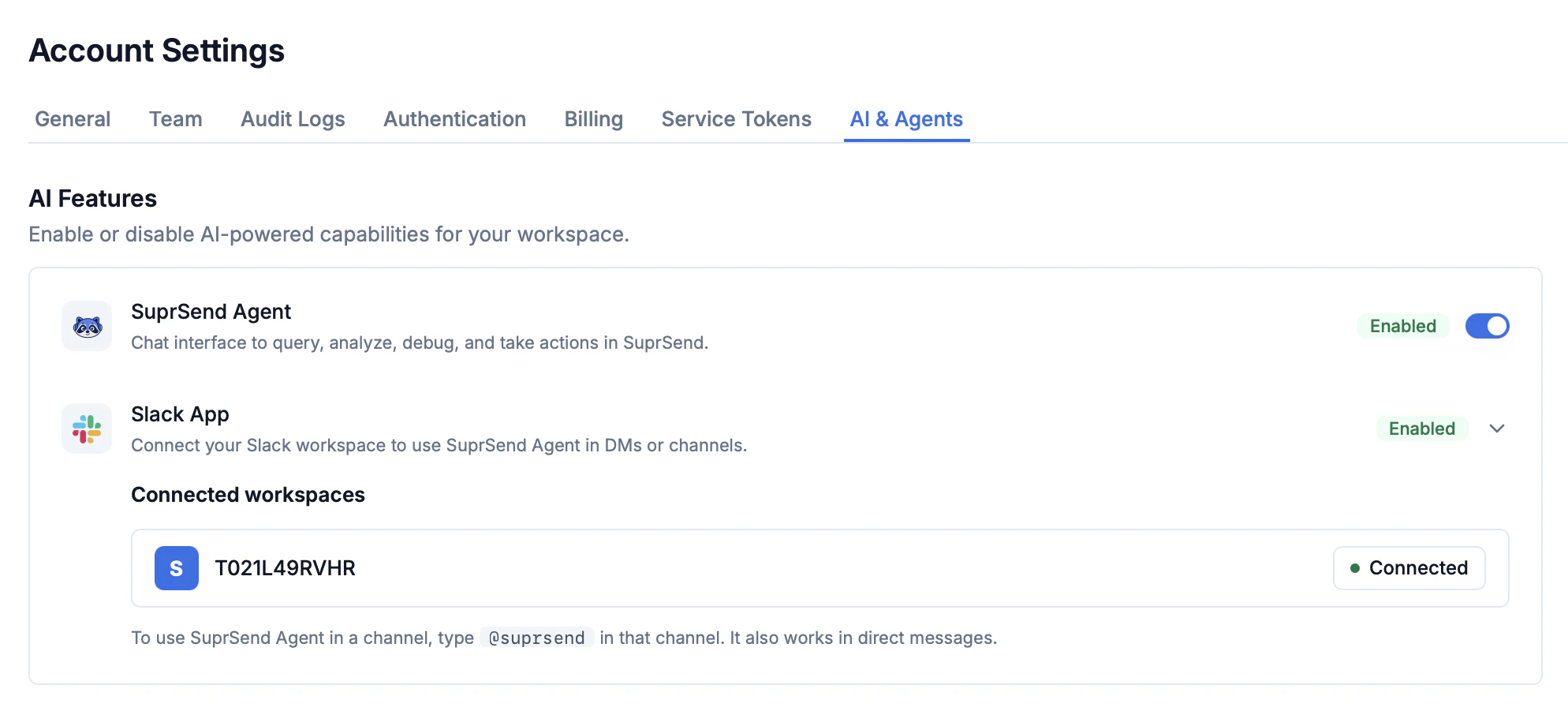
Account Settings → AI & Agents. Install Slack, toggle AI features, and manage credit usage from one page.
AI usage
Slack Agent shares the same credit pool as the dashboard Agent. The settings page shows credits used vs. total for the current cycle, with a per-capability breakdown so you can see how much of your usage is coming from Slack.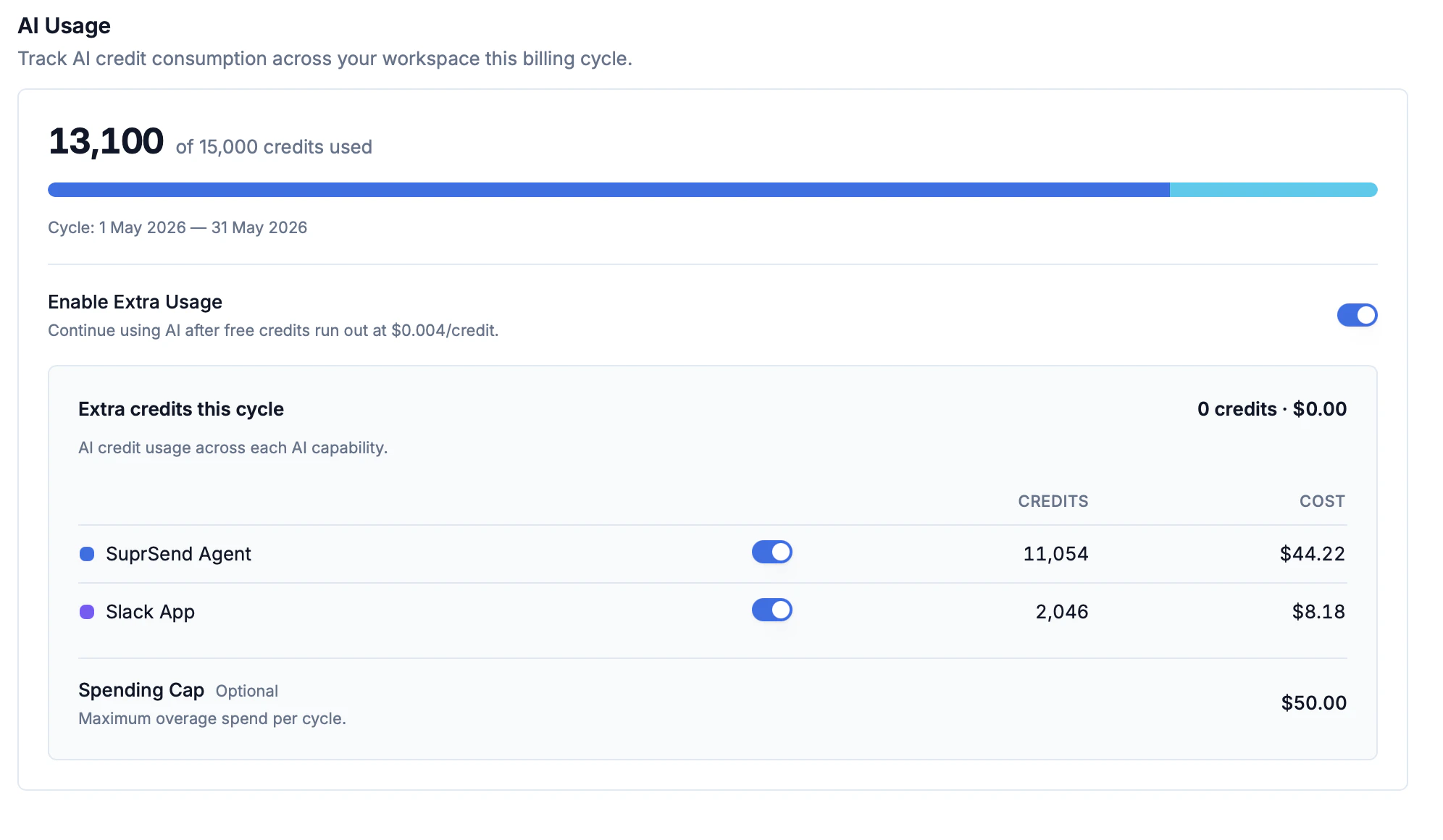
Per-capability credit usage. Slack Agent consumption is tracked alongside dashboard Agent and other AI features.
Related
Agent
The same workspace tools from inside the SuprSend dashboard. Useful when you’re not in Slack.
MCP overview
Model Context Protocol for IDEs. Complementary to chat agents for developers.