
Set up the connection
- ChatGPT
- Codex CLI
1
Open the custom MCP flow
In ChatGPT, open Plugins in the sidebar, then click Add → Add custom MCP server.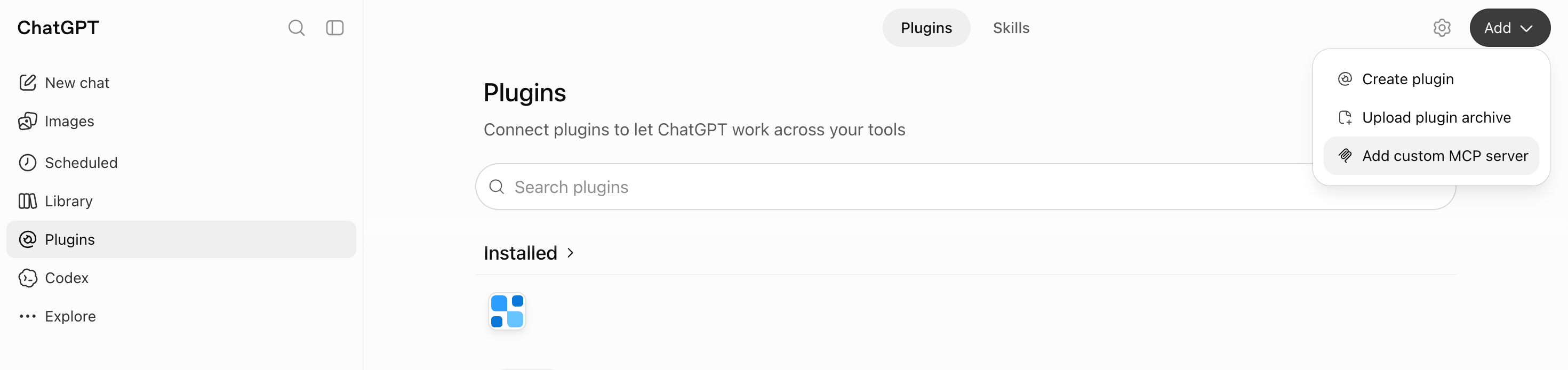
2
Add the SuprSend URL
3
Accept the risk warning
ChatGPT warns that custom MCP servers can run tool calls on your account. Click I understand and want to continue, then Create as a plugin.
4
Sign in with your SuprSend account
ChatGPT opens a sign-in popup. Sign in with your SuprSend account. Your role decides the tools: admins get every tool, and members get read-only tools except the two that show sent message content,
messages_get_content and messages_preview_content.5
Verify the connection
In a new chat, ask:ChatGPT answers with your SuprSend workspaces.
Pin a workspace and restrict tools
By default, ChatGPT and Codex can use every workspace and tool your role allows. To keep them on one workspace, or to give them only the tools a job needs, use one of these URLs when you add the server:-
Pin a workspace by adding its slug to the path. The agent then can’t switch to another workspace:
-
Restrict tools with
?tools=, a comma-separated list of tool names or groups:
Troubleshooting
Server shows disconnected or refuses the connection
Server shows disconnected or refuses the connection
Check the workspace slug in the URL. It must match a workspace in your SuprSend account exactly, for example
staging, not the workspace’s display name. A slug that doesn’t exist fails with 403 workspace_forbidden. To see your slugs, remove the slug, reconnect, and ask: “List my SuprSend workspaces.”Tool list
Every tool, grouped by category, with read vs write labels.
Prompt cheatsheet
Ready-to-use prompts to get started fast.