
Set up the connection
- Devin
- Devin CLI
1
Open the MCP settings
In Devin, go to Customize → MCPs, then click Add MCP → New MCP.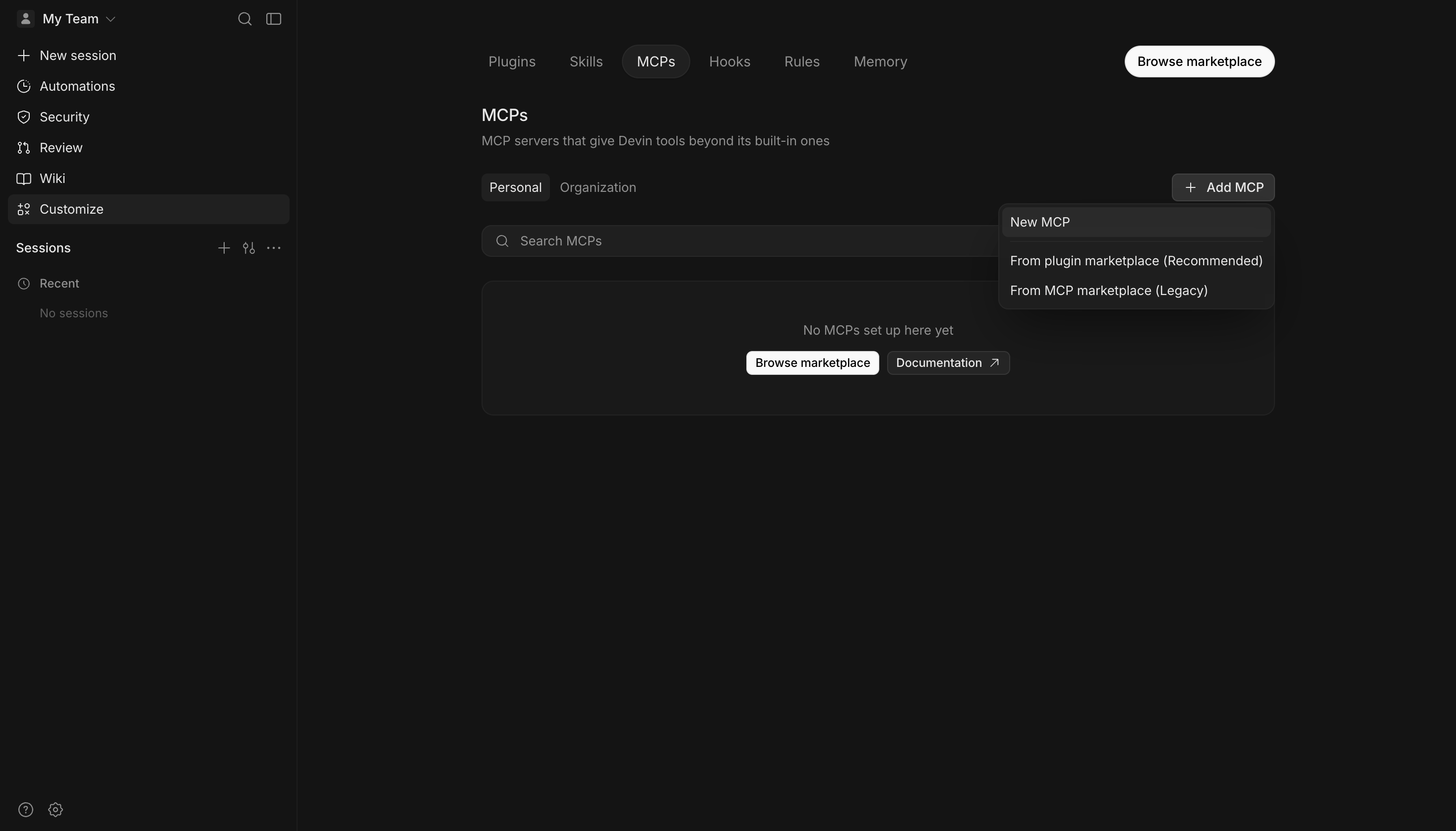
2
Add the SuprSend MCP server
Fill in the form: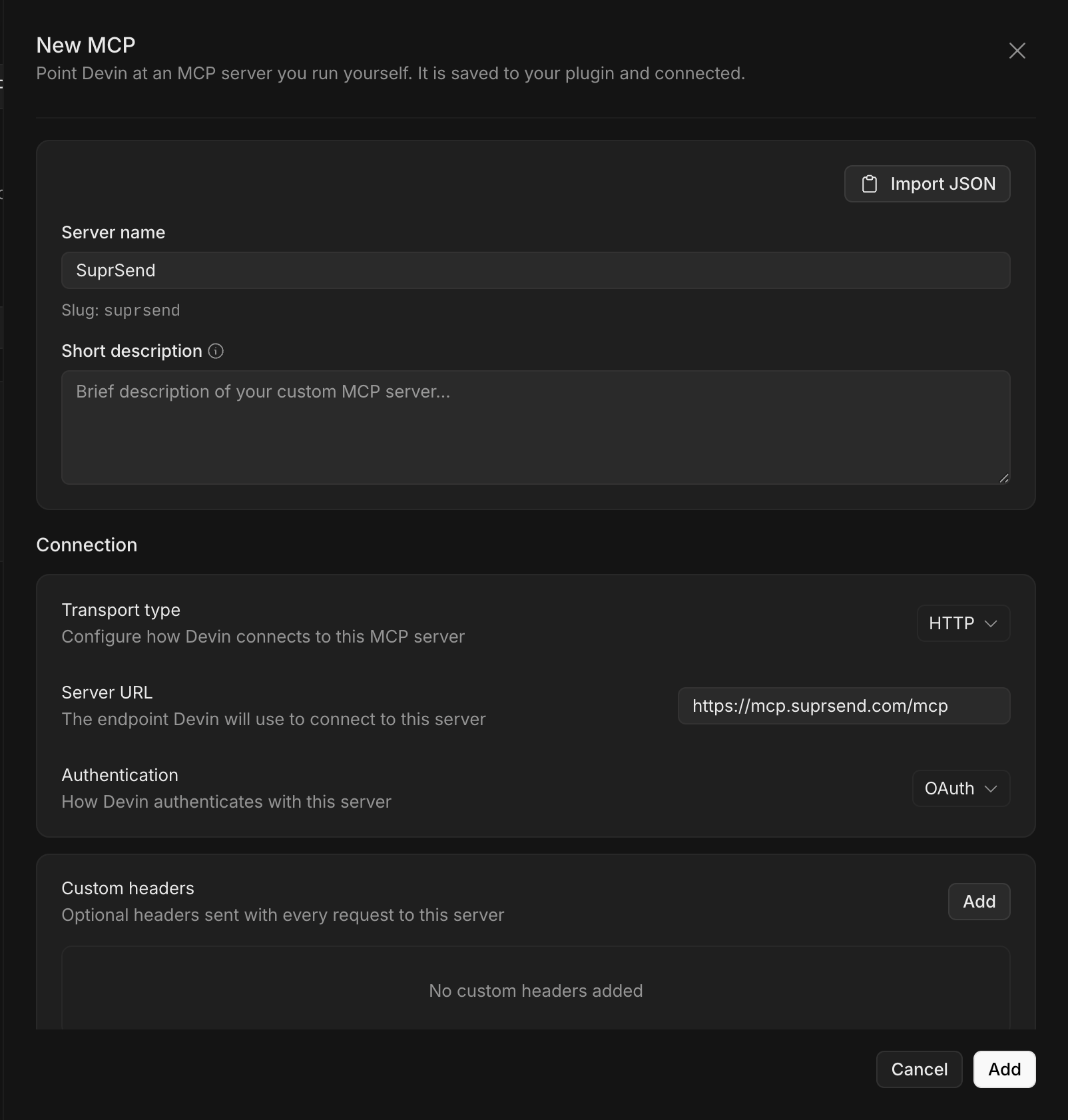
- Server name:
SuprSend - Transport type: HTTP
- Server URL:
https://mcp.suprsend.com/mcp - Authentication: OAuth
3
Confirm the integration
Devin shows a security notice. Check I understand and want to proceed, then click Add.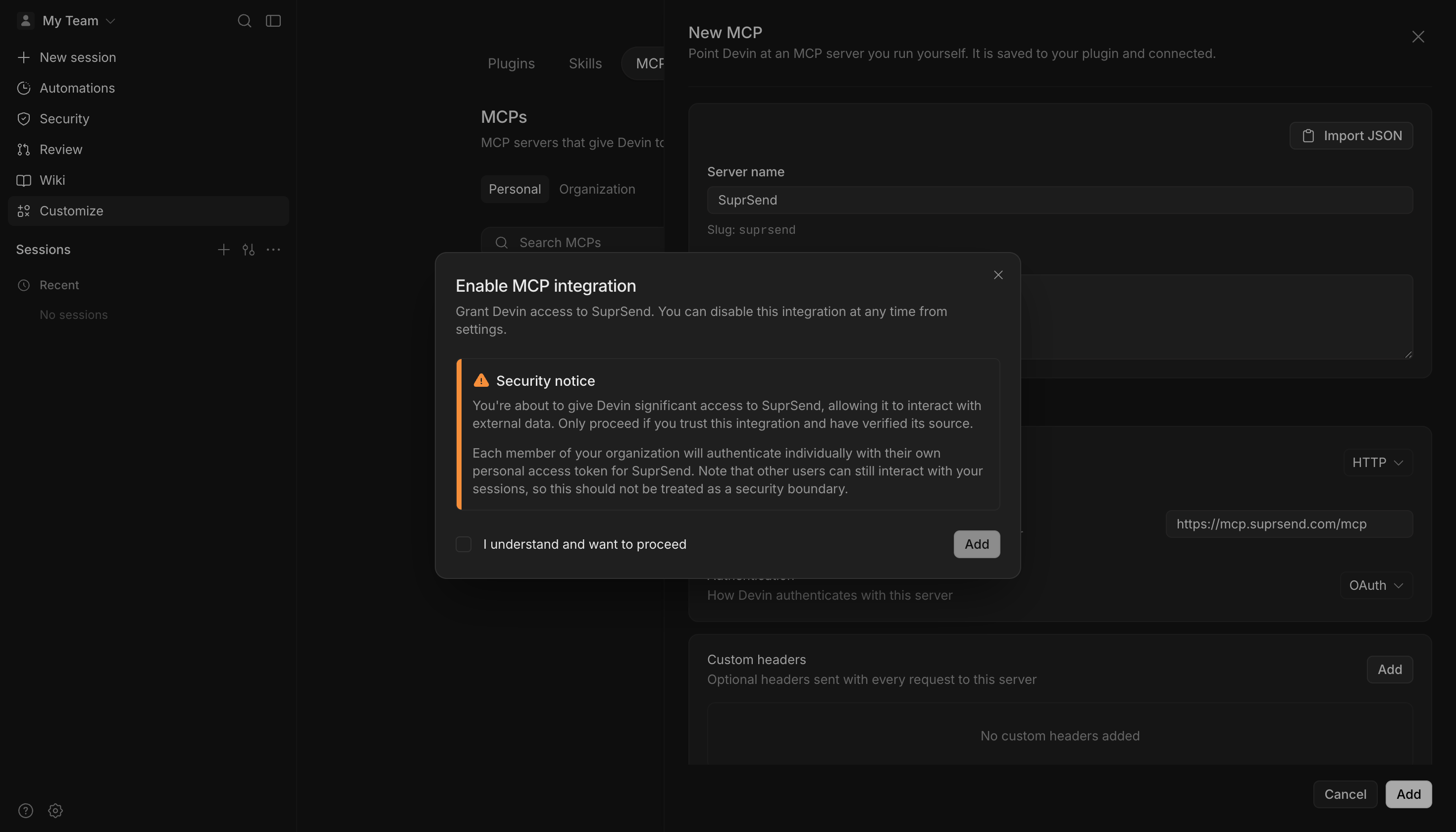
4
Sign in with your SuprSend account
Devin opens your browser. Sign in with your SuprSend account. The agent gets the same permissions your role has in the SuprSend dashboard. Each member of your Devin organization signs in with their own account.
5
Verify the connection
In a new Devin session, ask:Devin answers with your SuprSend workspaces.
Pin a workspace and restrict tools
By default, Devin can use every workspace and tool your role allows. To keep it on one workspace, or to give it only the tools a job needs, use one of these URLs as the Server URL in Devin, or indevin mcp add:
-
Pin a workspace by adding its slug to the path. The agent then can’t switch to another workspace:
-
Restrict tools with
?tools=, a comma-separated list of tool names or groups:
Troubleshooting
Server shows disconnected or refuses the connection
Server shows disconnected or refuses the connection
Check the workspace slug in the URL. It must match a workspace in your SuprSend account exactly, for example
staging, not the workspace’s display name. A slug that doesn’t exist fails with 403 workspace_forbidden. To see your slugs, remove the slug, reconnect, and ask: “List my SuprSend workspaces.”