
Inbox (Popover Feed)
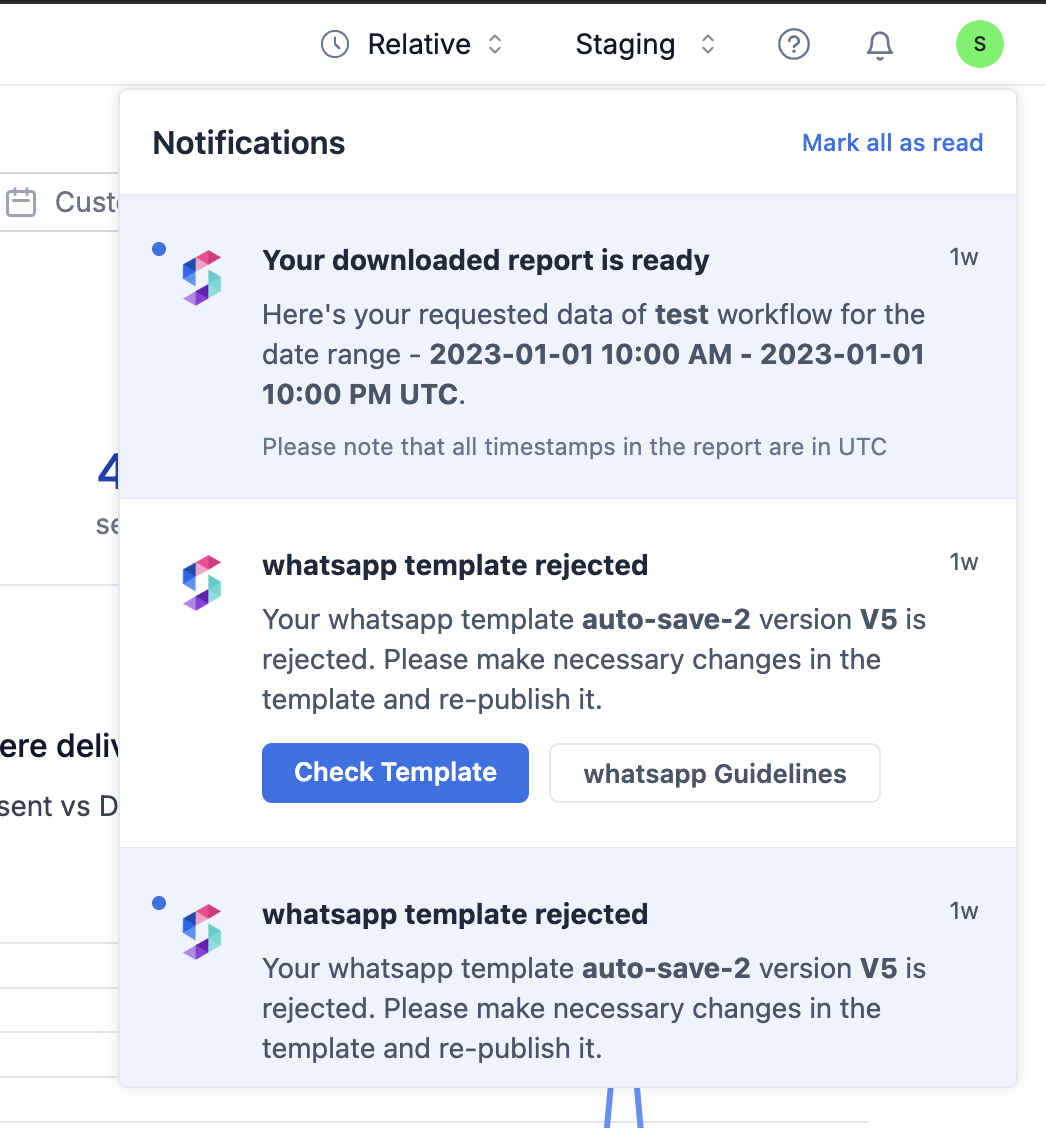
Toast Notifications in @suprsend/reactIn the
@suprsend/react SDK, toast notification functionality is no longer included in Inbox by default. Developers who wish to use toast notifications will need to implement them separately to achieve similar functionality. This change allows for more flexibility and modularity in customizing the user experience.Connection status
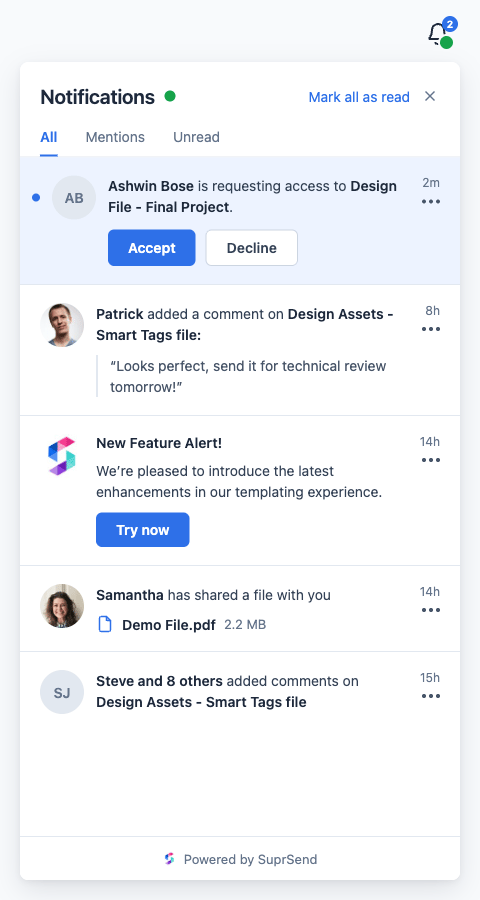
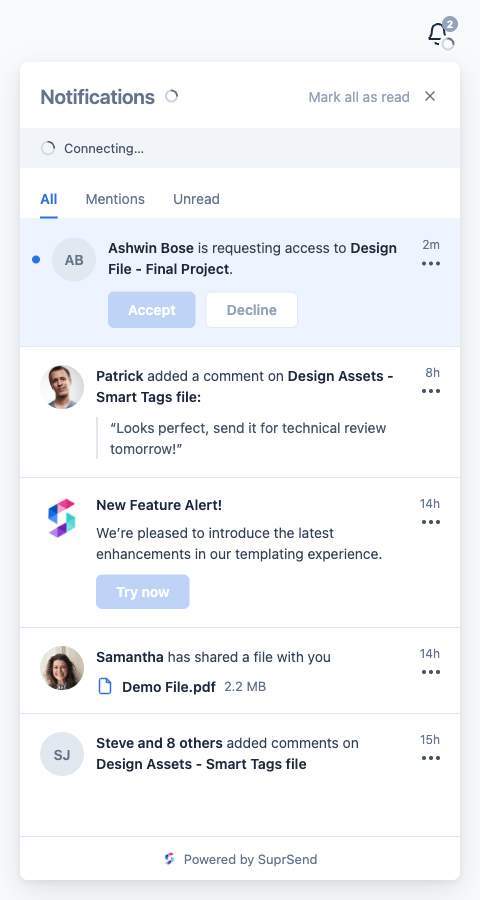
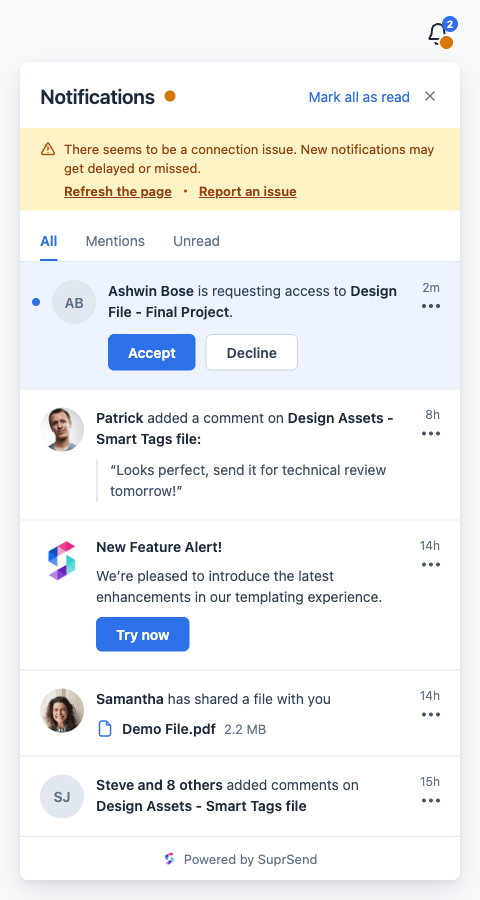
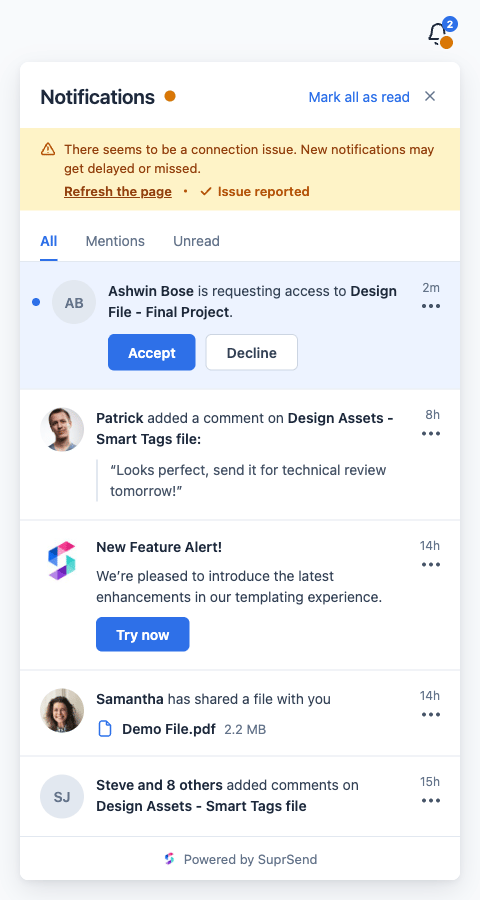
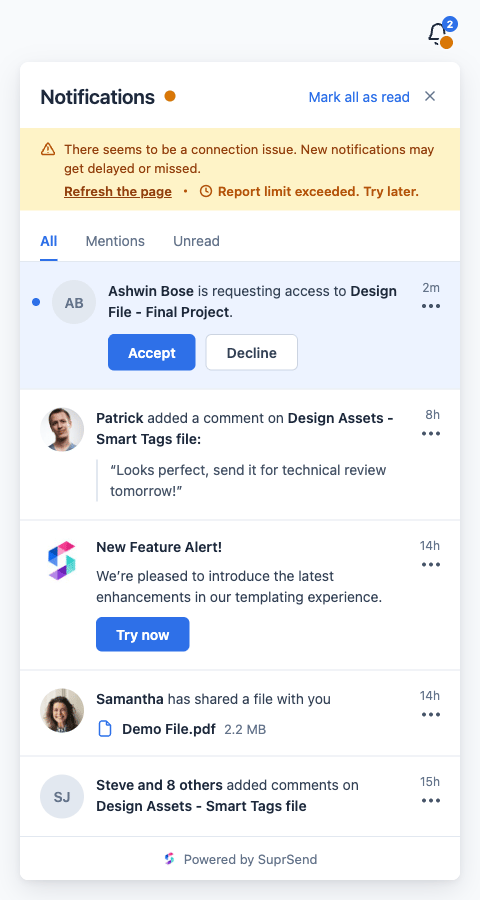
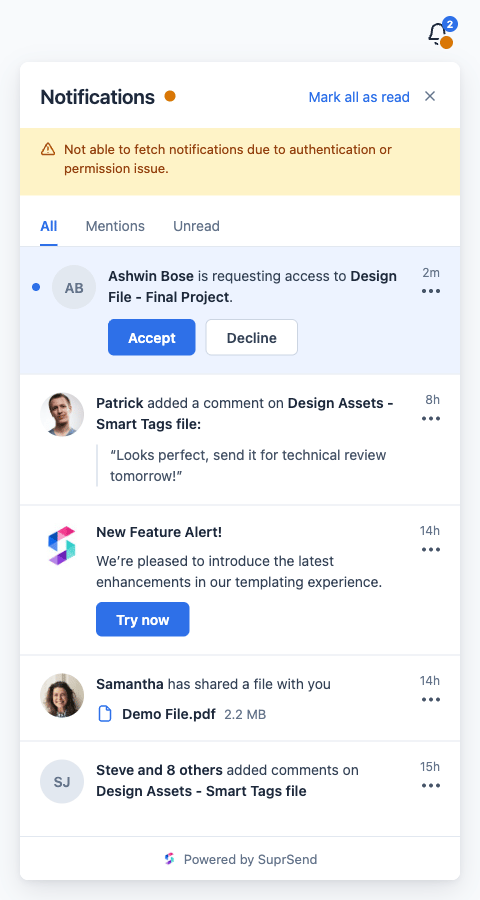
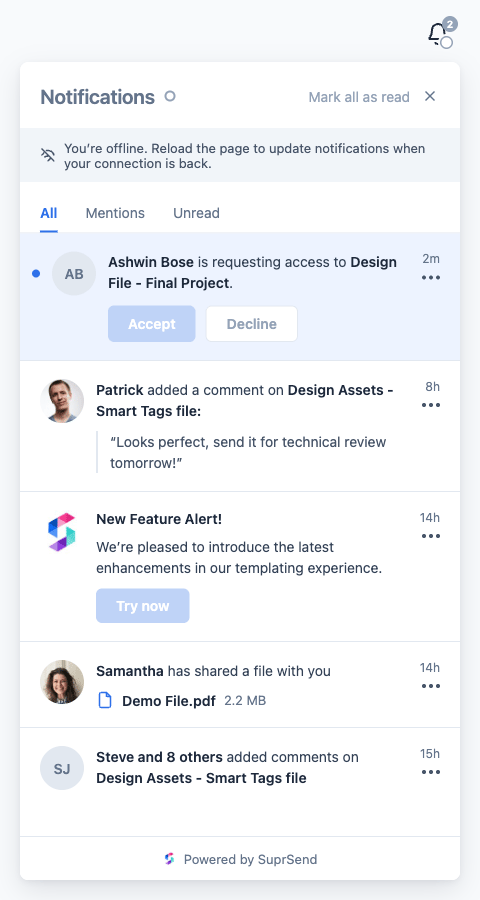
Inbox tells users whether their feed is working, so they know when new notifications may be missing. It combines three checks — the browser is online, the feed socket is live, and the feed API is reachable — into one status. The dot on the bell and beside the Notifications title, and the banner below the panel header, change based on that status: ONLINE, CONNECTING, DEGRADED, AUTH_ERROR, OFFLINE or UNKNOWN.
Connection status is on by default from
@suprsend/react 1.3.0. After you upgrade, Inbox looks different: a healthy feed shows a small green dot on the bell and beside the title. Pass reachability={false} to restore the previous look.- Online
- Connecting
- Connection issue
- Authentication error
- Offline
For how each status is decided, see Tracking reachability.
If you pass your own
headerRightComponent, it isn’t disabled when the user is offline.
Refresh the page and Report an issue
These two actions appear only on the connection issue banner (DEGRADED):
- Refresh the page reloads the page.
- Report an issue sends the last API and socket error to SuprSend. The banner then shows “Issue reported”. If the user has sent too many reports, it shows “Report limit exceeded. Try later.” If the report can’t be sent for any other reason, the browser opens an email draft to support@suprsend.com with the user’s distinct ID, tenant ID and error details.