Example scenario: Uber (a tenant of WorkVibe) leverages WorkVibe’s infrastructure to deliver alerts to its employee base. The notification system must enable tenant-level customization within WorkVibe’s platform:
- To setup new alerts, change template content, localization, or branding.
- Admin level channel preferences (email, Slack, SMS, etc.) per notification type
- Employee-level preference management
-
Tenant level routing controls (for example, option to route notifications through their email handle
hr@uber.com)
WorkVibe Architecture Overview
This example assumes WorkVibe uses the following notification architecture, standardized across all tenant organizations: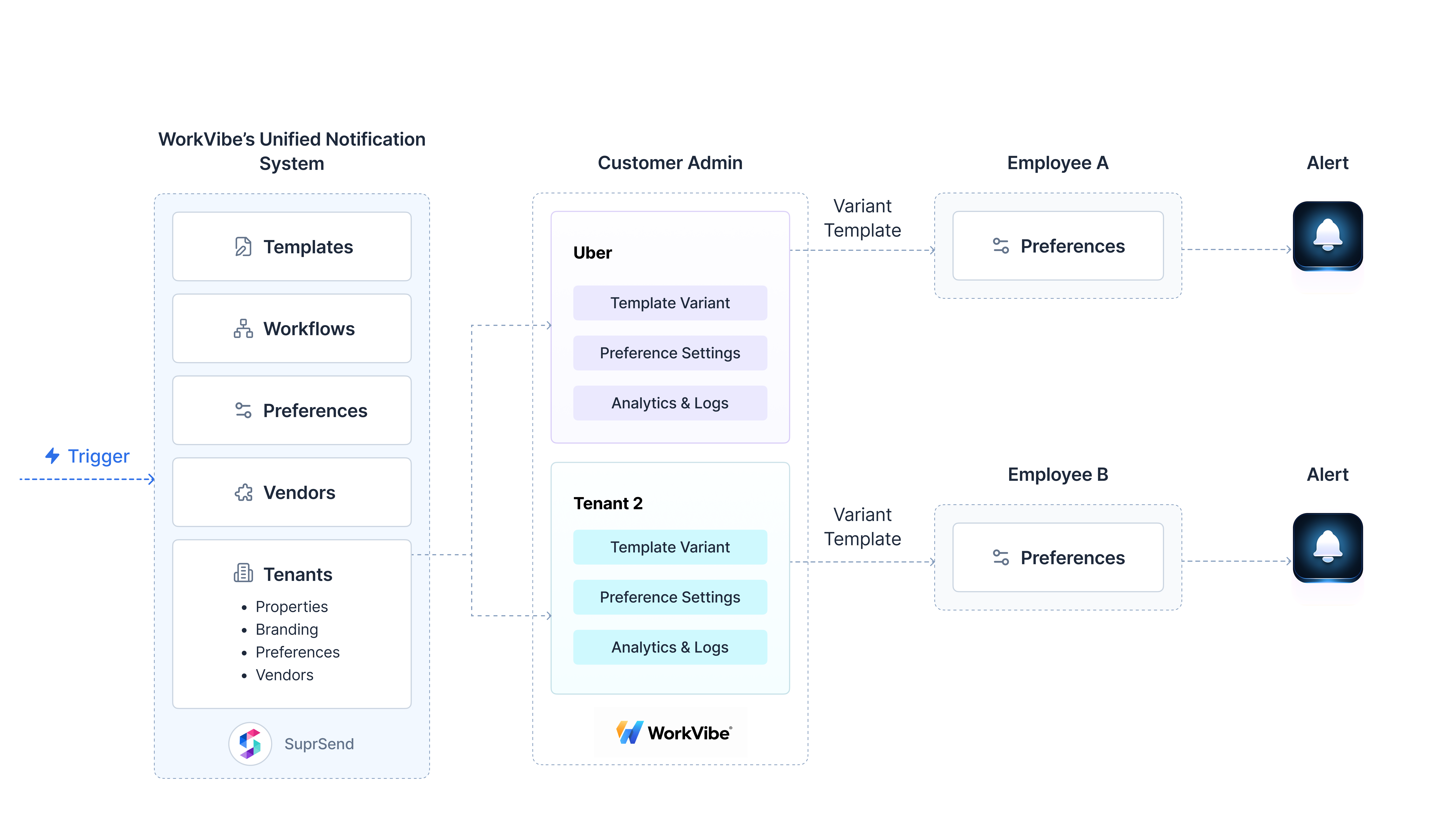
WorkVibe Concept Mapping to SuprSend
Data Modeling in SuprSend
The following components model the multi-tenant notification architecture in SuprSend:1. Tenants
We create tenant entities for each customer organization programmatically via the SuprSend API or SDK. Each tenant entity stores branding attributes (logo, website, brand colors) along with custom properties required for personalization and tenant-scoped configuration. Required fields:Example: Uber tenant configuration
2. Preference Categories
We create preference categories that map to WorkVibe’s notifications. These categories are linked to Workflows and Preference configurations. SuprSend provides Sections and Sub-categories to organize preference categories hierarchically. For WorkVibe, we organized the preference category structure as follows:-
Section: Product area (for example,
Onboarding & Lifecycle,Feedback & Engagement) -
Sub-category: Notification type (for example,
New Hire Welcome,First Week Check-in,Manager Feedback Request)

3. Preferences
SuprSend uses a four-layer preference evaluation system to determine notification delivery channels. For WorkVibe, tenant administrators can configure which notifications are applicable for their organizations:Universal Set (U)
Visible to Tenant (T1)
Configured by Tenant Admins (T2)
End user Preferences (S)
Final Channels = U ∩ T1 ∩ T2 ∩ S
Expose Preferences to Tenant Admins within WorkVibe App
There’s a notification settings page in WorkVibe that allows tenant admins to manage notification preferences within the WorkVibe administrative interface.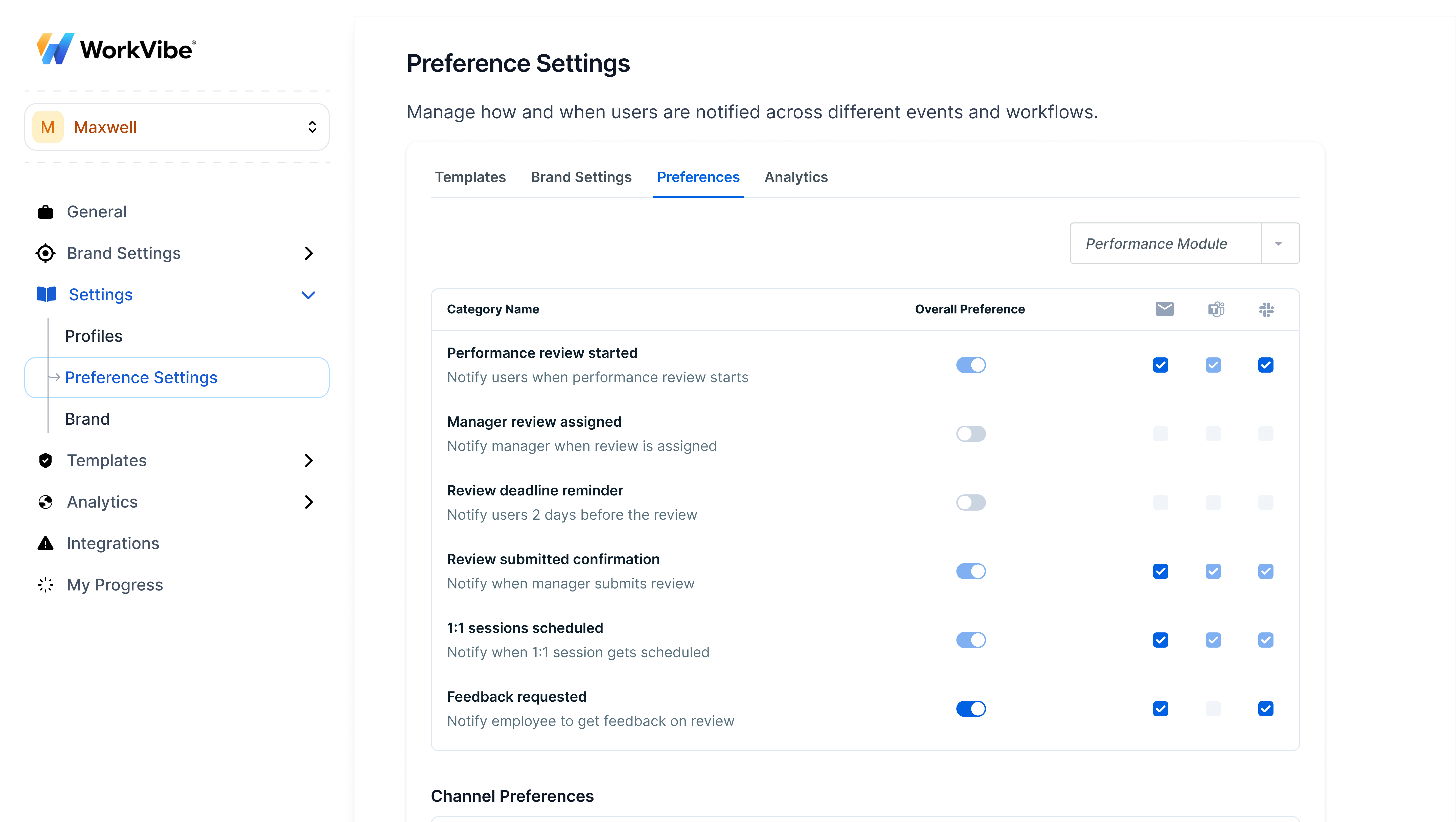
4. Templates
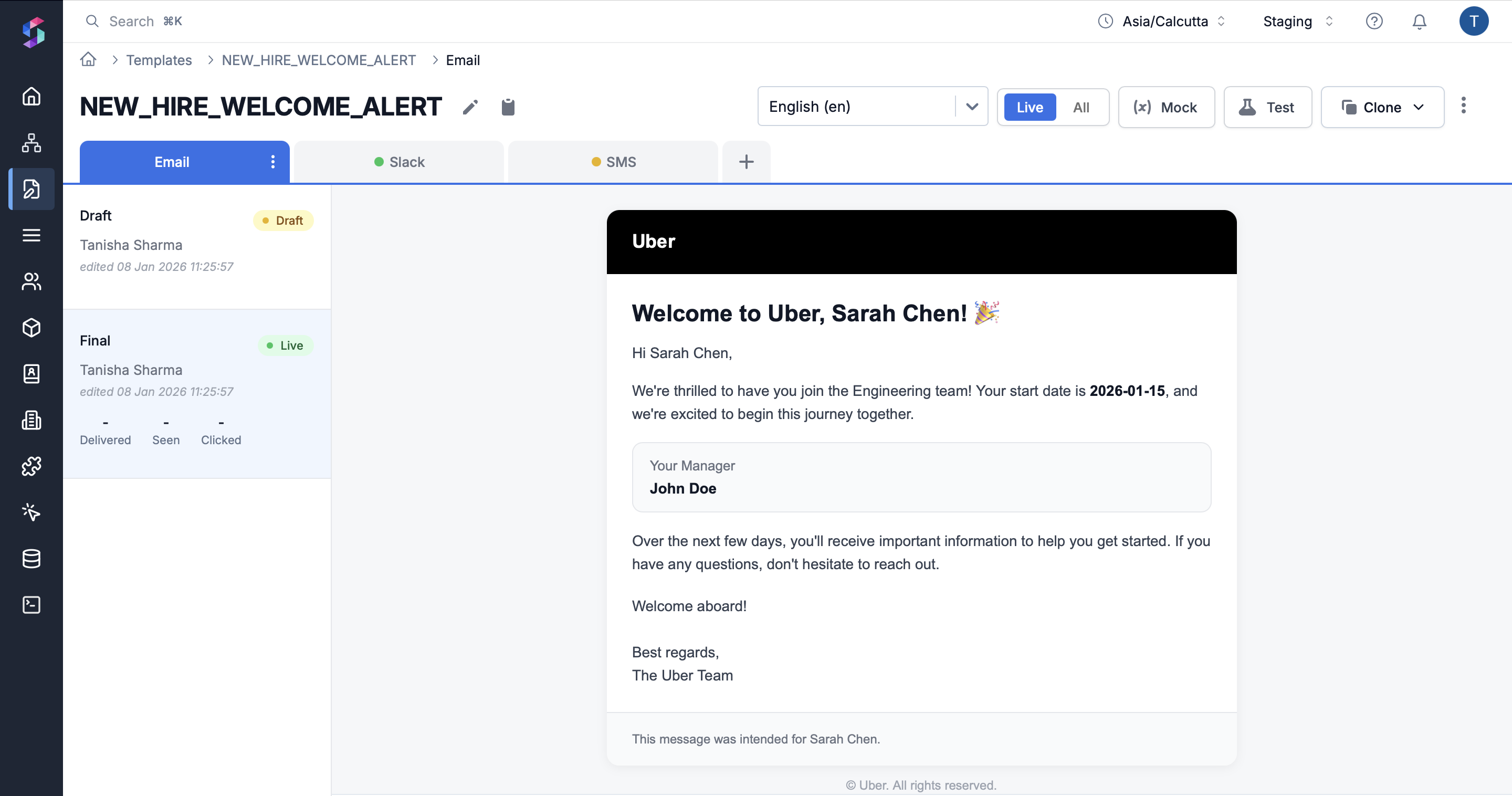
Templates are created for each notification type. For the new employee onboarding use case, theNEW_HIRE_WELCOME_ALERT template is created. Templates utilize tenant-scoped variables for tenant-specific branding by default.
Template reuse: Templates are created once at the platform level and rendered at delivery time with tenant-specific branding. Templates can be exposed to tenant administrators for customization. This approach eliminates template duplication per tenant while maintaining fully branded communication.
{{variable}}). All channels (email, SMS, WhatsApp, push) follow consistent variable structures. Variables can be sourced from the payload, user properties, or tenant properties.
Email Template
Expose Templates to Tenant Admins within WorkVibe App
Another common usecase is enabling tenants (like Uber) to customize template content or design through embeddable template editors.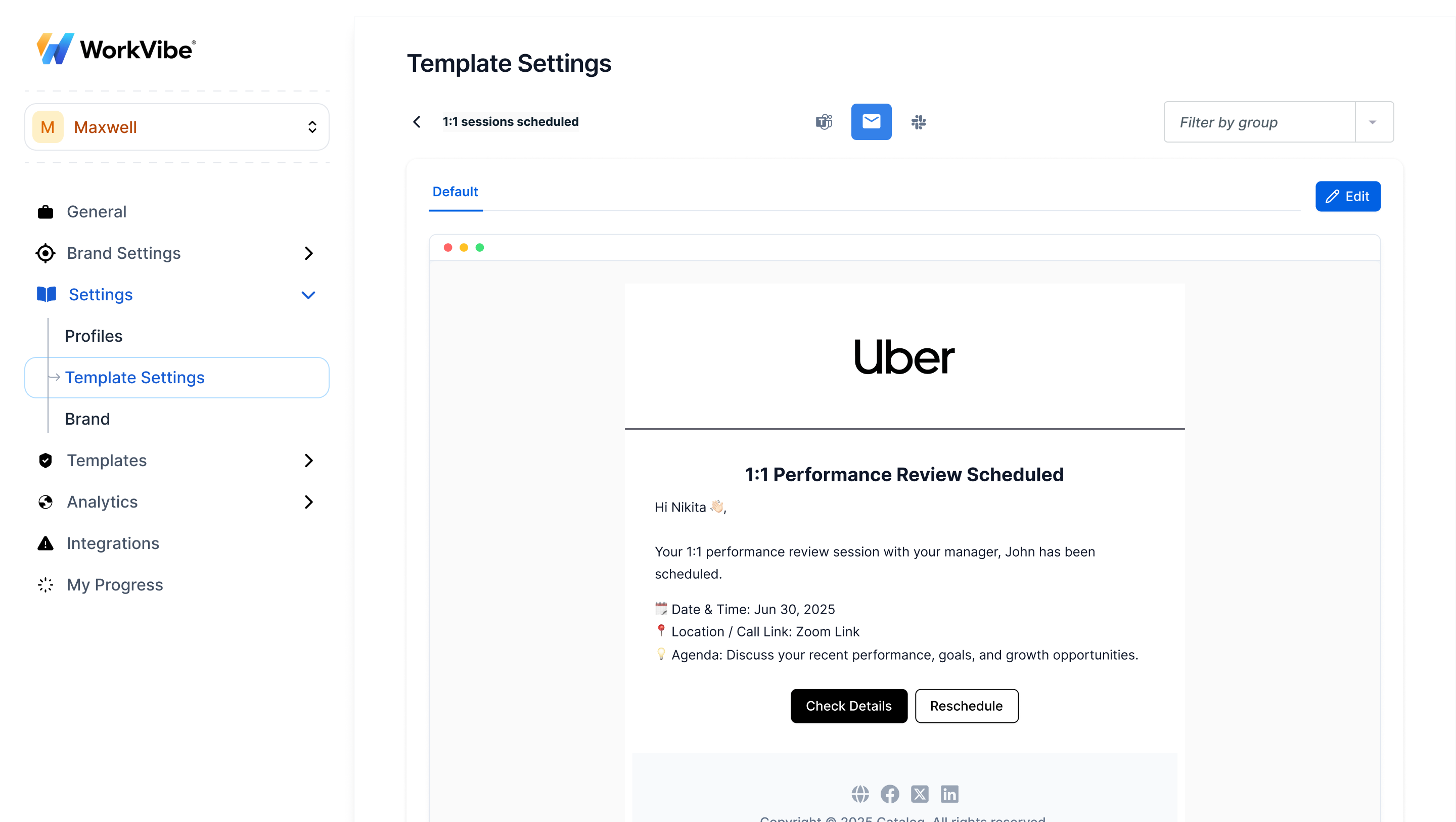
- Fetch and show templates: All templates created by WorkVibe in the SuprSend platform are loaded and shown to the tenant admins.
-
Create a template variant when admin edits template: When admin clicks on edit template button, create a new template variant with condition on
tenant_id, clone the content from the original template. Admins of tenant organizations can edit this variant. They can also create a fresh template altogether. - Variant selection: While sending notifications, SuprSend automatically resolves the matching variant by checking the condition on tenant ID, language, and custom conditions. If no variant exists, the default template with tenant branding is used.
5. Workflows
Workflows define the orchestration logic for notifications-the sequence of steps, conditional branches, delays, and channel assignments used to deliver messages. For WorkVibe, we created a workflow for new employee onboarding that delivers a welcome email on day one, a first-week check-in survey on day seven, and a manager introduction Slack message on day ten. Each workflow has a unique workflow slug that identifies it when triggering notifications. The workflow slug is used in the trigger payload to specify which workflow to execute. Workflow Configuration:- Workflow slug: A unique identifier for the workflow (for example,
new_employee_onboarding) - Category link: We link workflows to preference categories to enable preference evaluation
- Template link: Workflows reference templates for each channel (email, SMS, Slack, etc.)
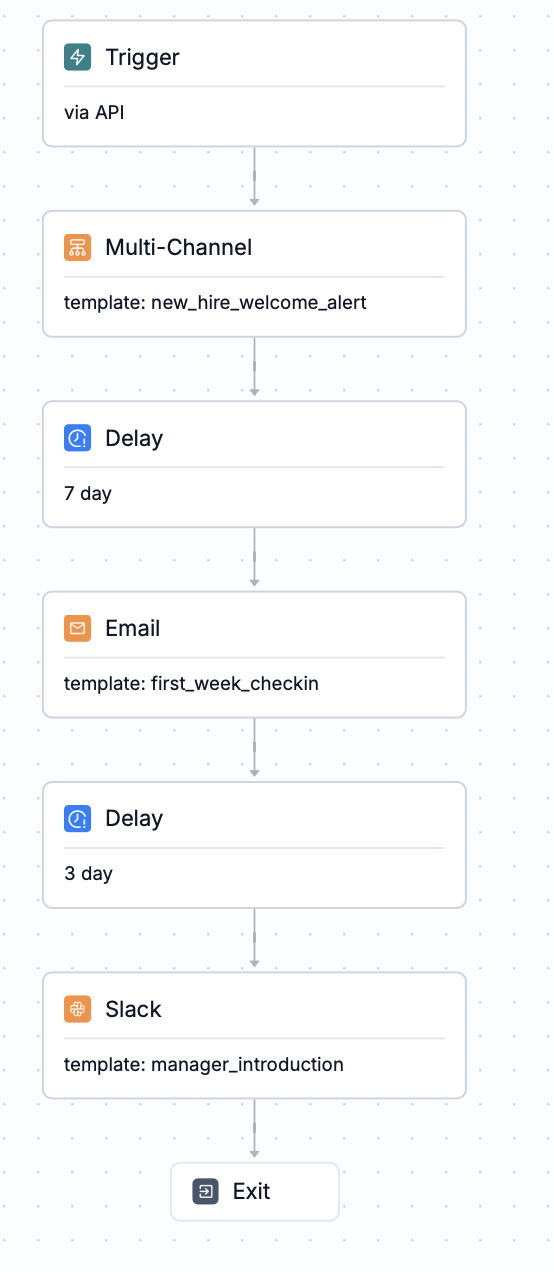
- UI Builder
- Dynamic Workflows
- Workflows API
Workflows are constructed visually in the SuprSend dashboard using drag-and-drop nodes, conditional logic, and delay configurations. Workflows are created and managed through the administrative UI.When to use:
- Non-engineering teams create and modify workflows
- Workflows require frequent iteration and rapid changes
- Workflows are version-controlled or promoted across environments via CLI after creation
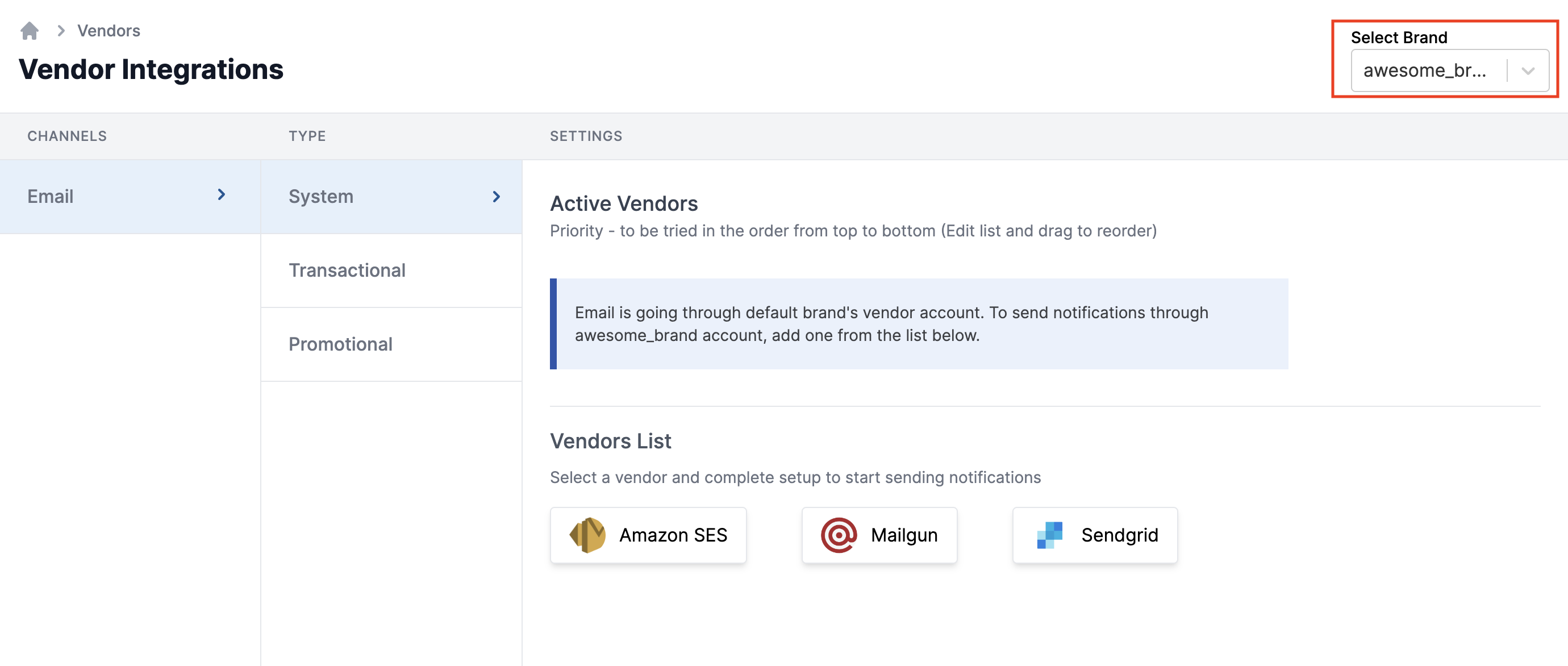
6. Tenant Vendors (Optional)
Enterprise tenants may require dedicated SMTP servers or vendor accounts for deliverability, compliance, or branding requirements. In WorkVibe’s setup, tenant Uber requires its own SMTP domain. We configured Uber’s SMTP as a custom property in the SuprSend tenant entity, which can be referenced in thefrom_email field in templates. For SMS, Uber uses its own SMS provider, which we configured as a tenant vendor.
Vendor fallback chain: If Uber’s SMS vendor fails, notifications automatically fallback to WorkVibe’s default SMS provider.
End-to-End Notification Flow
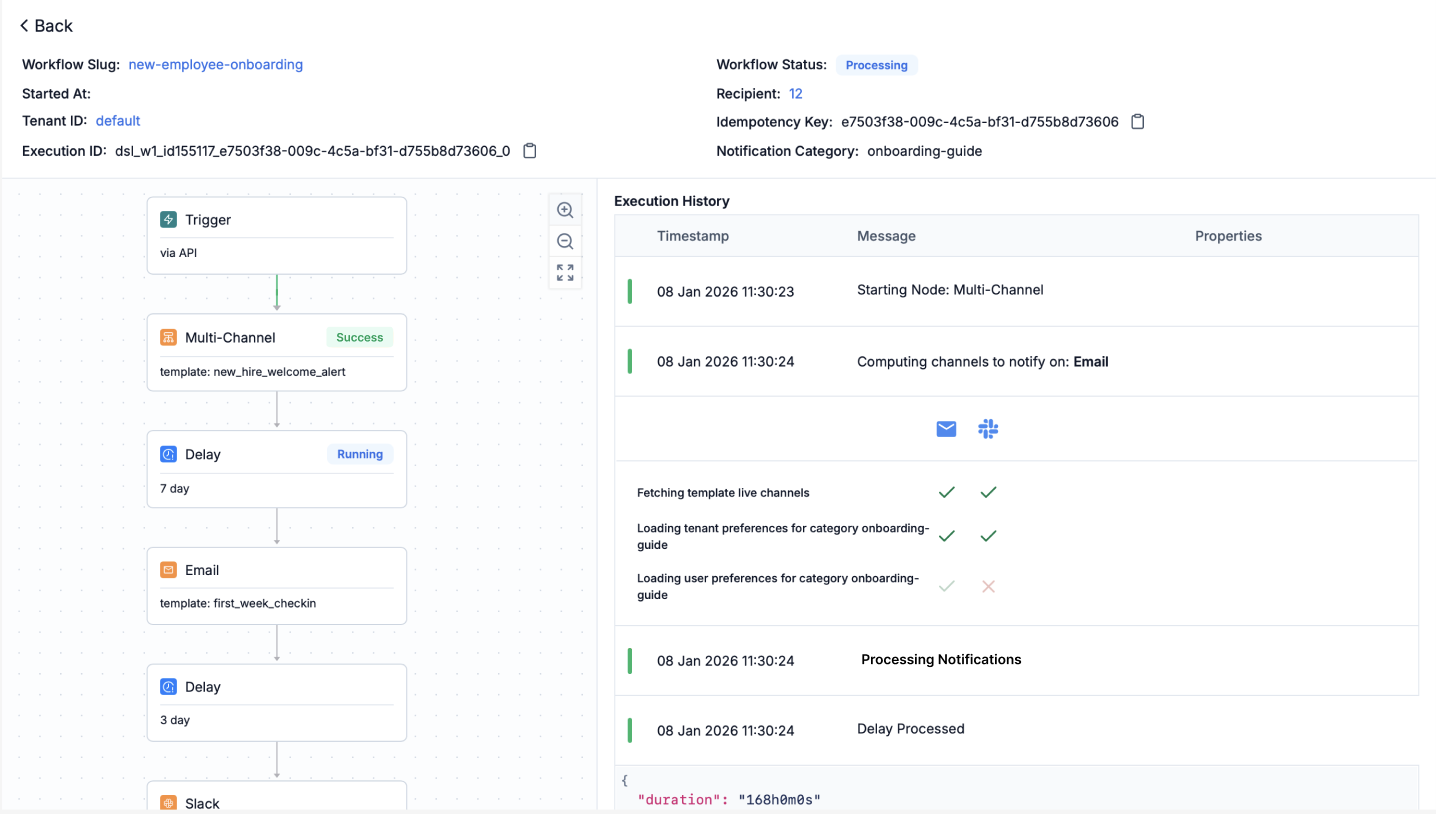
Once the setup is complete (we’ve configured tenants, categories, preferences, templates, workflows, and vendors), workflows can be triggered to send notifications. When WorkVibe triggers a workflow, SuprSend executes the following sequence automatically:1
Workflow Trigger
WorkVibe triggers the workflow with Key fields:
tenant_id: "uber" in the payload. The workflow trigger payload should include the tenant_id to enable tenant-scoped customization.Here’s an example trigger payload for the new employee onboarding workflow:- workflow: The workflow slug that identifies which workflow to execute
- tenant_id: Optional field that enables tenant-specific branding, preferences, and vendor routing (defaults to the
defaulttenant when omitted) - data: Event data variables used in template rendering
- recipients: List of recipients for notification delivery
2
Apply Tenant Preferences
SuprSend uses the
tenant_id from the trigger payload to identify the tenant and resolve tenant vendors, then looks for workflow’s linked category (onboarding.new_hire_welcome) to fetch tenant level preferences. Evaluates Uber’s tenant-level defaults for onboarding.new_hire_welcome: Email ✅ , SMS ❌ , Slack ✅.3
Apply Employee Preferences
SuprSend then evaluates user preferences for the category by looking for the user corresponding to the
recipients -> distinct_id in the trigger payload.
Employee Preference Evaluation: Employee opts out of Slack ❌ → Final channel selection: Email only ✅.4
Render template
Inside each channel level delivery node, there’s a linked template slug. SuprSend checks for tenant-specific template variant and falls back to default
NEW_HIRE_WELCOME_ALERT template if no variant exists. Uber’s tenant branding (logo, colors, brand name) is applied to the resolved template using tenant-specific variables ({{$tenant.logo}}, {{$tenant.primary_color}}, etc.).5
Route via Vendor
Routes through Uber’s configured vendor if available, otherwise uses WorkVibe platform default vendor.
6
Deliver
Notification delivered with Uber branding and onboarding details across selected channels.