Documentation Index

Fetch the complete documentation index at: https://docs.suprsend.com/llms.txt

Use this file to discover all available pages before exploring further.

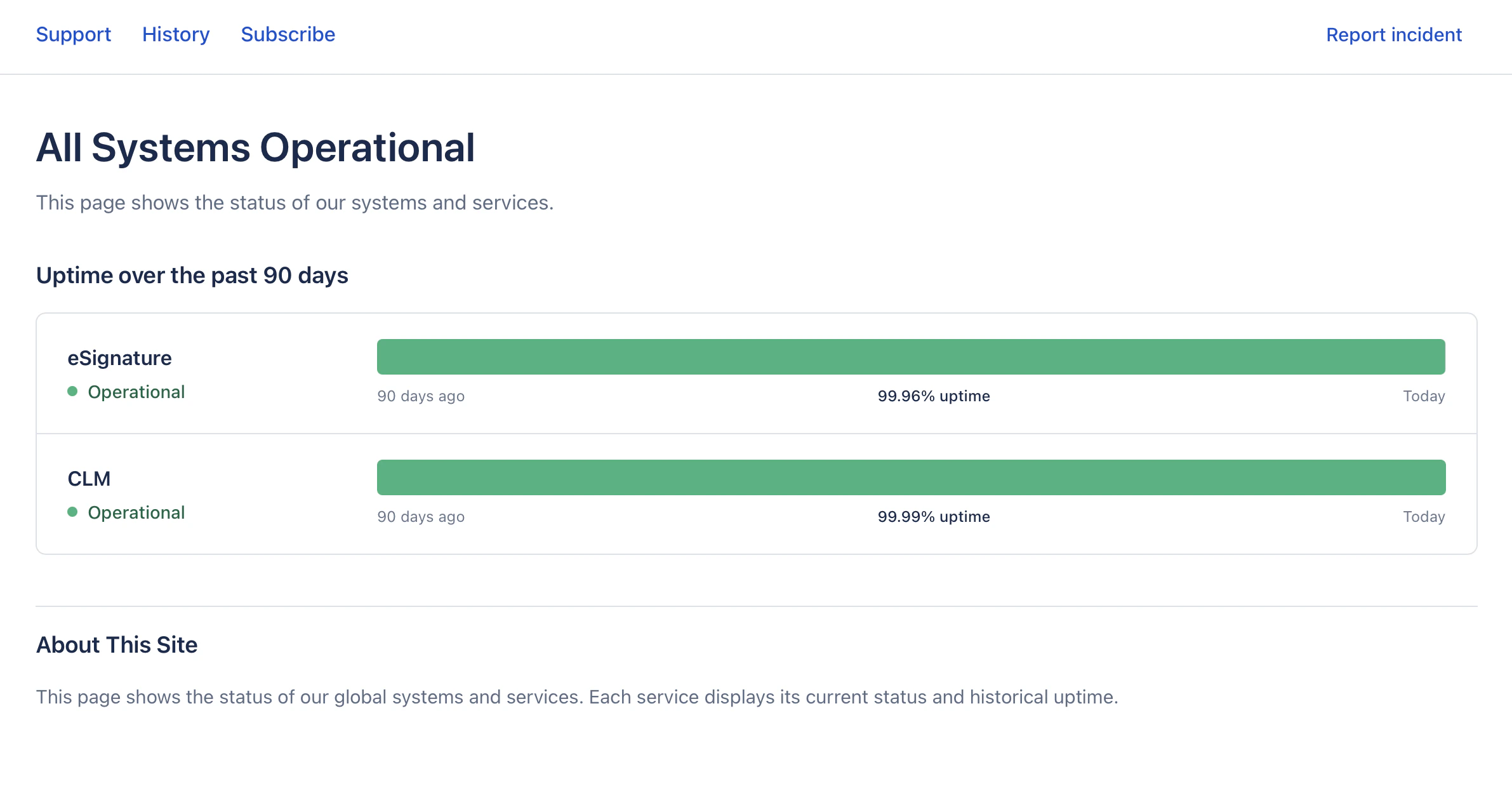
status-page-example-app

Status Page

Status page built with React and Vite, with SuprSend integration.
Try it out | GitHub code repository

Follow these steps in order. You’ll set up SuprSend, create dashboard assets, then run the prompts so your AI assistant can build the app. By the end you’ll have a working status page with subscribe, category selection, and incident reporting.

Step 1: Setup SuprSend MCP Server

Start by setting up SuprSend MCP Server in your AI coding assistant. Once MCP Server is setup, you can just copy and paste the prompts below to build the entire application step by step.

Step 2: Get Workspace and API Keys

Get workspace key and API key for the backend. Add them after Prompt 1 creates the project.
  1. Open SuprSend Dashboard → Developers → API Keys.
  2. Copy workspace key and API key (generate one if needed).
Put both in backend .env as SUPRSEND_WORKSPACE and SUPRSEND_API_KEY. Don’t commit .env.

Step 3: Setup in the SuprSend dashboard

Create these in the SuprSend dashboard (same workspace as Step 2).

3a. Create notification categories

Set up your notification categories using the root category → section → sub-category structure. Create one root category (e.g. “Status updates”), then add sections and sub-categories under it. Publish the structure.
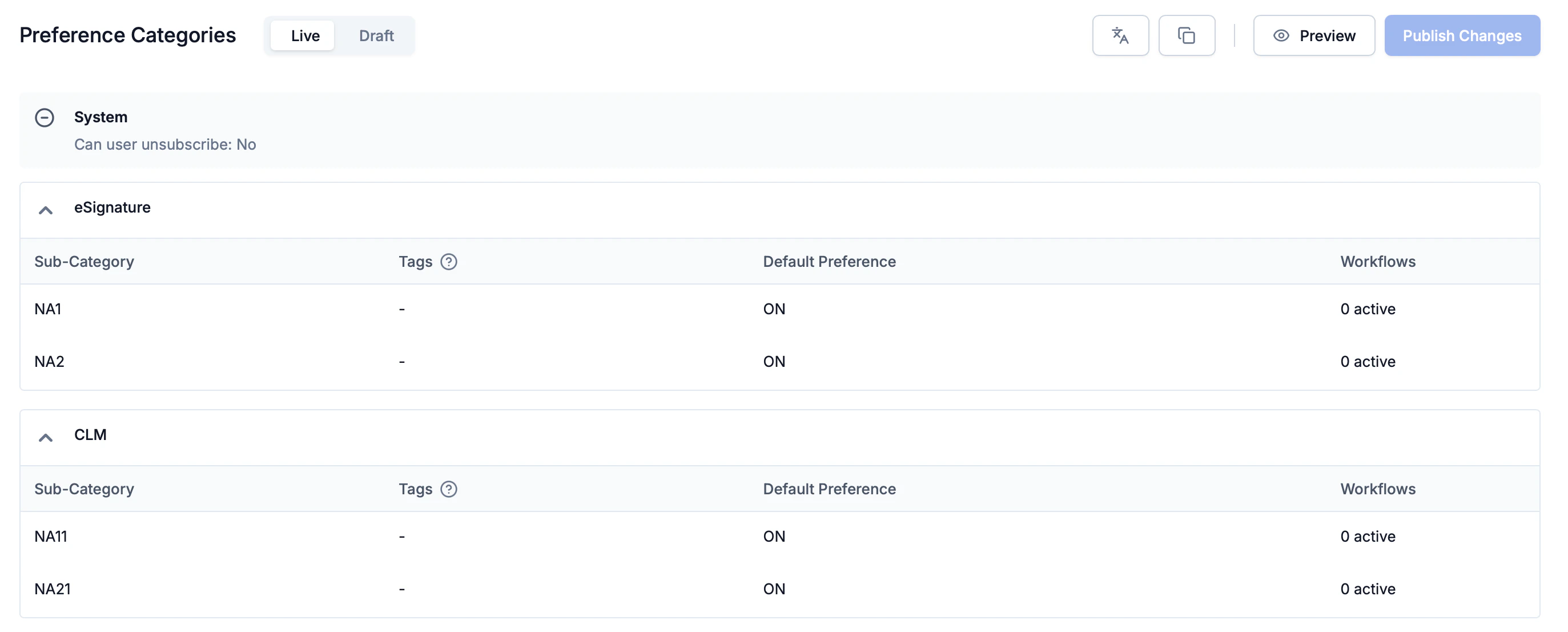
3b. Create objects

Create an object for each section and sub-category using the same slug as the category. These objects are used for subscriptions and trigger targeting.

3c. Create the template

Create template status-incident-email with Email and SMS variants. Use variables (e.g. component_name, incident message). Publish the template.

3d. Create the workflow

Create workflow with slug status_incident (API trigger). Add Email and SMS nodes with the template. Commit the workflow.
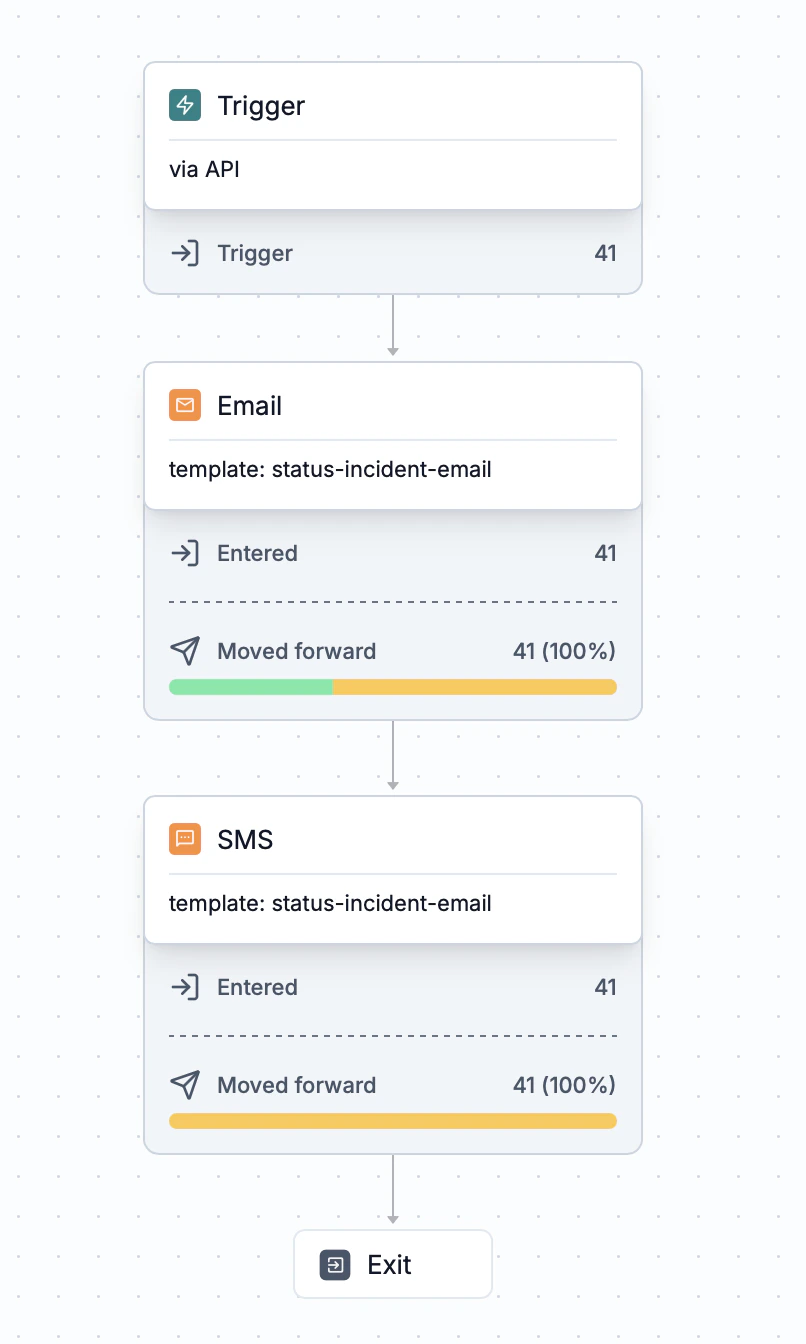
Status incident workflow

Prompt 1: Vite + React and Express Backend

Set up Vite + React and an Express backend. Proxy /api to the backend in dev.
Run both and confirm the app can call the API.

Prompt 2: Backend Routes with SuprSend Preference Model

Add backend routes using SuprSend. Follow SuprSend's preference model
(root-category → section → sub-category; preferences apply at sub-category).
Load tenant preference and return sections with sub-categories; ensure each
section and sub-category exists as an object. Add health and tenants routes.
Use SuprSend docs for tenant preference and objects.

Prompt 3: User Subscriptions and Trigger Routes

Add routes for: (a) get user's selected section/sub-category slugs from their
object subscriptions, (b) subscribe = upsert user, set sub-category opt_in/opt_out,
and sync object subscriptions to the selected slugs, (c) trigger = send to that
object's subscribers only. Use SuprSend docs for user preference and object
subscription. Handle SMS-only and missing workflow with clear errors.

Prompt 4: Status Page UI and Modals

Build the status page: header (Subscribe, Report incident), main with status
and uptime bars, footer. Subscribe modal: email or SMS, then go to category
selection. Report incident modal: pick section or sub-category from backend,
trigger. Wire to your API.

Prompt 5: Category Selection Page

Add the category-selection page. Sections with sub-categories; section checkbox
selects section + all its sub-categories, sub-category checkbox toggles that slug.
Load and save selectedIds via your backend. Back to status; same Report incident
here. URL /subscribe?email= or ?sms=, in sync with state. Empty state if no
categories (create in SuprSend dashboard).