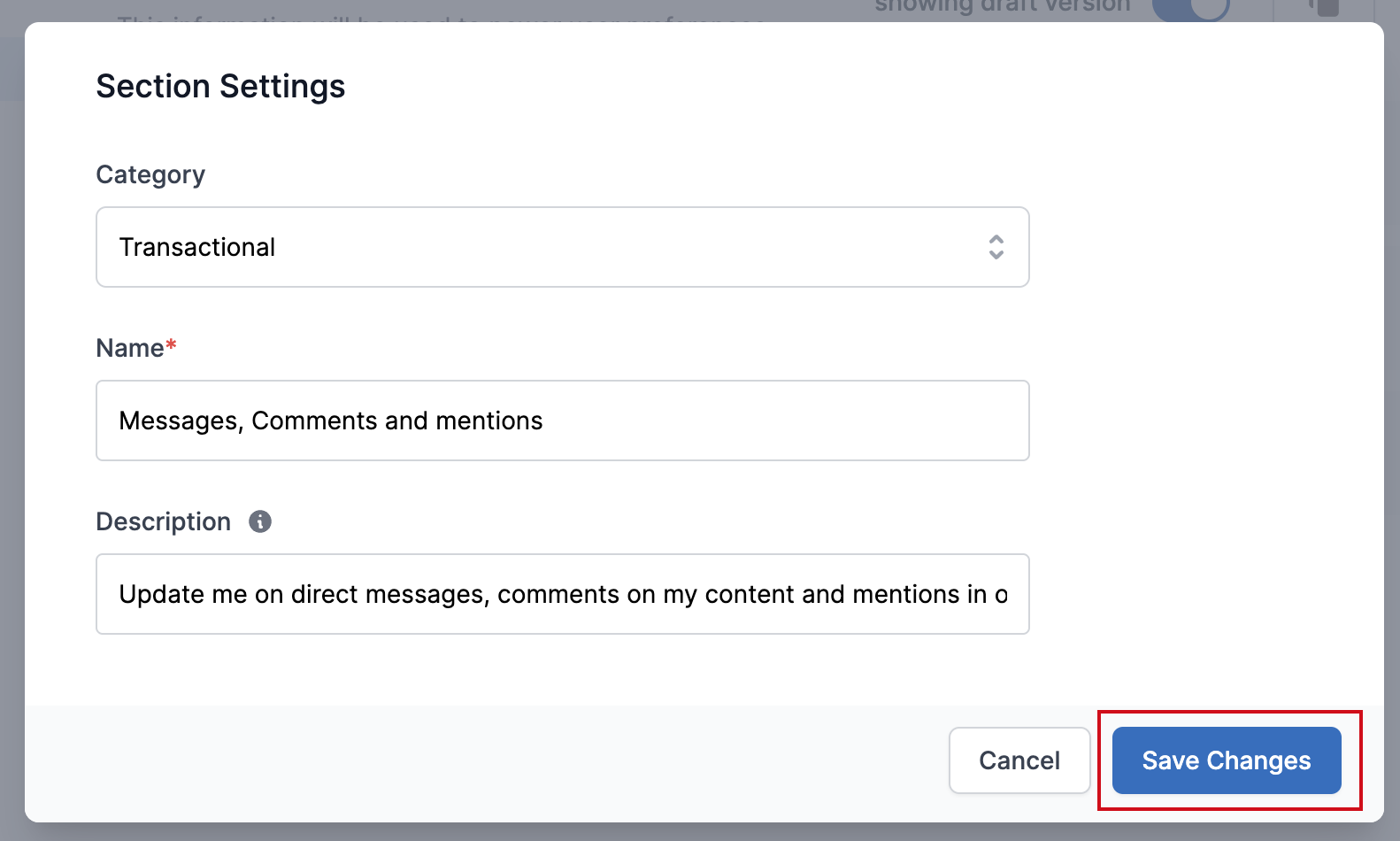
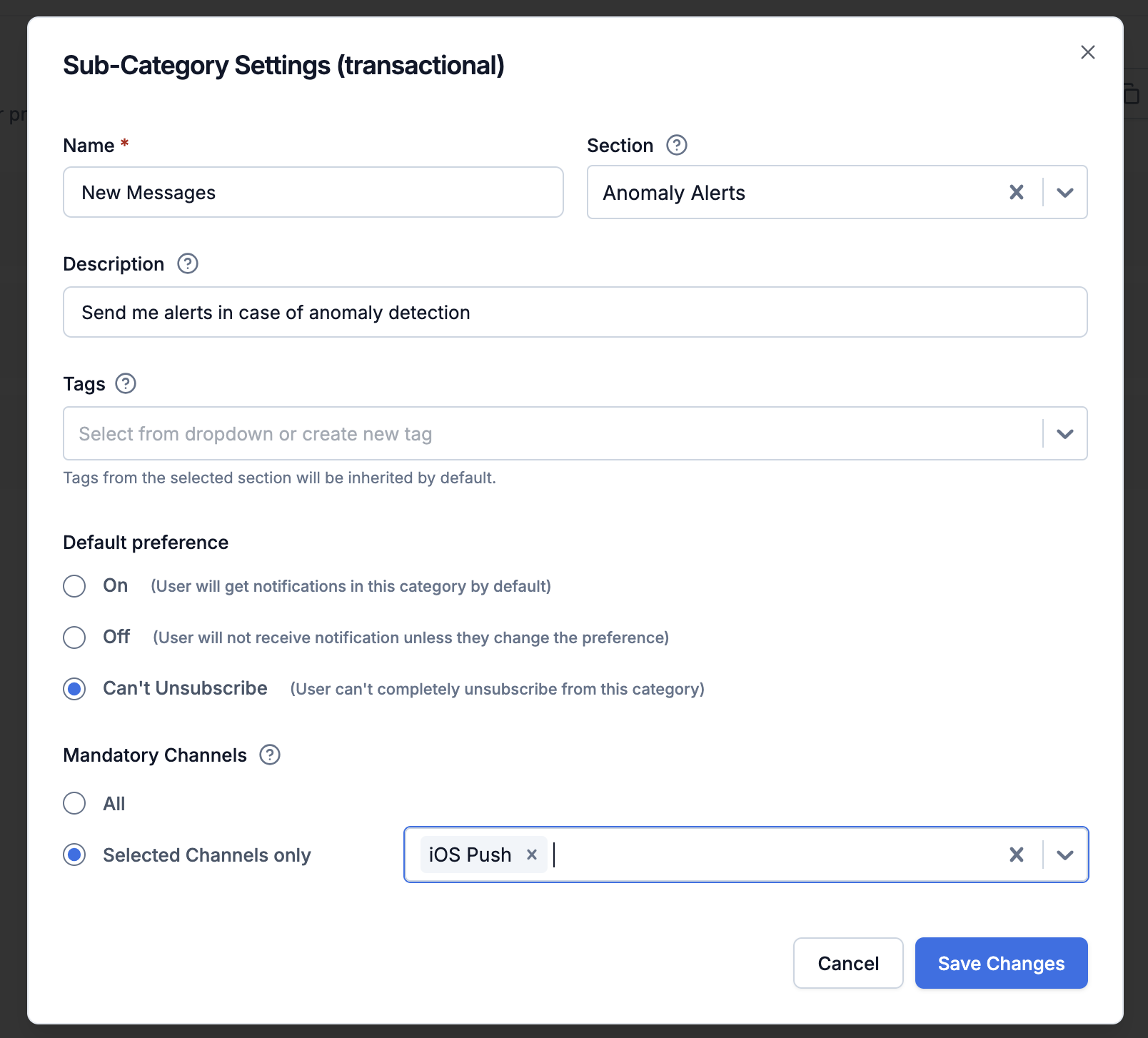
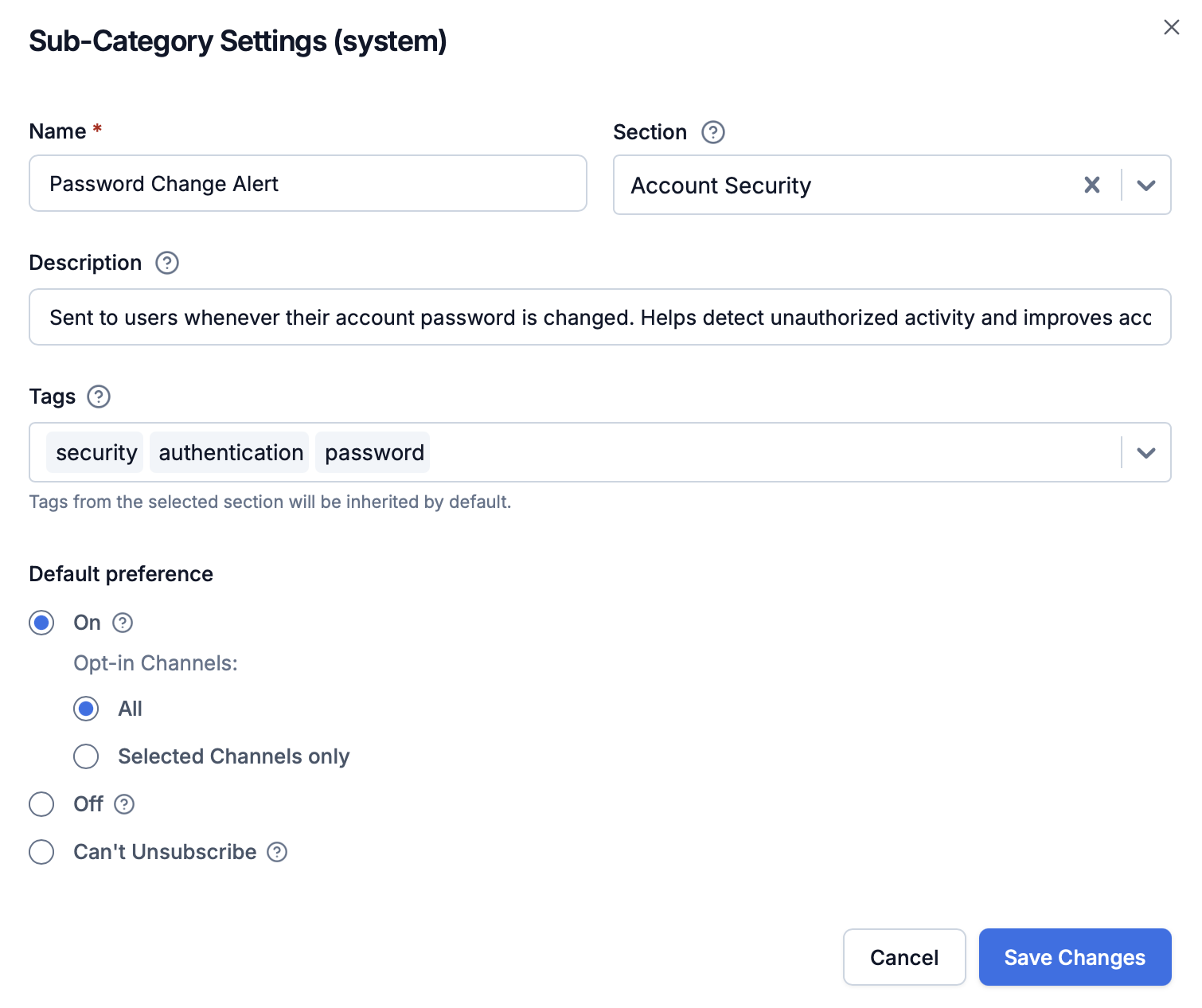
Name: What users see (slug (assigned to workflow) will be auto-generated from name)
Section: Select the section where this sub-category will be grouped. Leave blank if you don’t want to group it under any section.
Description (Optional): Description is used to describe the kind of notifications sent in the category. Helps users get more context about the category.
Don’t change the sub-category name after using it in workflows-it updates the slug and can break existing workflows.
Select a sub-category and choose a default preference: On, Off, or Can’t Unsubscribe. This determines the default behavior for users who haven’t set their own preference.
On: Users receive notifications by default (they can opt out)
Off: Users don’t receive notifications by default (they can opt in)
Can’t Unsubscribe: Users cannot fully opt out of these notifications (typically for critical system messages). Users can still opt out of specific channels, but at least one mandatory channel must remain active.
These defaults are recommendations-adjust them based on your product’s requirements and user expectations.System
Default:Can't Unsubscribe - Set the channel most users have on as mandatory so they don’t miss critical notifications even if they opt out of all channels.
Transactional
Default:Can't Unsubscribe - These are notifications sent in response to user actions or transactions. You would generally not want users to opt out of these notifications. However, you can adjust the default preference based on the criticality of the notification.
Promotional
Default:ON - Users receive notifications by default. For optional categories, set to OFF so users only receive notifications if they explicitly opt in
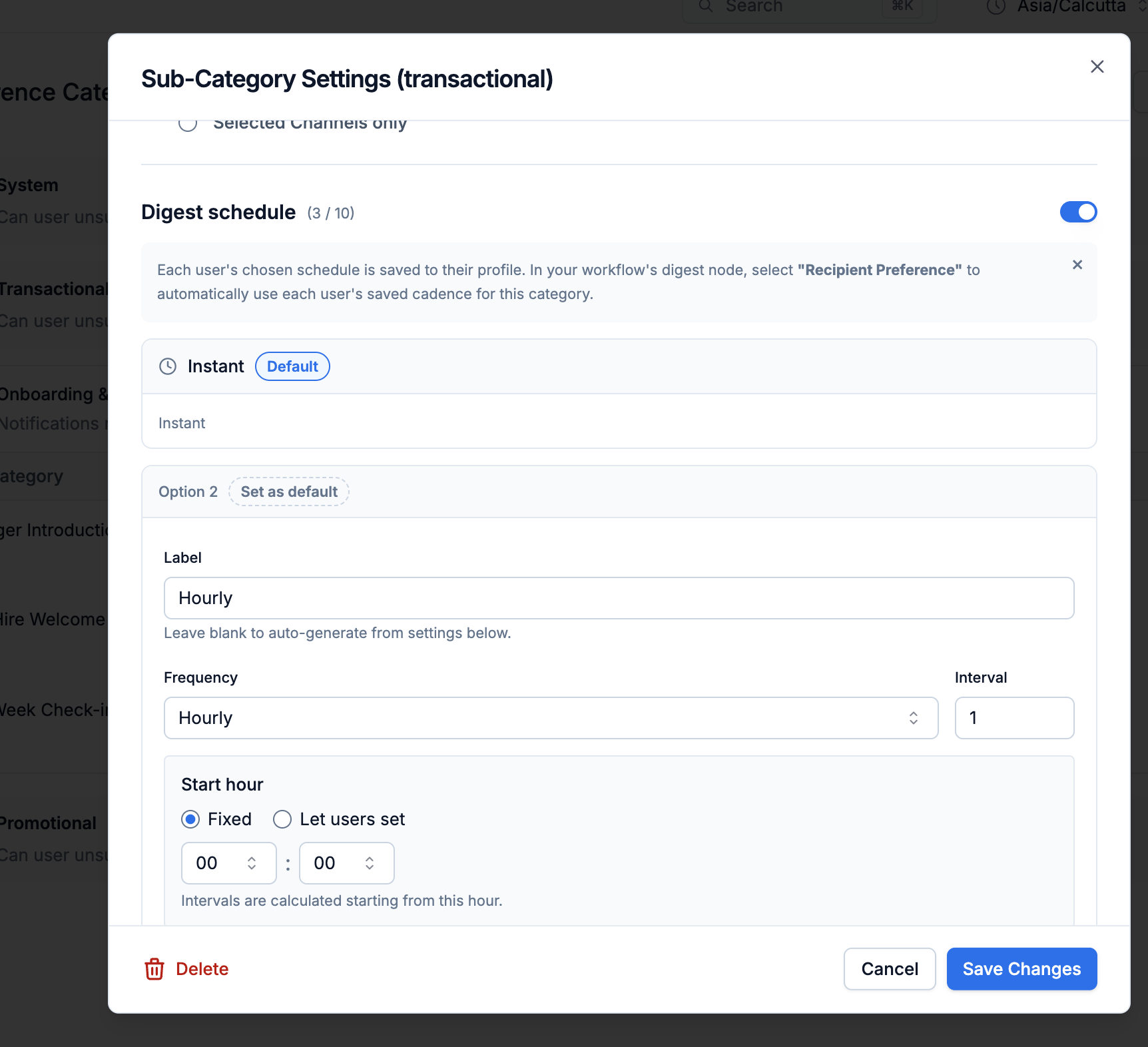
A digest schedule lets users pick how often they receive batched notifications for a sub-category (for example, Instant, Daily at 9 AM, or Weekly on Monday) right from their preference page. You define the available cadence options; the option a user selects drives the workflow Digest node at send time.
Digest schedule settings
To configure:
Select a sub-category and enable Digest schedule.
Add one or more options. For each option, set:
Label — what the user sees in the preference center (for example, “Daily”).
Frequency — instantly, hourly, daily, weekly, or monthly.
Interval — recurrence multiplier (for example, interval =2 with weekly frequency means every 2 weeks).
Time / weekdays / month days — when to send, depending on frequency. Each of these has an edit policy:
Editable — the user can change the value in the preference center; the value you set is the default.
Locked — the value is fixed and the user can’t change it.
Mark exactly one option as the default (used when a user hasn’t chosen one).
To send on the schedule a user picks, add a Digest node in the workflow linked to this category and set its schedule type to Preference Category on UI and category_digest_schedule in management API. SuprSend batches notifications using the option the recipient selected (or the default), always in the recipient’s timezone.
If digest schedule isn’t enabled on the category, a digest node set to category_digest_schedule sends notifications immediately without batching.
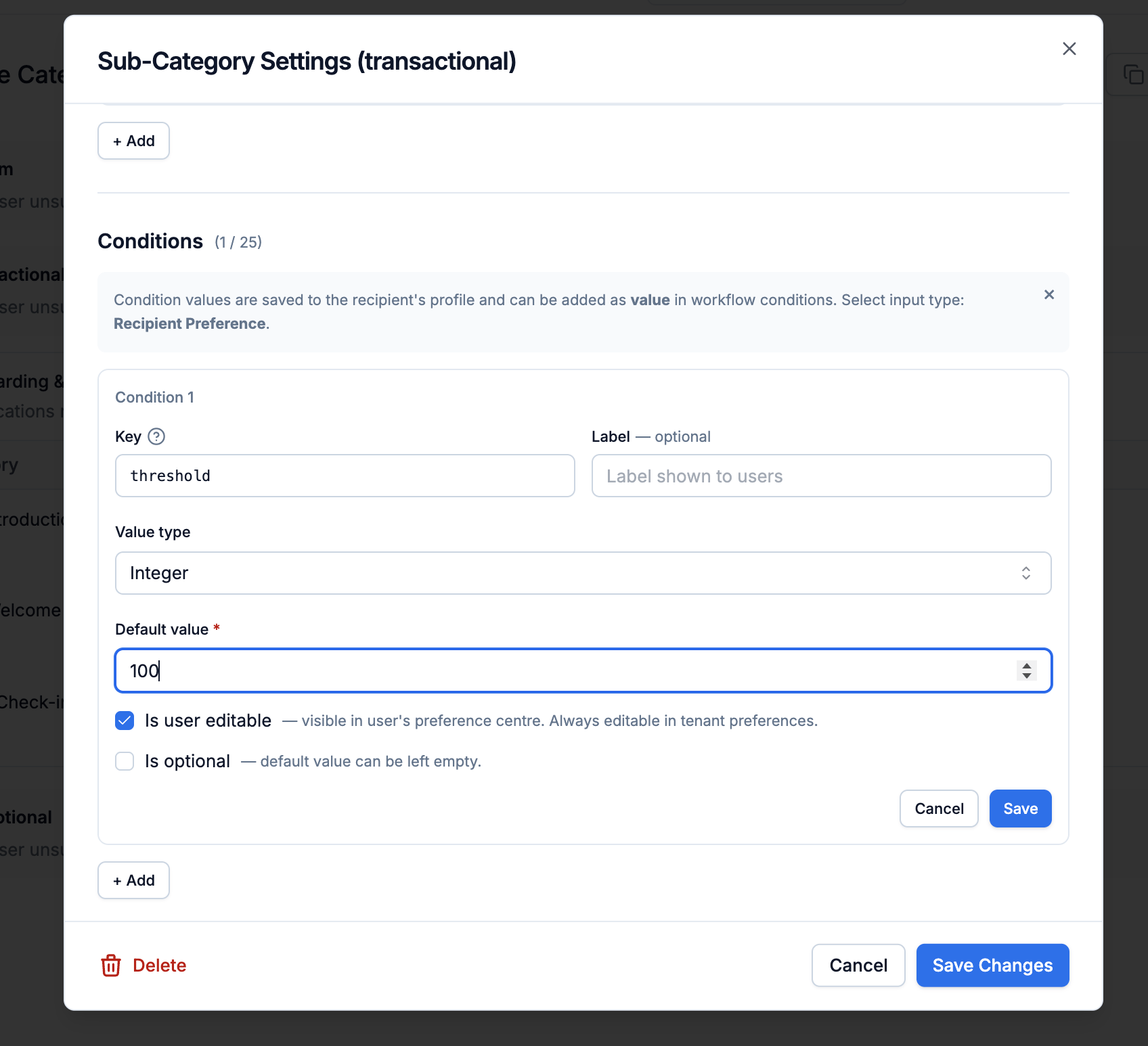
Condition properties are custom, configurable values you attach to a sub-category and then reference inside workflow branch conditions or trigger condition. Use them to control when a category’s notifications are sent — for example, a minimum severity, an alert threshold, or which user roles should be notified.
Condition property settings
To configure:
Select a sub-category and add a condition property (up to 25 per sub-category). For each property, set:
Key — unique identifier used in workflows. Referenced as $category.properties.<key>.
Label — display label shown in the preference center.
Value type — integer, string, string_choice (single-select), list_choice (multi-select), string_dynamic, or list_dynamic.
Choices — for string_choice / list_choice, the selectable options (label shown to the user, value used in the workflow).
Default value — applied when no value is set. You can set a property optional to skip adding default value.
Edit policy or is_user_editable — selected or editable means user can change it or unselected/locked means fixed.
is_optional - you can mark the property as optional if it can have null default value.
Reference the property inside a workflow branch condition as $category.properties.<key>.
For example, to send only when the recipient’s role matches the value configured on the category:
If you’re triggering workflow on object with conditions on recipient property, always add $recipient.$type == "object" as OR condition to ensure that notification is always triggered on object as a user. Otherwise, if workflow trigger condition doesn’t match for object as a user, user fanout on that object doesn’t happen.
Common use cases:
Send anomaly alerts only when an error rate crosses a user-defined threshold.
Deliver alerts only at or above a user-selected severity (for example, High).
Let admins choose which user roles receive a category’s notifications.
Tags are used to filter categories on the preference page. Common usecases are to filter categories based on user role or department. They can be added to sections and sub-categories.
Select a section or sub-category
Add tags (for example, finance, manager)
Section-level tags apply to all sub-categories in that section
Tags do not impact delivery logic or preference rules - they are only used for filtering and organizing the UI. Even if a category is hidden from the user on the preference page due to tag filters, the user can still opt in/out via API, and notifications will still be sent if the default preference is set to opt-in.
Before making your categories live, preview how they’ll appear to users, then publish your changes.Category changes are version controlled and are not live until you publish them. This is done to ensure that your users do not see intermittent changes when they are interacting with the preference page.
1
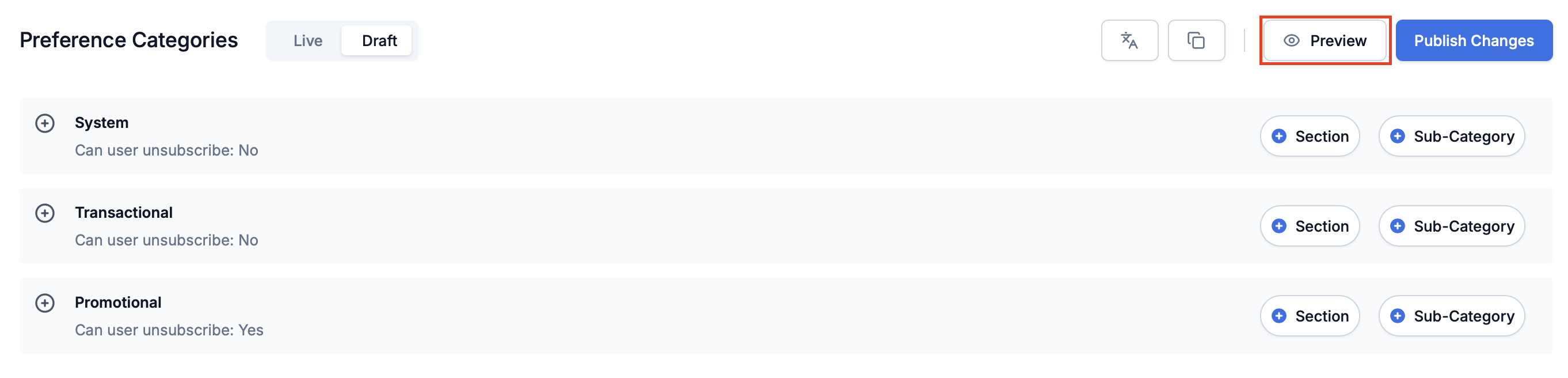
Preview
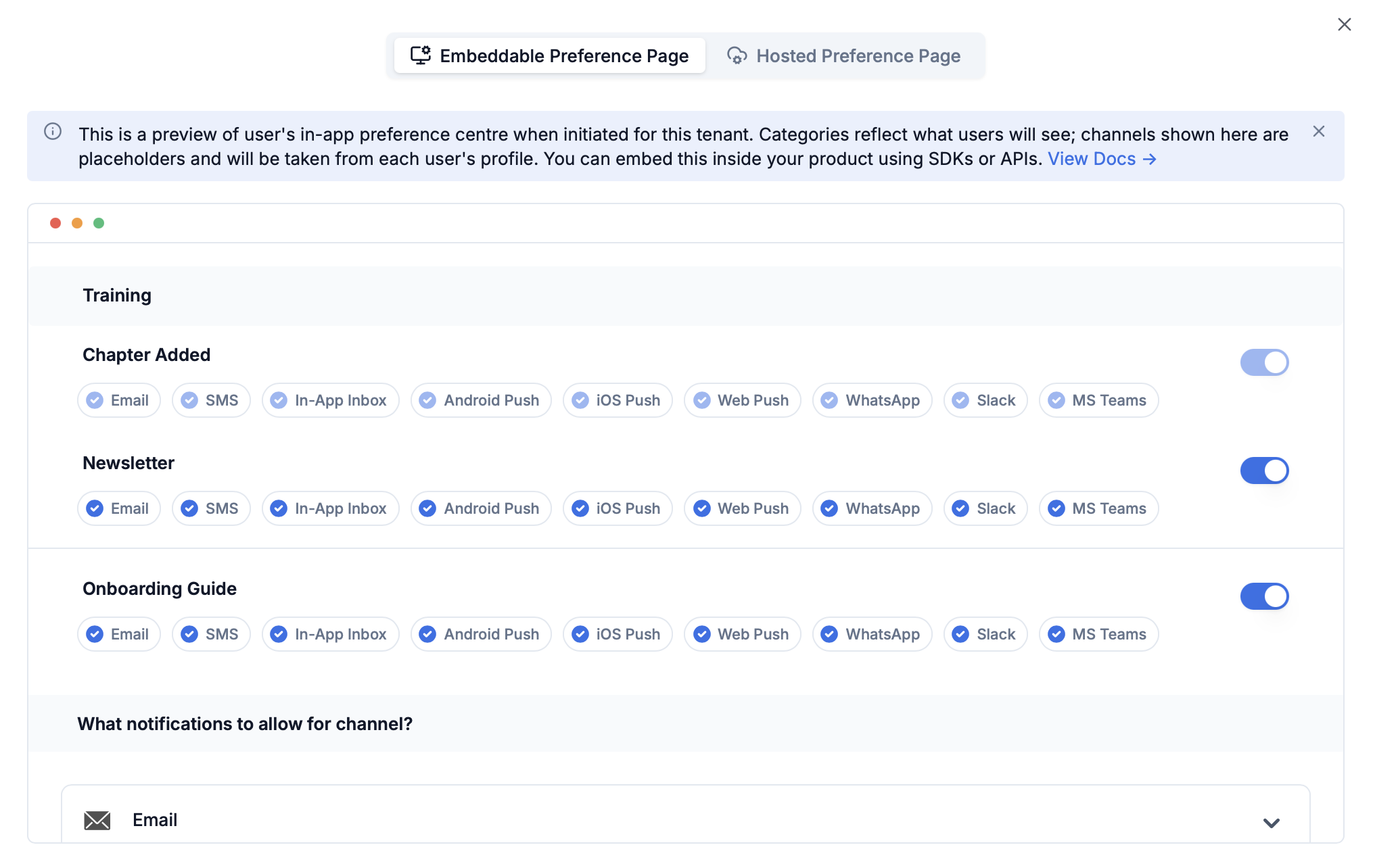
Click Preview to see how categories will appear to users on the preference page. The preview renders the full preference experience, including:
Default preferences — on/off toggle and can’t-unsubscribe states
Channel preferences — which channels are shown as opted in or mandatory
Digest schedule — the cadence options users can choose from
Condition properties — user-editable fields like thresholds or severity selectors
Use the preview to verify that all your preference settings are configured correctly before publishing.
2
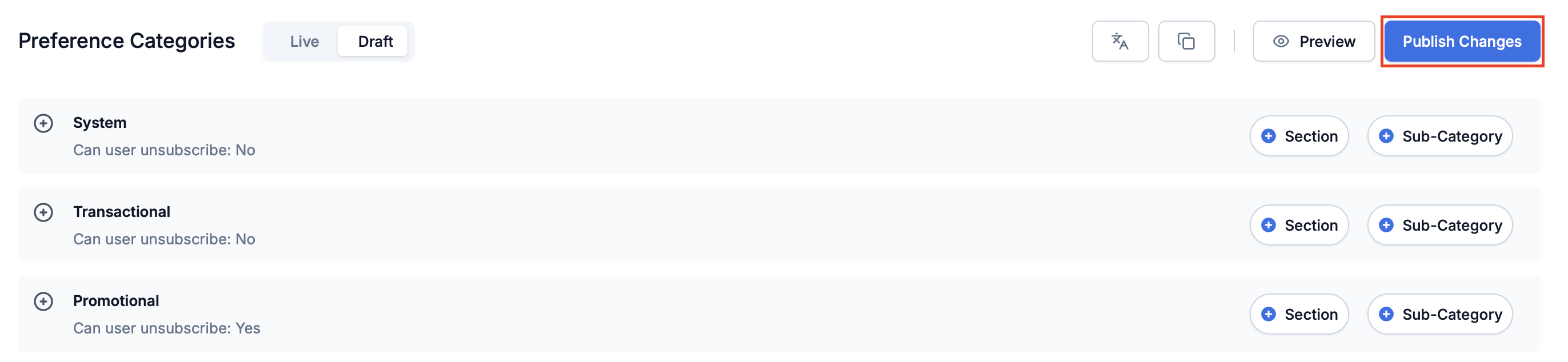
Publish
Click Publish Changes to make categories live. Categories are only available in workflows after publishing and will not appear in workflow dropdowns until published.
3
Clone to production
Use Clone to copy changes from staging to production workspace. Not required if you are directly doing changes in production workspace. Clone option is not currently available on UI.
Category changes are version controlled and need to be publishedCategories will only appear in workflow dropdowns after they are published. If you don’t see your category in the dropdown, make sure you’ve published your changes.
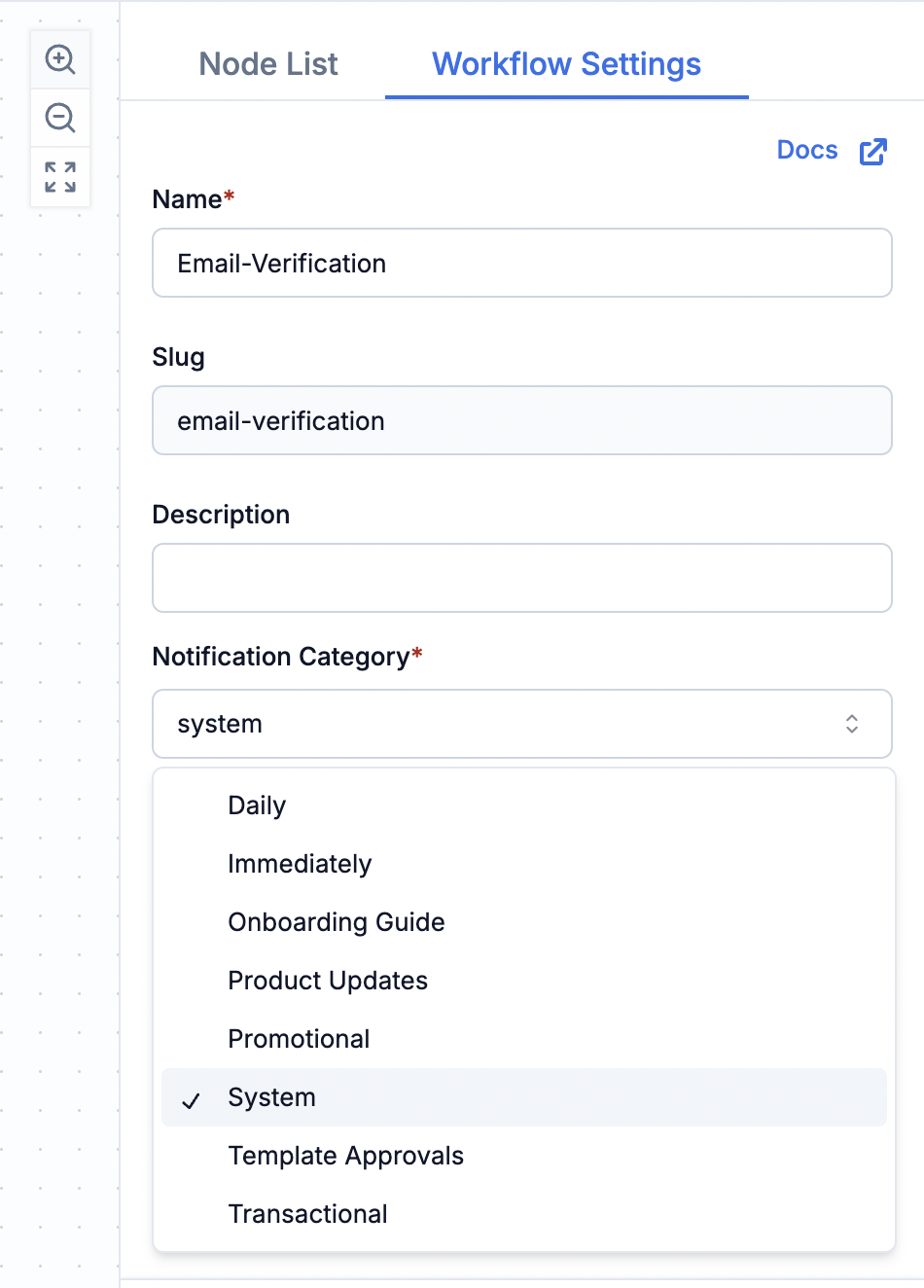
For workflows designed on SuprSend dashboard, you can assign a category either via dashboard or via CLI or Management API.
If you choose to not create workflow on SuprSend dashboard and want to keep your workflow config in code for single step dynamic workflow trigger, you can assign category directly in the workflow payload.
Via Dashboard
in dynamic workflow API
Via CLI or Management API
In workflow editor, select any delivery node and choose the relevant category from the Preference Category dropdown.
Assigning category to workflows
Add the category slug to the notification_category field in your dynamic workflow trigger.To find the slug: Click the sub-category name in the categories page to copy it.
This feature is only available for Enterprise plan customers or the ones who have enabled translation feature in their account.
Upload and manage translations for category and section names and descriptions. Once uploaded, translations go live immediately. You can fetch preference translations by passing locale query parameter in the get user preference API.
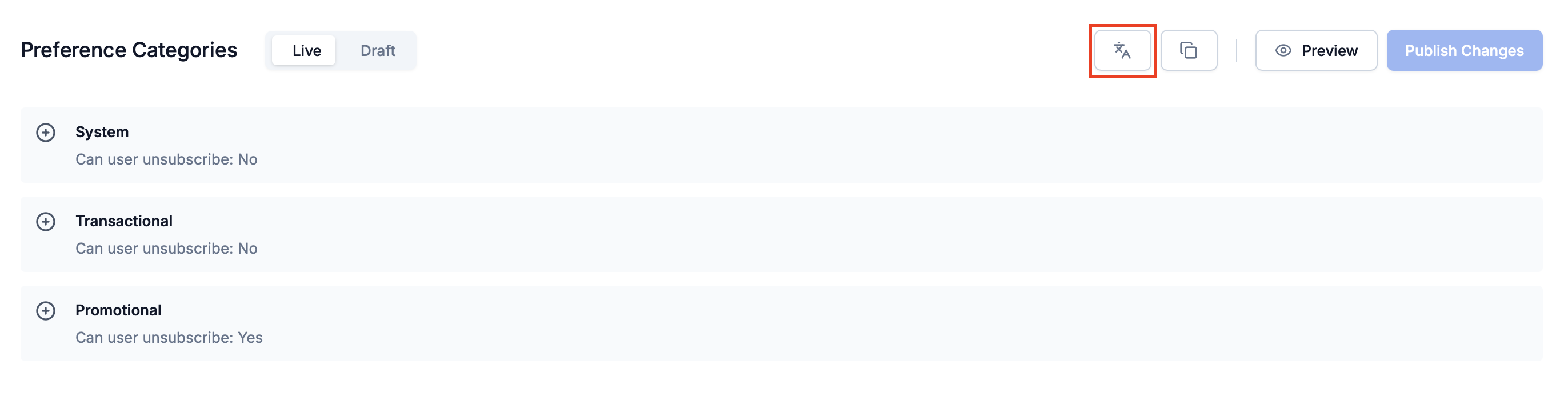
On the Preference categories page, click the translation icon in the top right corner to open the “Add / View Translation files” modal.
2
Add translation file
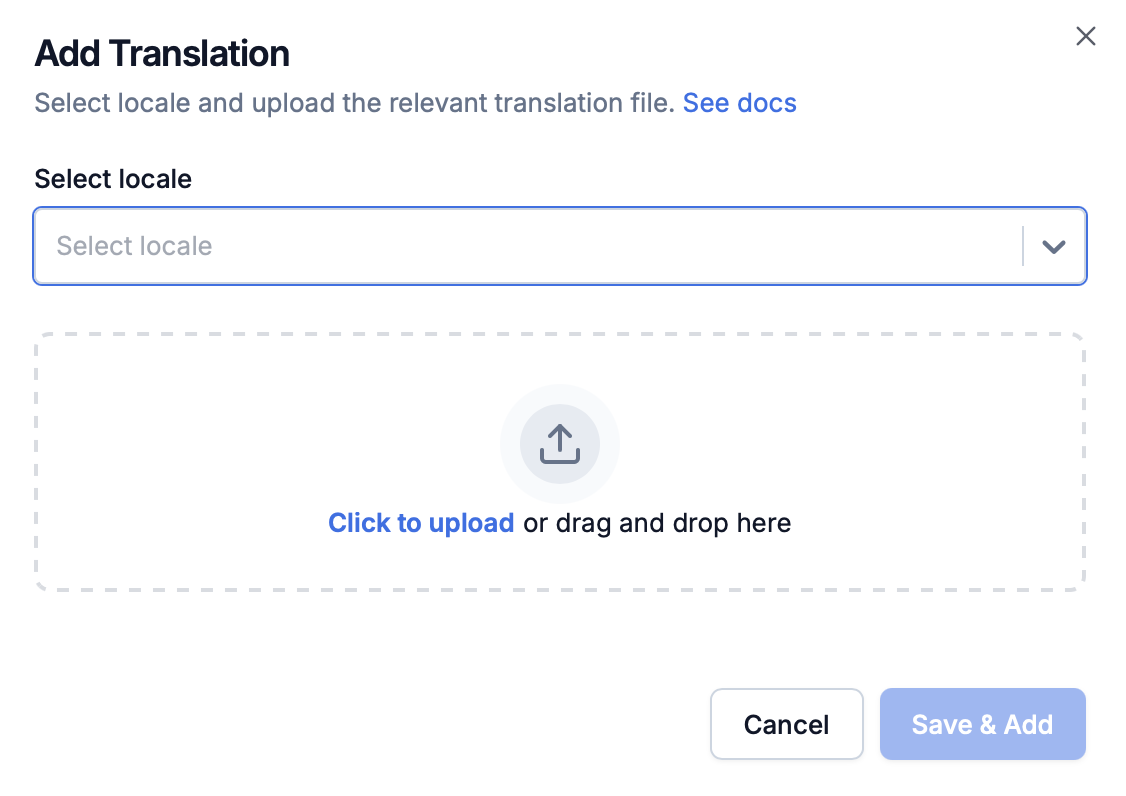
Click ”+ Add Translation”. Select a locale and upload the translated JSON file (for example, es.json, fr.json), then click “Save & Add”.
Translation file structure:Translation files follow this JSON structure with sections and categories objects. Each section and category is identified by its slug.
{ "sections": { "billing": { "name": "Facturation", "description": "Notifications liées à la facturation" } }, "categories": { "invoice-ready": { "name": "Facture prête", "description": "Vous recevrez une notification lorsque votre facture est prête" }, "payment-reminder": { "name": "Rappel de paiement", "description": null } }}
Note: The en.json file is automatically generated from your preference settings. Download it to use as a template for translations.
3
Preview translations
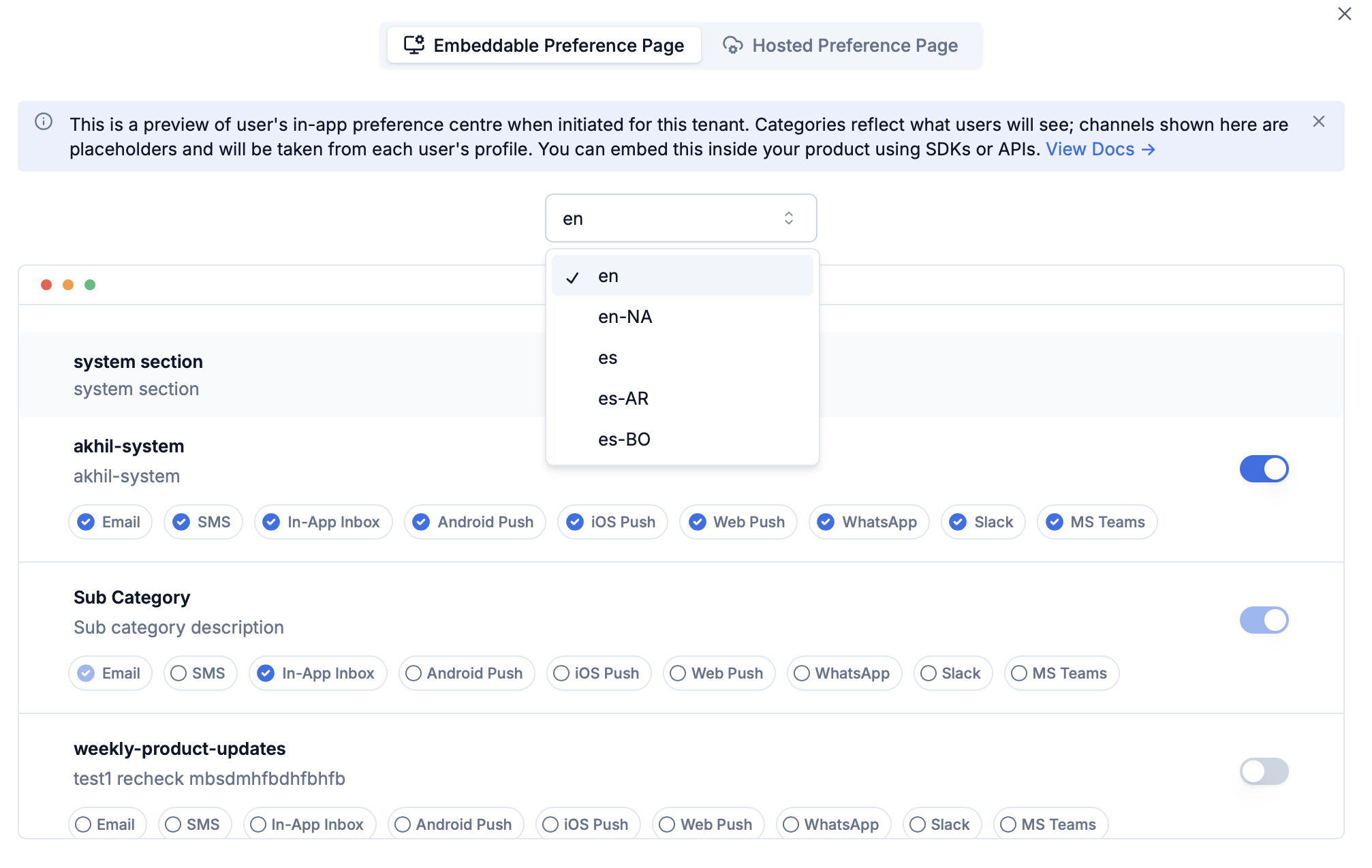
Click the Preview button (next to the translations button) on the Preference categories page to see how if your preview is rendering correctly in different languages.
Embeddable preference page preview
4
Clone to production
Use CLI commandsuprsend category translation pull and CLI commandsuprsend category translation push to copy translations from staging to production workspace.
suprsend category translation pullsuprsend category translation push --workspace production
English (en.json) is automatically created and cannot be overridden. It serves as the base language for all translations.
Use Management API to programmatically add, update, or delete translations for specific locales.See Category Translation API for complete API reference.
Large number of categories: If you have 10+ sub-categories, sections help users navigate the preference page more easily
Similar categories: Group related sub-categories together (for example, “Billing” section for invoice, payment, and subscription categories)
Better organization: Sections improve the user experience by organizing categories into logical groups
Example: If you have categories like “Invoice Ready”, “Payment Reminder”, and “Subscription Renewal”, group them under a “Billing” section for better organization.
How many categories should I create?
Keep your category structure simple and focused on the most important notification types. Here are some guidelines:
Recommended: 5-8 sub-categories or 5-8 sections and within each section, 2-6 sub-categories. Try to keep total number of categories across all root-categories < 20.
Too many categories can overwhelm users and drive them to use channel-level opt-outs instead
Too few categories may not give users enough granular control
Best practice: Create categories based on user actions or notification flows (for example, “Order Updates”, “Account Security”, “Marketing Newsletters”) rather than creating a category for every single workflow.
My user has opted out of all categories, but they are still receiving notifications
This typically happens when you’re using root-categories instead of sub-categories in your workflows.User Preferences do not apply to root-categories (System, Transactional, Promotional). If you’re sending notifications with notification_category: "promotional" or notification_category: "transactional", users will continue to receive notifications even after opting out of all sub-categories.To fix this:
Check your workflow settings and ensure you’re using sub-category slugs (for example, "marketing", "order-updates") instead of root-category names
If you don’t see the sub-categories in dropdown, it is possible that the sub-categories are not published. Category changes are version controlled and are not live until you publish them.
How do I show users only the categories relevant to their role or department?
Use tags to filter categories based on user roles, departments, or teams. Tags allow you to customize which categories appear on each user’s preference page.How it works:
When fetching user preferences via API, pass the tags query parameter to filter categories
Only categories matching the specified tags will be returned
Important: Tags only affect what’s shown on the preference page-they don’t impact delivery logic. Users can still opt in/out, and notifications will be sent based on default preferences if the category is hidden from the UI.Read more about tags here.