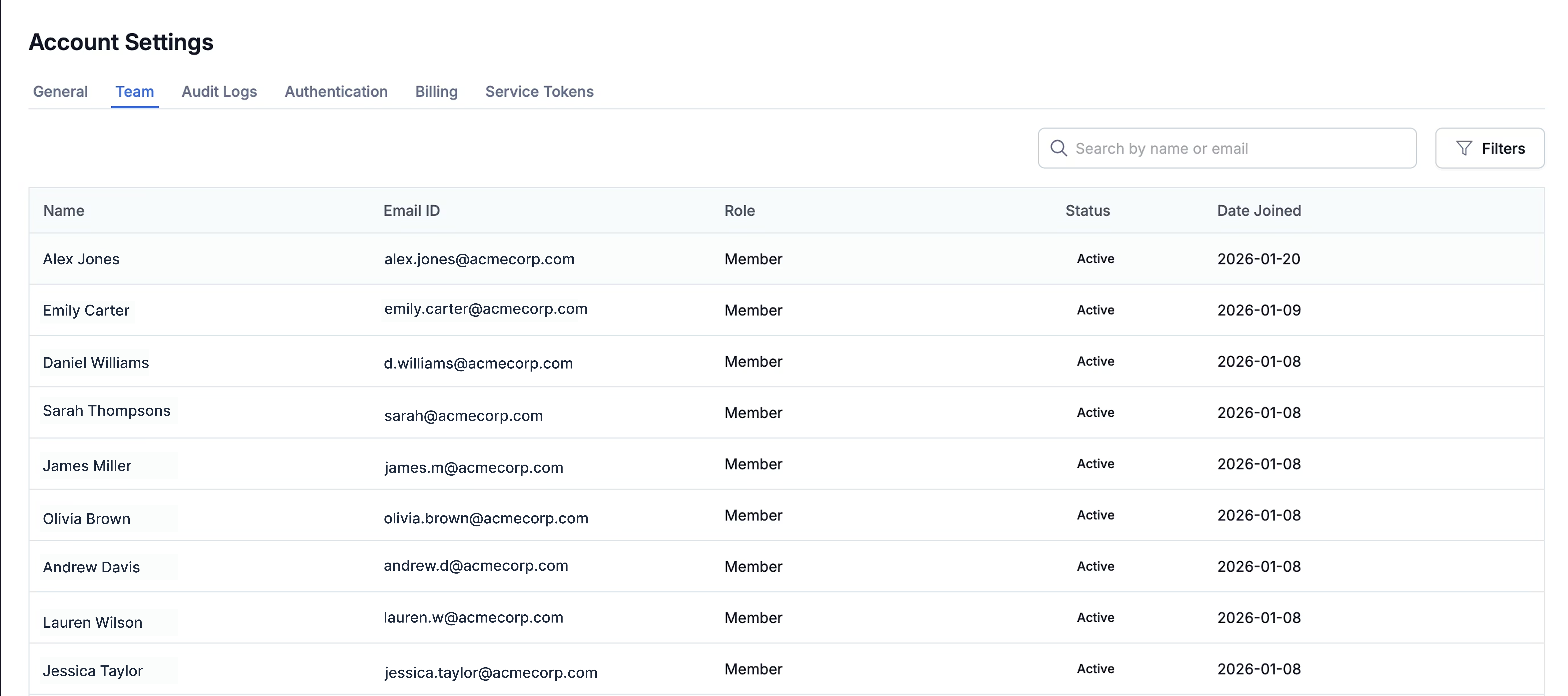
Access the team page via Account Settings → Team. You can search members, change their roles, invite new members, and remove members. All actions are logged in audit logs.
You can see all members who have access to the SuprSend account from Account Settings -> Team page. You can search members by name or email address or filter the list by role or status. All active, invited and deactivated members are shown in the list.
Admins can invite new team members to join the account:
1
Open the invite modal
Click the Invite member button located at the top right of the team page.
Invite member button
2
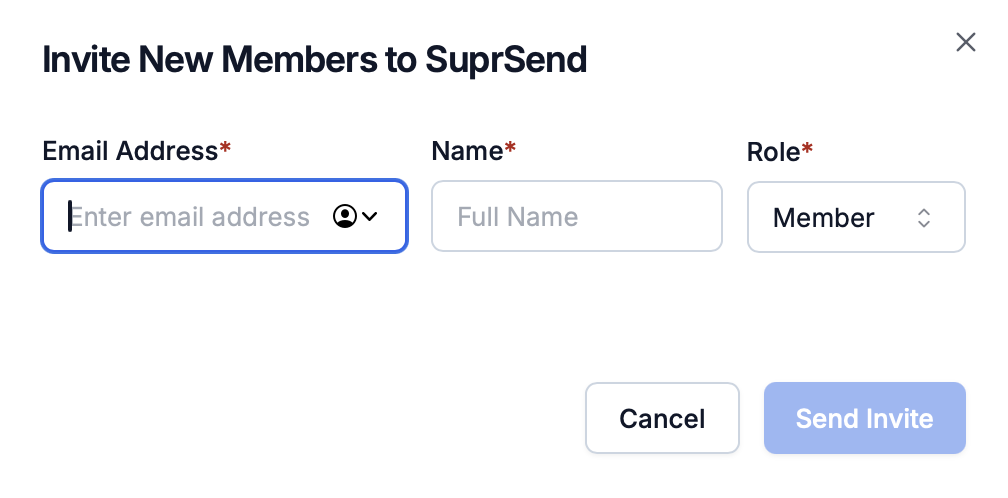
Fill in member details
Provide:
Email Address (required)
Name (required)
Role (required): Member or Admin (default: Member)
3
Send the invite
Click Send Invite to send the invitation email to the user.
SuprSend uses invite-only membership. Users who sign up with your domain are not added to your account automatically. If a user already belongs to another team, you’ll see the following error:
[email] is already a member in another team. Reach out to support to add user to this account.Contact us via email or Slack, and we’ll remove the user from the other account so you can add them to yours.
The user receives an email invitation. Invited members appear with “Invited” status until they accept.
If you have mistakenly invited a user, you can cancel the invitation by clicking on the three dots icon on the right side of the member’s row and selecting Delete invite.
The invitation link is valid for 7 days after it is sent. If the user hasn’t accepted the invitation yet, you can resend it by clicking on the three dots icon on the right side of the member’s row and selecting Resend invite.
We recommend you to remove a member’s account access when they leave your organization. Along with this, also delete or rotate API keys and service tokens the member had access to. This is critical for maintaining account security.
1
Locate the member
Find the member in the team list using search or filters.
2
Open the action menu
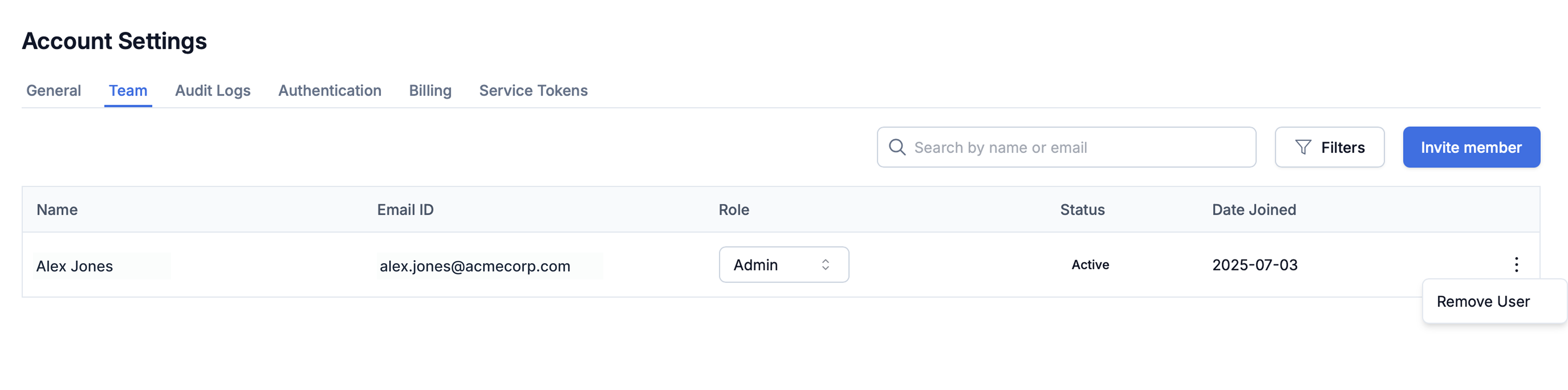
Click the three dots icon on the right side of the member’s row.
Remove member action menu
3
Remove the user
Click Remove User from the dropdown menu.
4
Confirm removal
Confirm the action. The member’s status changes to “Deactivated” and their row appears in a light gray/disabled state.
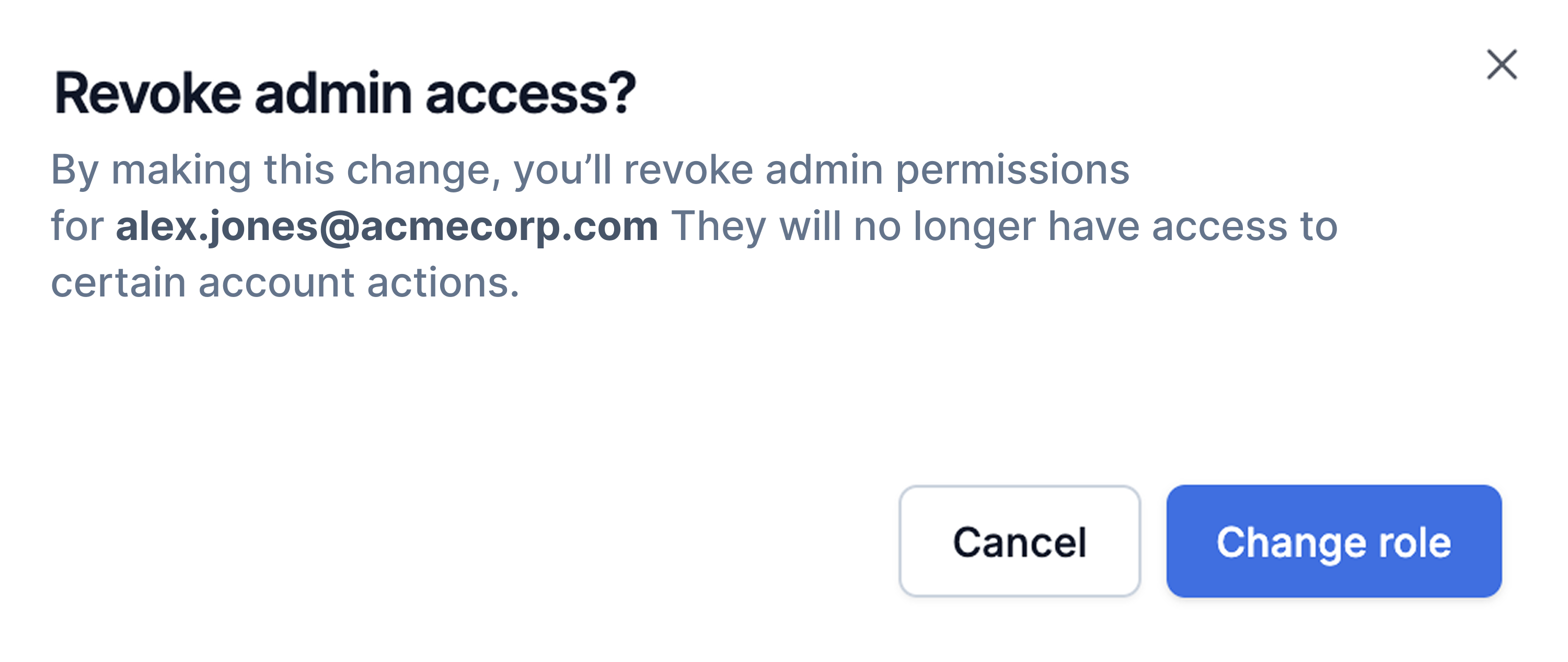
Admins can change a team member’s role, which affects their permissions and access level. You can change the role by clicking on the role dropdown (Member/Admin) in the member’s row.
SuprSend currently supports two roles: Admin and Member.
Admins have full access to the platform.
Members can edit only in staging and sandbox workspaces. In every other workspace — including production and any custom-named environment — they can view data but can’t create or modify it or drill into log detail views. They also can’t manage team settings.
Confirmation dialog when revoking admin access
The account.member_role_changed action is logged when a role change is applied.
all except user PII information in production workspace
Manage team members and their roles
✓
✗
Invite new members
✓
✗
Remove/deactivate members
✓
✗
Reactivate members
✓
✗
Create API keys and service tokens
✓
✓
View audit logs
✓
✓
View notification logs
✓
can view all logs, but can’t expand workflow execution rows, broadcast log rows, message log details, request log details, or observability log rows outside of staging and sandbox workspaces
Create or edit users, objects, and tenants (including their properties, preferences, and subscriptions)