
distinct_ids to a List from the SuprSend dashboard. The list is a snapshot at upload time — re-upload to update it, or switch to database sync if you want it to refresh automatically.
CSV upload only adds users that already exist in SuprSend — it can’t create new user profiles or update user properties and channels. See Creating user profiles to identify users first, or use database sync which can create users during the sync.
Setting up the upload
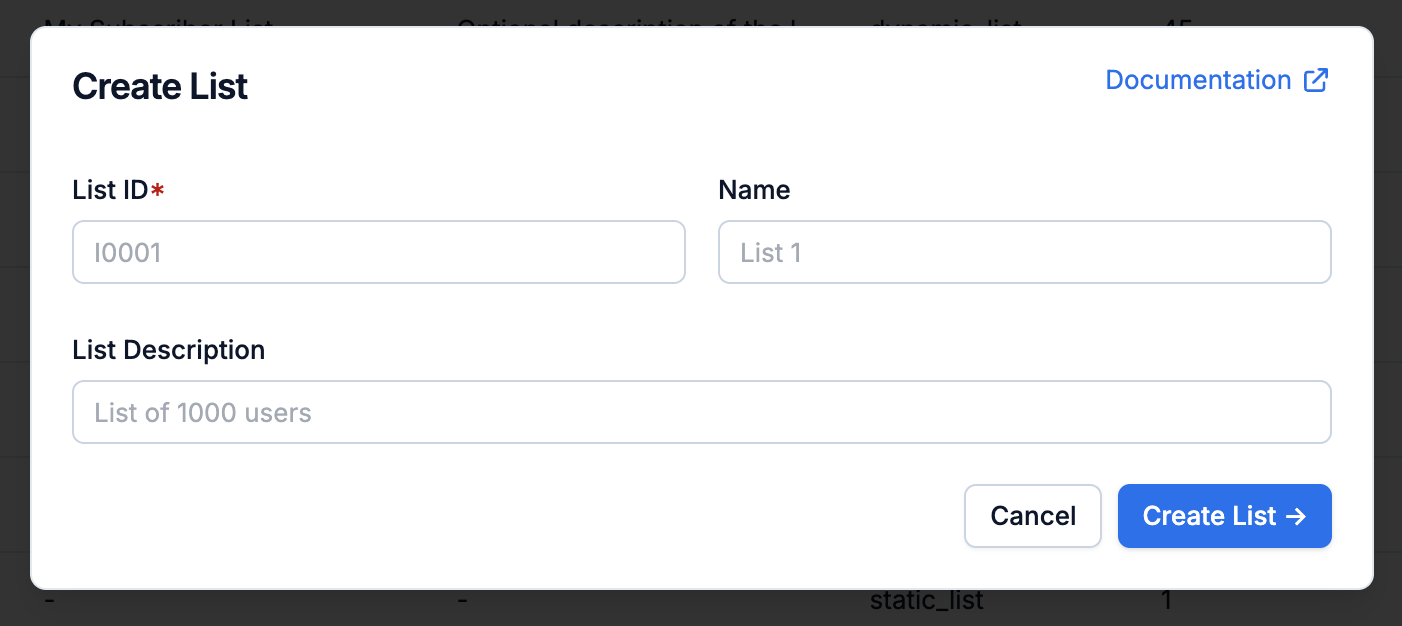
1. Create the list
Go to Lists → + New List and fill in:
You can edit the name and description later from the List Settings button on the list.
2. Upload the CSV
Select Update Users inside the list details page. Pick how to apply the CSV, upload the file, then click Update Users.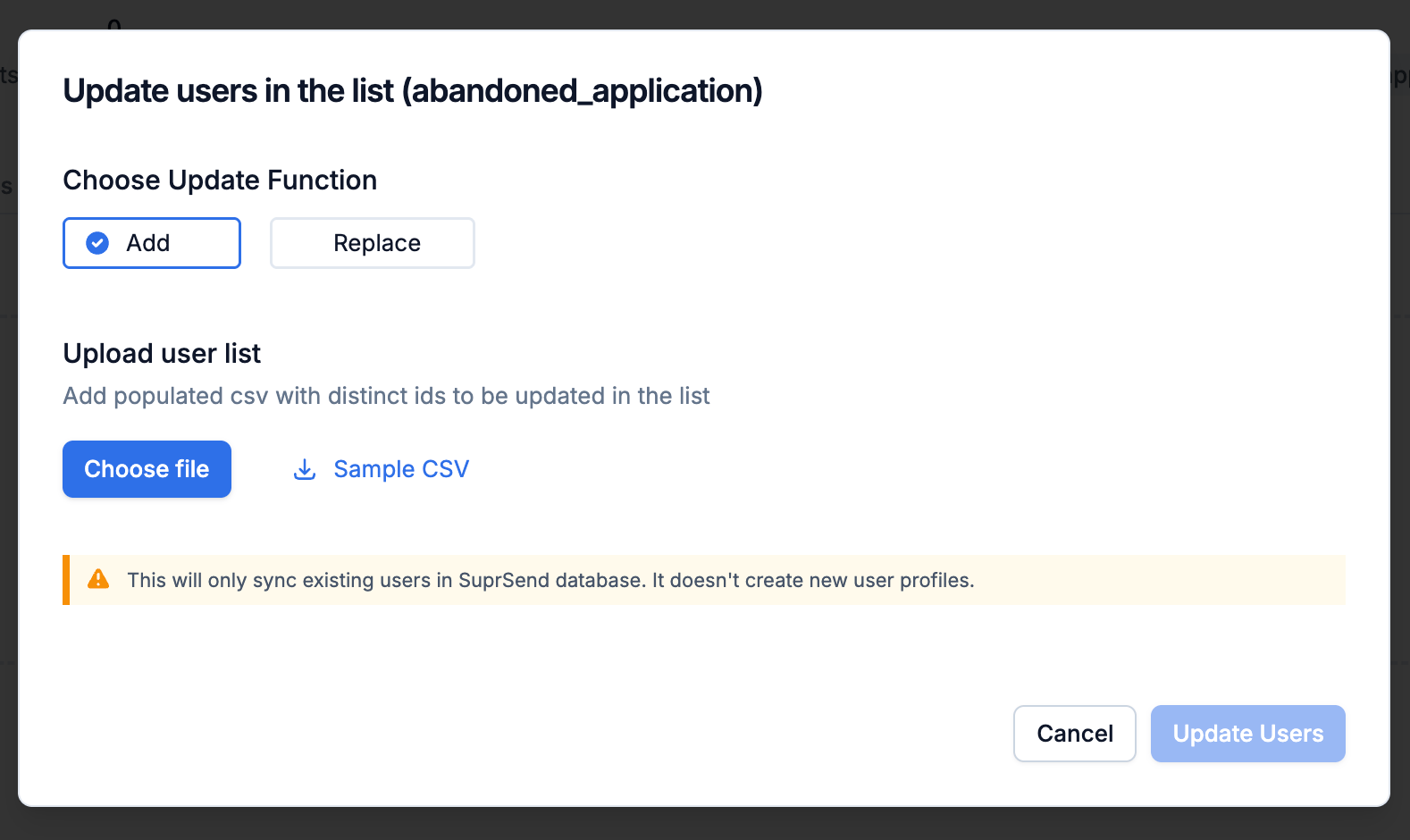
CSV format
Sync logs
Every upload appears on the Sync Logs tab of the list. Each row shows when the file was uploaded, who uploaded it, the outcome, and a summary of how many users were added.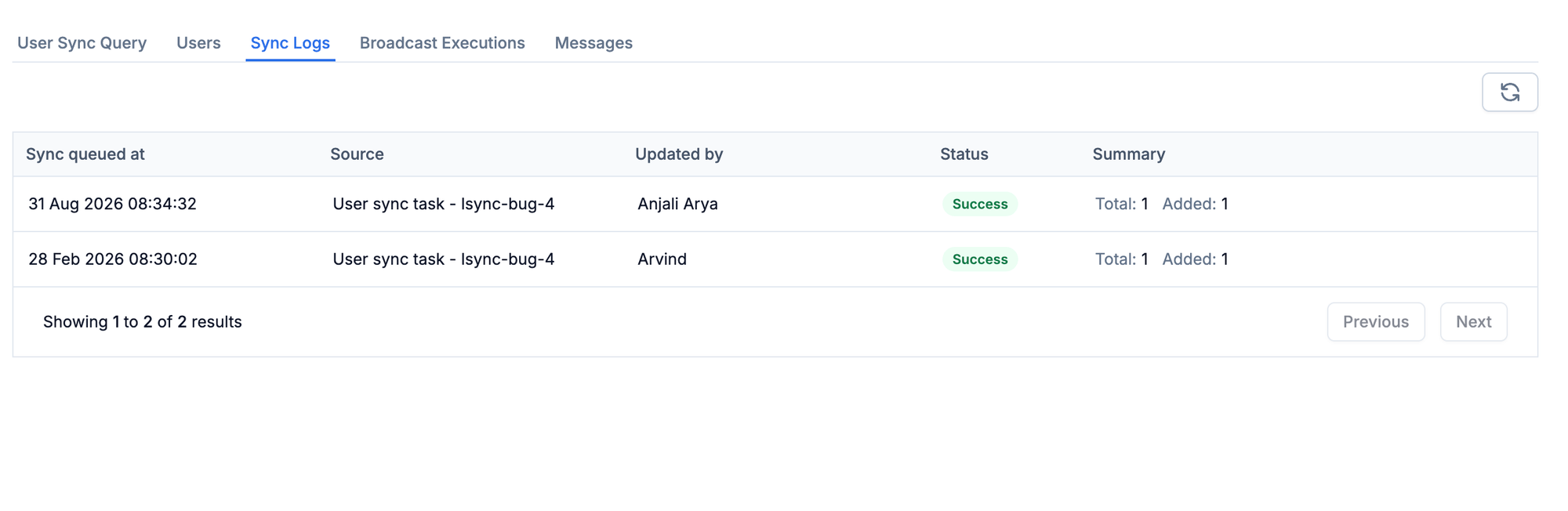
Total vs. Added
- Total — rows in the CSV, excluding the header row.
- Added — users actually added to the list after the upload finished.
Added can be lower than Total for two reasons:
- The user is already in the list. Duplicate
distinct_ids — either within the CSV or from a previous upload — aren’t added again; they count towardTotalbut notAdded. - The user doesn’t exist in SuprSend. CSV upload can’t create users, so rows whose
distinct_idisn’t already a user in SuprSend are skipped.
Troubleshooting
Upload failed: invalid CSV format
Upload failed: invalid CSV format
The log shows
invalid CSV format - check for the 'distinct_id' column, column names and format of cell values. The header row must contain a column named exactly distinct_id (lowercase, with no leading or trailing spaces). If your source spreadsheet uses a different header — or the header has stray whitespace around it — rename or trim it before exporting.Added is lower than Total — users aren't landing in the list
Added is lower than Total — users aren't landing in the list
Either the users are already in the list (safe to ignore) or their
distinct_ids don’t exist in SuprSend. CSV upload can’t create users — create them first, or use database sync which can create users on the fly.File upload rejected as too large
File upload rejected as too large
Split the CSV into smaller batches and upload them one after another. Each batch appears as its own row in Sync Logs.
Special characters showing as garbled text on the user record
Special characters showing as garbled text on the user record
Save the CSV as UTF-8. Excel defaults to a locale-specific encoding on export — use Save As → CSV UTF-8, or export from Google Sheets which is UTF-8 by default.