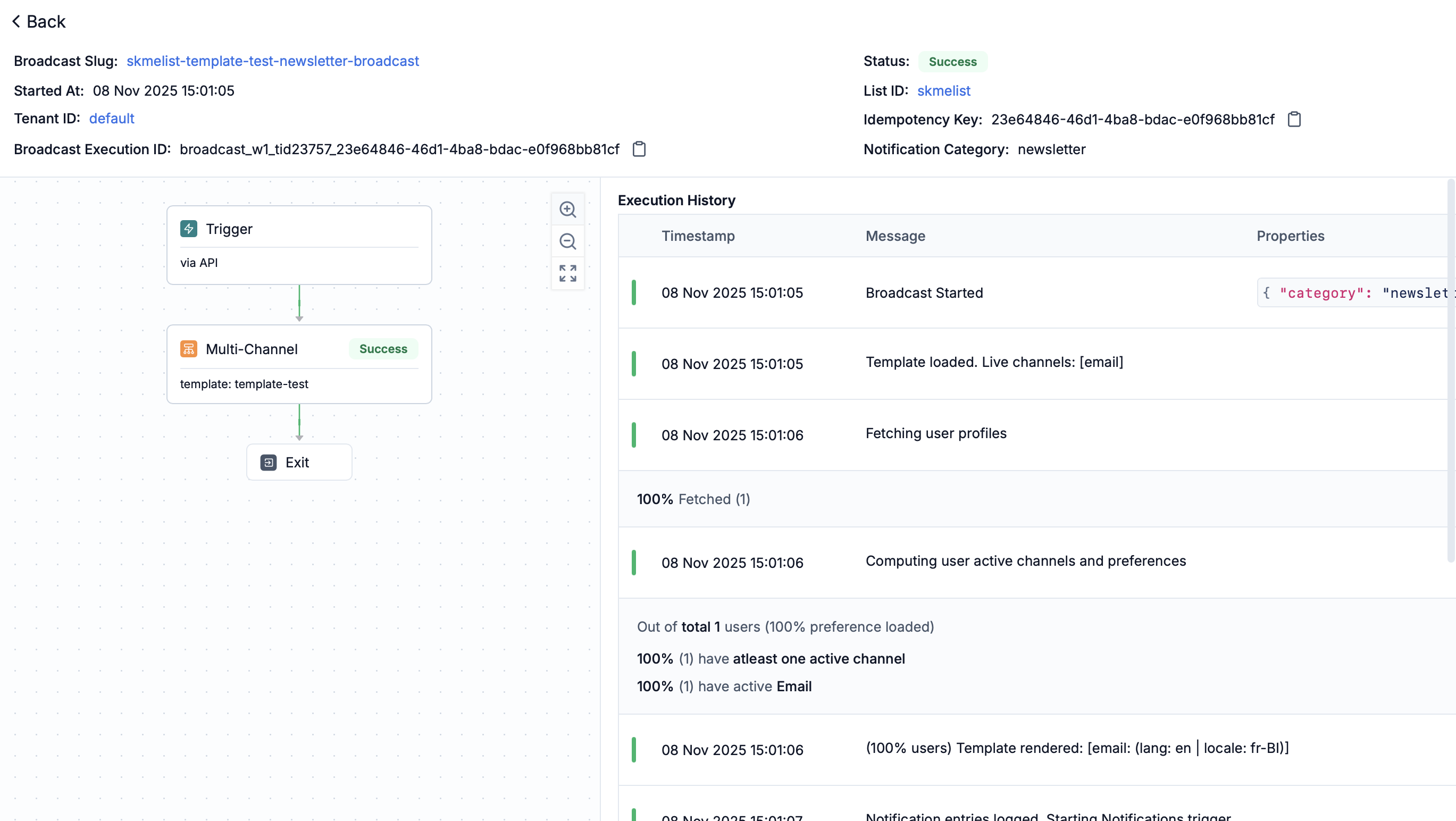
Broadcast execution logs track broadcast campaigns sent to user lists. Unlike workflow execution logs which are per-user, broadcast logs provide a summary of execution across a list of users, showing aggregate statistics and processing steps.
Each broadcast execution log entry includes these sections:
  • Overview: Generic information about the broadcast execution:
    • Broadcast slug, tenant ID and List ID (clickable)
    • Broadcast Execution ID (share this with SuprSend support if you need help in debugging the broadcast or want to report an issue)
    • Idempotency key (unique identifier of the request passed to SuprSend)
    • Status (Triggered, Skipped, Failed)
    • Start time (broadcast start timestamp)
    • Preference category
  • Execution history: Chronological logs of broadcast start, template loading, user profile fetching (with progress percentage), channel computation, template rendering, and notification triggering.
  • Aggregate statistics: Summary of the broadcast performance:
    • Total users processed (percentage and count) at each stage of the broadcast execution
    • At delivery stage: Preference evaluation, messages triggered and delivery status (delivered, seen, clicked)
Status indicators:
StatusMeaning
🟢 TriggeredUsers who received notifications on at least one channel
🟠 SkippedExcluded due to missing channels or opt-out
🔴 FailedTrigger failed due to errors (for example, template rendering failures)
Common errors captured:
Error TypeExamples
Template rendering failuresMissing variables, syntax errors
Channel computation issuesNo active channels, User Preference opt-outs, Tenant Preference opt-outs
Vendor Config issueVendor not configured for the channel and preference category or broadcast not supported for that vendor
Why execution is skipped:
ReasonDescription
UnsubscribedUser has unsubscribed from that preference category or the required channel in the category
Missing channelUser does not have that channel or that is marked inactive due to hard bounce in the past (for example, no email address, no phone number)
Navigate from here: Successful broadcasts will have delivery logs available in Message logs. Click “View all message logs” next to delivery step to navigate directly to individual message delivery status for all users in the broadcast.
Broadcast logs show processing up to trigger. For delivery details, see Message logs.