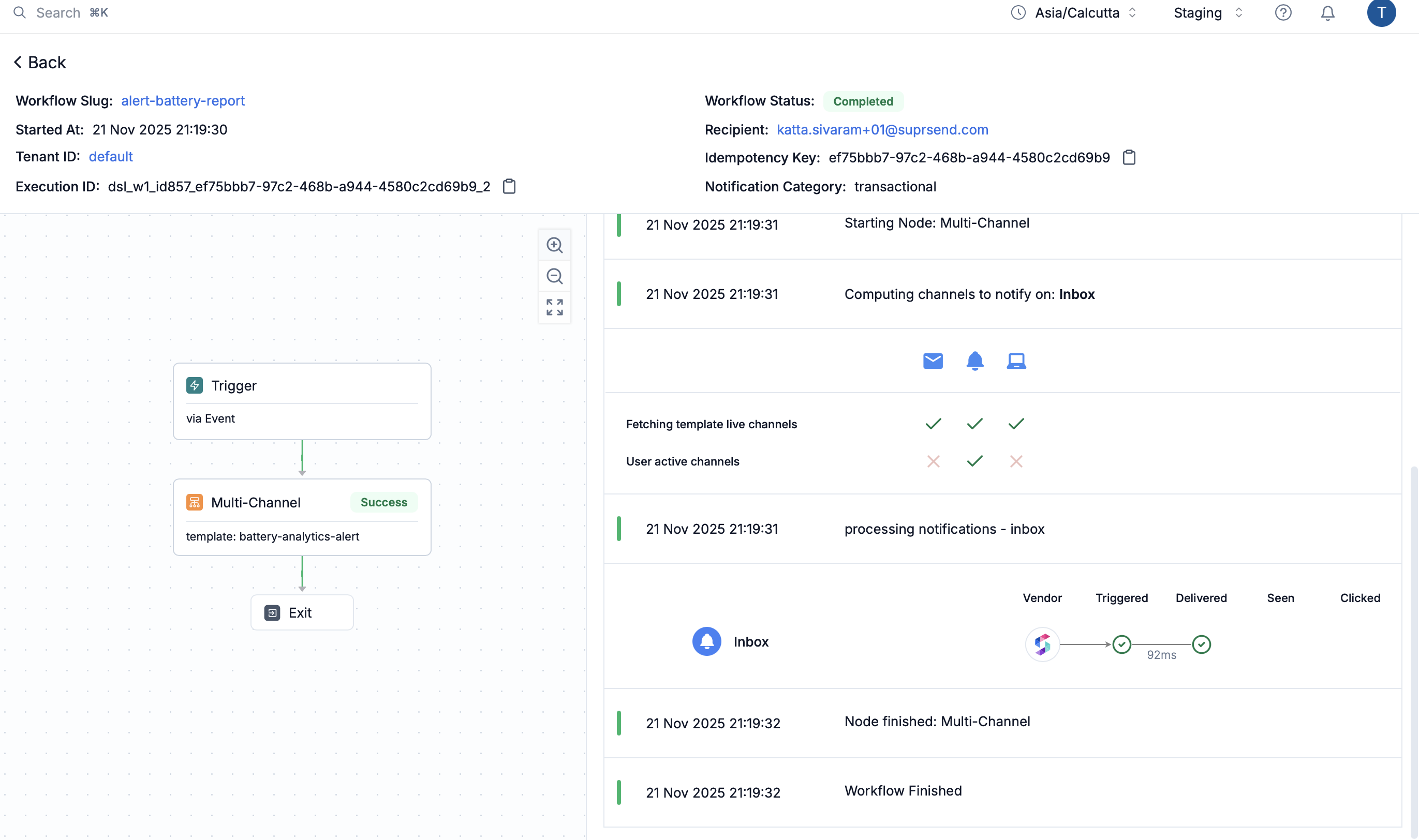
Workflow execution logs show how individual workflows are processed for each user and show step-by-step workflow execution details. You can see how each node in the workflow is executed. All the errors that happen during workflow execution are logged here, except delivery errors since they are reported later by vendor and is tracked in Message Logs.
Each workflow execution log entry includes these sections:
  • Overview: Generic information about the workflow execution:
    • Workflow slug, tenant ID and Recipient (clickable)
    • Execution ID (share this with SuprSend support if you need help in debugging the workflow or want to report an issue)
    • Idempotency key (unique identifier of the request passed to SuprSend)
    • Status (Completed, Partial Failure, Failed)
    • Start time (workflow start timestamp)
    • Preference category
  • Workflow diagram: Visual path of the execution and color coded status against each node. Check the failed nodes for error details.
  • Execution history: Chronological logs of workflow start, node execution, channel computation, template rendering, and notification triggers.
Status indicators:
StatusLog LevelMeaning
🟢 CompletedINFOWorkflow or node Execution completed successfully without failures. It doesn’t mean that all messages were delivered successfully. Check Message Logs for actual delivery status.
🟠 Partial FailureWARNINGWorkflow or node Execution completed with some warnings (non-actionable errors). For example, no active channels, user preference opt-outs, tenant preference opt-outs, etc.
🔴 FailedERRORWorkflow execution failed for some nodes or some steps in the node execution failed. You can check individual workflow log to see which node failed and the error details. For example, template rendering failures, variable evaluation errors, etc.
🔵 In ProgressINFOWorkflow or node execution is still in progress. Final status will result in one of the above 3 statuses.
Common errors captured:
Any error that can be evaluated within SuprSend are logged here, except for delivery errors which are tracked in Message Logs.
Error TypeExamples
Template rendering failuresMissing variables, syntax errors
Channel computation issuesNo active channels, User Preference opt-outs, Tenant Preference opt-outs
Node execution failuresCondition mismatches, data validation errors
Variable evaluation errorsMissing data, type mismatches
Navigate from here: If your workflow execution has delivery or webhook nodes, their corresponding logs are available in Message logs. Click on view message logs in delivery nodes to navigate to the corresponding message log.
“Completed” execution does not mean “Delivered”. A workflow can complete successfully but still have message delivery failures. Check Message logs for actual delivery status.