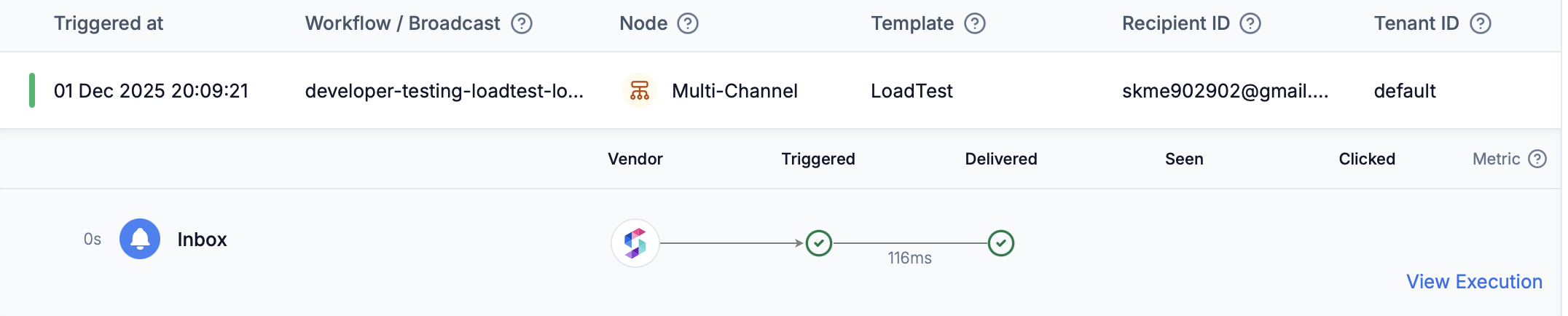
Message logs show individual notification messages, their delivery errors and engagement status. You’ll see 1 log entry corresponding to each delivery node or webhook node in the workflow or broadcast execution. Use this to track the delivery errors, notification engagement status, webhook request and response details or any other errors that happen for deivery node during the workflow or broadcast execution.
Each message log entry includes:
  • Overview: Generic information about the message:
    • Triggered at timestamp, workflow/broadcast name, node (for example, Multi-Channel, Email, SMS, Mobile Push, Inbox), template, recipient ID, and tenant ID.
  • Notification Status: Triggered, Delivered, Seen, Clicked, Failed
  • Message Preview: View the fully rendered message content — the exact output delivered to the recipient, with all variables resolved and templates applied. Useful for debugging, verifying personalization, and auditing communications.
    Available for messages sent from 14 June 2026 onwards. In staging and sandbox workspaces, all members can view message previews. In production, access is restricted to admin users only to prevent exposing user PII.
  • Delivery errors: Delivery errors if any
  • Delivery timeline: Delivery timeline for the message
  • Webhook request and response: Webhook request and response details if any
  • Execution Error: Workflow execution error for delivery or webhook node if any
Status indicators:
StatusLog LevelMeaning
🟢 CompletedINFONotification was successfully delivered to user on all channels or handed off to the vendor if we’re not able to track the delivery status
🟠 Partial FailureWARNINGNotification was partially delivered on some channels or failed on other or message were not delivered due to warnings like preference opt-outs etc.
🔴 FailedERROR**Notification failed to be delivered to the end user on all channels or there was an error in workflow execution for some channels like template rendering failures **
🔵 In ProgressINFONotifications are still in progress. Final status will result in one of the above 3 statuses.
Notification delivery and engagement status:
StageDetails
Triggered✅ (success) or ❌ (failed) - whether the notification was successfully handed off to the vendor
Delivered✅ (success) or ❌ (failed) - whether the notification was delivered to the end user
SeenWhether the notification was seen/opened by the user
ClickedWhether the notification was clicked/interacted with
Hover over status indicators to see the timestamp of each stage and if failed, the reason for failure. Engagement status tracked across channels:
ChannelDeliveredSeenClicked
Email
SMS
WhatsApp
Android Push
iOS Push
Web Push
Inbox
Slack
MS Teams
Configure https://hub.suprsend.com/webhook/* in your vendor dashboard to track delivery, seen, and click events for email, SMS and WhatsApp.
Common errors captured:
Error TypeExamples
Delivery errorsDelivery failures reported by vendor
Template rendering failuresMissing variables, syntax errors
Channel computation issuesNo active channels, User Preference opt-outs, Tenant Preference opt-outs
Vendor Config issueVendor not configured for the channel and preference category or broadcast not supported for that vendor
Delay in updating the status: Some events (delivery/seen/click) depend on vendor callbacks and may appear with delay.
Navigate from here: Use “View Execution” link to navigate to the corresponding Workflow execution logs.