
Create the Teams app
1. Create the app
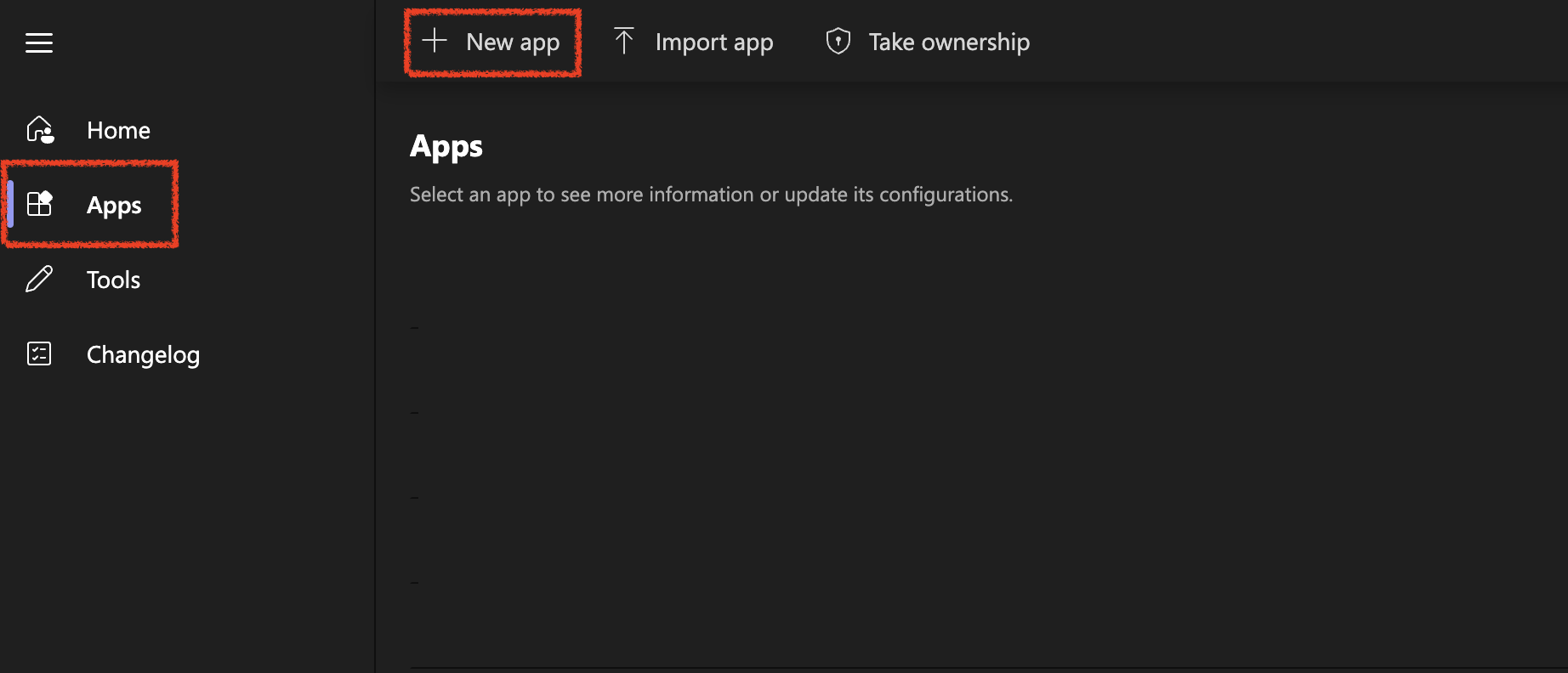
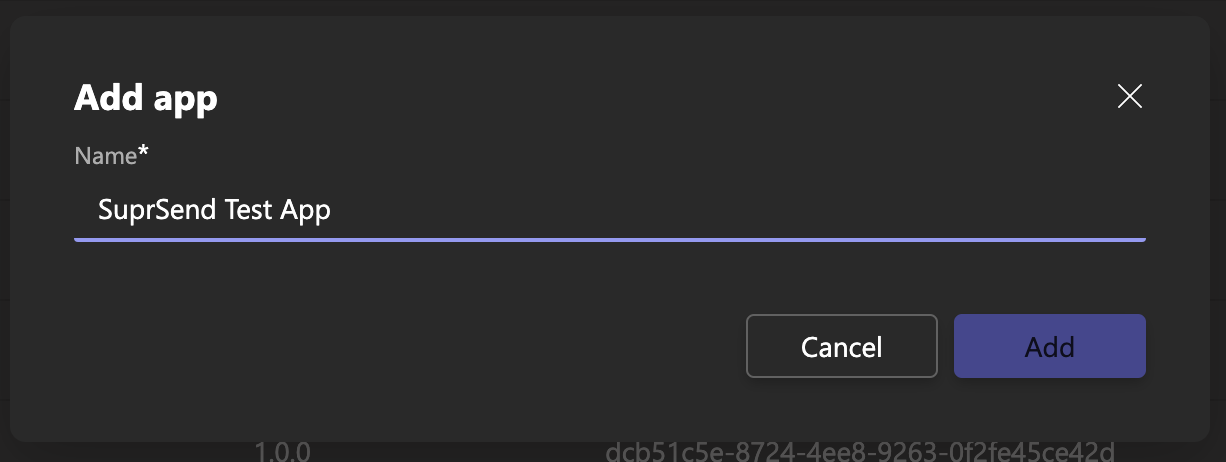
Open the Teams Developer Portal → Apps → + New App. Name it something people will recognize in the Teams app list, such asIncident Alerts.
https:// — an http:// link or a missing one blocks publishing.
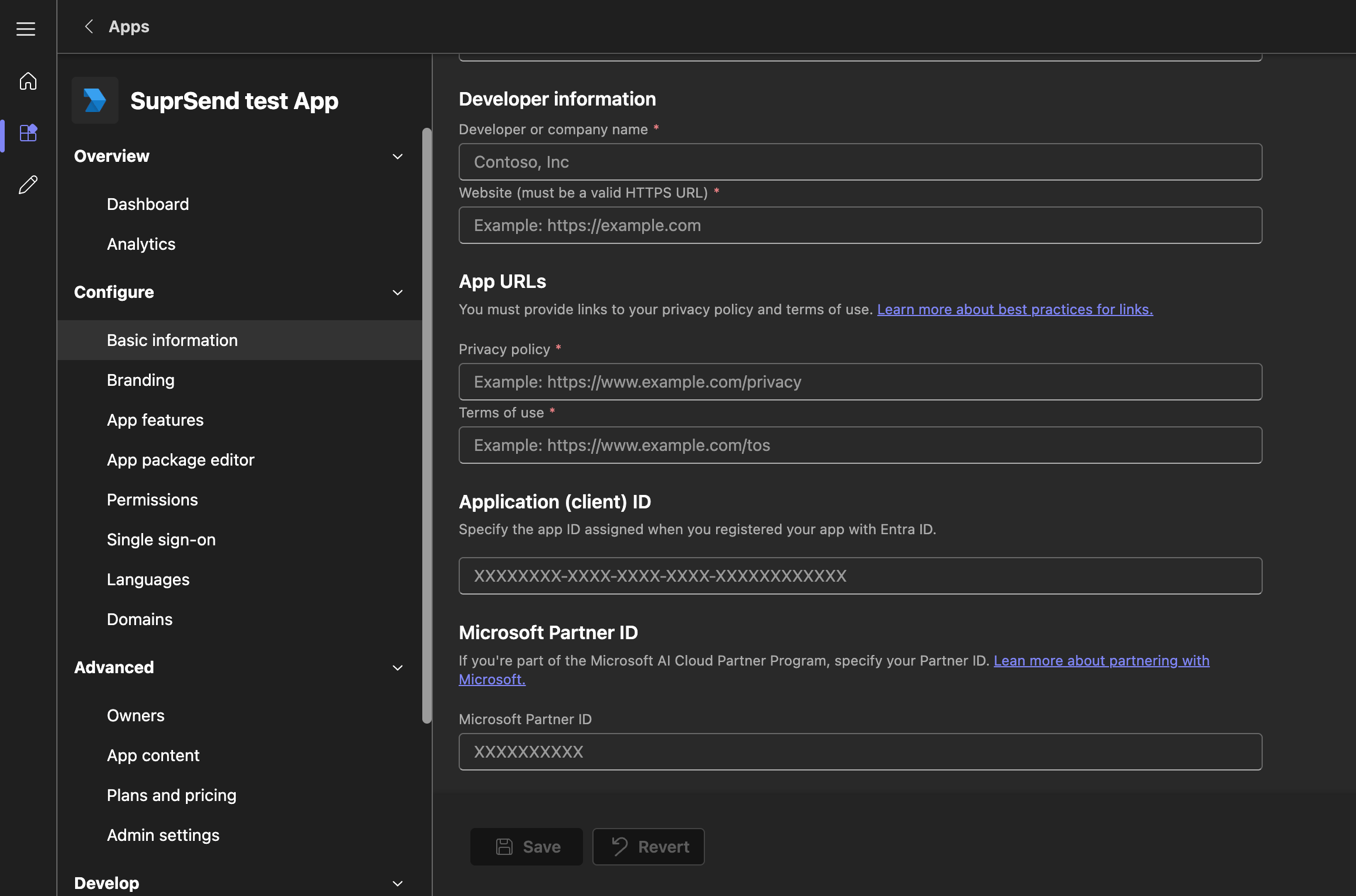
Basic information in the Teams Developer Portal. The three URL fields are validated for https://.
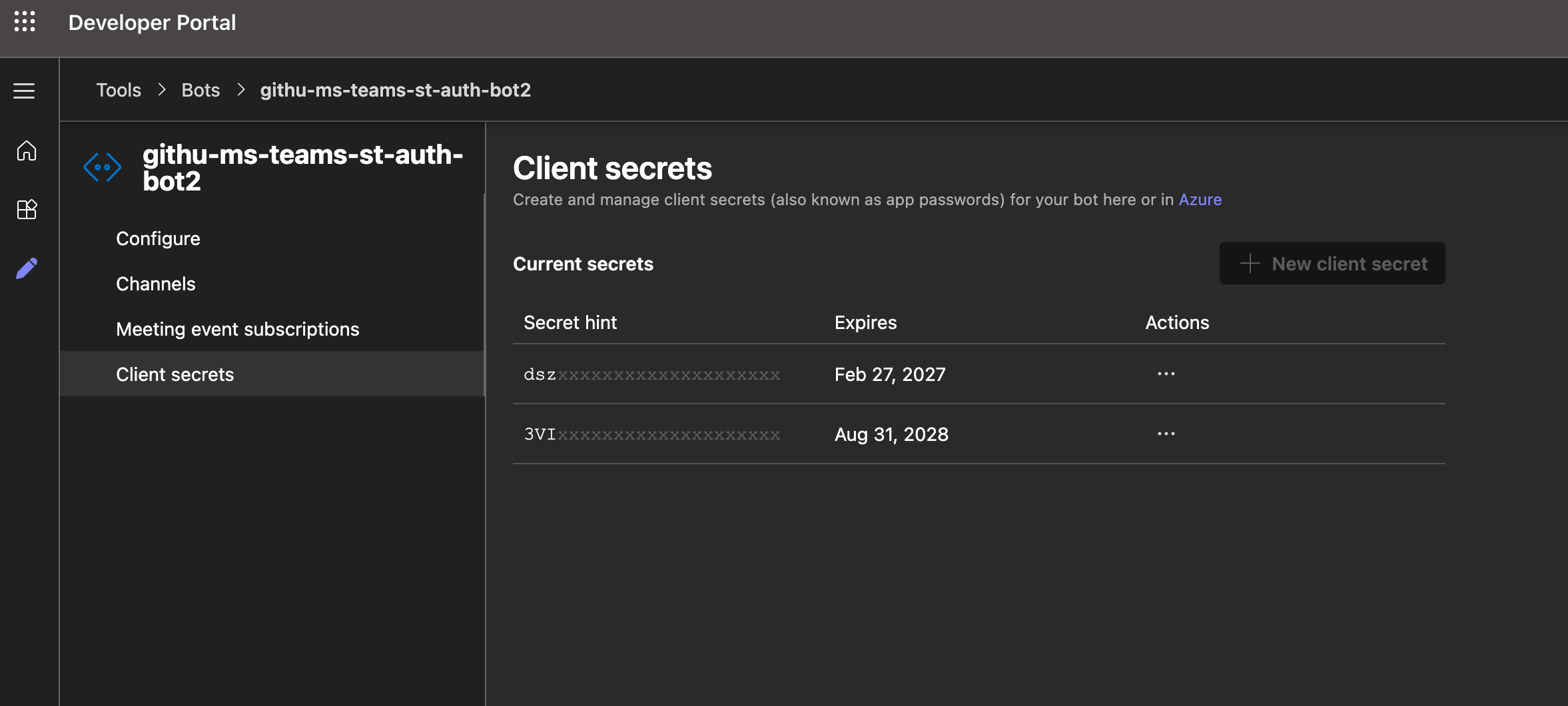
2. Create the bot and a client secret
Left panel → App features → Bot. Pick an existing bot or Create a new bot. On the bot page, + New Bot, name it, Add. Leave the messaging endpoint blank unless you also handle inbound activity (for example @mentions). Select Microsoft Teams as the channel.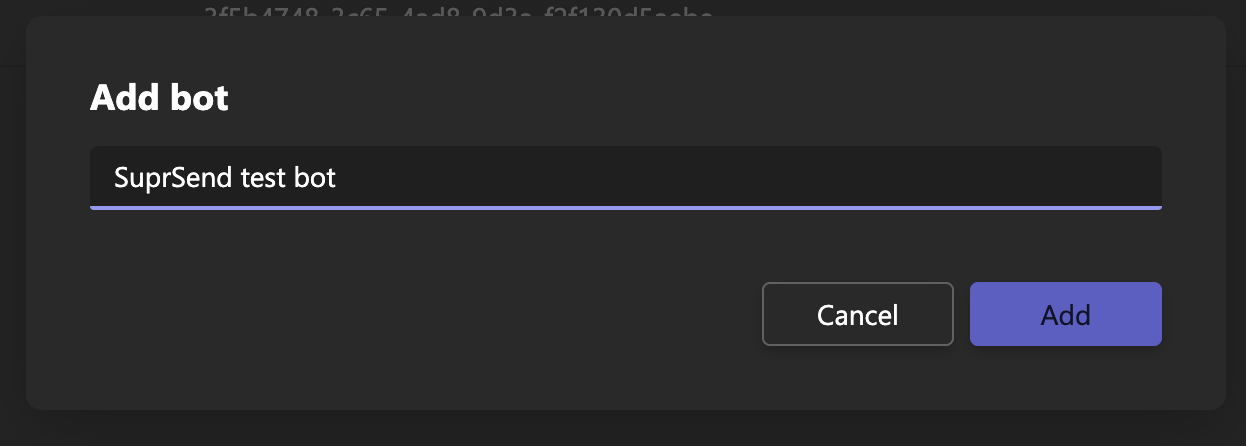
3. Attach the bot and set scopes
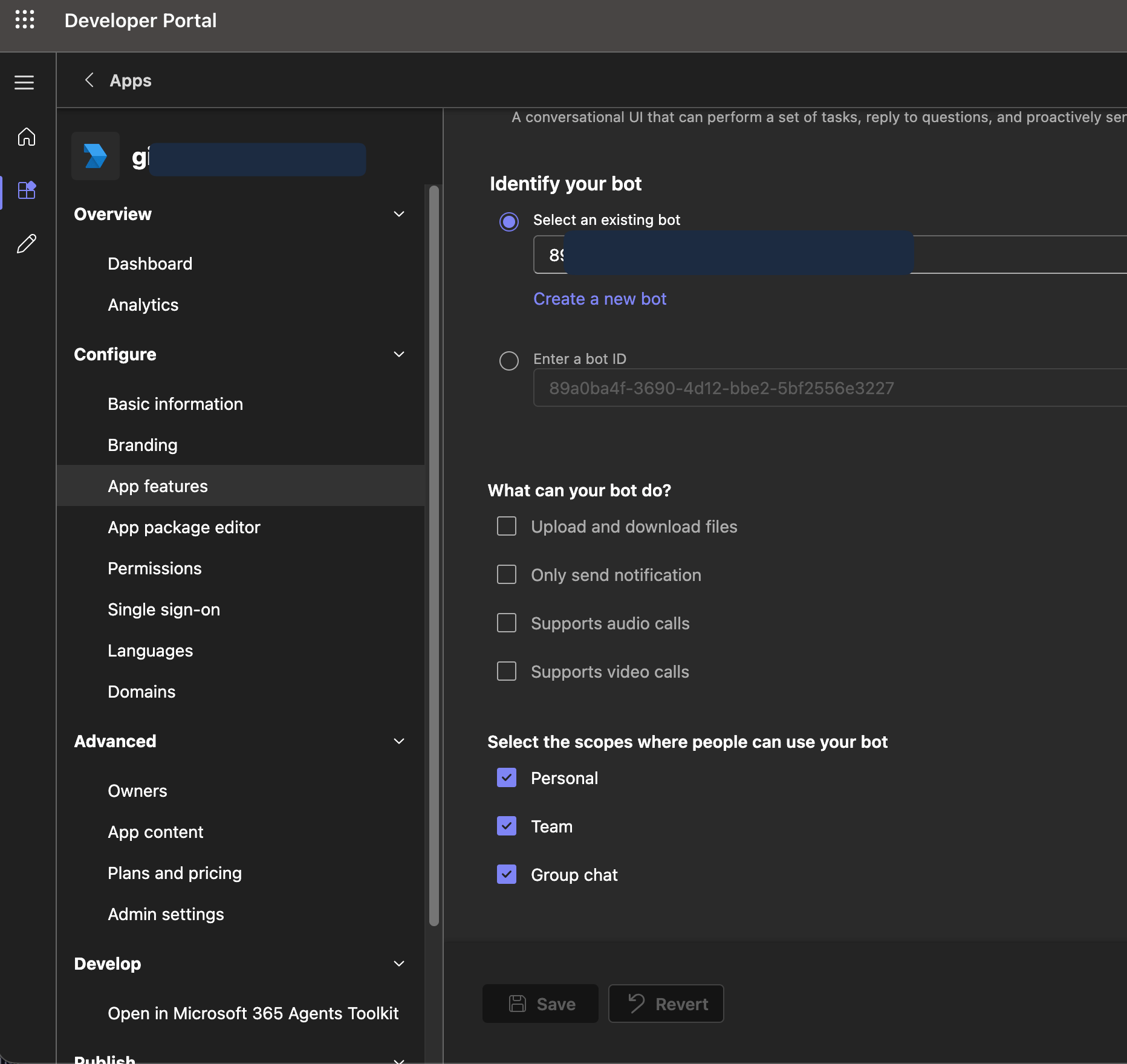
Select App features → Bot, then pick the bot you just created. Its Application (client) ID is filled in on Basic information and cannot be edited there. You will need that value when you configure the vendor in SuprSend.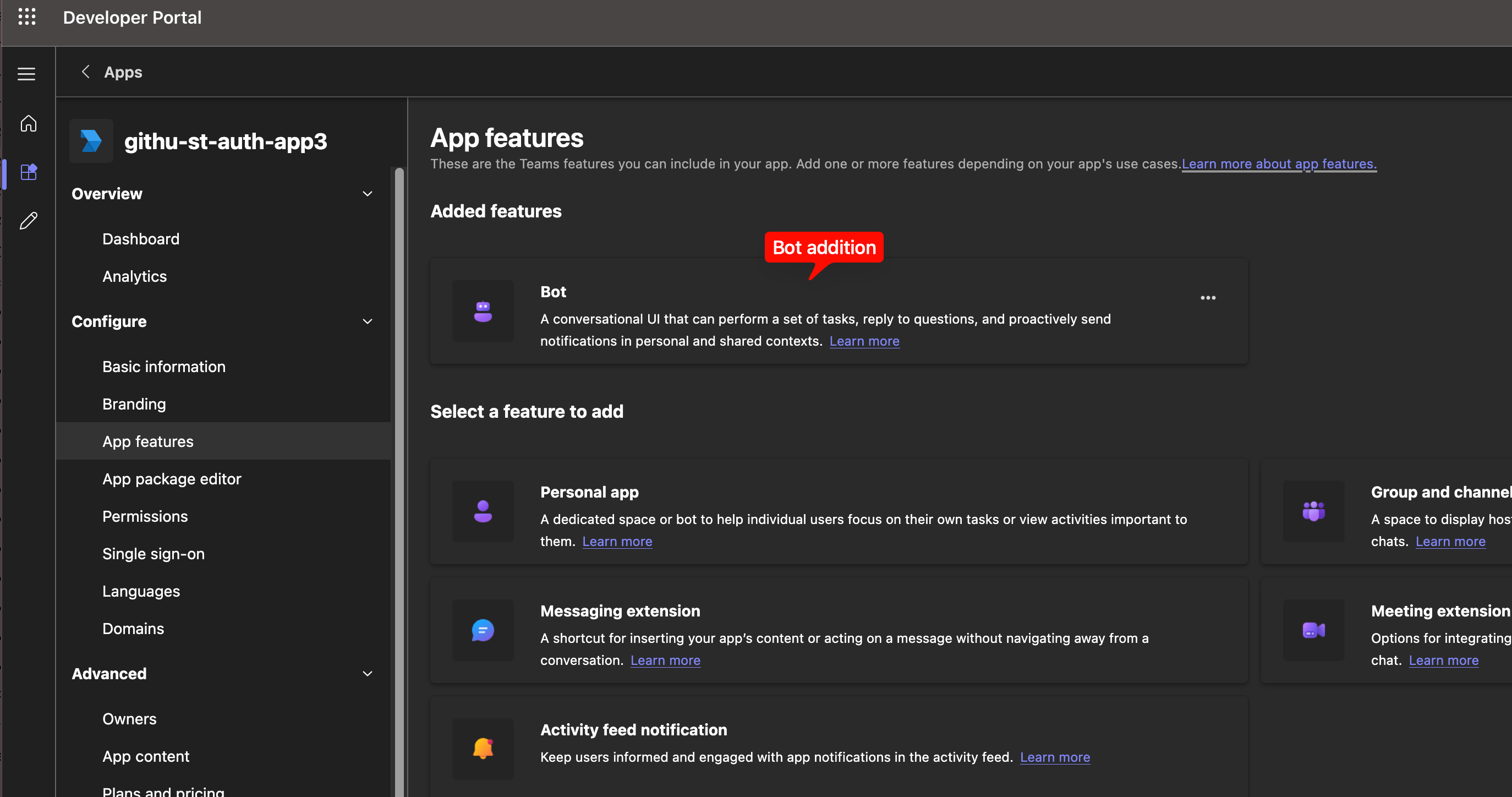
- personal — DMs
- team — channel posts
- group chat — group chats
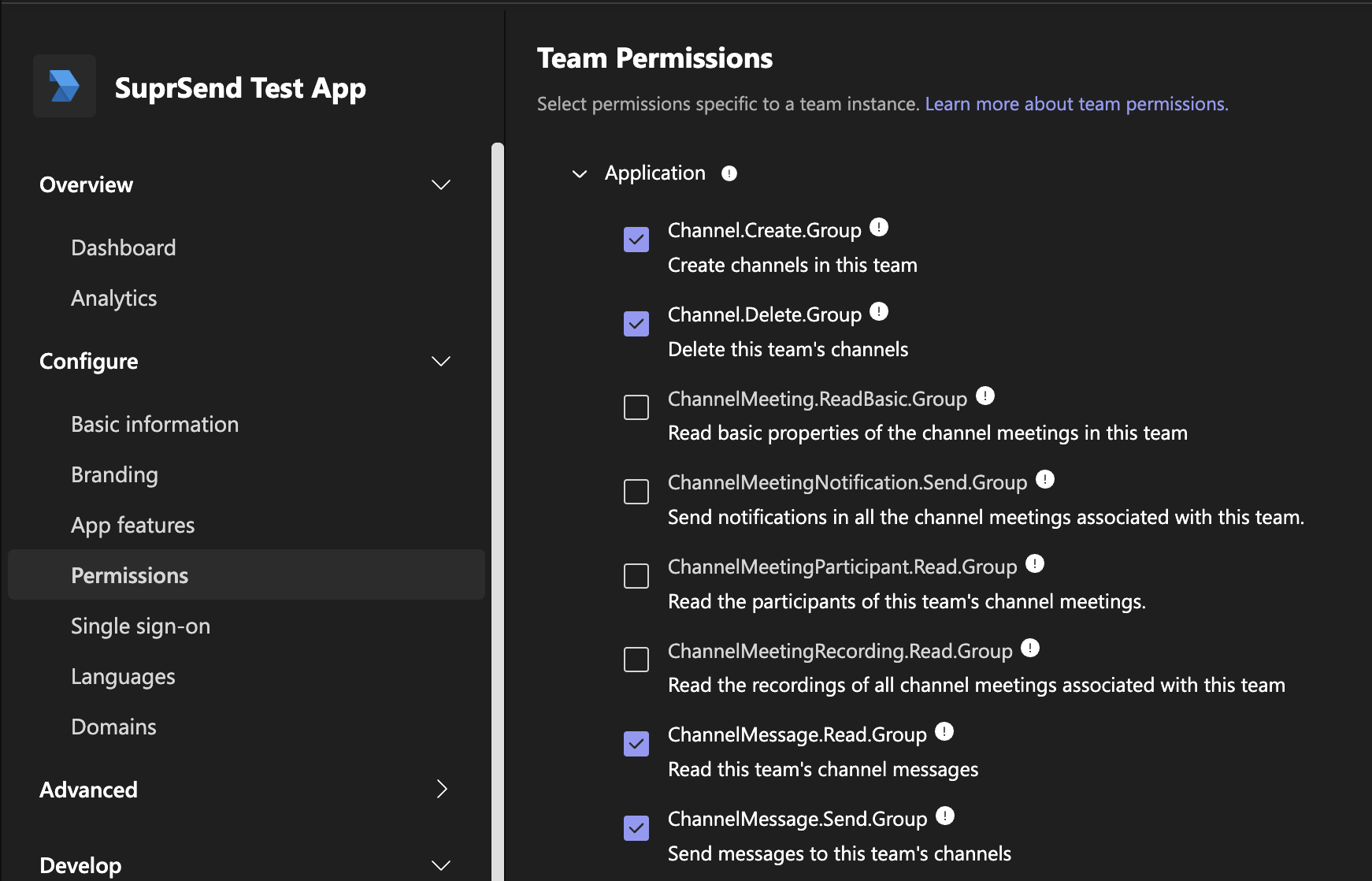
If you need Entra object IDs from the roster (stable
user_ids for DMs), include a resource-specific consent permission such as TeamMember.Read.Group.
4. Let other directories install the app (SaaS)
Skip this if the bot only ever serves your own Microsoft Entra directory. In the Azure portal, open App registrations → your app → Authentication, and set Supported account types to Multiple Entra ID tenants. The bot still mints its token from your directory. This setting only lets other organizations install the app.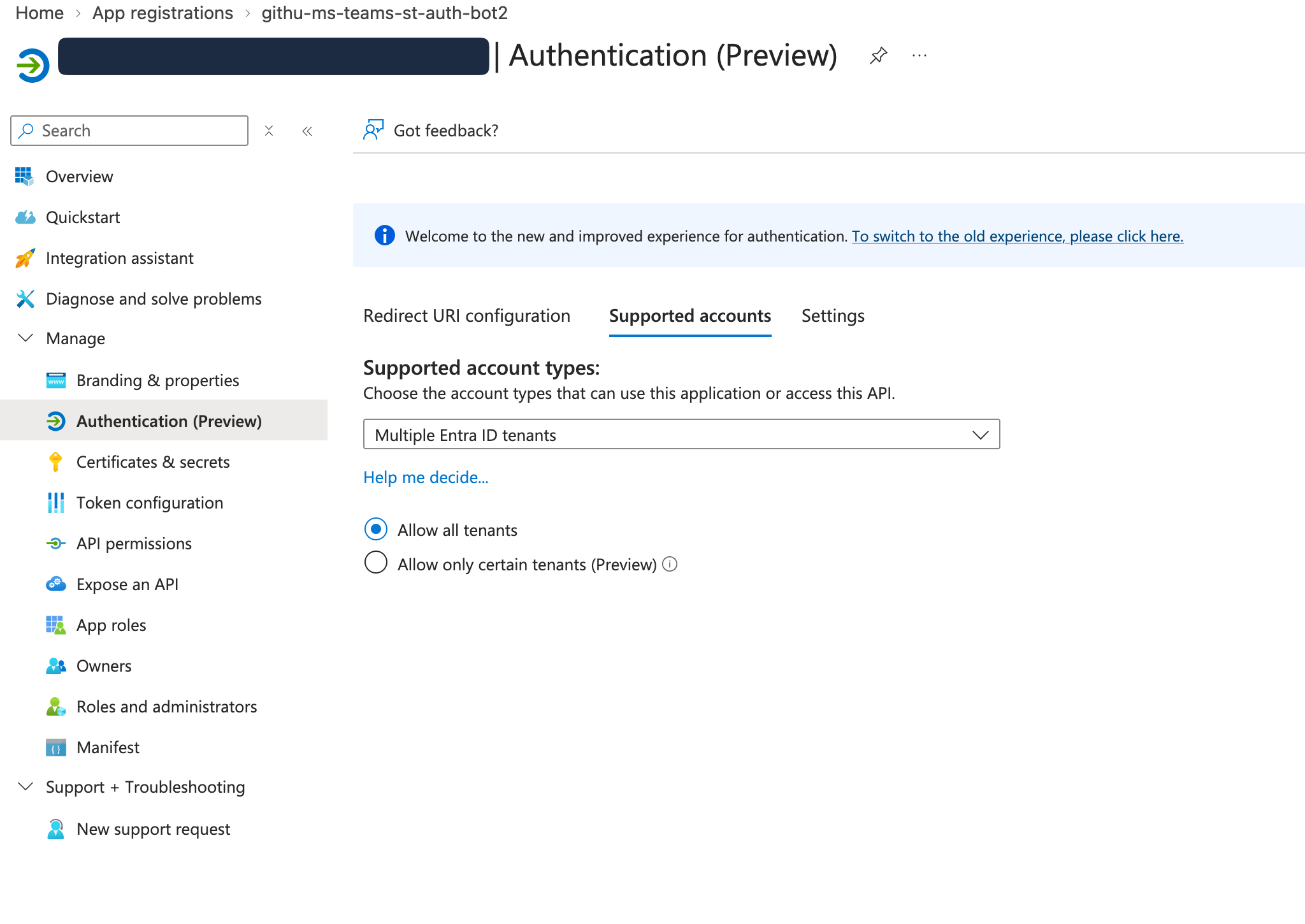
Alternative: create the bot with the Azure CLI
Prefer scripts over portal clicks? These commands do the Azure side of steps 2–4 — the app registration, its client secret, and the Azure Bot with the Teams channel enabled. They’re useful if you provision infrastructure with scripts, or if you’re setting up a bot inside a customer’s subscription for the customer’s Teams app use case. They do not build the Teams app package (name, scopes, permissions). You still do that in the Developer Portal — steps 1 and 3 above — and attach the bot these commands create.$APP_ID (Application ID), the secret printed in step 3 (Password), and $HOME_TENANT_ID (Tenant ID), with App Type Single tenant.
The CLI created the bot outside the Developer Portal, so it won’t show up in the bot list there. Go back to step 3 in the Teams Developer Portal, open your app → App features → Bot, and enter $APP_ID as the bot ID to attach it to your Teams app.
Add the vendor in SuprSend
Go to Vendors → Microsoft Teams (open vendor settings). Add the Application (client) ID (App ID field) and the client secret (Password field).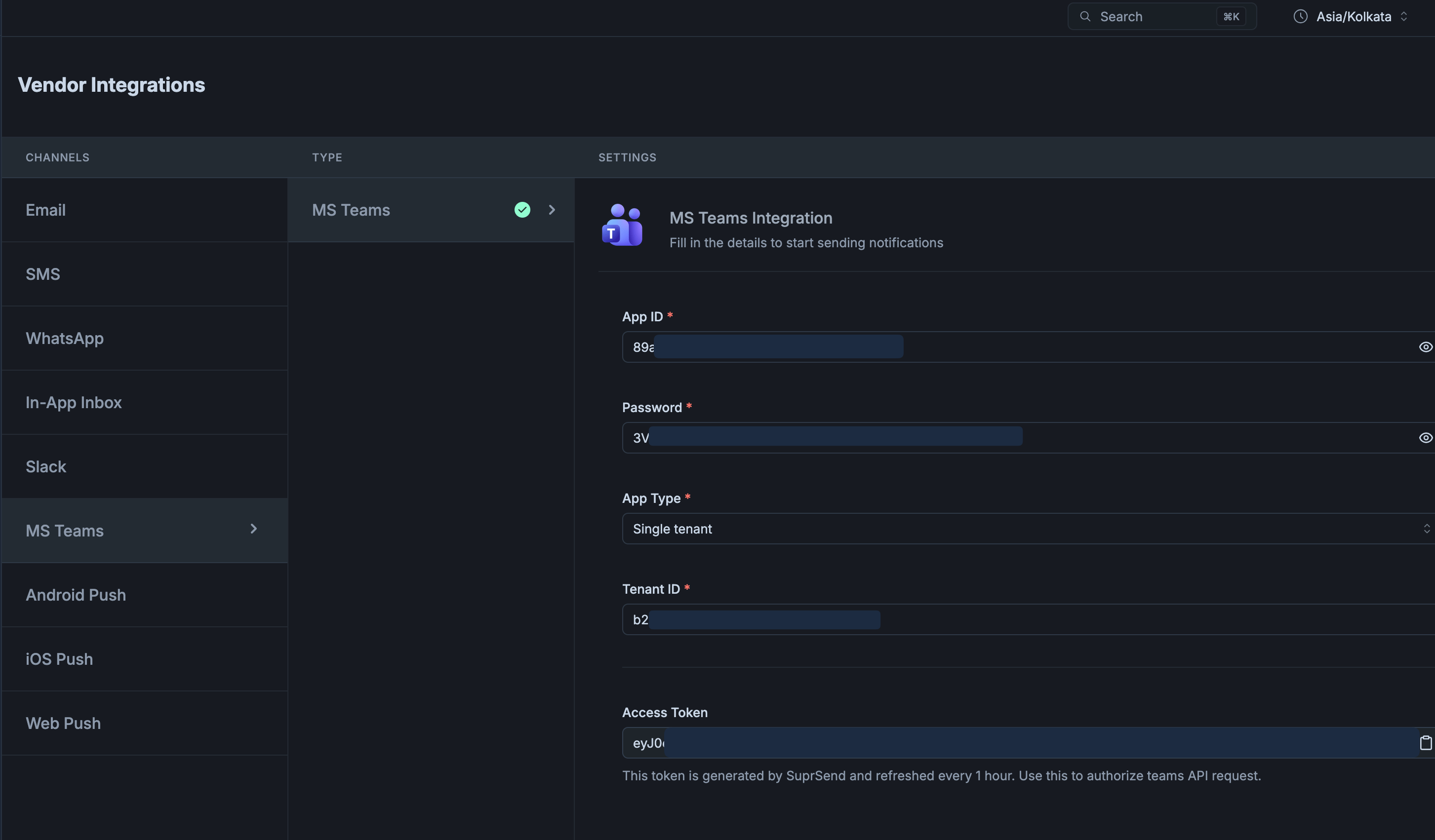
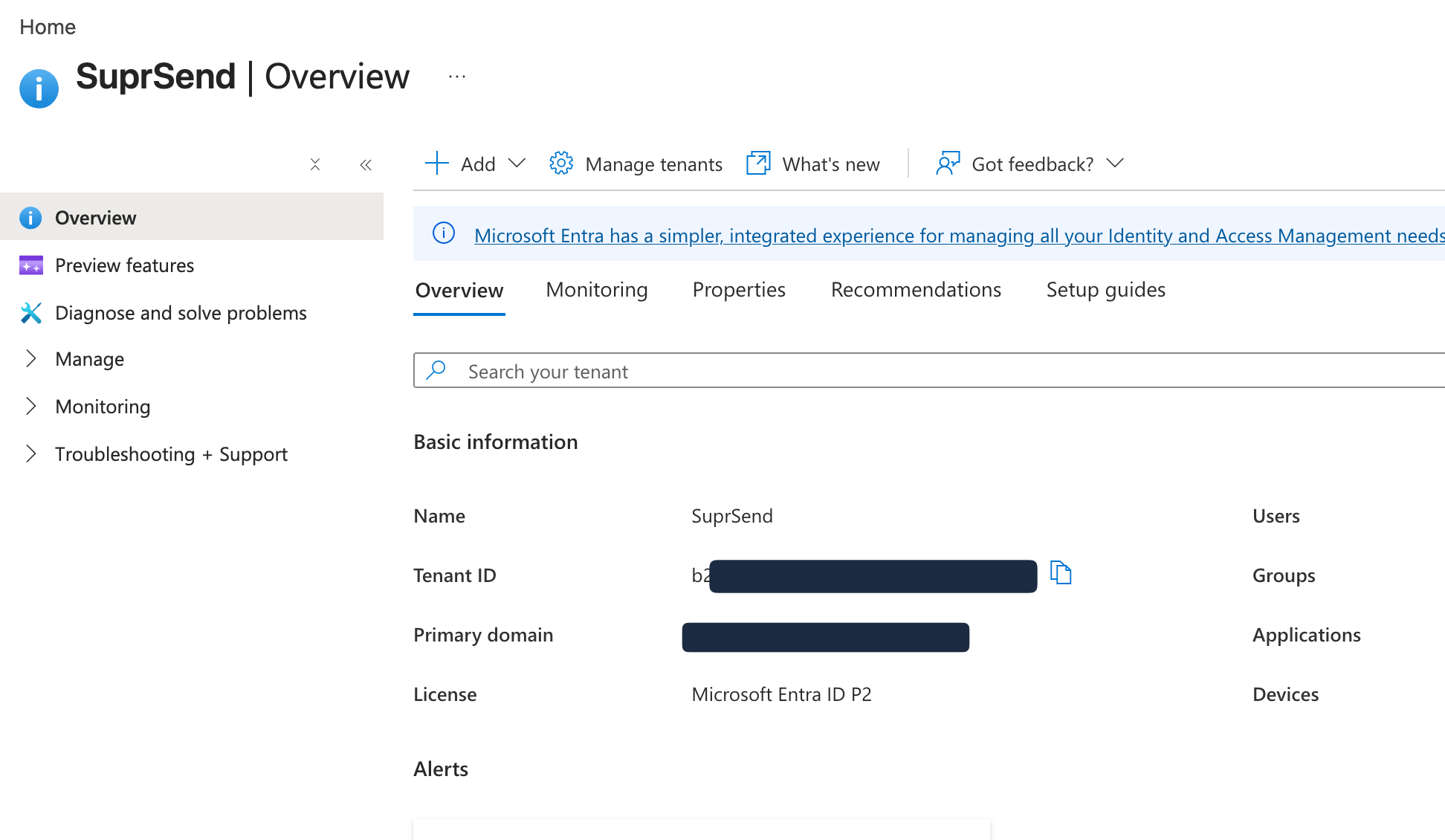
Find Tenant ID in the Azure portal under Microsoft Entra ID → Overview → Tenant ID, or on the app registration Overview as Directory (tenant) ID.
401 Authorization has been denied for this request on that test means App Type is wrong.
If an enterprise customer brings their own bot, those credentials go on a tenant-level vendor instead. See Send via your customer’s Teams app.