
payments-api repository posted in their #deploys channel — nothing more. Their Teams admin creates a webhook for the channel and pastes the URL into your product.
In SuprSend, you store that URL on an object representing the repository, and trigger workflows with the object as the recipient.
If you also need to DM people, post in several channels as a bot they can @mention, or appear as an installed app, use Send using your Teams app instead.
Teams channels are connections on objects
Objects represent non-human entities in your product — a repository, a project, a service. You group them byobject_type and give each one an id. Here, the type is repositories and the id is payments-api.
The webhook URL is stored as $ms_teams on that repository object, not on a user. If the engineer who set it up leaves the company, #deploys should still receive payments-api events.
1. Save the vendor
Go to Vendors → Microsoft Teams, set App Type toWebhook only, and save. A webhook needs no bot, so there’s no App ID, password, or Tenant ID to enter. If you already saved a bot vendor by following Create a Teams app and add the vendor, it posts to webhook URLs too.
2. Create a Workflows webhook in Teams
Office 365 connectors are retired. Create the URL with Workflows. In the channel you want to post to, open ⋯ → Workflows.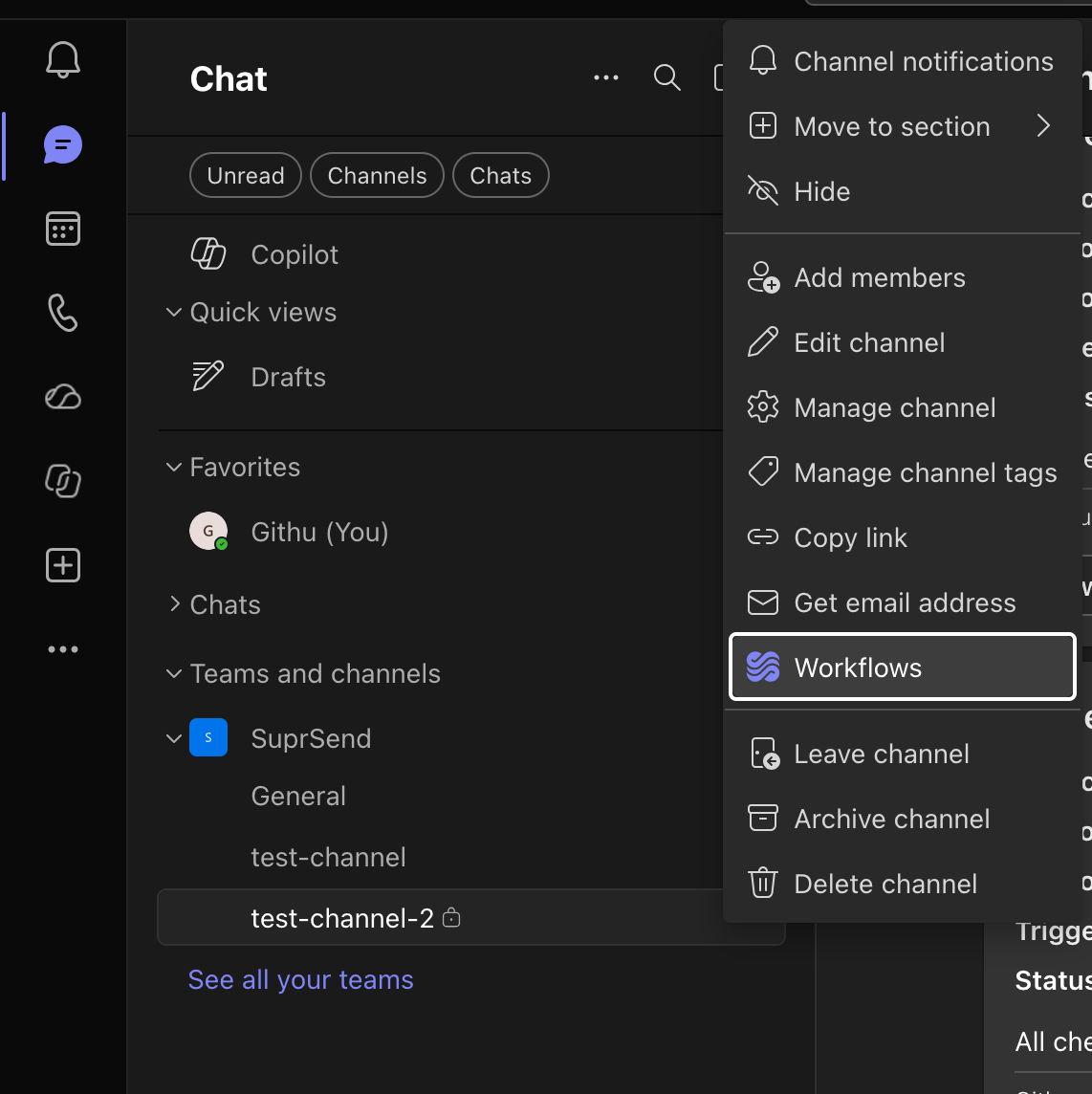
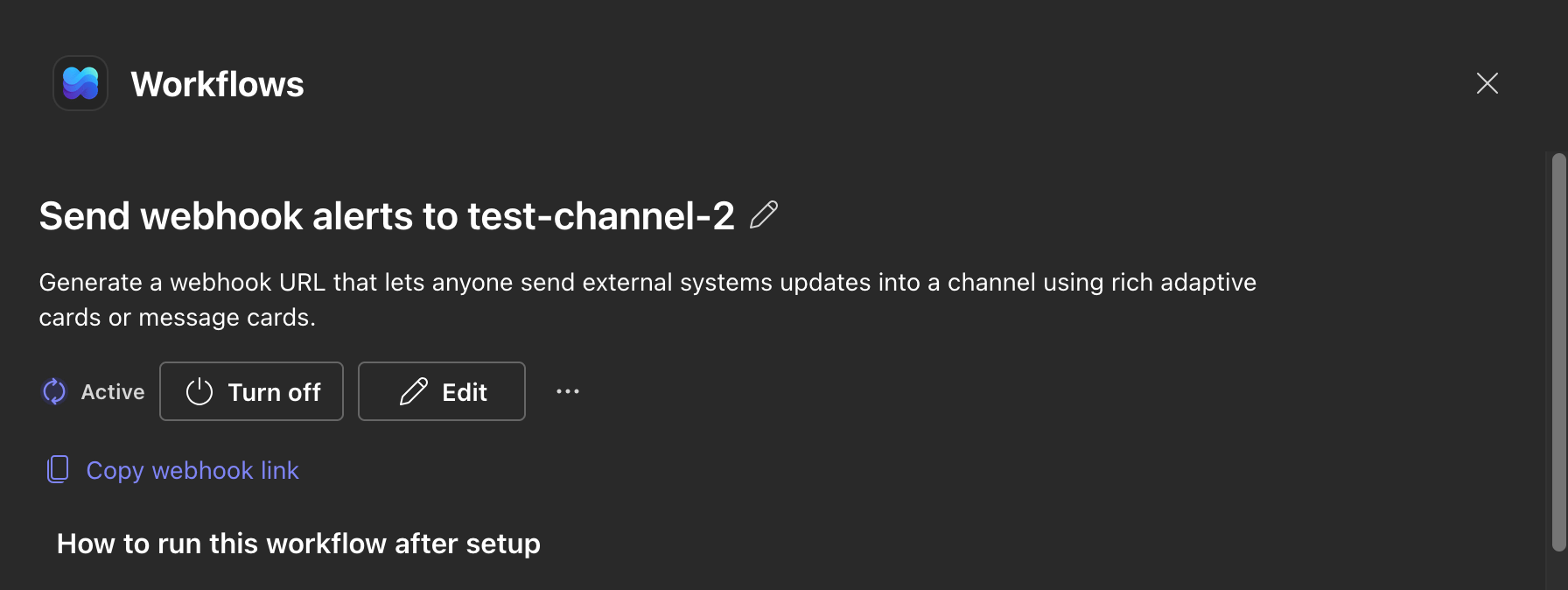
sig= token that authorises posts, so treat it like a secret. These templates don’t need a premium Power Automate licence.
In your product, all you need is a settings field where the customer pastes this URL. No OAuth flow required.
3. Store the URL on the object
add_ms_teams includes a webhook URL and bot fields (conversation_id, user_id), only the webhook is kept. Precedence is incoming_webhook.url > conversation_id > user_id. Don’t mix them on the same object.
4. Trigger a workflow with the object as recipient
Next, create a workflow (for examplenew-deploy) with either a multi-channel node or an MS Teams node, and connect it to a Teams template.
Trigger it with the repository object as the recipient:
version to 1.4 or 1.5. Version 1.6 works through a bot but not through a webhook — the request is accepted and Teams posts “We’re sorry, this card couldn’t be displayed” instead of your card.
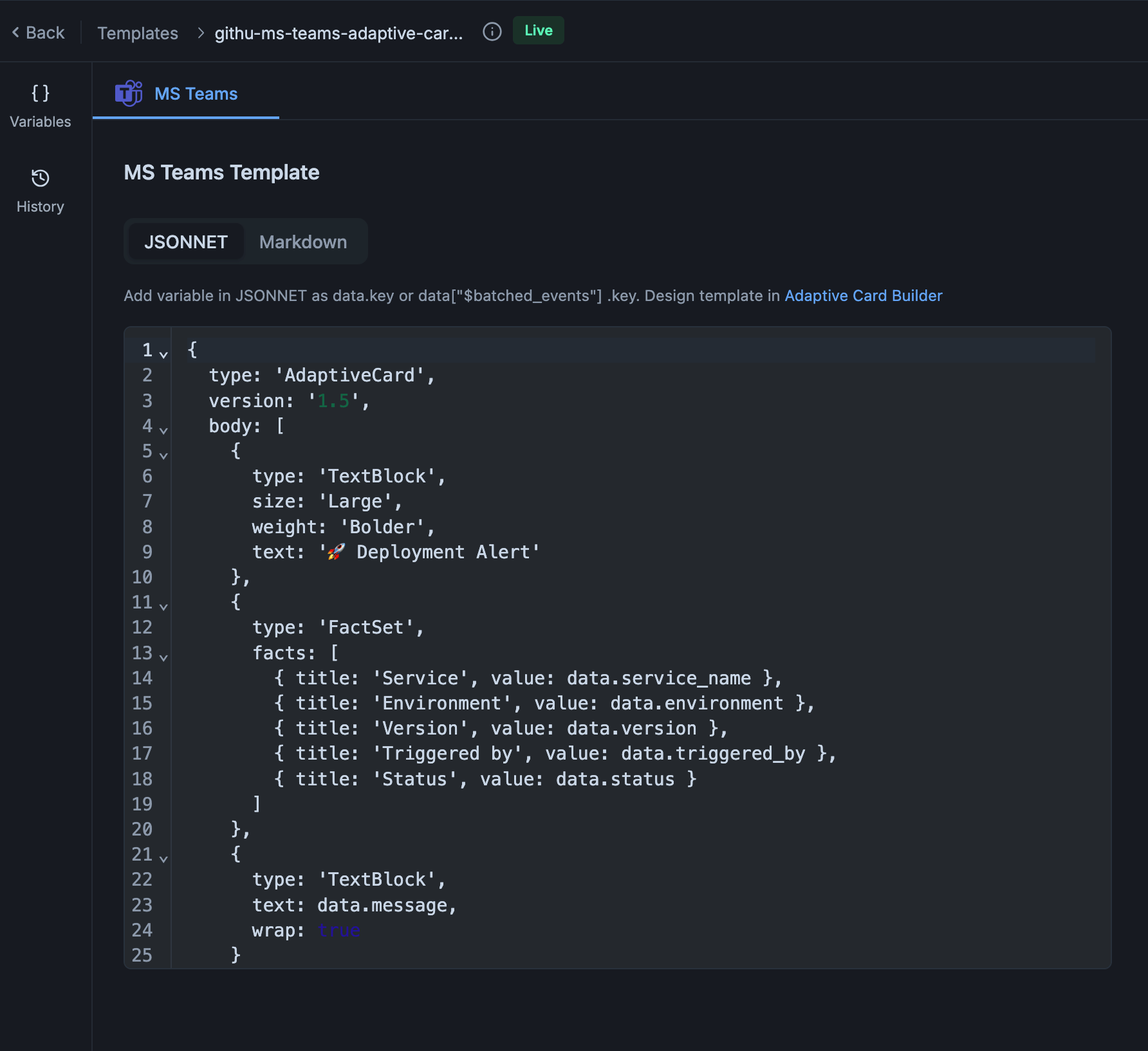
TextBlock so the same content works over both the bot and the webhook:
Steps to build the custom Workflows flow
Steps to build the custom Workflows flow
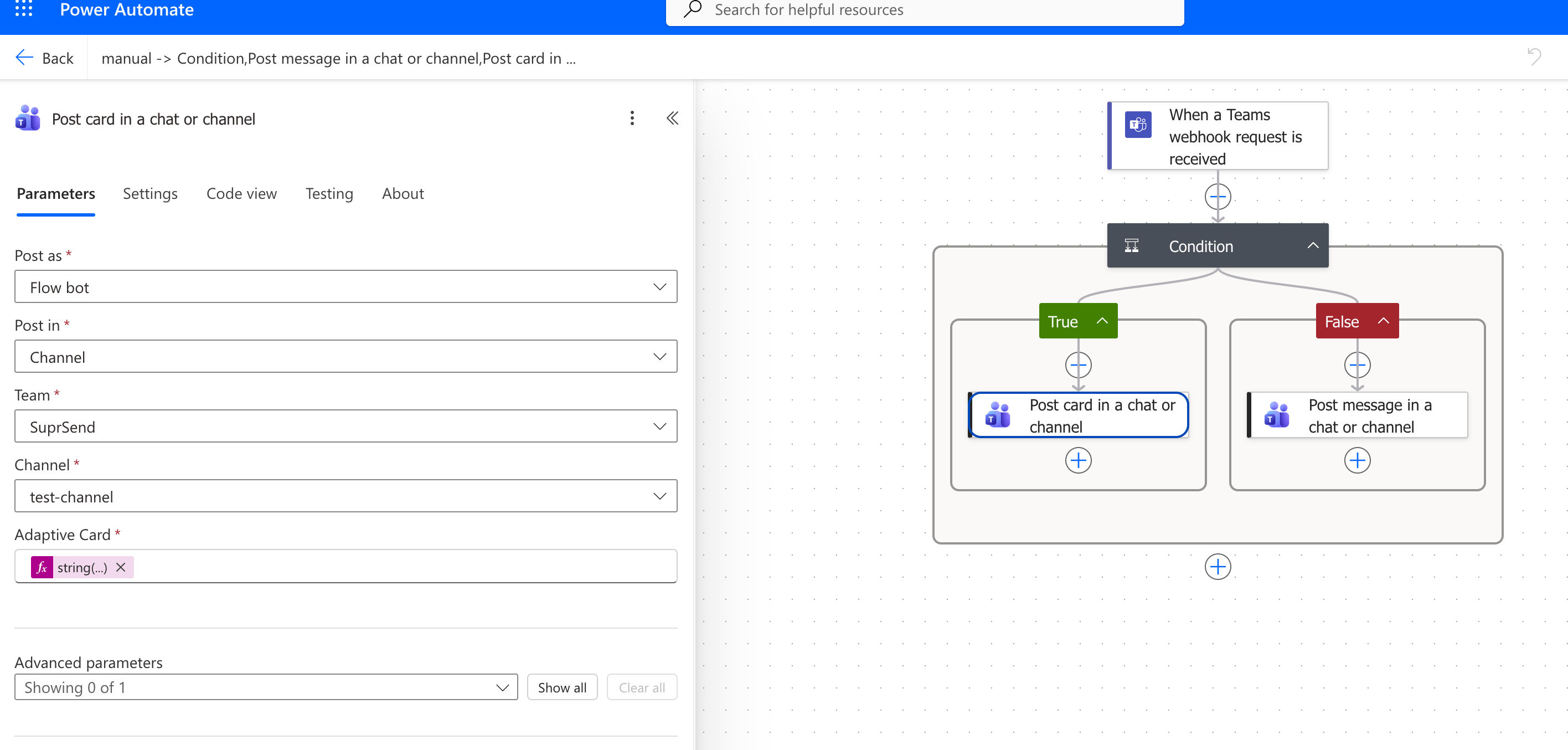
- Trigger: When a Teams webhook request is received
-
Add a Condition, with this expression on the left and is greater than
0on the right: -
If yes — Post card in a chat or channel, set Adaptive Card to:
-
If no — Post message in a chat or channel, set the message to:
attachments on the request. SuprSend sends a card there and plain text in text. coalesce supplies an empty array when attachments is absent, which stops the expression erroring on a text-only payload.If everything works, you’ll see the message in your Teams channel. You can also check Logs → Messages in SuprSend for the delivery and later statuses.One caveat: for Markdown templates the log shows a successful delivery but Teams silently drops the message, and cards above version 1.5 show an error card. So confirm in the channel, not just the logs.
Troubleshooting
Logs show delivered, but nothing appears in the channel
Logs show delivered, but nothing appears in the channel
Teams accepted the request and then dropped it. Two causes:
- The template is in Markdown. A Workflows webhook only renders Adaptive Cards. Switch the template to JSONNET, or build the custom flow described above.
- The card
versionis 1.6 or higher. Set it to1.4or1.5.
Logs show a failed delivery
Logs show a failed delivery
The webhook URL didn’t accept the request. Check, in order:
- The URL on the object is complete and includes the
sig=token. - The Workflows flow still exists and is turned on in Teams. Flows are owned by the person who created them — if that person left the organization or lost access to the channel, the flow stops working. Have another admin recreate it and update the URL.
- The URL is a Workflows URL, not a retired Office 365 connector URL (see below).
An old office.com / webhook.office.com URL stopped delivering
An old office.com / webhook.office.com URL stopped delivering
That’s a retired Office 365 connector. Microsoft began the rollout on 18 May 2026. Create a Workflows webhook and replace
incoming_webhook.url on the object. The field accepts either URL shape, so migration is a URL swap. You don’t have to rewrite the card.No delivery attempt in the logs at all
No delivery attempt in the logs at all
The workflow ran but never reached the Teams channel. Open the workflow execution log in SuprSend — it shows which step skipped the send and why. The usual reasons:
- The template has no MS Teams version published. Add one and commit it.
- The recipient has no
$ms_teamschannel. - The recipient or the tenant has opted out of the MS Teams channel in preferences.
- Template rendering failed — for example a variable the template uses is missing from
data, or the JSONNET has a syntax error. SuprSend discards the Teams notification for that recipient. - The Microsoft Teams vendor isn’t enabled. Check Vendors → Microsoft Teams and follow Create a Teams app and add the vendor if it’s empty.
The message landed in the wrong channel
The message landed in the wrong channel
A Workflows webhook is bound to the channel picked when the flow was created. Create a new flow on the right channel and replace the URL on the object.
The same message posts more than once
The same message posts more than once
The object has several
$ms_teams entries with webhook URLs, and SuprSend posts to each. Remove the ones you don’t need.Messages come from "Workflows" or the admin's name, not your product
Messages come from "Workflows" or the admin's name, not your product
This is expected behaviour. A webhook posts through Microsoft’s Workflows app, usually as Workflows or on behalf of the person who created the flow. To post under your own name and icon, use Send using your Teams app.