
On the old S3 connector (v1.0)? v1.0 will be deprecated over time. v2.0 exports all log types and notification analytics and closes gaps in error logging that exist in v1.0—see the v1.0 doc for the migration path.
How it works
SuprSend syncs your notification data to S3 every 5 minutes as Parquet files, partitioned by hour. By default, each data point goes into its own top-level folder (theper_type path layout)—see Compression and path layout for the exact folder structure and how to change it.
A few details worth knowing:
- Updates rewrite files in place. Each sync re-writes the hourly Parquet files whose data has changed. Query engines like Athena, Spark, and Presto see the new state automatically. For warehouses that don’t overwrite rows (e.g., BigQuery), use the
updated_atcolumn to pick the latest version. - Parquet is read natively by every common query engine and warehouse. For Athena specifically, see Query with Athena.
- Data is encrypted in transit (TLS 1.2+) and at rest (SSE-S3 or SSE-KMS).
- If you pause the sync, the pause period backfills automatically when you resume.
What you can export
You can pick which data points to sync based on what you’re trying to do. Most teams start with Messages (analytics and delivery troubleshooting) and add Workflow Executions and Requests when they need to debug end-to-end. Each data point maps to its own table in your warehouse or query engine.Data points
You’ll choose which data points to export when you create the connector—open the SuprSend dashboard at app.suprsend.com and go to Connectors → Add connector → Amazon S3 v2.0 to see the selection panel:
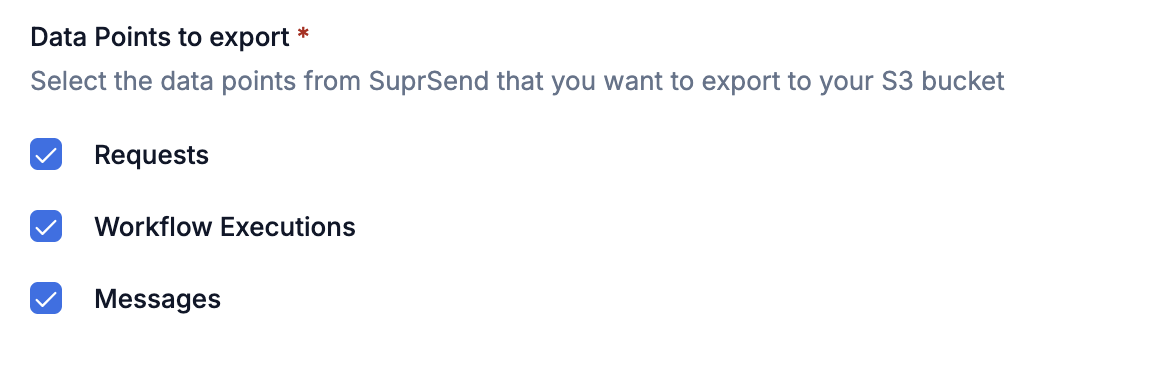
Table schema
Columns and types below match the Parquet files SuprSend writes to S3. Several semantically-typed fields (JSON, boolean, integer, timestamp) are stored asstring in Parquet—they’re called out in the description so you can cast them in your queries.
- Requests
- Workflow Executions
- Messages
status can have these values:
completed: request is successfully processed.failure: request failed to process due to some error.partial_failure: request has been partially processed with some failure or has an acceptable warning (like workflow conditions evaluated to false).
Linking different data points
These data points are linked, so you can trace a notification from the initial API request all the way to final delivery. Theidempotency_key is shared across all three tables and is the easiest way to follow a single request end to end—it’s also the value you can pass in your API call and store on your side to correlate SuprSend logs with your internal ones.
Compression and path layout
You can configure how Parquet files are written when you add or edit the connector. The defaults work for almost every use case—change them only if you have a specific need.Connectors created before 21 May 2026 still use the previous defaults—
lz4 compression and the shared path layout. New connectors default to snappy + per_type. Changing either setting on an existing connector only affects files written after the change; everything already in your bucket keeps its original codec and folder.If you’re on the old defaults and want to switch, write to support@suprsend.com—we’ll help you migrate and rewrite the historical files if you need them in the new layout.Compression
Parquet files are written withsnappy by default, which works well for almost every query engine and warehouse. You can switch the codec to lz4, gzip, zstd, brotli, or none if you have a specific need.
Path layout
Two layouts are available for how files are organized inside your bucket. Both use Hive-style date partitions (year=YYYY/month=MM/day=DD/hour=HH).
- per_type (default)
Each data point gets its own top-level folder, then date-partitioned subfolders:Recommended for every query engine and warehouse. Each data point lives in its own prefix, so tables, schemas, and IAM scopes stay cleanly separated—a one-to-one mapping between table and folder. Required if you’re using Amazon Athena—see Query with Athena.
Setup
Step 1: Create your S3 bucket
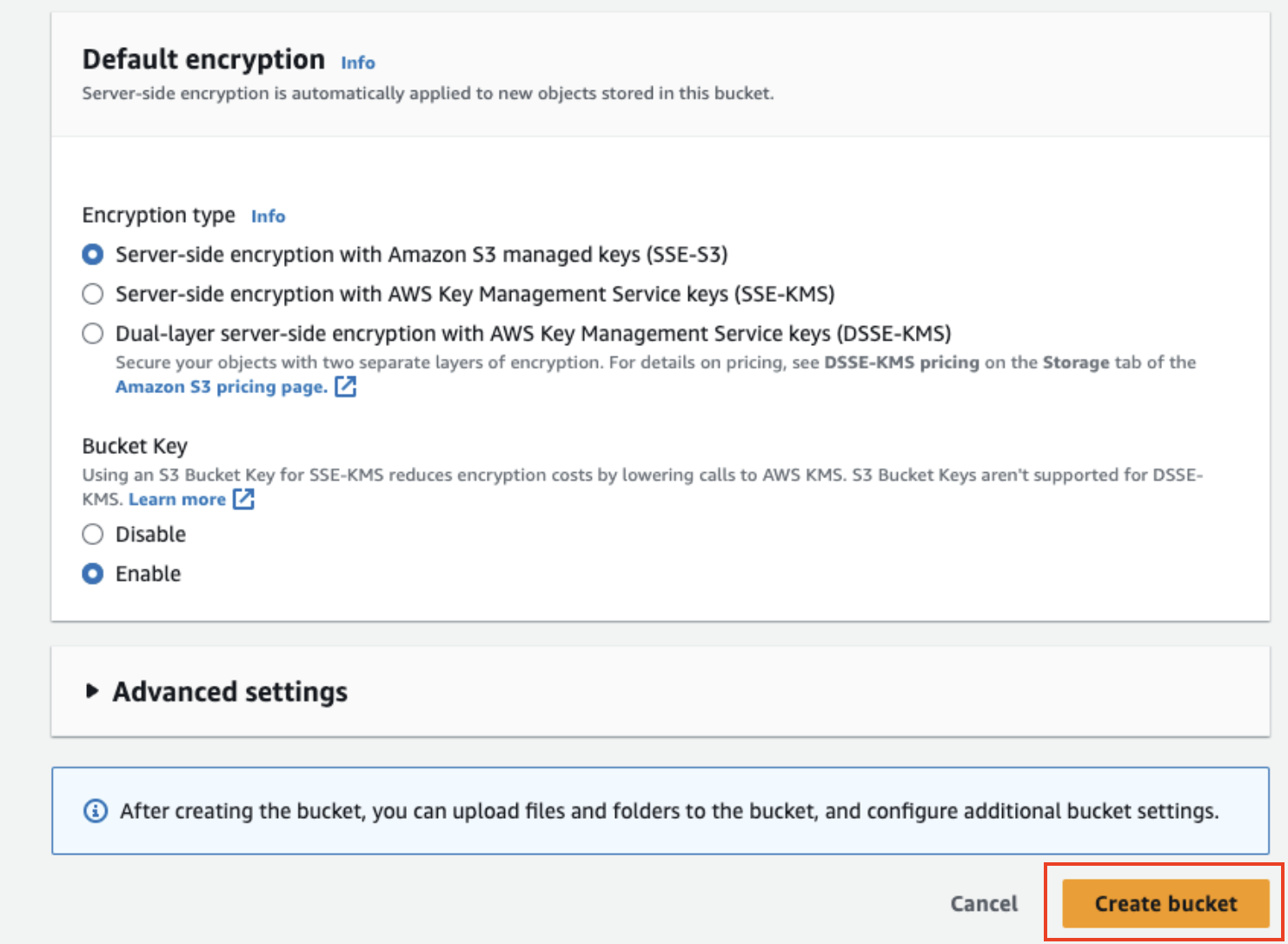
Open AWS S3 Console and create a bucket with these settings:
- Bucket name: Something like
suprsend-logs-production(save this—you’ll need it) - Region: Pick one close to you
- Block all public access: Yes
- Encryption: SSE-S3 (or SSE-KMS for compliance)
Step 2: Create an IAM policy
This gives SuprSend permission to write to your bucket. In IAM Console, create a policy with this JSON:YOUR_BUCKET_NAME with your actual bucket name. Save it as something like suprsend_s3_policy.
Step 3: Set up authentication
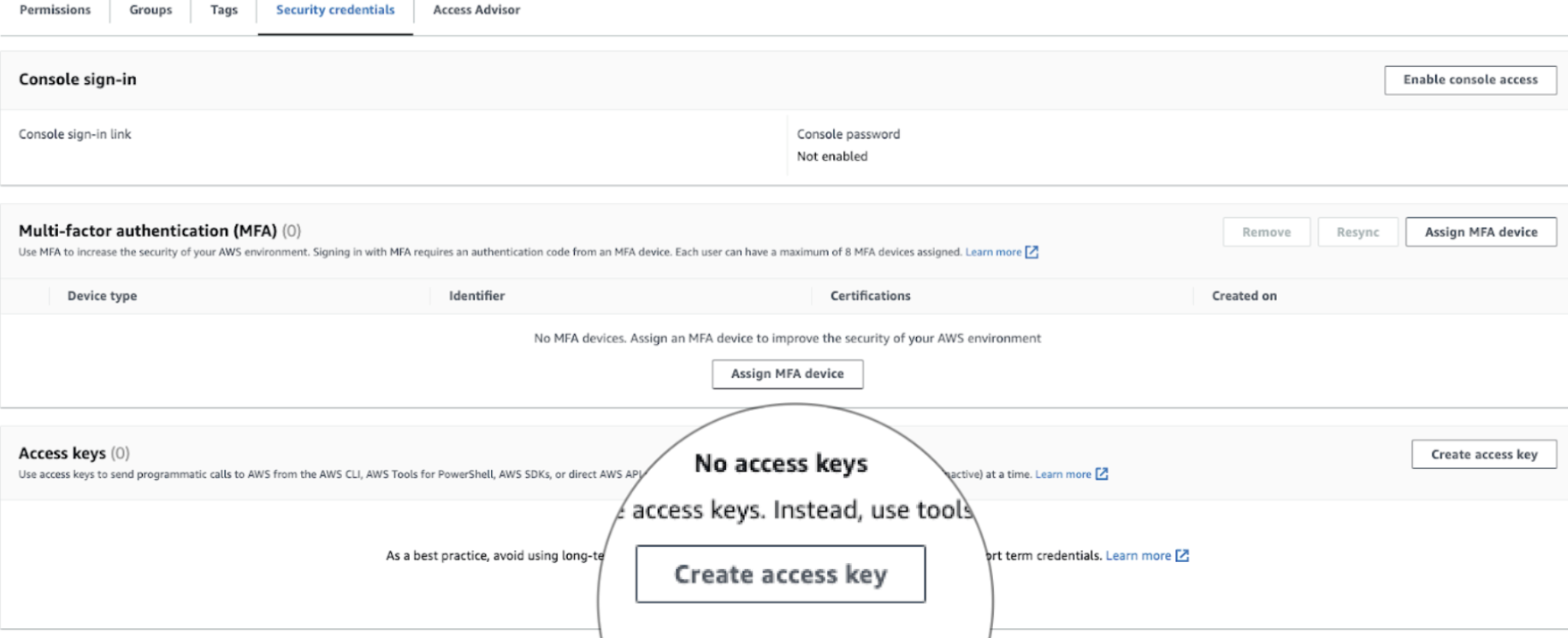
Two authentication methods are available:- IAM Role (Recommended)
- IAM User
Use IAM Role when:Save these for the next step: Role ARN + External ID (case-sensitive, no extra spaces)
- Running in production environments
- Security compliance requires no long-lived credentials
- You have multi-account AWS setups
- You want zero credential management overhead
- In IAM Console → Roles → Create Role
- Select Another AWS Account and enter SuprSend’s account ID:
924219879248 - Attach the policy you just created
- Name it (for example,
suprsend_s3_role)
Step 4: Connect in SuprSend
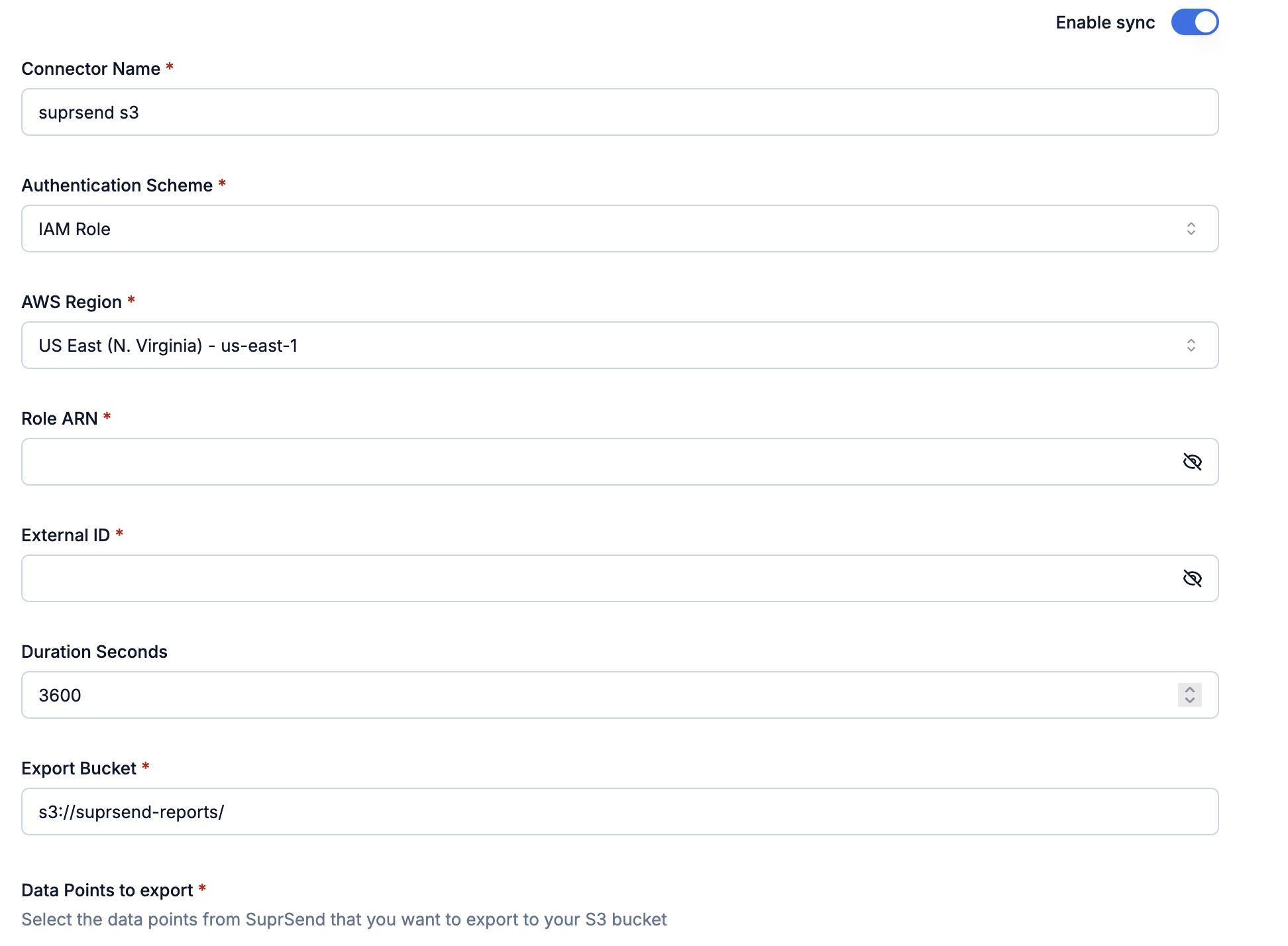
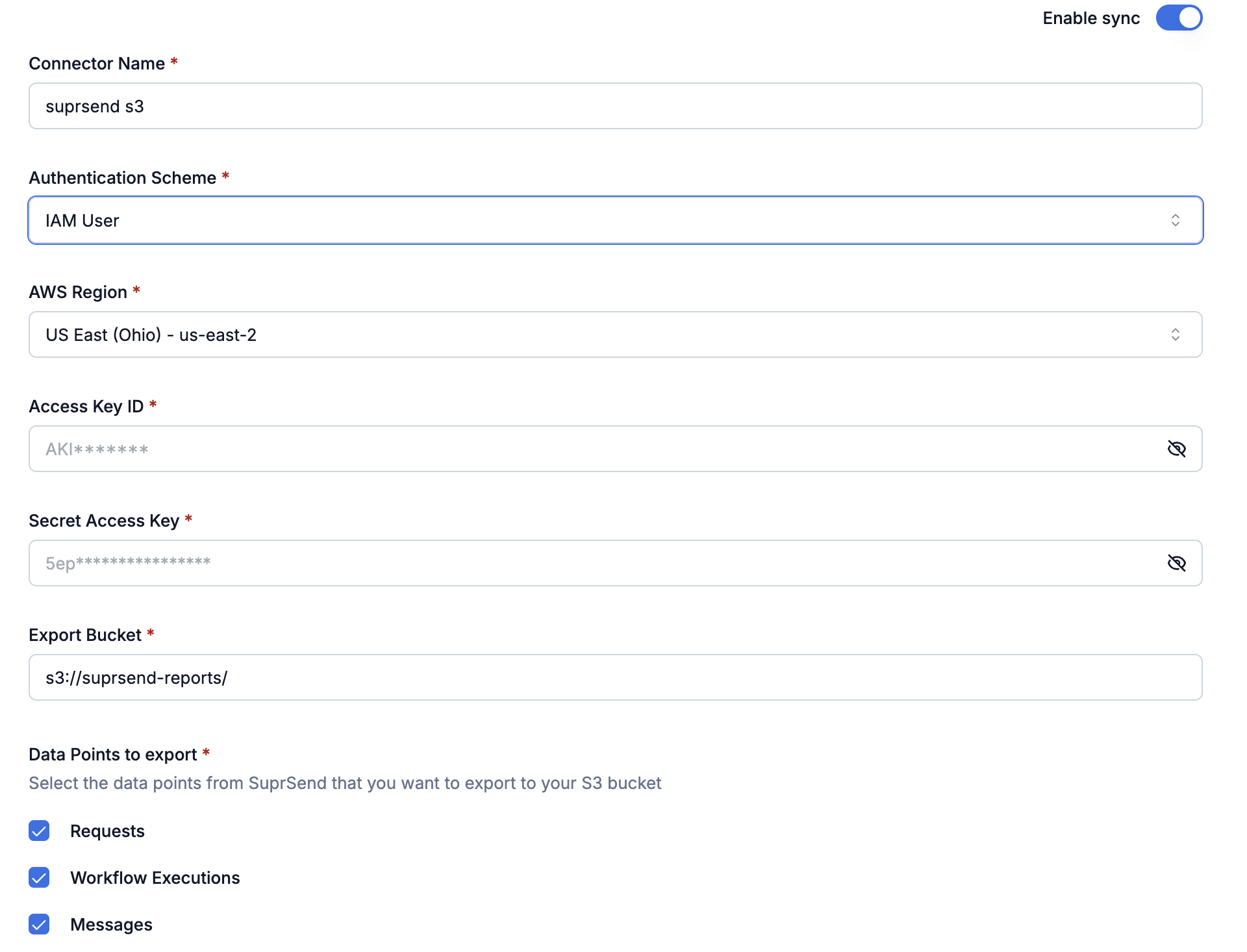
In the SuprSend dashboard (app.suprsend.com), go to Connectors → Add connector → Amazon S3 v2.0.- IAM Role
- IAM User
Step 5: Verify it’s working
Give it about 10 minutes, then check your S3 bucket. With the defaultper_type layout, you should see one folder per data point you enabled (messages/, workflow_executions/, requests/), each containing hourly partitions like year=2025/month=01/day=15/hour=14/....
Step 6: Query the data with Athena (optional)
If you want to run SQL on the exported data, Amazon Athena reads the Parquet files in place—no warehouse to provision, no ingestion pipeline. The flow is:- Set the Athena query result location in the same region as your S3 bucket.
- Create a database, e.g.,
suprsend_db. - Register one external table per data point (
ss_requests,ss_workflow_executions,ss_messages) using partition projection onyear/month/day/hour, so new hourly partitions show up automatically. - Query, always filtering on the partition columns to keep cost down.
Best practices
Security & access
Security & access
- Use an IAM Role in production—credentials rotate automatically, with no long-lived secrets to manage.
- Use an External ID on the role’s trust policy to prevent “confused deputy” attacks.
- If you must use an IAM User, rotate the access keys every 90 days and never commit them to git.
- Assign policies to IAM groups rather than individual users to keep permissions easy to manage.
- Keep the bucket private: block all public access and enable encryption (SSE-S3 or SSE-KMS).
Querying efficiently
Querying efficiently
- Only sync the data points you need. Messages alone covers analytics and delivery troubleshooting; add Workflow Executions and Requests when you need to debug end-to-end.
- Filter on the partition columns first. Engines like Athena scan only the matching
year/month/day/hourfolders, which keeps queries fast and cheap. - Use
updated_atfor incremental jobs. Pulling only rows whereupdated_atis newer than your last checkpoint avoids re-scanning history.
Storage hygiene
Storage hygiene
- Files accumulate over time. Set up an S3 Lifecycle rule to transition or expire old partitions if you don’t need them indefinitely.
FAQs
Files not appearing?
Files not appearing?
Work through this checklist:
- Wait 10 minutes. The first sync takes time.
- Bucket name matches exactly in AWS and SuprSend (case-sensitive).
- Region matches in both AWS and SuprSend.
- Credentials are right—Role ARN + External ID, or Access Key + Secret.
- Policy grants
s3:PutObject,s3:ListBucket, ands3:GetObjecton the correct bucket ARNs.
How do I know it's working?
How do I know it's working?
In the SuprSend dashboard, open Connectors → Amazon S3 v2.0. You should see:
- Sync toggle ON
- Status: Active
- At least one data point selected
Missing data?
Missing data?
- Data point might not be selected—check your export settings
- When setting up the connector first time, data points only export going forward (no historical backfill)
- Were notifications actually sent during that time?
- If sync was paused, data backfills when you resume
If you still find some gap in data, please contact support.
Can I change data points later, and how does backfilling work?
Can I change data points later, and how does backfilling work?
Yes—you can add or remove data points at any time. Here’s how each action behaves: