
- Customer — a business you serve. In this model, each customer is one workspace.
- User — one of your customer’s own end users, and the person who receives a notification. Each one maps to a SuprSend user.
workvibe-emberoak, workvibe-nolans). Switching customer in the app switches the entire workspace behind it.
Example app. WorkVibe’s source code and a walkthrough are in the WorkVibe reference app guide.
WorkVibe Architecture Overview
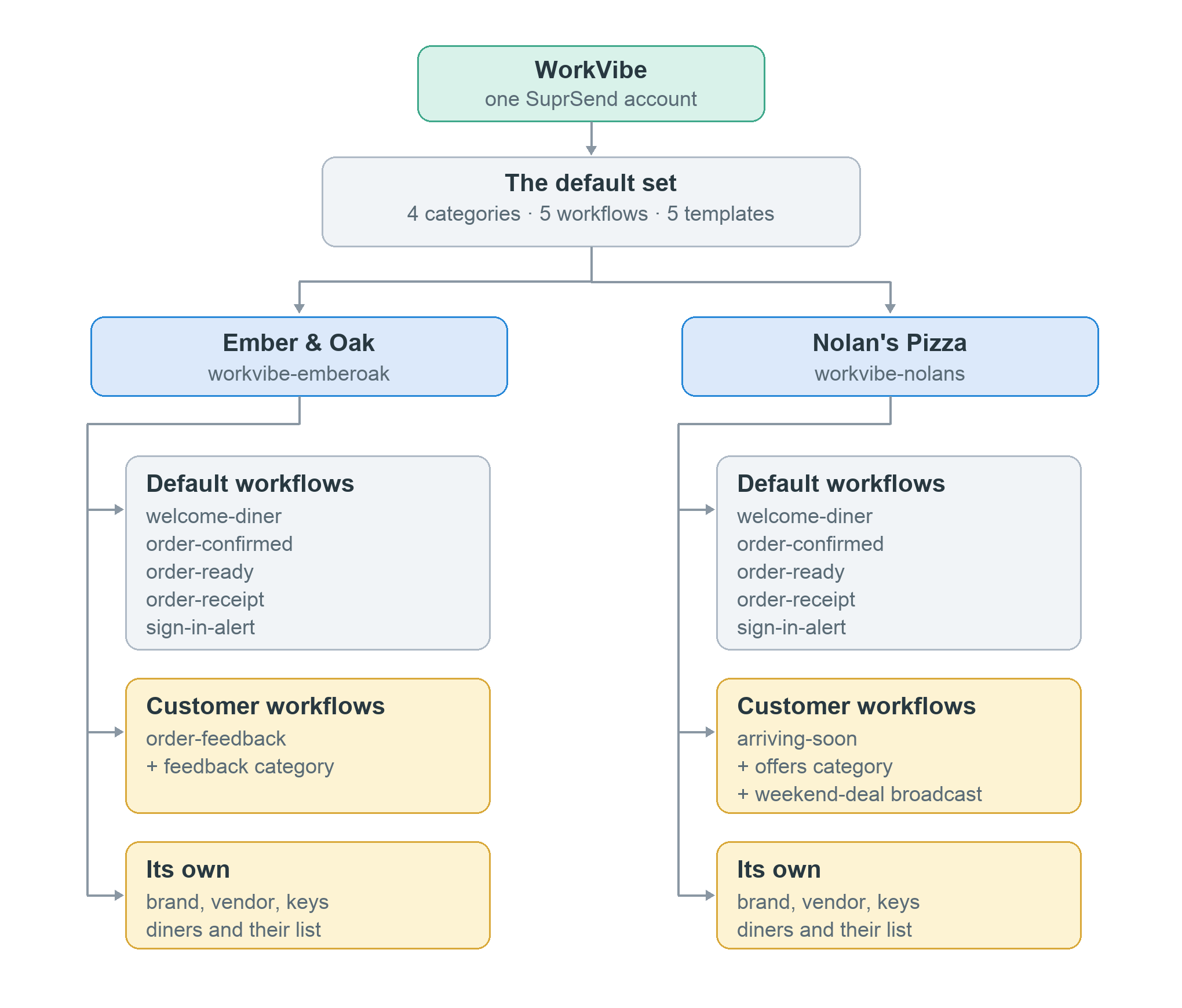
Each restaurant chain uses WorkVibe to run its own notifications — order updates, receipts, account security — over email and an in-app inbox. What every customer gets
What each customer adds
Both customers run the same five notifications. The differences are what each chain adds on top — and each addition lives only in that customer’s workspace.
Who can change what
Customer's admin
Sets everything that applies to all their diners: which notifications exist, whether each is on, off, or mandatory, the default channels, the branding, and the message content.
Diner
Controls only their own notifications — which categories they receive and on which channels — from a preference centre inside the chain’s own product.
WorkVibe Concept Mapping to SuprSend
Here’s how the WorkVibe concepts map to SuprSend: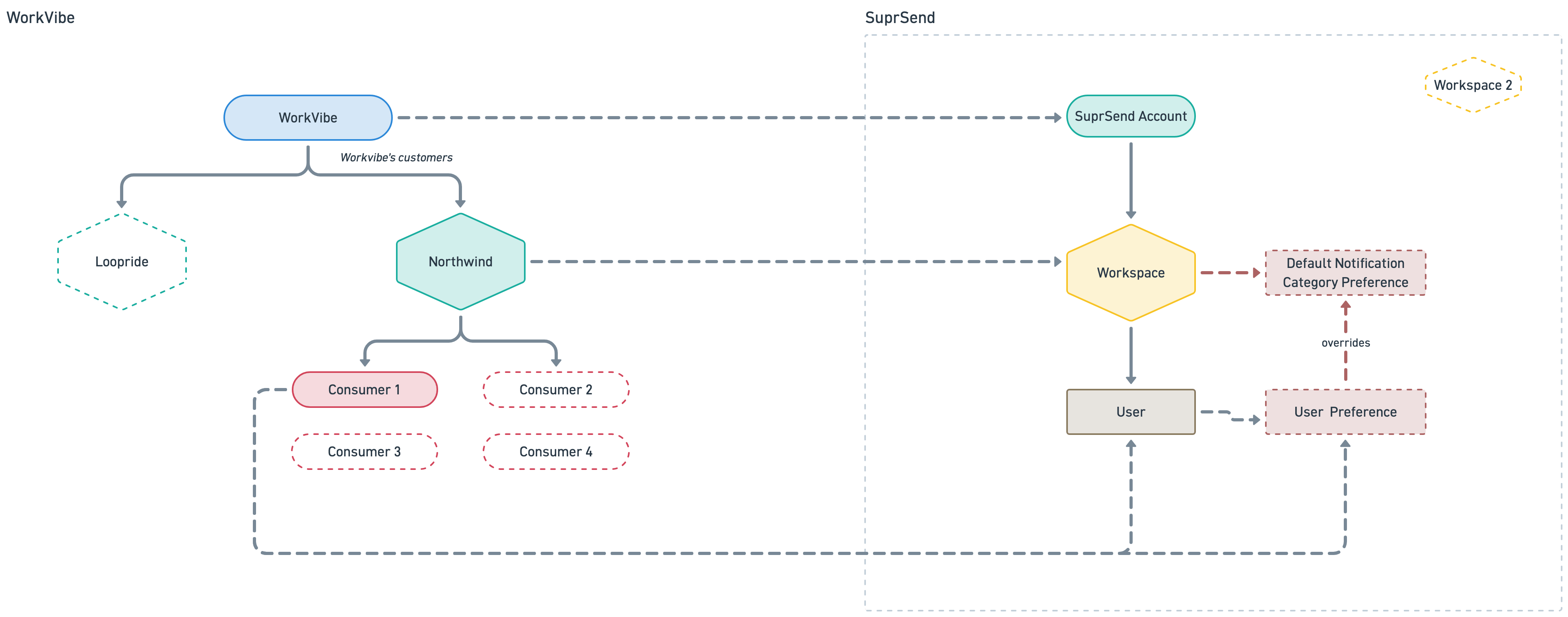
If a customer is modelled as a tenant instead of a workspace, the rest of this mapping is unchanged — only Customer moves from workspace to tenant. A customer with its own sub-brands can model those as sub-tenants.
Data Modelling in SuprSend
The components below model WorkVibe in SuprSend.1. Workspaces
Each customer gets its own workspace. All of Ember & Oak’s assets and diners live inworkvibe-emberoak; Nolan’s Pizza has its own and shares nothing with it.
A workspace holds its own copy of everything, shared with no other by default:
- Notification categories, templates, and workflows
- Vendors, users, and preferences
- Credentials, logs, and analytics
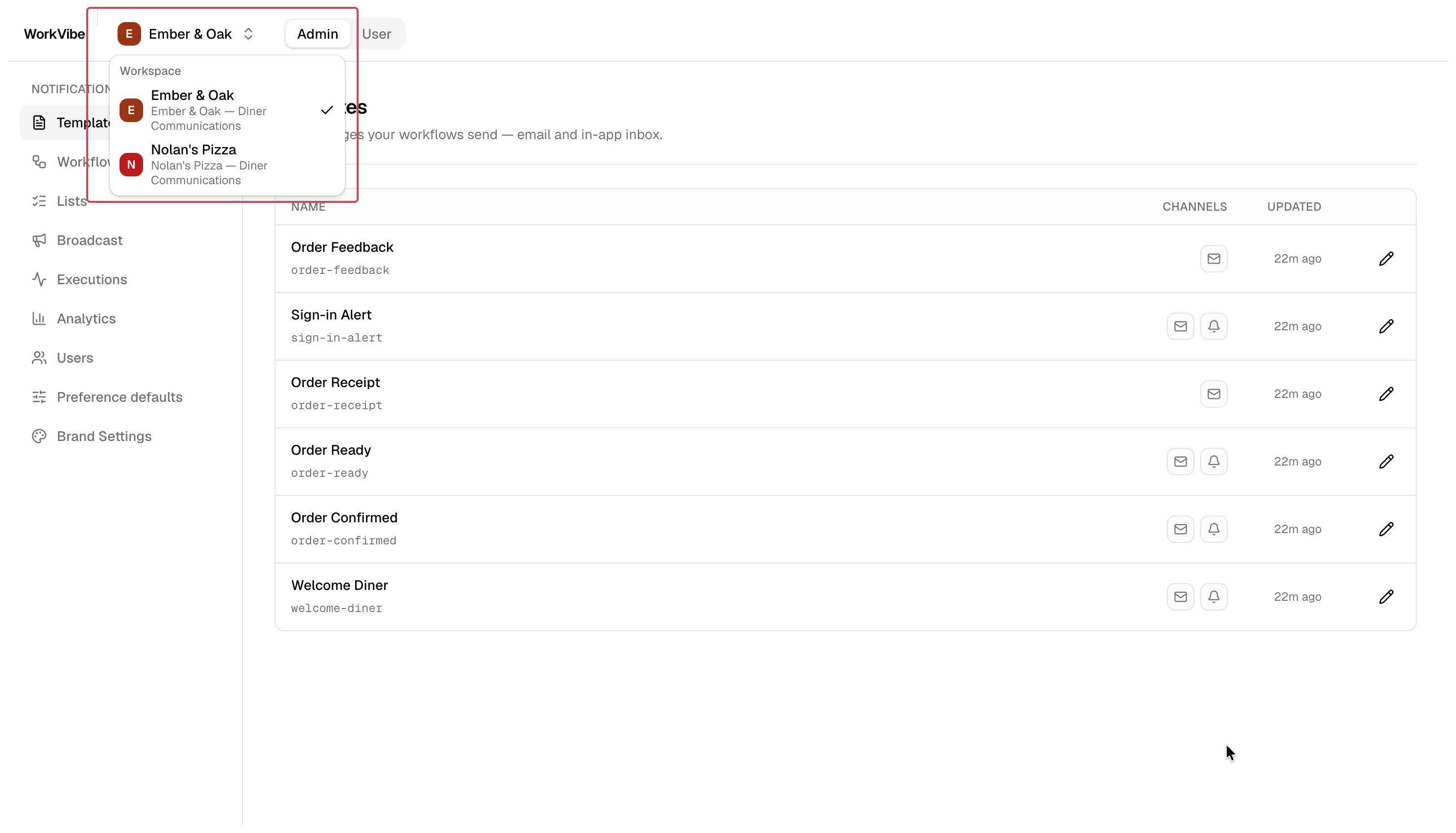
A customer doesn’t always need to be modelled as a workspace. You can model each customer as a tenant in one shared workspace instead — see tenants vs workspaces to choose.
2. Users
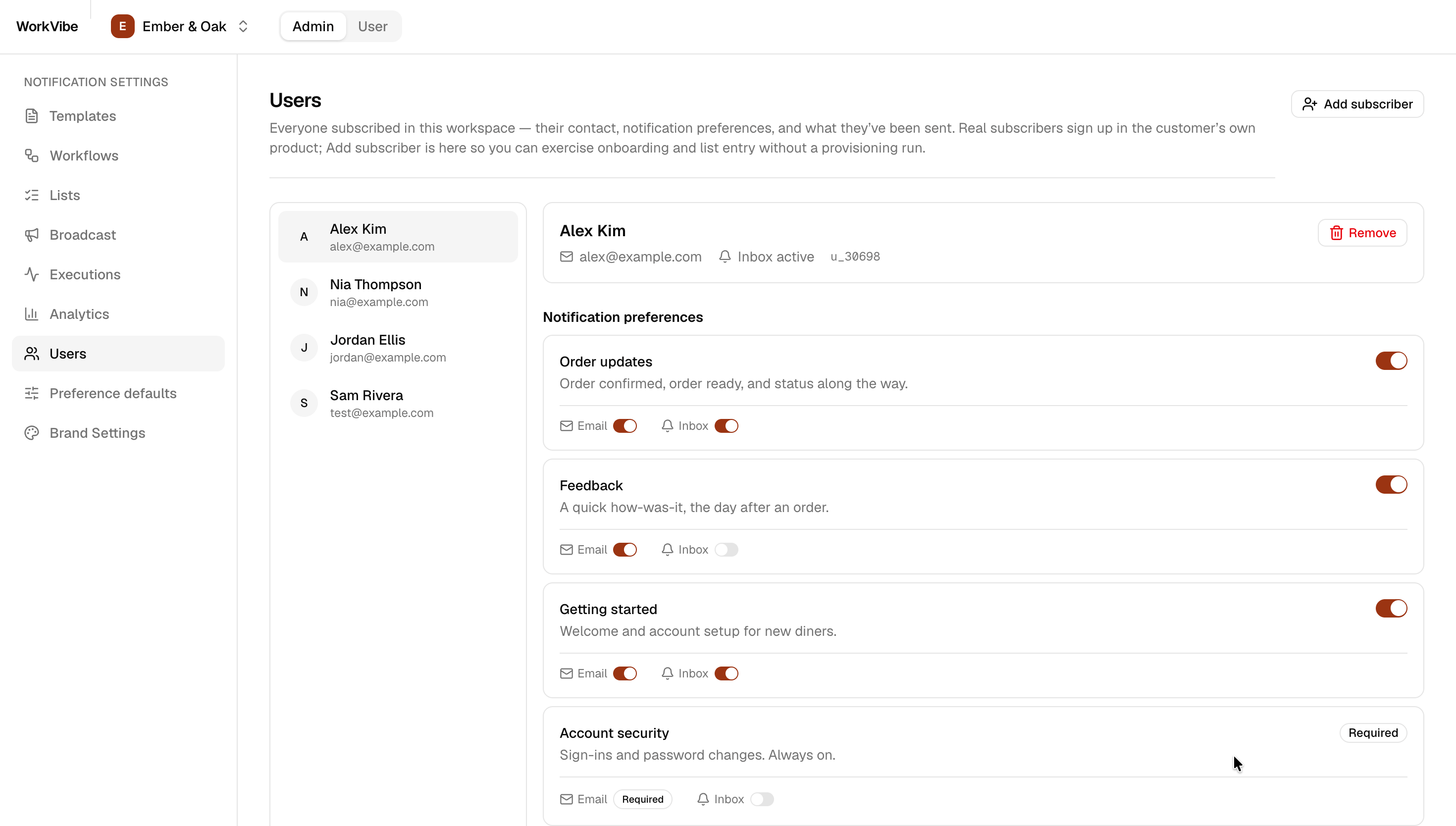
Each diner is a user, identified by adistinct_id, with $email and $inbox channel identities, living in exactly one workspace. WorkVibe upserts each one through the users API:
3. Notification Categories
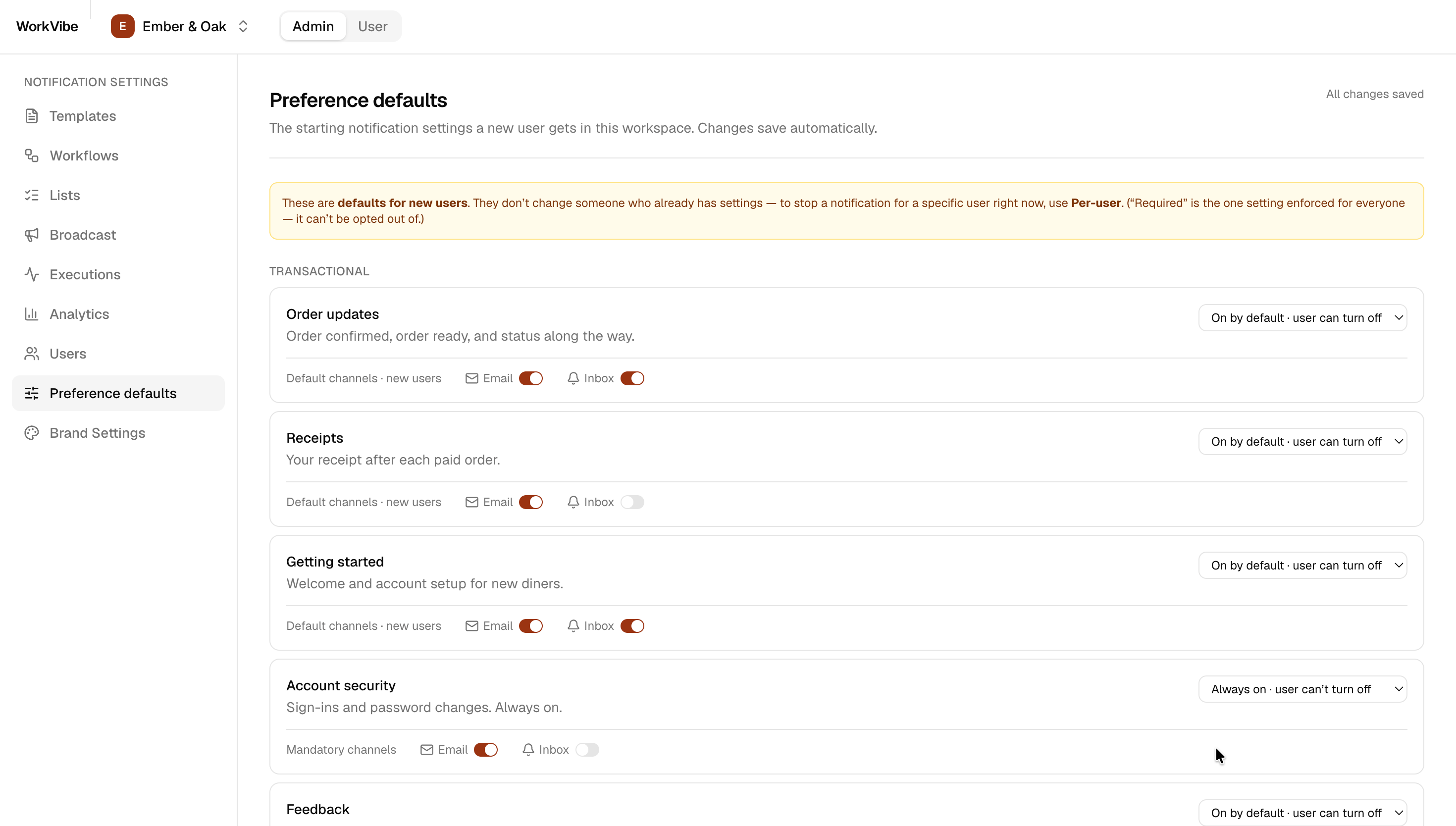
Every WorkVibe notification belongs to a notification category — the tree that holds one customer’s notification settings, inside that customer’s workspace. It has three levels, and only the bottom one carries preferences:- Root — System, Transactional, or Promotional. Fixed. Which root a notification sits under matters: a promotional category must be one a user can switch off, and only a promotional category can carry a broadcast.
- Section — an optional grouping for the preference page. Carries no settings.
- Sub-category — one per notification type. This is what a diner opts in and out of, and where the customer’s defaults live. Every workflow sends under one sub-category, and several workflows can share the same one.
- Default preference — On, Off, or Can’t Unsubscribe. Both chains set
account-securityto Can’t Unsubscribe, so a sign-in alert always goes out. - Default channels — email and in-app inbox, per category.
4. Preferences
A preference decides whether a diner receives a notification for a category, and on which channels. Two layers set it, both inside that customer’s workspace.Customer-wide default
The customer’s admin, for all their diners. Set through the Create/update category API.
User preference
The diner, from the preference centre in the chain’s own product. An admin can also adjust one diner’s settings. Set through the User preference API.
User preference → falls back to Customer-wide default.
In WorkVibe both layers set two controls, whether it’s sent and on which channels; a category can also carry a digest cadence and condition properties, covered in managing notification categories.
If a workspace does use tenants, a tenant layer sits between the two — preference evaluation covers the full resolution order.
Expose Preferences to Diners within WorkVibe App
WorkVibe builds its own preference-centre UI on the user preference API, authenticated with a signed user token (see credentials). Prebuilt and headless preference components and a hosted preference centre are also available to help you go live quickly.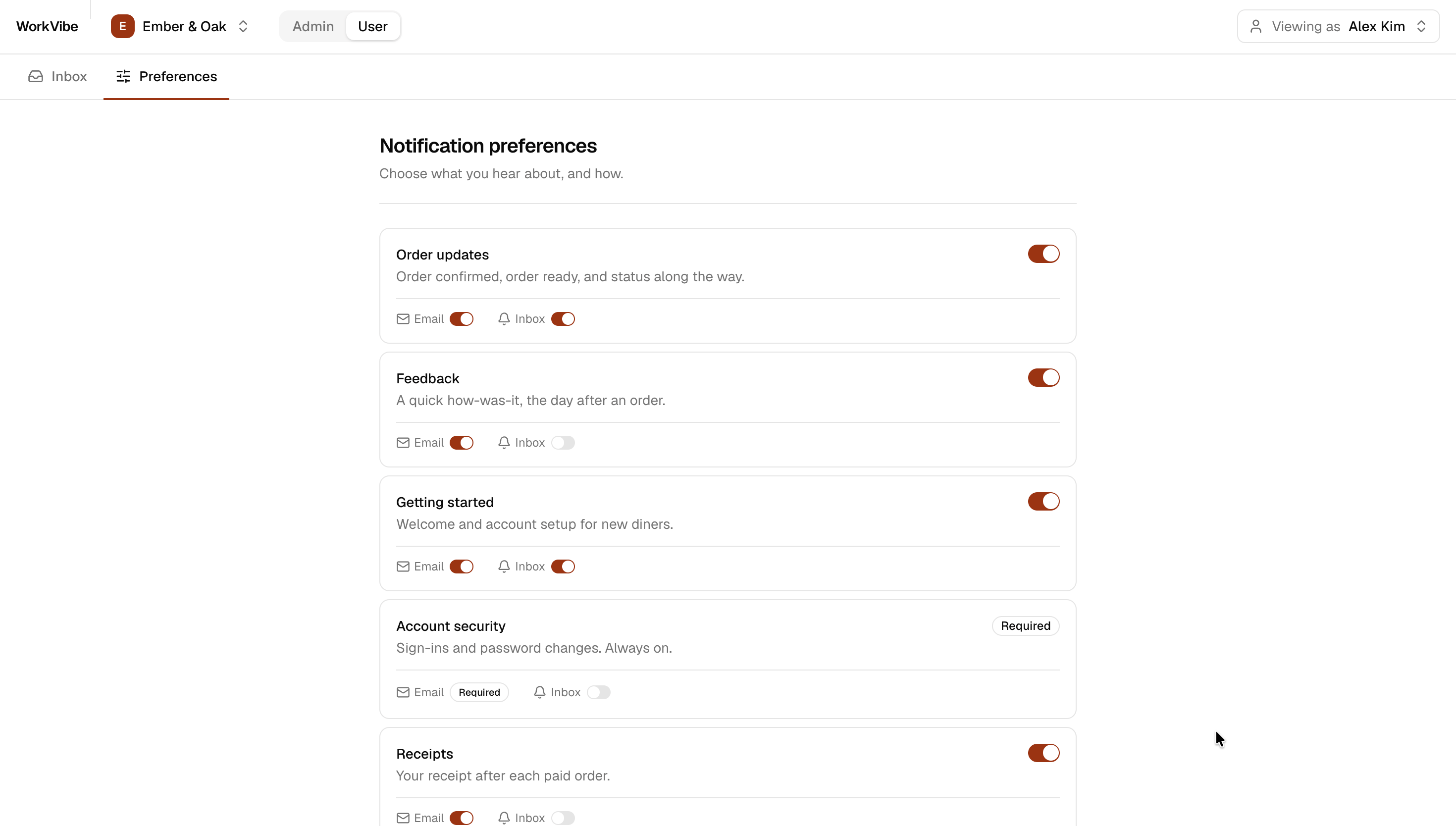
5. Templates
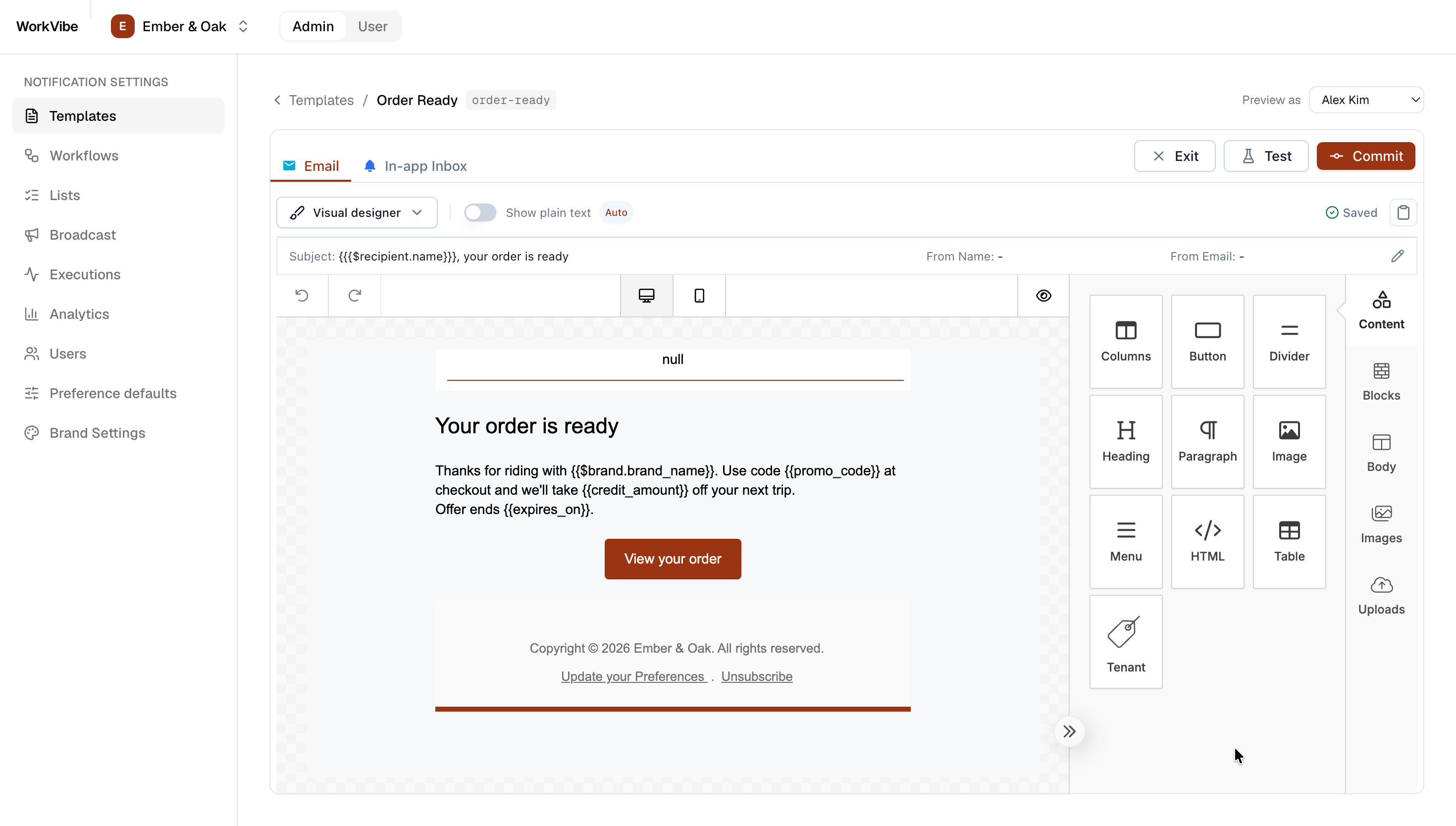
A template holds the message content for each channel — email, inbox, SMS, WhatsApp, Slack. Templates use Handlebars, and variables can come from three places:default tenant, and {{$tenant.*}} resolves to them. WorkVibe’s Brand Settings screen writes to that tenant (tenant profile).
Templates are created and updated per workspace — in the dashboard’s visual editor or with the In-product Agent, or through the Templates Management API in WorkVibe.
Expose Templates to Admins within WorkVibe App
WorkVibe lets each customer’s admins edit their own templates with the embedded@suprsend/react-editor, authenticated with a JWT scoped to that workspace. Because the customer already has its own workspace, an admin edits the template directly — the master version, with no tenant-scoped variant.
With customers modelled as tenants, the
default tenant’s branding applies to every template. Where a customer needs different content, that change is stored as a tenant variant rather than edited on the master.6. Workflows
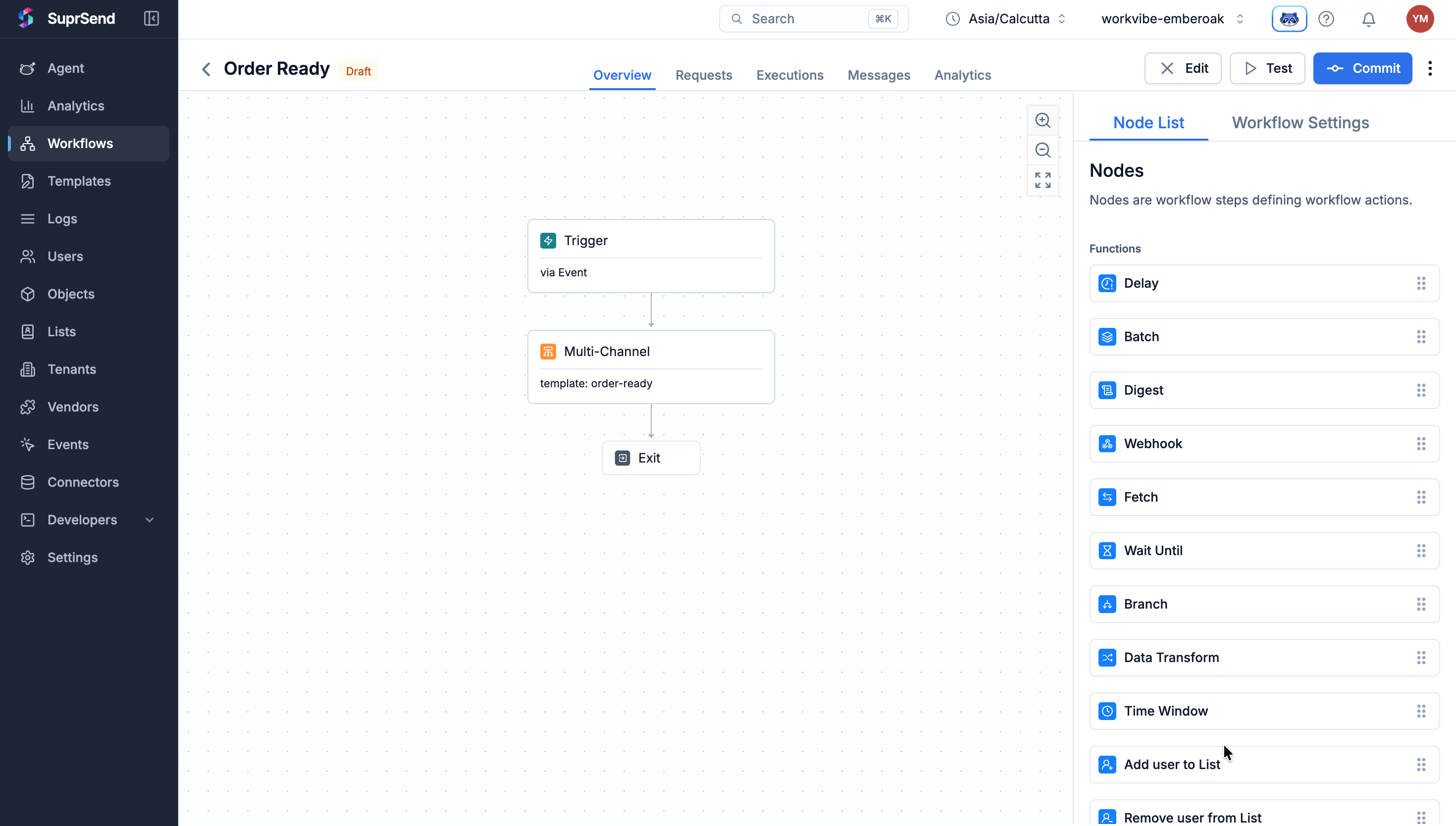
A workflow is the orchestration layer — the sequence of sends, waits, delays, and branches. Each has a unique slug, a linked category (for preference evaluation), and linked templates per channel. A workflow starts one of three ways, and the trigger decides what its templates can render from:
WorkVibe uses all three: the welcome runs on list entry, and order updates, receipts and sign-in alerts run on events the app tracks. Both chains share those, and each adds its own on top (see the architecture overview). WorkVibe authors and publishes them with the Workflows Management API; see triggering a workflow and event vs workflow API for choosing between them.
7. Vendors
Delivery vendors — email, SMS, Slack, push — are configured per workspace, so each customer sends through its own providers and sender identities. Ember & Oak’s mail goes out from Ember & Oak, with its own sending reputation, separate from Nolan’s Pizza’s.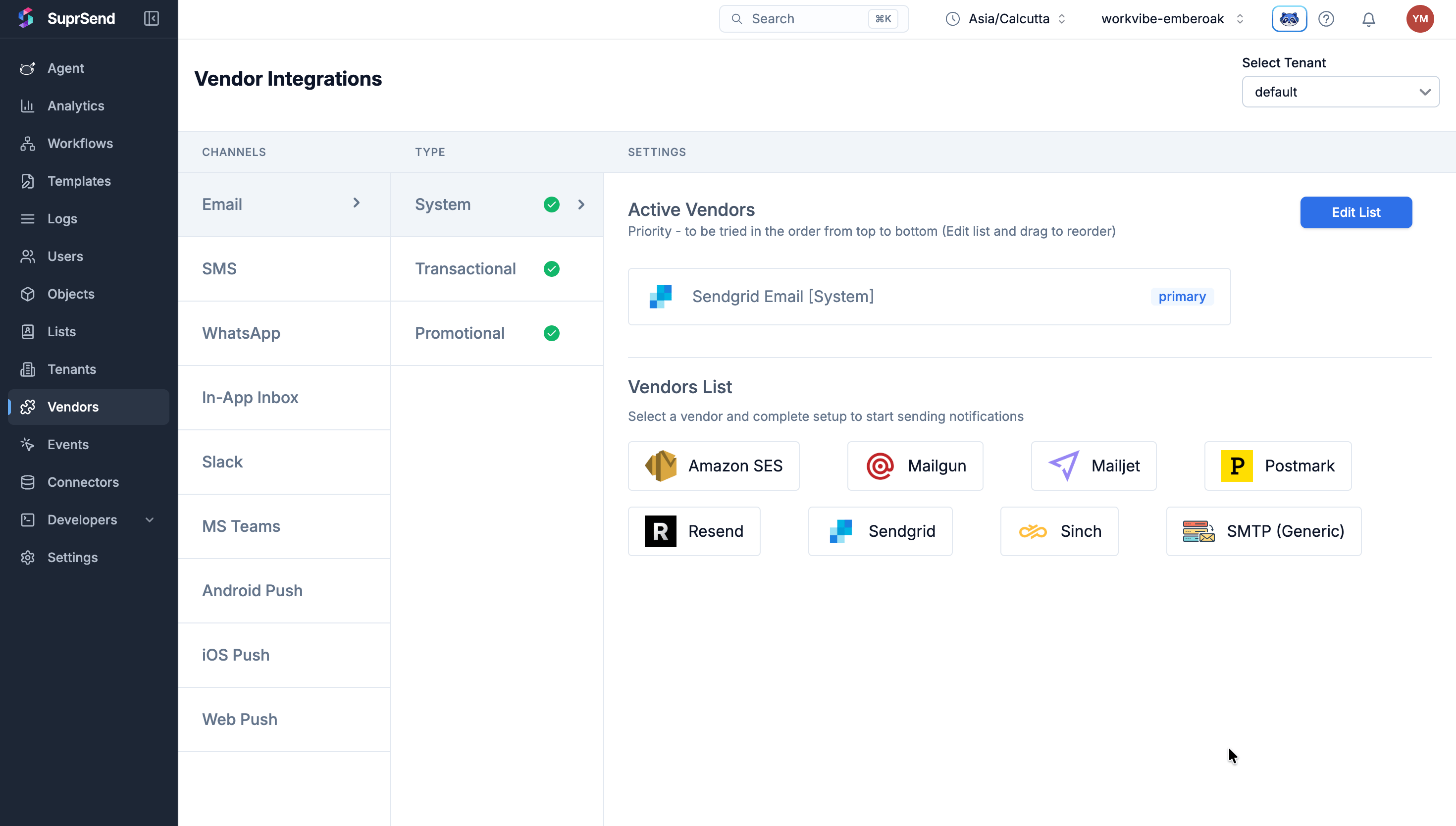
With customers modelled as tenants, the workspace’s vendor sends for every tenant, and a trigger passes only a
tenant_id. A customer that needs its own sending identity gets a tenant vendor override; without one, the workspace’s vendor is used.8. Lists
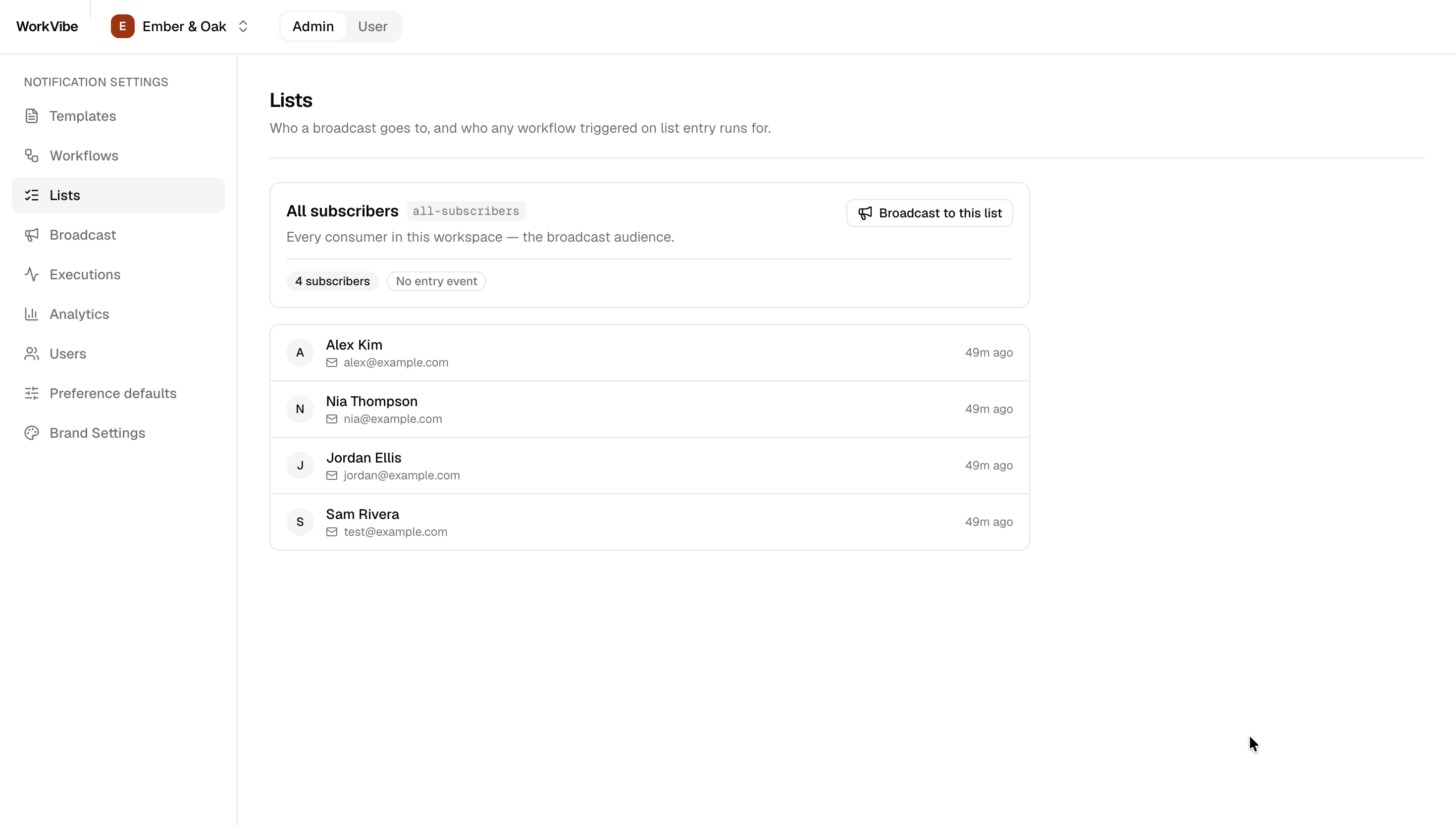
A list groups users inside one workspace. A user joining or leaving it can start a workflow, and a list is the audience a broadcast fans out to. WorkVibe keeps oneall-subscribers list per workspace, and every diner joins it on signup (add a user to a list). Joining is what sends the welcome — the list entry trigger described in Workflows. The same list is the audience for a broadcast, next.
To reach a subset instead — for example diners near one location or those who ordered in the last month — use a segment list.
9. Broadcast
A broadcast sends one template to every member of a list. A broadcast is triggered through the broadcast API in WorkVibe, naming the list, the template and the category.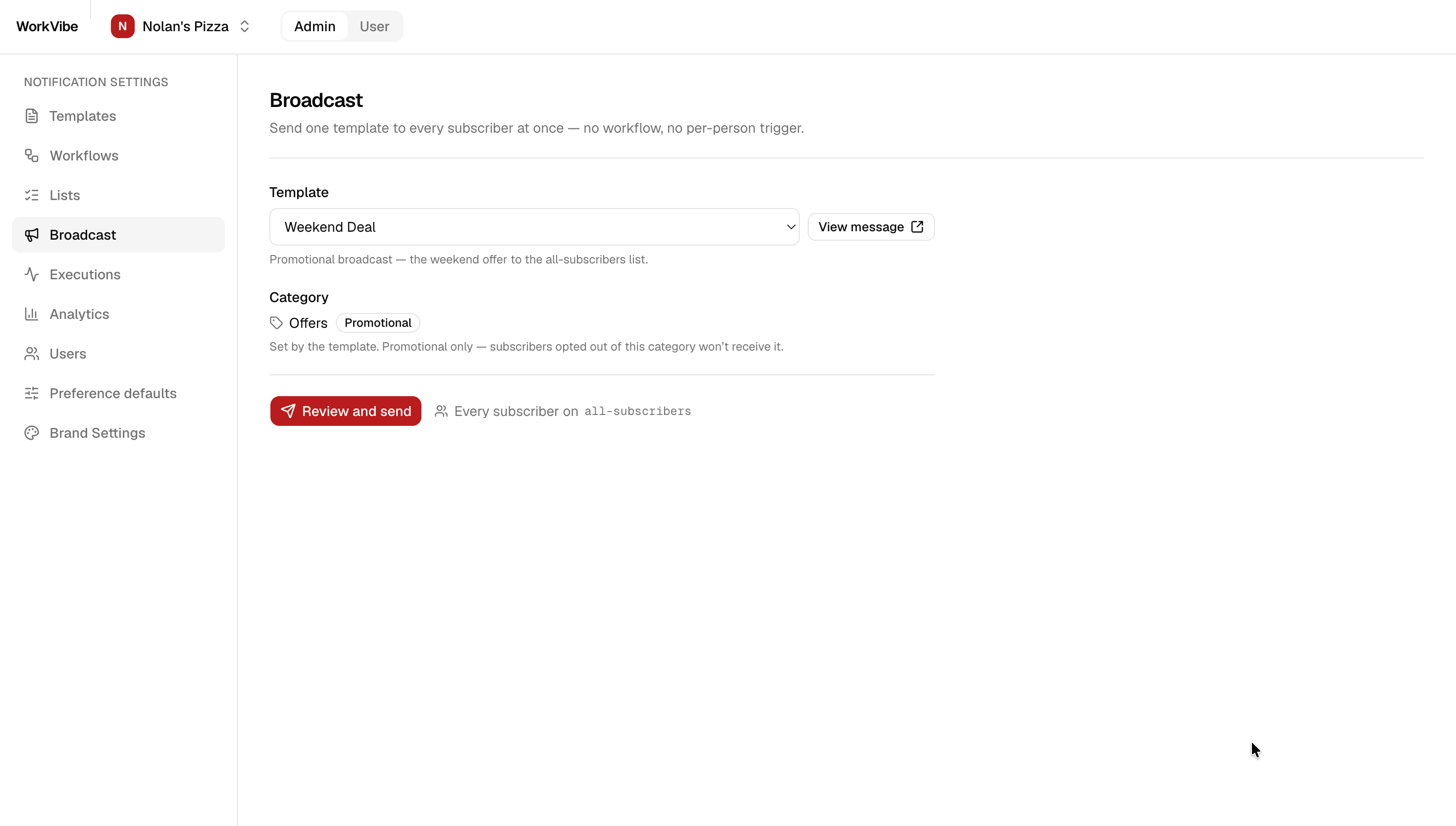
A broadcast should go out on a promotional category. On a transactional or system category it can delay that category’s other messages.
Managing Customers
Every customer’s workspace starts from the same set — five workflows, their templates, four categories. This section covers how you keep that set consistent and roll changes out to every customer.Where the defaults live
WorkVibe keeps the shared default set in version control and publishes it into a workspace through the Management API. If your defaults aren’t in version control, keep them in a workspace of your own and copy them out with
suprsend sync.Onboarding a customer
A new customer is a new workspace, seeded with that default set. Two things never come from it — the customer’s brand (on its
default tenant) and its vendor — so both are set in the new workspace, along with any category defaults this customer wants changed.Adding a notification later
A new default reaches every customer’s workspace the same way the first set did. What a customer’s admins have edited lives only in their own workspace, so a later publish covers the assets you own and leaves theirs alone.
Staging and production
A customer that wants a staging environment gets a second workspace with Test Mode on, which holds delivery back from real people. Nothing else separates the two.
With customers modelled as tenants, onboarding is creating a tenant — set its branding, the workspace’s defaults apply on their own, and you pass its
tenant_id at trigger time. There is one workspace to publish into rather than one per customer.suprsend sync → | Management API → | Test Mode →
End-to-End Notification Flow
Once the setup is complete (workspaces, categories, templates, workflows, vendors, and lists), workflows can be triggered to send notifications. Take an order at Ember & Oak: the diner should hear the moment it’s ready to collect, on the channels they’ve kept switched on.1
Track the event
WorkVibe tracks the event using Ember & Oak’s workspace credentials. The workspace credentials are what pick the customer — nothing else in the payload identifies the chain.Key fields:
- distinct_id: The diner receiving the notification
- event: The event name that a workflow is linked to
- properties: Data variables available to the template as
{{property}}
2
Match the workflow and category
SuprSend looks up the workflow linked to
ORDER_READY in this workspace, then resolves that workflow’s category (order-updates).3
Apply the diner's preferences
SuprSend evaluates the two preference layers for
order-updates:- User preference — whichever the diner chose in the preference centre
- Customer-wide default — the fallback set on the category by Ember & Oak’s admin
4
Render the template
The template is rendered with three sources of variables: the event
properties, {{$recipient.*}} from the user record, and {{$tenant.*}} from the workspace’s default tenant — so Ember & Oak’s logo and colours appear on the message.5
Deliver via the workspace's vendor
The rendered message goes out through Ember & Oak’s email vendor. Sending reputation stays with Ember & Oak; Nolan’s Pizza’s vendor and reputation are never touched.
6
Log the send
The delivery is logged in Ember & Oak’s workspace only — visible on its Executions and Analytics screens, and nowhere else.
default tenant paints the message.
When This Model Fits
Give a customer its own workspace when what it sends is genuinely its own:Data cannot be pooled
User records, logs and analytics sit behind separate credentials — the usual requirement when your customers are banks, lenders or health providers, or when a contract says so.
Sending identity is separate
Each customer sends through its own vendor account, so one customer’s bounce and spam history never touches another’s.
Admins own their content
Customer admins edit their own templates and defaults directly, with no shared master to diverge from.
Customers diverge over time
Every customer starts from the same default set, then adds its own workflows and categories on its own schedule — and those additions never reach anyone else.
- If your customers mostly send the same notifications and differ only in branding and preferences, model each as a tenant in one shared workspace — the tenants vs workspaces overview compares the two.
- If your product notifies your customer’s own employees rather than its end users, see Designing notifications for multi-tenant B2B applications.
Reference: Credentials and APIs
WorkVibe talks to SuprSend across four surfaces. Secrets stay server-side; the two browser SDKs only ever receive a short-lived JWT minted by the backend.Credentials
The frontend embeds authenticate the user with a signed user token the backend mints with the workspace’s signing key (see client authentication). WorkVibe keys each workspace’s credentials by its slug — for example
SUPRSEND_WORKVIBE_EMBEROAK_WORKSPACE_KEY.
Node SDK and Hub REST — per-workspace credentials
Onhub.suprsend.com. SuprSend ships backend SDKs for Java, Python, Node, and Go; WorkVibe uses the Node SDK (@suprsend/node-sdk). Preferences and list membership are the exceptions — the SDK has no methods for them, so WorkVibe calls Hub REST directly.
Management API — account Service Token
Onmanagement-api.suprsend.com, with the workspace as a path segment (/v1/{workspace}/... or /v2/{workspace}/...).
Workspace key generation runs on the same Service Token but is not used — those credentials are read from the dashboard.