
When to use variants
Multi-tenant
Each tenant’s users see their own branding - logos, colours, copy. One template serves all tenants.
Multi-lingual
One variant per language. SuprSend auto-selects based on the recipient’s preferred language. See Multi-lingual Templates.
Payload-based
Different content based on trigger data — for example,
plan == "pro" gets a premium message.A/B testing
Different copy to different segments. Compare in Analytics. Needs manual maintenance - use for specific hypotheses, not as a default.
Create a variant
Click the + button next to “All Variants” in the left panel. You’ll see two options:
Add New Channel or New Variant
Add a new channel
Select New Channel to add a channel to the template (for example, add SMS to a template that only had Email). Pick the channels and click Add Channels.
Select channels to add
Add a new variant
Select New Variant to create a variant with conditions for an existing channel.
Create Variant modal
uber-en, acme-es, pro-users. (Required)
Locale - the language for this variant. (Required)
Tenant - scope to a specific tenant. Leave blank for non-tenant variants.
Conditions - rules that determine when this variant is sent. Each condition has a Data Type (Recipient, Actor, Tenant, or Input Payload), Property, Operator, and Value. Combine conditions with + AND and + OR.
Edit a variant
Click any variant in the left panel to open it. You’re always editing the draft - the live version is untouched until you commit.- Edit content - write directly in the channel editor. Content auto-saves.
- Edit conditions - click the three-dot menu on the variant and select Edit Variant to change its locale, tenant, or conditions after creation. The ID can’t be changed.
- Import content - use the Import button to copy content from another variant or template instead of starting from scratch. See Import content.
Commit
Click Commit to publish. The modal shows all changes - you can deselect specific variants you’re not ready to publish.
Commit modal - review changes before publishing
How selection works at send time
When a notification is triggered, SuprSend evaluates all non-default variants in the order they appear in the panel. The first one whose conditions all match is sent. If no variant matches, the default (always at the top) is sent as the fallback.- A variant matches when every condition in at least one OR group is true - partial matches are skipped.
- Tenant and locale are soft checks with fallback. Locale is resolved first (exact locale → base language →
en); within each language, the tenant’s variants are used if the tenant has any in that language, otherwise non-tenant variants. The default variant is the final fallback. - All other conditions (like
$recipient.plan == "pro") are hard checks - no fallback, the variant is just skipped.
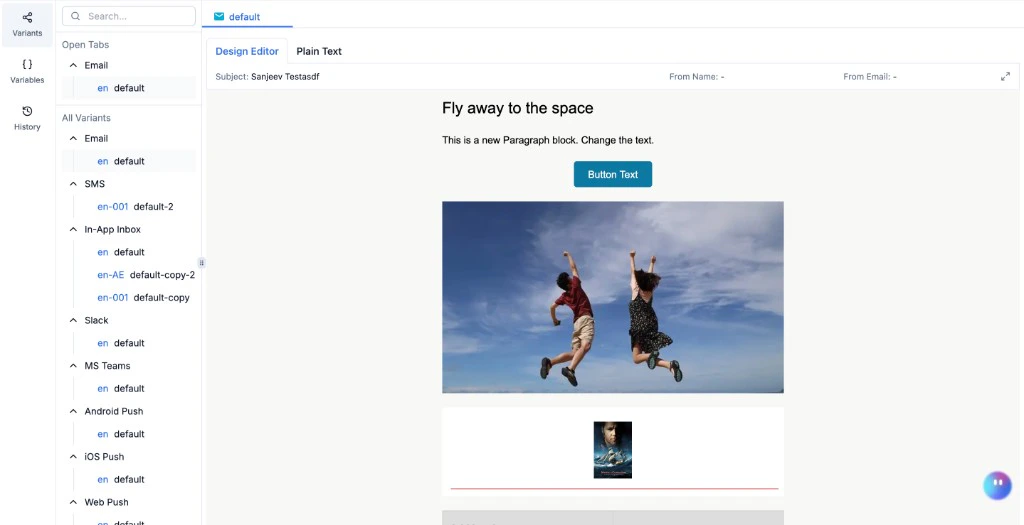
Variants panel - all variants grouped by channel
Ordering variants
Order determines priority. If two variants both match a recipient’s data, the one higher in the list wins. You can drag and drop variants to change their position.- The default variant always stays at the top - it’s the fallback and cannot be moved. No other variant can be placed above it.
- All other variants can be freely reordered by dragging.
- Place more specific variants (for example,
uber-es) above general ones (for example,default-es) to ensure they match first.
Testing variant selection
To verify the right variant is being picked for a specific condition, test the full template group - not a single variant. Testing a single variant sends that variant’s content directly (bypassing conditions). Testing the template group runs the actual selection logic:- Click Test → select the Template Group tab.
- Enter a Recipient whose profile matches the condition you want to test.
- Select a Tenant if your variant has a tenant condition.
- Click Send Test - SuprSend evaluates all variant conditions and sends the matching one.
- Check Logs to confirm which variant was selected.
Duplicate, delete, and disable
Duplicate a variant
Click the three-dot menu on any variant to duplicate it. The content is copied into a new variant - adjust the ID and conditions.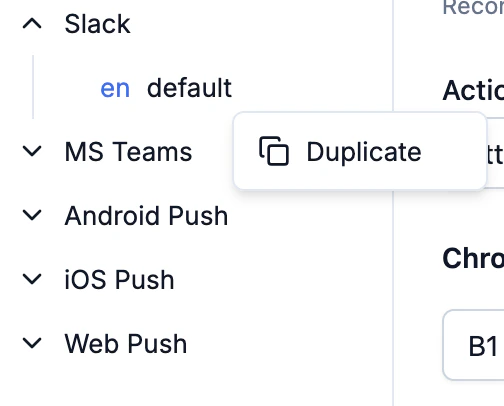
Duplicate a variant
Delete a variant
Click the three-dot menu on a variant and select Delete. This permanently removes the variant and its content. The default variant cannot be deleted.Disable a channel
Click the three-dot menu on a channel name (not a variant) to disable it. Notifications stop on that channel once you commit, and the content is preserved. Re-enable anytime without losing work.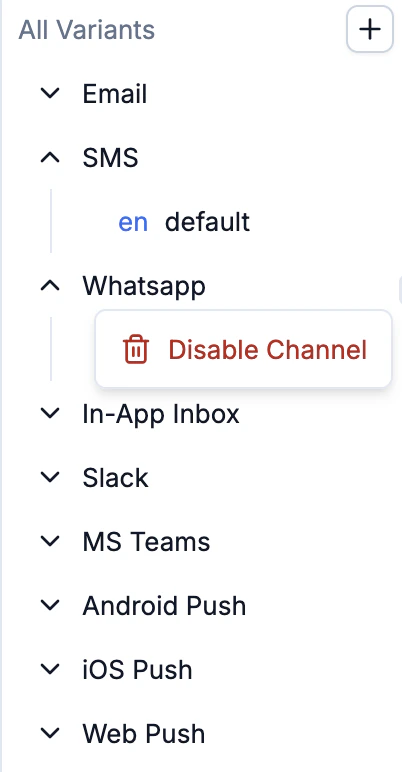
Disable a channel - content is preserved
Common patterns
One template, many tenants - create a variant per tenant using a$tenant.id condition. Default is the fallback for tenants without a custom variant. Onboarding a new tenant = a template edit, no code change.
Tenant + language - combine conditions: $tenant.id = acme + $recipient.language = fr. Place these above language-only variants so they match first.
A/B testing — create a variant targeting a subset (for example, $recipient.cohort = beta). Compare metrics. To promote: widen the conditions or update the default. To end: delete the challenger.
After setting up any pattern, test with a specific tenant and recipient to verify the right variant is picked.
Frequently asked questions
What happens if no variant matches?
What happens if no variant matches?
The default variant is sent. It cannot be deleted and always acts as the fallback.
Can I have different variants per channel?
Can I have different variants per channel?
Yes. Variants are per-channel - you can have 3 for Email, 1 for SMS, and just the default for Push. Each channel is evaluated independently.
How do I test which variant gets picked?
How do I test which variant gets picked?
Click Test in the editor, enter a recipient, select a tenant, and send. The variant whose conditions match is used. Check Logs to confirm.
What's the difference between soft and hard conditions?
What's the difference between soft and hard conditions?
Soft (tenant, locale): SuprSend falls back through a hierarchy if no exact match exists. Hard (everything else): no fallback - the variant is skipped if the condition doesn’t match.
Can I reorder variants?
Can I reorder variants?
Yes. Drag them up or down in the panel. The default always stays at the top and cannot be moved.