
Step 1 - Create a template
You can create a template from the Templates page or directly from a workflow delivery node. On the workflow canvas, click the delivery node and select Create Template and to create from Templates page, click + New Template button. Both options open the same template creation modal.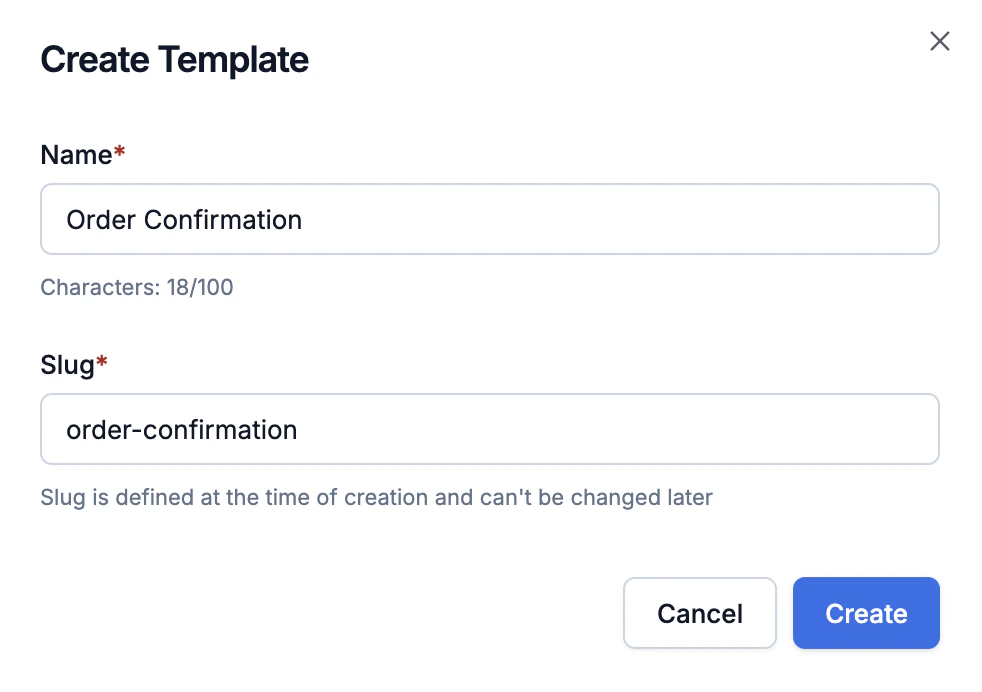
Create Template - Name and Slug
Step 2 - Pick your channels
Select the channels you want to send on - for example, Email and SMS. You can always add more channels later by clicking the + tab in the editor.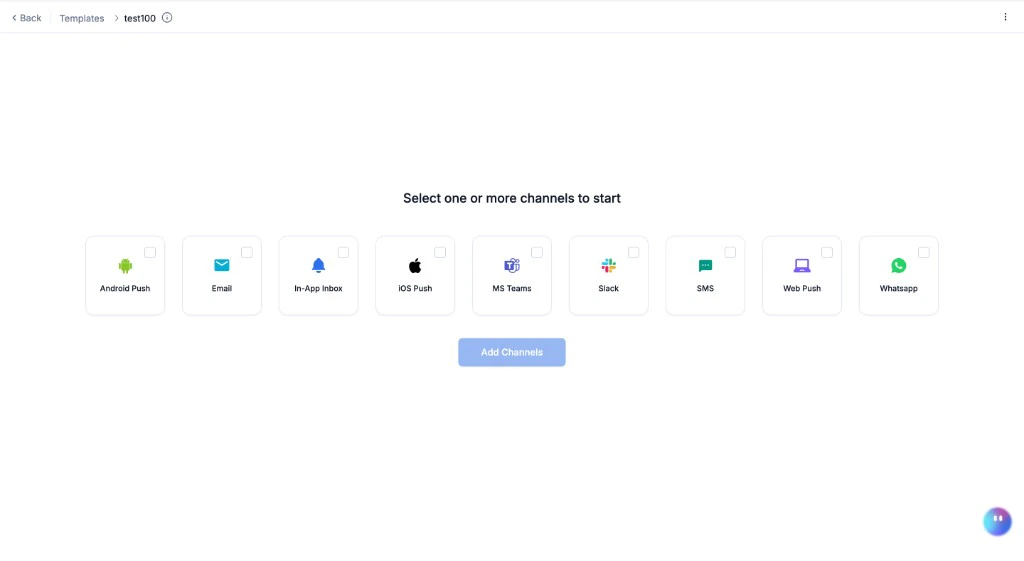
Select channels
Step 3 - Write your content
The editor opens on your first channel. Each channel has its own editor with a live preview on the right except Email designer. Here, the preview opens by clicking on eye icon on the bottom left side options. If you’re editing an existing template, click Edit first - templates open in read-only view mode by default. Add your static text, then add variables for personalization. Variables are placeholders like{{order_id}} or {{$recipient.name}} that get replaced with real data when the notification is sent.
For example, an SMS body might look like:
{{double braces}} for regular values and {{{triple braces}}} for URLs or variables where you want to avoid HTML rendering (for example links or values with special characters: ', &, ?, =, etc.)
Switch between channel tabs to write content for each channel. Each channel’s editor is different - see the channel editor guides for details.
Step 4 - Set up your variables
Before variables render in the preview, you need to add sample data. Open the Variables panel ({} icon in the left sidebar).
Input Payload - paste a sample JSON matching what your workflow trigger sends:
$recipient.
Tenant - if you’re using tenants, select one to load its branding ($tenant.name, $tenant.logo, etc.).
Once your data is set up, variables in the editor render in the live preview instantly. Type {{ in any field to get auto-suggestions.
For the full variable reference, see Adding dynamic content.
Step 5 - Preview
The live preview on the right updates as you type. Check each channel tab to make sure the content looks right. Select different Recipients and Tenants in the Variables panel to see how the template renders for different users and brands.Step 6 - Commit
Click Commit in the top bar to publish your template. This creates a live version - all future workflow triggers that reference this template’s slug will use this content.Editing always works on a draft. Live notifications are never affected until you commit. You can exit and come back - your draft is saved.
Step 7 - Test
Send a real notification to verify everything works end-to-end.1
Create a test user (if you don't have one)
You need a user with at least one channel identity (email address, phone number, or device token). Create one from the Users page, via API, or ask Agent in the dashboard.
2
Click Test
Click the Test button in the top-right corner. Enter your test user, pick the channels to test, and click Send Test.You can test a single channel or all channels at once - the “Template Group” tab sends on every enabled channel simultaneously.
3
Check Logs
Go to Logs to confirm delivery. If a variable was missing or a channel failed, the error shows up here.
Step 8 - Use in a workflow
Your template is ready. Reference it in a workflow delivery node by its slug. Every time the workflow triggers for a user, SuprSend renders the template with the trigger payload and sends it on the enabled channels. Copy the slug from the clipboard icon next to the template name.Key concepts
One template, all channels - you don’t need a separate template for Email, SMS, and Push. Add all channels to one template. When the workflow triggers, SuprSend sends on every enabled channel - one API call, multiple channels. Draft vs Live - editing always works on a draft. Live notifications are unaffected until you commit. You can exit without committing and your draft is preserved. Variables - personalize with{{$recipient.name}}, {{order_id}}, {{$tenant.name}}, etc. Two templating languages: Handlebars (Email, SMS, WhatsApp, Push, Inbox) and JSONNET (Slack, MS Teams).
Variants - need different content for different languages, tenants, or segments? Use variants instead of creating separate templates.
Versions - every commit creates a new version. Roll back to any previous version from the History tab.
Channel editors
Each channel has a dedicated editor. See the guide for your channel:Designer, HTML, or plain text.
SMS
Single text field. DLT for India.
Header, body, footer, buttons.
Android Push
Title, body, image, buttons.
iOS Push
Title, body, image, action URL.
Web Push
Title, body, image, buttons.
In-App Inbox
Cards with avatar, buttons, expiry.
Slack
Text or Block Kit (JSONNET).
MS Teams
Markdown or Adaptive Card (JSONNET).