
Template
A template holds the content of your notification. One template covers every channel you send on — email, SMS, push, inbox, etc. — each with its own editor. Which of those channels actually send is decided in your workflow, not here. Wherever the content changes from one notification to the next, you write a variable:$recipient— the user receiving the notification. SuprSend fills this from their profile.order_id— a key you name yourself. It arrives in the payload you send when you trigger the workflow.
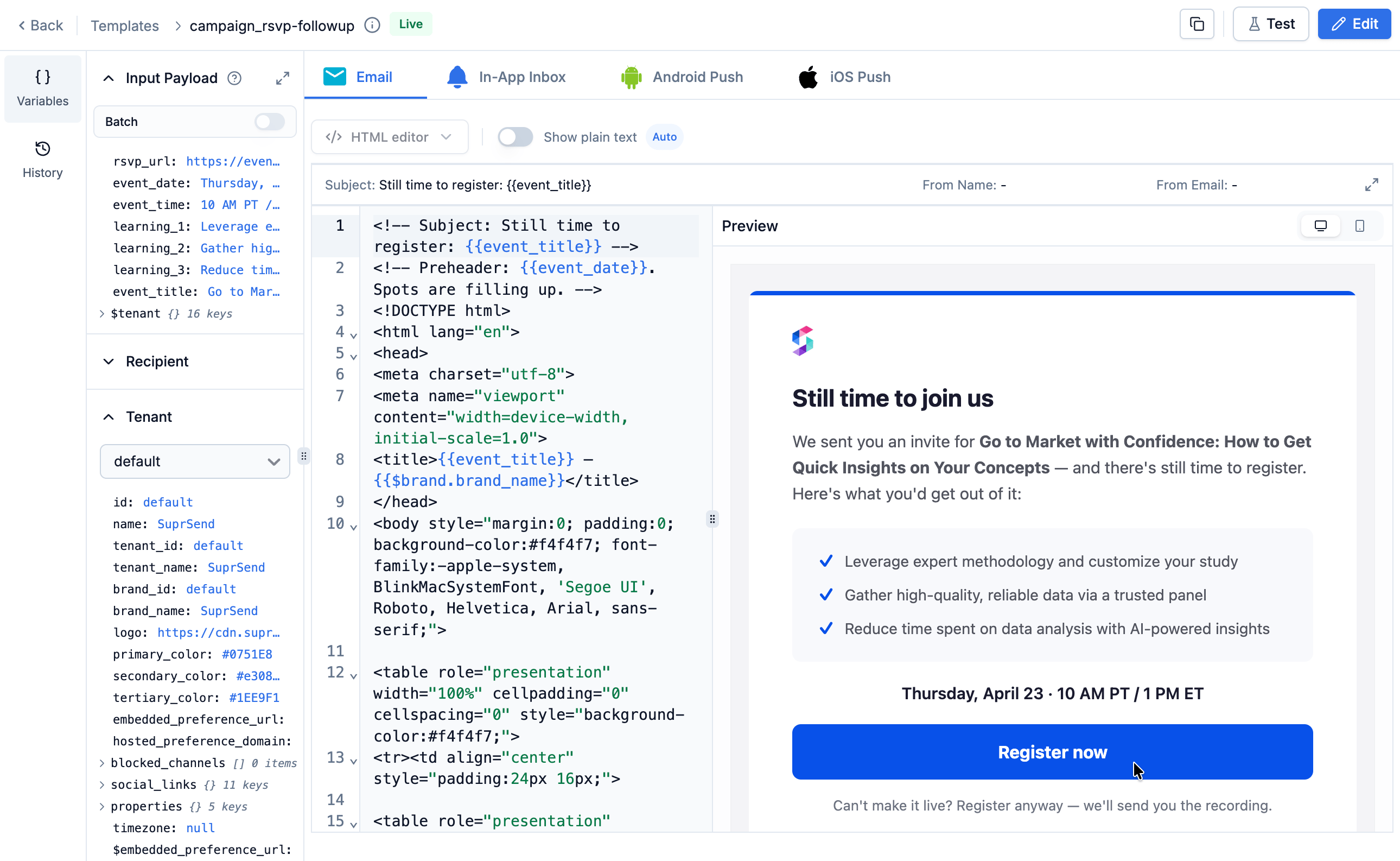
Template editor with channel tabs and the variables panel
User
A user is whoever receives the notification. SuprSend identifies each one by adistinct_id — the user ID from your own database.
Their profile holds two things: the channel identities that reach them — email address, phone number, push token — and properties you set yourself, like plan or timezone.
A channel only sends if the user has an identity for it. Your template can carry both email and SMS content, but a user with no phone number on file gets the email alone.
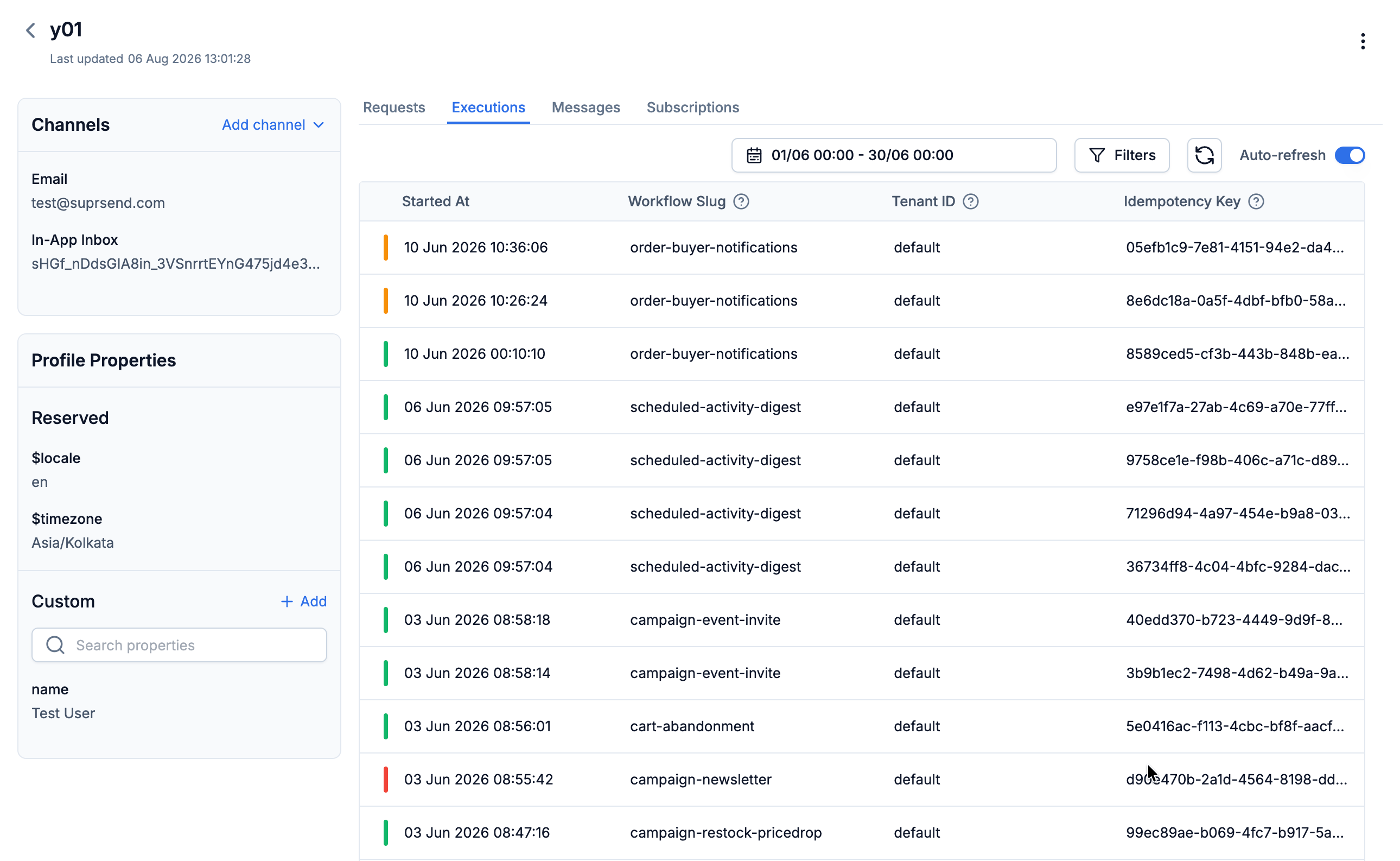
User profile with channel identities and profile properties
Workflow
A workflow holds the logic your notification runs through — when it goes out, on which channel, whether it waits for a condition to hold true first, etc. Every workflow needs a trigger node to start it and a delivery node to send, and the delivery node is where you name your template by slug. A delivery node sends on a channel only when all four are true:- The channel’s content is live in your template.
- The user has an active identity for that channel.
- The user has not opted out of that channel.
- A vendor is connected for that channel.
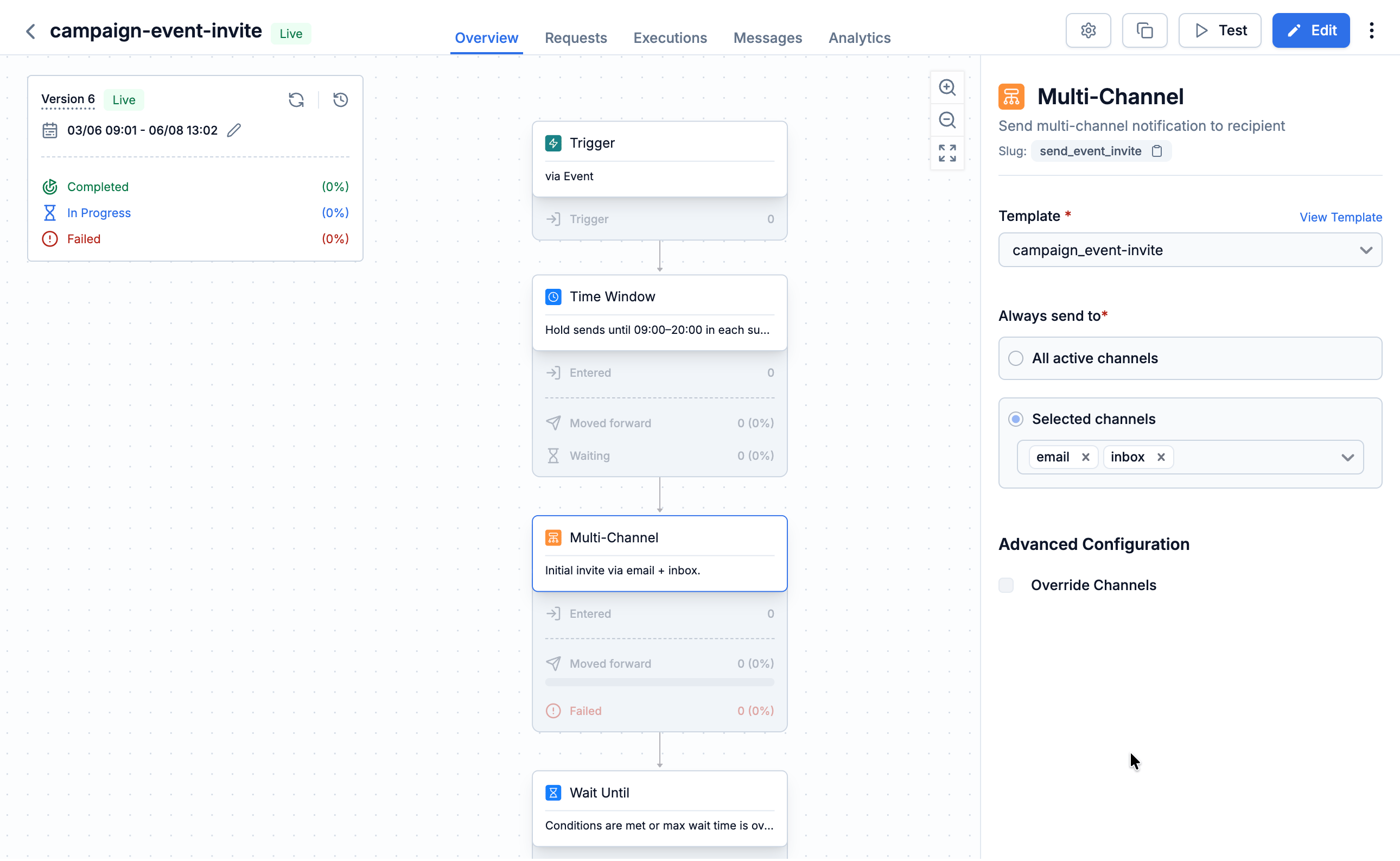
Workflow with a trigger node and a delivery node, showing the template it sends
Triggering a workflow
A workflow starts in one of three ways:- Event — your code sends what happened, like
order.shipped, plus the data your template needs. Every workflow linked to that event name runs. - Workflow API — your code calls one workflow by its slug, and passes the recipients and the data your template needs.
- List entry or exit — the workflow starts when a user joins or leaves a list.
Logs
Open the Logs tab to see what happened. A notification is logged at three stages:
A Completed workflow execution does not mean the message was delivered. Only the message log confirms that.
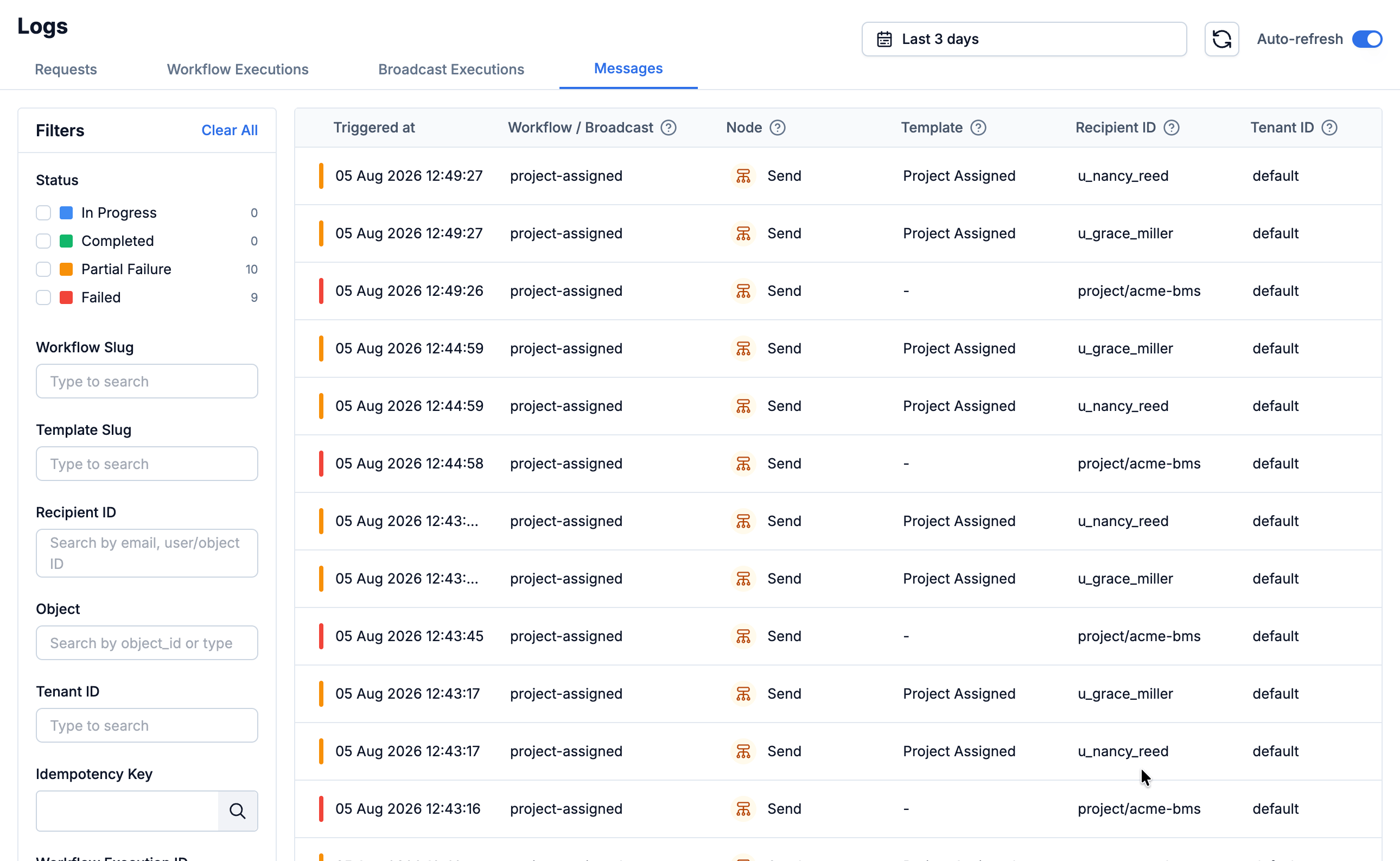
Message logs with delivery status for each message
Other concepts
Terms you’ll run into as soon as you go past a single send.Next steps
Send your first notification
Set up a template, a user, and a workflow end to end.
Design a workflow
Add delays, batching, and multi-channel delivery.