Creating a Tenant
MCP
Backend Code
SuprSend UI
With the SuprSend MCP server configured in your AI assistant (Claude, Cursor, etc.), just pass a simple prompt to create tenant:Create a tenant in staging workspace for my company with ID - `<company_id>`, pick name, logo, colors and social links from my website - `<website_url>`
The MCP server calls the upsert_suprsend_tenant tool under the hood to create the tenant. curl --request POST \

--url https://hub.suprsend.com/v1/tenant/acme-corp \
--header 'Authorization: Bearer __api_key__' \
--header 'accept: application/json' \
--header 'content-type: application/json' \
--data '{
"tenant_name": "Acme Corp",
"logo": "https://acme.com/logo.png",
"primary_color": "#0055ff",
"social_links": {
"website": "https://acme.com"
}
}'
from suprsend import Suprsend
supr_client = Suprsend("workspace_key", "workspace_secret")
response = supr_client.tenants.upsert("acme-corp", {
"tenant_name": "Acme Corp",
"logo": "https://acme.com/logo.png",
"primary_color": "#0055ff",
"social_links": {
"website": "https://acme.com"
}
})
print(response)
const { Suprsend } = require("@suprsend/node-sdk");
const supr_client = new Suprsend("workspace_key", "workspace_secret");
const response = supr_client.tenants.upsert("acme-corp", {
tenant_name: "Acme Corp",
logo: "https://acme.com/logo.png",
primary_color: "#0055ff",
social_links: {
website: "https://acme.com"
}
});
response.then((res) => console.log(res));
import org.json.JSONObject;
import suprsend.Suprsend;
import suprsend.SuprsendAPIException;
Suprsend suprsendClient = new Suprsend("workspace_key", "workspace_secret");
JSONObject payload = new JSONObject()
.put("tenant_name", "Acme Corp")
.put("logo", "https://acme.com/logo.png")
.put("primary_color", "#0055ff")
.put("social_links", new JSONObject()
.put("website", "https://acme.com")
)
;
JSONObject response = suprsendClient.tenants.upsert("acme-corp", payload);
System.out.println(response);
suprClient, _ := suprsend.NewClient("workspace_key", "workspace_secret")
tenantPayload := &suprsend.Tenant{
TenantName: suprsend.String("Acme Corp"),
Logo: suprsend.String("https://acme.com/logo.png"),
PrimaryColor: suprsend.String("#0055ff"),
}
res, err := suprClient.Tenants.Upsert(context.Background(), "acme-corp", tenantPayload)
if err != nil {
log.Fatalln(err)
}
log.Println(res)
upsert creates the tenant if it doesn’t exist, or updates it if it does. The Tenant ID cannot be changed after creation.
Select Tenants tab and create New Tenant
Select Tenants tab from the side navigation and click on New Tenant.
Enter a Tenant ID, generally the customer ID from your system and a Tenant Name, generally the company name, then confirm. Configure Properties
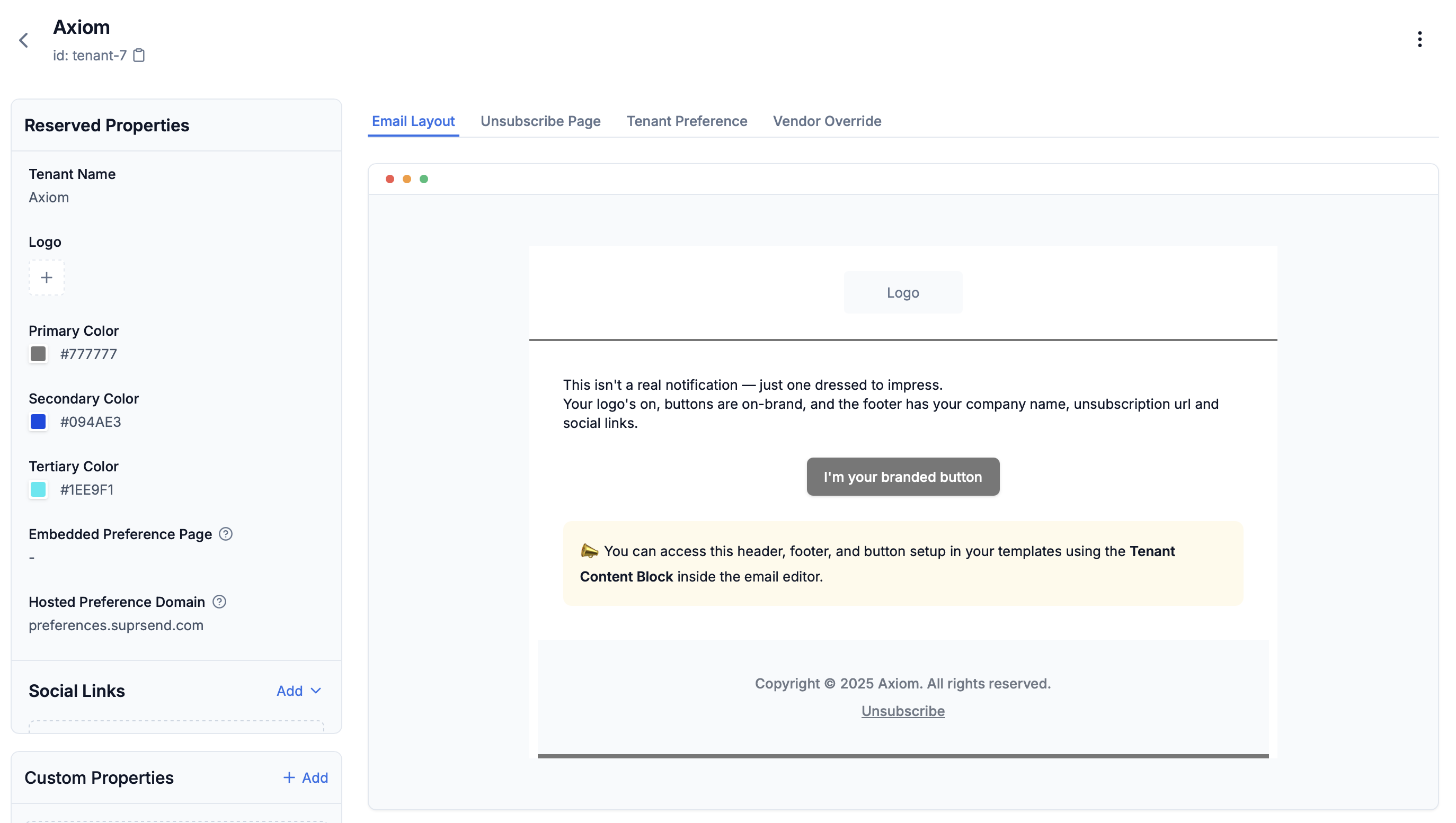
On the tenant details page, set the logo, colors, social links, or other properties (address, paid/free) that you might need in your template or workflow for customization.
Tenant Properties
| Field | Type | Description | Variable Syntax |
|---|
| Tenant ID | string (max 64 chars) | Unique identifier. Allowed: lowercase letters, numbers, hyphens, underscores ([a-z0-9_-]). Map to customer ID from your system. Cannot be changed after creation | |
| Tenant Name | string | Company or organization name | $tenant.brand_name (in workflow) / $brand.brand_name (in template) |
| Logo | image url (.png, .jpg, .jpeg) | Logo displayed in email header | $tenant.logo (in workflow) / $brand.logo (in template) |
| Primary Color | hex code | Used in buttons, headers, footer borders. Must be HEX values (for example, #ff0000). Falls back to default if not set | $tenant.primary_color (in workflow) / $brand.primary_color (in template) |
| Secondary Color | hex code | Additional color for customization. Must be HEX values (for example, #ff0000) | $tenant.secondary_color (in workflow) / $brand.secondary_color (in template) |
| Tertiary Color | hex code | Additional color for customization. Must be HEX values (for example, #ff0000) | $tenant.tertiary_color (in workflow) / $brand.tertiary_color (in template) |
| Social Links | URL | Social media URLs. Displayed in email footer | $tenant.social_links.website (in workflow) / $brand.social_links.website (in template) |
| Embedded Preference Page | URL | Unsubscribe page URL auto generated by SuprSend | $tenant.embedded_preference_url (in workflow) / $brand.embedded_preference_url (in template) |
| Hosted Preference Domain | URL | Preference page URL embedded inside your product to capture user preferences | $tenant.hosted_preference_domain (in workflow) / $brand.hosted_preference_domain (in template) |
| Custom Properties | JSON | Custom JSON metadata accessible via SDKs and APIs. Not directly available in templates. Ideal for storing metadata required for backend logic | $tenant.properties.<key> (in workflow) / $brand.properties.<key> (in template) |
Managing Existing Tenants
Go to Tenants from the side navigation, then click on any tenant to view and edit its details from UI.
Use below methods to manage tenants programmatically.
View a Tenant
curl --request GET \
--url 'https://hub.suprsend.com/v1/tenant/{tenant_id}' \
--header 'Authorization: Bearer __api_key__' \
--header 'accept: application/json'
tenant = supr_client.tenants.get("tenant_01")
print(tenant)
const tenant = await supr_client.tenants.get("tenant_01");
console.log(tenant);
JSONObject tenant = suprClient.tenants.get("tenant_01");
System.out.println(tenant);
tenant, err := suprClient.Tenants.Get(context.Background(), "tenant_01")
if err != nil {
log.Fatalln(err)
}
log.Println(tenant)
List Tenants
curl --request GET \
--url 'https://hub.suprsend.com/v1/tenant/?limit=20&offset=0' \
--header 'Authorization: Bearer __api_key__' \
--header 'accept: application/json'
tenants = supr_client.tenants.list()
print(tenants)
const tenants = await supr_client.tenants.list();
console.log(tenants);
JSONObject tenants = suprClient.tenants.list();
System.out.println(tenants);
tenants, err := suprClient.Tenants.List(context.Background())
if err != nil {
log.Fatalln(err)
}
log.Println(tenants)
Update a Tenant
curl --request POST \
--url https://hub.suprsend.com/v1/tenant/{tenant_id} \
--header 'Authorization: Bearer __api_key__' \
--header 'accept: application/json' \
--header 'content-type: application/json' \
--data '{
"tenant_name": "Updated Company Name",
"primary_color": "#00ff00"
}'
tenant_payload = {
"tenant_name": "Updated Company Name",
"primary_color": "#00ff00",
}
response = supr_client.tenants.upsert("tenant_01", tenant_payload)
print(response)
const tenant_payload = {
tenant_name: "Updated Company Name",
primary_color: "#00ff00",
};
const response = supr_client.tenants.upsert("tenant_01", tenant_payload);
response.then((res) => console.log("response", res));
import com.suprsend.Suprsend;
import com.suprsend.models.Tenant;
Suprsend suprClient = new Suprsend("workspace_key", "workspace_secret");
Tenant tenant = new Tenant()
.setTenantName("Updated Company Name")
.setPrimaryColor("#00ff00");
JSONObject response = suprClient.tenants.upsert("tenant_01", tenant);
System.out.println(response);
tenantPayload := &suprsend.Tenant{
TenantName: suprsend.String("Updated Company Name"),
PrimaryColor: suprsend.String("#00ff00"),
}
res, err := suprClient.Tenants.Upsert(context.Background(), "tenant_01", tenantPayload)
if err != nil {
log.Fatalln(err)
}
log.Println(res)
Tenant ID cannot be changed after creation.
Delete a Tenant
Deleting a tenant is irreversible and removes all associated properties. It does not delete historical notification logs.
curl --request DELETE \
--url https://hub.suprsend.com/v1/tenant/{tenant_id} \
--header 'Authorization: Bearer __api_key__' \
--header 'accept: application/json'
response = supr_client.tenants.delete("tenant_01")
print(response)
const response = await supr_client.tenants.delete("tenant_01");
console.log(response);
JSONObject response = suprClient.tenants.delete("tenant_01");
System.out.println(response);
err := suprClient.Tenants.Delete(context.Background(), "tenant_01")
if err != nil {
log.Fatalln(err)
}
Next Steps